


WoWmzon
- By
WoWmzon Settings.png
WoWmzon Craft Requests.png
Description
WoWmzon
Plan your crafting, price it, and buy the reagents — all in one window. It even works remotely from and Auction House Mount! You can now do all of your shopping right at the crafting table.
WoWmzon reads your professions, lets you build a shopping list of everything you want to craft, shows what you already have in your bags and banks, prices the rest from the Auction House, and can buy it for you. You can star your favorite recipes, and share recipes with guildmates and friends or anyone else with WoWmzon so everyone can see who can craft what.
Version 1.7.0 · Retail (Interface 120105)
---
Contents
Installation
First use
The main window
Favorites
Shopping operations
Sharing with your guild
Settings window
Slash commands
Troubleshooting
---
Installation
Unzip so the folder is exactly `World of Warcraft\_retail_\Interface\AddOns\WoWmzon`
(the `.toc` file must sit directly inside it: `...\AddOns\WoWmzon\WoWmzon.toc`).
If you used the older WoW_Shopping_Addon, delete that folder — the two must not load together.
Start the game (or type `/reload`) and make sure WoWmzon is ticked on the character-select AddOns screen.
You will see a green "WoWmzon loaded" message in chat and a small round gold button on your minimap.
Upgrading from "Wow Shopping Addon"
WoW saves data per addon folder, so your old recipes are not carried over automatically. Either:
Rescan — just open your professions again (see First use), or
Copy your old data — log out completely, then in
`World of Warcraft\_retail_\WTF\Account\<ACCOUNT NAME>\SavedVariables\`
copy `WoW_Shopping_Addon.lua` to `WoWmzon.lua` (only if no `WoWmzon.lua` exists yet). WoWmzon imports it on next login.
Upgrading between WoWmzon versions needs nothing special: replace the folder and `/reload`. Your saved data is kept.
---
First use (2 minutes)
Open WoWmzon — click the minimap button or type `/wowmzon`. It will say "No recipes yet". That's normal.
Scan your recipes — open each of your profession windows once (press K, or click the profession). WoWmzon saves every recipe, its reagents, and which ones you have learned. A chat message confirms how many were saved.
Do this on each alt you want included. Log in, open their professions. Every character you play is remembered.
Pick a recipe from the list on the left — the middle panel shows its reagents, what you have, and the cost.
Add it to the shopping list, then open the Auction House and click Update Prices.
Recipes stay saved between sessions; you only re-scan to pick up newly learned recipes.
---
The main window
Area What it does
Title bar — Settings Opens the Settings window: share recipes, information, remove a character, tools.
Left — Search & filters Type to search recipe names. The first dropdown filters by profession (or Favorites); the second by character ("Learned by …") so you only see what that character can craft. Click a recipe to select it; click the star on a row to favorite it.
Middle — Recipe Icon, name, a favorite star, profession, whether you know it and its difficulty color, and who has learned it. Below: every reagent as `have/need` (green = enough, red = short), the reagent cost, and "You can craft now: N" based on what you carry.
Right — Shopping List Combined reagents for everything on your list, minus what you own. Each row has a Buy button. The Prefer lower quality mats checkbox, the total, Update Prices and Clear are underneath.
Press Esc to close a window. Drag the title area to move it. The minimap button opens/closes the window on click and can be dragged around the minimap rim.
Which characters are yours
Your own characters are marked with a green dot in the character dropdown and in each recipe's Learned by line. Characters you imported from guildmates have no dot.
Tooltips
Hover any recipe or reagent for the real item tooltip. Reagents also show:
In your inventory — the count for each quality tier, split into bags vs. bank/warband bank.
Quality tiers (Auction House) — the saved price of each tier.
---
Favorites
Click the star next to a recipe — in the results list, or beside its name in the Recipe panel — to favorite it. Click it again to remove it.
Favorites are listed first in the results.
Choose Favorites at the top of the profession dropdown to see only your starred recipes.
Favorites survive `/wowmzon reset`. (They are removed automatically if the recipe disappears entirely, for example when you delete the only character who knew it.)
---
Shopping operations
Building the list
Select a recipe and click Add to Shopping List — adds 1 craft.
Use the [ - ] N [ + ] control beside it to set how many times you want to craft the selected recipe. Shift-click changes it by 5. At 0 the recipe leaves the list.
Repeat for as many recipes as you like. Reagents shared between recipes are combined into one row.
Clear (bottom right) empties the whole list.
Reading the list
Each row looks like:
`12 x Silverleaf (4/16) 1g 20s`
12 — how many you still need to buy (needed − owned).
(4/16) — you own 4 of 16 needed; it turns green once you have enough.
The price is the cost of what's left to buy, and To buy: at the bottom is the grand total.
Owned counts cover the character you're logged into: bags, bank, reagent bank and warband bank, with all quality tiers added together.
Prices
Prices come from the live Auction House, so the Auction House must be open.
Open the Auction House.
Click Update Prices. WoWmzon looks up each reagent on your list (and the selected recipe) one at a time — this can take a few seconds because the Auction House limits how fast it can be queried.
Prices are saved and shown until you update again. They go stale — update before buying.
Works from the Auction House mount too. WoWmzon recognizes the Auction House whether you opened it in a city or from the Mighty Caravan Brutosaur.
Which quality tier is bought? — "Prefer lower quality mats"
The checkbox under the shopping list controls tier order:
Unchecked (default): the highest quality tier is used first.
Checked: the lowest quality tier is used first.
Either way, if the preferred tier runs out, the next tier is used, and the cheapest listings are always taken first. The price estimates in the recipe panel and shopping list follow the same setting, so they match what Buy will do.
Buying from the Auction House
Open the Auction House (city or mount) and leave the window open.
Click Buy next to a reagent. WoWmzon searches every quality tier of that item and builds a plan in your preferred tier order, cheapest listings first.
A popup shows the plan (items, quantities, estimated total, and a warning if the Auction House is short of stock). Click Accept to continue.
A second popup shows the exact quoted price. Click Buy to spend the gold. If the real price is more than 5% above the estimate, WoWmzon cancels instead and tells you nothing was bought.
If the plan spans several tiers, each tier gets its own pair of popups.
Nothing is ever bought without you clicking a popup that shows the exact amount. The Buy button is greyed out (hover it to see why) when the Auction House is closed, there's nothing left to buy, or a purchase is already in progress. Closing the Auction House or pressing Cancel stops the purchase safely.
Note: only stackable commodities (most reagents) can be bought this way. Non-commodity items must be bought through the normal Auction House window.
---
Sharing with your guild, friends or anyone with WoWmzon
Guildmates who also use WoWmzon can swap recipe lists. Both buttons are in the Settings window.
Export (Settings → Export my recipes, or `/wowmzon export`) — opens a box with a text string of the recipes your current character has learned. Press Ctrl+C, then send it to your guild (Discord, chat, mail…).
Import (Settings → Import recipes, or `/wowmzon import`) — paste a guildmate's string with Ctrl+V and click Import.
Imported players appear as saved characters (without the green dot). Use the character dropdown ("Learned by …") to see everything they can craft, or read Learned by: on any recipe. Re-importing the same person updates them. Recipes you don't know yourself come along with their reagents, so you can add them to your list too.
You must have opened your own professions at least once before you can export. Imported text is checked and size-limited; it cannot run anything.
---
Settings window
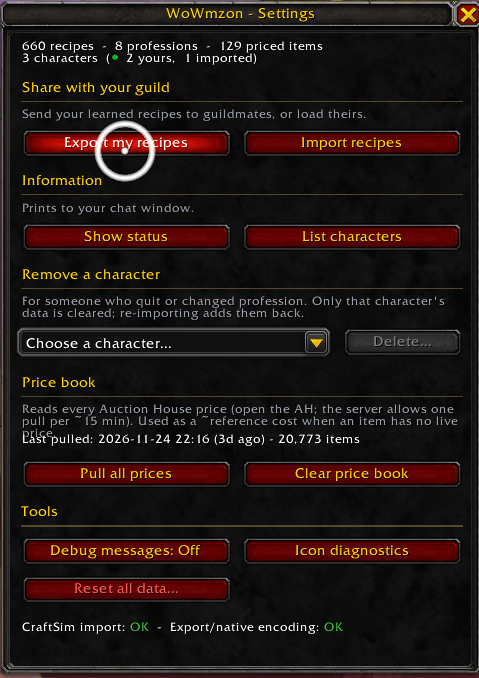
Click Settings in the top-left of the main window, or type `/wowmzon settings`. Every button does the same thing as the matching slash command.
Section What's there
Summary Live counts: recipes, professions, priced items, and characters (how many are yours vs. imported).
Share with your guild/friends/anyone Export my recipes · Import recipes
Information Show status · List characters (both print to your chat window)
Remove a character A dropdown of saved characters and a Delete… button.
Tools Debug messages (on/off) · Icon diagnostics · Reset all data…
Removing a character
Use this when a guildmate/friend quits or changes profession, or to drop an old alt of your own.
Open Settings, pick the character in the Remove a character dropdown, and click Delete….
A confirmation asks "Delete all saved data for …?". Click Delete to confirm, or Cancel.
Only that character's data is removed: their saved recipes and "learned by" information. Not touched:
every other character,
recipes that another saved character also knows,
your own scanned recipes.
Shopping-list entries and favorites for recipes that disappear entirely are removed too. You can't remove the character you're currently logged into. After a guildmate changes profession you can also simply re-import their new string, which replaces their old data.
Reset all data
Reset all data… (after a confirmation) clears every saved recipe, every character including imported ones, your shopping list and saved prices. Favorites are kept.
---
Slash commands
`/wowmzon` (the older `/shopping` also works)
Command What it does
`/wowmzon` Open or close the main window
`/wowmzon settings` Open or close the Settings window
`/wowmzon export` Open the Export box for the current character
`/wowmzon import` Open the Import box
`/wowmzon status` Show counts: recipes, scanned recipes, professions, characters (yours/imported), priced items
`/wowmzon chars` List every saved character with learned-recipe count and professions
`/wowmzon forget Name-Realm` Remove one saved character (use the exact name from `chars`; can't remove the current one)
`/wowmzon reset` Clear all saved recipes, characters, the shopping list and prices (favorites kept). No confirmation when typed.
`/wowmzon debug` Toggle extra diagnostic messages in chat
`/wowmzon icons` Diagnostic: show icon lookups for the selected recipe
---
Troubleshooting
Problem Try this
Window says "No recipes yet" Open each profession window once to scan.
An alt's recipes are missing Log in on that alt and open its professions.
Update Prices does nothing, or says the Auction House is closed The Auction House window must be open. The mount's counts too — if it still says closed, note how you opened it and report it.
Buy is greyed out Hover it for the reason. Open the Auction House (or mount), check there's something left to buy, wait for any purchase to finish.
"Nothing is listed" when buying No auctions for any quality tier of that item right now.
"Price rose … nothing was bought" Listings changed between the estimate and the quote. Click Buy again.
Favorites filter is empty Star some recipes first (click the star beside a recipe).
A character I deleted came back You imported their string again, or logged in on them. Delete them again.
Icons or names show as `Item 12345` The game is still loading them; they fill in within a second or two.
Export/Import says unavailable Your game client is missing the built-in encoding library — update the game.
A red Lua error pops up Turn on Debug messages in Settings, repeat what you did, and report the full error text.
Good to know
Prices are only as fresh as your last Update Prices.
Inventory counts are for the character you're currently playing.
Your data is stored in `WTF\Account\<ACCOUNT>\SavedVariables\WoWmzon.lua`. Back it up if you want to keep it.
Written for Retail. Other WoW versions (Classic, WoW Forever) are not supported yet.
Author: Phoop
WoWmzon Team
