WoWCord
- By
wowcord_main_english.png
wowcord_toast_english.png
wowcord_menu_english.png
Description
WoWCord
All your whispers in one window, laid out like a chat app.
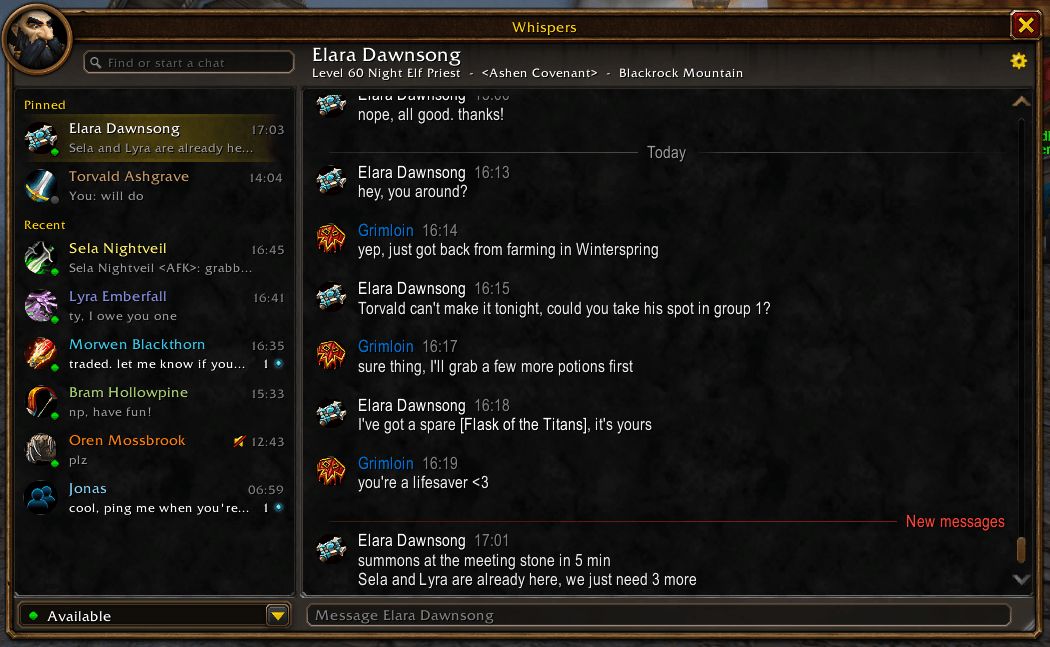
WoWCord replaces the scattered whisper tabs in your chat frame with a single window. Your conversations are listed on the left, pinned contacts first and then the most recent. The conversation you have open is on the right. Click a name and carry on with that person, the same way you switch chats in Discord.
It is built from Blizzard's own interface parts (portrait frame, scroll lists, search box, Settings page and menus), so it looks like it belongs in the game.
Features
One window for every conversation
- Contact list on the left, split into Pinned and Recent. Each entry shows the character's class colour and icon, the last message and an unread count.
- Conversation on the right, with messages grouped by sender and split by day (Today, Yesterday, then the date).
- Pin the people you talk to most so they stay at the top.
- Battle.net whispers are supported. Friends stay in one conversation even when they switch characters.
- Your history is kept between sessions for each character. Turn on Share between characters and all your characters use one list, or import another character's conversations, pins and mutes.
Start a chat without typing a full name
Type in the search box and WoWCord suggests players you already know: your target, focus, group, guild and friends, including Battle.net friends. Each suggestion shows its source. Use Up/Down to move through the list, Tab to complete a name and Enter to open the chat.
Know who you are talking to
Each contact shows live details when the game knows them: online or offline, level, zone and guild. Nothing is stored, so the details are always current.
Whispers where you expect them
/w, the reply key and clicking a player's name open the conversation in WoWCord instead of the chat edit box. This is optional, and it never happens in combat.- Optionally hide whispers in the normal chat so they only show up in WoWCord.
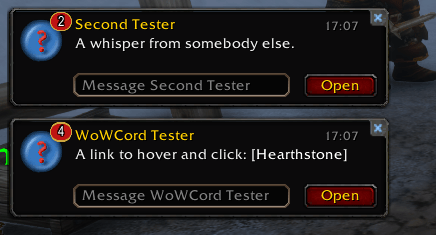
- Whisper toasts: while the window is closed, a new whisper pops up in a small notice on the left of the screen, styled like the game's Battle.net toasts. Type a reply right in it (the reply key goes there too), or click it to open the conversation. Drag it wherever you like.
- Prefer the whole window? Have it open on incoming whispers instead (in combat it waits until the fight is over, with a toast meanwhile), or switch both off.
- A launcher button next to the chat and a minimap button show your unread count. Both are optional.
- Open the window with a key binding, the AddOn Compartment entry, or
/wc. - Escape closes the window, like the game's own panels.
Quiet when you want it
- Mute single conversations. A muted chat does not show a toast, open the window, play a sound or add to the unread count.
- Do Not Disturb follows the game's own
/dndstatus. While it is on, the window stays closed and silent./wc dndtoggles it.
Comfortable typing
- Item, spell, achievement and other links can be hovered and clicked in the message area. Shift-clicking a link puts it into your reply.
- Unsent drafts are kept for each conversation, and they survive a
/reload. - Press Up in an empty input to bring back your last message.
- Slash commands work in the input. Type
/invite,/whoor/dndand it runs as a command. Nothing gets whispered by mistake. - Choose whether the cursor stays in the input after you send a message.
Look after your history
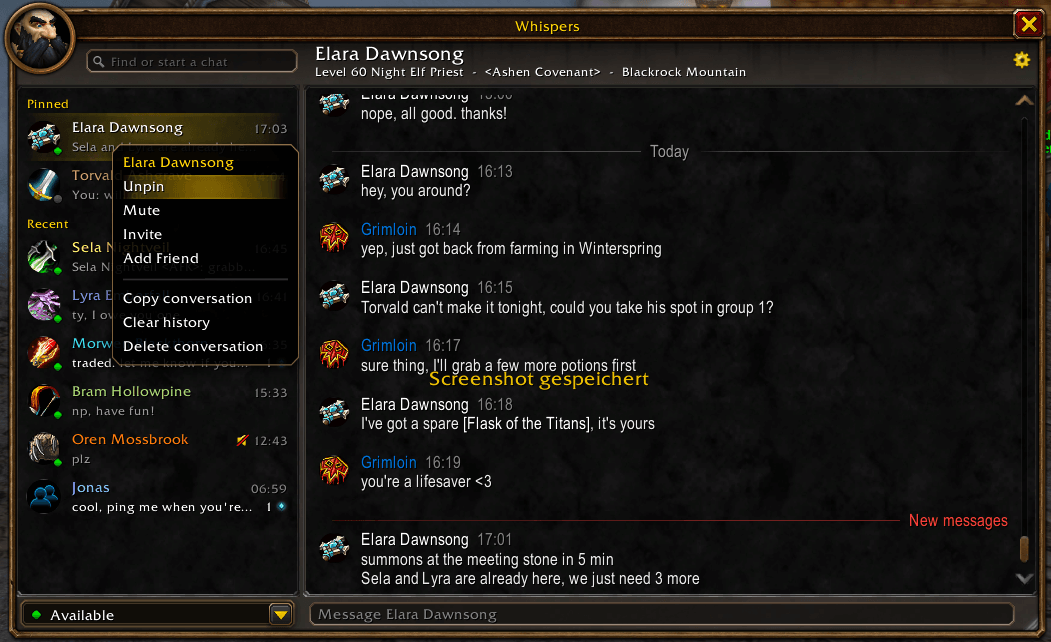
Right-click a conversation to pin, mute, mark as read, invite, add as friend, copy the conversation, clear its history or delete it. Copy conversation (also /wc export) opens the whole chat as plain text you can select and copy, for example to report a player or share a funny moment.
WoWCord keeps up to 250 messages per conversation and 100 conversations per character (or in the shared list). Pinned conversations are never dropped to make room.
Settings in the game's own options
Game Menu → Options → AddOns → WoWCord (or right-click the launcher or minimap button, or run /wc options) lets you change:
- Type whispers in WoWCord
- When a whisper arrives: show a toast, open the window, or do nothing
- Toast duration
- Hide whispers in chat
- Play the whisper sound
- Keep typing after sending
- Close with Escape
- Show the launcher button
- Show the minimap button
- Message text size
- Share between characters
- Import conversations from another character, or delete what WoWCord saved for one
- Language
Commands
| Command | What it does |
|---|---|
/wc or /wowcord |
Open or close the window |
/wc options |
Open the settings page |
/wc dnd |
Toggle Do Not Disturb |
/wc export |
Show the open conversation as copyable text |
/wc import |
Import another character's conversations |
Languages
WoWCord speaks your game's language when it has a translation for it:
| Language | Used automatically on |
|---|---|
| English | English clients, and any client WoWCord has no translation for |
| Deutsch (German) | German clients |
| Français (French) | French clients |
| Español (Spanish) | Spanish clients, both Spain and Latin America |
To use a different one, pick it under Options → AddOns → WoWCord → Language and reload the interface when asked. Names that come from the game itself, such as zones, races and classes, stay in your game's language.
The Spanish translation is shared by Spain and Latin America, so its wording avoids words the two use differently. Would you like WoWCord in another language? Translations are welcome, see Feedback and bug reports below.
Good to know
- Combat and restricted chat. While the game hides chat content from addons (during some encounters, for example), WoWCord does not read or store those whispers right then. It picks them up once the restriction ends, and it does not touch the chat edit box during combat.
- Other addons. Incoming whispers are first passed through other addons' chat filters, so your filter addons keep working.
- No libraries. WoWCord uses no external libraries and adds no ads or extra services.
Feedback and bug reports
Please report bugs and suggestions. For bugs, it helps to include:
- What you did and what you expected to happen.
- Any Lua error text (an error-catching addon such as BugSack helps).
- Whether it happened in combat or during an encounter.
Thank you for trying WoWCord!
WoWCord Team