Wforged
- By
SnÃmek obrazovky 2026-07-21 123600.png
SnÃmek obrazovky 2026-07-21 123835.png
Description
Wforged
Beta version — features and data formats may change between releases.
Wforged collects item locations and item information in World of Warcraft. It works locally, supports ElvUI when installed, and can share compact item observations with guild members and friends who also use the addon. Contains over 900 items in database already.
Features
- Detects Worldforged items from loot and verifies the tooltip marker.
- Stores the loot zone, map, coordinates, item level, quality, stats, and tooltip.
- Handles scaled items and multi-step upgrade chains.
- Resolves upgrade locations back to the original loot location.
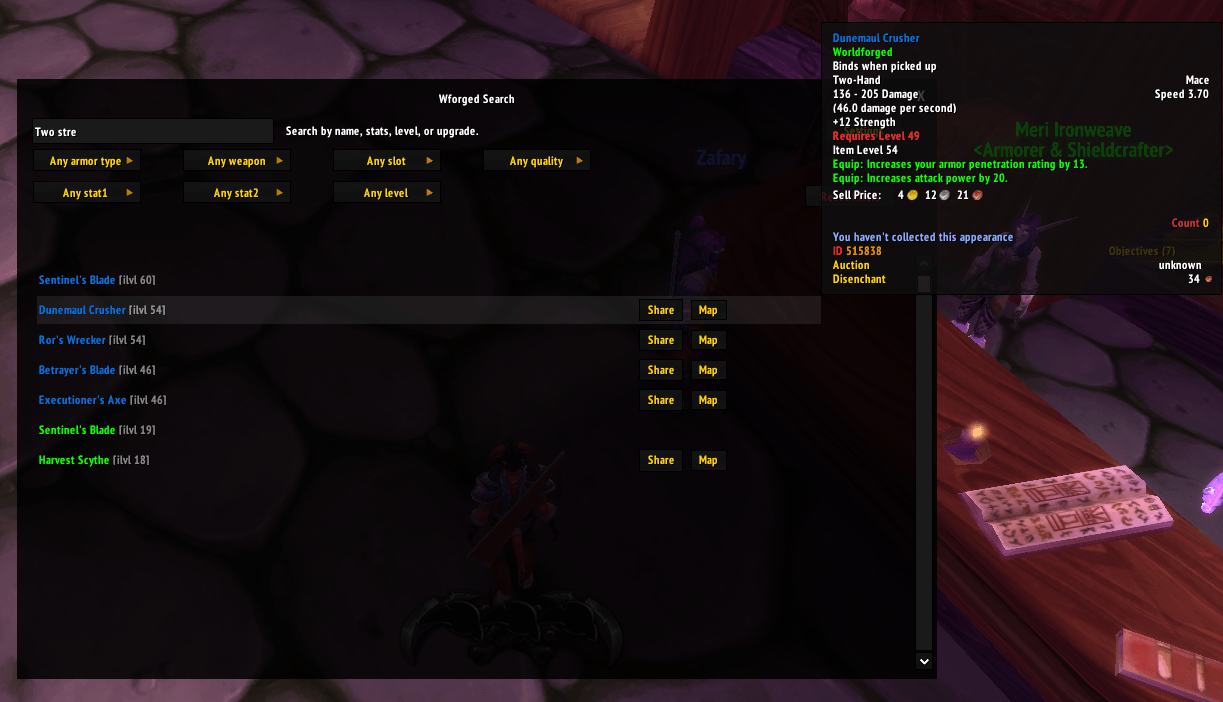
- Searches by name, tooltip text, stats, armor type, weapon type, slot, quality, and level.
- Shows item tooltips from the search list.
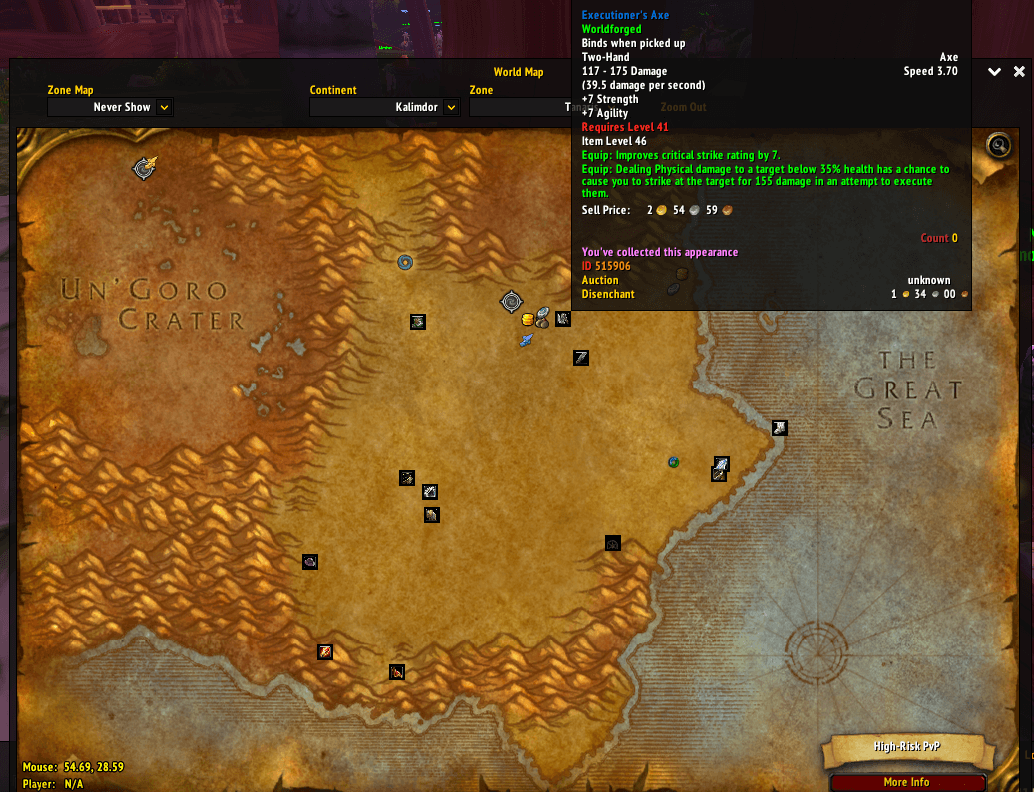
- Places item markers on the world map and supports showing all known loot locations.
- Automatically confirms the bind dialog only for confirmed Worldforged items.
- Keeps data account-wide across characters.
- Supports compact import/export and optional guild broadcast/receive.
- Works with or without ElvUI.
Installation
- Extract the
Wforgedfolder into the client'sInterface\AddOnsdirectory. - Enable Wforged on the character selection screen.
- Reload the UI after installing or updating the addon.
For local development, npm test deploys the addon to the configured game client and runs the automated checks first.
Using the addon
The search window supports multiple words, for example:
leather agility feetClick an item to inspect its tooltip. Use Share to place a functional item link, zone, and coordinates in chat. Use Map to open the recorded loot location. These actions are hidden when an item has no valid loot location.
Settings
The settings window has a player view and a developer view, switched with the Dev button.
Player settings include:
- Worldforged auto-confirm.
- Show all known map items.
- Send guild updates.
- Receive guild updates.
- Compact import/export controls.
Developer settings include:
- Debug log output.
- Map context diagnostics.
- Import test data.
- Database reset followed by UI reload.
Import and export
Export creates a compact WFGDB6 string containing item IDs, locations, coordinates, and timestamps. Import merges the data into the local database and does not remove existing items. Processing is batched for large datasets.
After import, item names, quality, level, icons, stats, and tooltip text are resolved locally by the client. Newly loaded metadata can appear a moment after the item is first added.
Guild sharing
Enable Send guild updates to broadcast newly looted Worldforged items. Enable Receive guild updates to accept observations from other addon users. Guild sharing uses addon messages, not normal chat text. The sender and receiver must both have Wforged enabled and be in the same guild channel.
Wforged Team