
Waymarker
- By
All u need to know what to do with items in ur bag and where u get the quests (starting, ending, chain) complete: yes/no. The tool that helps u and ur friends!
05-where-to-get-it.png
06-quest-chain.png
07-alt-click.png
08-search.png
09-mail.png
Description
Waymarker
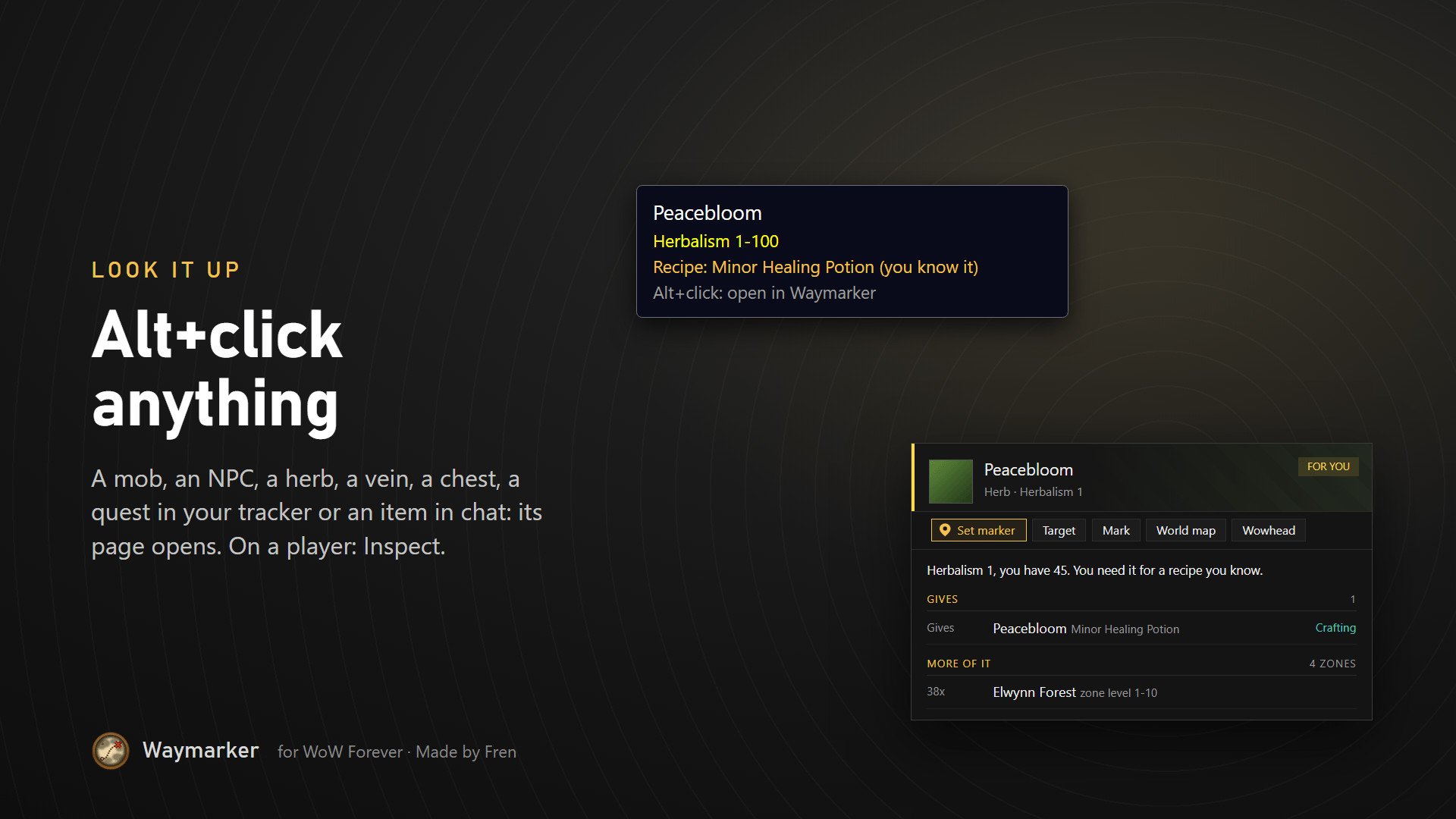
Alt+click anything: quests, items, NPCs, herbs and ore. Waymarker answers the questions you ask yourself while questing:
- What do I do for this quest, and where? Objectives with your progress, the mobs, objects and NPCs on a map, and one click for a marker.
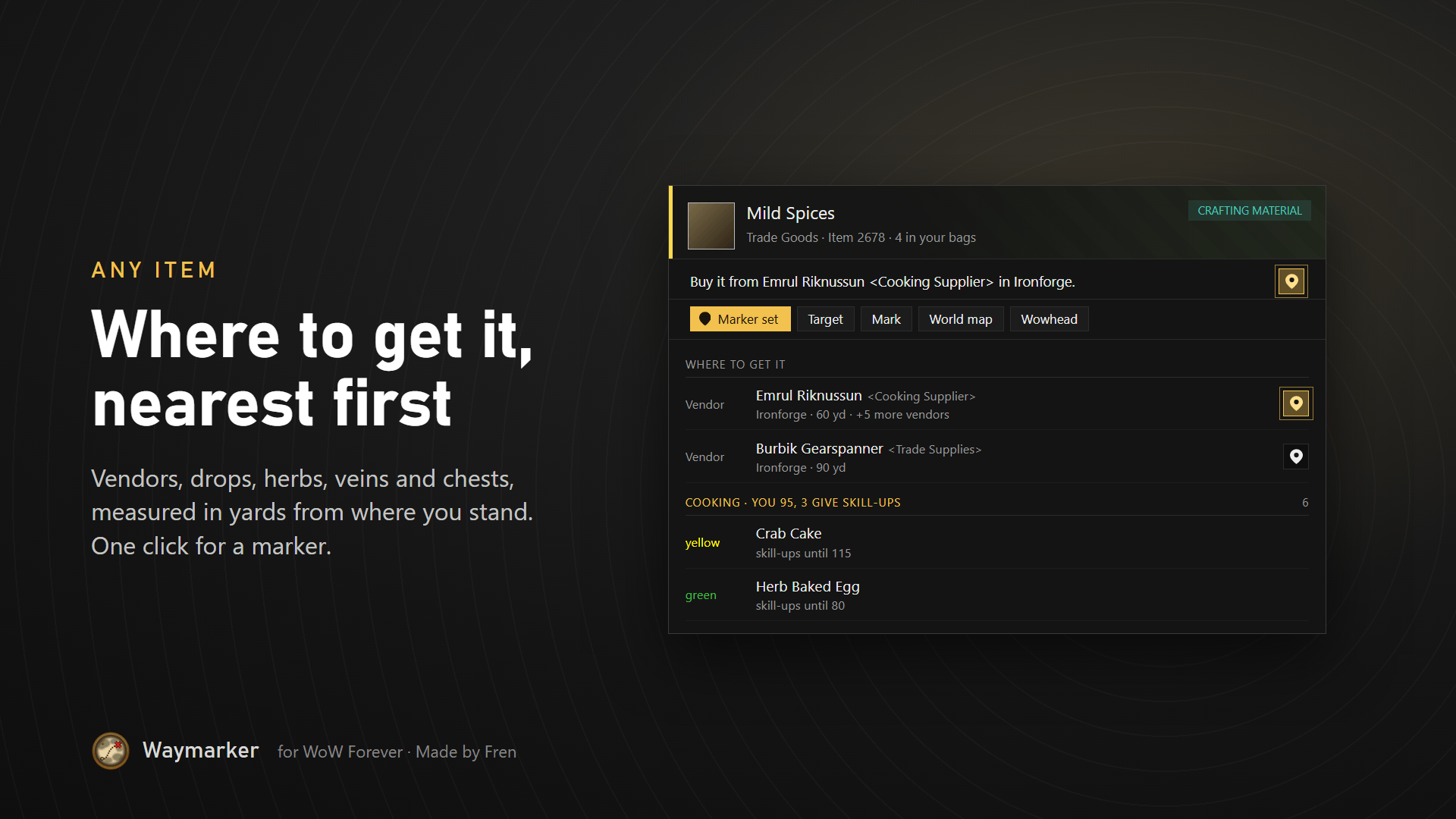
- Where do I get this item? Vendors, drops, herbs, veins and chests, nearest first, in yards.
- Can I delete this? Every quest item says: keep it, bank OK, can go, or safe to delete.
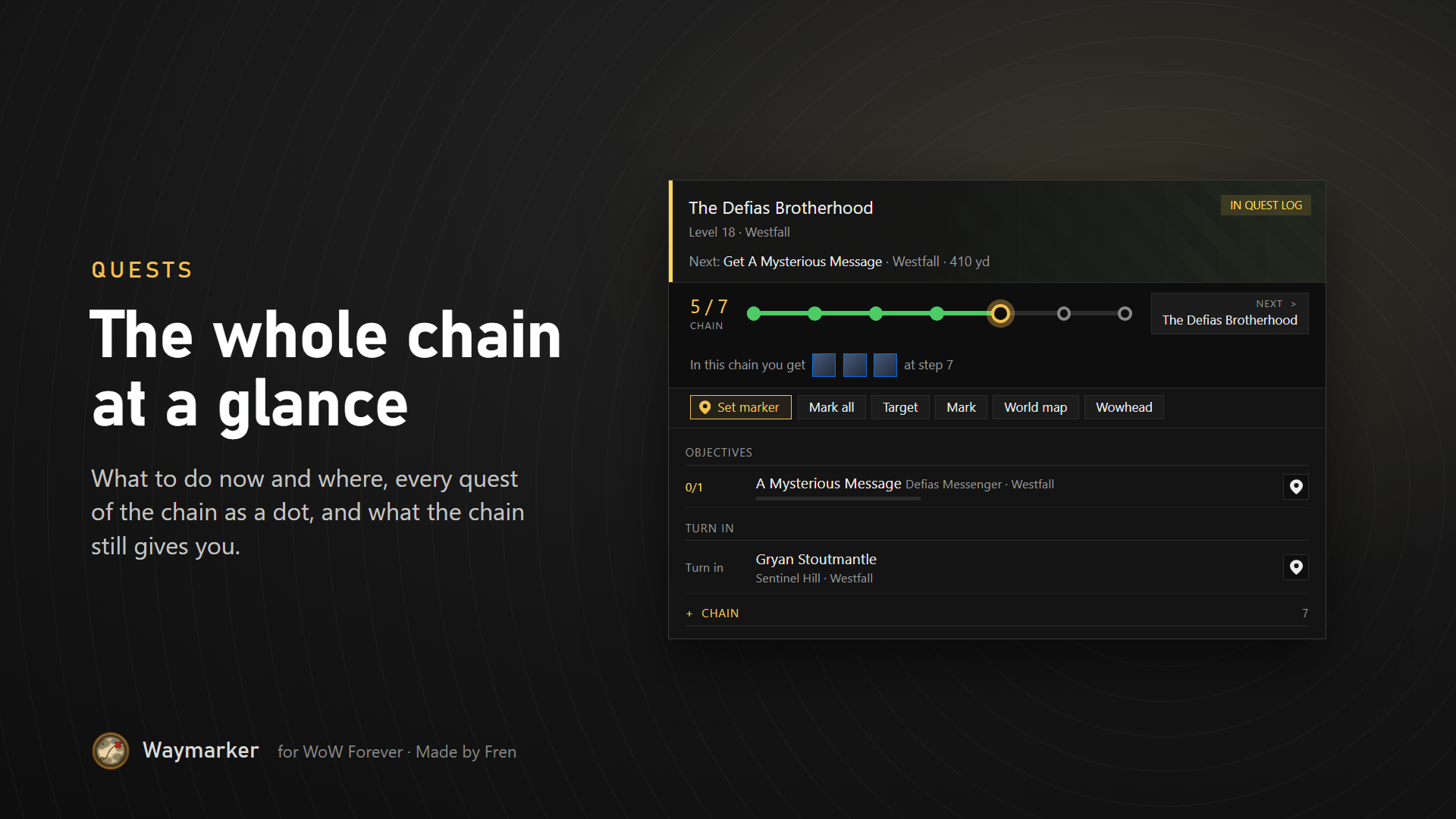
- Where am I in this chain? The whole chain as a timeline: done, this one, next.
- What is next? The start screen shows your nearest open step, how far it is and which way.
Needs QuestieDB. Works with TomTom, Questie and Baganator when you have them. Type /wm or click the minimap button. It reads the quest data Questie already has and keeps no big database of its own. No gear advice; that is up to you.
Getting started
- Open it with /wm (or /waymarker), the minimap button, or your own key binding (Key Bindings > AddOns > Waymarker).
- Needs QuestieDB (its own addon on CurseForge) and Waymarker_Data (comes in the same download: put both folders in AddOns). Questie itself is not needed. Nothing else.
- Move the window by dragging the top bar, resize it from the bottom-right corner. Both are remembered.
How it looks
- The search box is in the top bar. Click the ? next to Settings for the help page with all tips, sorted by subject. Click it again, or Close, to go back.
- The first time you open Waymarker you see a short welcome. Click Got it to close it; it does not come back. The help page has a button to show it again.
- Item icons have a border in their quality color; Elite, Dungeon and Forever quests carry a small label; the level is a colored block.
- Headings show how many lines they hold. Every second line is a little lighter.
- Objectives have a thin bar that fills up. The map-pin button sets a waypoint.
- With nothing picked, the right side shows today: what you can turn in, what can leave your bags, new quests here, and the nearest turn-in.
- Compact list (settings) puts every result on one line, so more fit in the window.
The start screen
On the right: Next up, the nearest step of your quests that is still open (for example Kill 4 more Mottled Boar), how far it is and which way, with Set marker. Under it the tiles: ready to turn in, bag items can go, new quests here, and when there is something, new at your trainer and mail expires soon. Click a tile and the list shows only that; click it again for everything. At the bottom: what you did today.
On the left, before you type anything, Waymarker shows (the filter buttons appear once you type):
- Watching: quests and items you pinned (right-click a line, Watch). An item can get a goal: Linen Cloth 12/40.
- Recent searches: your last 3, click one to search again; Clear empties the list.
- Ready to turn in: quests that are done, with who to bring them to and where.
- Your quest log, grouped by zone, with what is left per quest (for example Torn Bear Pelt: 3/8), and if you like how far its next step is (Settings > Start screen). The zone you are in is open; other zones are folded, click their heading to open them. The head of the quest log sorts by zone, nearest or level, and opens or closes every zone at once.
- New in your zone: up to 5 quests around your level that you can pick up now, with the quest giver.
- Bags: bank or delete: only the quest items you can put in the bank or throw away.
Two more things show up here when they apply:
- Mail expires soon, at the very top, when mail in one of your characters' mailboxes has 3 days or less left.
- Your class's quests that are still to do, folded: click the heading to open it.
Searching
One search box for everything. Type a name, a zone, an ID, or paste a link (shift-click a quest or item, or a Wowhead link). Results are grouped:
- Zones: pick one to list all its quests by level.
- Quests: a chain shows as one line with its progress.
- NPCs: with title, zone, level, and how many things they still have for you.
- Items: with their verdict.
Clicking on: click a line in the detail on the right (an ingredient, a recipe, a quest in a chain, an item a vendor sells) and it opens there. A bar above it then shows where you came from: < Back goes one step back, and each name in the trail takes you straight back to it. On the left, the line you started from stays selected. Picking something new on the left starts a new trail.
Hide the other faction (in the settings, on by default) leaves out the other faction's vendors, NPCs and quests. An item only they use then simply reads Safe to delete.
Filters under the search box narrow the results. Quest filters: Not done, Dungeon, Elite, Forever. Item filters: In my bags, Quest items, Safe to delete. Using only quest filters hides items, and the other way round.
Opening the window does not take over your keyboard: click the search box when you want to type.
Shift+click an item (in the list, in a detail, or its big icon) to link it in chat. Shift+click a quest or an NPC to put its name and place in chat, handy to tell a friend where to go.
Under the filters a red x Clear filters button appears as soon as you search or filter; one click clears everything.
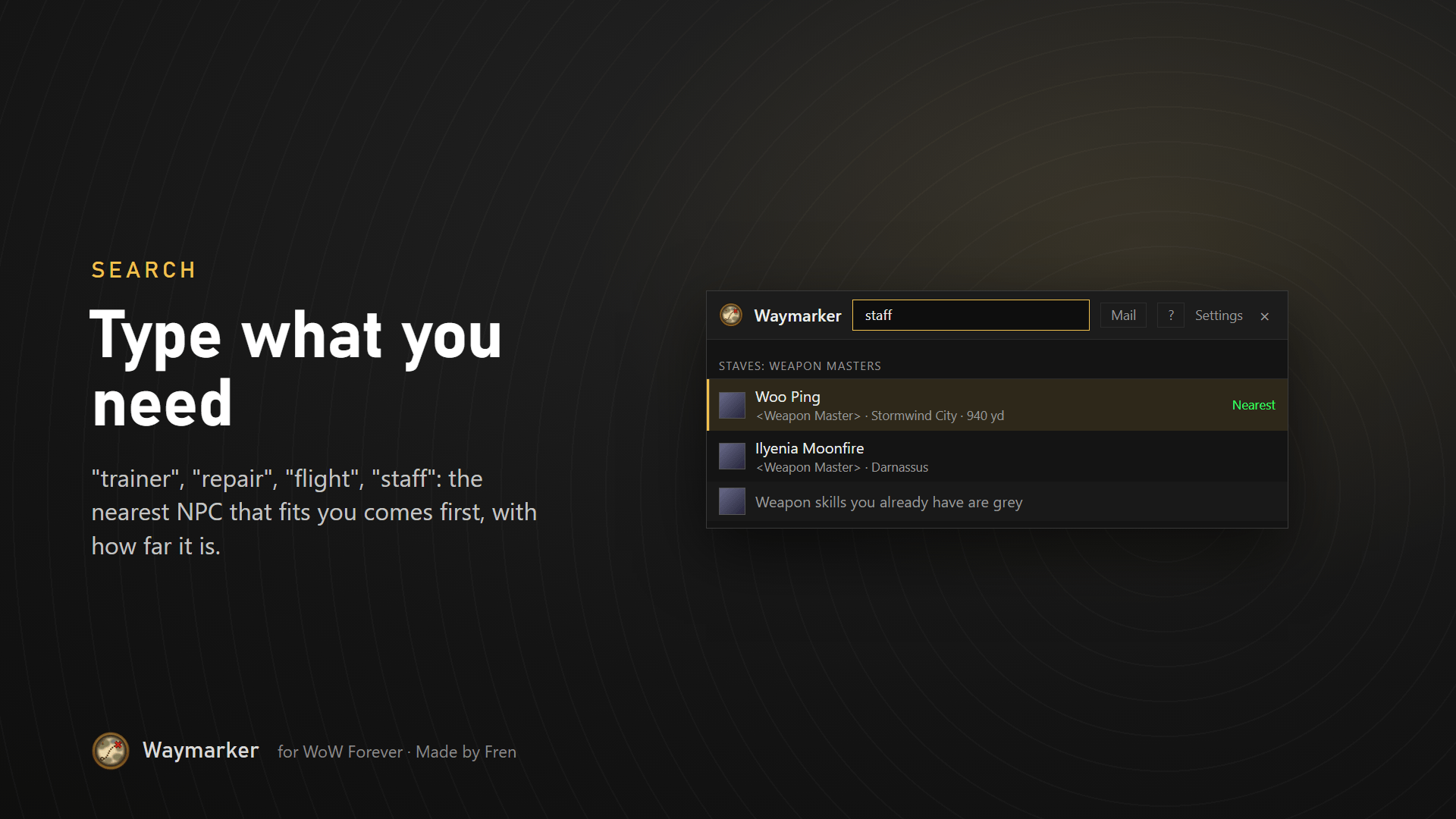
Search what an NPC does
You do not need a name. Type what you are looking for:
| Type | You get |
|---|---|
| trainer | Your class trainer, the trainers of your professions, and the weapon masters |
| first aid, tailor, mining ... | The trainers of that profession. One that still teaches at your skill comes first |
| staff, sword, bow ... | The weapon masters that teach that weapon skill, and what else they teach |
| repair, inn, bank, flight, stable, auction, mailbox, riding | The nearest one |
The nearest that fits you stands first and is marked Nearest, with its zone and the distance. Made a typo and nothing was found? Waymarker offers Did you mean.
Your class quests
Type your class (for example shaman) or class quests for every quest of your class, by level, with how many you have done. Some new quests are not complete in the data yet: the line then says quest giver not known yet. Pick such a quest up and Waymarker remembers who gave it and where.
Keyboard: arrow keys move through the results, Enter opens one, Escape clears the search (press again to leave the box). The × in the search box clears the text and all filters at once.
Where to get an item
- The line under the item's name answers your question: whether to keep it, or where to get it, with a Waypoint button.
- Where to get it has one line per kind of source: vendors, drops (with the level range of the mobs), mining veins and herbs (with the skill you need and the zones with their levels), fishing (the zones and the Fishing skill), objects and containers. Your own zone comes first.
- Click such a line to see the whole list, click it again to fold it away.
- Section heads with a + or - fold open and closed; Waymarker remembers your choice.
A quest
- Rewards: the items you get or choose from, and the experience. Money and reputation can be switched on in the settings.
- What to do: the quest's own text, when the data has no objectives with places.
- Objectives with your progress and where to do them: which mob, which object, or for items who drops or sells them, with level and zone.
- Pick up and turn in: who gives the quest and who takes it, and where.
- Zone map: red dots for the objectives, green for the turn-in, blue for you. See The map below.
- Chain: every step with its status (done, in your log, not done), the step you are on, and what comes next.
- Tip for shopping-list quests: you can abandon them and pick them up again later.
An item
- Quest reward: which quest gives it, with status, level, quest giver and zone. Handy when you see someone with an item without level requirement.
- Where to get it: which mobs drop it (level and zone), which objects hold it, which vendors sell it. Sources in your own zone come first. With a zone map.
- Quests that still need it, and the ones that no longer do.
- Professions that use it, with the skill range of each recipe (yellow, green, grey) in the colours for your own skill. Click a recipe to see what it makes.
- Made with: for a crafted item, the profession and skill, its reagents (with how many you carry and where to get them) and how you learn it: the recipe item, a trainer, or known from the start.
- Teaches: for a recipe item, what it makes and from what, and whether you already know it. Waymarker notes your recipes each time you open a profession window, so open each one once.
- No recipe item? Then the nearest trainers of that profession, with a waypoint button.
The map
- Found in more than one zone? Buttons above the map name the zones; click one to see it.
- Click the map to open the world map on that zone.
- Click a mob or NPC line: its spots turn gold on the map. Double-click it: the world map opens with a marker on the nearest spot. The pin button at the end of the line only sets the marker.
- A list of mobs starts with your own zone, then the mobs closest to your level. The level has the game's color: grey, green, yellow, orange or red for you.
Keep, bank or delete
| Verdict | Meaning |
|---|---|
| Keep it | An objective you collect, an item you use (it has a Use), or one that starts a quest. Keep it in your bags. |
| Bank OK | Needed for a quest, but no objective and no Use (a list, a note). It can wait in the bank; take it along when you turn the quest in. |
| Can go, drops again | Only needed for a quest you have not picked up yet, and it also drops without that quest. Sell or delete it if you need the space. |
| Safe to delete | Every quest that uses it is done. |
| Crafting material | No quest uses it, but a profession does. |
| Crafted | No quest uses it; a profession makes it. |
| Recipe | No quest uses it; it teaches a profession recipe. |
| Quest reward | You get it from a quest; no quest needs it. |
| Horde only / Alliance only | Only the other faction's quests use or give it, so you have no use for it. Those quests are listed, greyed out. |
Bank OK and turning in: an item that reads Bank OK can wait in the bank, but you need it again when you hand the quest in. Waymarker watches that for you. The moment the quest is ready and the item is still in your bank, it tells you in chat and on screen, the start screen says Get from your bank first, and the quest's page shows a red In your bank section. It knows this wherever you are, not only at the bank.
An NPC
- Whether the NPC has something for you, in one line (for example Has 2 quests you have not done and 1 to turn in).
- Where it stands, with a map and a waypoint. Hover for every zone it appears in.
- The quests it gives and the quests you turn in there.
- Quests that ask you to kill it, and the quest items it drops.
- For a vendor: what it sells, recipes first with whether you know them, each with its price (red when you have too little). Until you have opened that vendor once it is the Classic price, with ~ in front.
Mail to your other characters
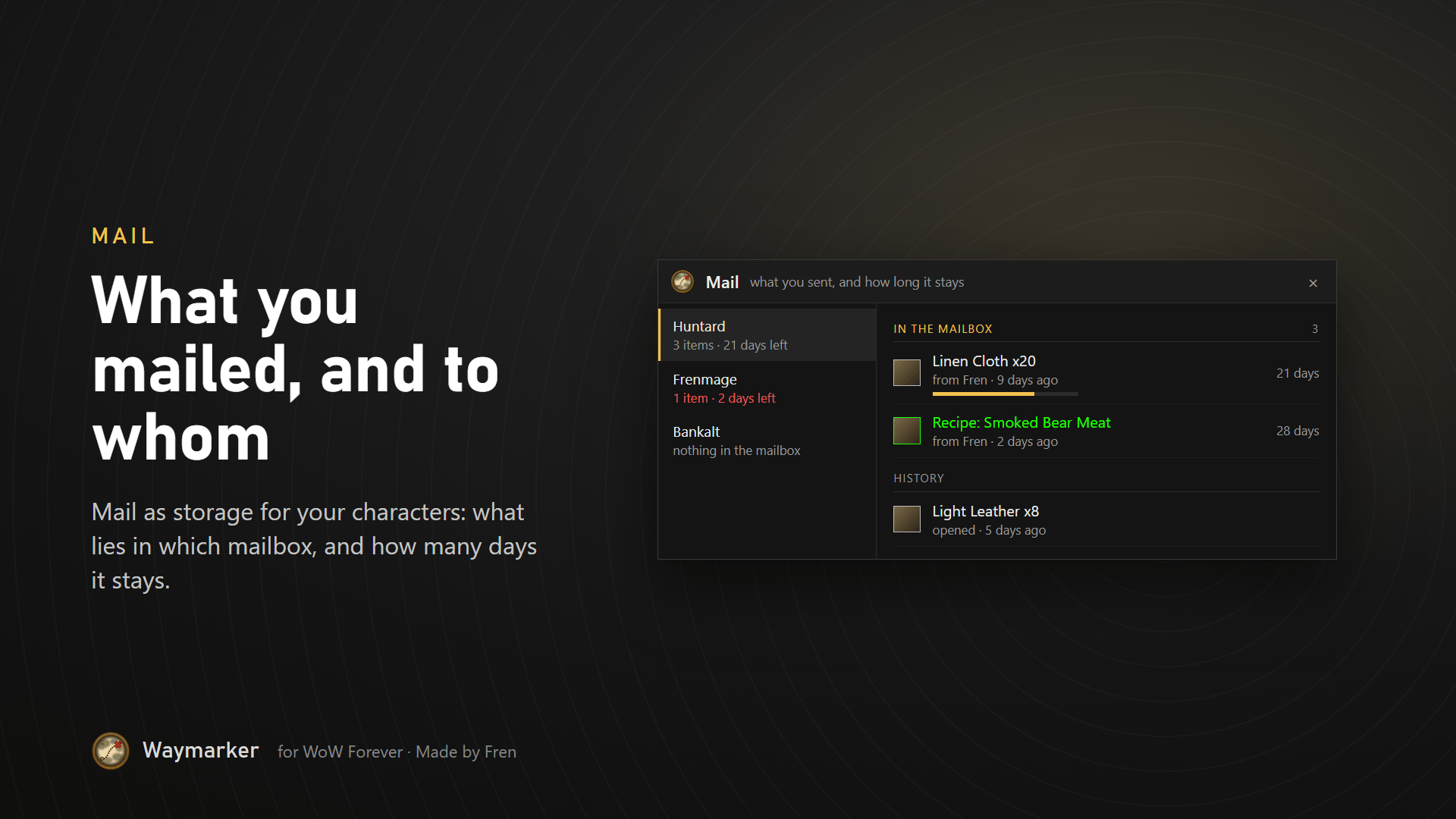
Do you mail things to your other characters to make room? Waymarker keeps track of it. Click Mail in the top bar (or type /wm mail).
- Left: your characters and other players you mailed, with how many items lie in their mailbox and how long the oldest still stays.
- Right, for the character you click: In the mailbox (what, from whom, and the days left) and the History of the last 31 days: opened, returned, taken back or expired.
- When you look up an item, or hover it, Waymarker says what you have of it in the mail: in the mail: 20 with Huntard (21 days left).
- The start screen warns when mail has 3 days or less left, and the Mail button turns red.
How it knows: sending is noted when you send. Opening and Return are noted on the character that does it, each time it opens a mailbox. So log in on that character and open the mailbox to bring the list up to date. Mail stays 30 days; a returned mail stays another 30 days with the sender. Only mail sent while Waymarker is on is known, and gold is not tracked.
What a trainer teaches
- Open a weapon master (search weapon master, or a weapon such as staff): you see every weapon skill it teaches. Learn marks the ones you do not have yet, Known the ones you have, with your skill.
- For other trainers (your class, a profession, riding) the game only shows the list while you talk to them. Talk to a trainer once and Waymarker remembers it. From then on, the trainer's page shows Can teach you now with level and cost, and Later with the level you still need. This works for every trainer with the same title, and on all your characters.
- A riding trainer shows Apprentice and Journeyman Riding with level and price even before you talk to one, and Your first mount: riding plus the cheapest mount at the mount vendor nearby, in total.
- In the search results a trainer line says how much it has for you, for example 3 to learn now; a riding trainer says the next riding skill and its price.
Merchant's Favor
- Type favor in the search box and click Merchant's Favor.
- You see the trade vendor of your faction, the quests that give Favor and how much, and everything you can buy with it.
- The recipes are sorted by profession, lowest skill first. Your own professions are open; click a heading to open another.
- Each line shows the cost, the skill the recipe needs and whether you already know it.
- An item you buy with Favor also says so on its own page.
An NPC you cannot find: Target and Mark
- Some NPCs are hard to find because a town has several floors, such as Booty Bay. The marker on the map does not say which floor.
- Open the NPC in Waymarker and go near the marker. Click Target at the bottom of the window: the NPC becomes your target.
- Or click Mark right away: it targets the NPC and puts a yellow star over its head in one click. Look around for the star. Click Mark again to take the star off.
- Target and Mark work within about 100 yards, also through walls and floors. Too far away: the chat tells you to get closer first, with how far the NPC is.
- In a quest or an item, first click the line of the mob or NPC, then the button.
- Target and Mark do not work during combat: the game does not let addons target or mark anything then.
Tooltips
Item tooltips get an extra line: keep, bank OK, can go or safe to delete, with the quest it is for. Quest rewards say which quest gives them. Profession materials show how far they still level your profession. Recipe items say whether you know the recipe or what skill it needs; crafted items say which profession makes them. Quest links in chat show whether you did the quest and where you are in its chain. You can turn these lines off in the settings.
Markers, maps and Wowhead
- Set marker, under the title of every page, puts a marker on what the page is about: the next step of a quest in your log, the quest giver, the nearest place to get an item, the NPC. Click it again to take the marker off.
- The pin at the end of a line does the same for that line. It is gold while it holds the marker; click it again or right-click it to take the marker off.
- A marker goes to the nearest spawn (in your zone when there is one). If the game cannot place one there, the world map opens on that zone and the coordinates appear in chat. When the world map opens, gold rings pulse around your markers.
- The strip under the list says where your marker is, how far and which way. Click it for its page; the x takes it off.
- TomTom: when TomTom is on, Waymarker asks once where markers should go. With TomTom you get several markers at once, each with a name, and TomTom's arrow on your screen; Mark all on a quest, Nearest 5 on an NPC, and Route under Next up for the open steps in your zone.
- World map (under the title) opens the map of the zone you are looking at.
- Bring me to Wowhead: addons cannot open a browser, so Waymarker shows the link already selected. Press Ctrl+C and paste it in your browser. The comments, often the best tips, are on that page.
Alt+click (or your own combination)
- On an item in your bags, in a chat link or on someone you inspect: opens it in Waymarker.
- On a player: the Inspect window (in the world, on portraits, nameplates, party and raid frames and names in chat). Too far away: a line in chat.
- On any line inside Waymarker: its Wowhead link.
- Right-click a line inside Waymarker: a menu with everything it can do.
Quests: the same click opens a quest: a quest link someone puts in chat, a quest in the tracker on the right, in the quest log, or a quest on the world map or minimap. Questie's icons and Questie's tracker work too. In the tracker the game also opens the quest log on the map; both happen.
Other addons: the same click works on items in other addons too, such as a dungeon journal or a loot list: anything that shows you an item tooltip. In DungeonJournal it also opens bosses, dungeons, quests and who gives or takes a quest. Do you not want that, also not on the map and the tracker? Turn off Look up on the map, the tracker and in other addons under Settings > Clicks.
Baganator: do you use Baganator for your bags and bank? The same click works on the items there, also in its bank view when you are not at the bank. Baganator itself highlights the same items on Alt+click; both happen.
Both clicks can be changed in the settings under Clicks: any mix of Ctrl, Shift and Alt, with the left or right mouse button. The settings warn you when a combination also does something in the game itself, such as Shift+click putting a link in chat.
Hunter pets
On a hunter, beasts say in their tooltip whether you can tame them, their family and which pet ability taming them teaches (Teaches Bite 2). Their page adds what the family eats and learns. Search tame wolf for the nearest wolves you can tame, or tame for all families. Forever's own beasts show their family once you have seen one; Hunter's Field Guide or TrueshotLodge know more about them.
Class trainer: hide abilities
Bought abilities you will never use? At a trainer, select the ability and click Hide in the Waymarker strip under the trainer window. All its ranks leave the trainer list, for this character only. Tick Show hidden to see them again for a moment; unhide them there or in the settings.
Settings
Open them with /wm settings, the Settings link at the top of the window, right-click on the minimap button, or Options > AddOns > Waymarker.
- General: minimap button and its tooltip, hide the other faction.
- Map marker: the game's marker or TomTom, the pulse, the chat line, the strip, and what TomTom may do.
- Prices: prices at vendors and trainers, the Classic price until you have seen Forever's, your first mount in total.
- Start screen: Next up, the tiles, filters, distance on quest lines (off, yards or arrow), Open all / Close all, Today.
- Tooltip lines: the quest line, the profession lines, herbs and ore.
- Clicks: the combination for looking up and for the Wowhead link, looking up in the world and on the minimap, inspecting players.
- Window: compact list, the buttons under the title, the right-click menu, fade while moving, hide in combat, start screen after 10 minutes, scale and reset.
- Keys: keys inside the window and mouse buttons 4 and 5. More in Options > Keybindings > AddOns > Waymarker.
- Hunter pets: tameable beasts, for hunters or every class.
- Class trainer: hiding on or off, and the list of hidden abilities to unhide.
Commands
| Command | What it does |
|---|---|
| /wm | Open or close the window |
| /wm <text> | Search for a quest, zone, NPC or item (a link works too) |
| /wm mail | Open the mail window |
| /wm export | Show what Waymarker learned while you played, as text to copy |
| /wm help | Open the help page with all tips |
| /wm settings | Open the settings |
| /wm minimap | Show or hide the minimap button |
| /wm next | A marker on the next step of your quest |
| /wm clear | Take Waymarker's markers off |
| /wm route | With TomTom: markers on the open quest steps in your zone, in a walking order |
Good to know
- Almost all data comes from QuestieDB. When it does not know something (a drop source, a reward), Waymarker cannot show it either.
- For WoW Forever's new quests QuestieDB still has gaps. Waymarker_Data fills in what is known, and Waymarker learns while you play: who gives a quest, who takes it, and which quest follows. It tells you in chat when it noted something. /wm export gives that as text, to share with the maker so everyone gets it.
- Which weapon master teaches which weapon is the classic list; drop chances are not known, so mobs are sorted by zone and level.
- "Forever" content is recognised by quest ID (10000 and up), which is an estimate.
- Some lists (which quests use an item, NPC names) are built in the background just after you log in. A search in the first half minute can take a moment longer.
- Wowhead screenshots and comments cannot be shown inside the game: addons have no internet access.
Made by: Fren
Waymarker Team

