auras.png
Description
WarlockUpkeep!
Never forget your armor, stones, shards or demon again.
WarlockUpkeep! is a lightweight helper for Warlocks in World of Warcraft: Forever. It shows an icon only when something is missing, and a single click fixes it: cast your armor, create a Healthstone, apply a Soulstone or summon your demon.
On any other class the addon does nothing and stays fully disabled.
Works on every client: WoW Forever, Classic Era, TBC Anniversary, Mists of Pandaria Classic and Retail. The addon adapts to each one: Fel Armor and Master stones in TBC, no extra shard counter (the game shows them) and direct-cast Soulstone in Mists and Retail, Sayaad and Grimoire of Sacrifice in Retail.
Features
| Icon | Shown when | Click |
|---|---|---|
| Armor | Demon Skin / Demon Armor is missing | Casts your strongest armor |
| Soul Shards | Always (counter) | — |
| Healthstone | No Healthstone in your bags | Creates your strongest Healthstone |
| Soulstone | Stone unused or missing | Applies or creates the stone |
| Demon | No pet out | Summons the demon you assigned |
Armor
Reminds you when neither Demon Skin nor Demon Armor is up. Click to cast Demon Armor, or Demon Skin if you haven't learned Demon Armor yet.
WoW Forever: add Demon Skin and Demon Armor to the Cooldown Manager's Tracked Buffs. The game hides your buffs from addons in combat, and the Cooldown Manager is what lets the addon notice the armor being removed or recast during a fight.
Soul Shard counter
Shows your shards as have / recommended and lights up when you're running low. The recommended amount is calculated from what you actually know:
- 1 shard for summoning a demon (once Voidwalker, Succubus or Felhunter is learned)
- 1 shard for each learned stone: Healthstone, Soulstone, Firestone, Spellstone
- spare shards (1 by default, configurable)
- optionally, Ritual of Summoning
You can also set the warning threshold manually.
Healthstone
Appears when there's no Healthstone in your bags. Click to create the strongest one you know.
Soulstone
- Yellow highlight: the stone is in your bags but not applied. Click to use it on your friendly target (or yourself).
- Red highlight: no stone in your bags. Click to create one.
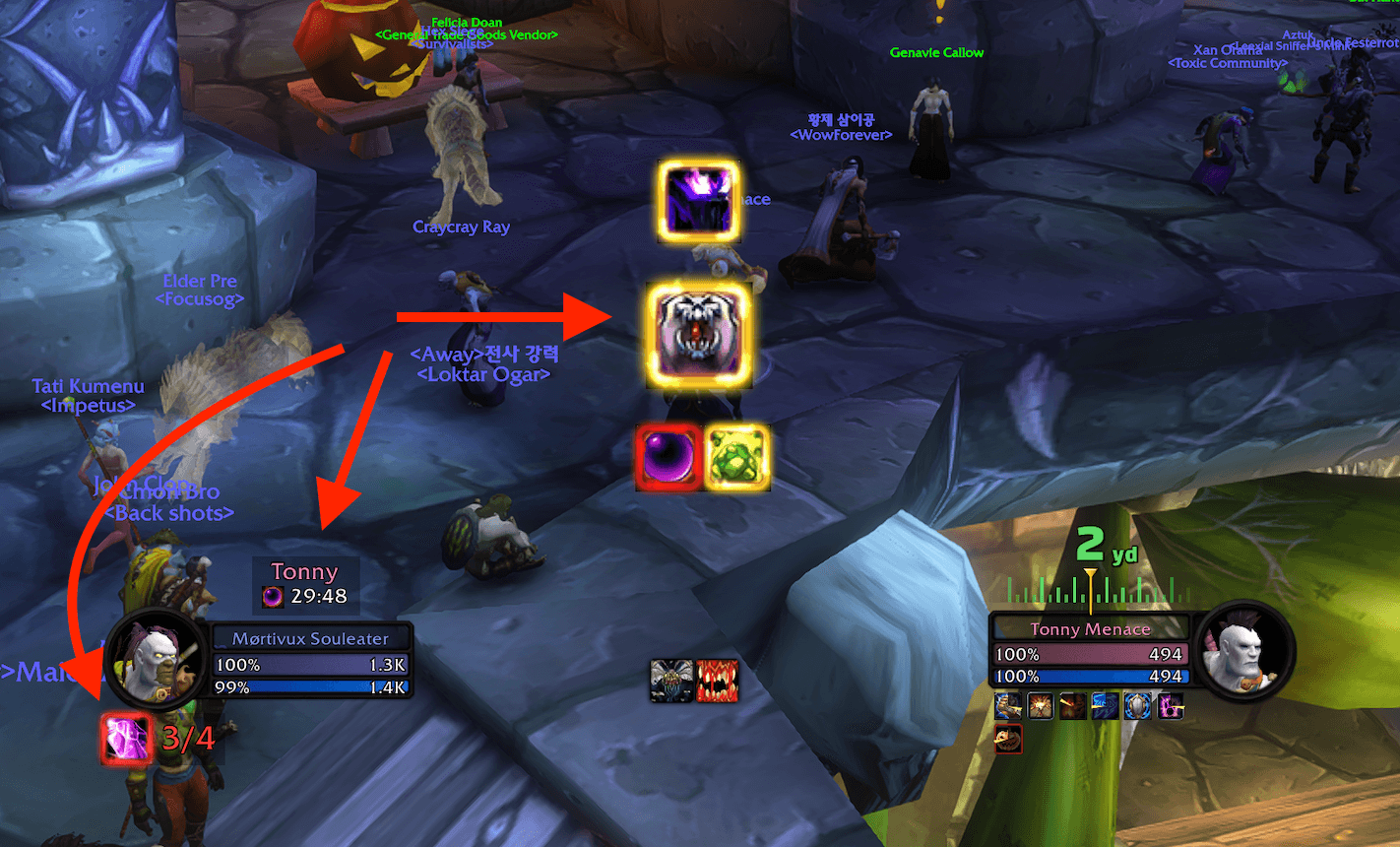
When your Soulstone is on another player, a movable label shows their name in class color and the remaining time. When it's on yourself, only the timer is shown (optional). Font, size, outline, icon and background opacity are all configurable.
Demon
Appears when you have no pet. Bind a different demon to Click, Shift, Ctrl, Alt and Cmd (Mac): Imp, Voidwalker, Succubus, Incubus, Felhunter or Felguard.
Make it yours
- Every feature can be turned on or off individually.
- Every icon can be resized, moved, locked, and given its own highlight color and alert sound.
- Highlight styles: Proc (the Cooldown Manager animation, default), Running lines or Pulsing border.
- Highlight types: Outline, Fill icon or both. Highlighting in combat can be turned off.
- Snapping: drop an element next to another one and it lines up neatly, so building rows and columns is easy. Snap distance and spacing are adjustable.
- Background opacity for the shard counter and the Soulstone label.
- Sounds: 14 game sounds, LibSharedMedia sounds, or your own .ogg / .mp3 files for every alert.
Built for combat
- Separate in-combat and out-of-combat opacity.
- Hide icons in combat if you only want reminders between fights.
- Hide all icons while on a flight path.
- Click-through in combat: in combat the icons ignore the mouse, so you can click targets and turn the camera right through them.
- Combat simulation: preview out of combat how everything will look and behave once a fight starts.
- Icons appear and disappear in combat just like out of combat, even while WoW hides auras: the addon follows your buffs through the fight. Icons stay clickable in combat unless you turn on click-through.
Commands
| Command | Action |
|---|---|
/wu |
Open settings (also in Options → AddOns) |
/wu lock / /wu unlock |
Lock or unlock all elements |
/wu preview |
Show all icons to position them |
/wu combat |
Toggle combat simulation |
/wu reset |
Reset settings |
Minimap button
- Left click: open settings
- Right click: toggle preview
- Shift + right click: toggle combat simulation
The button can be dragged around the minimap, locked or hidden.
Moving icons
By default, drag icons with the right mouse button. You can switch to Shift / Ctrl / Alt / Cmd + left button in the settings. The shard counter and the Soulstone label are dragged with the left button.
Good to know
- WoW doesn't allow secure buttons to be shown, hidden or moved in combat, so icons fade in and out instead; a faded-out icon still takes clicks at its spot unless click-through is on. Settings changed in combat apply after combat.
- WoW Forever hides auras in combat. The addon remembers your buffs before the fight and notices in combat when they are removed or run out. For the armor, add Demon Skin and Demon Armor to the Cooldown Manager's Tracked Buffs so changes during a fight are caught too.
- A Soulstone removed in combat (WoW Forever, Retail) is noticed only after the fight. It can't be dispelled, so check it before the pull.
- Spell and item IDs come from Classic Era. If anything differs in Forever, the addon looks the spell up by name.
Feedback
Found a bug or have an idea? Open an issue on GitHub.
With ❤️ from 🇺🇦
Warlock Upkeep! Team