VoidcoreAdvisor Reborn
- By
VoidcoreAdvisor Reborn
VoidcoreAdvisor Reborn is a continuation of the addon VoidcoreAdvisor by rolferik12. It is made with the author's permission, using his MIT license, his name and his original files, with my own improvements integrated on top. All credit for the original addon goes to rolferik12. The original is no longer updated and does not work on the current patch; Reborn keeps it alive.
What it does
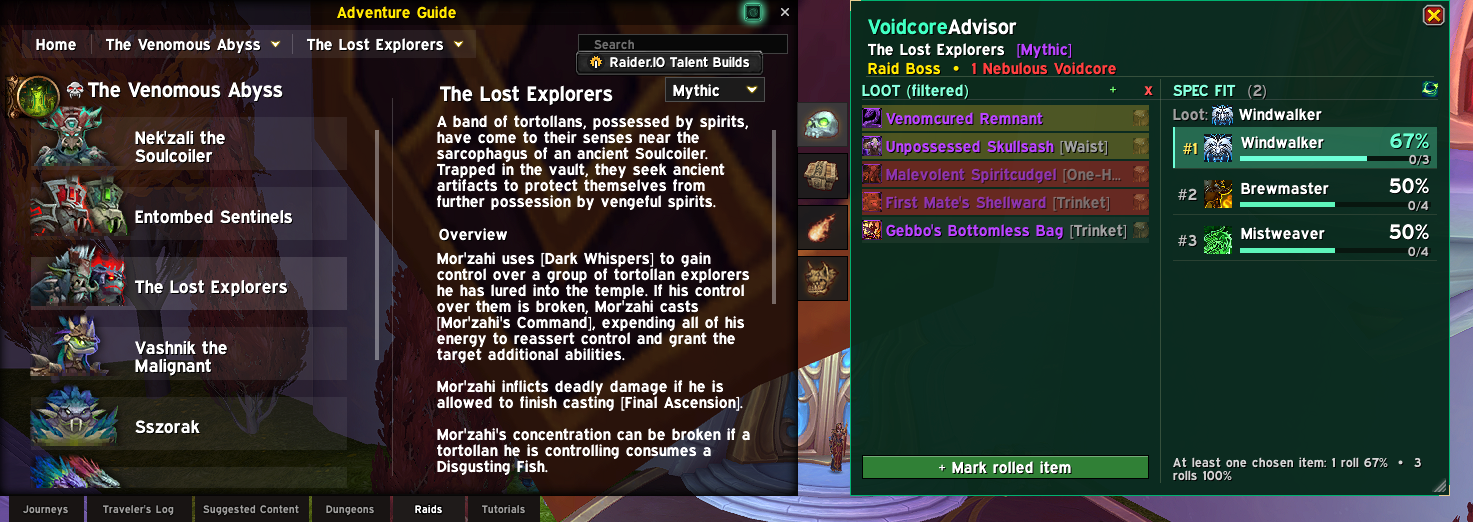
VoidcoreAdvisor Reborn is a World of Warcraft addon for Retail (patch 12.1.7) that helps you make informed decisions when spending Nebulous Voidcores. It attaches a side panel to the Adventure Guide (Encounter Journal) that displays the full loot pool for each raid boss or Mythic+ dungeon, broken down by specialization, alongside probability rankings that show which loot spec gives you the best odds of receiving the items you are after.
When you open the Adventure Guide and browse a boss or dungeon, the addon automatically shows every item available from that source. You can select the specific items you are chasing, and the panel recalculates the probability for each of your specializations in real time, telling you the exact percentage chance that a Voidcore roll will land on one of your selected items for each spec. Specs with smaller remaining loot pools rank higher because each individual item has a greater share of the roll.
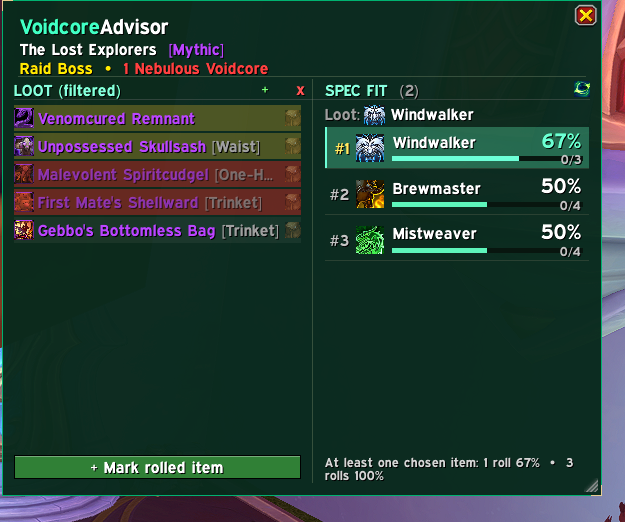
The addon tracks which items you have already obtained, either through manual marking, through automatic detection after boss kills and Mythic+ completions, or by scanning your loot specializations against the Nebulous Voidcache and choosing which of the items the scan finds to mark. Obtained items are excluded from the remaining pool calculations, so your probability numbers stay accurate as you gear up over the course of a season. Item selections and obtained status are saved per character.
What's new in Reborn
- The scan asks before it marks anything. When the Voidcache scan (dungeons or raids) or
/void scan ownedfinishes, it opens a window with every item it found (name, boss or dungeon and specializations), all unticked. Tick the ones you really got from a Voidcore roll and press Mark selected; closing the window changes nothing. A scan only adds marks and never clears the ones you already had. - Its own color: that window is green by default and has a Color button in its header, next to the X, with a palette of every theme of the addon. The choice is saved.
- Only gear that gives item level: mounts, pets, tokens, shirts and cosmetic armor are removed from the loot lists, so every pool holds real equipment only.
/void auditcompares every raid boss of the season with the Encounter Journal and adds any item the loot lists were missing, for every class and specialization. It never removes anything and tells you in the chat which boss lacked which items.- The item in the chat message of an automatic detection can be clicked: it shows the tooltip of the item you own (bags, then equipped) with its real item level, or the normal tooltip if you no longer have it.
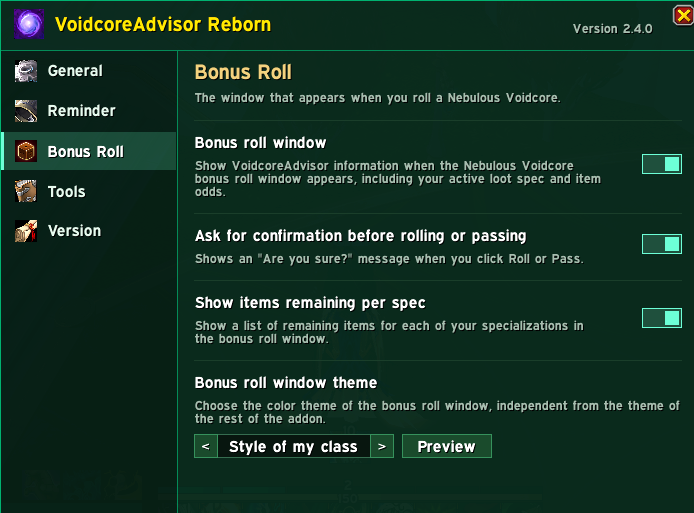
- Ten layouts for the bonus roll window: classic, wide, tall card, compact bar, spec list, ring, banner, two columns, minimal and big button. They show the same information arranged differently; pick one in the settings (Bonus Roll tab), where a Preview button opens a sample that changes live as you switch layout.
- Move the bonus roll window wherever you like: drag it, or use Move window, Save and Reset in the settings. The position and the layout are independent: changing the layout never moves the window.
- The settings window has its own color theme (General tab, right above the color theme of the other windows), with the same 22 themes. The theme and layout selectors now have an arrow on each side to go one by one and a button in the middle that opens the whole list.
- The panel sticks to the Adventure Guide. The panel, the raid overview and the dungeon overview stay attached to the guide and follow it. A pin button next to the X lets go of them (drag a window by its title row, or press the pin) or sticks them back;
/void resetpanelpins them again. - Rolls mark only the specialization you rolled with. A Voidcore roll no longer marks the item for every specialization that can get it.
/void scan ownedlists the pool items you have equipped or in your bags (trinkets are skipped) for your current loot specialization and lets you tick the ones to mark. It is for items you bought with Voidcores before the addon saw the roll.- Text size: a new control in the General tab (80% to 160%) makes the text of the addon and all its windows smaller or bigger. The addon text also keeps its own size when another addon (for example FontControl) enlarges the game fonts.
- A cleaner bonus roll window: the item name, then where the roll comes from (the boss with its difficulty, or Mythic +level), then the cost and your specializations as chips. The origin line is colored like log parses: a Mythic+ key goes from grey (+2) through green and blue to purple (+7 to +9) and gold (+10 and above), and the raid difficulty is green on Normal, purple on Heroic and gold on Mythic.
- More accurate roll tracking. A roll is filed under the keystone or raid you are really in (not the boss open in the panel), and its difficulty is read from the item itself, so a Heroic roll is not marked as Mythic. Rolls saved by older versions are corrected. An item you unmark no longer comes back when you log in, and the chat message shows the item level.
- Scan progress in the chat (a line every 10%), and every message of the addon follows the language of your game.
- The roll history (
/void history) can be used: hover an item for its tooltip, Shift-click to put it in the chat, Ctrl-click to try it on. - Raid items keep the effect text in their tooltip (
/void tooltipschecks all of them), and when you choose items that no single specialization can loot, the overview uses the specialization that covers the most of them instead of showing 0%. - Works on the current patch (the removed global item functions were replaced with their
C\_Itemversions). - Fixed Voidcore rolls not being tracked when the boss selected in the Adventure Guide was not the boss that dropped the item. Rolls saved by the old version are applied again when you log in.
- Loot of The Unbinding of Kith'ix ships with the addon, for every class and spec. A banner warns you when a newer raid is missing from the data, and
/void liveraidreads it from the Adventure Guide. - New Mark rolled item bar in two steps: press it, click the items you got (they dim right away), then press it again to save. Hold Shift to mark everything between two clicks.
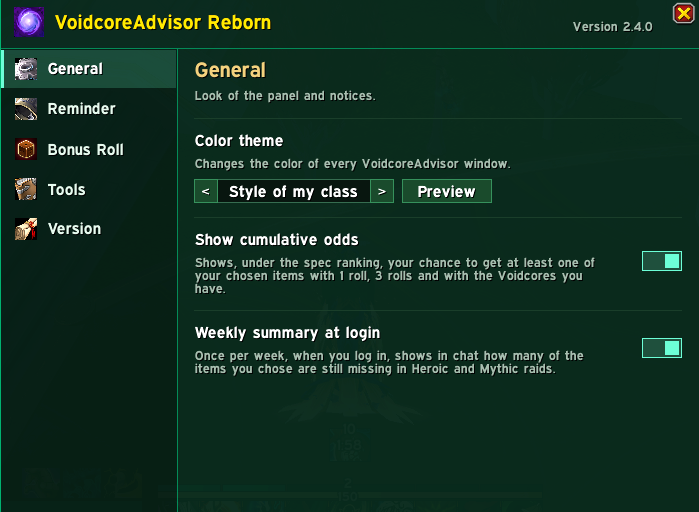
- Cumulative odds under the spec ranking: your chance to get at least one chosen item with 1 roll, 3 rolls and with the Voidcores you have.
/void cores(Voidcores you have, spent this week and needed for your list),/void next(where to spend the next one, best first),/void history(your rolls and luck) and/void chars(what each of your characters still needs).- Wishlist: item priorities (
/void prio, best in slot or alternative, used by the spec ranking),/void wishto paste a list of item IDs or links (for example from Raidbots) and a green + button that chooses everything your loot spec can still get. - A weekly summary at login tells you how many chosen items you still miss, and the raid overview links to the list of all your characters.
- A settings window of its own (
/void openor the addon button in the game's Options) with tabs for the look, the reminder, the bonus roll, shortcuts to every tool and a Version tab with what each version adds and the credits. - A new spec ranking with a progress bar per spec, and items that will not drop for the spec in use tinted red (dark = already obtained).
- Select by slot for raids, like the one for dungeons: a grid of equipment slots at the bottom of the raid overview to choose the items of a slot on every boss at once.
- Tank specializations also get the damage trinkets of their class that use the same main stat.
- The panel shows the difficulty (Normal, Heroic, Mythic, Raid Finder, or Mythic+) next to the boss or dungeon name.
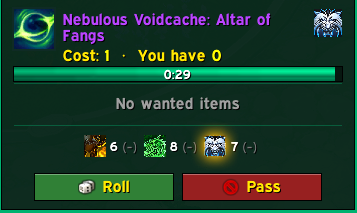
- Redesigned bonus roll window: your chance of a chosen item in a big figure next to the icons of those items, a row with your specializations (click another one to switch your loot spec), a timer with the time left, a green Roll button, a red Pass button and an optional "Are you sure?" confirmation. It is enabled by default.
- Change the font of the addon and all its windows from the settings: the fonts of the game, Source Sans 3 (included) and every font that other addons add through LibSharedMedia, each name shown in its own font.
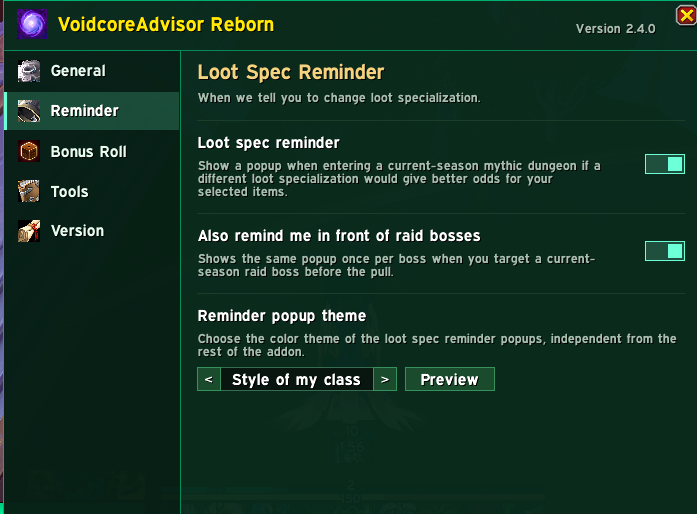
- The loot spec reminder also appears in front of raid bosses (once per boss, again after a wipe), with its own option and a flat themed look.
- 22 color themes: venom green (default), void purple, arcane blue, light, fire, frost, red, one for each class, plus one that follows you. The color theme, the roll window and the reminder each have their own selector and a Preview button in the settings window.
/void openopens that window directly. /void missinglists every item you still need, best odds first./void panelopens the Adventure Guide on a boss or dungeon./void exportand/void importcopy your marked items between characters.- The panel can be moved and resized, and the raid overview shows a progress bar per boss. The raid overview explains what to do instead of showing an empty table.
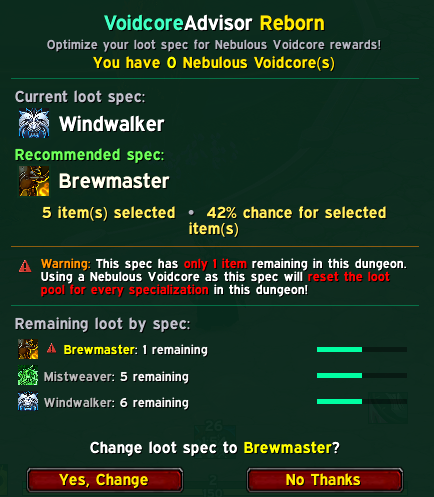
- Louder warning when only 1 item is left for your spec.
- The "Click to save" button of the Mark rolled item mode is orange.
- All texts translated in 11 languages.
/void debugopens a window with the information to attach to a bug report.
Important: disable or remove the original VoidcoreAdvisor before using Reborn, because both use the same saved variables.
Mythic+ dungeons and raids
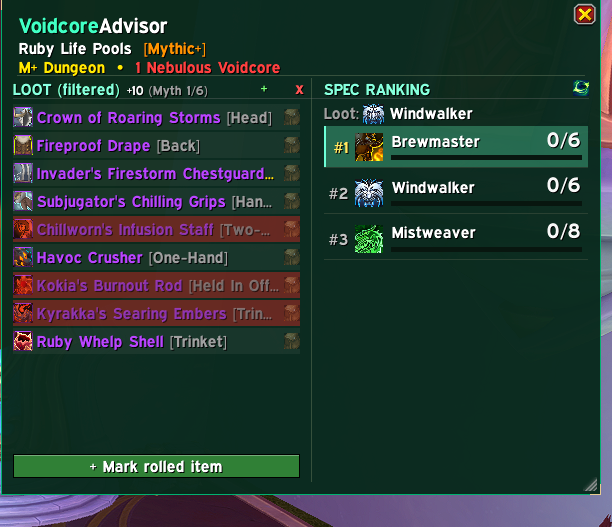
The panel works for raid bosses (Normal, Heroic, Mythic) and for Mythic+ dungeons, with an adjustable key level that updates tooltip item levels to match the Voidcore reward track. Slot filters and spec/item filtering with cross-column highlighting help you compare options.
Mark rolled item
Got an item from a Voidcore roll that the addon did not track? Press the green Mark rolled item bar at the bottom of the loot list, then click the items you got. Click an item again to unmark it, or hold Shift and click a second item to mark everything in between.
Bonus roll window
When a Nebulous Voidcore prompt appears, Reborn replaces the default prompt with a window that shows the item, where the roll comes from (the boss and its difficulty, or Mythic +level, colored like log parses), your Voidcore count, the cost of the roll, the wanted items you still need, your specializations as chips with the number of items left (click one to switch your loot spec) and a live timer. The green Roll button and the red Pass button can ask "Are you sure?" before acting (optional, on by default), so you cannot spend a Voidcore by accident. A red warning and a sound alert you when only 1 item is left for your spec. You can preview the window without spending anything with the Preview button next to the roll window theme in the options. You can also drag the window to wherever you want it to appear (the position is saved; Move window, Save and Reset in the Bonus Roll tab of the settings), and choose among ten layouts (classic, wide, tall card, compact bar, spec list, ring, banner, two columns, minimal and big button) with a live Preview button.
- Layouts: classic, wide, tall card, compact bar, spec list, ring, banner, two columns, minimal and big button. The Preview button next to the layout selector opens a sample beside the settings and updates it as you change layout; press it again to close it.
- Position: Move window opens the sample where you left the window and you drag it from there; Save closes the sample, and Reset sends the window back to its default spot. Trying layouts never changes the saved position.
Voidcache loot scanning
The addon can read the Nebulous Voidcache tooltip for every one of your loot specializations to determine exactly which items each spec can receive. Items missing from the tooltip may be items you already got from a Voidcore roll, so when the scan finishes it opens a window with every item it found, all unticked: tick the ones you really got and press Mark selected, and they leave that spec's remaining pool. Closing the window changes nothing, and a scan only adds marks. The scan waits until the tooltip data has fully loaded, stops if you enter combat or change your loot spec, and saves a backup first; if the results look wrong, type /void restore to roll back.
If the tooltip still lists items you already own, switch to the loot specialization you rolled with and type /void scan owned. It lists what you have equipped or in your bags, but it cannot tell a Voidcore roll from a normal drop, so tick only the items that came from a roll.
The selection window can change its color with the Color button in its header.
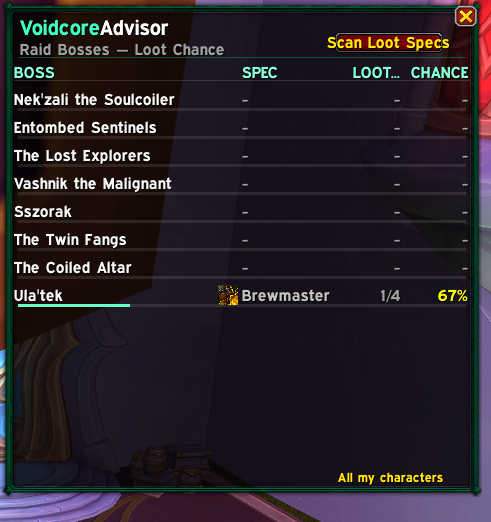
Mythic+: click Scan Loot Specs in the top-right corner of the Dungeon Overview. Raid: click it in the Raid Overview. Both buttons are disabled inside instances and while a scan is running.
Overviews
Dungeon Overview: ranks the current-season Mythic+ dungeons by your best possible Voidcore odds, with slot buttons to narrow the ranking to the pieces you are targeting.
Raid Overview: lists every boss with its best spec, the items remaining, the probability and a progress bar, so you can see which bosses are still worth rolling on.
Loot spec recommendations
When you enter a current-season Mythic+ dungeon, the addon checks whether your active loot spec is the best match for the items you selected. If another spec gives better odds and you have a Voidcore to spend, a popup shows your current spec, the recommended one and the odds, and lets you switch with one click. It appears once per dungeon and can be disabled.
Options, themes and commands
The settings window (type /void open, or press the button of the addon in Game Menu > Options > AddOns) lets you choose the color theme of the settings window itself, of the panel, of the bonus roll window and of the reminder popup (a selector with arrows and a drop-down list with every theme, and a Preview button), the layout of the bonus roll window, the font and the text size, and toggle the bonus roll window, the confirmation step, the recommendation popup (also in front of raid bosses), the cumulative odds line and the per-spec item lists.
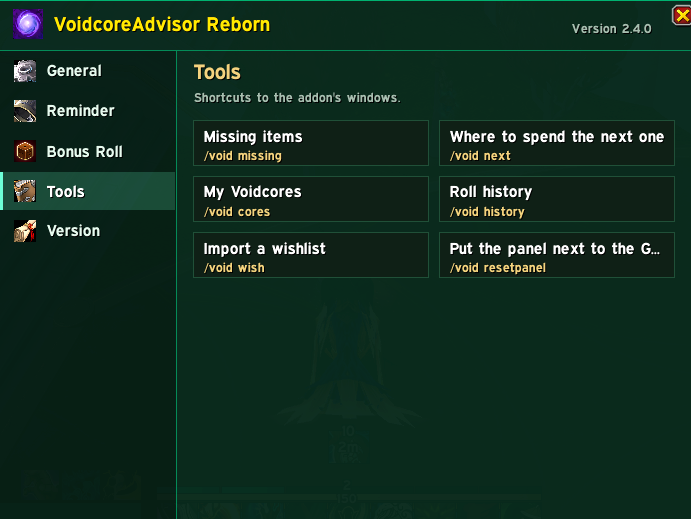
/voidshows the list of commands./void openopens the addon settings window (themes, previews and tools)./void panel \[name\]opens the Adventure Guide on a boss or dungeon./void missing \[14|15|16\]lists every item you still need for your loot spec./void cores \[14|15|16\]shows the Voidcores you have, spent this week and needed for your list./void next \[14|15|16\]ranks bosses and dungeons by your chance of a chosen item./void historyshows your Voidcore rolls with each item's icon and your luck compared with the odds./void charslists what each of your characters still needs./void prio <item> bis|alt|clearsets an item priority./void wish \[min gain %\]chooses items from a pasted list of IDs, links or a Raidbots list./void select \[clear\]chooses everything your loot spec can still get from the open boss./void exportand/void importcopy your marked items between characters./void theme <name>changes the window colors (green, purple, blue, light, fire, frost, red, class, or a class such as mage or priest)./void previewopens the sample window to try themes./void resetpanelpins the panel to the Adventure Guide again./void perfshows the memory and CPU used by the addon./void scan \[raid 14|15|16\]reads your Voidcache and lets you choose which items to mark from coins you already used (progress shows in the chat)./void scan ownedlists the pool items you have equipped or in your bags for your current loot specialization so you can tick the ones to mark./void auditchecks every raid boss against the Encounter Journal and adds any item missing from the loot lists./void rollsprints the raw list of your Voidcore rolls./void tooltipschecks that no raid item loses its effect text./void debug,/void restore,/void replaylog,/void liveraid,/void version.
Frequently asked questions
I used the original VoidcoreAdvisor. Do I lose my data? No. Reborn uses the same saved variables, so your marked items and choices carry over. Remove or disable the original addon, put the VoidcoreAdvisorReborn folder in your AddOns folder and start the game.
What do I have to disable? The original VoidcoreAdvisor. Both register the same options and saved variables, so running them together causes errors. Reborn warns you in chat if it finds the original enabled.
A new raid is not in the addon yet. Reborn tells you with a message and a banner. Type /void liveraid to read its loot from the Adventure Guide, or wait for the next release.
How do I report a bug? Type /void debug in game, copy the text and open an issue on GitHub (there is a bug report template) or leave a comment here.
Credits and license
Original addon and artwork by rolferik12 (MIT license, copyright 2026 rolferik12). Reborn is maintained by KingKhaax and released under the same MIT license.
Found a bug or have an idea? Open an issue on GitHub or leave a comment, and tell me which character, boss and difficulty it happened on.
VoidcoreAdvisor Reborn Team