UI Passport
- By
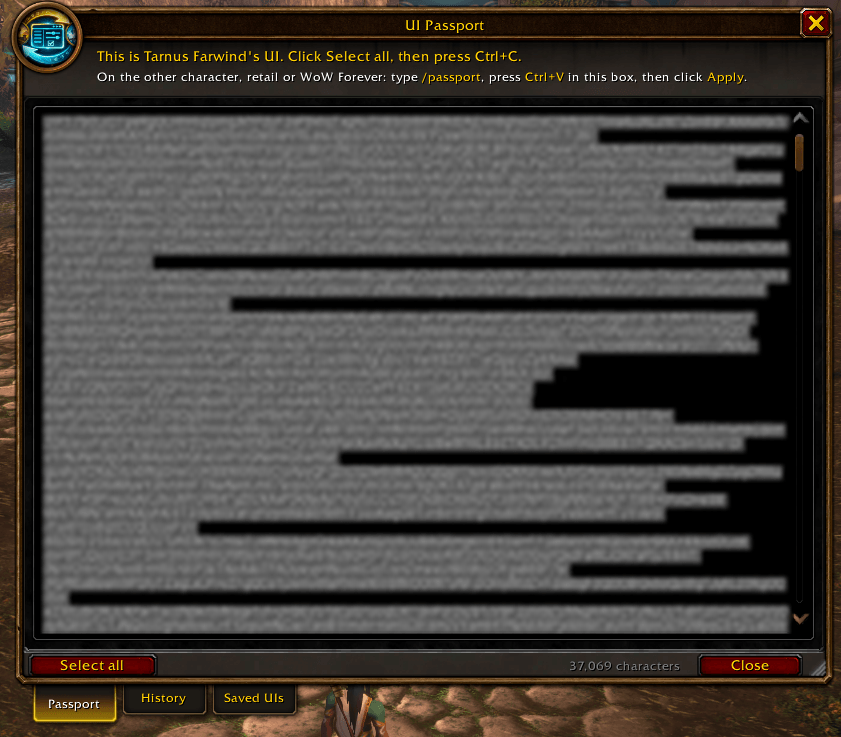
Type /passport and your whole UI is ready to copy. Press Ctrl+C, then Ctrl+V on the other character.
Description
Copy your whole UI from one character to another with one copy and paste. Works on retail, on WoW Forever, and between the two.
How to use
- On the character with the UI you want, type
/passportand press Ctrl+C. The string is already selected. - On the other character, type
/passport, press Ctrl+V, tick what you want and click Apply and reload. Hover over a part to see exactly what it will change. - Changed your mind? Open the History tab and click Undo, or type
/passport undo.
You can also open it from the minimap button or from Options > AddOns > UI Passport.
What it copies
On by default
- Game settings: interface options, nameplates, action bars 2-8, combat text and UI scale
- Edit Mode layouts and which one is active, converted between retail and WoW Forever
- Cooldown Manager: the spells and alerts on each bar, for every spec (same class and game)
- Chat windows: tabs, sizes, positions, colors, font size, channels and message types
- Click-casting
- Which addons are turned on
- Addon settings and profiles
- Keep these settings on this PC, so an old cloud copy can't overwrite what you import
Off unless you tick them
- Action bar spells and macros, best between characters of the same class
- Keybindings
Graphics, sound and character progress are never touched.
Addon settings
Built-in support for AdiBags, AllTheThings, ArkInventory, Auctionator, Baganator, Bagnon, Bartender4, BetterBags, BigWigs, Cell, Chattynator, Clique, DBM, Details!, Dominos, Edit Mode Expanded, ElvUI, Grid2, GTFO, HandyNotes, Kaliel's Tracker, Leatrix Maps, Leatrix Plus, Mapster, Masque, Method Raid Tools, MoveAny, Myslot, Narcissus, Pawn, Plater, Plumber, Postal, Prat, Questie, Raider.IO, RareScanner, SexyMap, Simulationcraft, Syndicator, TellMeWhen, TipTac, TomTom, VuhDo and WarpDeplete.
Other addons that keep their settings in AceDB or normal saved variables are copied too. Choose in the import view picks which addons come over, and settings only apply to addons installed on the receiving character.
Logs, caches, chat history and item, price and collection databases are left out. TradeSkillMaster is skipped because it wipes its database when it sees copied data. WeakAuras is skipped because its auras are code; use its own export, which shows that code first.
History
Each character keeps its last 10 UI versions. Every import adds one, and so does any change made another way, such as by hand or by an addon resetting itself (checked once a day). Undo and Redo step through them, and clicking an entry lets you put back only the parts you pick.
Saved UIs
Save a UI under a name, like Raid or Streaming, and load it on any character in the same game. Retail and WoW Forever each keep up to 10. Make one your main UI and your other characters ask whether to use it when they log in. Deleting a saved UI removes it for every character in that game.
Safety
- Your current UI goes into History before every import. Undo reverses exactly what the import changed and removes what it added. Account-wide layouts and macros stay, since other characters may use them.
- Apply only works outside combat, instances and Edit Mode.
- A pasted string can only change settings. It can't replace game code, create globals, change Blizzard's own data, turn UI Passport off, or touch graphics and sound.
- Addon settings, action bars and keybindings can carry scripts. In a passport from another WoW install they start unticked, with a warning. Tick them for your own characters and that install is trusted from then on. Only tick them in someone else's passport if you trust that person.
Commands
| Command | What it does |
|---|---|
/passport |
Open or close the window (/uip also works) |
/passport undo |
Step back in this character's History |
/passport redo |
Step forward again |
/passport history |
Open the History tab |
/passport saved |
Open the Saved UIs tab |
/passport reset |
Center the window at its default size |
/passport options |
Open the settings page |
Good to know
- The window can be moved and resized, and always fits on screen. Options > AddOns > UI Passport sets its size.
- Hover over the string's length to see which parts of your UI take up the most room.
- The folder is named
!UIPassportso it loads first and can hand other addons their imported settings before they read them. - Strings from 1.x still import, and 2.x strings import in 1.x.
UI Passport Team