Trigger Finger
- By
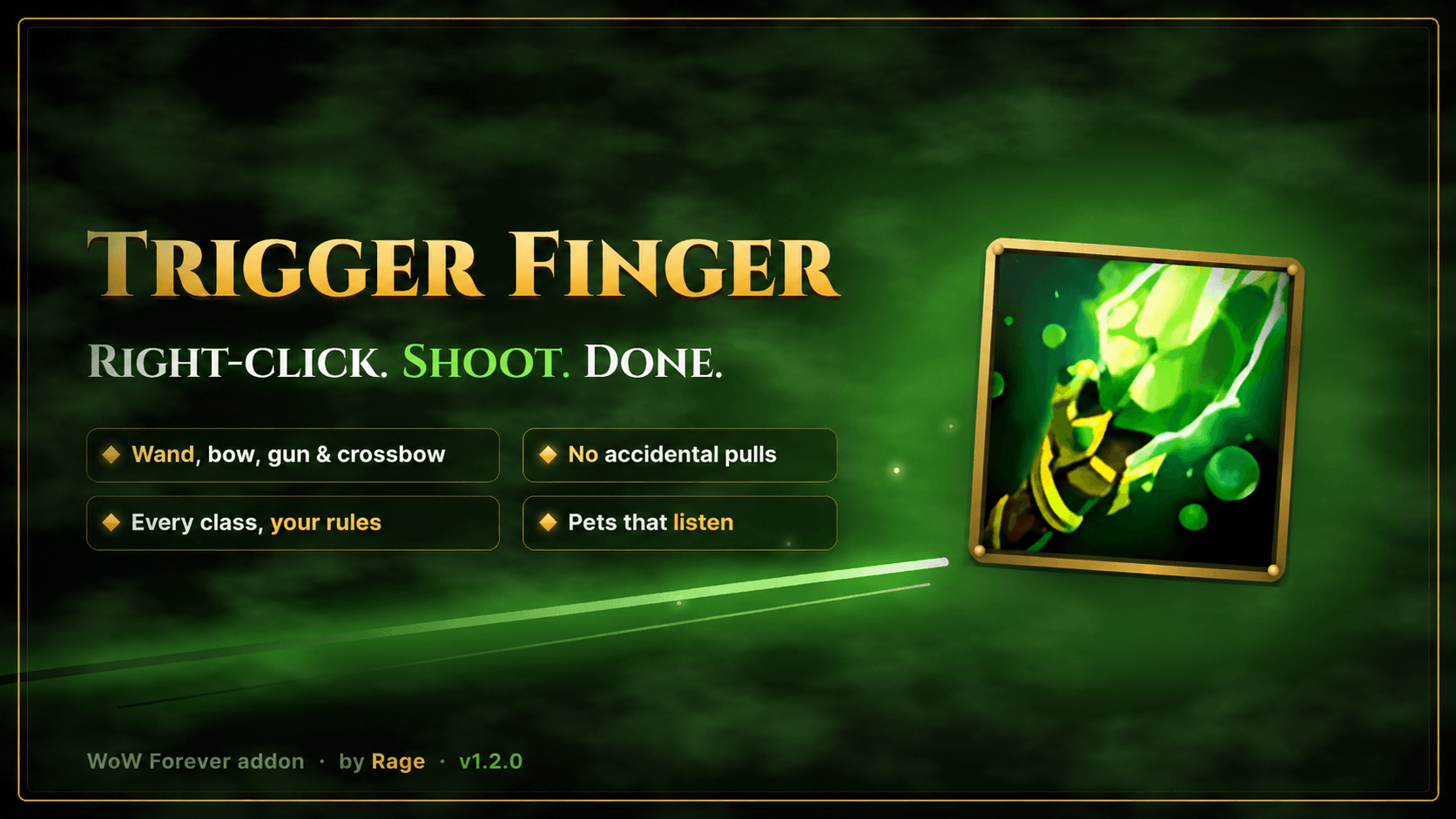
Stop bonking mobs with your melee weapon. One right-click fires your wand, bow, gun or crossbow, guards your dungeon pulls and sends your pet in. Your rules for every class.
Description
Trigger Finger
Trigger Finger turns right-click into your ranged attack. Right-click an enemy and your wand, bow, gun, crossbow or throwing weapon fires, instead of your mage running up to slap it with a staff. No macros, no extra action bars. Right-click on NPCs, loot, friendly players and the ground works exactly as before.
It's set up for every class in a minute and stays out of your way after that: it protects your pulls in dungeons, keeps your channels going and keeps your pet on the target you chose.
Made for WoW Forever 1.60.1 by Rage. Plays in English, Deutsch, Français, Español and Русский.
Right-Click to Shoot
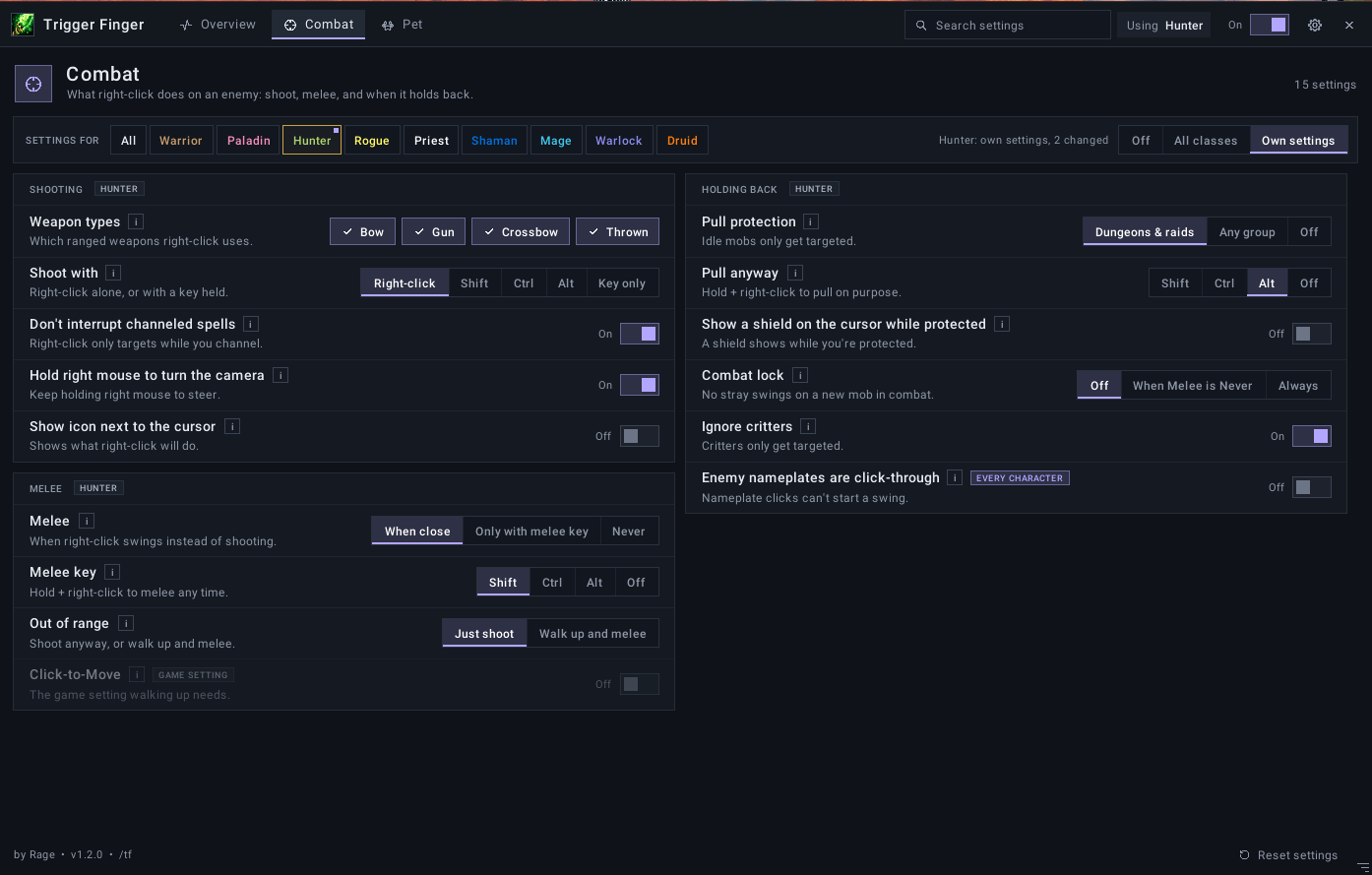
Right-click any enemy and your ranged attack starts. Hunters get Auto Shot, wand users get Shoot, and everyone else fires their bow, gun, crossbow or thrown weapon. Pick which weapon types it should use; each class only sees the ones it can actually equip.
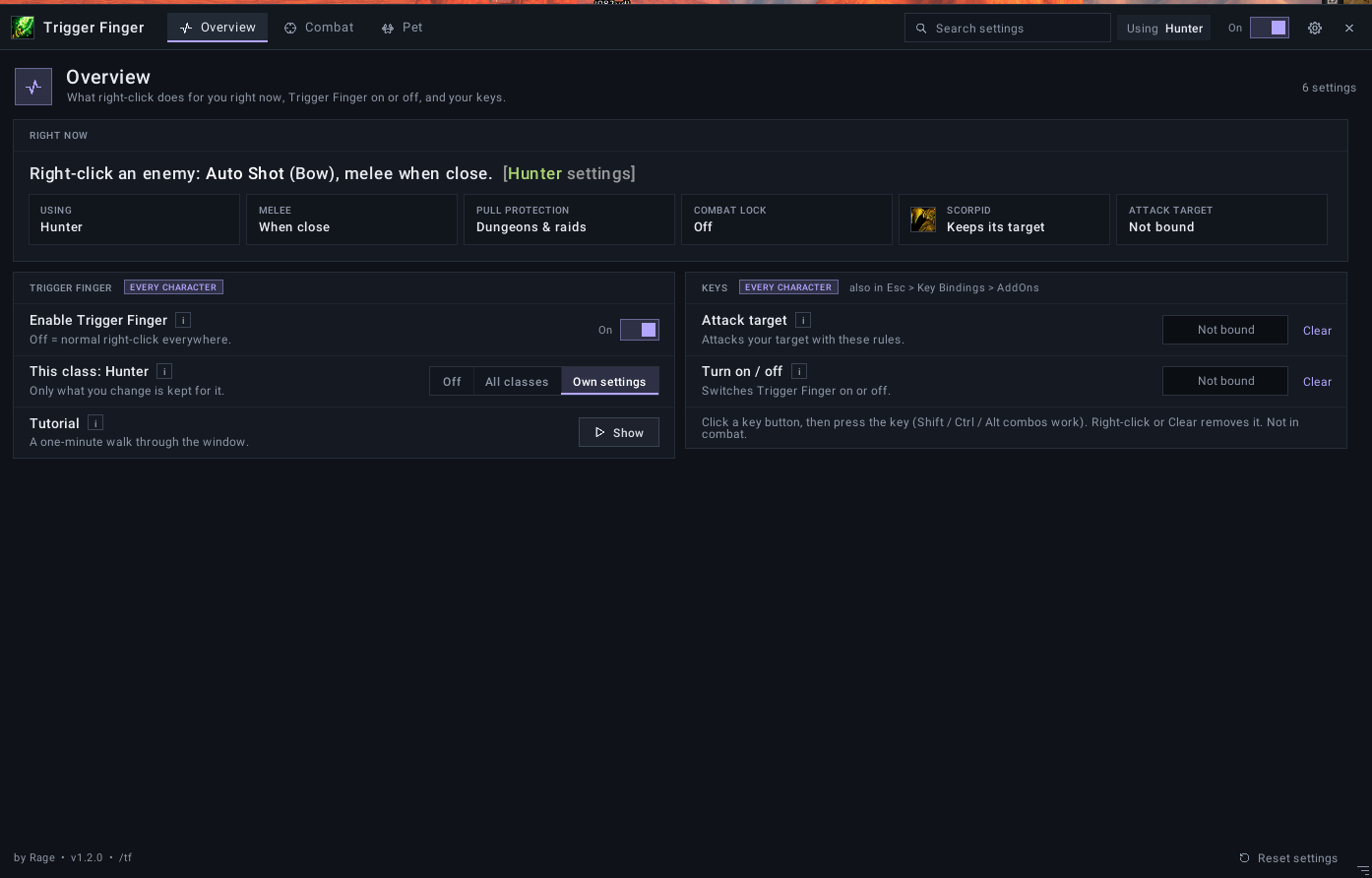
The Overview tells you at a glance what right-click does for your character right now: your weapon, when you melee, pull protection, the combat lock, your pet's rule and your Attack key. Click any of them to jump to the setting.
Holding right mouse still turns and steers the camera like normal. Want a hint before you click? Turn on the optional cursor icon: your weapon, a sword for melee, a shield while pull protection holds, and red when the enemy is out of range.
You Decide When to Melee
When close shoots at range and melees once the enemy is within about 10 yards: made for warriors and rogues who pull with a bow. Only with melee key always shoots, and Shift (or Ctrl / Alt) + right-click melees on purpose. Never never melees, which is perfect for casters. Without a wand, right-click just targets.
Enemy too far to shoot? Turn on walk up and melee and WoW's Click-to-Move runs you over and starts the fight.
No Accidental Pulls
In dungeons and raids, right-clicking a mob nobody is fighting yet only targets it. Once the tank pulls, right-click attacks as normal. Want to pull yourself? Hold Alt + right-click.
Critters are safe too: out of combat a right-click only targets them. The optional combat lock makes every right-click in combat go through Trigger Finger, so switching fast to a new mob can never start a melee swing. Channeling Arcane Missiles, Blizzard or Drain Life? Right-clicking a new target only targets it, so your spell keeps going.
Picked the same key for two things? Trigger Finger flags the clash on both settings.
Smart Pet Control
Hunters and warlocks: right-click shoots and sends your pet in.
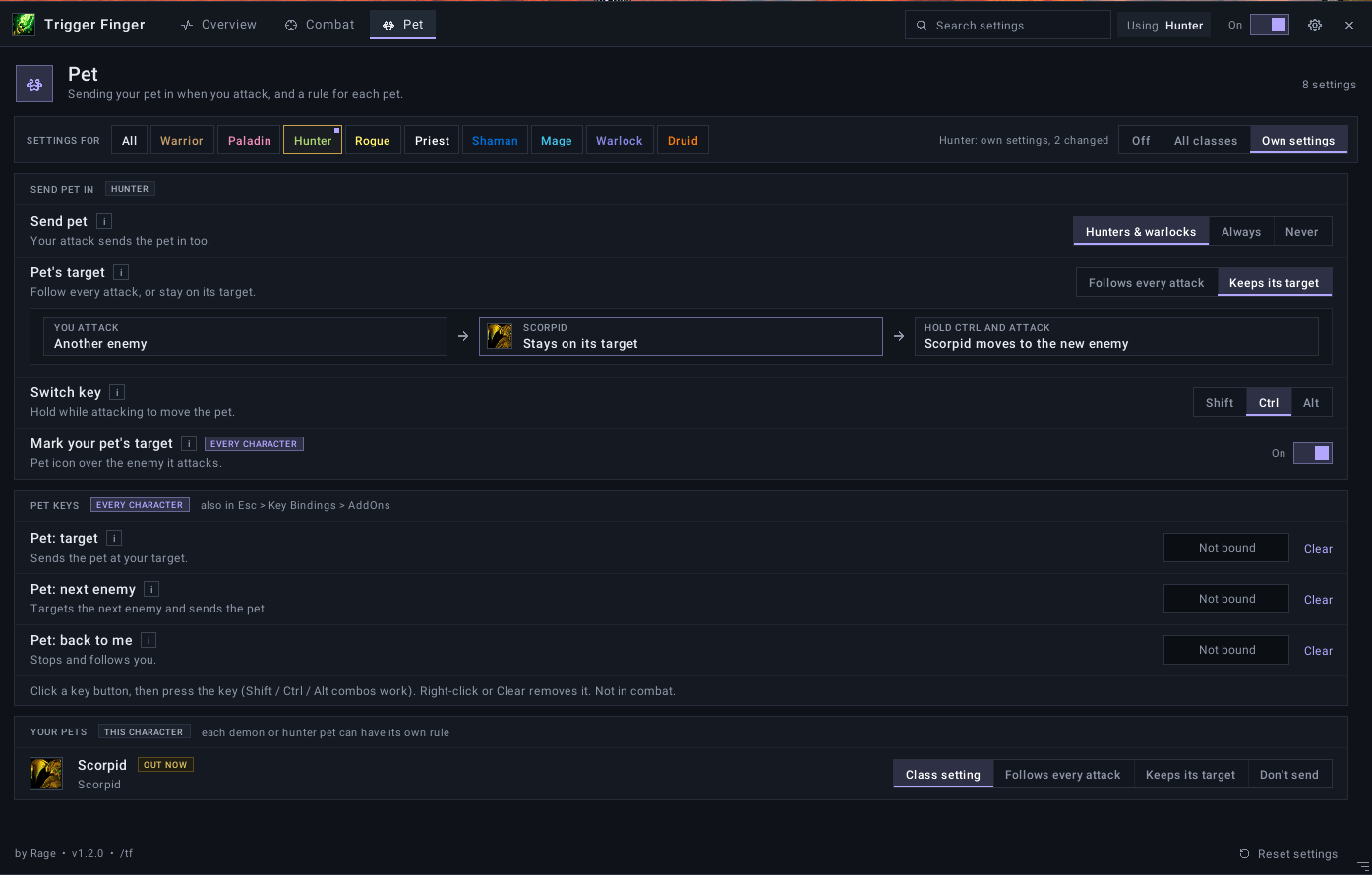
Let the pet keep its target and it stays on what it's fighting while you shoot something else. Hold Ctrl (or Shift / Alt) while you attack to send it to the new enemy; a pet with no target still joins in. Put your pet on Passive and the game never pulls it away: it only goes where you send it. The Pet tab reminds you if it isn't.
Steer it without attacking yourself, with keys of its own:
- Pet: target sends your pet at your target. Click or Tab to a mob and press the key.
- Pet: next enemy targets the next enemy, like Tab, and sends your pet to it.
- Pet: back to me stops your pet and brings it back.
Turn on Mark your pet's target and your pet's icon sits above the enemy it's fighting.
Every demon and every tamed pet can have its own rule: follow every attack, keep its target, or stay out of it. Your Voidwalker holds the big one while your Imp follows your shots.
Every Class, Your Rules
Set everything up once for All classes. Then give any class its own touch: Off, All classes, or Own settings. With own settings only what you change is kept for that class, and everything else keeps following All classes, even when you change it later. A small dot in the class row marks classes that have their own settings.
Prefer the keyboard? Bind an Attack key to attack your current target with the same rules; it works in combat. Key only mode leaves right-click completely normal and shoots only with that key.
A Settings Window That Explains Itself
Open it with /tf or the minimap button. Three tabs (Overview, Combat and Pet), a gear for the window, language, minimap button and chat, and a search box that finds any setting on every tab. Every setting has a short line under its name, and the i next to it gives the full explanation. A short guided tutorial shows you around the first time (replay it any time from Overview).
Set your keys right in the window, choose which chat tab gets Trigger Finger's messages, pick a look (Slate or Obsidian) and pick your language: English, Deutsch, Français, Español or Русский. Your game language is chosen automatically.
Pairs With Forever Titles
Trigger Finger's window shares its look with Forever Titles, my title addon for WoW Forever: earn titles from missions, dungeons and your class, open cases, climb the rankings and show your title over your head. Both use the same Slate and Obsidian looks, so they feel like one set.
Download Forever Titles on CurseForge
Getting Started
1. Install and log in. Right-click an enemy to shoot.
2. Type /tf (or right-click the minimap button). The tutorial shows you around.
3. Want different rules for one class? Open Combat or Pet, click the class in Settings for and pick Own settings.
4. Optional: set an Attack key on the Overview, e.g. T, and your pet keys on the Pet tab.
Commands
| Command | What it does |
|---|---|
/tf |
Open the settings |
/tf on / /tf off / /tf toggle |
Turn Trigger Finger on or off |
/tf tutorial |
Show the tutorial again |
/tf meleemode close |
When to melee: close, key or never |
/tf never |
Never melee (same as /tf meleemode never) |
/tf melee shift |
Key to melee on purpose (ctrl, alt, none) |
/tf trigger none |
Key needed to shoot (shift, ctrl, alt, or key = Attack key only) |
/tf walk |
Walk up and melee when out of range on/off |
/tf wand |
Wands on/off (also bow, gun, crossbow, thrown) |
/tf wandonly |
Only use wands |
/tf pet auto |
Send your pet in (on, off) |
/tf channel |
Don't interrupt channeled spells on/off |
/tf pull instance |
Pull protection in dungeons & raids (group, off) |
/tf pullkey alt |
Key to pull anyway (shift, ctrl, none) |
/tf shield |
Shield icon on the cursor while pull protection holds on/off |
/tf lock on |
Combat lock (auto, off) |
/tf critters |
Leave critters alone on/off |
/tf clickthrough |
Click through enemy nameplates on/off |
/tf custom |
Own settings for your class on/off |
/tf class |
Trigger Finger on/off for your class |
/tf minimap |
Show/hide the minimap button |
/tf status |
Your settings in chat |
/tf debug |
Debug messages on/off (always in English) |
/tf reset |
Reset all settings |
Good to Know
WoW sets a few limits for addons:
- In combat addons can't check range or change right-click, so "shoot or melee" is decided just before the pull. Your melee key works any time.
- "Close" is about 10 yards, the shortest distance WoW lets addons check.
- Addons can't move you. Walk-up uses WoW's own Click-to-Move, which always runs all the way to melee range.
- Addons can't send your pet on a modifier key alone. That's why the switch key works together with an attack, and why the pet keys exist.
- Settings changed in combat apply when the fight ends.
Bugs & Ideas
Leave a comment, I read them all. For Lua errors type /console scriptErrors 1, do it again and paste the full error text. Debug messages (/tf debug) are always in English, so they're easy to share.
Something reads oddly in your language? Tell me and I'll fix it.
Trigger Finger Team