


hero.png
difficulty-colors.png
quest-icon.png
quest-row.png
quest-tooltip.png
Description

The tracker
Sections
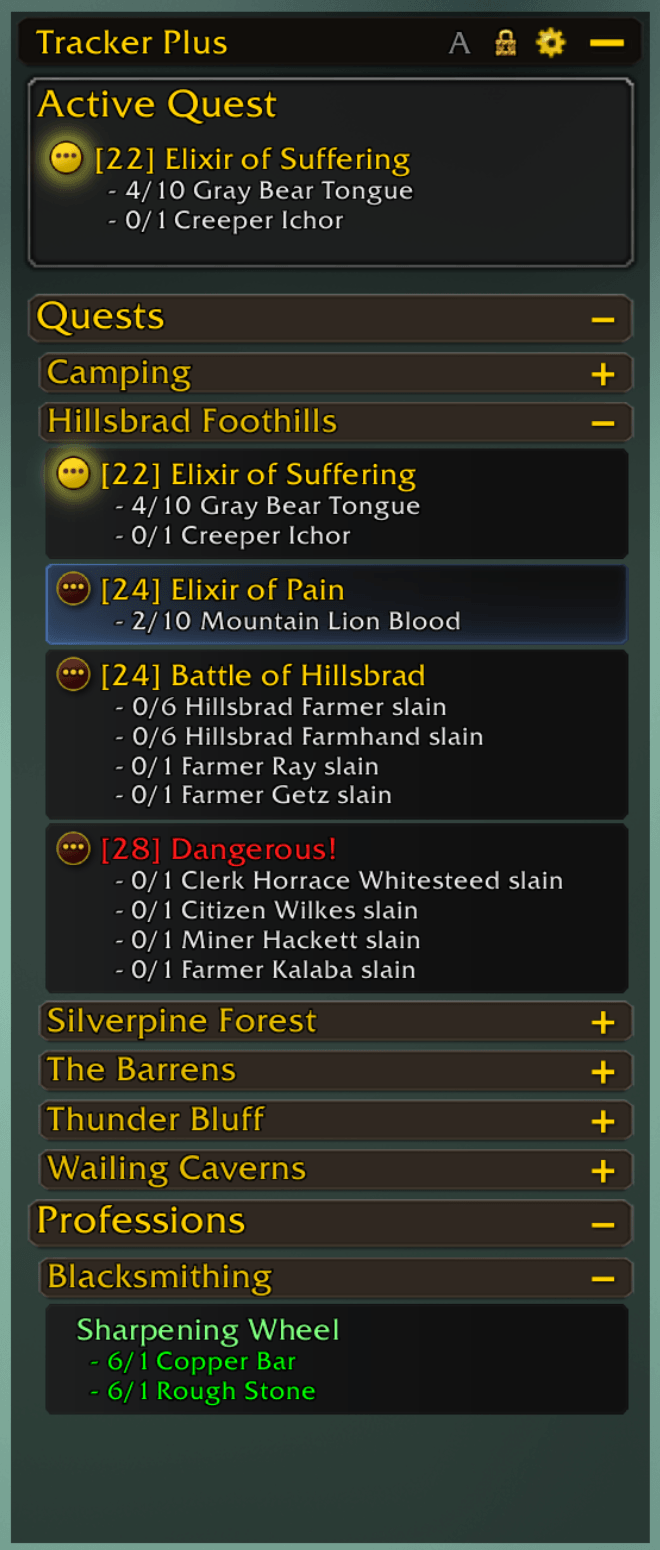
Each kind of content gets its own section, top to bottom. The sections above the quest list stay pinned at the top, Bonus Objectives and World Quests stay pinned at the bottom, and the list in between scrolls.
| Section | Version(s) | What's in it |
|---|---|---|
| Scenario | Retail | The current scenario, delve or dungeon objectives. |
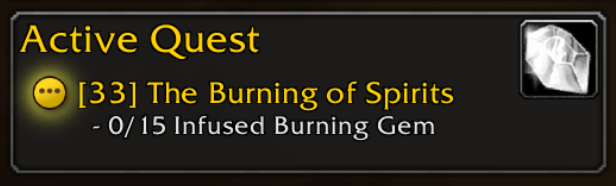
| Active Quest | Retail, Forever | The quest you're focused on (super-tracked). |
| Follow the Arrow | Retail | The current step of a FollowTheArrow guide. Off by default. |
| Campaign | Retail | Campaign quests. |
| Quest popups | Retail | Auto-accept and auto-complete quest popups. Click one to accept or turn in. |
| Quest Timers | Retail, Forever | Countdowns for timed quests, just above the quest list. Click one to make it your Active quest. |
| Quests | Retail, Forever | All other tracked quests, grouped under zone headers. |
| Achievements | Retail | Tracked achievements and their criteria. |
| Professions | Retail, Forever | Tracked recipes and their reagents. |
| Monthly Activities | Retail | Tracked Trading Post / Traveler's Log activities. |
| Endeavors | Retail | Tracked housing endeavors. |
| Bonus Objectives | Retail | Area bonus objectives you're working on. |
| World Quests | Retail | Tracked and in-progress world quests. |
Each type can be turned off under Settings → Tracking Panel. A campaign quest that is also your Active quest can be shown in both sections (Campaign in Active Quest on the main settings page).
Quest rows
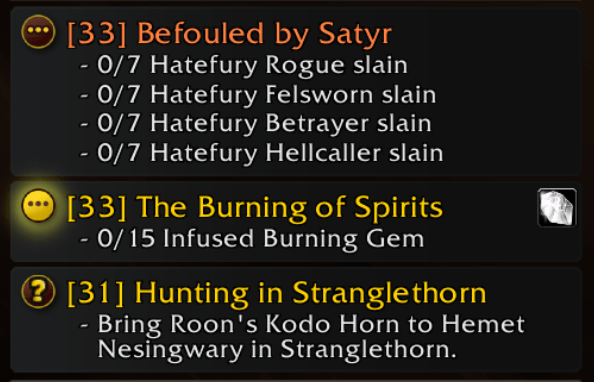
Each quest row has:
- The game's own map pin button on the left. Click it to focus that quest, or to stop focusing it.
- The quest level before the name, e.g.
[28+]for a group quest (Show Quest Level). - A party count after the name, e.g.
(+2)when two party members are also on the quest. The tooltip lists their names in class colors (Show Party Members on Quest). - Objectives underneath, turning green when done and red when failed, with progress bars for percentage objectives.
- A quest item button when the quest has a usable item. Click it to use the item, the same as on the game's tracker.
- A Find a Group button on world quests and bonus objectives that have one.
- A Play button when Spoken has a voice for the quest: click it to hear the quest read aloud, click again to stop. It goes at the right end of the title line, or under the map pin button (Settings → Tracking Panel → Spoken).
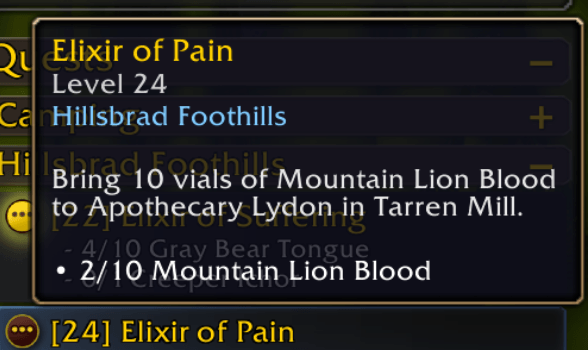
- A tooltip on hover with the quest's level, zone and objectives (Show Tooltips).
An optional row background can be drawn behind each row (Settings → Appearance → Row Styling).


Quest colors
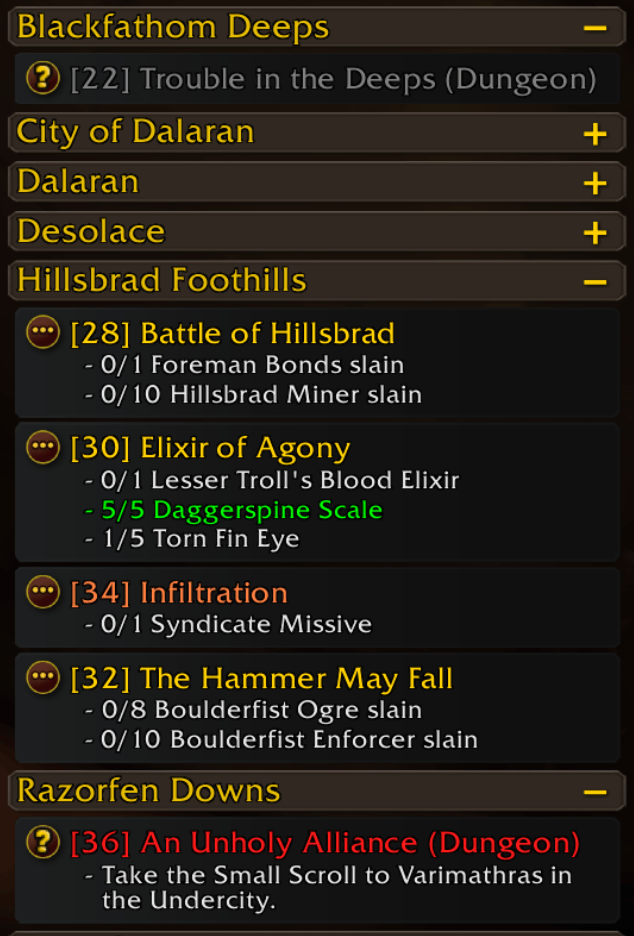
- By difficulty. Quest names are colored gray, green, yellow, orange or red the same way the quest log colors them. The game decides how hard each quest is for you, so scaling quests get the right color. Turn Color by Difficulty off to use one flat quest color instead.
- Focused quest. Keeps its difficulty color. The glow on its map pin button is what marks it as the quest you're focused on.
- Other content. Achievements, professions, monthly activities, endeavors, scenarios and bonus objectives each have their own color, set under Settings → Appearance → Colors.
Quest area marker
While you're inside the shaded area the map draws for a quest, that quest's row is marked. Pick a style and a color under Settings → Appearance → Quest Area Highlight:
- Stripe (Left) or Stripe (Right)
- Bracket
- Outline
- Background Tint
- Gradient Fade (Left) or Gradient Fade (Right)
- Friend Card (Battle.net) or Friend Card (Selected)
Zone headers and auto-minimize
Quests are grouped under zone headers, and every section has its own header. Click a header to collapse or expand it. Shift-click a section header to collapse or expand all of its zone groups at once.
Auto-minimize (the A button on the title bar) keeps only your current zone, and any zone whose quest area you're standing in, expanded. Everything else collapses, and opens again when you get there. Collapsing or expanding a zone header yourself turns auto-minimize off.
The expand/collapse icon's style and side, and the header background, are set under Settings → Appearance → Header Styling.
Clicking
| On a… | Click | Shift-click | Right-click |
|---|---|---|---|
| Quest | Open the map to it, scrolling the quest log to it and highlighting it | Link it in chat | Menu: Focus Quest, Stop Tracking, Show in Quest Log, Share Quest (in a group), Link to Chat, Abandon Quest |
| Quest popup | Accept or turn in the quest | — | — |
| Quest timer | Make it your Active quest | — | — |
| World quest / bonus objective | — | Link it in chat | — |
| Achievement | Open it in the Achievements window | Link it in chat | Menu: Link to Chat, Stop Tracking |
| Recipe | Open it in your profession window | Link it in chat | Menu: Link to Chat, Stop Tracking |
| Monthly activity | Open the Traveler's Log | Link it in chat | Menu: Link to Chat, Stop Tracking |
| Endeavor | Open it in the housing window | Link it in chat | Menu: Link to Chat, Stop Tracking |
The mouse wheel scrolls the tracker; there's no visible scrollbar.
Title bar
From right to left, the title bar buttons are:
| Button | Does |
|---|---|
| Minimize | Shrinks the tracker to a single button in the same spot. Click it again to bring the tracker back. |
| Settings (gear) | Opens the settings. |
| Lock (padlock) | Locks or unlocks the frame. |
| A | Turns auto-minimize on (gold) or off (gray). |
| Arrow | Turns the Follow the Arrow section on (gold) or off (gray). Only shown when FollowTheArrow is loaded. |
Position and size
On first load TrackerPlus sits exactly where the game's own tracker is, at the same size, and follows any changes you make to that tracker in Edit Mode (Match Game Tracker). While Edit Mode is open, TrackerPlus steps aside so you can grab the game's tracker.
To place it yourself, unlock the frame, drag the title bar to move it and drag a bottom corner to resize it. Match Game Tracker turns itself off the moment you do; check it again to snap back. Anchor picks which point of the tracker stays put as it grows and shrinks.
The tracker can also be hidden in instances, in combat, or while nothing is tracked.
World map pins
The game's own quest pins on the world map get a ring in the same color as that quest's name in the tracker, so the map and the tracker always agree. Choose a soft Glow or a solid Circle, and set its thickness and, for the glow, its opacity. These are under Settings → Map Pins.
Nameplate highlights
Enemy nameplates are highlighted when that enemy is something your quests need. The game's own unit tooltip decides what counts, so the highlights match what the game considers a quest target.
| Highlight | Version(s) | Used for | Default color |
|---|---|---|---|
| Current Target | Retail, Forever | Your target, when it's also a quest target | Green |
| Active Quest Target | Retail, Forever | Targets for your Active (focused) quest. Takes priority over the quest highlights below. | Blue |
| Quest Objective Target | Retail, Forever | Enemies you need to kill for a quest | Yellow |
| Quest Item Target | Retail, Forever | Enemies that drop an item you need for a quest, even when killing them isn't an objective | Cyan |
| World Quest Objective Target | Retail | Targets for active world quests | Blue |
| Bonus Objective Target | Retail | Targets for area bonus objectives | Pink |
When you target an enemy that isn't a quest target, the game's normal target border is shown instead.
Each highlight can be turned on or off on its own and has its own style, color, thickness and offset. The styles are Rounded (the default), Blizzard (the game's own target border), Outline and Glow.
There are also options to hide the game's target border on the health bar or on the level badge, or to redraw it 1px lower so it sits evenly around the health bar.
The settings page has a preview nameplate. Click the magnifying glass next to a highlight to see it on the preview before you go out into the world.
Supports other addons like Auctionator (Profession Search button), Spoken (Play buttons for each quest), and Follow the Arrow (Retail only).
TrackerPlus Team
