ThinLine
- By
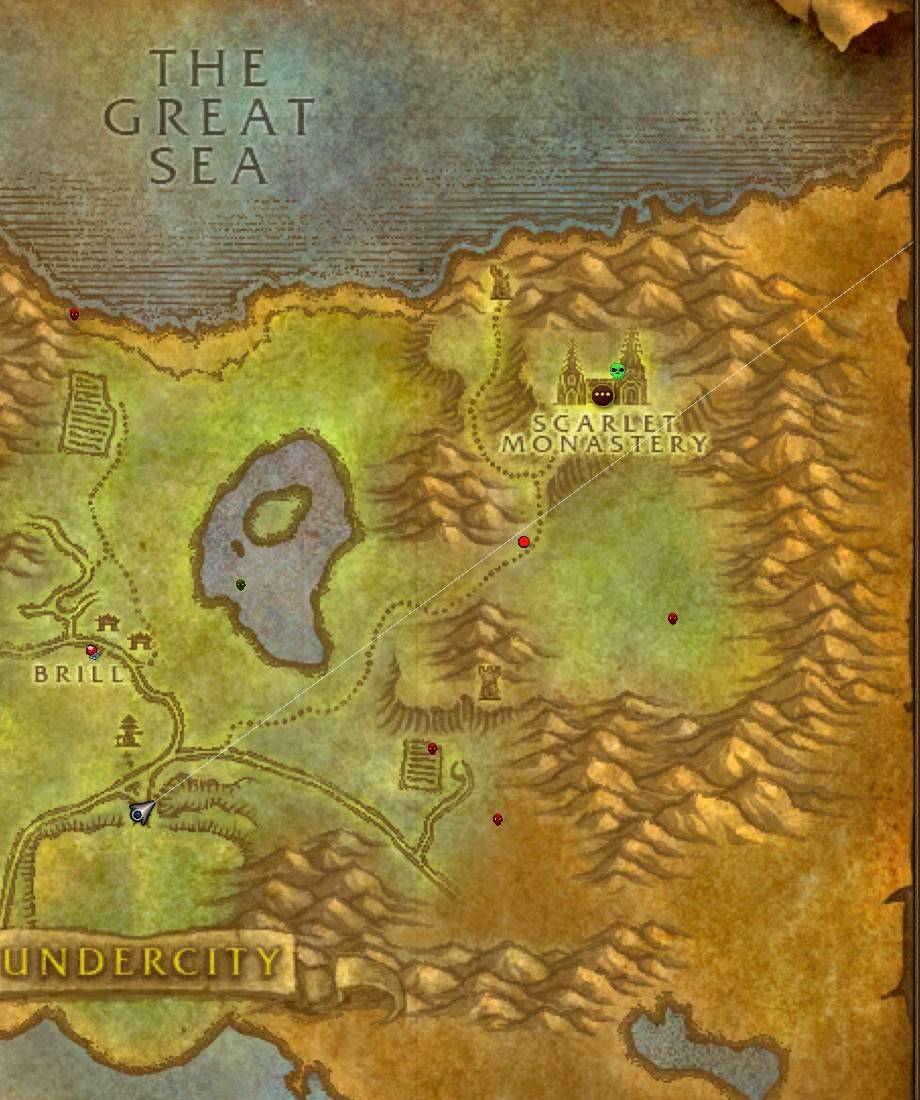
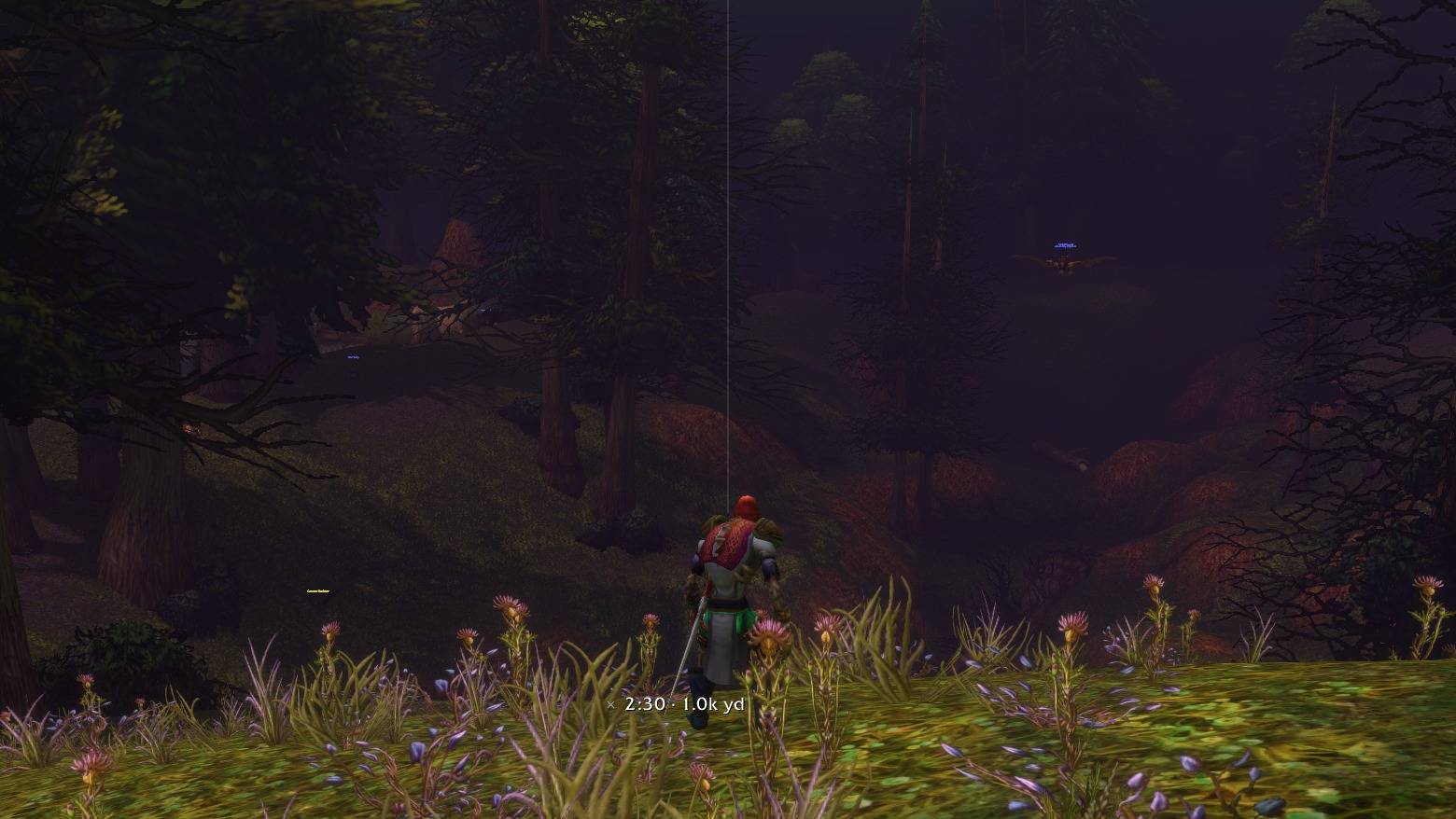
Draws a thin line on your map and minimap in the direction you're facing, with a pin, a time-to-pin timer and an on-screen aim line.
Description
ThinLine
Run straighter. Arrive sooner.
Like ThinLine? Hit ⭐ Favorite, leave a 💬 comment with your ideas or bugs, and visit the 🏠 homepage for more from Leafcutter. ThinLine is free, and every favourite and comment helps other players find it.
WoW: Forever is a lot of running. ThinLine draws one thin line from your character to the edge of the map, in exactly the direction you're facing. Read the hills, rivers and camps for yourself and take the shortcut.
Features
Facing line on the world map and the minimap
A thin line from your arrow to the edge of the map, always pointing exactly where you face. Square minimaps (Leatrix Plus, ElvUI and more) are supported, corners included.
One pin, no clutter
Hold your pin key (Alt by default) and left-click the map to place it. Right-click it to remove it. It clears itself when you arrive or leave its zone, and it can sit in the next zone over.
Your keys, no clashes
Choose the pin key in the settings: Alt, Ctrl or Shift. If another map addon already uses Alt-click (TomTom does by default), give ThinLine a different key and the two never get in each other's way.
A timer that answers "am I going the right way?"
The time to your pin, right under the minimap. Turn toward the pin and it drops; drift off course and it climbs. It's steady, not jumpy, and it uses your real speed, so mounts, Sprint, Aspects and potions all count.
Aim line
Hold Alt (or any key you bind) for a thin line up the middle of the screen: your straight path ahead. It turns cyan when you're facing the pin. Line it up with a landmark and run.
Clear the pin in one click
While you hold the aim key, a small × appears next to the timer. Click it, still holding the key, and the pin is gone. Let go and the × disappears, so it never gets in the way.
Corpse runs, sorted
Release, and the pin moves to your corpse. Resurrect, and your previous pin comes back.
Works with what you already use
- Set a Blizzard map waypoint or a TomTom arrow, and ThinLine's pin follows it. This is read-only: ThinLine never changes theirs.
- Got coordinates from a guide? Type
/tl 45.2 67.8.
Made for your UI
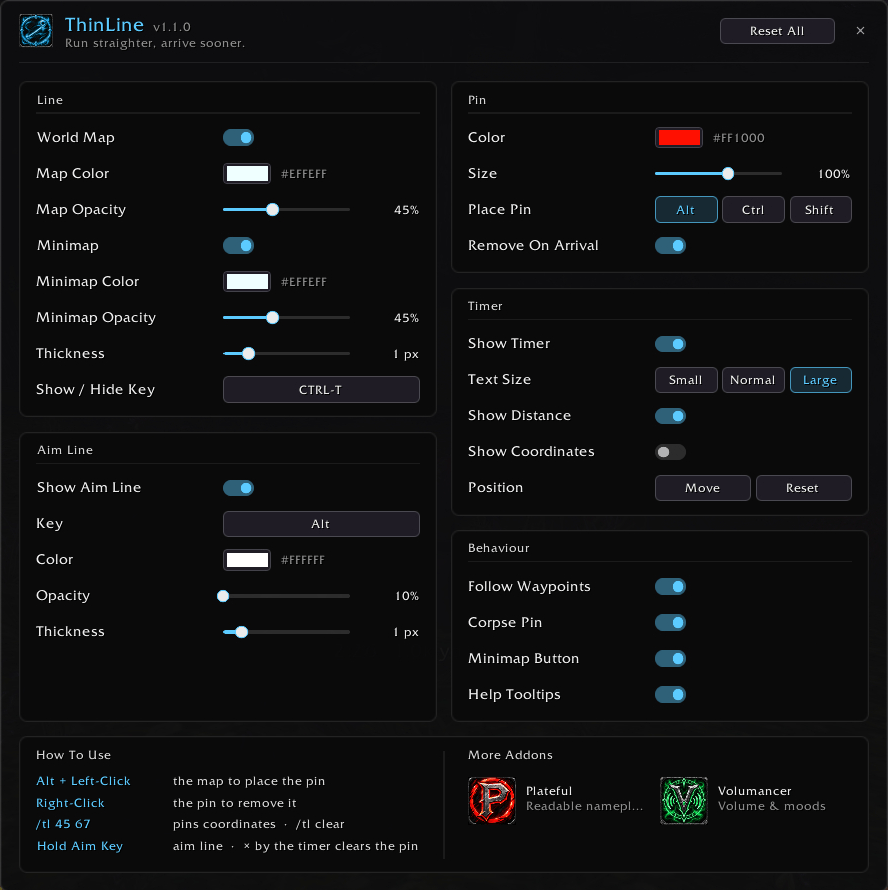
- Separate colour and opacity for the map line and the minimap line.
- Line thickness, pin colour and size, timer size and position, and optional coordinates.
- Pin key, plus the aim line's key, colour, opacity and thickness.
- All in one compact settings window.
Light
No libraries. Nothing runs while there's nothing to draw, and ThinLine switches itself off in dungeons and on flight paths.
How to use
| Do this | And |
|---|---|
| Pin key + left-click the map (Alt by default) | place the pin |
| Right-click the pin | remove it |
| Hold the aim key (Alt by default) | aim line (cyan = facing the pin) |
| Hold the aim key, click the × by the timer | remove the pin |
/tl 45 67 |
pin coordinates |
/tl clear |
remove the pin |
/tl |
open the settings |
You can also open the settings from the addons button by the minimap, from Esc → Options → AddOns → ThinLine, or with the minimap button (you can hide it in the settings).
Good to know
- ThinLine can't see terrain height, walls or hills, because the game doesn't give addons that data. The line shows the direction; you read the map and choose the path.
- TomTom users: TomTom also uses Alt-click on the map by default, and its click wins. Set ThinLine's Place Pin key to Ctrl or Shift in
/tlto keep them apart. ThinLine still follows your TomTom arrow. - Facing and position aren't available to addons inside dungeons, so ThinLine hides there and comes back when you leave.
1.2.0
- On course: the timer turns cyan while you face the pin, so you can stay on course without holding the aim key. Change its colour and opacity, or turn it off, in Timer → On Course.
- Blocked hint: run into a wall, a fence or a slope too steep to climb, and the timer blinks: go around. Turn it off in Behaviour → Blocked Hint.
- Your own cyan: the aim line's on-target colour and opacity can now be changed too (Aim Line → On Target Color).
- New defaults: the timer's default spot is a little lower, level with your character (if you moved it, it stays where you put it). New installs also show the distance next to the timer (
1:42 · 320 yd); if you already have ThinLine, turn it on in Timer → Show Distance. - Your settings stay yours: updating keeps every setting you already changed. The new options start on, in the same cyan as before.
More from Leafcutter
- Plateful: readable nameplates
- Volumancer: volume, moods and a mixer, right on your Character window
Thanks for running with ThinLine. If it saved you a few minutes today, a ⭐ favourite or a quick comment means a lot. Bug reports and ideas are always welcome in the comments, and the homepage has everything else from Leafcutter.
ThinLine Team