Wow_dMzTWbAqOE.png
Wow_MBd9JxLtpz.png
Wow_vBk5HM5DYB.png
Wow_DkVRa0XkWk.png
Wow_vPF7bdOE92.png
Wow_UbpwM6Y0R4.png
Description
The Notebook
A quick in-game notepad for notes and checklists, one click from your minimap.
No more alt-tabbing to a text file to write down a quest step, a shopping list or a raid reminder. Click the notebook on your minimap, write it down, close it. That's it.
Features
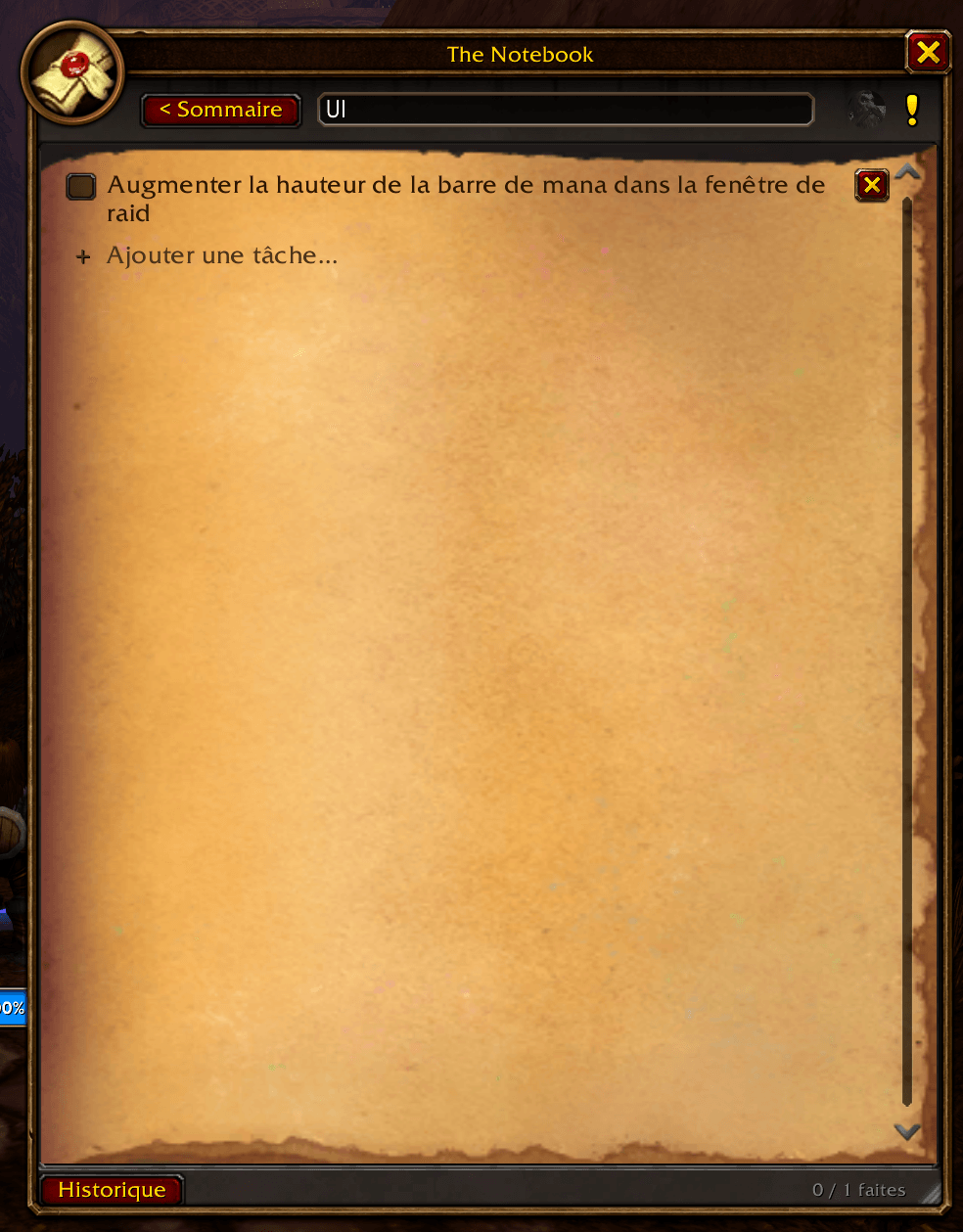
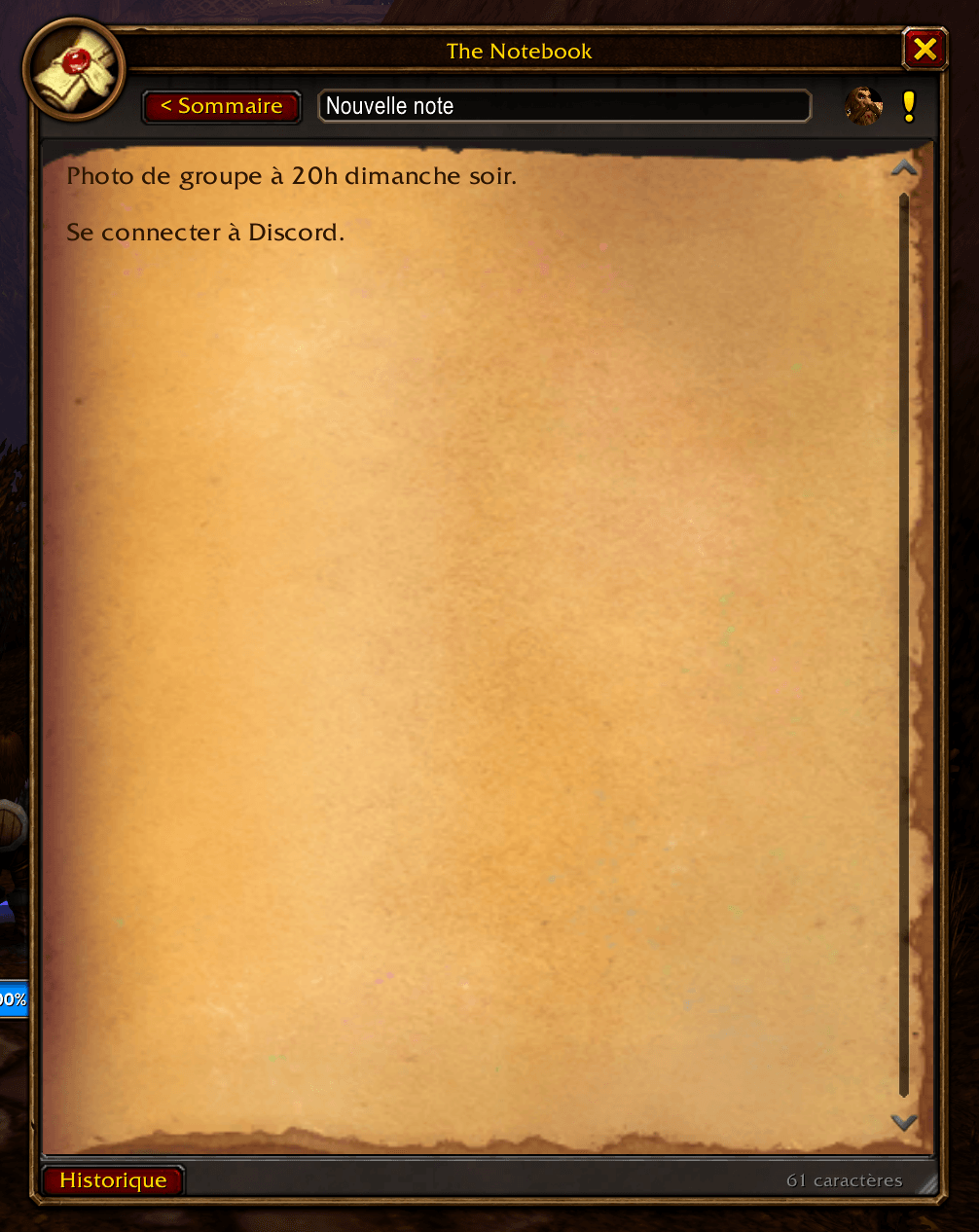
- Notes and checklists: write free text, or make a checklist you can tick off as you go. Checklist tasks can be as long as you need; they wrap onto several lines.
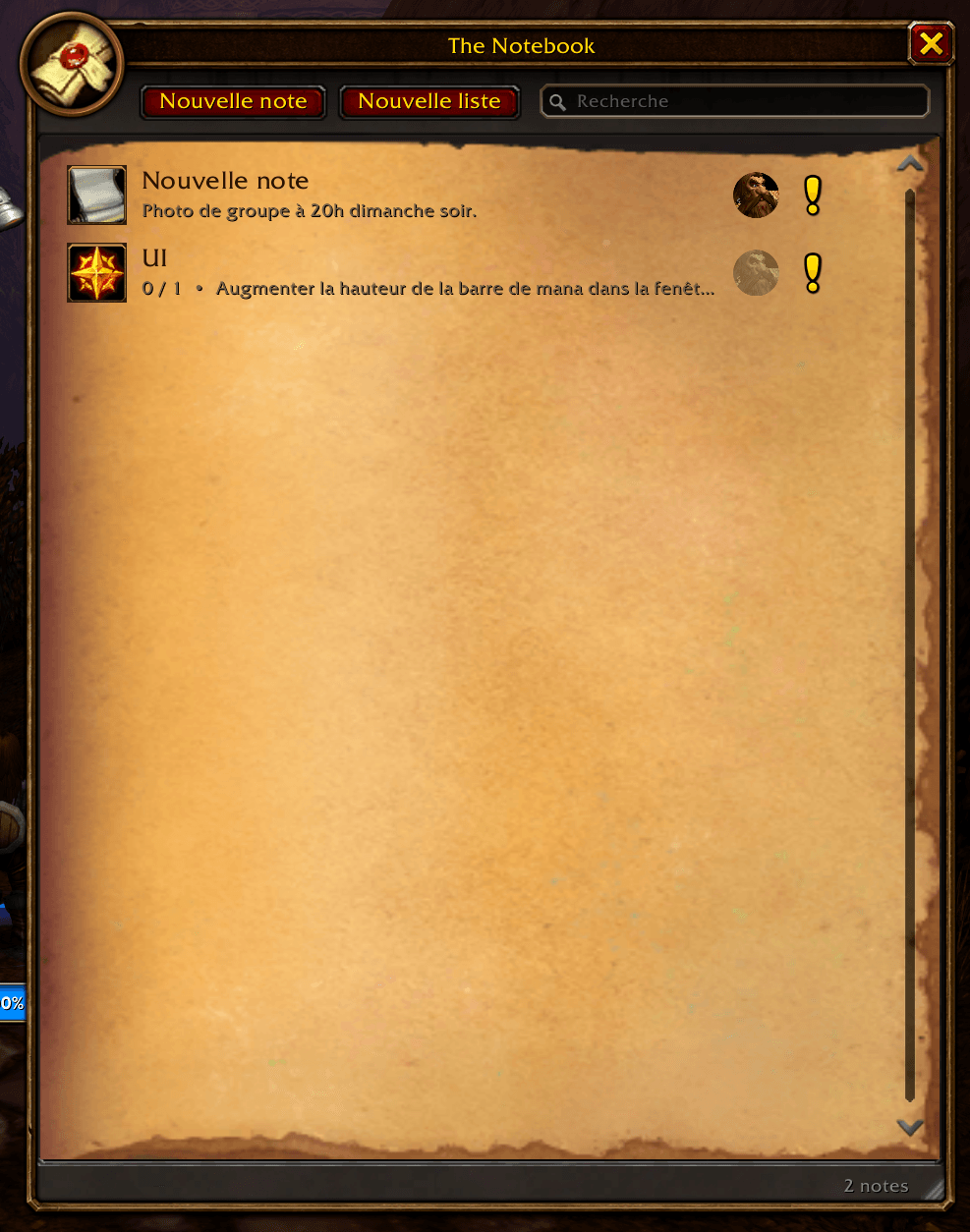
- An index of everything: all your notes on one page, with a search box to find the right one quickly.
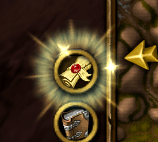
- Track what matters: turn on tracking for a note and the minimap icon glows until it's empty, so you won't forget it.
- Per character or account-wide: keep a note for the current character only, or share it with all your characters.
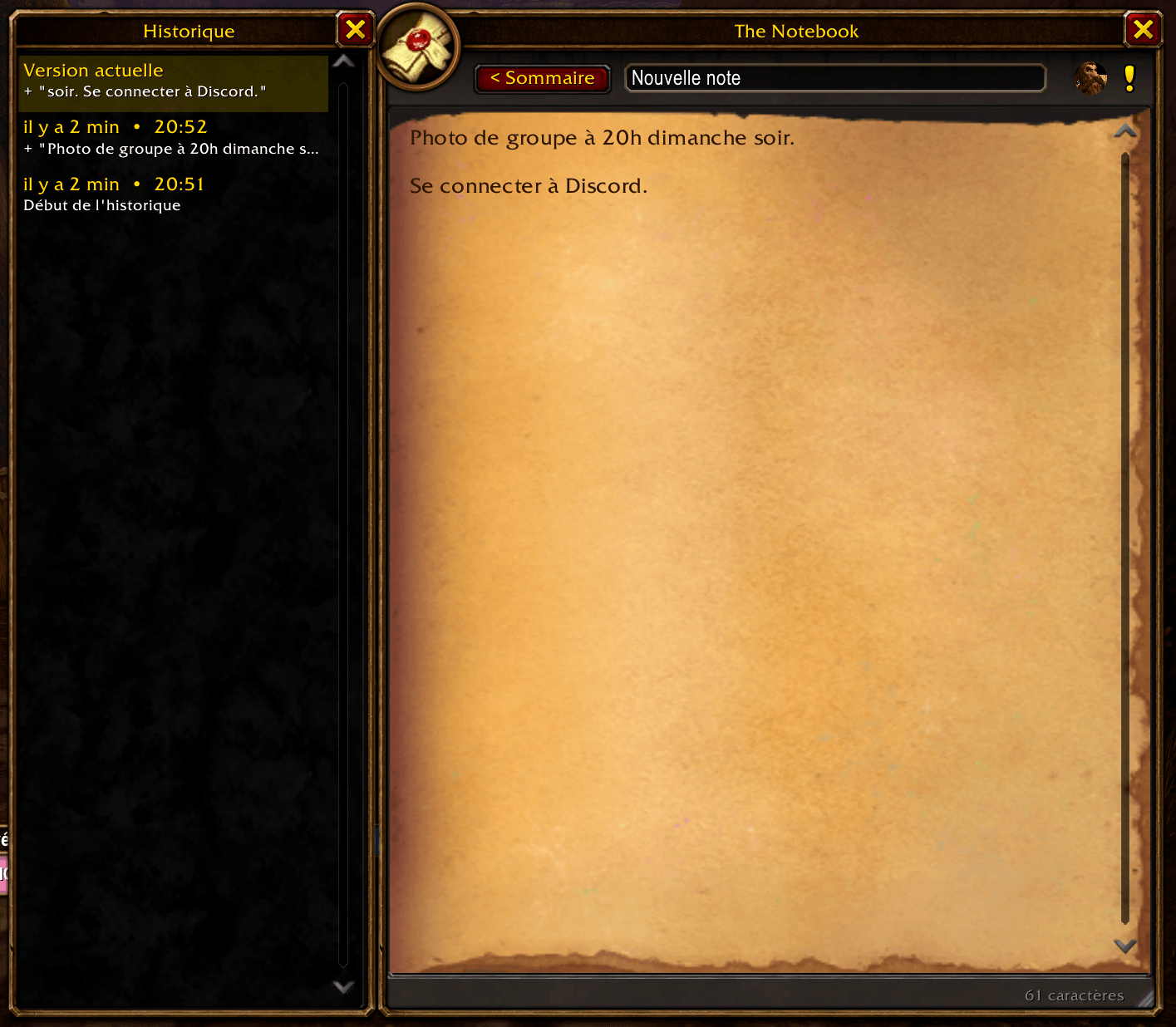
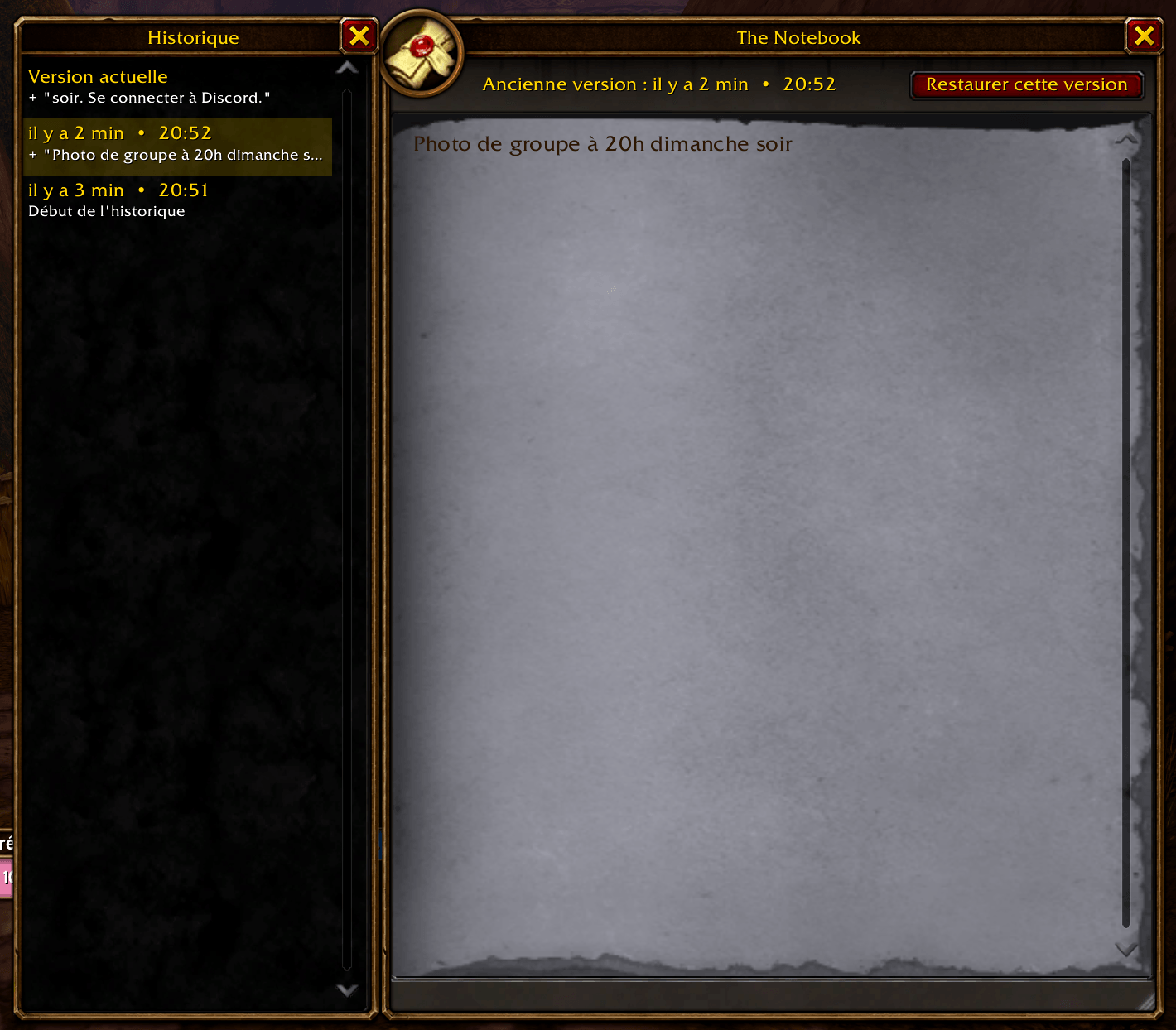
- History: The Notebook saves a version of your note whenever you pause. Open the history panel to look through the last 20 versions and restore any of them.
- Undo and redo: Ctrl+Z / Ctrl+Y while you type.
- Shift-click to write names: shift-click an item or spell to write its name into your note as plain text.
- Never lose a word: everything saves automatically, even if you close the window or log out mid-sentence. A small dot by the title shows when changes haven't been saved yet.
- Your window, your way: drag it anywhere and resize it. It stays where you put it, even after a reload.
- Make it yours: pick the minimap icon and the glow style (sparkles, glow or none) in Options → AddOns → The Notebook.
- English and French.
Commands
| Command | What it does |
|---|---|
/nb or /notebook |
Open or close the notebook |
/nb minimap |
Show or hide the minimap button |
/nb options |
Open the settings |
/nb reset |
Reset the window's position and size, and the minimap button's position |
You can also open the notebook from the AddOns menu next to the minimap, or set a key for it in Options → Keybindings → AddOns (or in the addon's own settings).
Feedback
Found a bug or have an idea? Leave a comment or open an issue. Keep in mind The Notebook is meant to stay simple: a quick notepad, not a quest tracker.
The Notebook (Français)
Un bloc-notes rapide en jeu pour vos notes et listes de tâches, à un clic de votre minicarte.
Plus besoin de quitter le jeu pour noter une étape de quête, une liste de courses ou un rappel de raid. Cliquez sur le carnet de la minicarte, écrivez, refermez. C'est tout.
Fonctionnalités
- Notes et listes de tâches : écrivez librement, ou créez une liste à cocher au fur et à mesure. Les tâches peuvent être aussi longues que nécessaire et s'affichent sur plusieurs lignes.
- Un sommaire : toutes vos notes sur une seule page, avec une recherche pour trouver la bonne rapidement.
- Suivez l'essentiel : activez le suivi d'une note et l'icône de la minicarte brille jusqu'à ce que la note soit vide, pour ne rien oublier.
- Par personnage ou pour tout le compte : gardez une note pour le personnage actuel, ou partagez-la avec tous vos personnages.
- Historique : The Notebook enregistre une version de votre note à chaque pause. Ouvrez le panneau d'historique pour parcourir les 20 dernières versions et restaurer celle de votre choix.
- Annuler et rétablir : Ctrl+Z / Ctrl+Y pendant la saisie.
- Maj+clic pour écrire un nom : Maj+clic sur un objet ou un sort écrit son nom dans la note, en texte simple.
- Rien ne se perd : tout est sauvegardé automatiquement, même si vous fermez la fenêtre ou vous déconnectez en pleine phrase. Un petit point à côté du titre indique les modifications pas encore enregistrées.
- Votre fenêtre, à votre façon : déplacez-la et redimensionnez-la ; elle garde sa place et sa taille, même après un rechargement.
- Personnalisable : choisissez l'icône de la minicarte et l'effet lumineux (étincelles, halo ou aucun) dans Options → AddOns → The Notebook.
- Anglais et français.
Commandes
| Commande | Effet |
|---|---|
/nb ou /notebook |
Ouvrir ou fermer le carnet |
/nb minimap |
Afficher ou masquer le bouton de la minicarte |
/nb options |
Ouvrir les réglages |
/nb reset |
Réinitialiser la position et la taille de la fenêtre, et la position du bouton de la minicarte |
Le carnet s'ouvre aussi depuis le menu des AddOns à côté de la minicarte, ou avec un raccourci à définir dans Options → Raccourcis → AddOns (ou dans les réglages de l'addon).
The Notebook Team