Task Manager automatically tracks daily and weekly quests across all your alts. You choose what to track, and Task Manager will show you a list with a summary of characters that have completed each.
Getting started:
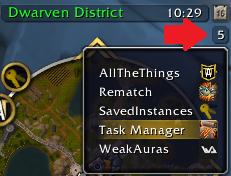
- Open the main window by clicking Task Manager in the addon compartment (top-right of the minimap, see screenshot below). You can also use the command /task show
- Use the + button to add a task you want to track. You can rename it and assign a category if you'd like.
- Standard tasks can be manually marked as completed or not.
- Quest tasks will automatically track when the specified QuestID is completed on each alt.
- Boss tasks will automatically track when the specified raid/dungeon boss has been killed on each alt. Useful for mount farming. Currently you can only pick a boss from your recent raid/dungeon lockouts.
- After adding new task(s), you will need to login to all your alts for their status to be updated.
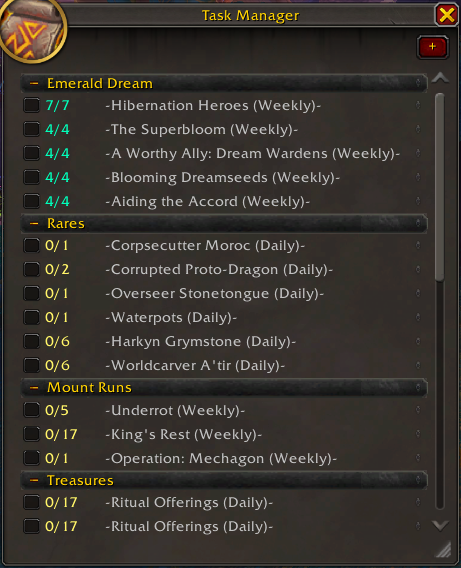
On the main window:
- The checkbox will show whether the current character has completed that task.
- The numbers next to it will show how many alts have completed that task (not counting ignored characters).
- To edit or remove a task, right-click on it to get an options menu.
- Click the task title to see a list of characters and completion status.
Advanced Tips:
- You can use the QuestID of hidden tracking quests, such as rares or treasures. The addon AllTheThings can help find these QuestIDs in its tooltips.
- You can ignore characters by right-clicking their name to get an options menu. You can also shift-click their name as a shortcut.
- You can re-order your tasks by using the drag-and-drop icon on the right side.
To open the Task Manager:
The main window:
Task Manager Team

Owner