
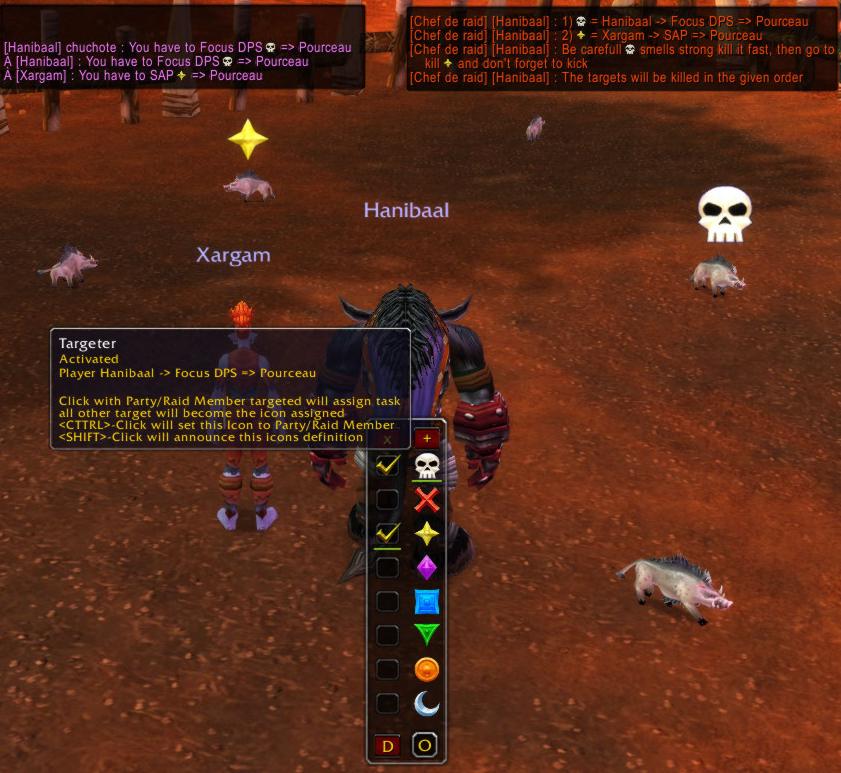
See all target informations in the tooltip if activated. Note that compared to the expanded image Hanibaal is no more targeting his target so the checkbos in front of the skull is no more underlined
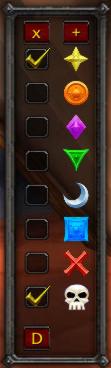
Collasped Targeter frame
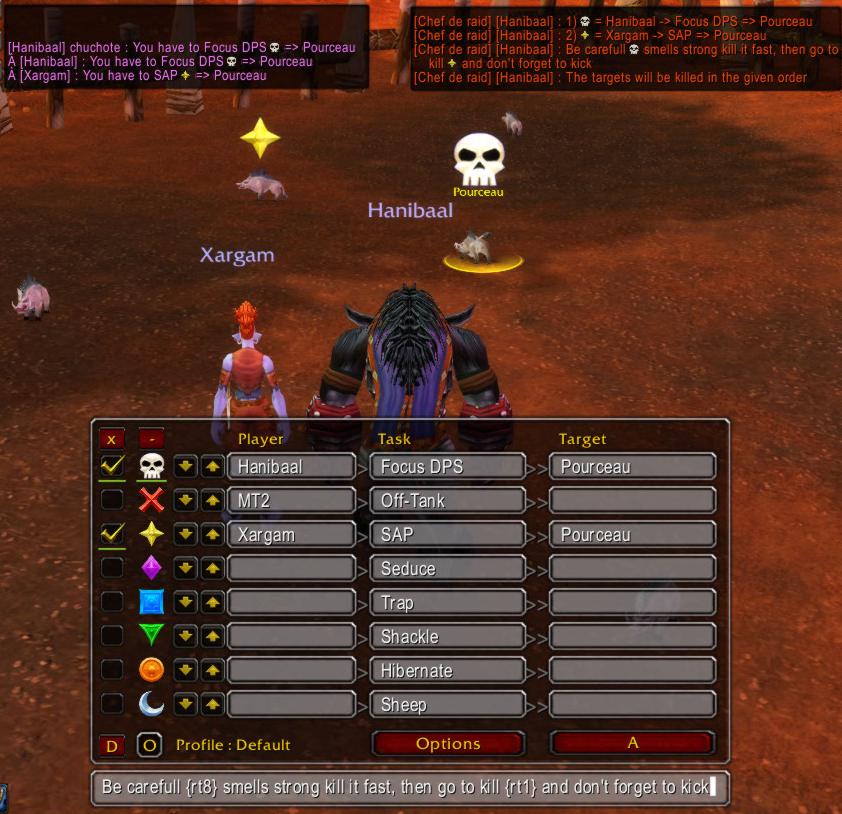
Hanibaal targeting his target, note the underlined skull checkbox Hanibaal himself has a target assigned, note the underlined skull Xargam has targeted his target, note the underlined star checkbox See how you can use raid icon in the combat descr...
Description
Targeter description
Simple addon to manage raid icons. It not only sets icons to mobs or bosses, but allow to define the raid/party player with a task corresponding to each icon.
How to use
Show the dialog by typing /targeter or clicking the icon near the minimap. The minimap icon can be move around the minimap while dragging it with the right mouse button. By holding down the CRTL key while dragging you can modify the distance to the minimap. In the options dialog you can disable the minimap button.
The dialog allows clicking on the raid icons. depending on your target it will do different thing.
defining the targeting information
Set a raid icon to yourself
If you have not target selected, the clicked icon will be set to yourself or remove it. This is intended for following instructions
Set a raid icon to a Target
Click a raid icon while pressing the CTRL key will set this icon to the selected target or remove it.
Assign a task and player for a raid icon
if your selected target is a member of the party or the raid, then he will be assigned a task for the clicked icon. the task is automatically set by the default task for his class (in a coming release you will be able to define this defaults in the options dialog and cicle throuh the multiple possible tasks defined for a class)
Set a raid icon to a hostile target
If the selected target is a hostile target or a target that can be attacked then clicking a raid icon will set it to this target or remove it.
Target order
By using the vertical arrows you can modify the order of the targets. They will be announced like what you have defined.
Defining combat instructions
You can define some generic instructions for the combat by entering it in the gray feald on the bottom of the Targeter frame.
- hint: to display the raid icons use {rtx} where x is the number of the icon
Displayed informations and announcing
Checkboxes
If checked, the given icon will be announced. Mostly it will indicate that there is an assignedment for this icon defined
Underlines
- An underlined Checkbox indicates that the player assigned to this raid icon actually is targeting the target that has this icon set to it.
- An underlined icon indicates that you have a task assigned to that icon
Announcing one icon's information
by clicking a raid icon while pressing the SHIFT key will announce the icons Target, assigned player and the task to perform by this player to the target.
Announing all defined targets
The button with the letter D on the bottom of the targeter frame will send :
- the targetting information to the party / raid channel
- a whisper to each player that have a task assigned with his individual information
Recall of the defined targets
Every player in the raid can whisper targets' to the party leader or raidofficer that has targeter installed to get the targetting information that will be replied to him.
Syncing all targeters in the party / raid
By announcing the target informations you will broadcast then on the hidden addon channel too. every player that has targeter installed will get it and his targeter will be configured.
Saving and restoring target definitions
The button "O" allows you to create new definitions and save them. Simply enter a name and the actual configuration will be copied to that profile.
Targeter Team

