Summon Hawk Tracker
- By
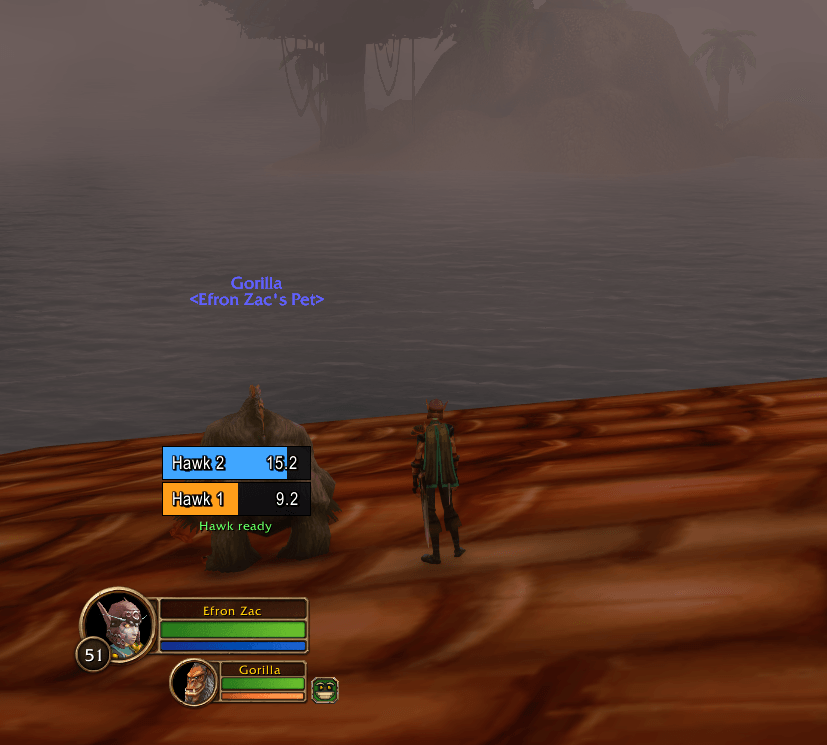
Countdown bars for the Hunter's Summon Hawk. Tracks up to 2 hawks at once with an 18-second timer each, with a settings window to move and resize the bars.
Screenshot 2026-11-07 231700.png
Screenshot 2026-11-07 231720.png
Screenshot 2026-11-07 231811.png
Description
HawkTimer
Never lose track of your hawks again.
HawkTimer tracks the Hunter ability Summon Hawk with clean countdown bars or Blizzard-style icons, and fits right into EllesmereUI. Cast the spell and your hawk's timer starts the moment the game summons the hawk. You can have up to 2 hawks out. Each one gets its own timer that shows exactly how long it has left and disappears if the hawk dies.
Questions, bugs or ideas? Join the HawkTimer Discord.
Features
Tracking
- Automatic tracking. Detects Summon Hawk as soon as you cast it, with nothing to set up. Recognizes every rank of the spell.
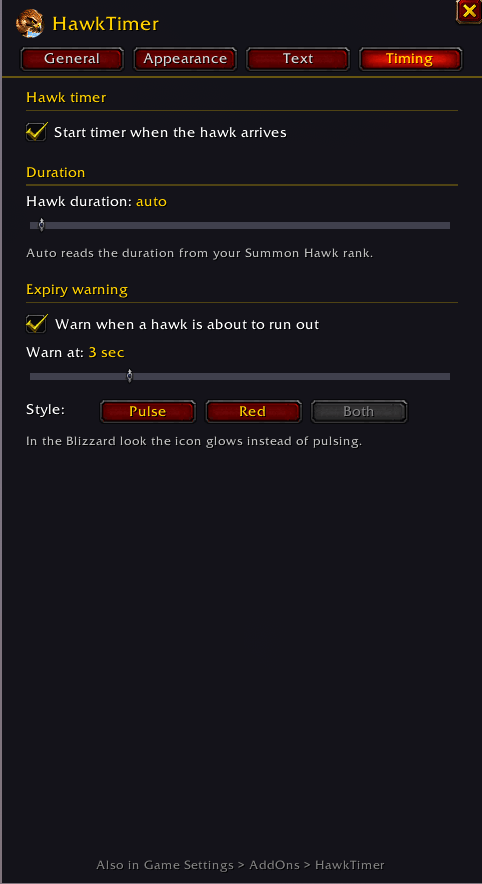
- Starts when the hawk arrives. The timer starts exactly when the game summons the hawk, not when you press the button.
- Dead hawk detection. If a hawk dies or despawns early, its timer is removed until you cast it again.
- Recast in place. With both hawks out, a new cast resets the oldest hawk's timer right where it is.
- Correct duration for your rank. The duration is read from the game, so timers match your rank. You can also set it manually.
- Expiry warning. Optional warning in the last seconds: bars pulse or turn red, and in the Blizzard look the icon glows.
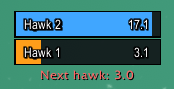
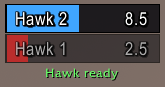
- Cooldown display. Optional text under the bars shows when your next hawk is ready.
- Replaces Blizzard's hawk icons. For hunters, Blizzard's default hawk icons are hidden, so your hawks only show once. The rest of the totem bar is unchanged.
Four looks
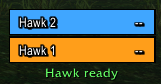
- Classic. Textured bar, stone border, gold text and a glowing spark.
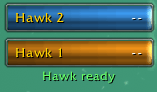
- Modern. Flat, clean bars with outlined text.
- Ellesmere. For EllesmereUI players: follows your EllesmereUI theme (font, accent color border and panel background) with no setup. Only shown when EllesmereUI is installed.
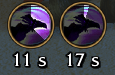
- Blizzard. Round hawk icons with a cooldown sweep and the time below, just like Blizzard's default icons. No names.
Your hawks
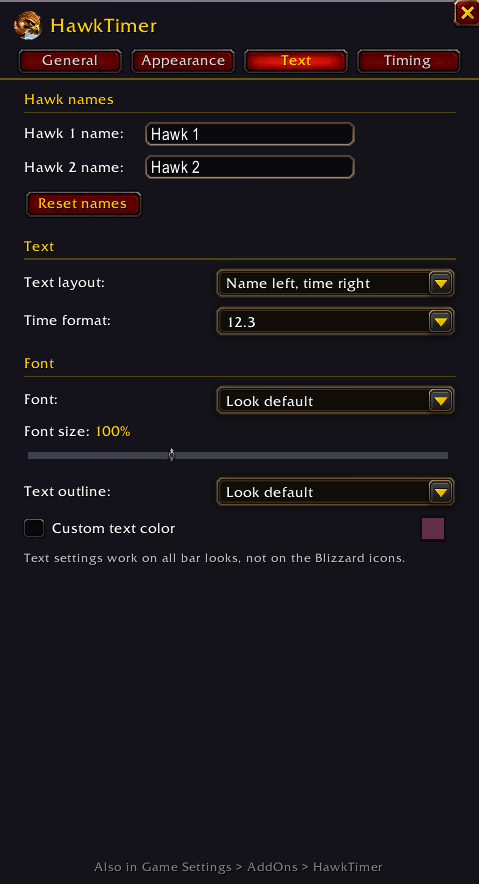
- Name your hawks. Give each hawk its own name. The defaults are Hawk 1 and Hawk 2.
- Choose the order. Pick which hawk's bar sits on top, or on the left when side by side.
- Timer-only mode. Hide the names for a clean look with just the countdown.
Text
- Text layout. Name left and time right, Name - time, Time - name, or the time only.
- Time format. 12.3, 12, 12s, 0:12, or whole seconds with decimals at the end.
- Your font. Pick a game font or any font shared through LibSharedMedia (EllesmereUI, ElvUI and more), with size (50% to 200%, scaling with the bars), outline and your own text color.
Appearance
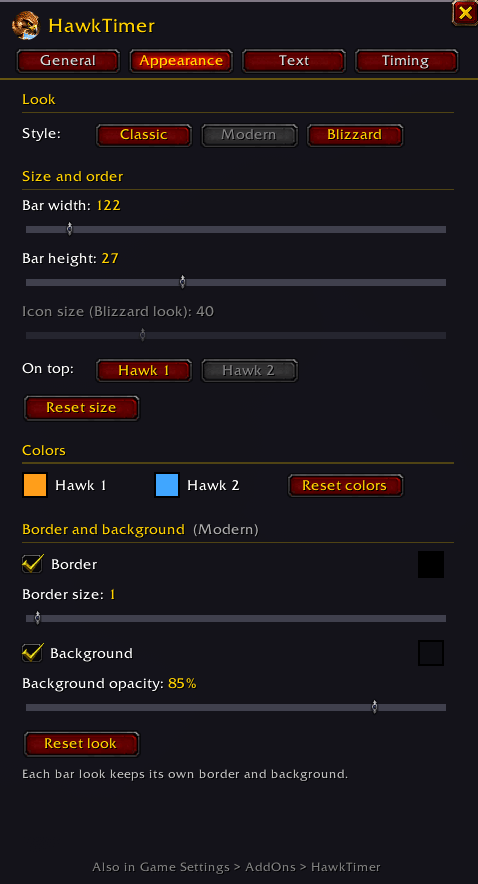
- Your colors. Each hawk has its own bar color, set with a color picker. Hawk 1 is orange and Hawk 2 is blue by default.
- Any size. Change the bar width and height, or the icon size, with sliders.
- Stacked or side by side. Put the two bars on top of each other or next to each other.
- Right to left or top to bottom. Bars drain from right to left, or stand up tall and drain from top to bottom (time only, and the bar pulses while the hawk dives).
- Border and background. Turn the border and background on or off and set the border size, opacity and colors. Each bar look keeps its own.
- Only what applies. Options that don't apply to the look you're using are greyed out.
Blizzard Edit Mode
- Built into Edit Mode. On your hunters, HawkTimer Bars and HawkTimer Icons appear in Blizzard's Edit Mode with Blizzard's own highlight and labels.
- Edit in place. Select one to move it and change its settings in a Blizzard-style dialog, with Reset Position and exact coordinates.
- Line them up. A HawkTimer box under Edit Mode lets you show the bars, the icons, or both at once.
Easy to use
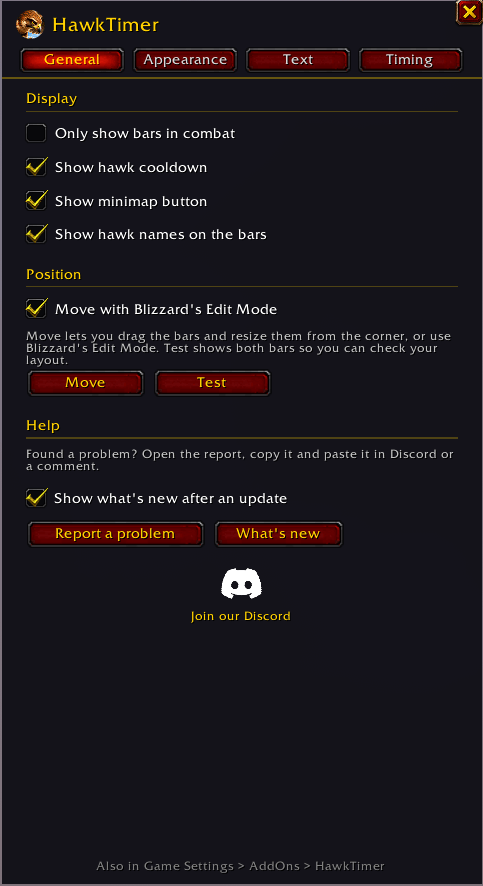
- Organized settings. Options are sorted into General, Appearance, Text and Timing.
- EllesmereUI support. With EllesmereUI installed, HawkTimer also has its own page in EllesmereUI's options.
- Profiles. Save your setup by name and load it on any of your characters, or export it as text to share in Discord and import someone else's.
- Three ways in. Type
/hawk, click the minimap button, or open Game Settings > AddOns > HawkTimer. - Minimap button. Left-click opens settings, right-click shows a test, and you can drag it around the minimap or hide it. On characters that aren't hunters it's hidden until you turn it on.
- Easy bug reports.
/hawk reportor Report a problem opens a ready-made report you can copy into Discord or a comment. Short for Discord makes a version that fits in one message. - What's new. After an update, a small window shows what changed. Tick Don't show this again to turn it off, or reopen it with
/hawk whatsnew. - Discord button. Click the Discord logo in the settings or the report window to get the invite link.
- Your language. Settings are translated into German, French, Spanish, Portuguese, Italian, Russian, Korean and Chinese.
- Remembers your settings. Position, size, look, colors, names and options are saved per character. Saved profiles are shared across your account.
Installation
- Download and unzip the addon.
- Delete any old HawkTimer folder first, then put the new
HawkTimerfolder into your WoW AddOns folder (for exampleWorld of Warcraft\_classic_beta_\Interface\AddOns). - Restart the game. A
/reloadwon't load new files. - If the addon shows as out of date, tick Load out of date AddOns on the character select screen.
Usage
Type /hawk to open the settings window, open Blizzard's Edit Mode to move things, or use these commands.
Look and layout
| Command | What it does |
|---|---|
/hawk |
Opens the settings window |
/hawk style classic / modern / ellesmere / blizzard |
Switches between the looks (ellesmere needs EllesmereUI) |
/hawk ellesmere |
Opens HawkTimer's page in EllesmereUI's options |
/hawk profiles |
Opens the profiles window to save, load, export or import a setup |
/hawk unlock / /hawk lock |
Lets you drag and resize the bars or icons, then locks them |
/hawk width <number> |
Sets the bar width |
/hawk height <number> |
Sets the bar height |
/hawk iconsize <20-96> |
Sets the icon size for the Blizzard look |
/hawk font <50-200> |
Sets the bar font size in percent |
/hawk size reset |
Restores the default bar size, icon size and font |
/hawk color <1 or 2> <r> <g> <b> |
Sets a bar's color (values 0 to 1, e.g. /hawk color 2 0.2 0.8 0.2) |
/hawk direction stacked / side |
Puts the bars on top of each other or side by side |
/hawk fill horizontal / vertical |
Bars drain right to left or top to bottom |
/hawk test |
Shows both hawks so you can preview your layout |
Hawks
| Command | What it does |
|---|---|
/hawk name <1 or 2> <name> |
Renames a hawk (up to 24 characters) |
/hawk top <1 or 2> |
Chooses which hawk's bar is on top (or on the left, side by side) |
/hawk names |
Shows or hides the hawk names on the bars |
/hawk resethawks |
Resets hawk names and order to default |
Timing and display
| Command | What it does |
|---|---|
/hawk duration <seconds> |
Sets a fixed hawk duration (0 = read from the game) |
/hawk hit |
Toggles starting the timer when the hawk arrives instead of on cast |
/hawk cooldown |
Toggles the cooldown text |
/hawk combat |
Toggles showing timers only in combat |
/hawk minimap |
Shows or hides the minimap button |
Troubleshooting
| Command | What it does |
|---|---|
/hawk whatsnew |
Shows what's new in the latest version |
/hawk discord |
Shows the Discord invite link, ready to copy |
/hawk report |
Opens a bug report you can copy into Discord or a comment, including your summon slots and recent hawk events |
/hawk status |
Shows the current duration, settings and whether hawk detection is working |
/hawk debug |
Prints casts, hawk arrivals and hawk deaths in chat |
/hawk spell <id or name> |
Changes the tracked spell (default is ID 1293241, Summon Hawk) |
/hawk reset |
Clears all running timers |
Troubleshooting
- Seeing a red "HawkTimer error" line in chat? Type
/hawk report, click Short for Discord, press Ctrl+C and paste it in Discord or a comment. - Timers don't start when you cast Summon Hawk? Type
/hawk debug, cast the spell, and check the spell ID printed in chat. Then run/hawk spell <that ID>. - Timer starts a few seconds late? The game didn't report the hawk arriving, so HawkTimer started from your cast. Cast a hawk, then send us your
/hawk report. - Can't see anything? Use
/hawk testto check the display, and check whether "Only show bars in combat" is on. - Can't see the icons in Edit Mode? Tick HawkTimer Icons in the HawkTimer box under the Edit Mode window.
Credits
Uses LibEditMode by p3lim for Edit Mode support. EllesmereUI support uses EllesmereUI's plugin and skinning APIs.
Feedback
Found a bug or have a suggestion? Join the HawkTimer Discord or leave a comment. For bugs, type /hawk report and paste the report.
Summon Hawk Tracker Team