SteadyCam
- By
promo - ready.jpg
promo - sunset.jpg
Description
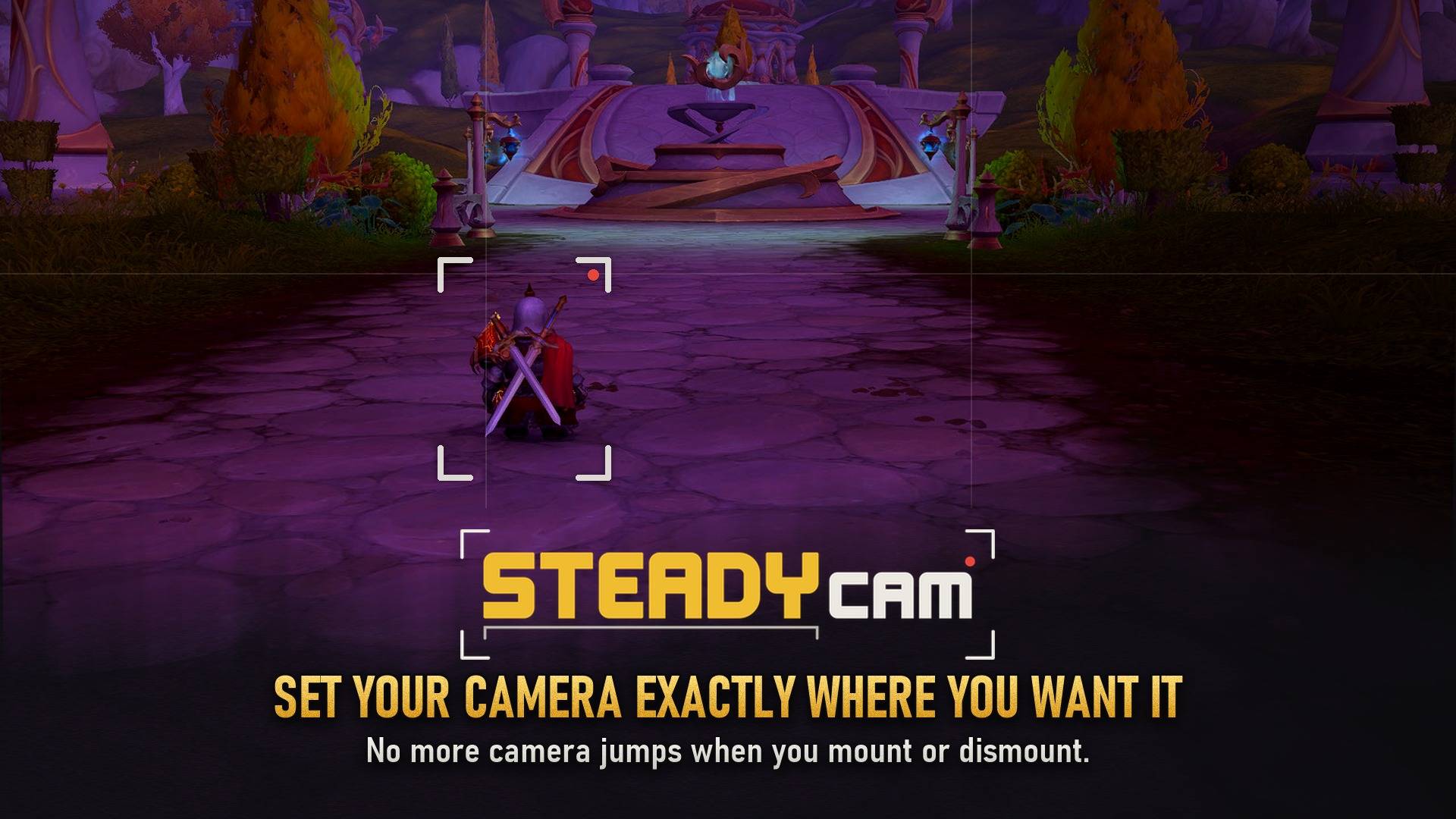
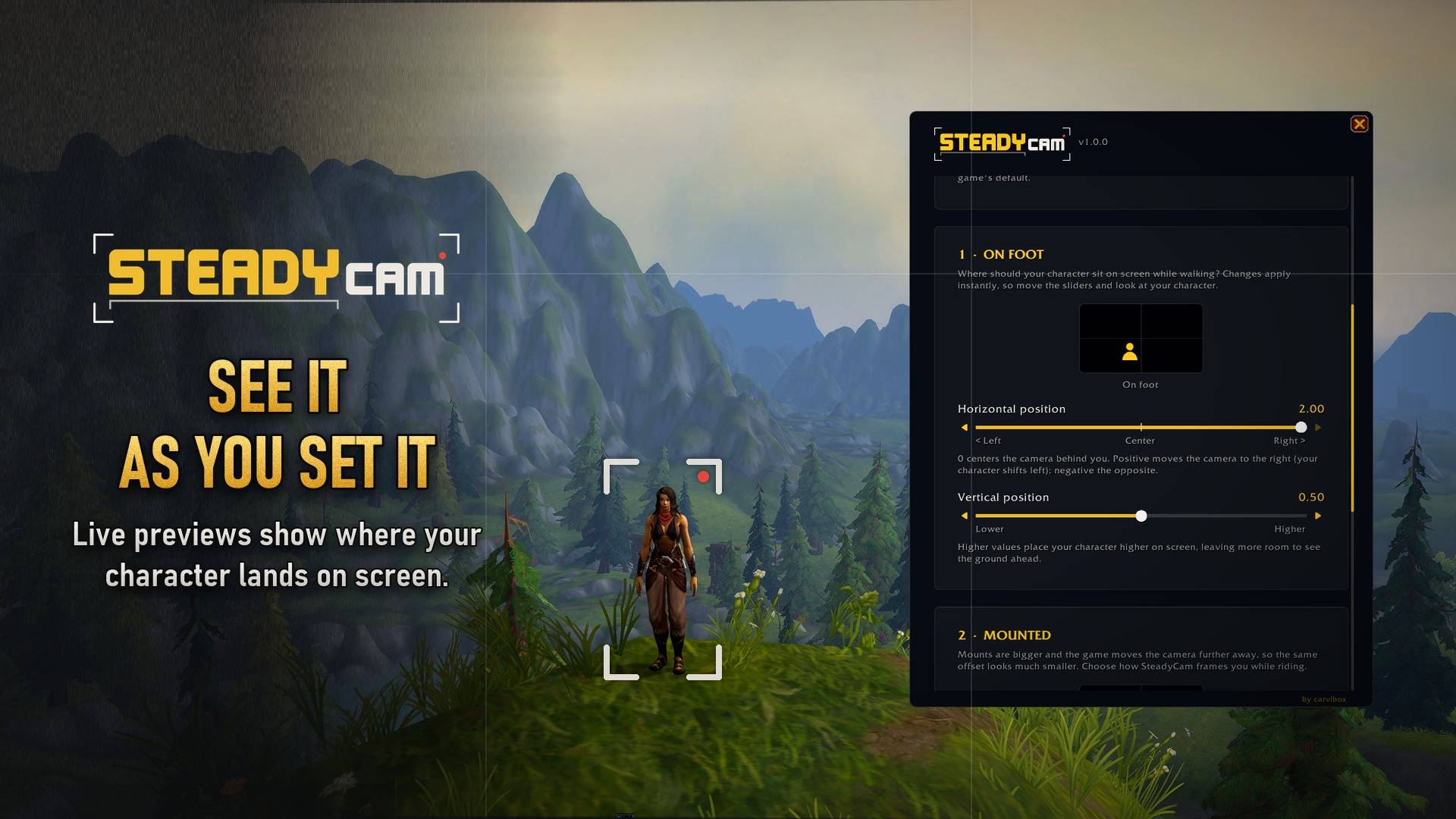
Frame your camera and character however you want, once.
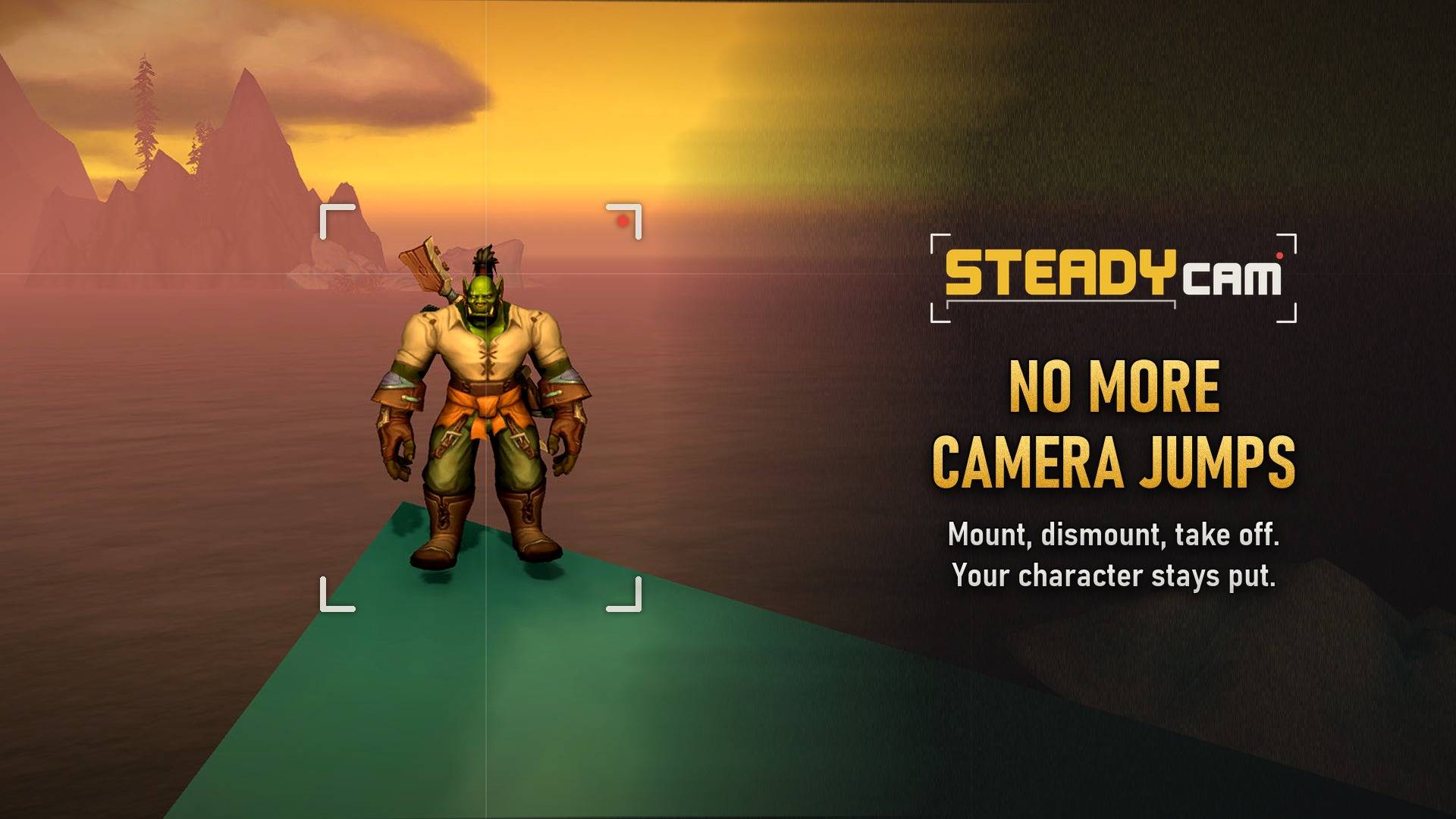
NO MORE CAMERA JUMPS when mounting and dismounting!
World of Warcraft lets you push the camera off to the side (the "over the shoulder" view/ACTION CAM) so your character isn't stuck in the middle of the screen. The catch: the game scales that offset with the size of whatever you are standing on or riding. Mount up and your character slides toward the center; dismount and the camera snaps sideways. Every race and every mount does it by a different amount.
SteadyCam fixes that. You choose where your character sits on screen once, and it stays there: on foot, on any mount, in the air, on a flight path, through every mount and dismount.
 WHAT IT DOES
| WITHOUT SteadyCam |
The game annoyingly slides/stutters your camera both horizontally and vertically every time you mount and dismount.
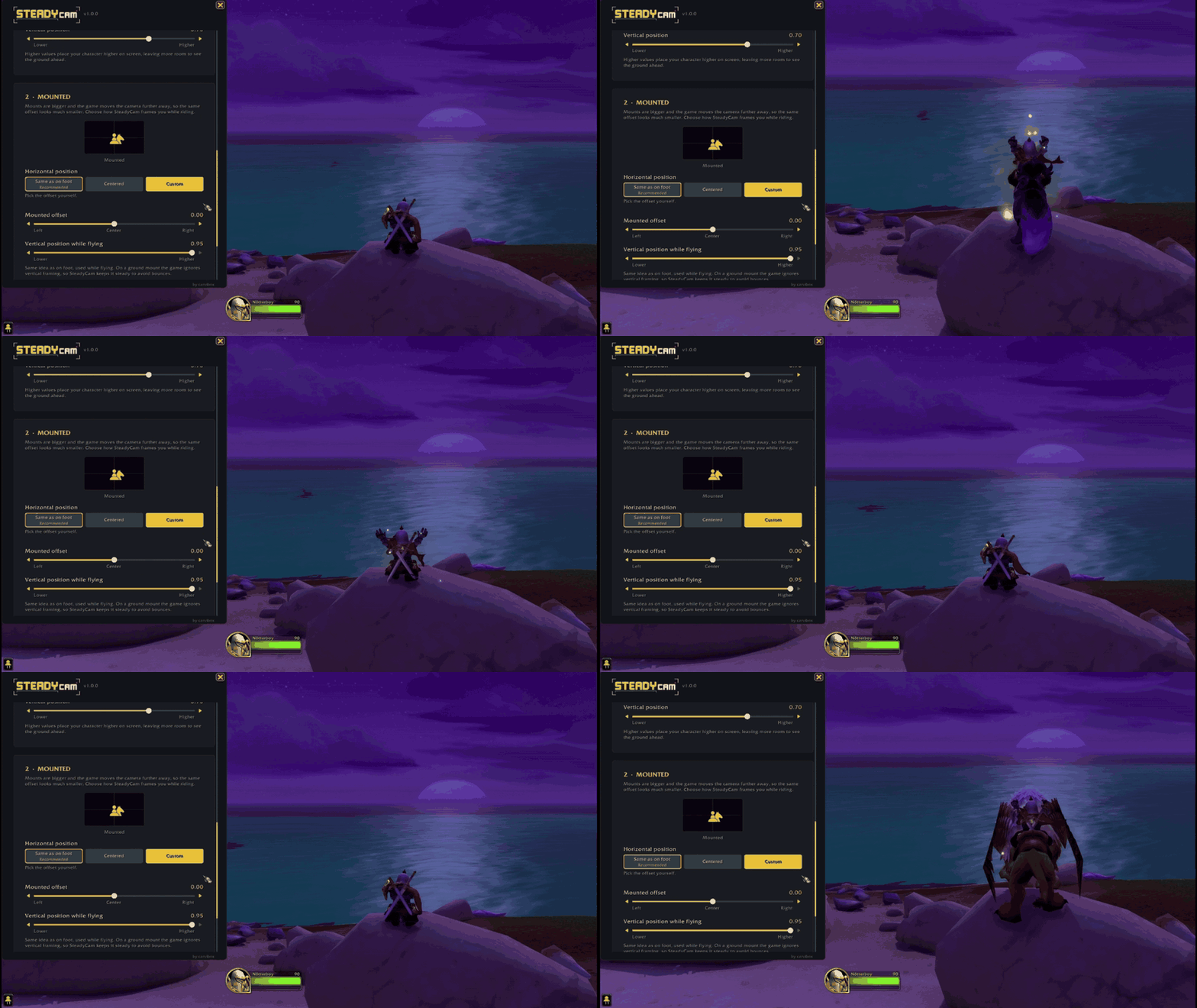
| WITH SteadyCam |
Your character stays exactly where you put it. Mount, dismount, repeat.
Bye random camera jumps!
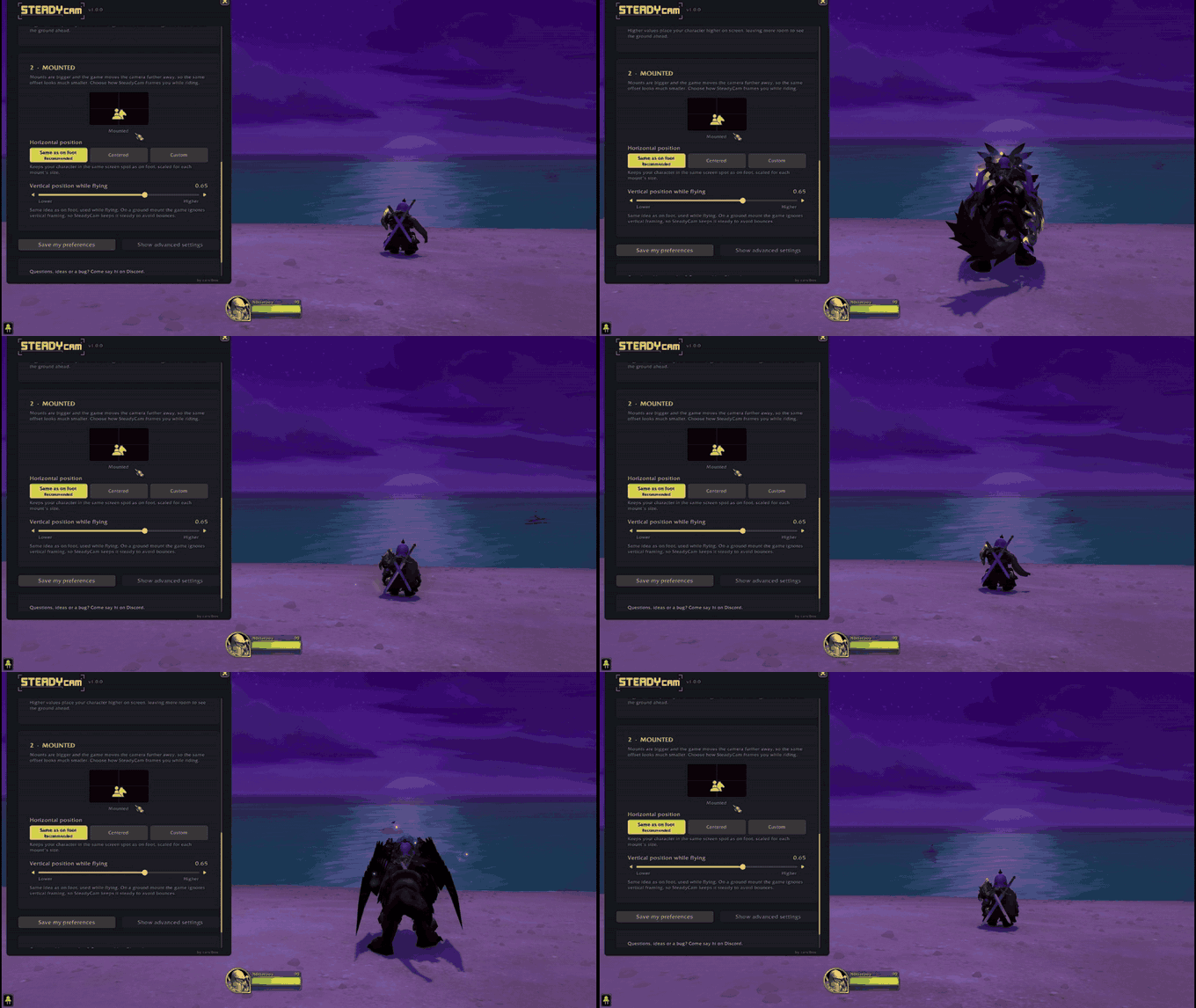
| CHOOSE WHERE YOU CHARACTER SITS |
Slide it left or right, and the preview shows where it lands on screen.
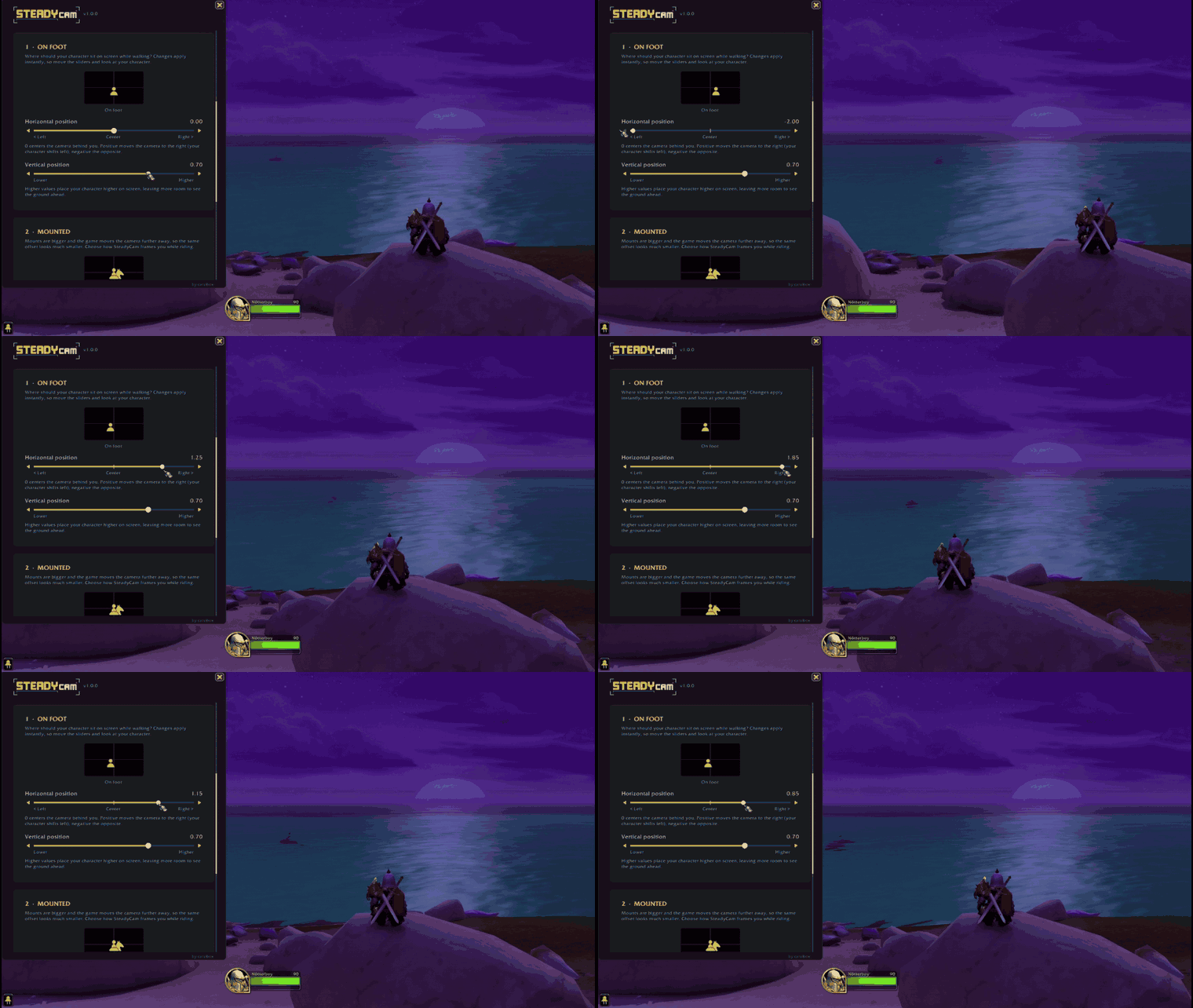
| RAISE OR LOWER YOUR CHARACTER |
See more of the world ahead, or more of the ground if you're into that.
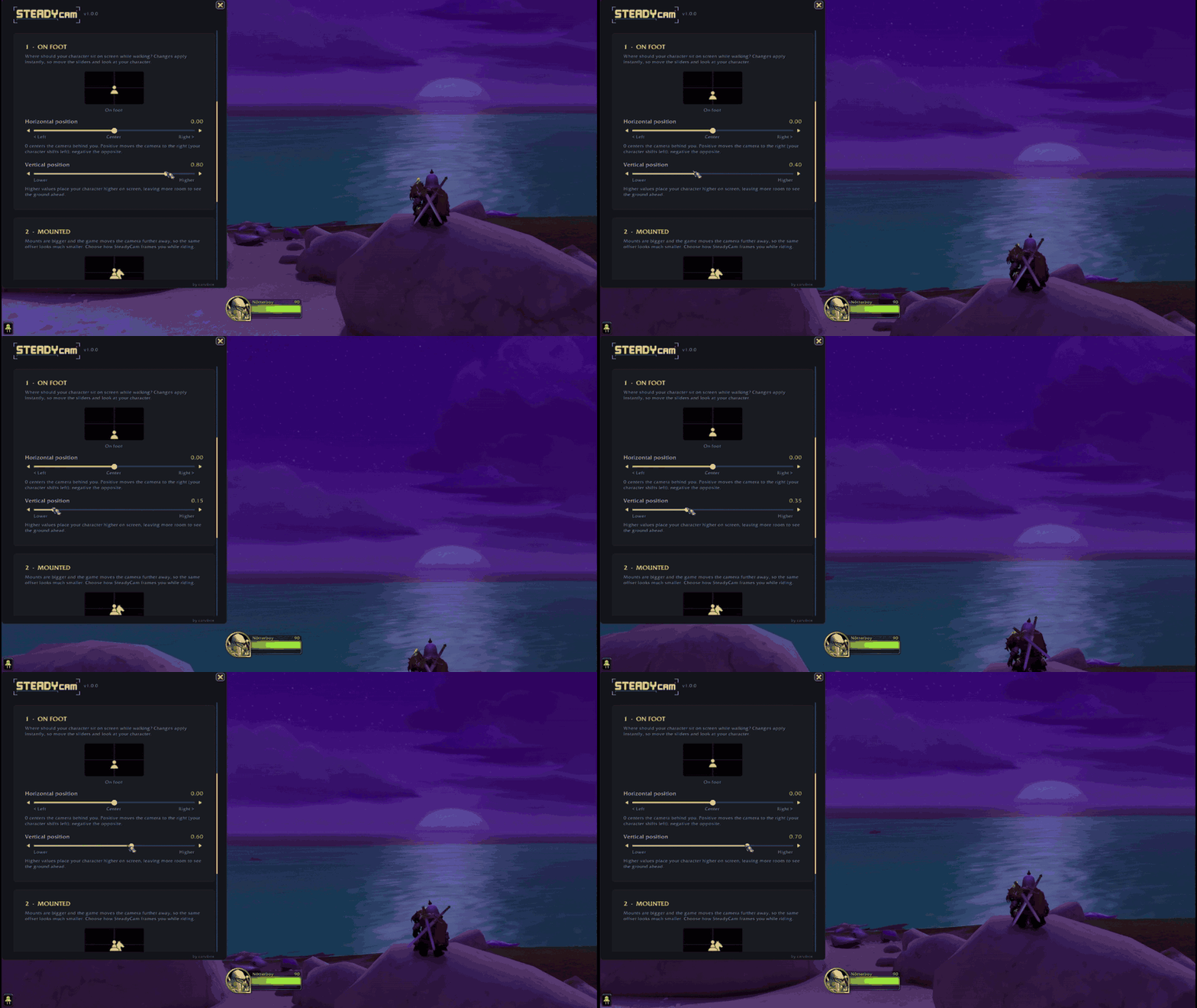
| SEPARATE HEIGHT WHILE FLYING |
See what's ahead of your flight.
FEATURES
- Steady horizontal framing. Your character keeps the same place on screen whether you are walking, riding a tiny mechanostrider or a huge dragon.
- Smooth transitions. SteadyCam knows how the game moves the camera during a mount or dismount and compensates for it in real time, so there is no sideways jump.
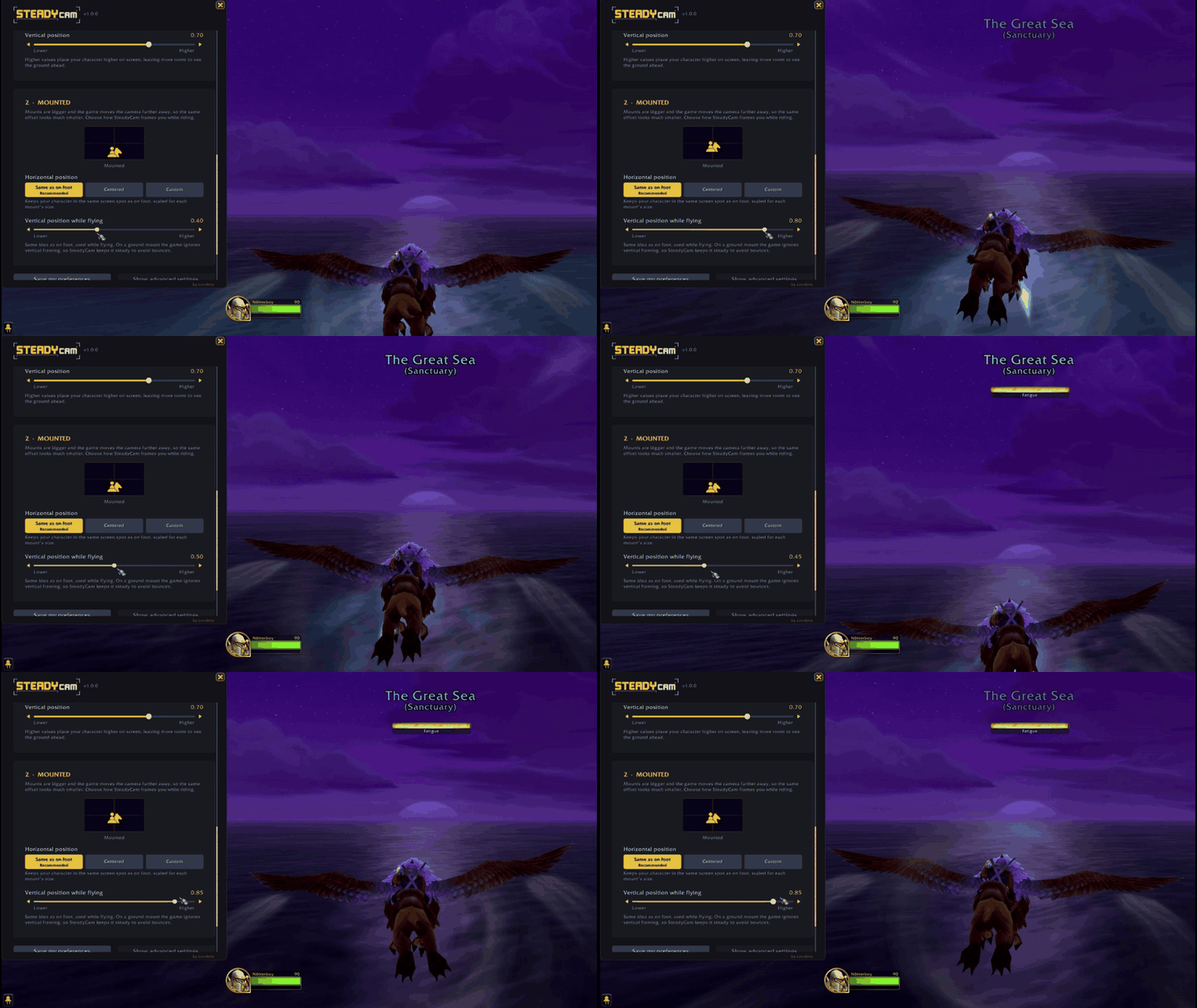
- Vertical framing. Raise or lower your character on screen, separately for walking and flying.
- Live preview. Two small screens show where your character sits on foot and mounted, true to what you see in game. Every slider has arrows for fine steps, and right-click resets it.
- Camera turn speed. One slider for how fast the camera turns with the mouse, from 10% to 200% of the game's default (100% out of the box). If you change it in the game's own options, SteadyCam leaves it to the game (the slider shows it dimmed) until you move the slider again.
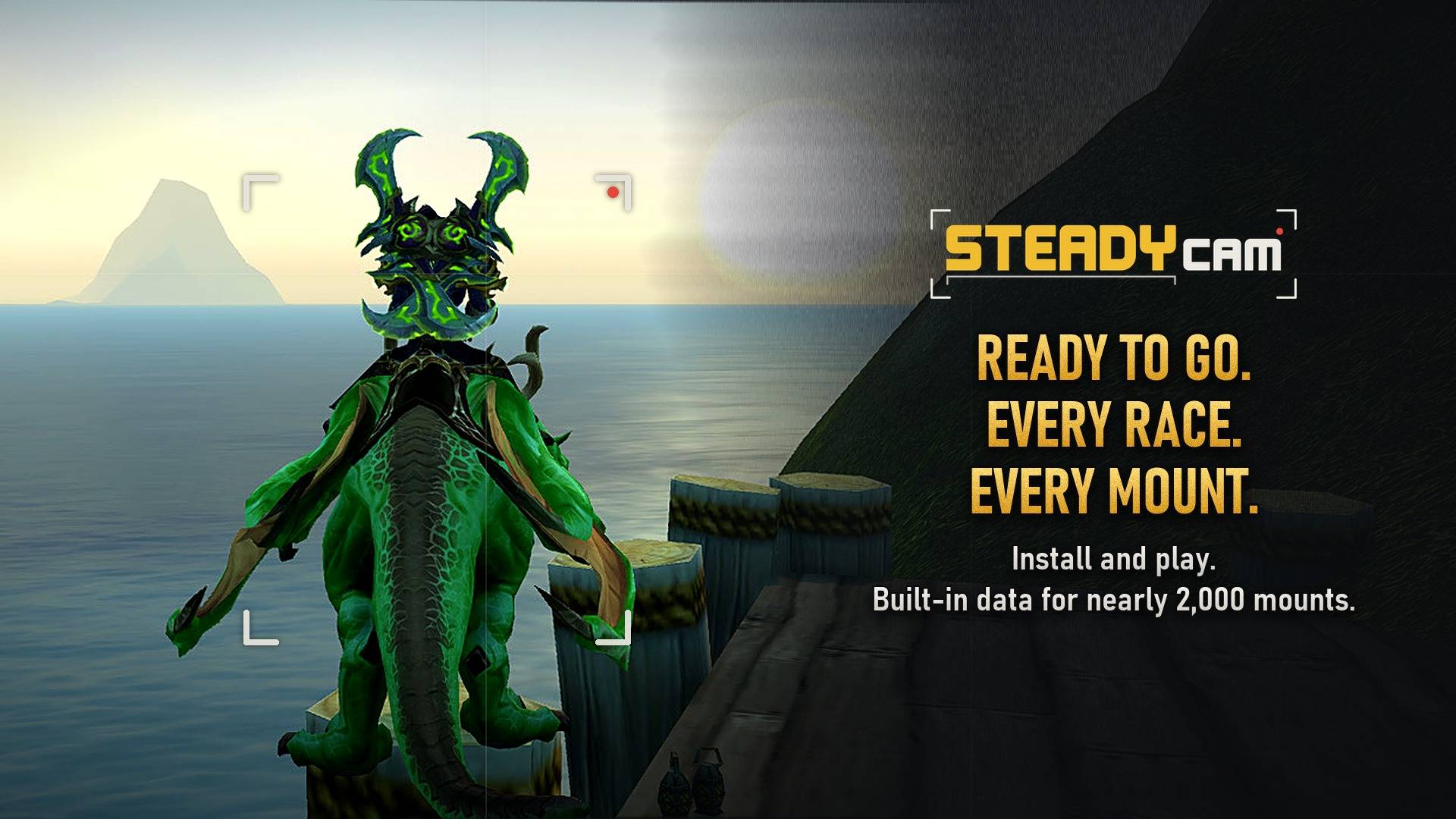
- Works out of the box. Ships with measurements for every playable race, both sexes and alternate forms (Worgen, Dracthyr visage), plus size estimates for nearly 2,000 mounts.
- Optional one-click calibration. For a perfect fit on a specific mount, SteadyCam can measure it for your character in about a minute. You press one button per step; it does the rest.
- Mount families. Calibrating one mount also covers every other mount that shares its model.
- Shapeshifts and special cases. Worgen and Dracthyr form changes, Dracthyr Soar, flight paths and mounts that hide your character are all handled.
- No commands needed. Everything lives in one small window.
- Built for Combat Mode. If Combat Mode is installed, it hands its camera settings over to SteadyCam when both are installed: Combat Mode does the combat and Mouse Look side, SteadyCam the framing.
- Plays nice with others. Warns you if another addon or macro fights over the same camera settings, and respects Blizzard's motion sickness options if you want it to.
- Easy to reset. "Restore Blizzard camera" sets everything to the game's own camera, "Recommended values" brings back SteadyCam's, and "Save my preferences" / "Load my preferences" keep and bring back your own (they ask before overwriting anything). Turning SteadyCam off puts the camera back exactly as it was before SteadyCam.
- Localized in English, Spanish, German, French, Italian, Brazilian Portuguese, Russian, Korean and Simplified / Traditional Chinese. The language follows your game client.
 INSTRUCTIONS
- Install and log in. The SteadyCam window opens by itself the first time.
- SteadyCam starts with its recommended framing (0.80 horizontal, 0.70 vertical and 0.60 vertical while flying). Drag the sliders until your character sits where you like; changes apply instantly.
- That's it. Mount up and ride.
Calibration (optional)
SteadyCam already has data for your race and estimates for your mounts, so most players never need to calibrate. It lives in the Advanced settings. If the camera still shifts when you mount or dismount a particular mount:
- Open SteadyCam, show the advanced settings and press Start calibration, or click the link SteadyCam can post in chat the first time you ride an uncalibrated mount (off by default; turn it on in the calibration section). View my mounts lists your calibrated and uncalibrated mounts: click one to ride it, preview it or calibrate it, or Ctrl-click it to see it in the Dressing Room.
- Pick the mount, stand still somewhere open outdoors, and press the big button each time it lights up.
- During the test the camera looks off-center and your character says a line in /say: SteadyCam measures your chat bubble to see exactly where the game puts you. Everything is restored at the end.
Tips: don't stand with a wall or tree right behind you (it pulls the camera in), and don't use the mouse wheel while it runs.
Compatibility
- Combat Mode: hands turn speed, shoulder offset, dynamic pitch and Motion Sickness Protection over to SteadyCam, and marks those options as Delegated to SteadyCam (requires a Combat Mode version with the SteadyCam handoff).
- DynamicCam: changes the same camera settings, so the two would fight. When DynamicCam is loaded, SteadyCam asks in a game dialog whether to disable it (one click, the interface reloads).
- Other camera addons or macros that change
test_cameraOverShoulderor the dynamic pitch settings will fight with SteadyCam. It tells you when that happens and which setting was touched. - Motion sickness options: the game ignores the shoulder offset while Blizzard's Keep Character Centered or Reduce Camera Motion is on, so SteadyCam turns them off. If you rely on them, enable Motion Sickness Protection in SteadyCam's Advanced section: SteadyCam then leaves them alone (and horizontal / vertical framing won't apply).
Uninstalling
Camera settings are saved by the game itself, not by the addon. Before removing SteadyCam, open it and turn it off with the switch at the top: your camera goes back to exactly how it was before SteadyCam.
FAQ
- Why does my character speak in /say during calibration? The chat bubble is the only thing on screen that the game positions exactly over your character, so it is how SteadyCam sees where you are. It only appears while calibrating, and calibration can't be started in cities or inns.
- Does it work in dungeons and raids? The framing works everywhere. Calibration needs the open world, because chat bubbles are hidden inside instances and you need to be able to use mounts.
- The camera still shifts when I mount or dismount one particular mount. Calibrate it once. Its measurements replace the estimate and also apply to every mount with the same model.
Feedback
Bug reports, suggestions and translation fixes are welcome. Please include your race, the mount, and what you saw.
SteadyCam - Discord
SteadyCam - Github
License
Copyright (c) 2026 carvibox. All rights reserved. Free to download and use; see LICENSE.
SteadyCam Team