stats-compass
- By
Shows how your crit, haste, mastery and versatility compare with the best EU Mythic+ players of your spec.
stat-compass-ingame.png
stats-compass-ingame2.png
Description
English
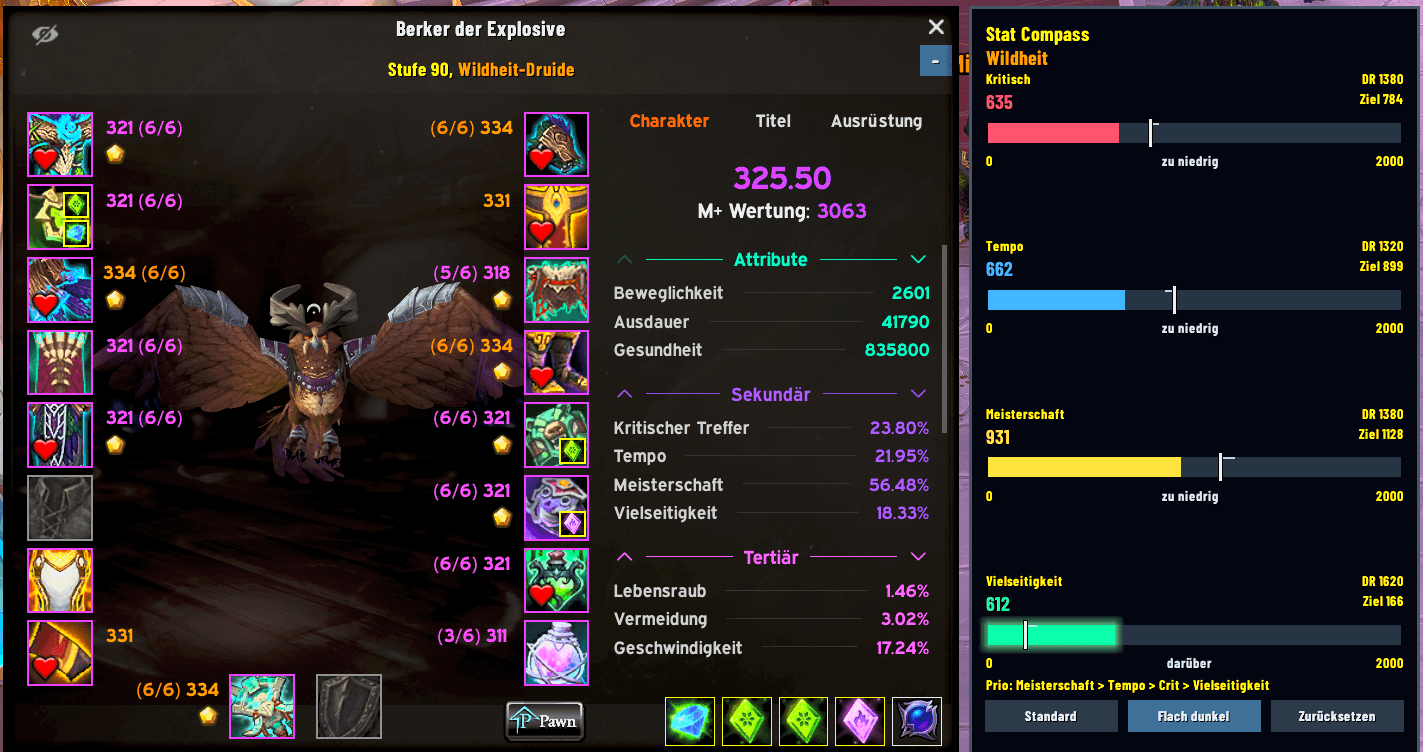
Stat Compass is a World of Warcraft Retail addon (Midnight, 12.1). It adds a panel to the equipment page of your character window that compares your secondary stats (Critical Strike, Haste, Mastery and Versatility) with the best European Mythic+ players of your specialization.
What you see
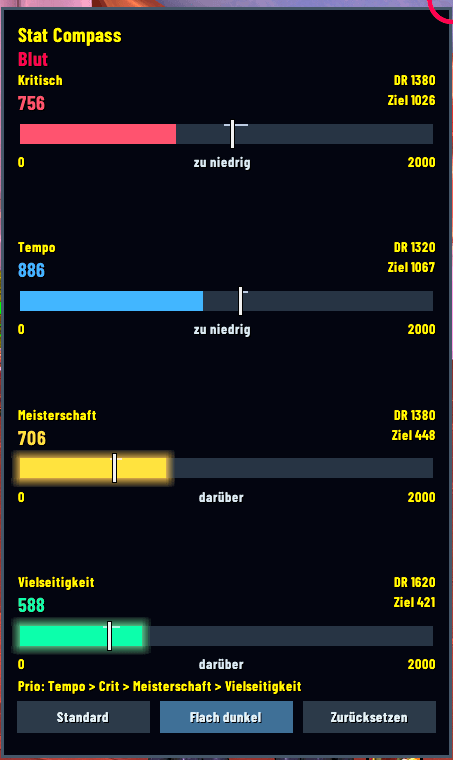
For each secondary stat, the panel shows your own rating points beside the group's median gear rating. Your rating fills the bar, a white marker shows the target, and a narrow strip marks P40 to P60. The status reads “too low”, “fits” or “above”; both endpoints count as “fits”. Stats appear in Blizzard's character-window order. The fill glows within and above the band, without implying that more is better.
All four display scales stay at 0–2000. Higher values retain their numbers and an overflow indicator; this is not a rating cap. Tooltips show the band's actual endpoints and the cohort's median percentage for context. Without a valid target, only readable current ratings remain, with no target labels or bars.
The separate DR label has a tooltip but no bar marker. It shows user-supplied first diminishing-return guides (Crit 1380, Haste 1320, Mastery 1380, Versatility 1620) only at level 90 on Retail interface 120100. Further rating still works with less benefit per point; percentage buffs are excluded. These guides are not targets or optimal values.
The comparison group is the 30 best EU players of your specialization in the current Mythic+ season, ranked by their Mythic+ rating in that specialization. If your hero talent tree is common enough among them, Stat Compass compares you with the best players of that hero talent tree instead.
“Prio” orders stats by the group's secondary-budget investment. Tooltips warn when the targets together exceed your rating budget.
The numbers show how top players distribute their gear. They do not come from a simulation, and Stat Compass cannot tell whether that distribution is the best one for your character.
Where the data comes from
All data comes from Blizzard's official APIs: the Mythic+ leaderboards of every EU connected realm and the public character profiles of the top players. A weekly job in GitHub Actions collects the data again; releases ship it with the addon. The addon itself never connects to the internet, and it contains no player names.
Blizzard allows its API data to be kept for 30 days, so each dataset expires after 30 days. After that the panel shows only your own values until you install a newer version.
The repository’s StatCompass/Data.lua deliberately contains no target data. Generated release data comes from a successful weekly run and is separate from this empty source file.
Installing
Use a published release ZIP when available and unpack it so that the folder ends up as World of Warcraft/_retail_/Interface/AddOns/StatCompass. If the game is running, type /reload.
Using it
Open your character window and switch to the equipment page; the panel attaches on the right. The draggable minimap button uses the bundled Stat Compass icon. Left-click opens equipment. Right-click opens Options > AddOns > Stat Compass. There you can pick a skin (Default in WoW style, or Flat dark), show or hide the minimap button, and reset the appearance. Settings are saved per account in StatCompassDB.
The +/− sidebar button collapses or expands the panel and remembers its state across reloads. It remains accessible while collapsed and hides on other Character tabs. Collapsed panels do not read stats or render rows; expanding refreshes current values. Appearance reset preserves the collapsed state. The panel’s Reset also expands it and restores Mythic+, Default and minimap defaults. German is automatic for deDE; English is the fallback.
For developers
Main values and bars consume Core’s ratingTarget; the UI contract covers validation and tooltips.
The addon lives in StatCompass/. The data pipeline, release tooling and tests are in tools/ and tests/.
uv venv --python 3.11 .venv
uv pip install --python .venv/Scripts/python.exe 'lupa==2.6' 'pytest==8.4.2'
.venv/Scripts/python.exe -m pytest -q -p no:cacheprovider
- Data acquisition from Blizzard's APIs
- Data contract between data and UI
- Releases and automatic data releases
- How agents work in this repository
License terms and attributions are in LICENSE and NOTICE.
Deutsch
Stat Compass ist ein Addon für World of Warcraft Retail (Midnight, 12.1). Es ergänzt die Ausrüstungsseite deines Charakterfensters um ein Fenster, das deine Sekundärwerte (Kritisch, Tempo, Meisterschaft und Vielseitigkeit) mit den besten europäischen Mythic+-Spielern deiner Spezialisierung vergleicht.
Was du siehst
Für jeden Sekundärwert zeigt das Fenster deine Wertungspunkte neben dem Median der Ausrüstungswertungen der Gruppe. Deine Wertung füllt den Balken, ein weißer Marker zeigt das Ziel, ein schmaler Streifen P40 bis P60. Darunter steht „zu niedrig“, „passt“ oder „darüber“; beide Spannenränder zählen als „passt“. Die Werte stehen in Blizzards Charakterfenster-Reihenfolge. Innerhalb und oberhalb der Spanne leuchtet die Füllung, ohne damit mehr Wertung als besser zu bewerten.
Alle vier Anzeigeskalen bleiben bei 0–2000. Höhere Werte behalten ihre Zahl und einen Überlaufhinweis; dies ist keine Wertungsgrenze. Tooltips zeigen die tatsächlichen Spannenränder und den Median-Prozentwert der Gruppe zur Einordnung. Ohne gültiges Ziel bleiben nur lesbare eigene Wertungen stehen, ohne Zielbeschriftungen oder Balken.
Die getrennte DR-Beschriftung hat einen Tooltip, aber keinen Balkenmarker. Sie zeigt erste DR-Richtwerte nach Nutzervorgabe (Kritisch 1380, Tempo 1320, Meisterschaft 1380, Vielseitigkeit 1620), nur auf Stufe 90 mit Retail-Interface 120100. Weitere Wertung wirkt weiter, bringt aber weniger pro Punkt; prozentuale Buffs zählen nicht dazu. Die Richtwerte sind keine Ziele oder optimalen Werte.
Verglichen wird mit den 30 besten EU-Spielern deiner Spezialisierung in der aktuellen Mythic+-Saison, sortiert nach ihrer Mythic+-Wertung in dieser Spezialisierung. Ist dein Heldentalent unter ihnen verbreitet genug, nimmt Stat Compass stattdessen die besten Spieler mit diesem Heldentalent.
„Prio“ ordnet die Werte nach dem Sekundär-Budget der Gruppe. Tooltips warnen, wenn die Ziele zusammen dein Wertungsbudget übersteigen.
Die Zahlen zeigen, wie Top-Spieler ihre Ausrüstung verteilen. Eine Simulation steckt nicht dahinter, und ob diese Verteilung für deinen Charakter die beste ist, kann Stat Compass nicht sagen.
Woher die Daten kommen
Alle Daten kommen aus Blizzards offiziellen Schnittstellen: den Mythic+-Bestenlisten aller EU-Realmverbünde und den öffentlichen Charakterprofilen der Top-Spieler. Ein wöchentlicher Lauf in GitHub Actions erhebt sie neu, und jeder Release liefert sie mit dem Addon aus. Das Addon selbst geht nie ins Internet und enthält keine Spielernamen.
Blizzard erlaubt, API-Daten 30 Tage aufzubewahren. Deshalb verfällt jeder Datensatz nach 30 Tagen. Danach zeigt das Fenster nur noch deine eigenen Werte, bis du eine neuere Version installierst.
Die Datei StatCompass/Data.lua im Repository enthält absichtlich keine Zieldaten. Generierte Release-Daten kommen aus einem erfolgreichen Wochenlauf und sind von dieser leeren Quelldatei getrennt.
Installation
Verwende ein veröffentlichtes Release-ZIP, sobald verfügbar, und entpacke es so, dass der Ordner unter World of Warcraft/_retail_/Interface/AddOns/StatCompass liegt. Läuft das Spiel, genügt /reload.
Bedienung
Öffne das Charakterfenster und wechsle auf die Ausrüstungsseite; das Fenster hängt rechts daneben. Das verschiebbare Minikartensymbol verwendet das mitgelieferte Stat-Compass-Icon. Linksklick öffnet die Ausrüstung, Rechtsklick Optionen > AddOns > Stat Compass. Dort wählst du das Design (Standard im WoW-Stil oder Flach dunkel), blendest das Minikartensymbol ein oder aus und setzt die Darstellung zurück. Die Einstellungen werden pro Account in StatCompassDB gespeichert.
Die +/− Seitentaste klappt das Fenster ein oder aus und merkt sich den Zustand über /reload hinweg. Eingeklappt bleibt sie erreichbar; auf anderen Charakterseiten ist sie verborgen. Eingeklappt werden keine Werte gelesen oder Zeilen gezeichnet. Ausklappen lädt aktuelle Werte. Das Zurücksetzen der Darstellung behält den Ein-/Ausklappzustand bei. „Zurücksetzen“ im Fenster klappt es zusätzlich aus und stellt Mythic+, Standard und die Minikarten-Vorgaben wieder her. Bei deDE erscheint Deutsch, sonst Englisch.
The stats-compass Team