WoW-Retail-Minimap.png
Description
SlackHacks -- Essential Quality of Life Tweaks to Native Blizzard UIs
This is yet another "Quality of Life" addon with various small features and tweaks, but my focus is on making my changes look like they're part of the native Blizzard UI.
Everything is a module.
Everything is optional.
Everything is off by default. (Please read all the options!)
If you've used Plumber or Leatrix, this is similar, but I'm trying very hard to make it look like Blizzard wrote all the features I'm providing. (Because of this, it is probably incompatible with full UI redesigns like Ellesmere UI.)
Modules & Features
Utilities
- Lootable Object Sparkles (WoW Forever only): Checkbox to enable the hidden feature that enables Classic WoW lootable object sparkles.
- TomTom
/wayCommand: Creates native Blizzard waypoints using TomTom-style/waycommands, without needing TomTom or overriding it when installed. - Show In-Game Navigation: Toggles the in-world diamond pointing toward objectives on clients that support it.
Controls
- Camera Distance: Unlocks maximum camera zoom distance (
cameraDistanceMaxZoomFactor = 4). - Dynamic Camera: Enables ActionCam basic mode with dynamic pitch.
- Keybindings: Many extra keybindings aren't in the options menu at all; the "Open Keybindings" button jumps straight to the SlackHacks section of Blizzard's Key Bindings.
- Class Spec Keybinds: Switch to Class Spec 1–4 (your specializations in Talents UI order) with a single key, out of combat.
- Consumable Keybinds: Keybinds to use the best healing potion, mana potion, or bandage in your bags, consuming smaller stacks first to conserve inventory space.
- Dragonriding Overrides: Applies context-sensitive keybinds for Skyward Ascent, Surge Forward, Whirling Surge, and Aerial Halt when mounting a Skyriding mount.
- System Keybinds: Keybinds for Reload UI, Sound System Restart, Quick Keybind Mode, and Click Casting.
Graphics
Directly applies and restores hidden client CVars not present in default interface menus:
- Ground Foliage: Density (
groundEffectDensity), fade distance (groundEffectFade), and draw distance (groundEffectDist). - Level of Detail (LoD): Object fade scale (
lodObjectFadeScale), cull threshold size (lodObjectCullSize), and terrain LoD distance (terrainLodDist). - Sharpening: Enforces FSR/CAS spatial sharpening at native resolution (
ResampleAlwaysSharpen). - Water Reflections: Water reflection detail level (
reflectionMode, 0–3). - Weather: Weather effect density (
weatherDensity, 0–3). - Includes a one-click button to reset all CVars to game defaults.
Minimap
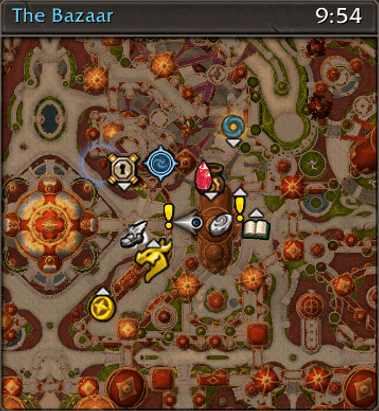
- Button Auto-Hide: Hides tracking, calendar, clock, and addon buttons until the cursor hovers over the minimap.
- Addon Compartment: Moves third-party addon minimap icons into the Addon Compartment dropdown.
- Opacity: Configurable opacity values for idle, moving, and combat states.
- Square Minimap: Changes the minimap shape from circular to square with a top title bar.
Inventory
- Auto-Sell Greys: Automatically sells poor-quality (grey) items when opening a merchant window.
- Hide Bags Frame: Hides the Blizzard bag bar buttons and backpack container icon for players using keybinds.
Auto Repair
- Automatically repairs equipment upon opening a merchant window using Personal Funds, Guild Funds, or Guild Funds restricted to raid groups.
Listview Bag
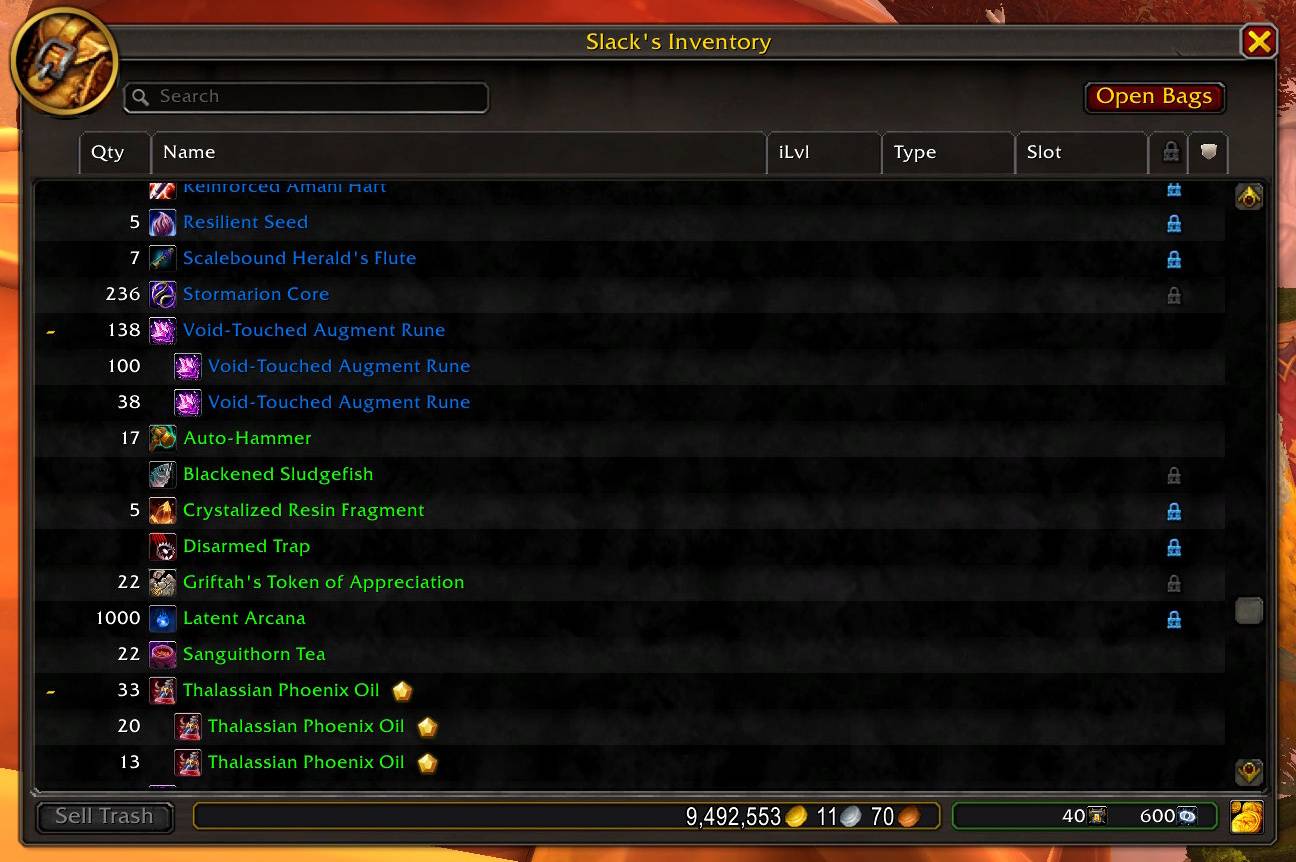
An alternate list-based view for player bags that can replace the default grid backpack or be toggled as needed.
- Columns: Quantity, Item Name, Item Level, Armor/Weapon Type, Equipment Slot, and Binding Type (BoE, BoP, Warbound).
- Sorting: Ascending and descending sort support on all columns.
- Search: Real-time text search filter.
- Item Protection: Lock items to prevent them from being vendored or deleted.
- Junk Marking: Mark specific items to be automatically sold at merchants or vendored with Blizzard's "Sell All Junk" button.
Info Display
One "Enable Info Display Module" switch turns all Info Display features on or off at once: Char Sheet, Weeklies, and the Guildie, Friends, and Players Online lists. Each feature also has its own on/off setting. The Guildie, Friends, and Players Online lists work in both Retail and WoW Forever.
Char Sheet
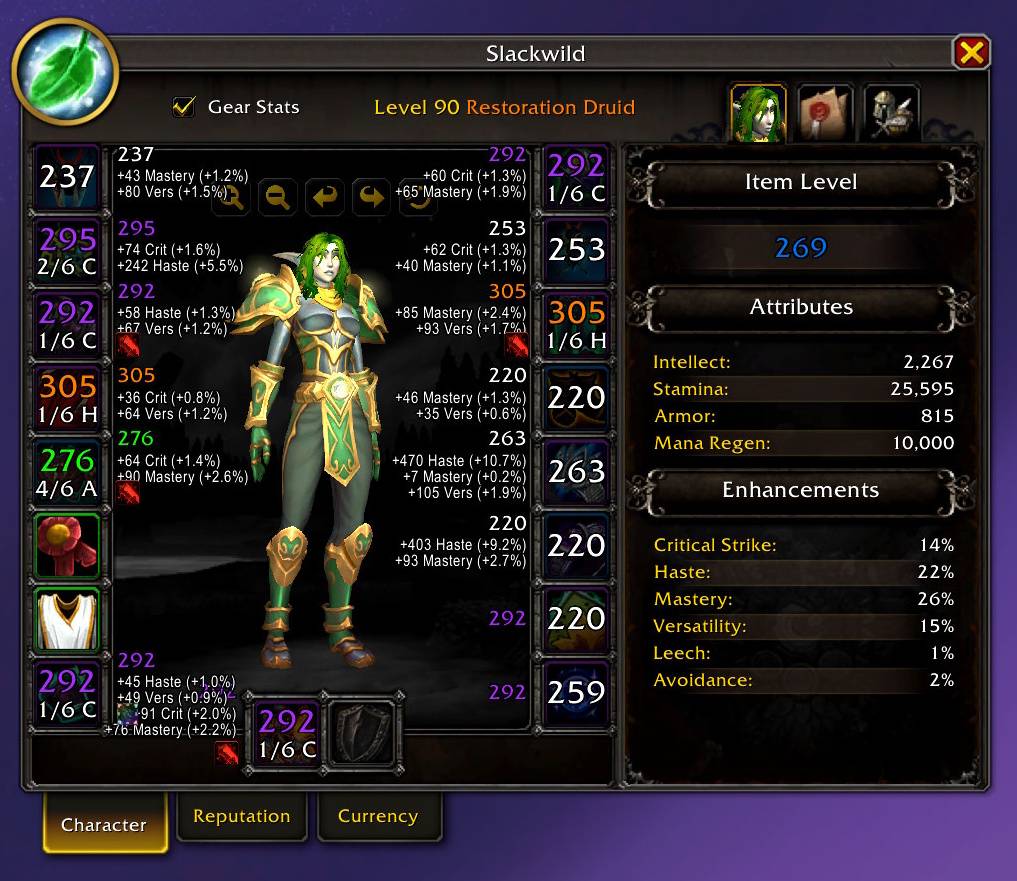
- Gear Stats Overlay: Adds a "Gear Stats" checkbox directly inside the Blizzard Character Sheet (also toggleable from the minimap icon menu).
- Item Level Overlays: Displays item level on each equipment slot, with coloring based on item quality or upgrade track watermark tiers.
- Upgrade Track Progress: Displays current track progression (e.g.,
6/6 C) below the item level, with an option to display a star icon when fully upgraded. - Watermark & Stat Totals: Displays slot high-watermark item levels alongside aggregate Critical Strike, Haste, Mastery, and Versatility ratings and percentages.
- Enchants & Gems: Displays current enchants and gem statuses on equipment, with alert icons for empty sockets or un-enchanted items.
Weeklies
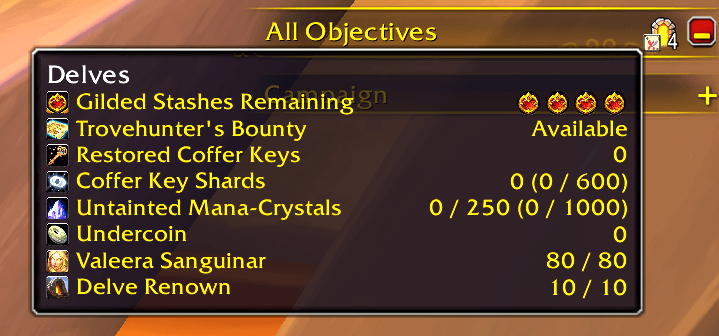
- Delves Progression: Integrates a Delves tracking widget into the Objective Tracker.
- Tracks weekly Gilded Stash completions (4 total).
- Tracks Trovehunter's Bounty status (Available, Acquired, Engaged, Completed).
- Displays companion level and Delve Renown progress.
- Displays currency totals for Restored Coffer Keys, Coffer Key Shards, Undercoin, and Untainted Mana-Crystals.
- Context menu for detailed progress breakdowns.
Guildie List
- Online Guild Members: A movable, resizable window styled after Blizzard's Damage Meter, listing online guild members (class-colored) and their zone in two columns. Hovering a member shows a player tooltip like Blizzard's: name and AFK/DND status, guild and rank, level, race and class, faction, location, and guild notes.
- Context Menu: Left- or right-click a member for the guild roster's Invite, Whisper, and View Houses options (Invite is hidden when they can't be invited, e.g. on mobile; View Houses is Retail only). Your own row has no menu.
- Instance Icons: Members inside a dungeon, raid, or delve get the world map's Dungeon/Raid/Delve icon after their zone (toggleable).
- Rank Icons: The guild roster's crown icon after the Guild Master's name and its assistant icon after officers' names (toggleable).
- Faction Icons: A Horde/Alliance icon after member names for cross-faction guilds; by default only shown for members of the opposite faction to your character (toggleable).
- In-Group Indicator: Quick Join's group icon at the end of the name of anyone already in a group, the same information Blizzard uses to offer "Request to Join Group" instead of "Invite" (toggleable, on by default).
- Sorting: Sort the list by name (default) or by location.
- Fit to Content: Optionally size the window automatically to fit its members and their locations.
- Collapsible: Collapse the window down to its header (which still shows the online count) using the same minimize button as the Damage Meter.
- Settings Cog: A Damage Meter-style cog menu on the header, with Fit to Content, a "Change Opacity" slider for the window background, the sort order, and the icon toggles.
- Minimap Toggle: Turn the list on or off from the "Guildies List" checkbox in the minimap icon menu.
- Window Interaction: Settings and the cog menu offer Lock Position to prevent dragging and Make Non-Interactive to pass mouse input through to the world. Only the settings cog remains interactive.
Friends List
- Online Friends: The same Damage Meter-style window as the Guildie List, listing your online friends: Battle.net friends by their Battle.net name with their class-colored character name, and their location (or what they're doing in other Blizzard games). Hovering a friend shows a tooltip like the Friends list's: name and AFK/DND status, character, level, race and class, faction, zone and realm, note, and broadcast message.
- Context Menu: Left- or right-click a friend for the Friends list's Invite, Whisper, and View Houses options (Invite is hidden for friends in another game or WoW version; View Houses is Retail only).
- Filters: Only Favorite Friends (default on), Only Playing WoW, and Only Same WoW Version (e.g. hide Classic players while you're on Retail). With Only Favorite Friends off, character friends are listed too.
- Game Icons: The icon of the Blizzard game or app each friend is in, after their name, for friends who aren't in the same game as you, including other WoW versions (toggleable).
- Instance, Faction, and In-Group Icons: The same toggleable Dungeon/Raid/Delve, Horde/Alliance, and in-group icons as the Guildie List.
- Sorting, Fit to Content, Collapsible, Settings Cog, Window Interaction, Minimap Toggle: Same as the Guildie List, including Lock Position and Make Non-Interactive, with the filters also in the cog menu. Name sorting follows the Friends list's order. The minimap checkbox is "Friends List".
Players Online
- Stacked Lists: Turn on "Stack Friends and Guildie Lists" to show both lists in one "Players Online (N)" window, where N counts everyone online once, even if they're both a friend and a guildie.
- Objective Tracker Sections: Each list gets an Objective Tracker-style section header that collapses just that list. "List Stack Order" picks which list is on top.
- Settings Cogs: The window's cog has Fit to Content and "Change Opacity", followed by a "Stack Friend/Guildie List" checkbox grouped with the "Friends List"/"Guildies List" visibility checkboxes. Uncheck stacking to split the lists into their own windows; turning both lists off also turns stacking off. Each section header has its own cog with that list's sorting, filters, and icon settings. When both lists are enabled but split, their cogs offer the same stacking checkbox.
- Collapsible: Same as the individual lists.
- Window Interaction: Lock Position and Make Non-Interactive apply to the entire stacked window, independently of the standalone windows' settings. Only the topmost cog offers these options and remains interactive when click-through is on.
Reminders
One "Enable Reminders Module" switch turns all Reminders features on or off at once. Each feature also has its own on/off setting. Retail only.
Talent Loadouts
- Loadout by Content: For each of your specs, pick a talent loadout (or "Off") for Questing, Delves, Raids, Dungeons, and PvP. Choices are saved per character.
- Switch Prompt: When you enter or leave content and your active loadout doesn't match, a movable prompt near the top of the screen offers to switch, with your chosen loadout pre-selected in a dropdown. It never takes keyboard focus, waits until combat ends, and stays hidden during an active Mythic+ keystone.
- Mythics: Enable per-Mythic loadouts to pick a loadout for each of the current season's Mythic+ dungeons (listed from the game's own Mythic+ data). Dungeons left on "Use Default" use the Dungeons loadout. The prompt lists the current dungeon's name on its own line.
- Raid Bosses (Midnight Season 2): Optionally choose a loadout for each of The Venomous Abyss's eight bosses and Kith'ix in The Unbinding of Kith'ix (12.1.5), saved per character and specialization. Entering a mapped boss-room subzone (including after
/reload) offers to switch, with the boss's name displayed as a large heading. "Use Default" uses your Raids loadout. Unmapped corridors do not prompt, and no combat or boss-engagement detection is needed.
Consumable Buff Reminders (WIP!)
- Clickable Aura Icons: Shows on-screen buttons to apply Food, Flask, Weapon Oil, or Augment Runes when buffs are missing.
- Buff Expiration: Triggers warnings if a buff is projected to expire during an active Mythic+ key or raid encounter.
- Where to Remind: Options to restrict reminders to Mythic/Mythic+ dungeons and non-LFR raids (Normal, Heroic, Mythic).
- Edit Mode Support: Registered with Blizzard's Edit Mode for positioning and scaling.
Mouse Ring
- Centers a circular overlay on the mouse cursor with adjustable scale, opacity, and color. Can be set to only display during combat.
Windows
- Toast Positioning: Registers Blizzard's AlertFrame (achievement, loot, and mount popups) as a movable frame in Edit Mode.
- Zone Map Scaling: Adds a "Change Scale" slider to the Zone Map's tab menu (right-click the tab).
- Keybinding: Includes a dedicated keybind to toggle the module on or off without opening options.
Movable Windows
- Window Dragging: Left-click drag native Blizzard panels (Character Frame, Merchant, Quest Log, Spellbook, etc.) by their title bars.
- Position Memory: Configurable persistence (Do Not Remember, In Session Only, or Remember Permanently).
Window Scaling
- Mouse-Wheel Scaling: Hold a designated modifier key (
None,Shift,Ctrl, orAlt) and scroll over a title bar to scale the window (0.3x to 2.5x). - Scale Memory: Configurable persistence (Do Not Remember, In Session Only, or Remember Permanently).
Dialog
- Auto-Accept Quests: Automatically accepts quests on interact.
- Auto-Complete Quests: Automatically completes quests that have no choices in reward.
- NPC Dialog Auto-Click:
- Auto-Click First Dialog Option: Automatically clicks an NPC dialog's option if it's the only option and no quests are listed.
- Only During Mythic Runs: Optionally restricts auto-clicking to Mythic+ runs whose timer is running. Hidden on WoW Forever. When combined with the Service NPC restriction, an active run allows other dialogs too.
- Only when interacting with Service NPC: Restricts auto-clicking to recognized service options such as vendors, banks, flight paths, and trainers, even when the NPC forces its gossip to display. Available on Retail as well as Classic clients.
- Dialog Keybindings:
- Number Key Dialog Options: Maps quest and NPC dialog selections to the number keys (1–9, 0), displaying each shortcut after the icon and before the selection text (e.g., "{Icon} 1. See my wares.").
- Spacebar to Accept/Complete Quest: Independently enables Spacebar to accept, continue, or complete the current quest using Blizzard's normal buttons and confirmation prompts.
- Safe Dialog Shortcuts: Temporary keybindings are cleared when the dialog closes or combat starts. Turn-ins requiring a choice between rewards remain entirely manual: dialog shortcuts and auto-completion are disabled on that screen, even after selecting a reward.
- Quest Item Extra Action Button: Shows an Extra Action Button for a quest item while you're inside that quest's area, bound to your Extra Action Button key. Items that must be used on a target are left out.
- Toggles: Keybindings to toggle each auto option or all of them at once, plus an "All NPC Auto-Interacts" checkbox in the minimap icon menu.
- Hold
Shiftwhile interacting to skip all automation.
Self Vendor
- Chat Request Handling: Listens in party, raid, instance, say, and whisper chat for consumable keywords (e.g.,
crit oil rune,need flask,!flask). Enable Only Vend to Fellow Guildies to ignore requests from non-guild members. - Spec Matching: Selects the recommended Flask and Weapon Oil for the requesting player's class and specialization using data from Wowhead or Icy Veins.
- Asynchronous Trade Queue: Enqueues requests and handles item stack splitting via a FIFO queue to prevent trade window conflicts.
- Automatic Trade Response: Pick a mode (or use
/slack vend <mode>) and anyone who opens a trade with you is automatically handed those items, jumping to the front of the queue. Optionally turns itself Off when you leave your group. - Configuration: Granular toggles for Flasks, Oils, Augment Runes, and Vantus Runes, with configurable rune stack counts and optional chat prefix enforcement.
- Combat Safe: Vending pauses in combat; entering combat clears the queue, and new requests are only accepted out of combat.
Combat
- Assist Tank Macro: Generates an automatic "Assist Tank" macro that will
/assistthe current tank by name, otherwise your Hunter/Warlock pet. Includes its own keybinding, and tanks can mark their target with a skull instead.
Nameplates (WIP!)
- Raise Casting Nameplates: Draws casting enemy nameplates above overlapping nameplates so their cast bars remain visible.
Slash Commands
| Command | Action |
|---|---|
/slack |
Toggle the configuration panel |
/slack help |
List available slash commands |
/slack bugs |
Open the internal error log and report tool |
/slack debug |
Toggle verbose debug logging to chat and database |
/slack reset |
Prompt to reset the active profile to defaults |
/slack wipoff |
Disable all experimental/WIP modules |
/slack vend <mode> |
Set Self Vendor's Automatic Trade Response (or off) |
Contact Me / Report Issues
Please create issue tickets for bugs on GitHub:
https://github.com/Slackwise/SlackHacks/issues/new?labels=bug
If you are using EllesmereUI or similar whole-UI redesigns, then please do *not leave bug reports. Many of my features depend on Blizzard's native UI and will likely not work with it or break your UI.
But, either way, feel free to reach me via @Slackwise on Discord.
SlackHacks Team