
SimpleDisenchant
- By
SimpleDisenchant_400_400.png
BlacklistFrame.jpg
FilterOptions.jpg
KeyBinding.jpg
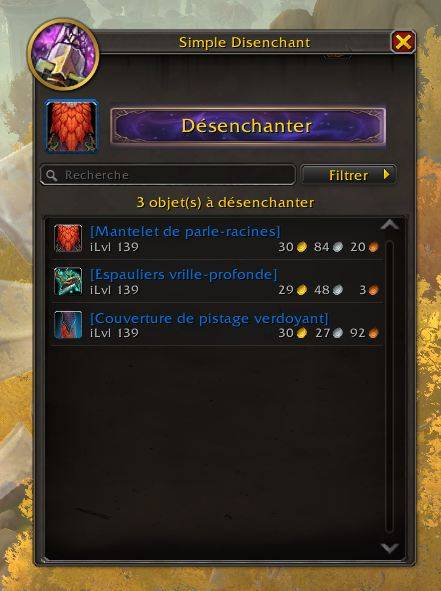
mainFrame.jpg
Description
SimpleDisenchant
A World of Warcraft addon that makes disenchanting items from your bags quick and easy.
Features
- Easy disenchanting: Display all disenchantable items (weapons and armor) in a clean interface
- One-click action: Select an item and disenchant it with a single button click
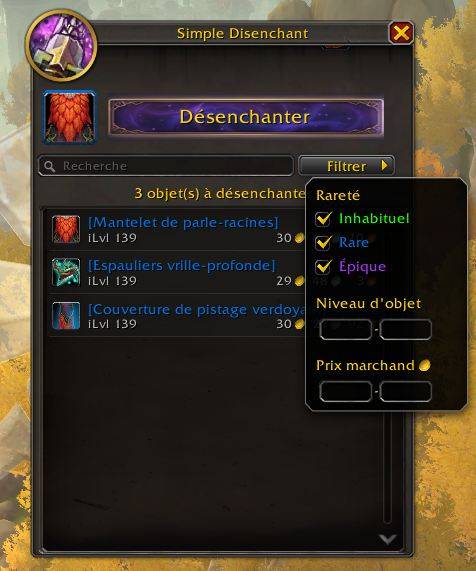
- Smart filters: Filter items by rarity, item level range, vendor price range, binding type (BoE/BoP), and item type (Armor/Weapon/Profession) using WoW's native dropdown menu
- Equipment Set protection: Items in equipment sets are hidden by default to prevent accidental disenchanting (auto-updates when sets change)
- Profession Equipment: Profession equipment (tools, accessories) is recognized and can be disenchanted
- Search: Instantly find items by name with the built-in search box
- Filtered items panel: View items excluded by filters (ilvl, gold, equipment sets) and click to disenchant them anyway
- Item details: Each item row shows item level and vendor price with aligned gold/silver/copper columns
- Item selection: Click any item in the list to set it as the next to disenchant
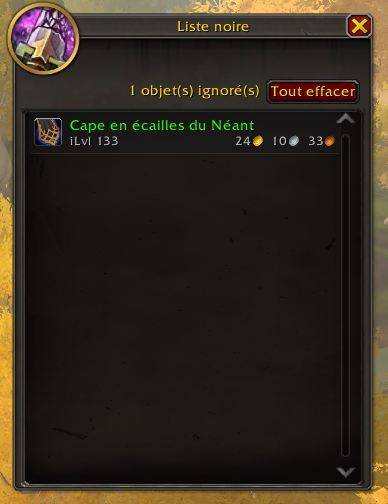
- Blacklist system: Right-click items to blacklist them (they won't appear in the list anymore)
- Blacklist management: View and manage your blacklist with
/sde blacklistor right-click on the profession button - Profession integration: Button in Enchanting profession UI (Recipes tab) to quickly open SimpleDisenchant
- LibDataBroker support: Display addon integration for Bazooka, Titan Panel, ChocolateBar, etc.
- Minimap button: Draggable button on the minimap edge — left-click to toggle, right-click for blacklist, shift-click to hide
- Addon Compartment: Same controls as minimap button, with tooltip instructions
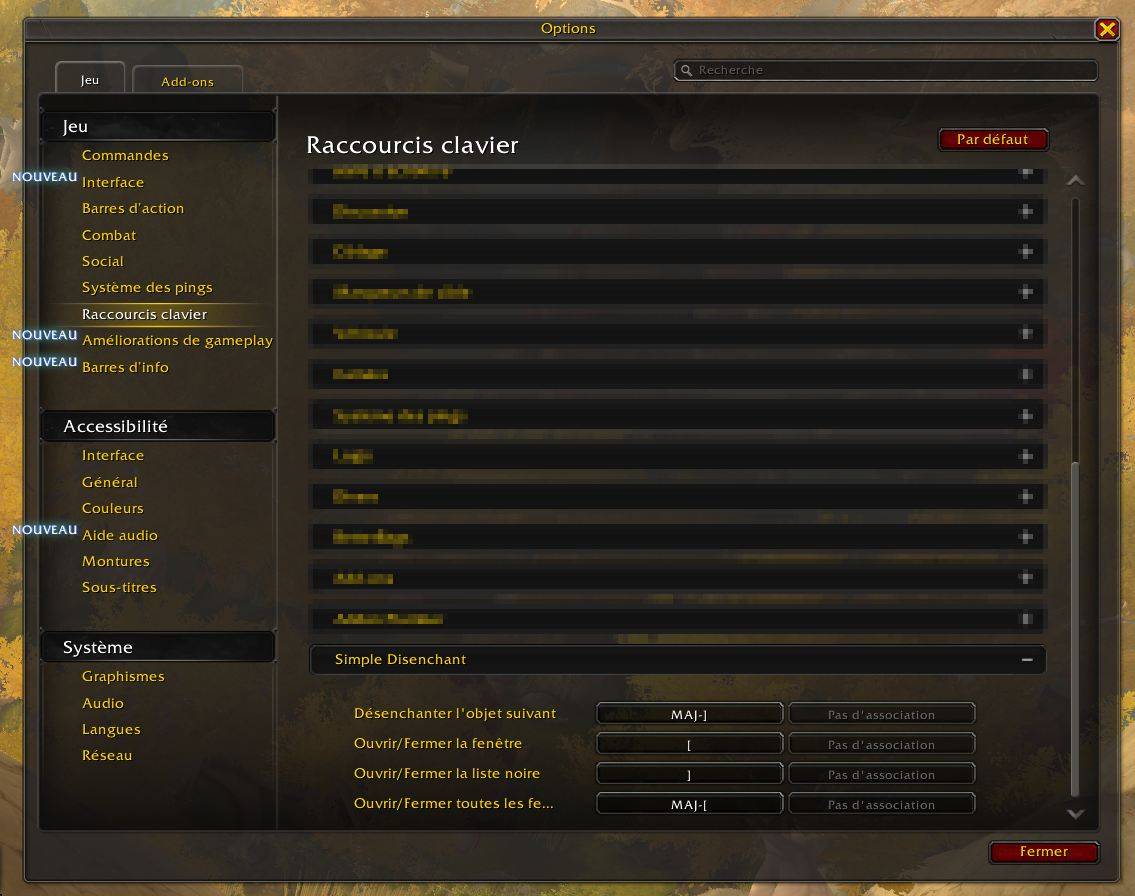
- Keybinding support: Assign keyboard shortcuts via WoW's Key Bindings UI (disenchant, toggle window, toggle blacklist, toggle all windows)
- Combat protection: Addon is locked during combat with a visual overlay and warning message
- Tooltips: Hover over items to see full item details
- Multi-language: Supports English, French, German, Spanish, Italian, and Russian
Usage
Basic Usage
Type /sde to open/close the SimpleDisenchant window.
- Open the window with
/sde - Browse your disenchantable items in the list
- Use the search box to find items by name
- Click the Filter button to refine by rarity, item level, or vendor price
- Click an item to select it (or use the first one by default)
- Click the "Disenchant" button to disenchant the selected item
Filters
Click the Filter button next to the search box to open the filter dropdown:
- Rarity: Check/uncheck Uncommon, Rare, or Epic to show/hide items by quality
- Binding Type: Filter by Bind on Equip (BoE) or Bind on Pickup (BoP)
- Item Level: Set a min and/or max item level range
- Vendor Price: Set a min and/or max vendor price in gold
- Equipment Sets: Hide items belonging to equipment sets (enabled by default)
- Item Type: Show/hide Armor, Weapons, or Profession Equipment
- Hover over section titles for tooltips explaining each filter
- Use the reset button (appears when filters are active) to restore defaults
Items excluded by filters appear in a separate Filtered Items panel (grouped by reason). Click any filtered item to disenchant it anyway.
Reset Window Positions
Type /sde reset to re-dock all windows (main, blacklist, filtered items) to their default positions.
Blacklist
- Right-click on any item in the list to add it to the blacklist
- Blacklisted items won't appear in the disenchant list anymore
- The blacklist persists between sessions
Blacklist Management
/sde blacklistor/sde bl- Open the blacklist window/sde blacklist clearor/sde bl clear- Clear the entire blacklist- Right-click on the profession button (in Enchanting window) to open the blacklist
- In the blacklist window, right-click on an item to remove it from the blacklist
Minimap Button
A draggable button appears on the minimap edge for quick access:
- Left-click: Toggle the main window
- Right-click: Toggle the blacklist
- Shift-click: Hide the minimap button
- Drag: Reposition the button around the minimap
/sde minimapto show/hide the button
Position and visibility are saved per character.
Addon Compartment
Click the SimpleDisenchant icon in the addon compartment (top-right menu bar):
- Left-click: Toggle the main window
- Right-click: Toggle the blacklist
- Shift-click: Show/hide the minimap button
Keybindings
Assign keyboard shortcuts via WoW's Key Bindings UI (Escape > Key Bindings > Simple Disenchant):
- Disenchant next item: Trigger the disenchant button (window must be open)
- Toggle window: Open/close the main window
- Toggle blacklist: Open/close the blacklist
- Toggle all windows: Open or close all SimpleDisenchant windows at once
Profession Integration
When you open the Enchanting profession window, a SimpleDisenchant button appears.
- Left-click: Open the main SimpleDisenchant window
- Right-click: Open the blacklist window
- Drag: Create a macro on your action bar
Installation
- Download the latest release
- Extract the
SimpleDisenchantfolder to yourWorld of Warcraft\_retail_\Interface\AddOnsdirectory - Restart WoW or type
/reload
Requirements
- World of Warcraft Retail (12.0+)
- Enchanting profession (to use the disenchant ability)
Links
License
This project is licensed under the MIT License - see the LICENSE file for details.
SimpleDisenchant Team
