SimpleBind
- By
Description
SimpleBind
See and change what your keys and mouse buttons do, in one window that looks like it came with the game. Made for dad gamers.
⚠️ SimpleBind is opinionated. It uses a fixed set of keys around your left hand and on your mouse, each plain and with Shift only (no Ctrl or Alt). You cannot add keys or move them. It never changes a key that is bound to something other than your action bars, so your movement keys stay as they are.
What it does
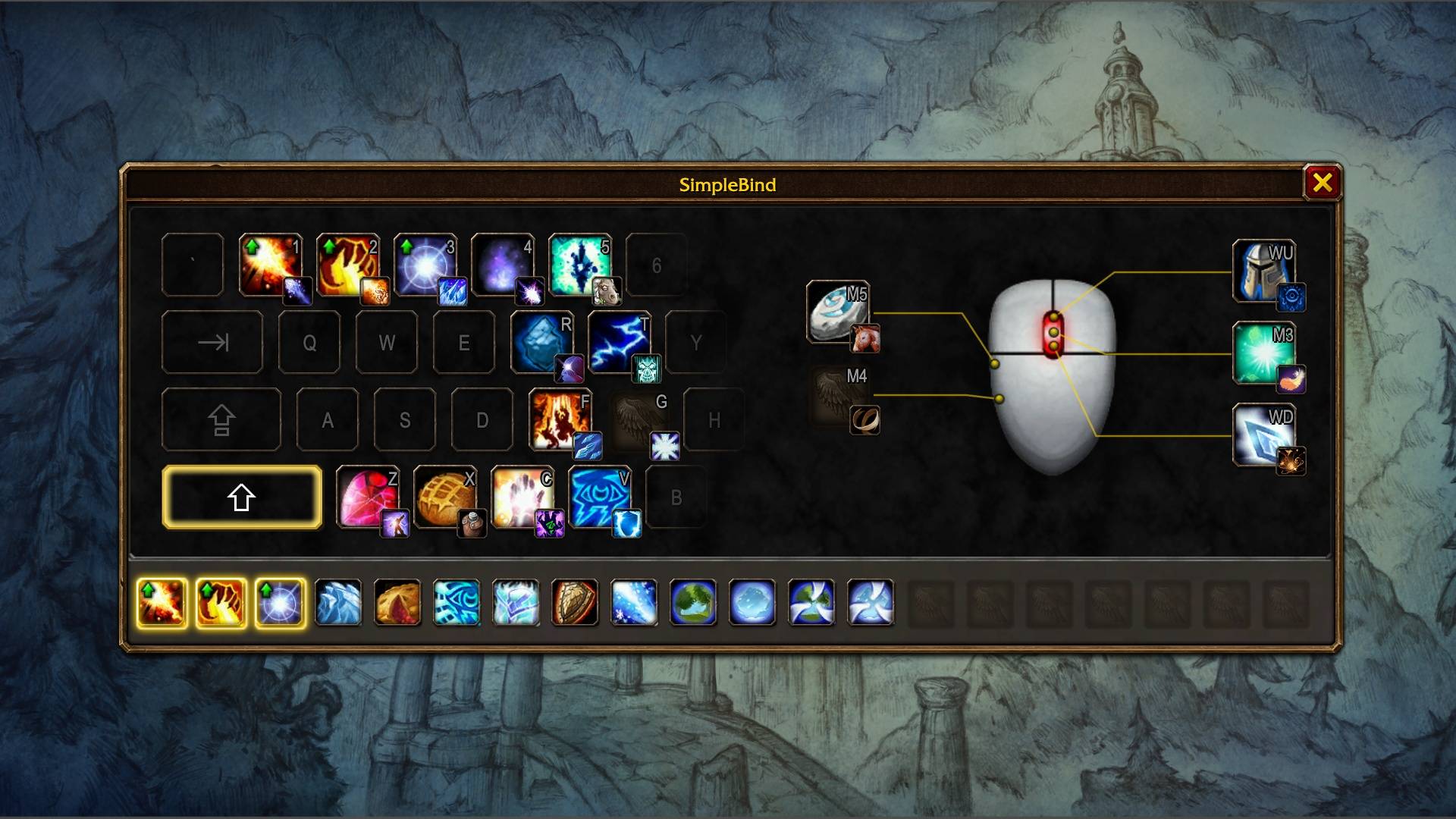
SimpleBind shows a picture of the keys you play with and your mouse. Each key shows the spell, item or macro on the action button it is bound to, the same way the action bars do. Hold Shift and the window shows your Shift keys.
If a key or Shift with it is bound to something else, such as movement or Tab-target, the key shows dimmed. SimpleBind does not change a dimmed key.
Change a key by dragging. Move a spell on your action bars and its key moves with it. There are no menus. The only settings are your keyboard layout and the minimap button.
How to use it
- Bind a key: drag a spell, item or macro from the Spellbook, your bags or the Macro window onto a key.
- Swap two keys: drag one key onto the other.
- Unbind a key: right-click it, or drag it out of the window and right-click to put it down, as you would a spell off your action bars.
- Shift keys: hold Shift. The window shows the Shift layer, and you edit it the same way.
- What is left: the row at the bottom lists your spells that are not on any key yet. Drag one onto a key.
- New ranks: a key that casts an old rank shows a green arrow. The new rank is first in the bottom row. Drag it onto the key.
- Use a dimmed key: unbind it in the game's Key Bindings, plain and with Shift. SimpleBind then shows it as a normal key.
Good to know
- Keys follow their spell, even while the window is closed. If you drag a spell off your bars, its key is unbound.
- SimpleBind uses the game's own key bindings to your action buttons. It never overwrites a spell on your bars. Your keys keep working if you disable SimpleBind.
- You cannot change keys in combat. The window stays open.
- SimpleBind uses your game's language: English, German, French, Spanish, Italian, Brazilian Portuguese, Russian, Korean, or Simplified or Traditional Chinese.
Opinionated by design
SimpleBind is made for dad gamers. You have little time to set up keys, and sometimes only one hand free. So SimpleBind uses a fixed set of keys, each plain and with Shift. On a QWERTY keyboard, these are:
- Keyboard: ` 1 2 3 4 5, Q W E R T, A S D F G, Z X C V
- Mouse: middle button, buttons 4 and 5, wheel up and wheel down
There is no Ctrl or Alt layer. By default, the game binds Q W E A S D to movement, so SimpleBind shows these keys dimmed and does not change them. You keep full movement and can play with one hand while the other holds a coffee or a baby.
Keyboard layouts
SimpleBind uses the same physical keys on every keyboard. The window shows them with the letters your keyboard has, for example A Z E R T on AZERTY.
- Layouts: QWERTY, QWERTZ, AZERTY, Dvorak and Colemak.
- The first layout comes from your game's language: AZERTY for French, QWERTZ for German, QWERTY for all others.
- If this is not your keyboard, choose your layout in SimpleBind's settings. Then reload your UI. SimpleBind asks you to.
- A change of layout does not change your key bindings. Keys that are no longer in the window keep working.
- On QWERTZ and AZERTY, the key left of 1 is dimmed. The game cannot bind it.
Feature complete
SimpleBind does what it is made to do. Bug reports are welcome.
Opening SimpleBind
- Type
/simplebind. - Click the minimap button. To hide or show it, type
/simplebind minimapor use SimpleBind's settings. - Set a key for "Toggle SimpleBind" under SimpleBind in the game's Key Bindings.
Settings
SimpleBind's settings are in the game's Options, under AddOns → SimpleBind. Type /simplebind settings to open them. They hold your keyboard layout and a check box for the minimap button.
SimpleBind Team