ScreenShot Camera
- By
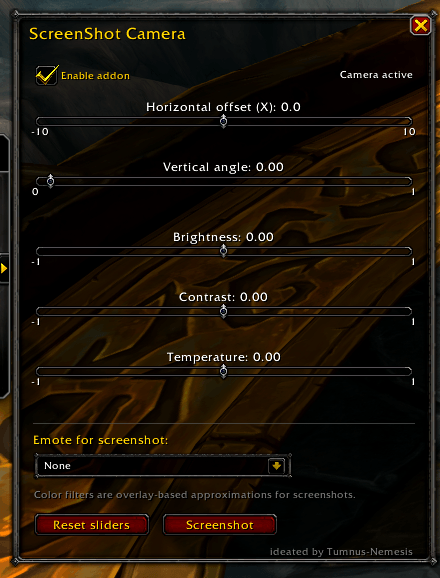
ScreenShot Camera UI
Description
ScreenShot Camera
By adjusting camera offsets and color overlays, you can create cinematic character showcases and environmental captures directly in-game.
Features
Custom Framing: Shift your camera view horizontally for over-the-shoulder perspectives, or adjust the vertical angle for high or low-profile shots.
Integrated Photo Filters: Fine-tune your scene with real-time, overlay-based adjustments for brightness, contrast, and color temperature.
Automated Clean Capture: The built-in screenshot feature automatically hides the entire user interface, captures the image, and restores the UI seamlessly.
Emote: Includes a list of emotes that can be performed during the screenshot.
Minimap Shortcut: Includes a draggable spyglass icon on the minimap for quick access to the configuration panel.
In-Game Commands
The control panel can be accessed via the minimap icon, the standard AddOn settings menu, or by using the following chat slash commands:
`/ssc` or `/screenshotcamera` — Toggles the main camera control panel open or closed.
`/ssc on` — Activates your saved camera offsets and overlay filters.
`/ssc off` — Disables the custom camera settings and safely restores default console variables.
`/ssc reset` — Resets all adjustment sliders back to their default values.
`/ssc help` — Displays a quick summary of available commands in the chat log.
Visual Guide to Sliders
Horizontal offset (X): Shifts the camera focal point to the left or right of your character. This is ideal for off-center rule-of-thirds compositions.
Vertical angle: Adjusts the camera's dynamic pitch and vertical field-of-view padding.
Brightness: Lightens or darkens the screen using a transparent color overlay.
Contrast: Tightens or widens the dynamic visual range via overlay tinting approximations.
Temperature: Warms the image with golden tones or cools it with blue tones to simulate different times of day or weather conditions.
Emote: First select an emote to perform. When you'll take the screenshot the character will perform the emote, hide the WoW UI and after 1.5s the screenshot will be saved in your WoW directory.
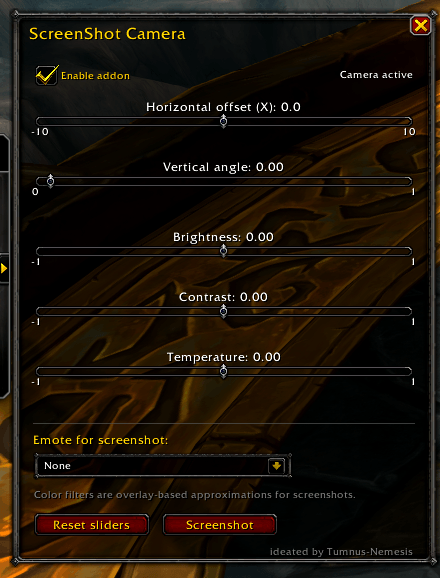
There's a chance that some emotes will not display any animation. The list were created through wowiki. If you find any emote doing nothing.. just tell me! I'll remove it from the list in future versions ;)
ScreenShot Camera Team