


RQE - Rhodan's Quest Explorer
- By

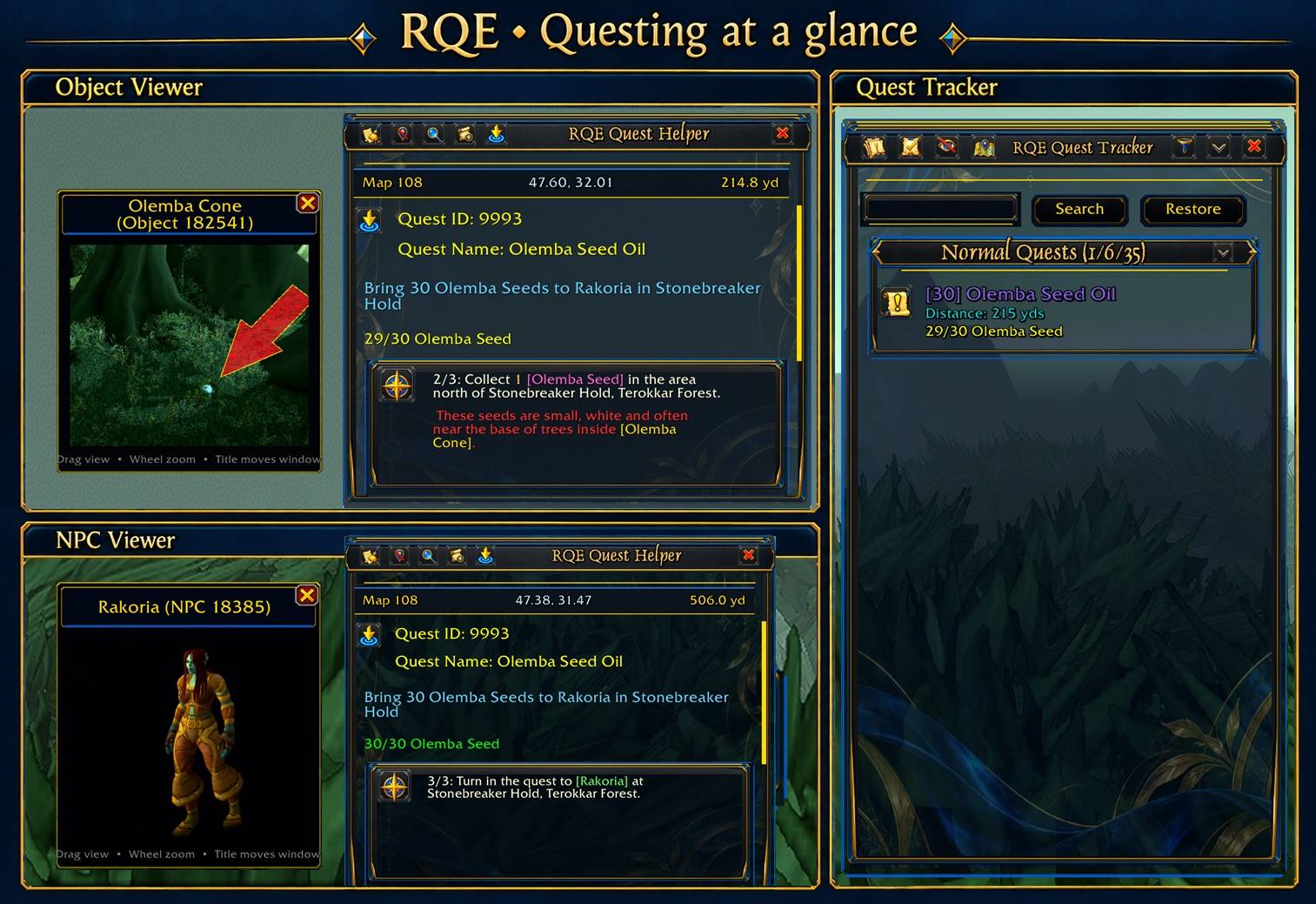
Preview NPC models and object images directly from quest-step links, alongside RQE’s quest guidance and Azure & Gold Quest Tracker.
RQE (Rhodan's Quest Helper) add-on - What does it do?
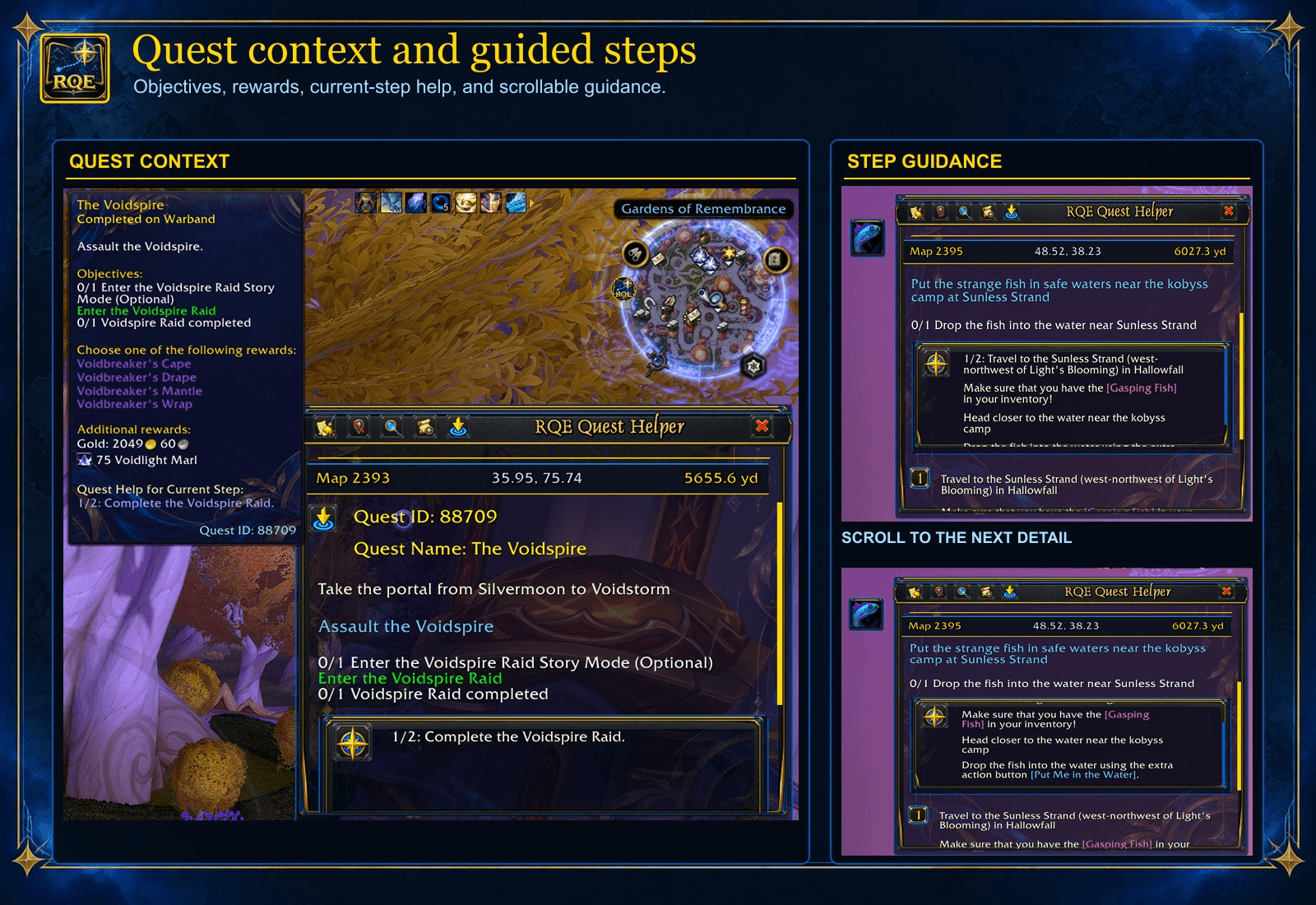
See quest objectives, rewards, and the current guided step together. Scroll the Quest Helper for more authored guidance; step coverage varies by quest.
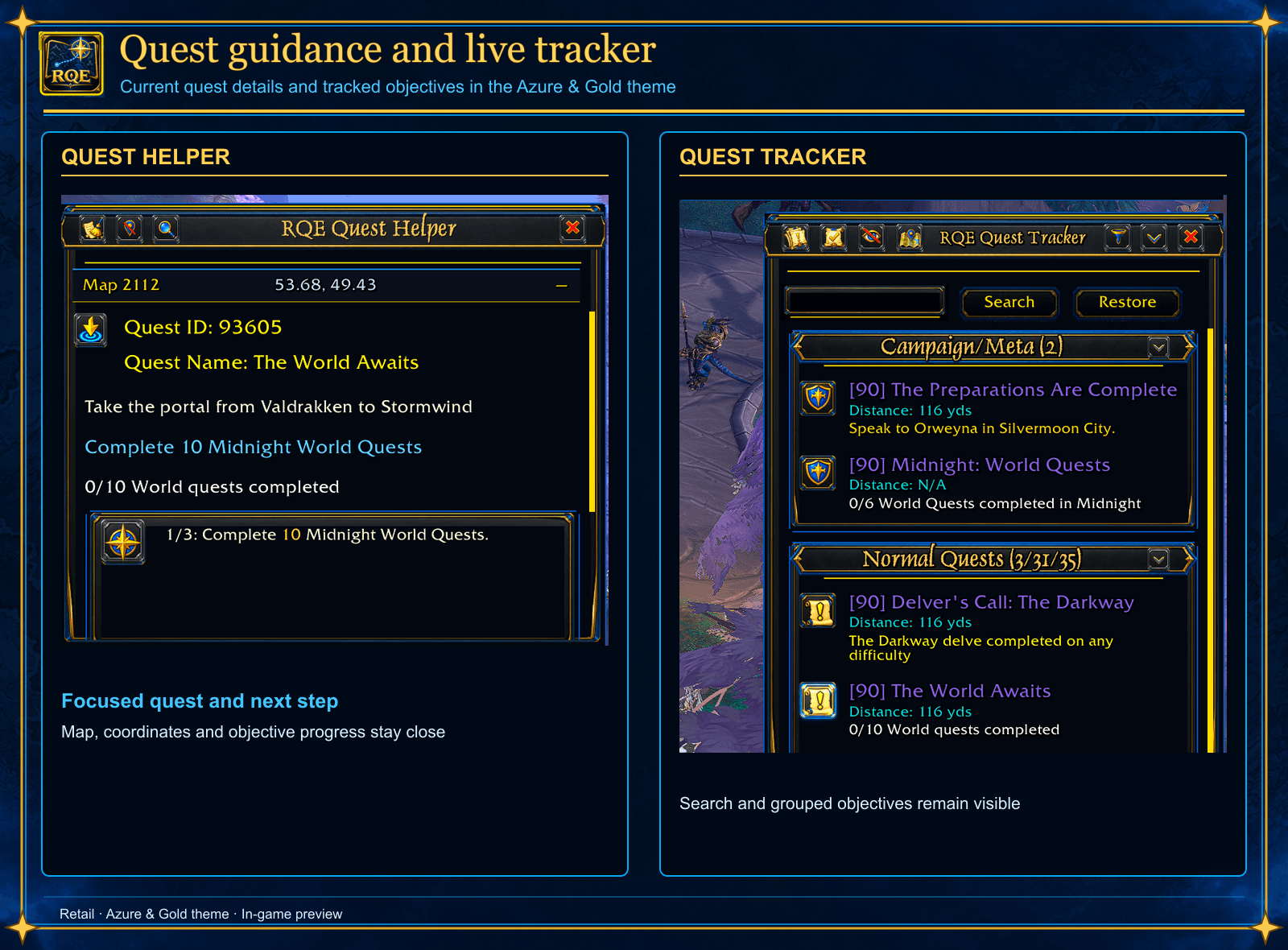
The Azure & Gold Quest Helper keeps the focused quest, coordinates, objectives, and next guided step beside a searchable Quest Tracker with grouped quest progress.
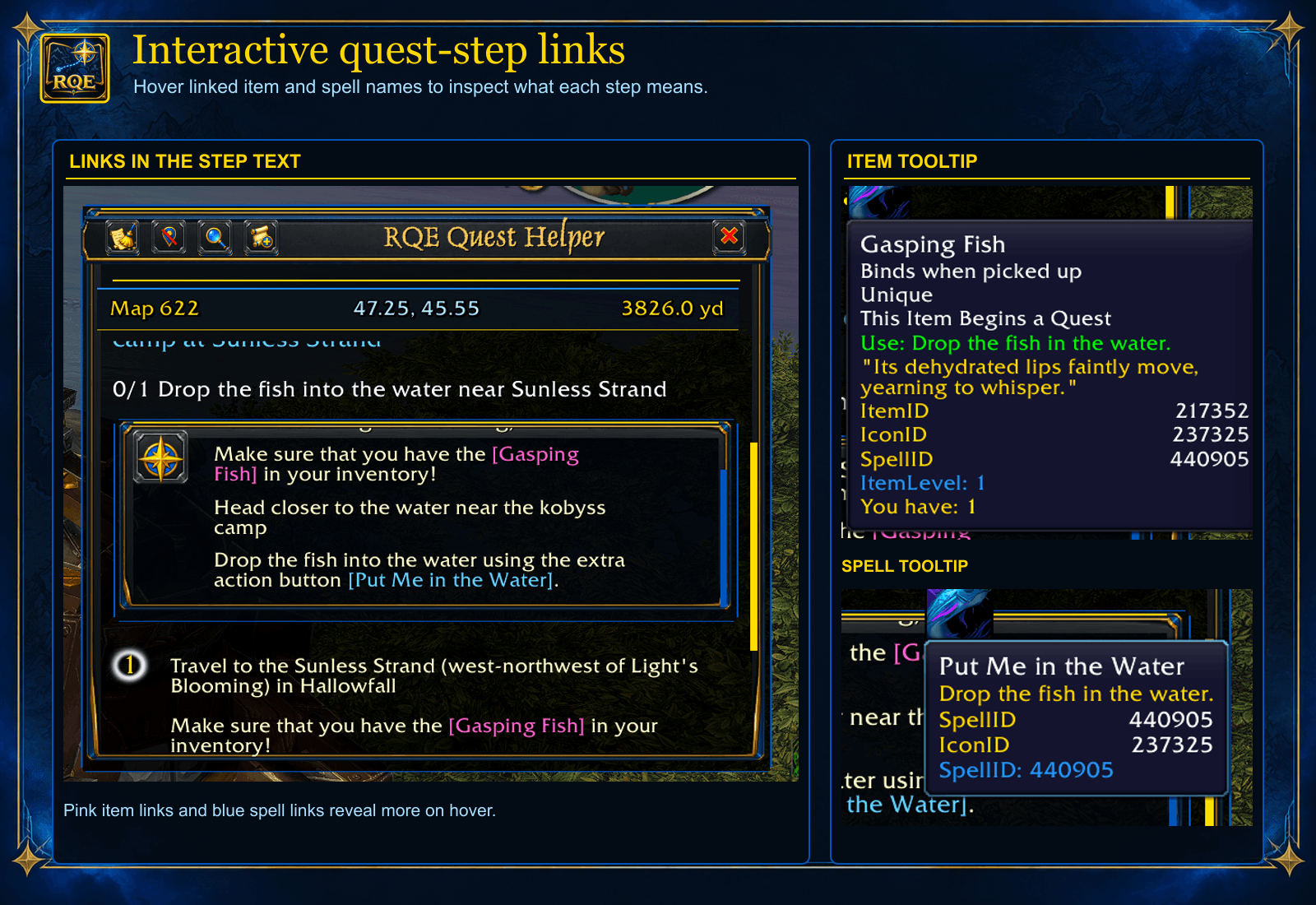
Hover highlighted item and spell names in guided steps to inspect their in-game tooltips before acting.
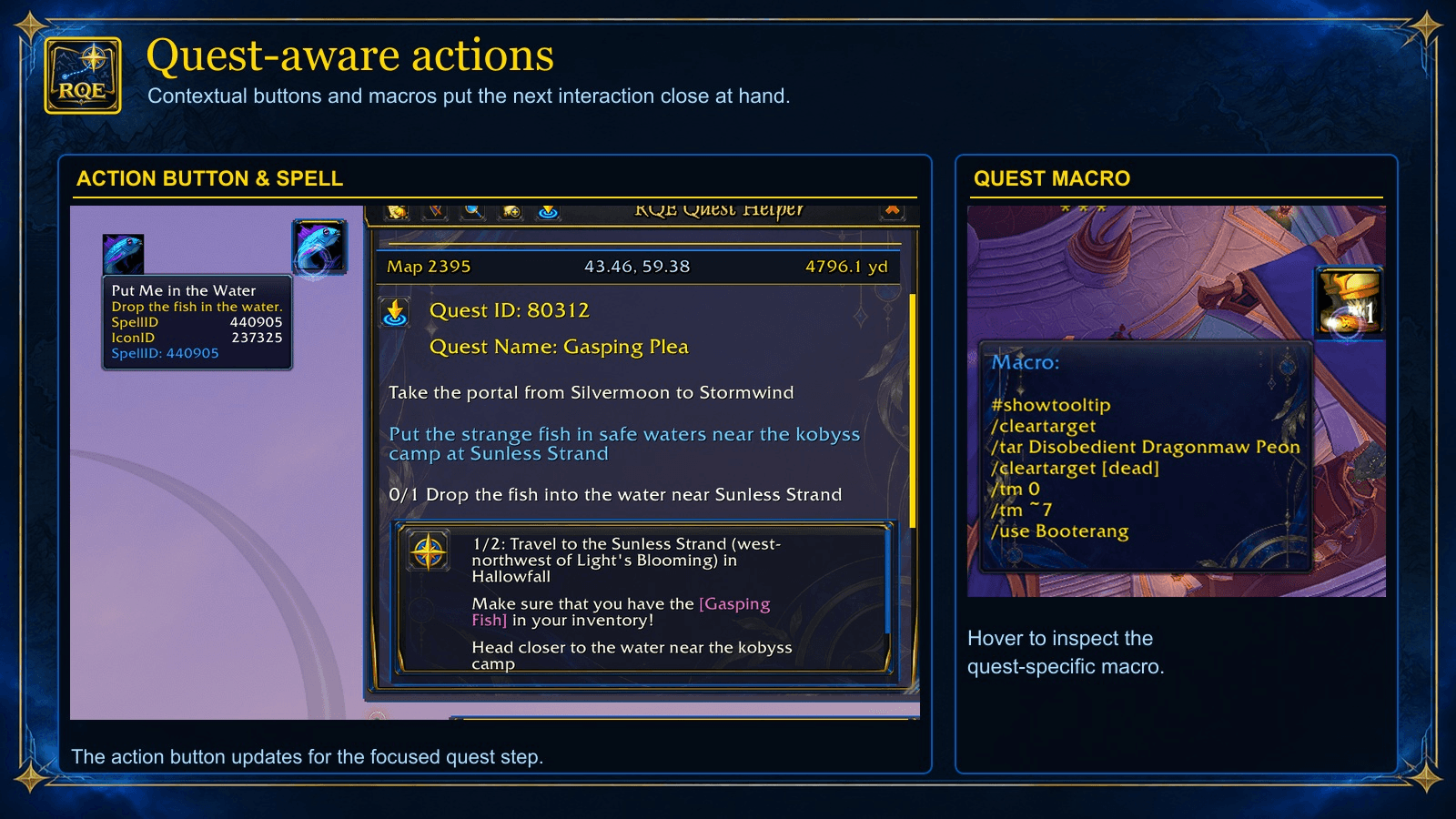
Supported steps can provide an extra-action spell button or a quest-specific targeting and item macro. You still activate the action yourself.
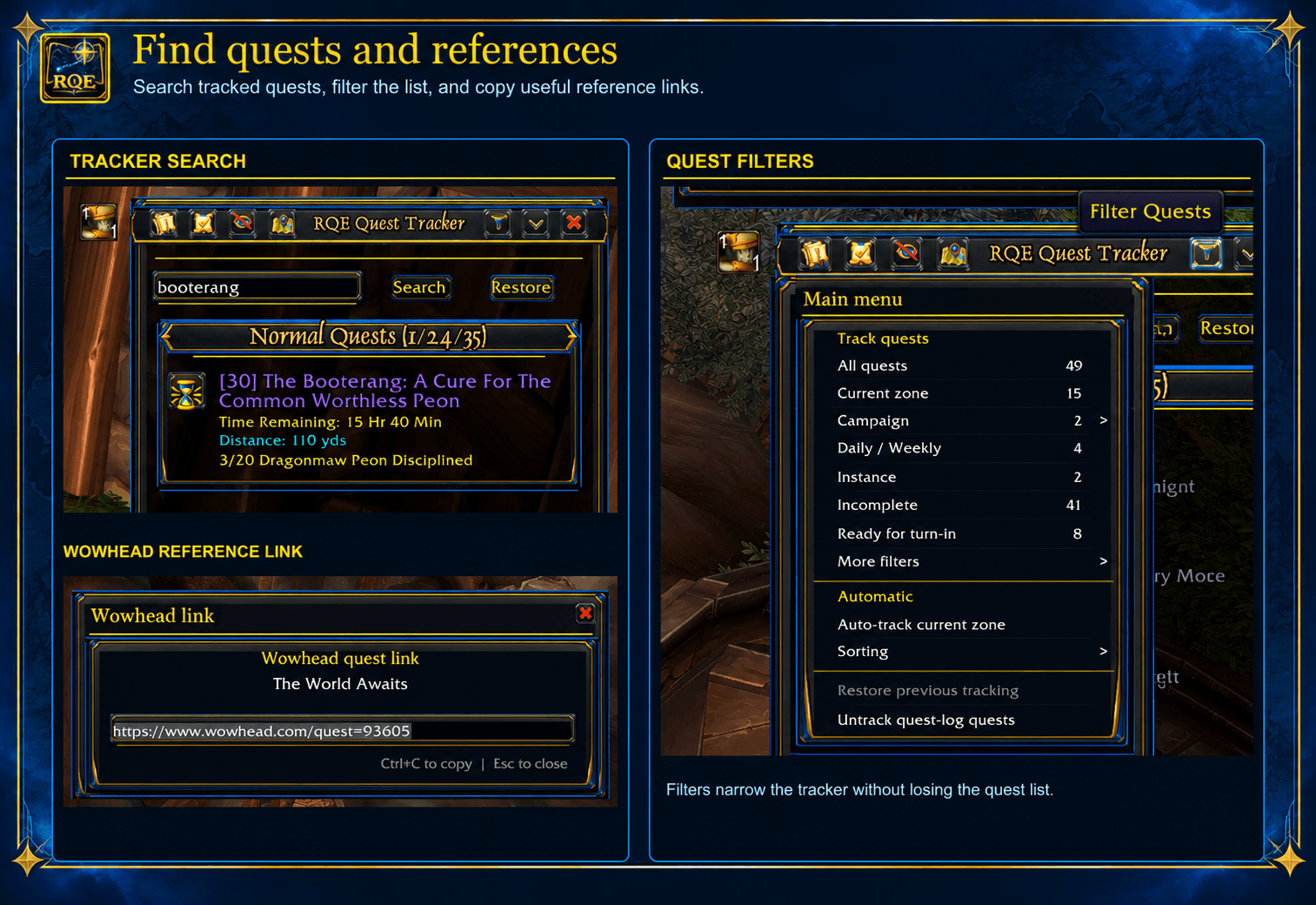
Search tracked quests, narrow the Quest Tracker with its filter menu, and copy a selected Wowhead quest link or search Warcraft Wiki. Restore returns to the full quest list.
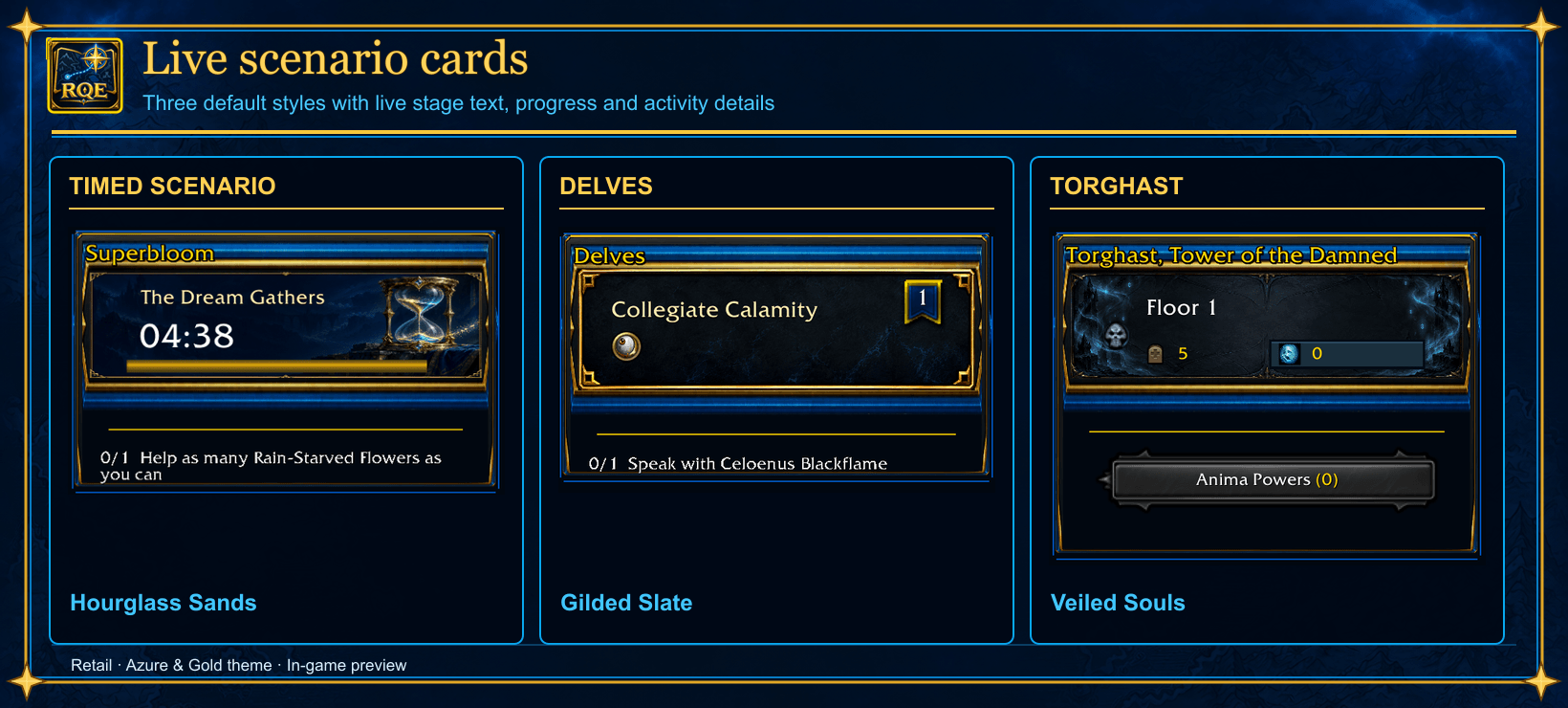
RQE’s Retail Scenario section keeps live stage information in the tracker. Shown with the default Hourglass Sands timed-scenario, Gilded Slate Delve, and Veiled Souls Torghast artwork; each activity’s card style can be changed in Themes.
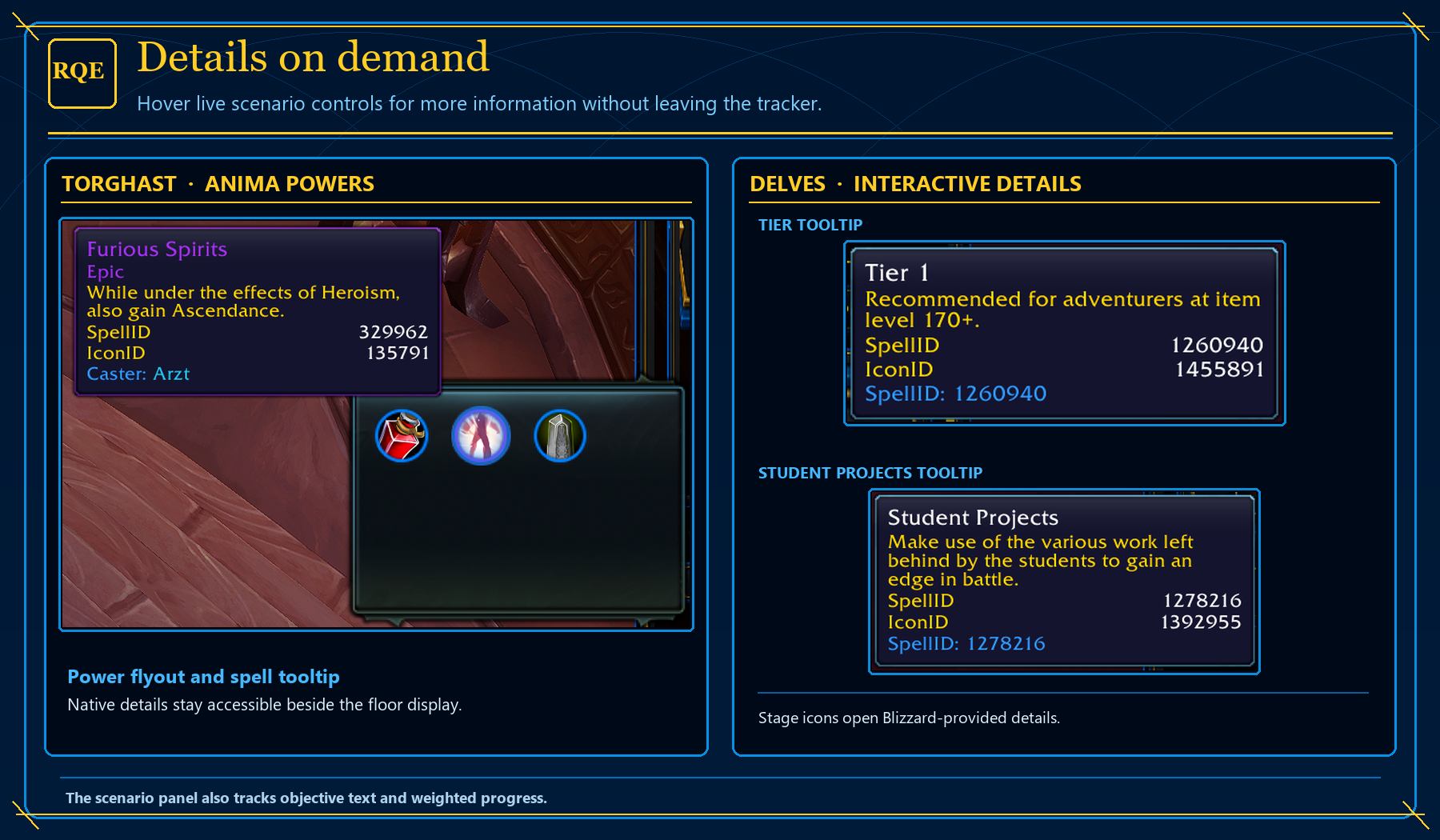
Open Torghast’s Anima Powers flyout and hover powers or Delve stage icons for Blizzard’s tooltips, all from RQE’s Quest Tracker.
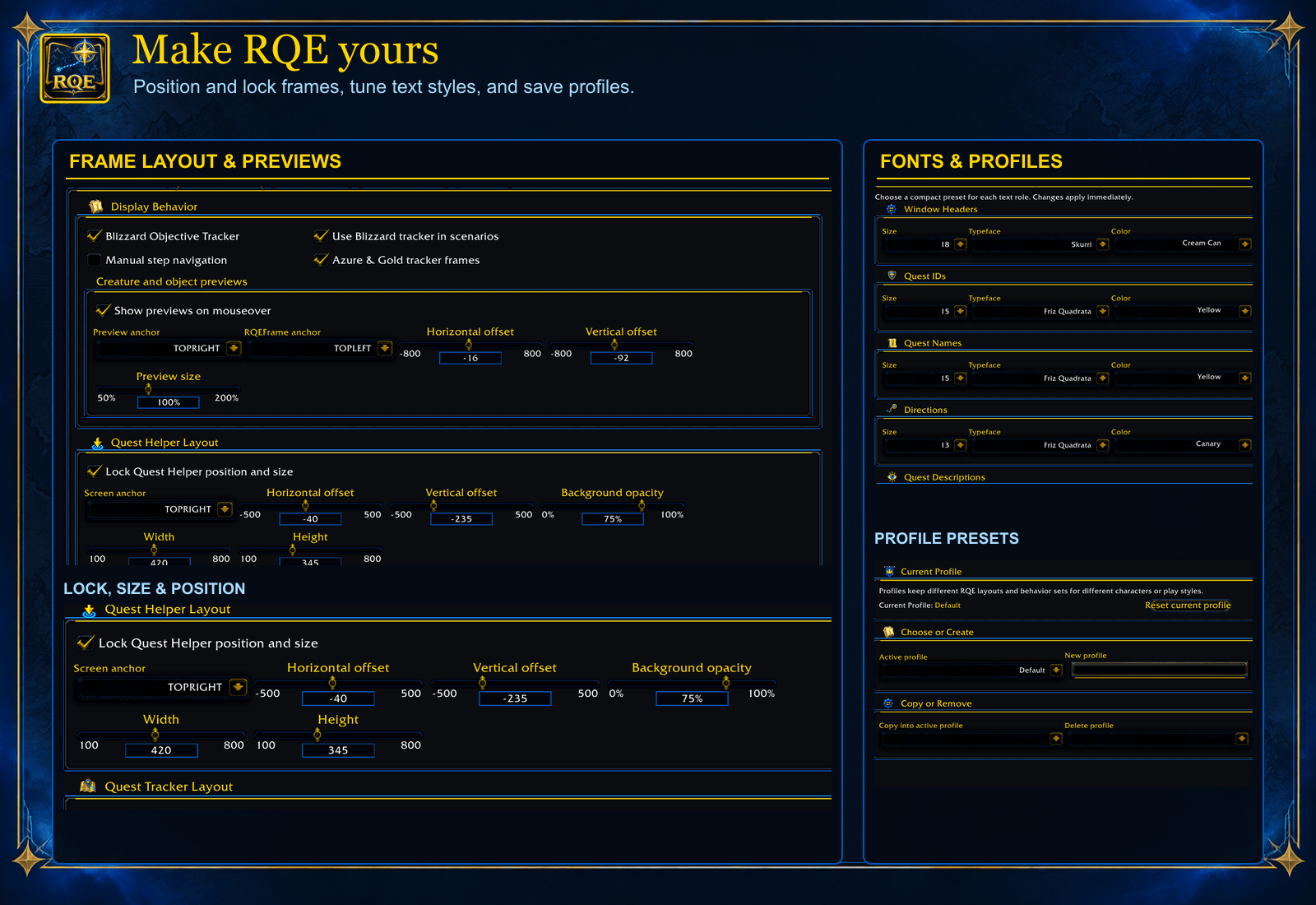
Position and lock frames, adjust preview placement and fonts, and manage saved profiles. Available options may vary by WoW client.
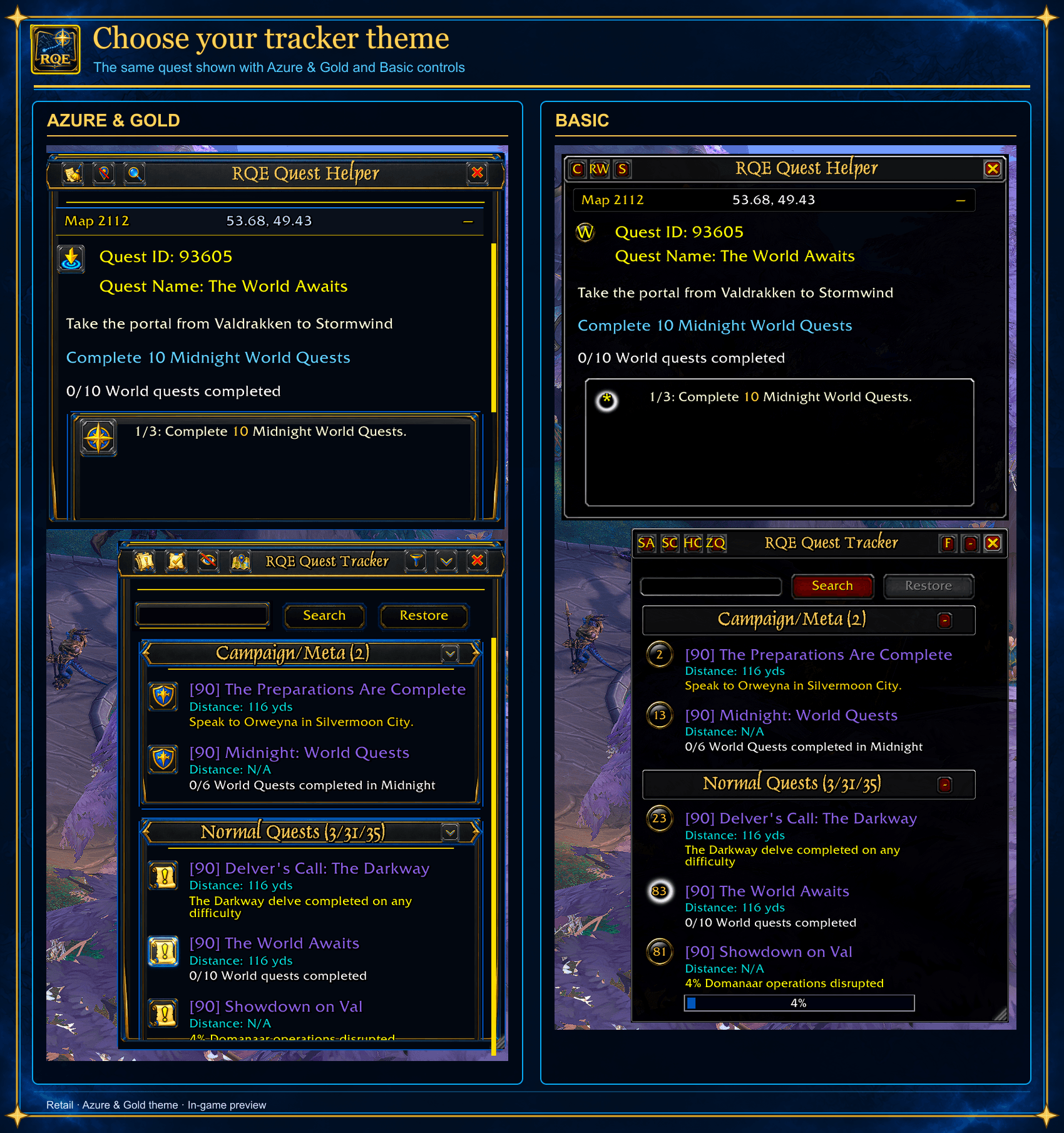
The same quest shown in Basic and Azure & Gold. Both layouts keep the live Quest Helper and Quest Tracker data while frames, controls, and section headers change.
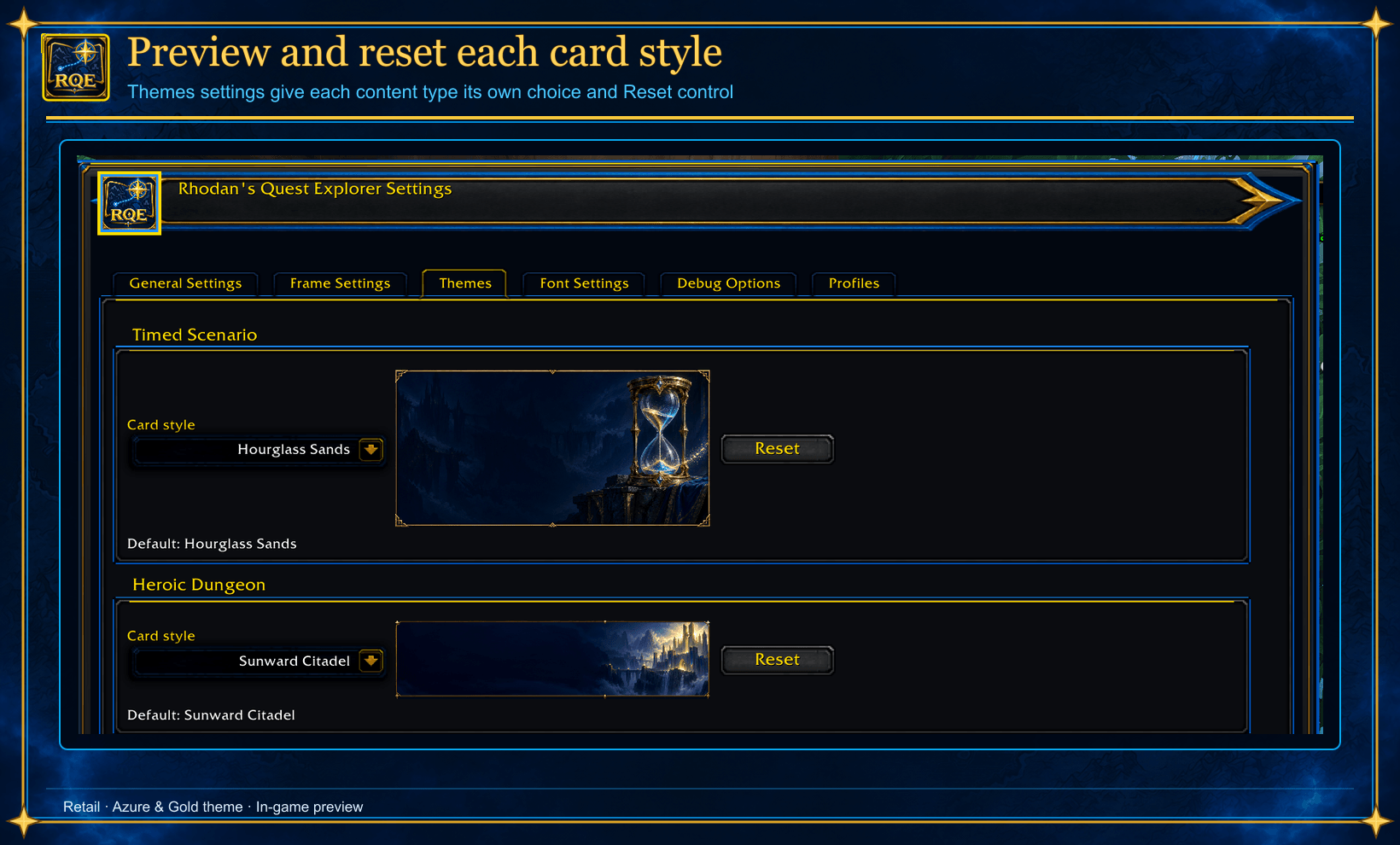
Preview and reset separate Azure & Gold card styles for supported dungeons, timed scenarios, Delves, and Torghast in Themes.
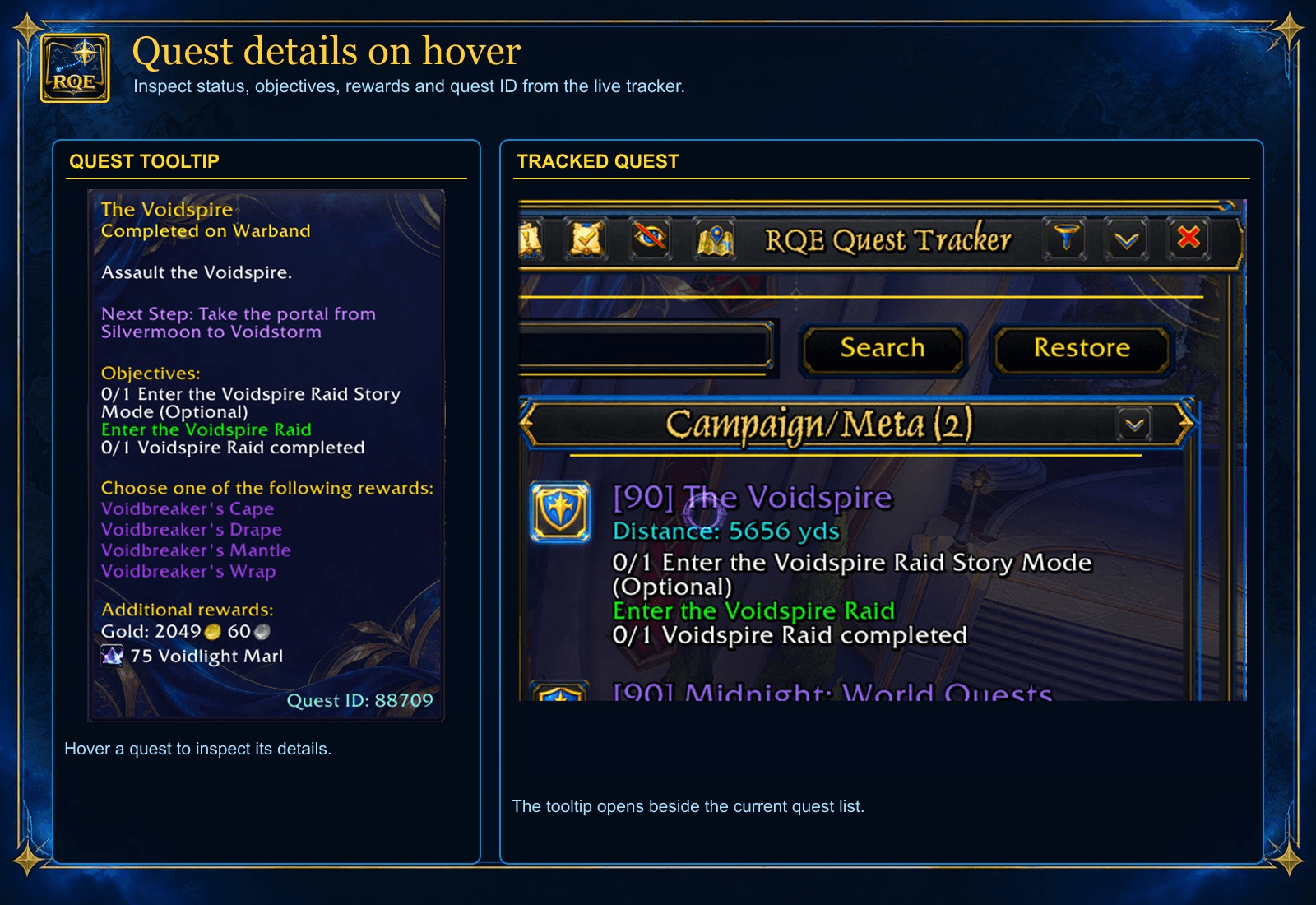
Hover a tracked quest to inspect its completion status, objectives, reward choices, and quest ID without opening the quest log.
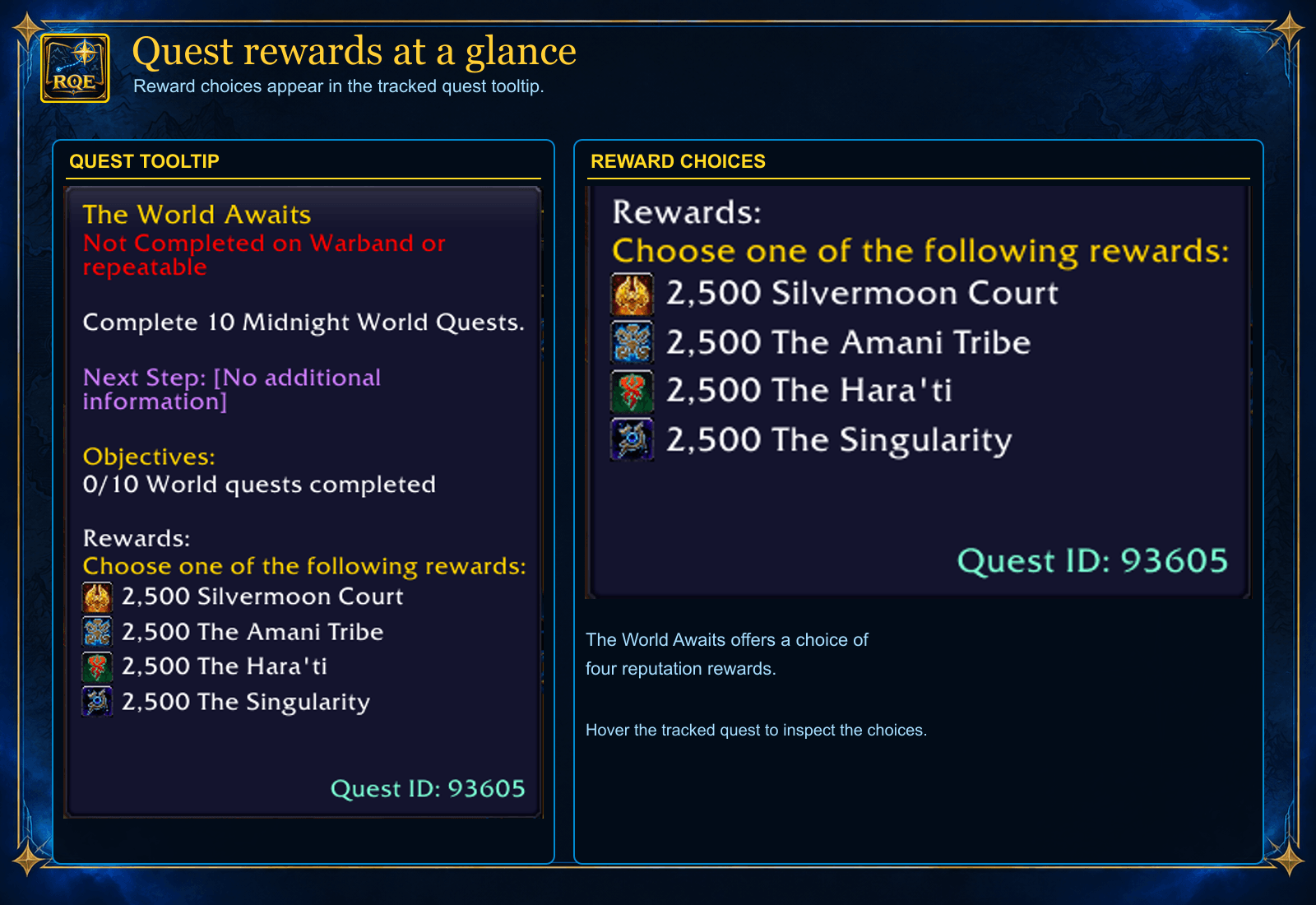
The tracked quest tooltip shows the available reward choices. The World Awaits example presents four reputation rewards directly beside the quest tracker.
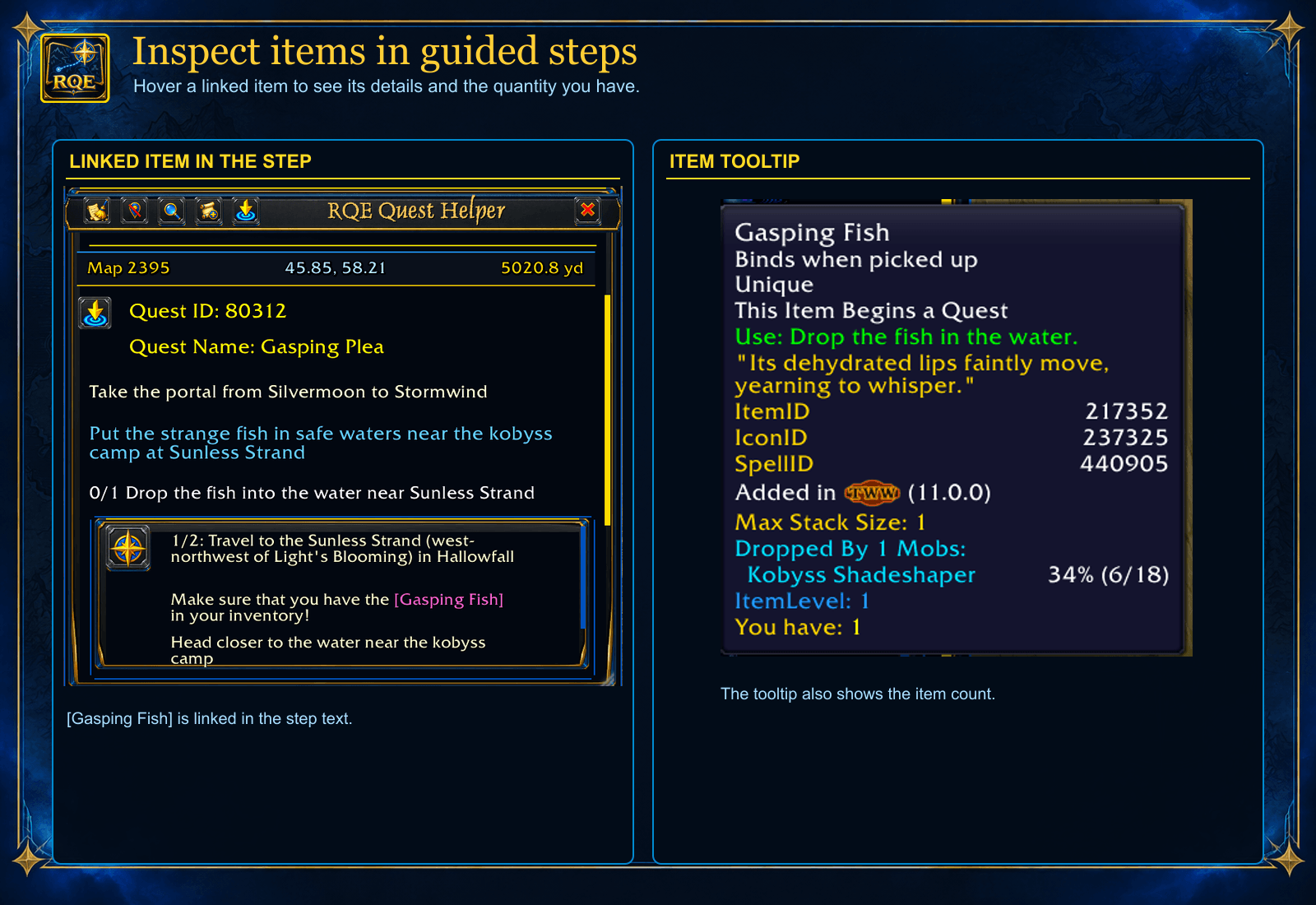
Linked items in Quest Helper steps reveal item details on hover. This Gasping Plea example also shows how many Gasping Fish you currently have.
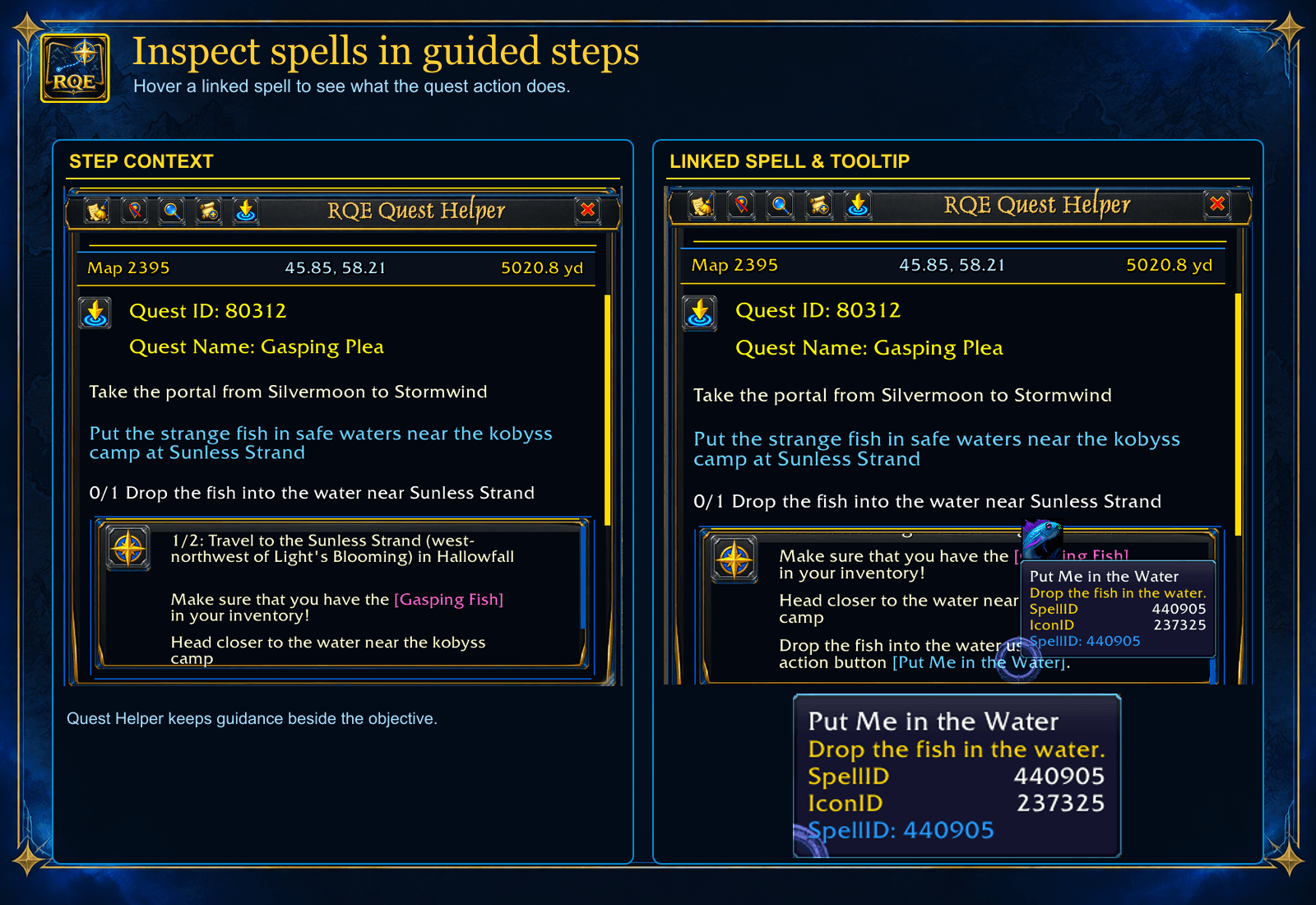
Hover a linked spell in a guided step to see its action and spell details. In Gasping Plea, Put Me in the Water describes dropping the fish into the water.
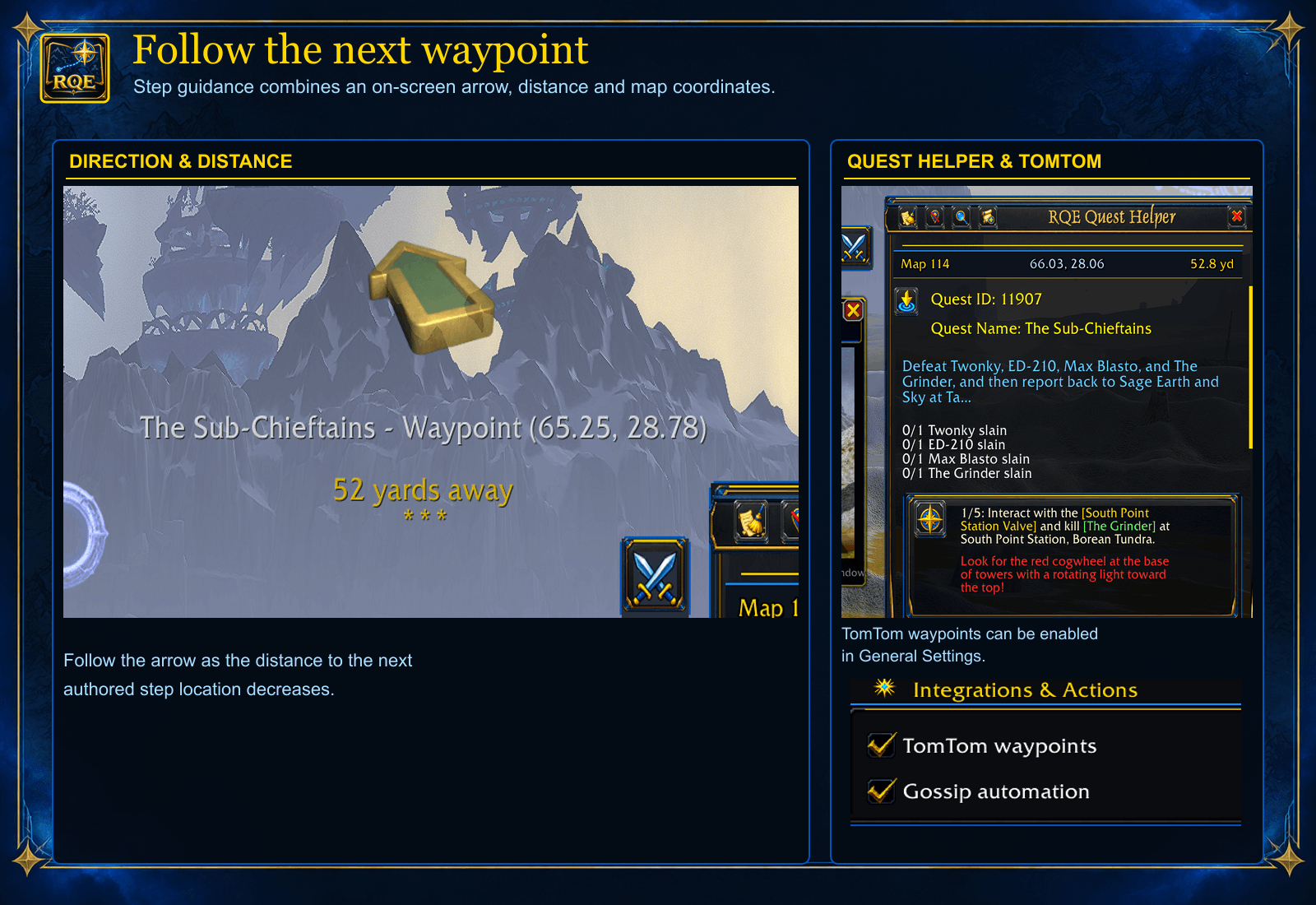
Follow an on-screen waypoint arrow, distance, and map coordinates for the current guided step. Optional TomTom waypoint integration can be enabled in RQE’s General Settings.
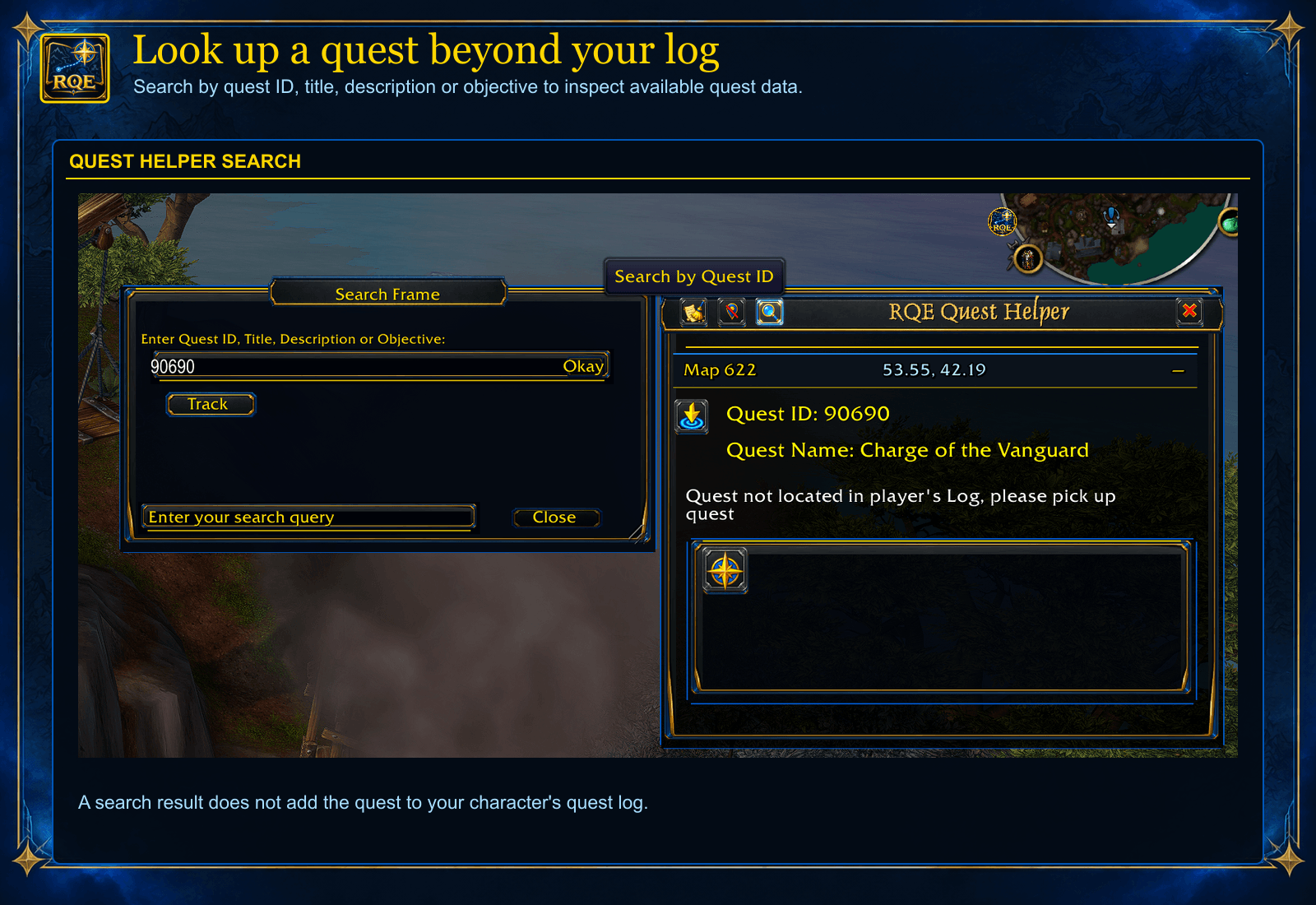
Search by quest ID, title, description, or objective to inspect available quest data in the Quest Helper, even when the quest is outside your character’s log. Looking up a quest does not add it to the log.
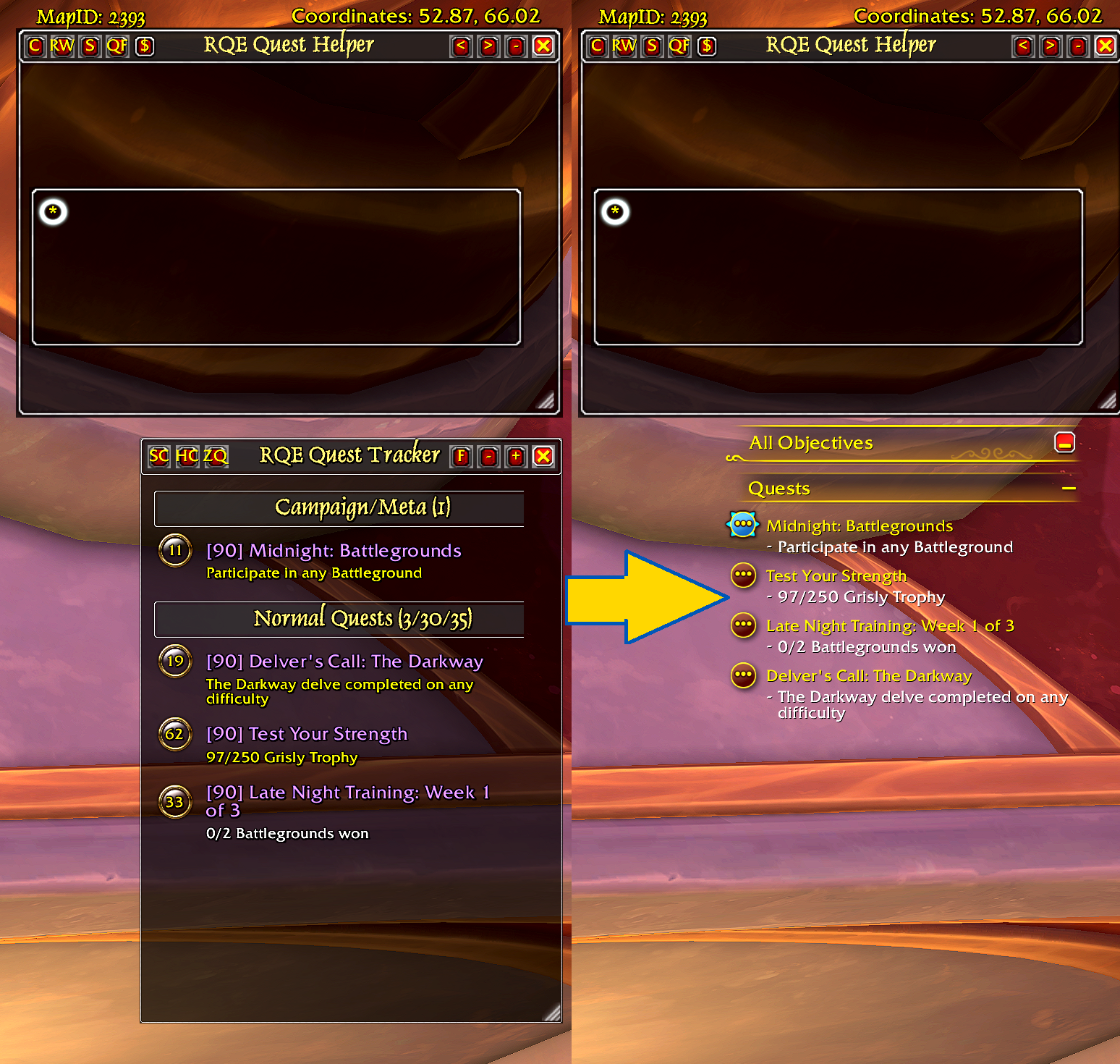
As of v12.0.7.4, you can toggle between or choose the Blizzard Quest Tracker instead of the addon's tracker
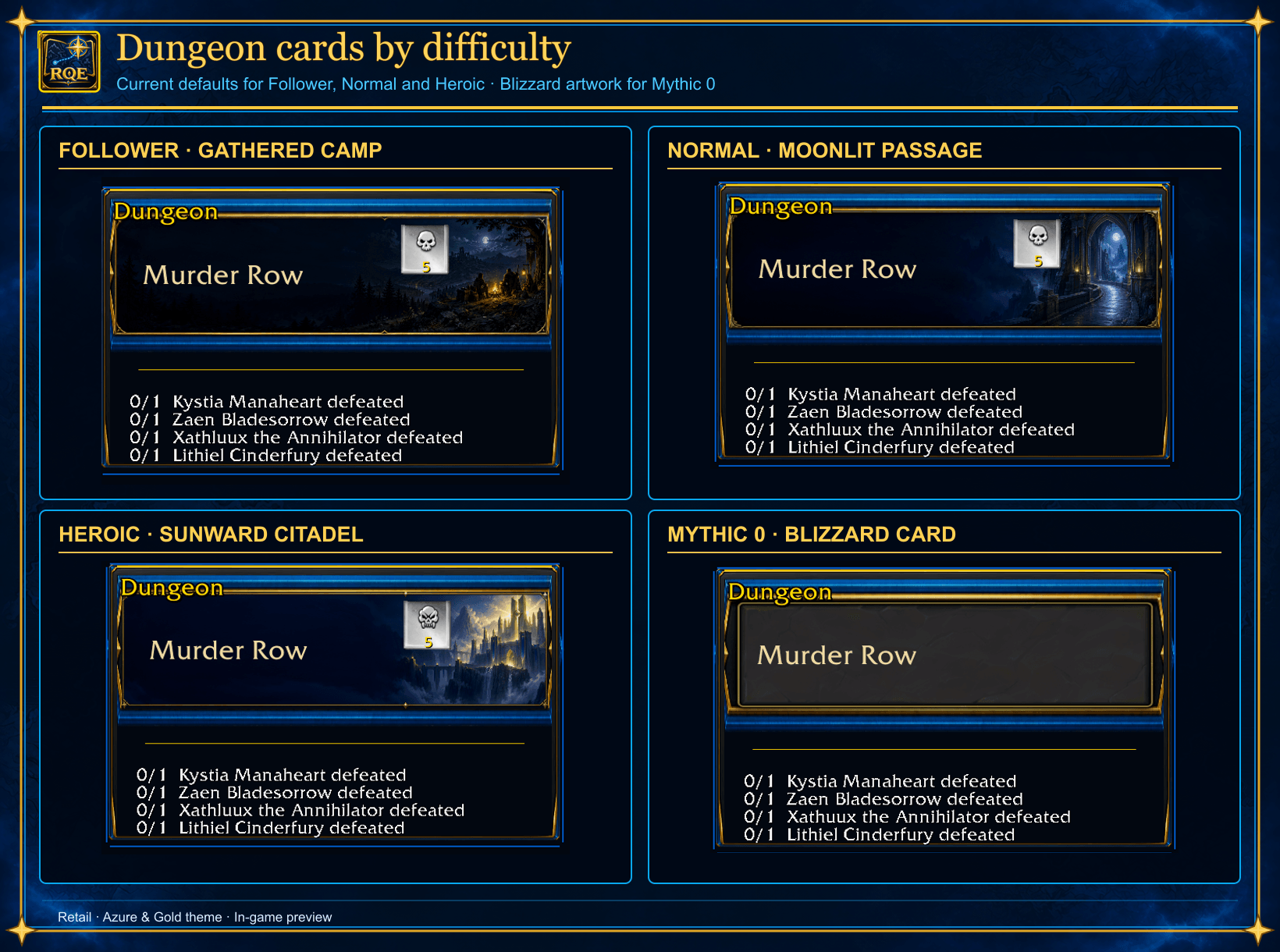
Follower, Normal, and Heroic dungeons show distinct Azure & Gold cards and difficulty badges; Mythic 0 keeps Blizzard’s simpler card. Boss objectives remain visible below each card.
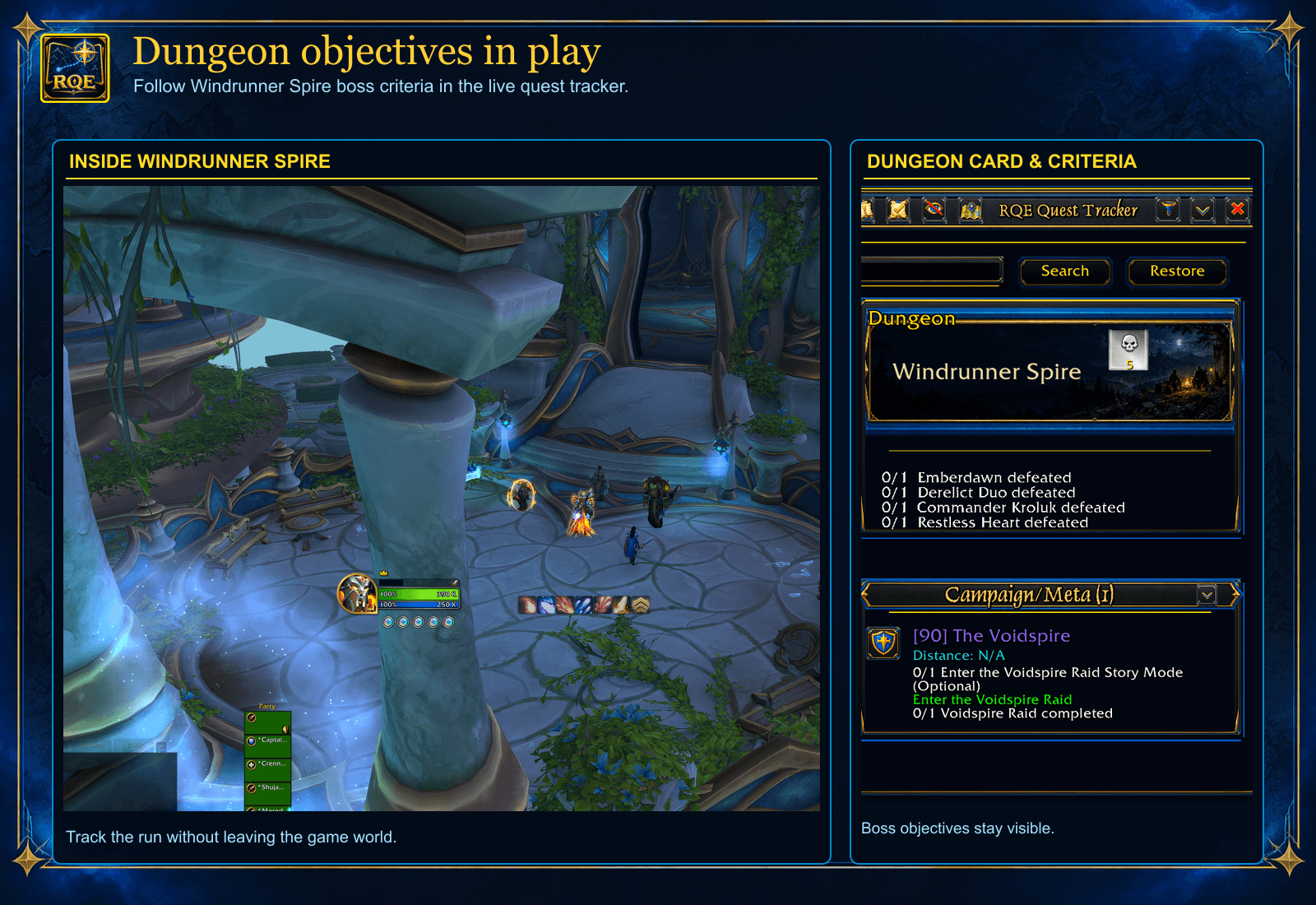
Windrunner Spire’s dungeon card and boss criteria stay visible in the RQE Quest Tracker during play.
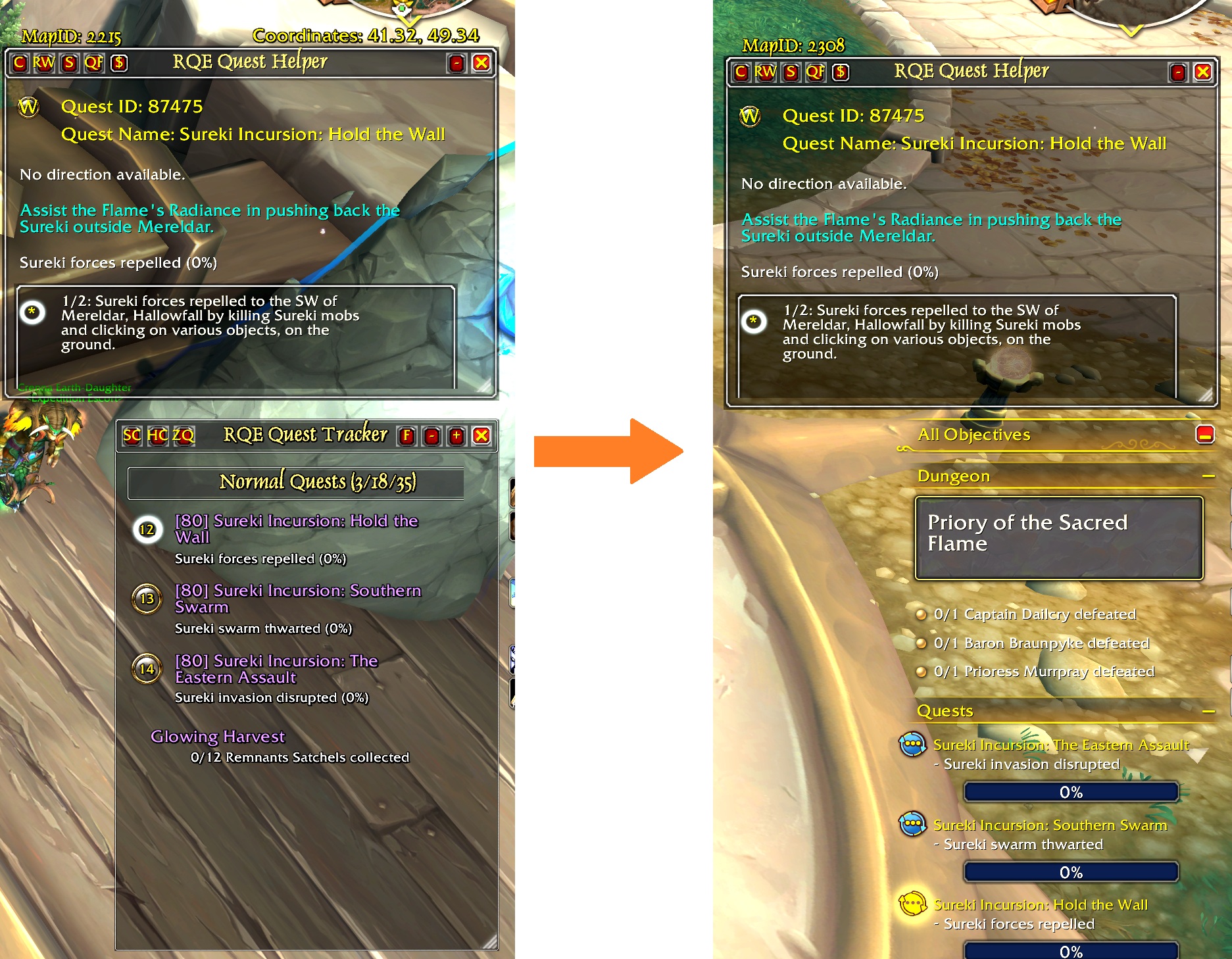
When transitioning into scenarios or mythic instances, the RQE tracker frame can be hidden and the default Blizz tracker shown automatically. Just select "Mythic/Scenario Mode" from within "Frame Settings" of the addon settings pane (disabled by default)
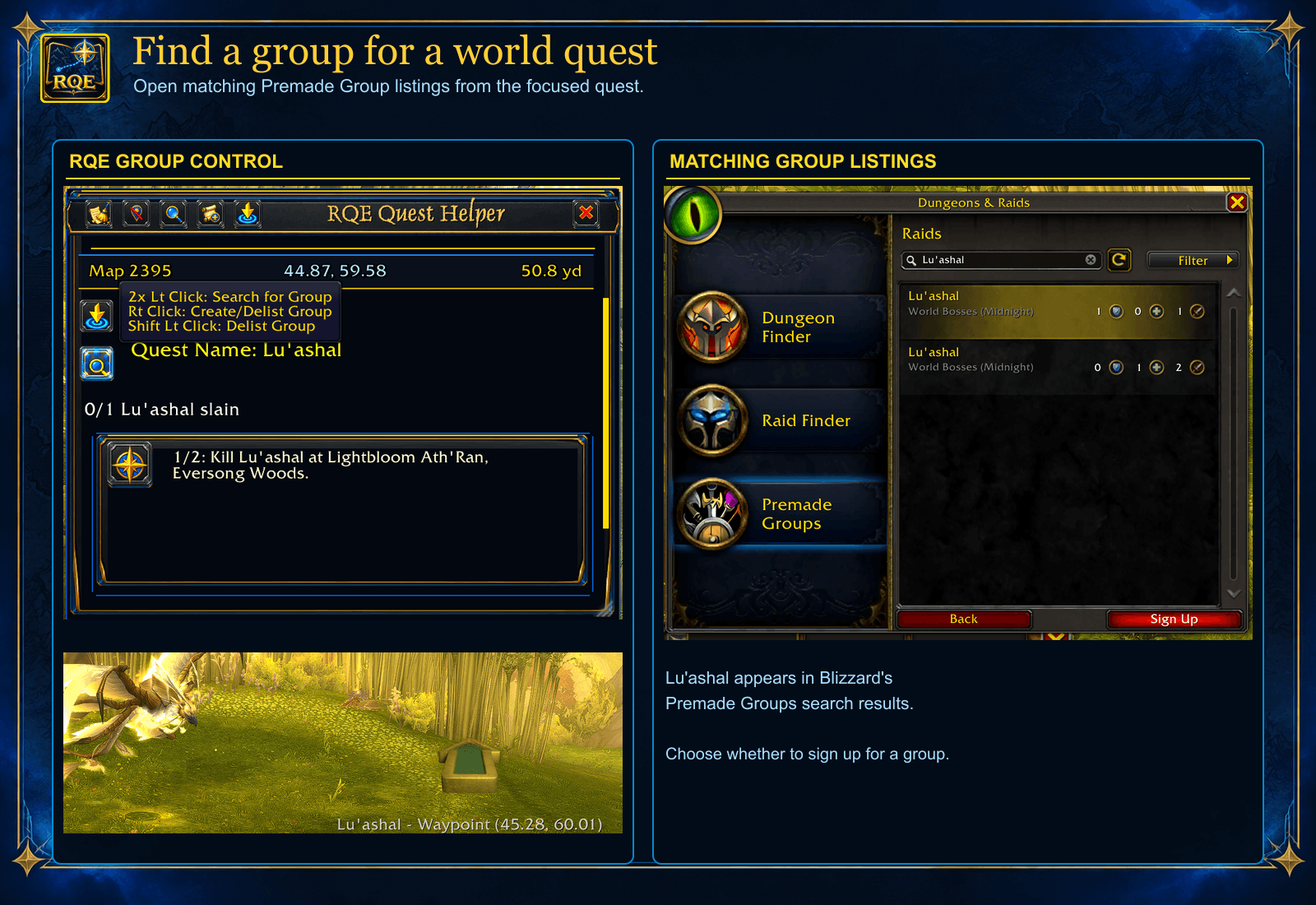
Use the focused world quest’s group control to search for matching Blizzard Premade Groups listings. The Lu’ashal example shows the in-game group control and search results; you decide whether to sign up.
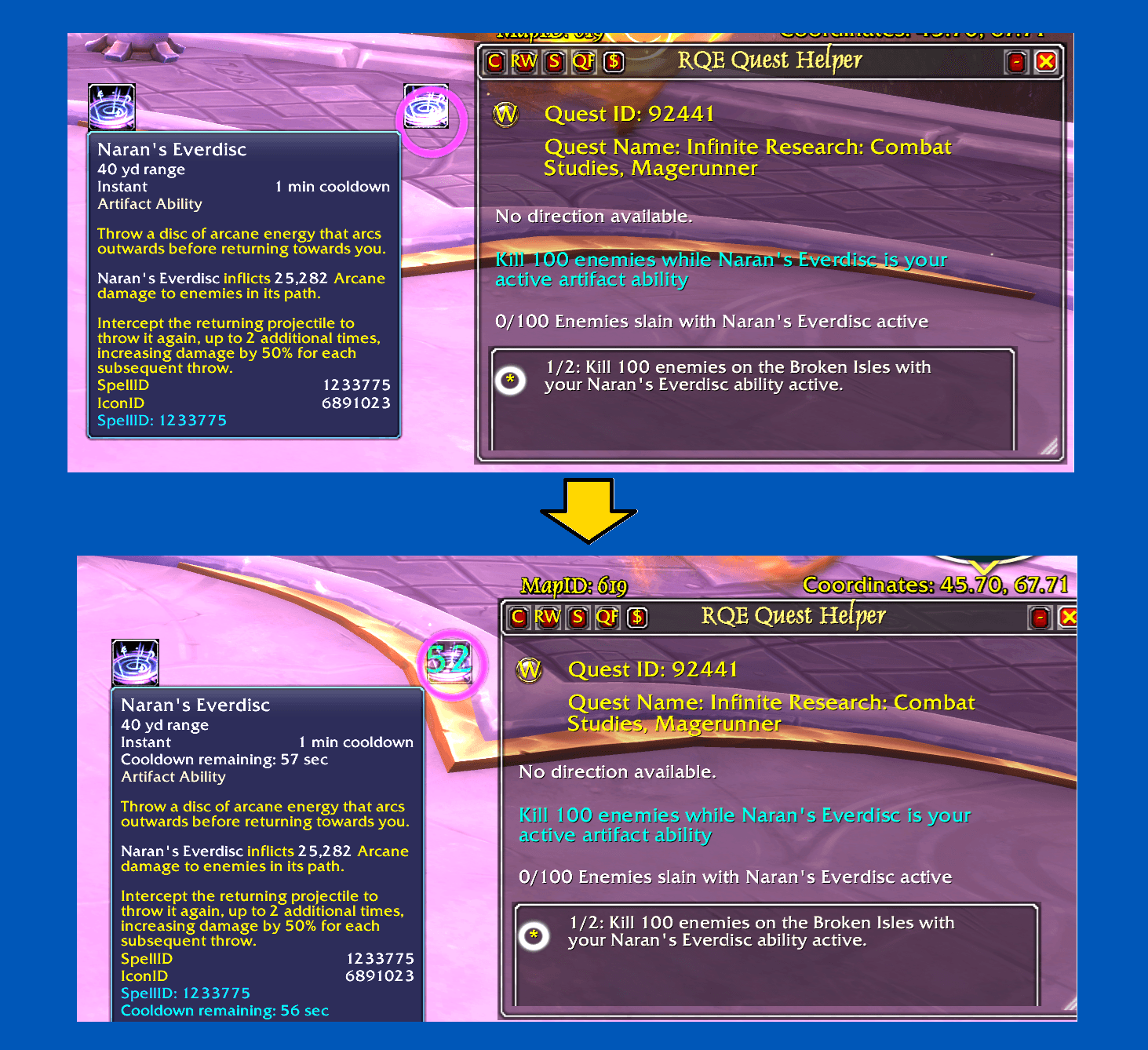
When a guided step provides a usable quest spell or item, RQE’s macro button can show its cooldown so you can see when the action is ready again.
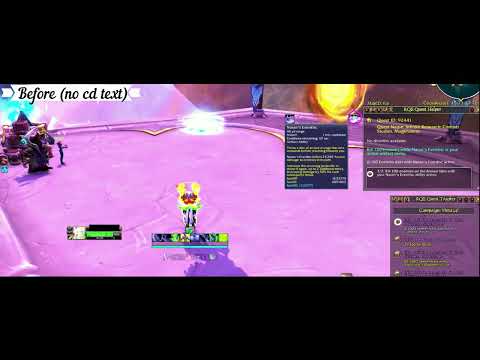
RQE cooldown displayed in macro button
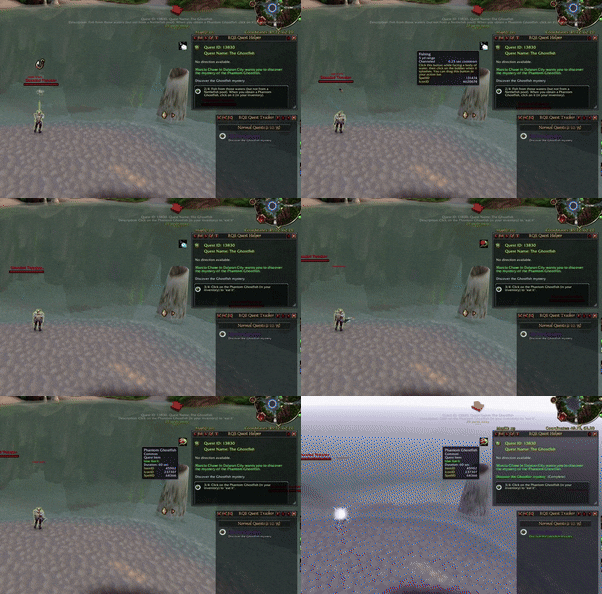
In The Ghostfish, RQE updates its quest macro button when the short-lived Phantom Ghostfish becomes available, putting the item action close at hand.
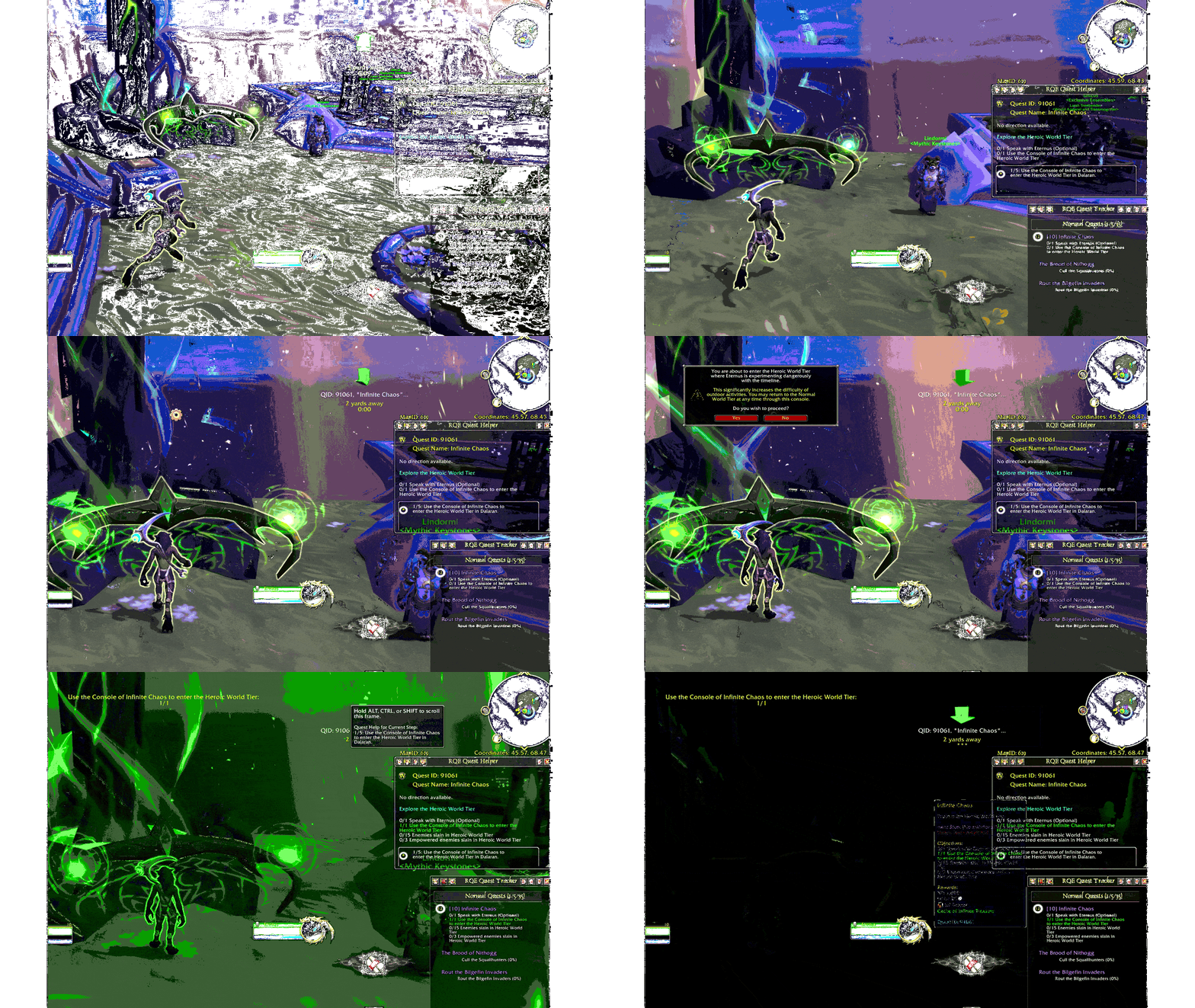
RQE brings quest objectives, authored steps, and available waypoint guidance together in the Quest Helper and Tracker during Legion Remix.