RP Emote Menu
- By
RP Emote Menu is for World of Warcraft roleplayers who want their character's gestures, habits, and favorite lines a click away. RP Emote Menu lets you put the ones you actually use alongside your own, organized into categories that make sense to you.
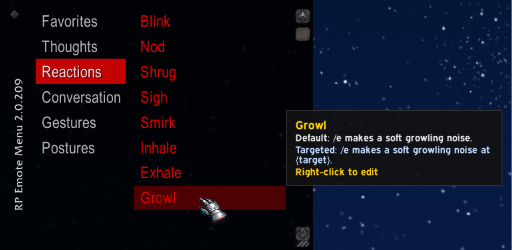
profile-crimson-night.png
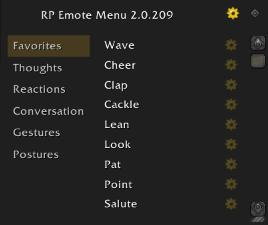
profile-default.png
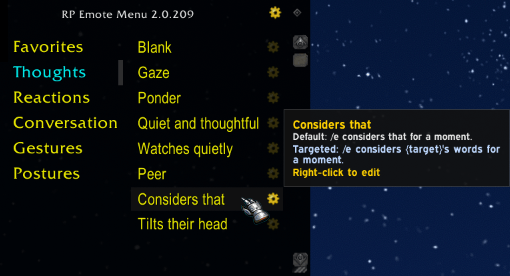
profile-gilded-shadow.png
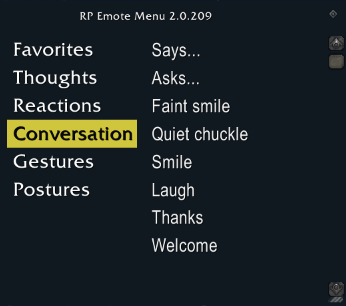
profile-high-contrast.png
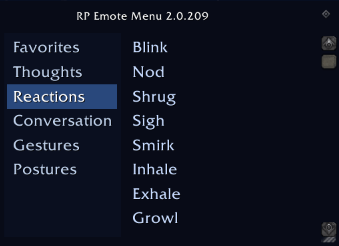
profile-moonlight.png
Description
RP Emote Menu is for World of Warcraft roleplayers who want their character's gestures, habits, and favorite lines a click away. Blizzard's emote list gives you the standard emotes; this menu lets you put the ones you actually use alongside your own, organized into categories that make sense to you. Give each character a different selection, use different wording when addressing someone, and make the menu fit your interface. Less hunting through a list, less typing the same thing again, more time roleplaying.
Features
- Keep up to 100 emotes in 10 categories per Profile.
- Combine standard emotes with your own gestures, dialogue, and other chat commands.
- Give an emote different wording when another character is targeted.
- Insert your character's name or your target's name into custom emotes.
- Edit, duplicate, and drag categories and emotes into order.
- Choose a different Profile for each character.
- Customize fonts, colors, opacity, and title-bar placement, starting with six bundled Themes.
- Fade or minimize the menu when you are not using it.
- Hide the settings gears and keep right-click editing.
- Export and import categories, Profiles, and Themes to share or back them up.
Screenshots
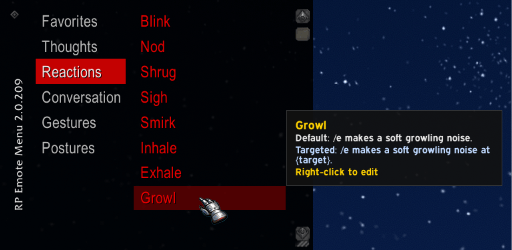
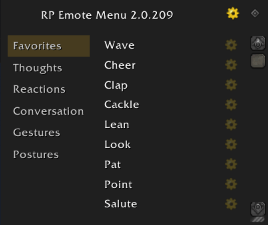
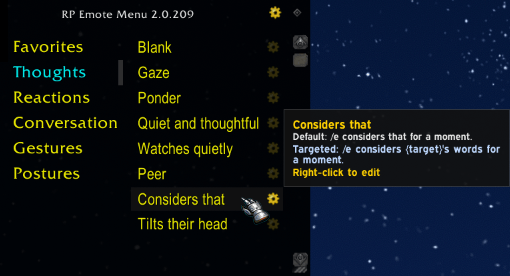
Using the Menu
Hover over a category to see its emotes, then click an emote to use it. Drag categories or emotes to change their order. Right-click a category or emote to edit it.Open settings with /rpem config, the title-bar gear, or a right-click on the title bar. Use /rpem to hide or show the menu; this choice is remembered when you log in again. Settings remain available while the menu is hidden.
Adding an Emote
Give the emote a name and a Default Command, or select Choose a standard emote to fill them in. Standard emote names are formatted for readability:/wave becomes “Wave,” and /covereyes becomes “Cover eyes.” You can change the name and commands before clicking Save.The standard-emote picker currently supports English (enUS) clients. Its previews are reference text and may differ from the wording in the game. You can also enter commands yourself.
An emote needs both a name and a default command to appear in the menu. Categories with no name are hidden.
Custom and Targeted Emotes
Use a standard command such as/wave, or write your own emote with /e. An optional Targeted Command is used when you have someone else targeted. With no target, or when targeting yourself, the default command is used.For example:
| Field | Text |
|---|---|
| Emote Name | Watches quietly |
| Default Command | /e watches quietly. |
| Targeted Command | /e watches {target} quietly. |
Use {target} for your target's name and {player} for your character's name. Neither includes a realm name.
Standard emotes and /e commands run immediately. Other commands open in the chat box for you to finish or send. A command ending in a double quotation mark also opens as an editable chat draft.
Profiles and Themes
A Profile holds your categories, emotes, and window settings. Profiles are shared across your account, and each character chooses which one to use. Give different characters their own selections, or let several use the same Profile. Changes to a shared Profile affect every character using it.A Theme controls the appearance. Several Profiles can use the same Theme, so you can keep their appearance consistent while giving them different emotes. Selecting a Theme to edit also applies it to the current Profile.
Start with Default Theme, Crimson Night, Gilded Shadow, High Contrast, Moonlight, or Teal, then adjust the fonts, colors, opacity, selection effects, and title-bar position. The bundled Themes are editable and can be restored.
New characters start with Default Profile and Default Theme. Both can be edited and restored, but cannot be renamed or deleted. If you delete a Theme used by a Profile, that Profile switches to Default Theme.
Making the Menu Fit
Set the window's position, height, and lock state in its Profile. You can have it fade when unused, or minimize to a title bar or icon; hovering restores it. Put the title bar at the top or left in the Theme settings.The Behavior screen controls activation, tooltip delay, and gear visibility for the whole addon. Hiding the gears still lets you right-click to edit.
Additional fonts are available through SharedMedia or other font addons. If a selected font is unavailable, the menu uses Friz Quadrata until it becomes available again.
Sharing and Backups
Export a category from Emotes, an individual Profile or Theme from its settings screen, or all Profiles and Themes from Import & Export. Copy the exported text to save a backup or share it.Importing Profiles and Themes adds them without overwriting existing ones. If a name is already in use, the imported item gets a new name. Imported Profiles are not selected automatically. Importing a category replaces the selected category.
If an imported Profile's Theme is unavailable, it uses Default Theme. Exports do not include global Behavior settings or which Profile each character has selected.
Compatibility
Imports accept the current version 2 format. Older formats and malformed emote data are rejected; unsupported Profile and Theme settings use their defaults.Saved settings from v1 and obsolete v2 layouts are not converted and may reset to defaults. Keep a backup before updating.
| Command | Action |
|---|---|
/rpem |
Show or hide the menu |
/rpem config |
Open settings |
/rpem about |
Open the About page |
/rpem options and /rpem settings also open settings.
AI disclaimer: AI-assisted tools were used in development. The author reviewed and approved the code and documentation and remains responsible for the project.
Copyright © 2026 Brandon Blackmoor (bblackmoor@blackgate.net)
Licensed under GPL-3.0 https://www.gnu.org/licenses/gpl-3.0.en.html
Release history: CHANGELOG.md
Source: https://github.com/bblackmoor/RPEmoteMenu
RP Emote Menu Team