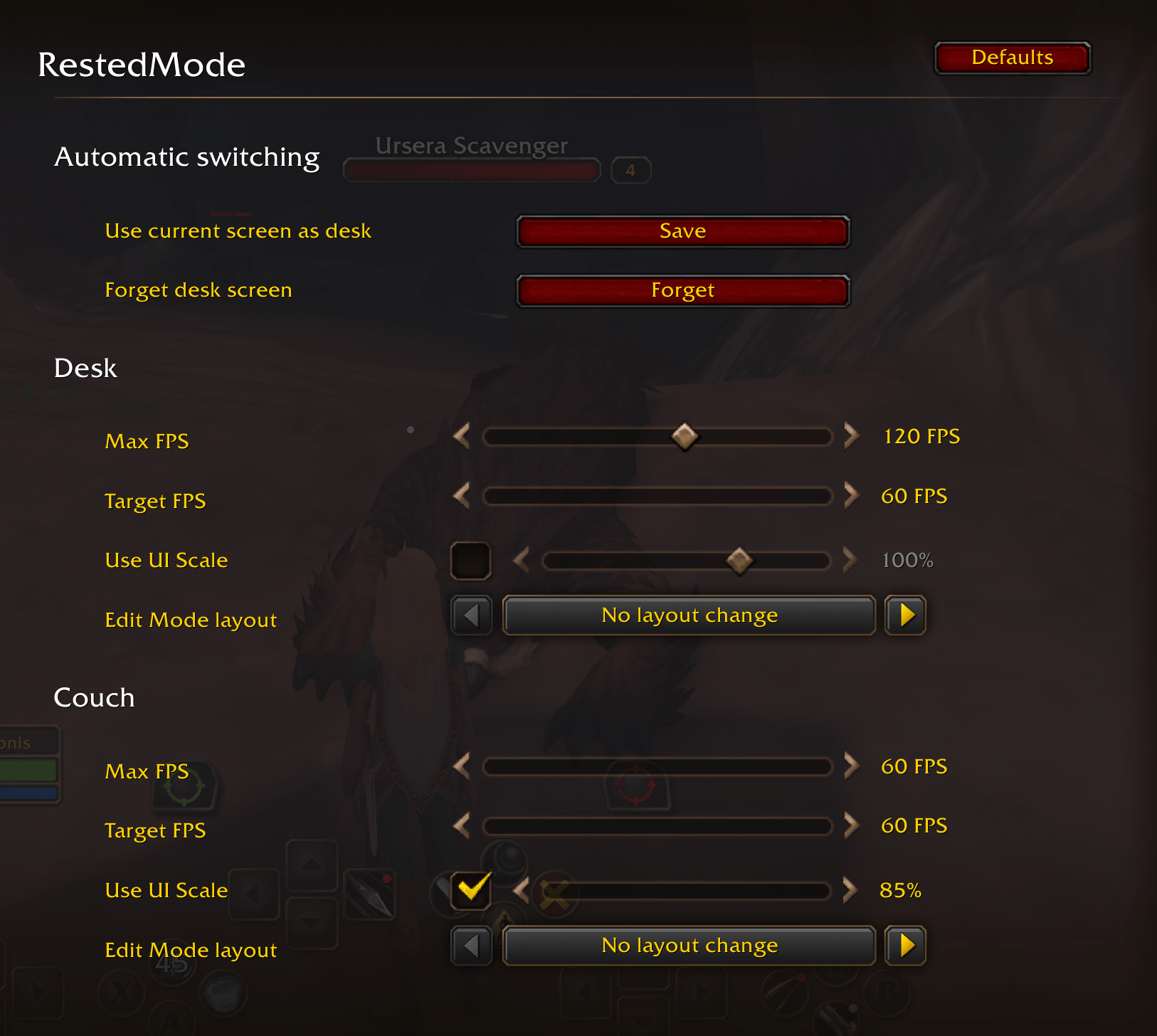
restedmode-screenshot.png
Description
RestedMode
Play World of Warcraft: Forever at the desk or from the couch, without fiddling with settings.
RestedMode detects which screen WoW uses, and applies the settings for that mode: FPS limits, UI Scale, Gamepad UI and Edit Mode layout.
| Mode | Screen | Interface |
|---|---|---|
| Desk | The screen that you save in the settings | Keyboard and mouse |
| Couch | Any screen with a different size, such as a stream to a TV | Gamepad UI |
Requirements
- World of Warcraft: Forever.
- For automatic switching: your stream must have a different screen size than your desk. RestedMode compares the width and the height of the screen. If the sizes are the same, RestedMode cannot detect the difference. Use the slash command in that case.
- WoW display mode: Windowed (Fullscreen), so that WoW follows your primary display.
- WoW sound output: System Default, so that the sound follows your stream.
RestedMode always uses the Gamepad UI in couch mode, and the keyboard and mouse interface in desk mode.
Install
Extract the ZIP file from GitHub Releases to World of Warcraft/_forever_/Interface/AddOns/.
To install from the source, copy this repository folder to the same location. The name of the folder in AddOns must be RestedMode.
First setup
RestedMode does not change settings automatically until you save your desk screen.
- Start WoW at your desk.
- Open Esc → Options → AddOns → RestedMode.
- Under Automatic switching, select Save for Use current screen as desk.
- Optional: with the Gamepad UI off, create a custom Edit Mode layout, and select it for desk mode.
RestedMode then applies the desk settings. Chat shows the values that change.
Automatic switching
RestedMode starts detection after you enter the world.
| Screen | Active mode | Result |
|---|---|---|
| Not the desk screen | Desk | A dialog asks if you want to switch to couch mode |
| Desk screen | Couch | A dialog asks if you want to switch to desk mode |
| Same as the active mode | RestedMode corrects only the settings that are wrong |
To confirm the dialog, click Yes, push Enter, or push A on the gamepad. The game lets an addon change the Gamepad UI only after a click or a key press.
After a login or /reload, RestedMode finds the active mode from the Gamepad UI: on means couch, off means desk.
A switch between desk and couch changes the Gamepad UI, so the game reloads the interface and shows a loading screen. RestedMode finishes the switch after the loading screen.
To turn off automatic switching, select Forget for Forget desk screen in the settings.
Slash command
| Command | Result |
|---|---|
/restedmode |
Shows the active mode, the detected mode, the desk screen, and the settings of both modes |
/restedmode desk |
Shows the changes, then applies desk mode |
/restedmode couch |
Shows the changes, then applies couch mode |
RestedMode also shows the changes before each automatic change. In combat, RestedMode applies the switch when combat ends. If the switch changes the Gamepad UI, the dialog asks again when combat ends.
A manual mode stays through loading screens. When the screen changes, the automatic rules above apply.
Settings
Open Esc → Options → AddOns → RestedMode. Each mode has its own settings:
| Setting | Range | Desk default | Couch default |
|---|---|---|---|
| Max FPS | 8 to 200 | 120 | 60 |
| Target FPS | 8 to 200 | 60 | 60 |
| Use UI Scale | On or off | Off | Off |
| UI Scale | 65% to 115% | 100% | 100% |
| Edit Mode layout | No layout change, or a layout for the mode | No layout change | Gamepad |
- Max FPS: the desk value should match the refresh rate of your monitor.
- Use UI Scale: if this is on, RestedMode turns on the game's UI Scale option and sets it to the value of the mode. If this is off, RestedMode turns off the game's option.
- Edit Mode layout: with No layout change, RestedMode does not touch the active layout. When the Gamepad UI turns on or off, the game itself changes to the preset of the new interface. A custom layout shows only for the interface it was made in. Layouts made with the Gamepad UI off show for desk mode, and layouts made with the Gamepad UI on show for couch mode.
A change to the active mode applies at once. A change to the other mode applies at the next switch.
Example streaming setup
RestedMode works with each streaming setup that gives WoW a screen with a different size. This example uses Vibepollo on a Windows PC and a Moonlight client on any device. Vibepollo creates a virtual display that has the size of the client, and removes it when the stream ends.
- Connect the PC to the network with a cable, if you can.
- Install Vibepollo from its GitHub releases, and create the admin login at
https://localhost:47990. - In the display settings of Vibepollo:
- Make the virtual display the only active display while you stream.
- Go back to the normal layout when the stream ends.
- Turn on the timeout that removes the virtual display of a paused session.
- Make Battle.net start with Windows, and set it to minimize when you start a game.
- Add an app in Vibepollo with this command:
"C:\Program Files (x86)\Battle.net\Battle.net.exe" --exec="launch WoWF"This command works only when Battle.net already runs.
- Install Moonlight on your client, select the PC, and enter the PIN in the web interface of Vibepollo.
- Set the stream to a size that is different from your desk. Start with 60 fps and HEVC.
Troubleshooting
| Symptom | Fix |
|---|---|
| WoW doesn't start from the launch command | Battle.net was not running. Start Battle.net first, then use the command again |
| Black bars on the TV | The stream doesn't use a virtual display with the size of the client. Check the display settings of your streaming host |
| WoW opens on the wrong screen | Turn off your desk monitor during streams, and use Windowed (Fullscreen) |
| No sound on the TV | Set WoW's sound output to System Default |
| Mode doesn't switch | Run /restedmode, and make sure that the desk screen is saved. The stream must have a different size than the desk |
| The desk counts as the couch | Your screen size changed. Save the desk screen again in the settings |
Chat shows layout not found |
Create the Edit Mode layout, or select a different layout in the settings |
| A RestedMode line repeats endlessly | Disable the addon and report the problem |
| Crash on login | Move the addon out of AddOns. Remove the lines that it changed from _forever_/WTF/Config.wtf (back up the file first), or rename WTF to WTF.bak |
License
RestedMode is licensed under the GNU General Public License v3.0. See LICENSE. The libraries in Libs/ keep their own licenses.
RestedMode Team
Owner