
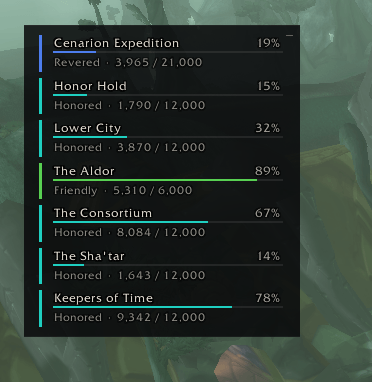
expanded.png
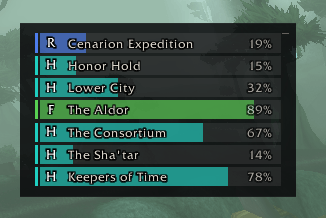
compact.png
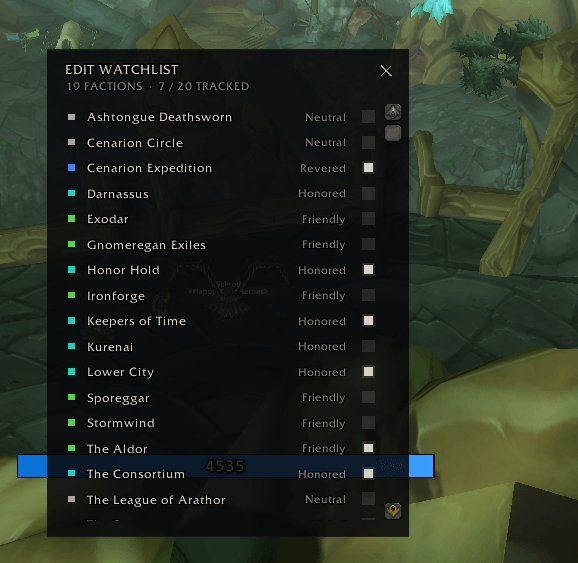
edit-watchlist.png
Description
RepLine
Track all your reputations in one small panel on the side of the screen.
Why you might want it
Blizzard's default UI allows tracking of one reputation at the bottom of the screen. If you're working on several factions at once, you have to keep swapping which one is watched. RepLine allows you to select multiple reputations to track at once in a small, compact window on your screen.
How to use it
When you first install RepLine, an empty panel appears on the right edge of the screen with a hint: Right-click to add factions. You'll get a picker listing every faction you currently have any reputation with your active standings, sorted alphabetically and a checkbox next to each.
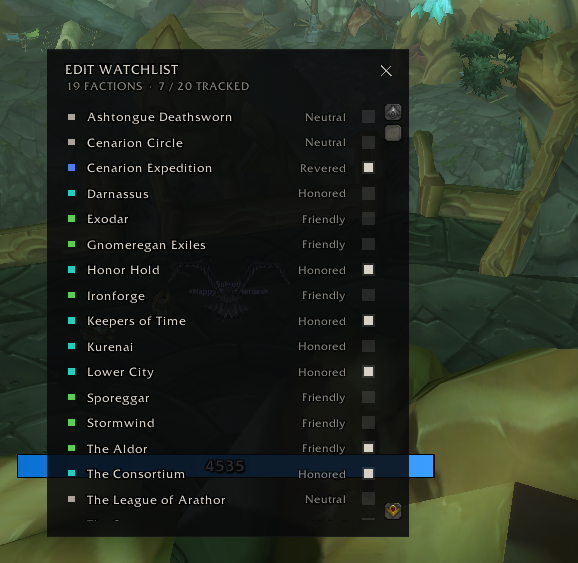
Tick the ones you care about. They appear in the panel immediately. Untick to remove. You can track up to 20.
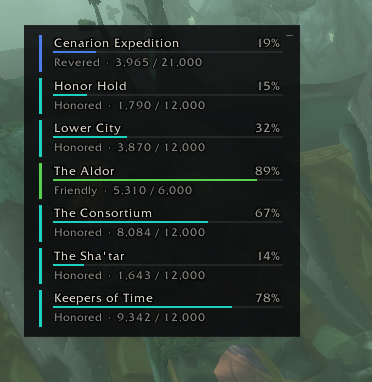
Each bar shows the faction name, your current standing, the numbers, and a progress bar.
Compact mode
If your watchlist gets long, click the small – icon in the top-right of the panel to switch to compact mode. Each bar collapses to a single thin row with a tier letter on the left (F for Friendly, H for Honored, R for Revered, E for Exalted), the name, and a percent.
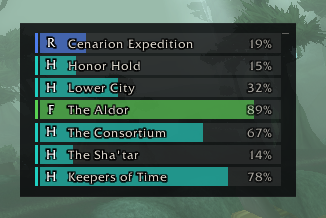
Click the icon again to expand back. Your choice is remembered.
Reading the colors
Every standing tier has its own color, both on the left accent strip and inside the progress bar:
- Red / orange / gold — Hated, Hostile, Unfriendly
- Taupe — Neutral
- Green — Friendly
- Turquoise — Honored
- Blue — Revered
- Magenta — Exalted
So if you glance over and see a row of turquoise bars and one suddenly shows up blue, you know that faction just hit Revered.
Moving the panel
Click-and-drag anywhere on the panel to move it. The position is saved across all your characters. If you ever lose track of where you put it, type /rep reset and it'll snap back to the right edge.
Slash commands
| Command | What it does |
|---|---|
/rep |
Show or hide the panel |
/rep edit |
Open the watchlist picker (same as right-clicking the panel) |
/rep compact |
Switch between compact and expanded views |
/rep reset |
Move the panel back to the default position |
/rep show / /rep hide |
Force the panel visible or hidden |
Compatibility
Built for TBC Anniversary Classic
Bugs and feedback
Credits
Logo icon: "Network bars" by Delapouite, under CC BY 3.0, from game-icons.net.
Bundled font: Inconsolata, SIL Open Font License.
License
MIT.
RepLine Team
