
RaidTool
- By
2.png
1.png
Description
◆ RaidTool · Raid Team Assistant Manual ◆
Version 1.0.1 | Author: 魔兽大官人 Free to use. No external dependencies or authentication required.
1. Quick Start
1.1 Installation
-
Place the entire
RaidToolfolder into your World of Warcraft\_retail_\Interface\AddOns\directory (or the matching folder for Classic clients). -
Restart the game client, or enable RaidTool · Raid Team Assistant from the "AddOns" button on the character selection screen.
-
Log in to your character.
1.2 Opening the Main Window
Use any one of these three slash commands (press Enter in the chat box, then type):
/raidtool    ← full command
/rt          ← recommended (short)
/ai          ← legacy alias for long-time users
You can also bind a hotkey: open Game Menu → Key Bindings, search for "Raid Team Assistant" (or "RaidTool"), and bind a key (e.g., a mouse side-button).
1.3 Minimap Icon
A small blue star (★) appears near your minimap. Mouse over it to see the addon name, and left-click it to toggle the main window.
2. Feature Overview (Tabs)
By default the two most-used tabs are shown. Other tabs can be enabled inside the addon settings.
|
Tab |
File |
Purpose |
Default |
|---|---|---|---|
|
Raid Cooldowns |
TJ.lua |
Assign 9 raid-wide defensive cooldowns, then auto-assign / announce to the raid |
✅ Shown |
|
Buff Assignments |
Buff.lua |
Assign 12 common raid buffs (Blessings, Prayers, Feasts, etc.) |
✅ Shown |
|
Tactics |
— |
Per-boss tactic assignments + combat analysis for 10+ raid tiers / 80+ bosses |
⬜ Can be enabled |
|
Raid Markers |
RaidTarget.lua |
Auto-assign and lock raid target icons (Skull, Cross, etc.) |
⬜ Can be enabled |
|
Raid Roster |
Equip.lua |
Loot distribution log + roster management |
⬜ Can be enabled |
|
Settings |
options.lua |
Global addon configuration (announce channels, save count, appearance, etc.) |
⬜ Can be enabled |
|
DPS Cooldowns |
DPS.lua |
(MOP only) Bloodlust / Heroism / Time Warp offensive rotation |
⬜ Can be enabled |
|
Personal CDs |
GJ.lua |
(MOP only) Personal defensive cooldowns (Hand of Sacrifice, Vigilance, etc.) |
⬜ Can be enabled |
|
Soulstone |
SS.lua |
Soulstone assignment panel |
⬜ Disabled |
2.1 Raid Cooldowns Tab (Core)
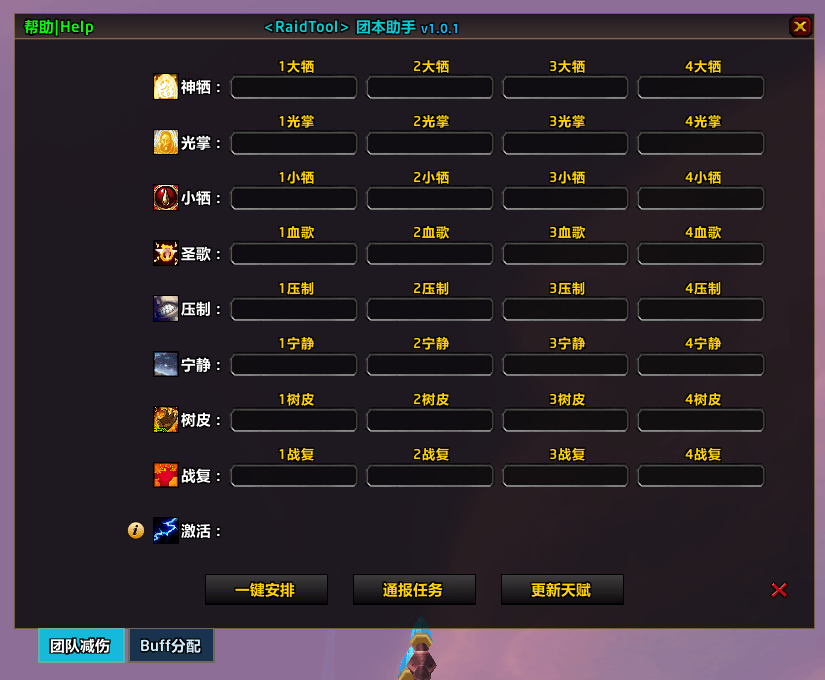
9 critical raid cooldowns are displayed with short 2-character Chinese names to keep the layout compact. Reference table:
|
Full Name (CN) |
Short Name |
Description |
Default Slots |
|---|---|---|---|
|
神圣牺牲 |
神牺 |
Divine Sacrifice — Paladin, 20% raid-wide DR |
4 |
|
光环掌握 |
光掌 |
Aura Mastery — Paladin, anti-interrupt + magic DR |
4 |
|
牺牲之手 |
小牺 |
Hand of Sacrifice — Paladin, 30% damage transfer |
4 |
|
神圣赞美诗 |
圣歌 |
Divine Hymn — Priest, raid HoT + healing buff |
4 |
|
痛苦压制 |
压制 |
Pain Suppression — Priest, 40% DR on tank |
4 |
|
宁静 |
宁静 |
Tranquility — Druid, raid-wide HoT |
4 |
|
树皮术 |
树皮 |
Barkskin — Druid, 20% personal DR |
4 |
|
战复 |
战复 |
Combat Resurrection — Druid / Warlock / DK |
4 |
|
激活 |
激活 |
Innervate — Druid, mana regen for healers |
3 |
How to use
-
Each row shows the spell icon + short name on the left. On the right are 4 input boxes (slot 1 → slot 4 = cast order).
-
Click an input box → type a player name manually, or click the player directly in your raid/party frames to auto-fill the name.
-
Right-click an input box → clear that slot.
-
Three buttons at the bottom:
-
Auto-Assign: Automatically matches players to spells by class/spec (requires players to be inspectable in your raid).
-
Announce: Sends each player's assignment to them via whisper / raid chat / raid warning, based on your Settings.
-
Refresh Talents: Re-scans every raid member's class and active spec (use when players swap specs).
-
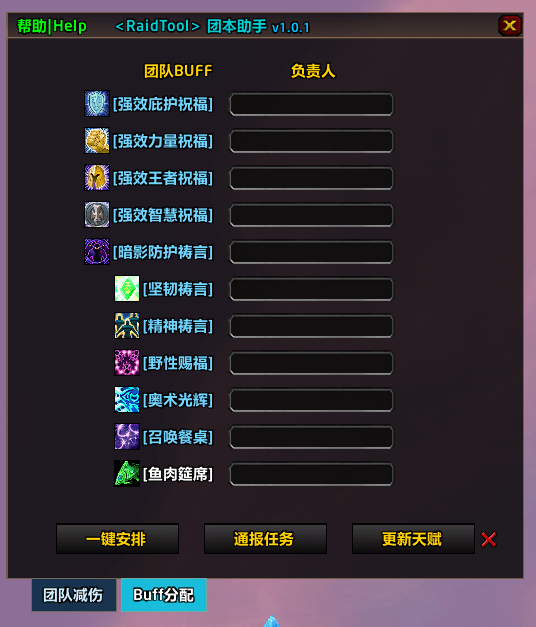
2.2 Buff Assignments Tab
12 standard raid buffs, displayed in two columns: Buff (icon + name) + Assigned Player.
|
Buff Category |
Buffs |
Class |
|---|---|---|
|
Paladin Blessings |
Greater Blessing of Sanctuary / Might / Kings / Wisdom |
Paladin |
|
Priest Prayers |
Prayer of Fortitude / Shadow Protection / Spirit |
Priest |
|
Druid |
Mark of the Wild (Gift) |
Druid |
|
Mage |
Arcane Brilliance |
Mage |
|
Utility |
Summon Refreshment Table |
Mage |
|
Feasts |
Fish Feast / Great Feast / Lavascale Minestrone |
Cooks |
Use it the same way as the Raid Cooldowns tab: click inputs, right-click to clear, use the three bottom buttons.
3. Tactics & Boss Modules (when enabled)
3.1 Supported Raids
10+ tiers across all client flavours (auto-detects your game version):
-
Wrath of the Lich King: ICC (12), ToC (5), RS (1)
-
Burning Crusade: SSC (6), ZA (6)
-
Classic Vanilla: MC (10), Naxx (15)
-
Mists of Pandaria: MV (6), HoF (4), ToT (13), DS (8), FL (7)
3.2 Combat Analysis
Each boss tactic page has a 📊 Combat Analysis button:
-
After the boss dies, assignment buttons that successfully matched logs turn GREEN.
-
Click a green button → open the Combat Analysis frame: bar-chart style view of who cast which spell, at what timestamp, aligned to boss ability casts.
-
Change how many past fights are kept in Settings (default = the most recent 1 boss only, up to 10).
3.3 Cooldown Chain (Board)
At the bottom of the Raid Cooldowns tab, click the 🔗 Cooldown Chain button to build a stacked cooldown rotation for a specific sequence of boss abilities. Hover the green "Tutorial" label in its top-left for usage tips.
4. Import / Export
4.1 Import
Copy an assignment string shared by another raid leader. Open the addon → Settings → Import → paste → confirm. All tabs across all bosses are imported at once.
4.2 Export
Settings → Export. The full assignment string is auto-copied to your clipboard, including the current raid tier + every boss + every assignment.
4.3 Auto-Sync between Raid Leaders
If multiple players in the same raid have RaidTool installed, assignment data is auto-synced via addon channels — no manual copy-paste needed.
5. Dispel & Interrupt Stats
After each boss encounter ends, a stats popup appears showing:
-
Dispel leaderboard: who dispelled and how many times
-
Interrupt leaderboard: who interrupted which boss spell + which spell cast was stopped
-
Sort by: Total Attempts / Successful Casts / Reaction Speed
6. In-App Help (On Hover)
Top-left corner of the main window: click the green "帮助|Help" label. Mousing over it shows three sections in order:
-
◆ How to use ◆ — all commands and quick tips
-
◆ This version ◆ — patch notes for the current release
-
◆ Previous versions ◆ — full changelog history
There is also a separate green "Tutorial" label inside the Cooldown Chain tab with chain-specific tips.
7. FAQ
Q1: Can I use it outside the raid instance?
A: Yes for tactics browsing, Import/Export, and editing assignments. Auto-assigning and announcements require you to be in a party or raid group.
Q2: Why are player classes/specs showing the wrong values?
A: Click Refresh Talents at the bottom. It takes 1-2 seconds for the game API to return updated spec info for each raid member.
Q3: Clicking players in raid frames does not fill the input?
A: Make sure your raid frames (Blizzard default / Grid / VuhDo / ElvUI panels) are click-through enabled — a normal left click should select that player as your target.
Q4: How long is combat analysis data kept?
A: Default = 1 most recent boss only. Change this in Settings → "Combat Analysis Save Count" (maximum 10).
8. Technical Info
|
Item |
Value |
|---|---|
|
SavedVariables |
|
|
Addon prefixes |
|
|
Text font global |
|
|
Accent colour |
|
|
Background tint |
|
9. Changelog
See the separate 更新日志.txt file inside the RaidTool folder (Chinese).
------------------------------中文说明------------------
◆ RaidTool · 团本助手 说明书 ◆
V1.0.1 | 作者:魔兽大官人 免费使用,无任何外部依赖 / 无验证,加载即用
一、快速开始
1.1 安装
-
将整个
RaidTool文件夹放入魔兽世界\_retail_\Interface\AddOns\(怀旧服同理放入对应目录) -
重启游戏客户端,或在角色选择界面点「插件」,勾选 RaidTool · 团本助手
-
进入游戏
1.2 打开主界面
以下 三种命令任选一种,在聊天框输入后回车,即可弹出/关闭主界面:
/RaidTool    ← 完整命令
/RT          ← 推荐(简短)
/AI          ← 老用户兼容别名
也可以在 游戏菜单 → 快捷键设置 里搜索「团本助手」,绑定一个自定义按键(如鼠标侧键)。
1.3 小地图
小地图旁有一个蓝色 ★ 图标,鼠标悬停显示插件名,左键点击可开关主界面。
二、功能总览(标签页)
默认显示 2 个最常用的核心标签页,其他可在设置中启用。
|
标签页 |
对应文件 |
用途 |
默认显示 |
|---|---|---|---|
|
团队减伤 |
TJ.lua |
分配 9 种团队减伤技能,并可一键安排 + 通报到团队 |
✅ 是 |
|
Buff分配 |
Buff.lua |
分配 12 种常见团队 Buff(祝福/祷言/餐桌/大餐等) |
✅ 是 |
|
战术 |
— |
10+ 个团本、80+ BOSS 的战术任务分配 + 战斗分析 |
⬜ 可开启 |
|
锁标 |
RaidTarget.lua |
自动锁定团队标记(骷髅/红叉等) |
⬜ 可开启 |
|
团队 |
Equip.lua |
装备分配记录 + 团队名单管理 |
⬜ 可开启 |
|
设置 |
options.lua |
全局配置(通报方式/保存数量/外观等) |
⬜ 可开启 |
|
增伤 |
DPS.lua |
(仅 MOP 版本)嗜血/英勇/时间扭曲 增伤链安排 |
⬜ 可开启 |
|
个减 |
GJ.lua |
(仅 MOP 版本)个人减伤(牺牲之手/警戒等) |
⬜ 可开启 |
|
灵魂石 |
SS.lua |
灵魂石分配面板 |
⬜ 未启用 |
2.1 团队减伤 Tab(核心功能)
9 种团队关键减伤使用 两字简称 显示,保证界面紧凑。对照表:
|
原名 |
简称 |
技能说明 |
默认份数 |
|---|---|---|---|
|
神圣牺牲 |
神牺 |
防骑大减伤,全团 20% 减伤 |
4 份 |
|
光环掌握 |
光掌 |
奶骑光环精通,免疫打断/魔法减伤 |
4 份 |
|
牺牲之手 |
小牺 |
奶骑/防骑 小牺牲,转移 30% 伤害 |
4 份 |
|
神圣赞美诗 |
圣歌 |
神牧大招,全团回血 + 治疗量加成 |
4 份 |
|
痛苦压制 |
压制 |
戒律牧单体减伤 40%,防倒坦 |
4 份 |
|
宁静 |
宁静 |
奶德大招,全团持续回血 |
4 份 |
|
树皮术 |
树皮 |
奶德/熊/猫 个人减伤 20% |
4 份 |
|
战复 |
战复 |
小德/术士/DK 战斗复活 |
4 份 |
|
激活 |
激活 |
奶德回蓝给治疗 |
3 份 |
操作方法
-
每行左侧 = 图标 + 简称,右侧 4 个输入框 = 第 1 / 第 2 / 第 3 / 第 4 次施放责任人
-
点击输入框 → 手动输入玩家名,或直接 点击团队框架里的玩家 自动填入
-
右键点击输入框 → 清空该格
-
底部三个按钮:
-
一键安排:根据职业/天赋自动匹配责任人(需要玩家可被观察天赋)
-
通报任务:按设置中的频道(团队/警告/密语),把每个玩家的分配发送出去
-
更新天赋:重新扫描所有团员职业 + 当前天赋(切天赋后点)
-
2.2 Buff分配 Tab
12 种常规团队 Buff,左右两列:「团队BUFF」(图标+名)+「负责人」
|
分类 |
Buff |
职业 |
|---|---|---|
|
骑士祝福 |
强效庇护祝福 / 力量祝福 / 王者祝福 / 智慧祝福 |
圣骑士 |
|
牧师祷言 |
坚韧祷言 / 暗影防护祷言 / 精神祷言 |
牧师 |
|
小德 |
野性赐福(野性印记) |
德鲁伊 |
|
法师 |
奥术光辉 |
法师 |
|
开饭 |
召唤餐桌 |
法师 |
|
大餐 |
鱼肉筵席 / 盛大筵席 / 海鲜大餐 |
烹饪玩家 |
操作方式与团队减伤 Tab 完全一致:点输入框填人、右键清空、底部三按钮。
三、战术 BOSS 模块(开启后使用)
3.1 支持的副本
按游戏版本自动切换,共覆盖 10+ 资料片:
-
WLK 怀旧:ICC 冰冠堡垒(12)、TOC 十字军试炼(5)、RS 晶红龙殿(1)
-
TBC 怀旧:SSC 毒蛇神殿(6)、ZUG 祖阿曼(6)
-
60 怀旧:MC 熔火之心(10)、NAXX 纳克萨玛斯(15)
-
MOP 正式服:MSV 魔古山宝库(6)、TOES 恐惧之心(4)、TOT 雷霆王座(13)、DS 巨龙之魂(8)、FL 火焰之地(7)
3.2 战斗分析
每个 BOSS 战术页有 📊 战斗分析 按钮:
-
BOSS 战结束后,成功匹配到日志的分配按钮会变成绿色
-
点击绿色按钮 → 弹出战斗分析面板:每个责任人 实际施放的技能 / 时间点 / 与 BOSS 技能对齐 的条形图
-
可在「设置」里修改战斗分析保存数量(默认 1 个,最大 10 个)
3.3 减伤链(Board)
团队减伤 Tab 底部的 🔗 减伤链 按钮,可针对 BOSS 技能顺序制作连续减伤覆盖链。其左上角绿色「教程」文字悬停即显示操作方法。
四、导入 / 导出
4.1 导入
复制其他团长发的 分配字符串 → 打开主界面 → 设置 → 导入 → 粘贴 → 确认。所有副本 + 所有 BOSS + 所有 Tab 的分配一次性导入。
4.2 导出
设置 → 导出 → 完整字符串自动复制到剪贴板,包含当前副本 + 所有 BOSS + 所有技能分配。
4.3 团长间自动同步
同团内所有安装 RaidTool 的玩家会通过插件频道 自动同步分配数据,无需手动导来导去。
五、驱散统计 & 打断统计
每场 BOSS 战结束后,自动弹出统计面板:
-
驱散排行:谁驱散了多少次
-
打断排行:谁打断了哪个 BOSS 的哪个施法,以及响应速度
-
可按:总次数 / 成功次数 / 反应速度 排序
六、悬停帮助入口
主界面左上角有绿色文字 「帮助|Help」,鼠标悬停依次显示:
-
◆ 使用说明 ◆ — 所有命令和操作提示
-
◆ 本次版本更新 ◆ — 当前版本补丁说明
-
◆ 历史版本更新 ◆ — 完整更新日志
减伤链窗口左上角还有独立的绿色「教程」标签,悬停显示减伤链的使用技巧。
七、常见问题 FAQ
Q1:不在副本里能用吗?
A:浏览战术、导入导出、编辑分配 都可以;一键安排和通报需要在小队或团队中。
Q2:队友职业/天赋显示不对?
A:点底部「更新天赋」再等 1-2 秒即可,游戏 API 返回天赋信息有短延迟。
Q3:点击团队框架玩家不能自动填?
A:请确认你的团队框架(暴雪默认/Grid/VuhDo/ElvUI 等)允许左键点击选中玩家,也就是常规的可交互模式。
Q4:战斗分析数据存多久?
A:默认只保留最近 1 个 BOSS,在「设置 → 战斗分析保存数量」里可调大(最多 10 个)。
八、技术信息
|
项目 |
值 |
|---|---|
|
SavedVariables |
|
|
插件消息前缀 |
|
|
字体全局变量 |
|
|
主题色 |
|
|
背景色 |
|
九、更新日志
见插件目录下的 更新日志.txt 文件。