


RaidLootTracker
- By
Automatically records who won each drop in your Midnight raids, the rolls behind it, and the difficulty it came from. Reassign traded items, see per-player totals, and export a whole raid night straight into a spreadsheet.
loot1.PNG
loot1-expanded.PNG
add entry.PNG
loot rool date.PNG
exporter.PNG
Description
RaidLootTracker
A World of Warcraft addon for tracking loot distribution during raids with roll tracking and player summaries.
Features
Automatic Loot Tracking
- Automatically captures boss loot using the LOOT_HISTORY_UPDATE_DROP event
- Only tracks boss group-loot roll windows — quest rewards and non-roll loot are never captured
- Associates each item with the boss, zone, and raid difficulty it dropped from
- Tracks item links, player names, timestamps, and roll results
- Enable automatic tracking master switch in Settings — turn tracking off entirely for a pug or off-roster run you don't want in your history, then turn it back on for the next real raid. Manual entry still works either way
- Optional Skip solo-roll items setting (off by default) — don't track a drop if only one player actually rolled on it, since there was no real contest
- Optional Skip transmog-only items setting (off by default) — don't track a drop if every roll on it was Transmog, since nobody actually needed/greeded it
Difficulty Tracking
- Every item is tagged with the difficulty it dropped at — LFR, N, HC, or M — colour-coded by tier
- Difficulty is read live from your current instance, so switching from Normal to Heroic mid-night is picked up immediately, without waiting for a boss kill
- Manual entries default to your current instance's difficulty and can be overridden from a dropdown — useful for backfilling a Normal item while you're already standing in Heroic
Roll Tracking
- Captures group loot Need/Greed/Pass rolls directly from the WoW loot history API
- Shows the winning roll and a configurable number of runner-ups per item (default 2, adjustable up to 40 — effectively "everyone")
- Each roll shows the player name (class-coloured), roll value, and roll type (e.g.
Roll: 98 [Need]) - Roll type is tracked per-player: winners and runner-ups each display their own roll type independently
- Supported roll types: Need, Need (OS), Greed, Transmog
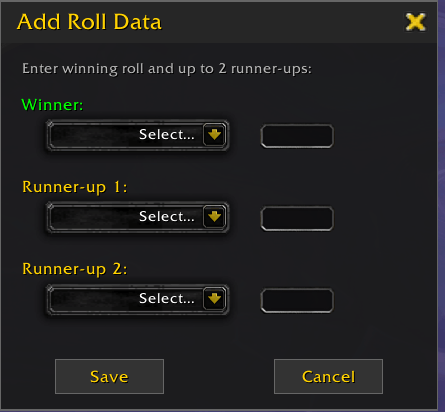
- Manual roll entry available for items added manually
Loot Management
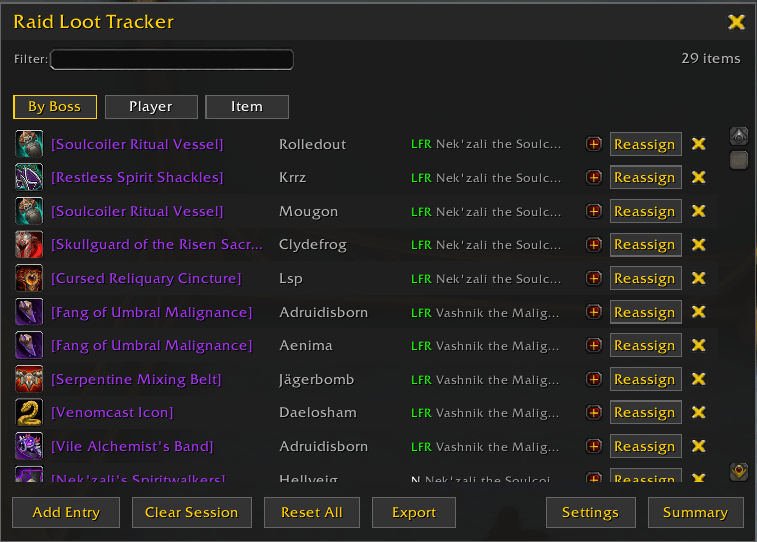
- Main Window: View tracked loot, scoped to the current session by default
- Search/Filter: Real-time search across item name, player, boss, and difficulty — searching looks across your full history, not just the current session
- Click-to-sort: Sort By Boss (default, chronological), by Player, or by Item — click the same button again to reverse direction
- Reassign Loot: Transfer items to different players (original owner is preserved and shown). Works even after someone has left the group — the list includes everyone from the current session, not just who is still online
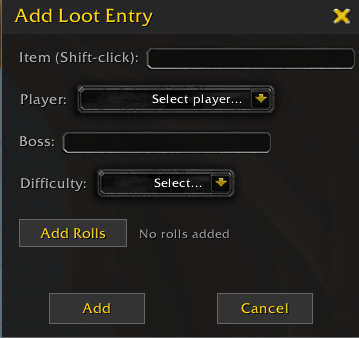
- Manual Entry: Add loot entries manually via the "Add Entry" button or
/rlt add - Delete Entries: Remove individual loot entries
- Clear Session: Start a new session. Non-destructive — it only moves the "current session" boundary forward. Nothing is deleted, and older loot stays available via Full History or a search
- Reset All: Permanently delete all tracked loot data (confirmation required) — the only action that actually erases anything
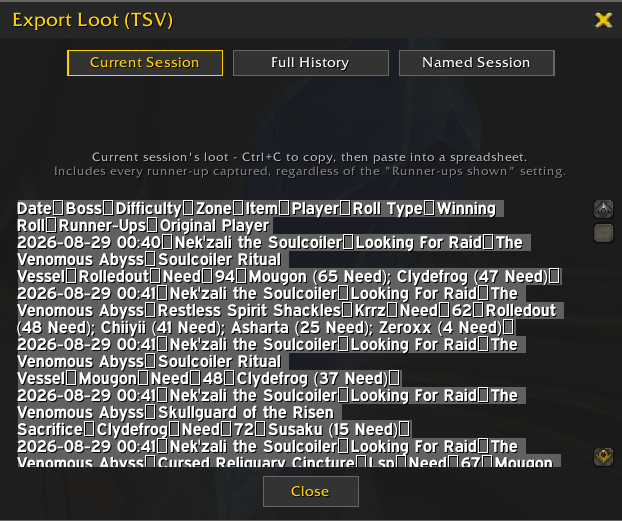
- Export: Export loot as a tab-separated table, ready to paste straight into Excel or Google Sheets
Named Sessions (optional)
An opt-in way to group loot into a specific named raid or run, layered on top of the normal session tracking — which keeps working exactly as before if you never touch this.
- Settings → Manage Sessions to create a named session (e.g. "ICC 25H Tuesday"). It starts tracking immediately
- Pause a session and resume it later — days or weeks later, no problem. Loot logged in between simply is not tagged to it
- More than one named session can be active at once; an item logged then belongs to each of them
- Covers both automatically tracked drops and items added by hand
- Deleting a named session only removes the grouping — it never deletes any loot entries
- Export and Player Summary both gain a Named view for looking at one specific run
Player Aliases (optional)
- Settings → Manage Aliases to link an alt to a main, so their wins count toward one combined total in Player Summary
- Both names are picked from dropdowns of players already tracked, so there is no chance of a typo
- The real per-item record is never altered — the Main Window and Export always show exactly who actually won each item. Only Summary's totals resolve through the alias
Roll Display
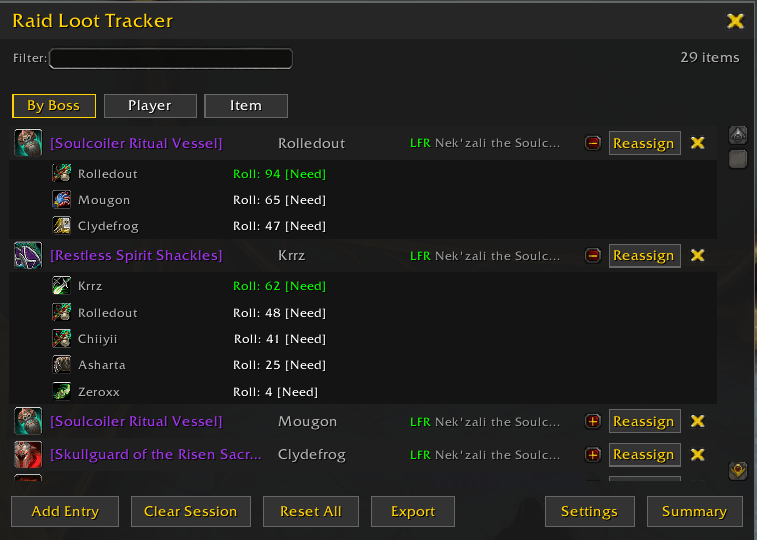
- Items with roll data show a
+button next to the Reassign button - Click
+to expand the roll breakdown beneath the entry - Each roll row shows: class icon, class-coloured player name, roll value, and roll type
- Winner's roll is shown in green; runner-ups in white
- Click
−to collapse
Player Summary
- View loot distribution by player across the current session, your full history, or a specific named session
- Sort by win count (default, highest first) or alphabetically by name
- Click
+on any player row to expand their breakdown: the actual items they won and which boss each dropped from, plus roll-type and difficulty totals (e.g.Need: 2, Transmog: 1) - Click
−to collapse
Minimap Button
- Left-click: Toggle main loot window
- Right-click: Toggle summary window
- Drag: Reposition button around the minimap ring
- Position is saved across sessions
Easter Egg
Click the "Raid Loot Tracker" title 5 times quickly to reveal a surprise!
Usage
Basic Usage
- Join a raid and start killing bosses
- When a boss dies and the group loot roll window opens, rolls are captured automatically
- Once all players have rolled and a winner is determined, the item is logged
- Click the minimap button to view tracked loot
Adding Loot Manually
- Click the "Add Entry" button or type
/rlt add - Shift-click an item from your bags or from a chat link — it will populate the item field automatically
- Select the player who received the item from the dropdown
- Optionally enter the boss name, and confirm or change the difficulty
- Optionally click "Add Rolls" to record roll data manually
- Click "Add" to save the entry
Viewing Roll Data
- Items with rolls show a
+button next to the Reassign button - Click
+to expand the roll breakdown - The winner's row is highlighted in green with their roll type (e.g.
[Need]) - Runner-ups are shown below with their own roll types (count configurable in Settings)
- Click
−to collapse
Reassigning Loot
- Click the "Reassign" button next to any loot entry
- Select the new owner from the dropdown — it includes everyone from the current session, so people who have already left the group are still available
- Click "Confirm"
- The original owner is preserved and shown in the boss column
Player Summary
- Click the "Summary" button or right-click the minimap icon
- Choose Session, Full History, or a Named session
- Sort by win count or alphabetically using the Sort button
- Click
+on a player to see the actual items they won
Exporting Loot Data
- Click the "Export" button on the main window
- Choose Current Session, Full History, or a specific Named Session
- A tab-separated table is shown in a text box, pre-selected
- Press Ctrl+C to copy, then paste directly into Excel, Google Sheets, or a Word table
- Columns: Date, Boss, Difficulty, Zone, Item, Player, Roll Type, Winning Roll, Runner-Ups, Original Player
Note: the export always includes every runner-up that was captured, regardless of the "Runner-ups shown" setting — that setting only limits the main window's expanded view.
Session Management
- Clear Session: Starts a new session. Non-destructive — nothing is deleted, older loot just drops out of the default view and stays available via Full History or a search
- Reset All: Permanently removes all tracked loot (confirmation dialog)
- All data persists across sessions and UI reloads
Settings
- Runner-ups shown: How many runner-up rolls display per item (default 2, up to 40)
- Skip solo-roll items: Do not auto-track items only one player rolled on
- Skip transmog-only items: Do not auto-track items where every roll was Transmog
- Enable automatic tracking: Master on/off switch for automatic tracking
- Manage Aliases: Link an alt to a main for Player Summary totals
- Manage Sessions: Create, pause, resume, rename, or delete named sessions
Slash Commands
/rlt            - Toggle main loot window
/raidloot       - Alias for /rlt
/rlt summary    - Toggle summary window
/rlt add        - Open manual entry dialog
/rlt clear      - Start a new session (non-destructive)
/rlt reset      - Reset all data (confirmation required)
/rlt help       - Show command list
RaidLootTracker Team
