Quest Voice Forever & Classic FR
- By
Hands quest text to the Quest Voice companion app for AI voice-over, with a movable NPC portrait.
Description
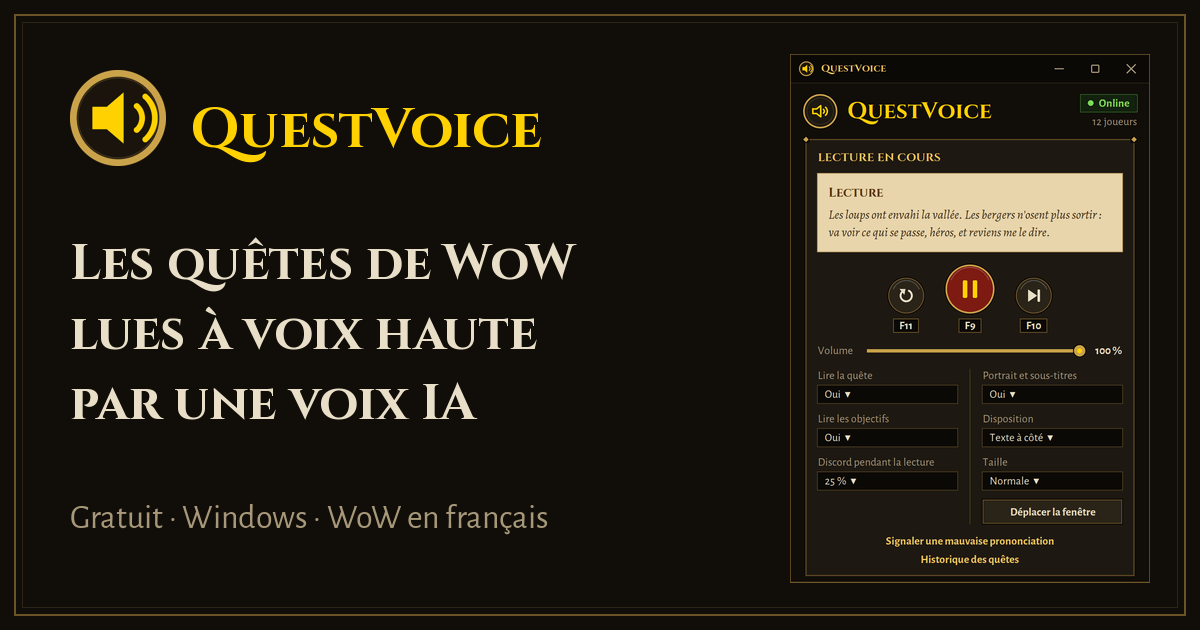
Quest Voice: your quests, read aloud by an AI voice
Stop clicking "Accept" without reading. Quest Voice reads your World of Warcraft quests aloud with a natural, expressive AI voice (not robotic text-to-speech), so you can finally enjoy the story while you keep playing.Important: this add-on is the in-game half of Quest Voice. On its own it plays no sound and shows nothing. You also need the free Quest Voice companion app for Windows: https://questvoiceforever.com
What you get
- A real voice for every quest. High-quality AI voices with natural intonation, emotion and rhythm. Male and female voices are picked according to the character speaking to you, with variations by race.
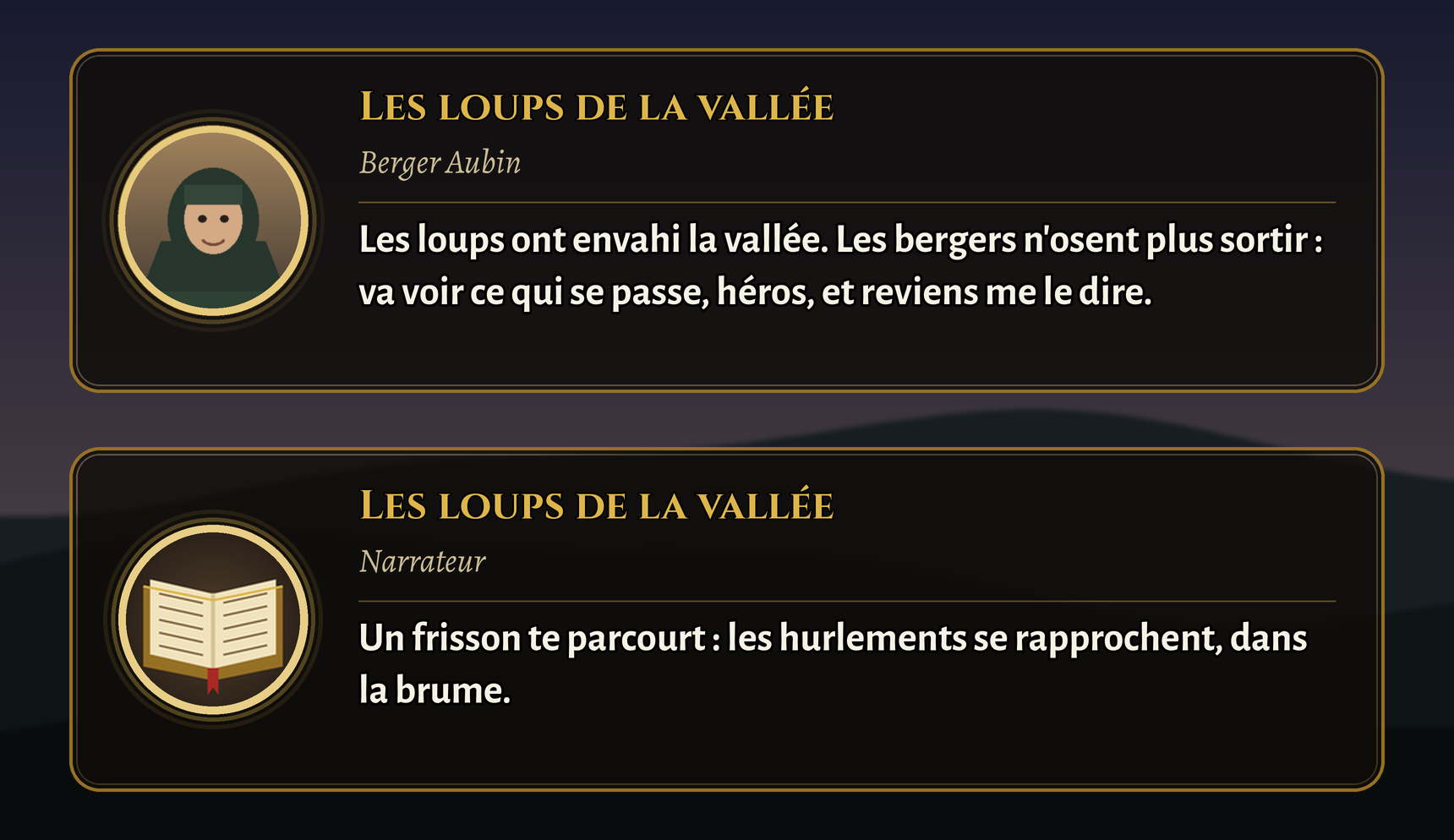
- A narrator for the atmosphere. Gestures and actions written between angle brackets, and your quest objectives, are told by a narrator instead of the NPC.
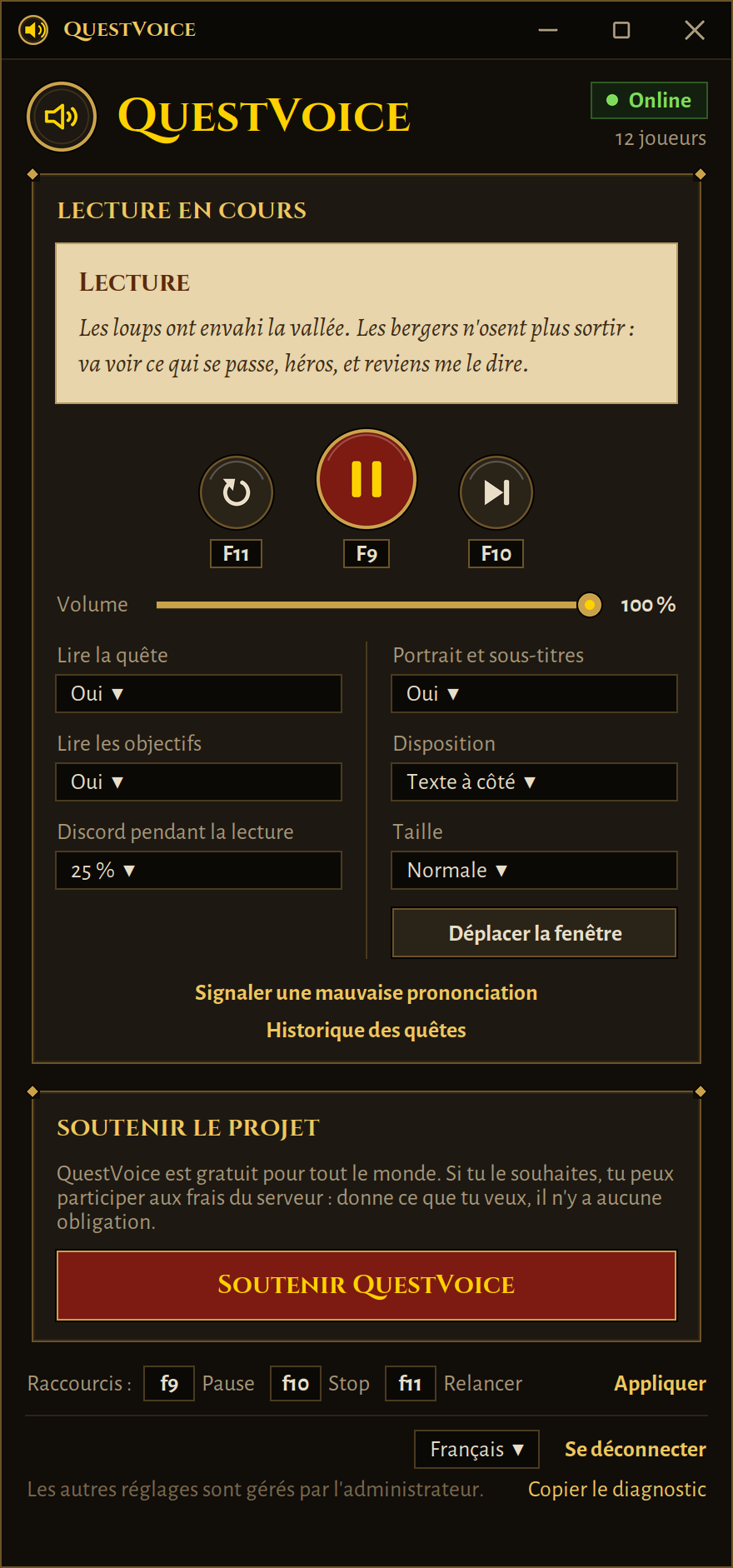
- Portrait and subtitles on screen. While a quest is read, the companion app shows a small window over the game: the portrait of the character speaking (animated while they talk), the quest name and subtitles, sentence by sentence, in sync with the voice. The narrator has a portrait of their own. Choose the layout, the size and where it sits; mouse clicks go straight through it.
- You stay in control. Pause, stop and replay with configurable keyboard shortcuts, a volume slider, and an option to lower or mute Discord while a quest is read. Close the quest window and the voice finishes the reading.
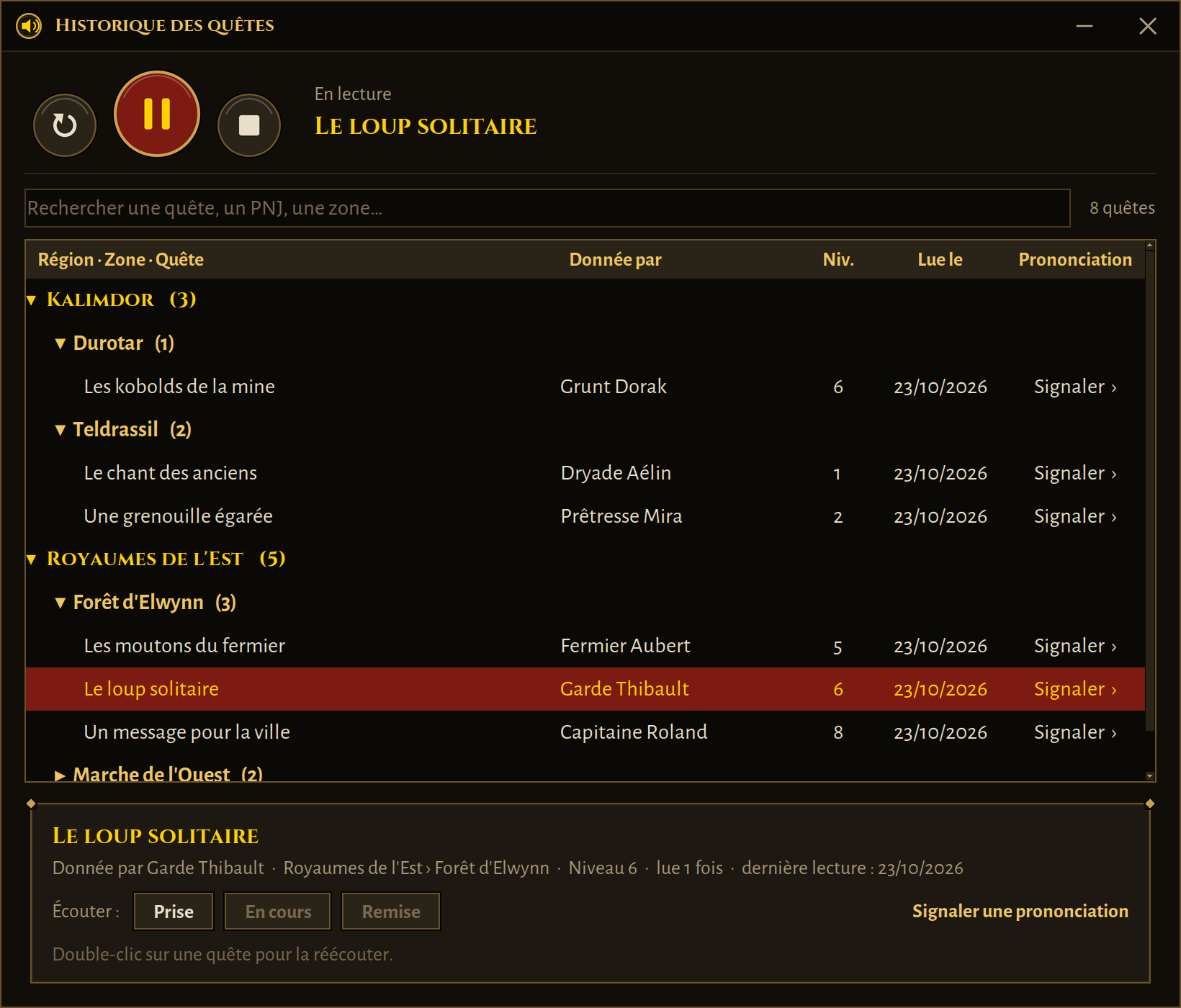
- Quest history. Every quest you have heard is filed by region and zone, and can be replayed with a double-click.
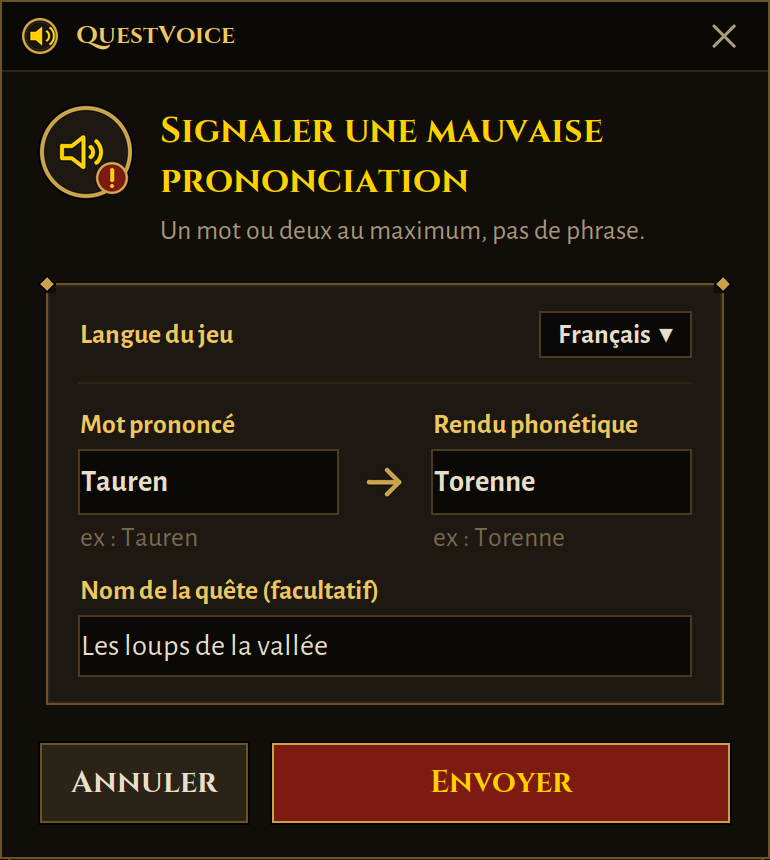
- Pronunciation that improves. A name sounds wrong? Report it from the app and the fix is taken into account.
What this add-on does
- Passes the text of the quest you are viewing (and the NPC, zone, region and quest level) to the companion app through a tiny pixel banner at the edge of the screen. The banner only appears for quests (offered, in progress or handed in), never when you just talk to an NPC. No copy and paste, nothing to configure.
- Checks that your game's gamma, contrast and brightness are at their default values (1 / 50 / 50), because the companion app needs them to read the banner correctly. If they were changed, the add-on tells you in the chat and
/qv imageputs them back (/qv image retourgives you your own values again). It never changes anything by itself. - Keeps a local quest log in your SavedVariables so the companion app can build your history.
- Works on World of Warcraft Forever and on Classic Era. It stays inactive, and says so, on unsupported client languages and on any other game version (Burning Crusade, Mists of Pandaria, retail...).
Getting started
- Download the Quest Voice companion app (Windows 10 and 11, free) from https://questvoiceforever.com and run it. It installs this add-on for you, or install it from here yourself.
- Create your account in the app (a confirmation code is sent by email).
- In WoW, set System > Graphics > Display Mode: Windowed (Fullscreen), then type
/reload(or restart the game) so the add-on is loaded. - Open a quest. That's it.
/qv status in the chat, or follow the step-by-step help page on the website.
Slash commands
/qv on, /qv off, /qv test (plays a test sentence), /qv status, /qv image, /qv debug, /qv nom, /qv clear
Requirements
- World of Warcraft Forever (interface 1.60.x) or Classic Era (interface 1.15.x), in French (frFR) for now. Other client languages are planned; until then the add-on stays inactive on them and says so. Other game versions (Burning Crusade, Mists of Pandaria, retail...) are not supported.
- The Quest Voice companion app on Windows.
- WoW in "Windowed (Fullscreen)" mode, with the game window visible on screen.
Privacy
The add-on only reads the quest text and NPC information the game already shows you. It does not read other players' messages or your chat, and it does not contact the internet by itself (WoW add-ons cannot). The text of the quests you open is sent by the companion app to its servers to generate the audio; details are in the privacy policy on the website. The only game setting the add-on can ever change is the image settings above, and only when you type/qv image.
Support
Questions and bug reports: use the issue tracker or the comments on this page. Help page and website: https://questvoiceforever.com Quest Voice is an independent project and is not affiliated with Blizzard Entertainment, Inc. World of Warcraft is a trademark of Blizzard Entertainment, Inc.Quest Voice Forever & Classic FR Team