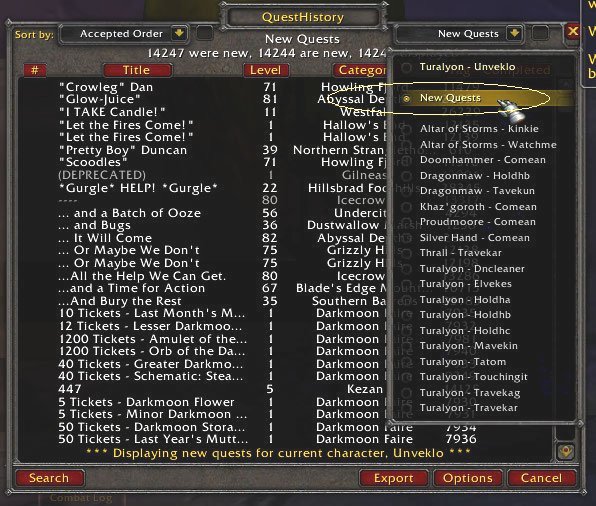
12. Option to see new quests.
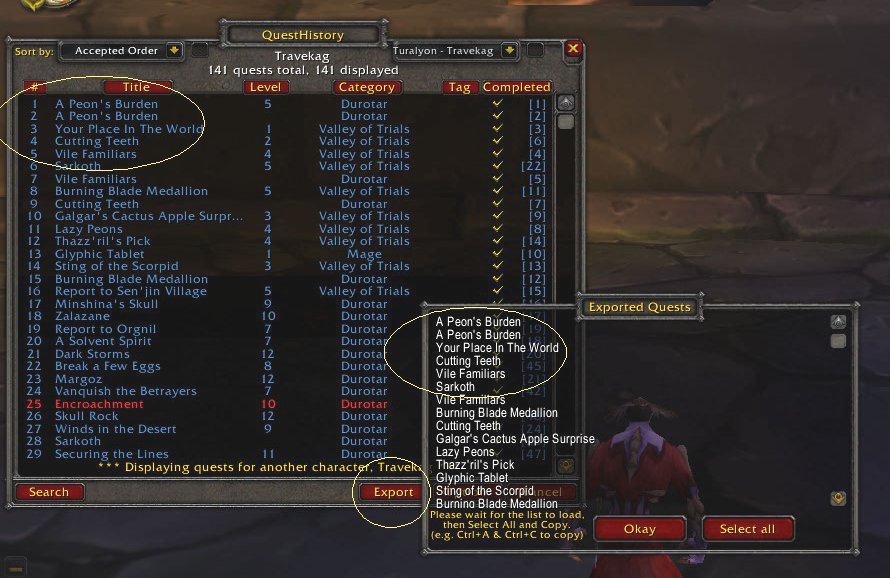
7. Export quests that are displayed.
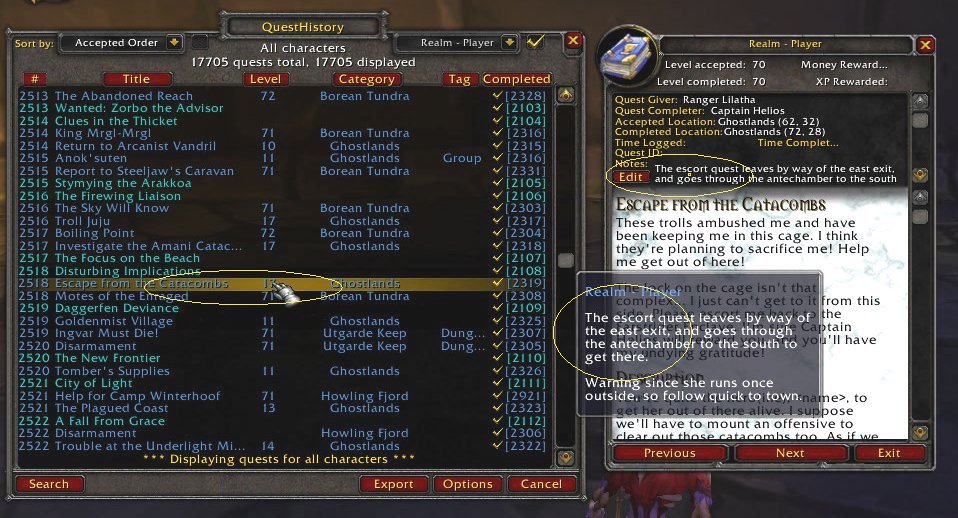
3. Any personal notes you made appear in a tooltip. Click to see more details.
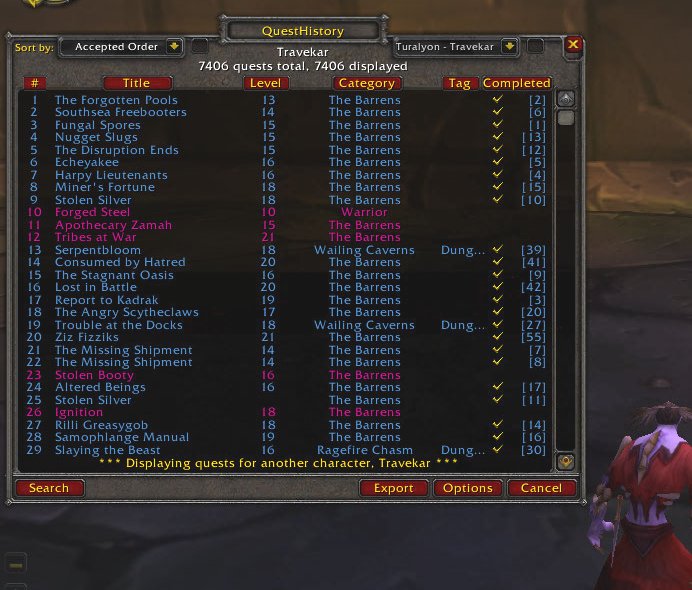
1. The main window (accessible by /qh or keybind)
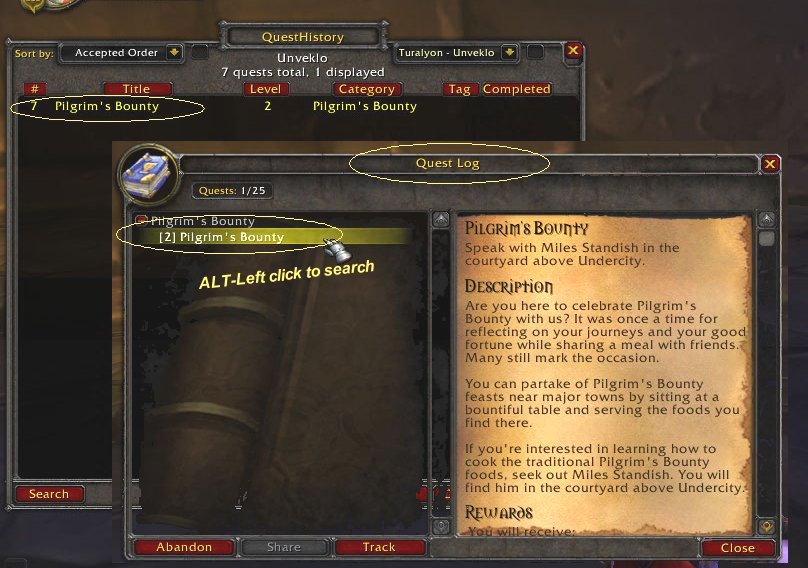
10. The blizzard quest log can search for quests after ALT-Left click a quest.
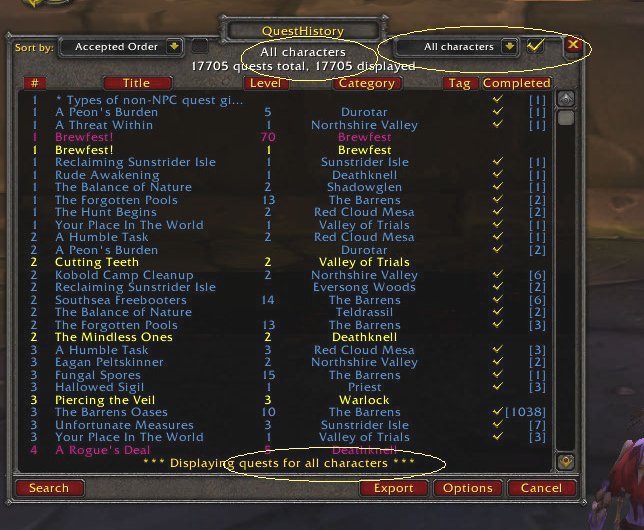
5. Option to select all characters and see all quests.
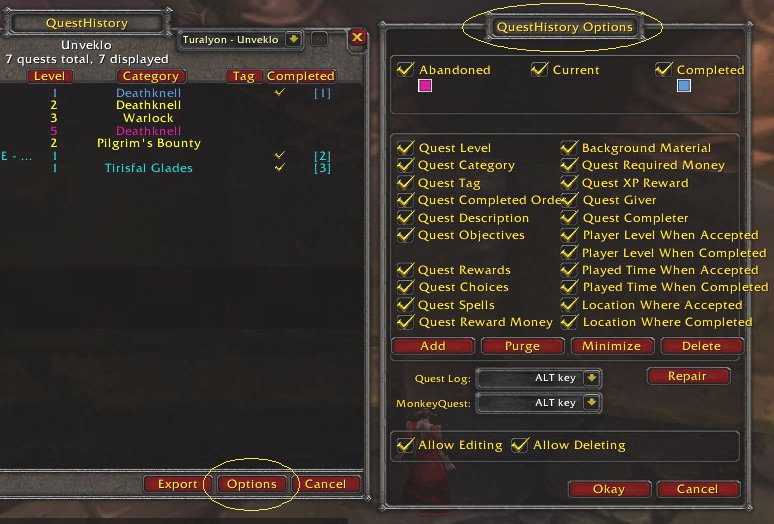
9. Options
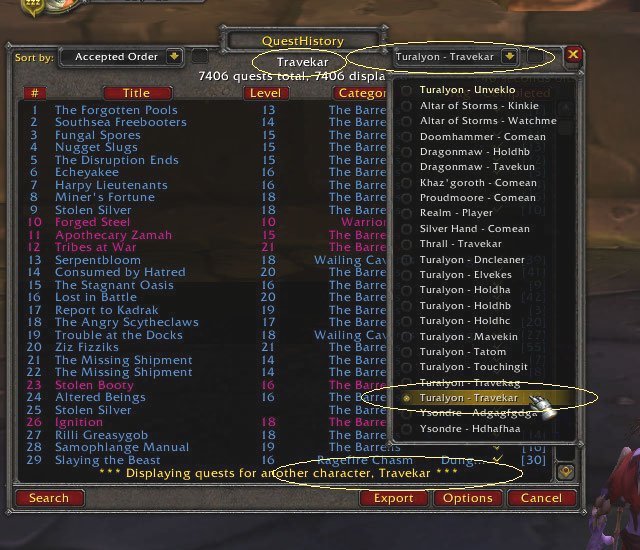
4. Option to temporarily select another character with quests.
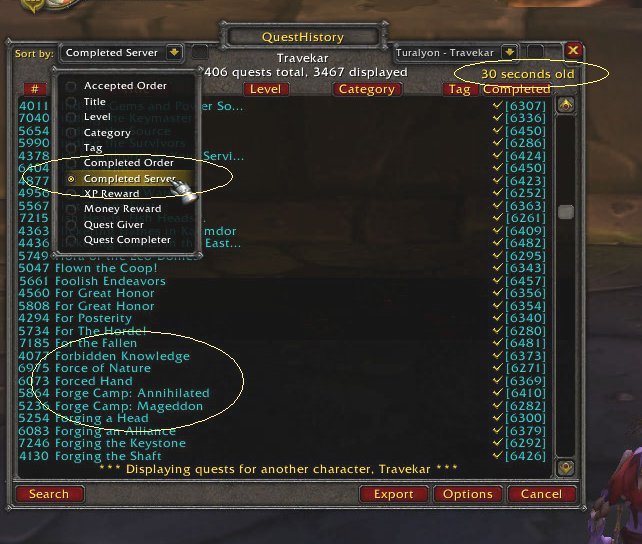
6. Sort to see only quests the server thinks are completed.
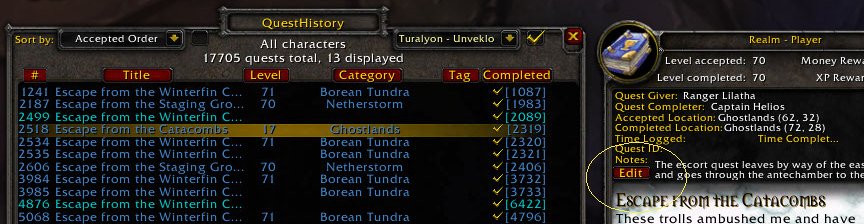
2. Add your own personal notes to quests and see in tooltips later.
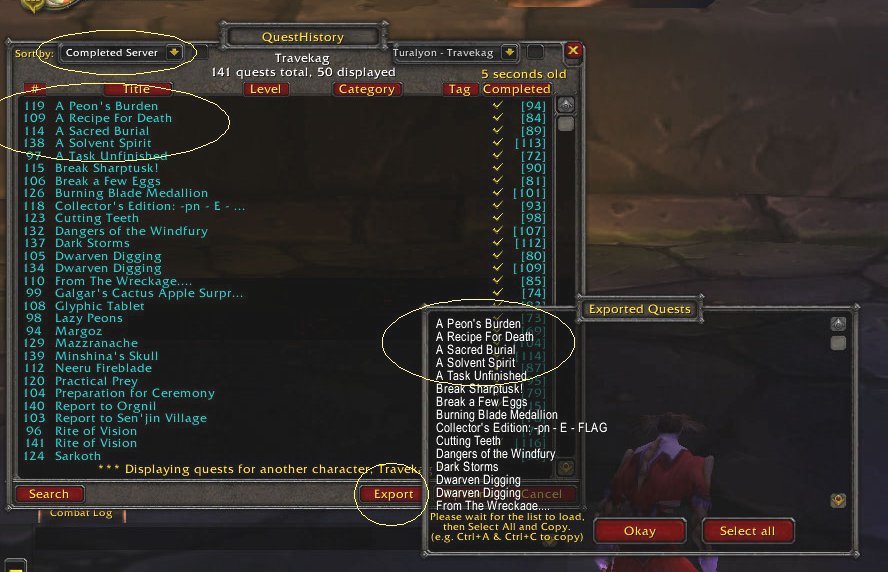
8. Export what is displayed, which the server thinks are completed.
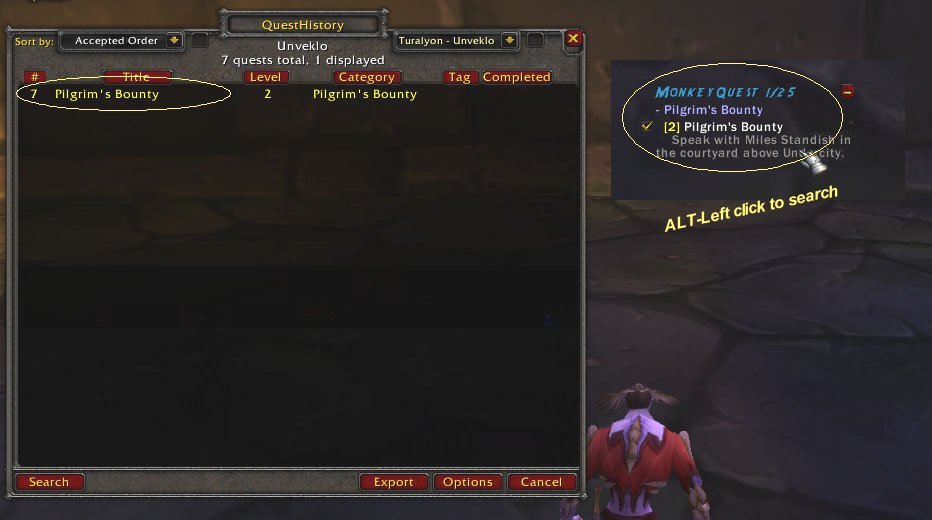
11. The MonkeyQuest addon can search for quests after ALT-Left click a quest.
Description
An in-game history log of quests that have been accepted, completed or abandoned. All your old completed quests are also available. All new quests you never did yet are also available.
FEATURES:
An in-game history log of quests that have been accepted, completed or abandoned. All your old completed quests are also available. All new quests you never did yet are also available.
FEATURES:
- Automatically logs all quests that a player is going to accept/complete/abandon, and records them in a sortable in-game list. Shown in the list colored in yellow/blue/pink/purple respectively. Each quest will have a quest ID to look up in websites like Wowhead to search for quests.
- Automatically logs all your old completed quests too by checking what the server thinks are completed. Each quest will have a quest ID which is the same number used in websites like Wowhead to search for quests. Completed quests from the server are shown in the list colored in cyan, to contrast with completed quests from npcs which are colored in blue.
- Show all new quests the server thinks are available to accept (ones the player never did before). Handy to know what more quests might be in a zone. Shown in the list colored in white and most are valid quests. Each quest has a quest ID. Quests colored in gray might be old abandoned quests or the other faction. Quests colored in purple might be damaged-invalid-abandoned quests we need to verify. Usually extra new quests added by a Blizzard patch or expansion might not be on the list yet.
- The user can customize what data the addon logs, including: Quest title, objectives, rewards, and items; NPC's; Location coordinates; Level of player when quest was accepted/completed; Amount of time player had played when quest was accepted/completed; The time quest has been abandoned; XP awarded; Money awarded.
- Add your own personal notes to quests and see in tooltips for quick reference.
- Many of the features in the addon are only loaded on demand temporarily and automatically removed from memory after a minute when not using it anymore to save memory. Only the raw database of details from quests we have logged stays in memory.
- Quests can be edited or manually added. Quests can be deleted to clean up bad entries, if enabled in options. Does not modify any of the game's original files. QuestHistory simply stores a database of information about quests.
- If you still use the blizzard quest log, then ALT-Left click a quest to search for quests in QuestHistory automatically, if enabled in options.
- If you still use other addons like the MonkeyQuest addon, then ALT-Left click a quest to search for quests in QuestHistory automatically, if enabled in options.
OF NOTE:
- AFTER you have successfully installed QuestHistory, we can record additional detailed information about quests that are in your log, or accepted/completed/abandoned quests. There is also limited information we can get from a list of completed quests that are from the server for reference. Detailed quest information is not available to your computer in ANY other way, at ANY other time. One exception is to use another addon instead that may have all detailed information preinstalled.
- For safety, because of the large size of saved data from all the quests, and how it CANNOT be fixed when lost or damaged, it is always a good idea to backup the variable file, (ah hell, just back up the whole WTF folder :)
.\World of Warcraft\WTF\Account\%youraccount%\SavedVariables\QuestHistory.lua
INSTRUCTIONS:
- OPEN WINDOW: To bring up the graphical UI window, type: /qh OR /questhistory
or see the keybind options to set a key and open.
- MAIN WINDOW: Once you bring up the main window in game, you should see a list of your quests. You can sort this list by clicking on one of the column buttons or by selecting a sort method from the drop-down box. You can choose which character to check by selecting it from the drop-down box, or chose all characters with the checkbox. You can click on the Search button and enter some text to filter only the quests that have data (title, objectives, reward item, etc.) matching the entered text. For example, search "for the horde" to see any related quests. Or, search for "4974" which is the quest ID to see if you completed "For The Horde!".
... (in general, a left click is safer than a right click)
... LEFT click on a quest in the main window to see the quest details
... Shift LEFT click on a quest in the main window to add the link in the chat window
... Alt LEFT click on a quest in the main window to search for quests with the same name
... RIGHT click on a quest in the main window to edit, if enabled in options
... Shift RIGHT click on a quest in the main window to delete, if enabled in options
... search a number from 1 to 99999 for the quest ID of a quest
... search for the number -1 for most holiday/seasonal/class/special quests
... search for the number 0 for any quests with incomplete quest ID information
... search for level:80 for any quests at level 80 for example
... search for level:80:81 for any quests between level 80 and 81 for example
... search and use the UP/DOWN-arrow key to see a history of any recent searches you did
- COMPLETED QUESTS: Quests the server thinks are completed for the current character that is logged in can be seen in the main window after login. The list updates quickly but a timer is also displayed in the upper right corner of the main window to monitor any delays and should disappear when done. For the first time, login to each character and wait a minute or two to get the completed quests assuming the option "check server" is automatic (see the timer for reference, and a chat message if lots of quests were found). If the option "check server" is repair, then it is waiting for you to repair each toon yourself. Sort by "completed server", or choose the option "completed server", to see only the completed quests.
- NEW QUESTS: Show all new quests the server thinks are available to accept. The list is updated after the player gets the quests the server thinks are completed with another option. Use the search feature and search by the zone name to find quests that may exist in a zone. The total number of quests are for reference only and include all horde, alliance, quest chains and invalid quests. Any additional quests added by a Blizzard patch or expansion are not shown yet and requires the addon to be upgraded with the new information later. Notice it takes longer to get and cache new quests for the first time, but faster the next time and not an issue anymore. Note that clearing the game cache folder for whatever reason in the future requires getting the new quests again for the first time.
- EXPORT QUESTS: Quests currently displayed in the main window are shown in a smaller window you can scroll or select all to copy and paste to another spreadsheet or wordprocessor for review. This is a slow process and game lags temporarily. An alternative is to use the slash command, "/qh completed" and see what quests the server thinks are completed at this moment in time and not use what is shown in the main window. The slash option is used in case the main window is broken for whatever reason by a future patch and still be able to show completed quests.
- OPTIONS: There is also an Options button which will bring up a screen allowing you to customize what types of quests (abandoned, completed or current) are shown in the list and what data is logged for each quest. Turning on certain options can be extremely helpful when doing the same quests later on other characters, including: Quest level, category, completedorder, objectives, quest giver and completer, player level, and location. If you are worried about the size of your SavedVariables.lua file, you can deselect some of the data that QuestHistory logs for new quests. The purge button helps remove the data from all old quests. There are other options available including the ability to select the colors for abandoned and completed quests. Warning - once deselected, there is no way to get the quest data for new quests back later, and no way to get the quest data of old quests if purged.
- VIEW: To see information on a quest, left click on it in the list and a window will open. This window will contain all of the quest data that is normally shown in the Quest Log as well as extra data that was recorded. Mouse over some data to show tooltips with more information. Notes can be added to the quest from this screen as well, which are visible in tooltips later.
- EDIT: Right click on a quest to edit information on a quest. A detailed window will open. See options to enable editing quests.
- DELETE: Shift right click on a quest to delete a quest. See options to enable deleting quests. Warning - There is no confirmation prompt. There is no undo. If a mistake is made and you really want it back, then keep the game running and do not logout and backup the savedvariables file, questhistory.lua (see UNINSTALL below). Now you can logout and restore the backed up file.
- CHAT: Shift left click on a quest to paste the quest name into chat in order to communicate the information to other players. Some quests have a quest ID to display more information.
- QUICKSEARCH: Alt left click on a quest in the main window to search for related quests more conveniently, without having to click on the Search button and enter the quest title manually. Also see below when searching for quests automatically from other addons.
- SWITCHING TOONS: The main window has an option to switch to another character you have and see quests saved for that character. This is temporary and not saved so that the main character is shown again by default after logout and login. The main window also has an option to see quests saved for all characters, and remains so after logout and login. Usually other toons may have notes and quest details that can assist the current toon and refresh our memory.
INSTALLATION:
- In Windows XP, extract the ZIP file, to your World of Warcraft interface addons directory, which might look like,
...\World of Warcraft\Interface\AddOns\QuestHistory
UNINSTALL (for Windows XP):
- Remove the game folder, .\World of Warcraft\Interface\AddOns\QuestHistory
- Remove saved variable file, .\World of Warcraft\WTF\Account\%youraccount%\SavedVariables\QuestHistory.lua
CONTRIBUTORS:
- Originally written by Jasters in 2004.
- Adopted by Dsanai, after Jasters left World of Warcraft, in late 2005.
- Adopted by Dsanai also at, http://www.getemerald.com/QuestHistory.php
- Adopted by Jtbalogh, after Dsanai left World of Warcraft, in late 2006.
- and the fans that provide feature requests and investigate bugs and issues.
-------------------------------
Searching for quests automatically from other addons:
- The blizzard quest log can search for quests in QuestHistory automatically after ALT-Left click a quest.
- The MonkeyQuest addon can search for quests in QuestHistory automatically after ALT-Left click a quest.
For example, in the MonkeyQuest addon, press alt and left button when selecting a quest. Questhistory will open to the same quest conveniently, so you can see any coordinate info or notes made for that quest. See the option window to configure the modifier that they will use to search for quests.
-------------------------------
Searching for quests manually from other addons:
Alternative capability to search for a quest from other addons is enabled. To quickly find a quest with the other addons, contact that author or make the change yourself by adding the following function,
QuestHistoryFrameSearch(YourVariableWithQuestName)
-------------------------------
Todo:
- DISPLAY: Shift-left click on a quest to paste to chat should wait to cache the quest ID, quest items and link. Otherwise the quest title ends up empty. Workaround is to just paste it twice.
- DISPLAY: Opening the detail/edit window for a quest should wait to cache the quest ID, quest items and link. Otherwise the quest title ends up empty. Workaround is to just open the window twice.
- SEARCH: Add a button to search by the current zone for quick review, but affected by language localization
- SEARCH: Add a dropdown of existing zones to search by zone for quick review, and not need language localization
-------------------------------
Known bugs caused by addon:
- LOGIN: Some players report that completed quests from the server stop at 65% in the main window, or at 60%, or 62%.
Use slash, /qh debug WaitForServer_QIDTableincr
and slash, /qh debug WaitForServer_QIDTabledebug
- DISPLAY: Size of text labels in detail and edit window may be too small. Some displays and resolutions might cutoff the words and end with "..."
- DISPLAY: The main window should be able to overlay on top of the mini world map, and switch between the two. Currently, the map gets updated constantly and on top.
- DISPLAY: The main window should not close when the using mini world map. Currently, the map closes all windows.
-------------------------------
Known limitations Blizzard intended for us to live with:
- COMPLETED QUESTS: Could take a few seconds to get a completed quest from the server (caused by a blizzard delay to reduce traffic to the server) but at least not need to wait 60 seconds anymore to get a completed quest from the server (no longer using QueryQuestsCompleted() or QUEST_QUERY_COMPLETE event)
- LOGIN: When installing addon for the first time, the game lags temporarily after login to get completed quests from the server, since there may be thousands of quests. The status is shown in a chat message if lots of quests were found. Logging in next time is no longer an issue since the quests are already logged. To help, the addon safely waits to check quests about a minute after login, since the computer is too busy at startup to also be checking quests. (caused by blizzards access to the server to reduce traffic and unknown speed to get a quest)
- LOGIN: When installing addon for the first time, the addon can disconnect from the game because it uses SetHyperlink() to cache thousands of quests the server thinks are completed, or thousands of new quests the server thinks are available. If ever disconnect game, just login again or twice to continue until completed logging all quests. The seconds old timer seen in the addon main window will stop when done. Logging in next time is no longer an issue since the thousands of quests are already cached and logged and would not disconnect game anymore. (caused by blizzards access to the server to reduce traffic and unknown speed to get a quest)
- LOGIN: When installing addon for the first time, only an estimated speed is known to safely cache each completed quest from the server with SetHyperlink() and not disconnect game. Refering to QueryAuctionItems(), Blizzard suggests 50 items every 0.3 sec, or 18 sec to cache 3000 quests and all quest items (0.3 /50 *3000). For safety, SetHyperlink() will be twice as slow and get 25 items every 0.3 sec, or 36 sec to cache 3000 quests (0.3 /25 *3000), or 72 sec to cache 3000 quests and 3000 quest items (0.3 /25 *3000 *2). For safety, SetHyperlink() will also be slower because it uses frames and owning a frame is always slow. For safety, the addon also slows down to cache only a few quests at a time first before checking for more quests to cache, since checking too many at a time can disconnect game. Blizzard knew we would be checking thousands of quests and could have given us after all these years a function to retrieve the huge amount of information more safely without frames like other functions in the game already do; see =QueryAuctionItems(), =GetAuctionItemInfo(), =GetQuestLogTitle(), =GetWhoInfo(), =GetItemInfo(), etc. As usual, SetHyperlink() is much faster and not disconnect game anymore once all the quest ID and all quest items have been cache to the local hard disk in the WORLDOFWARCRAFT\CACHE folder and QUESTCACHE.WDB file. (caused by blizzards access to the server to reduce traffic and unknown speed to get a quest)
- EXPORT: The export button can be slow collecting more than 500 quests and game lags for several seconds (caused by blizzards editbox frame object when large and scrolls and blizzard hides its code)
- EXPORT: The export button might not scroll properly with the mouse and bounces back to the bottom or wherever the cursor is. Attempted various scrolling examples with the same code used in other blizzard windows, which makes no sense why (caused by blizzards editbox frame object when large and scrolls and blizzard hides its code)
- SEARCH: The search feature uses a lot of ingame memory, but is temporary and shrinks in a few seconds (caused by blizzards saved variable and global storage and blizzard hides its code). Even checking the same data from a quest more than once causes memory garbage, which makes no sense why. Even checking data in local storage more than once (a copy of what used to be in global storage) causes memory garbage, which makes no sense why.
- SEARCH: The search feature can use the up-arrow to see the last item searched but does not scroll properly and can lose items (caused by blizzards AddHistoryLine() and blizzard hides its code)
- LOGGED QUESTS: Completed daily and holiday quests usually reset and might not show as completed quests from the server. Just do the quests again to refresh. (caused by blizzards daily and seasonal reset)
- LOGGED QUESTS: Completed quests from the server may change some quest information after a patch or expansion, and only look similar to old quests but are not the same (caused by blizzard adding new quests in future patches)
- LOGGED QUESTS: Completed quests from the server might have odd names (caused by blizzard removing old quests in future patches). (e.g. "[Deprecated]Are We There Yeti?" or "zzOLD The Fate of the Ruby Dragonshrine")
- LOGGED QUESTS: Some old quests never had a quest ID for any player who installed the addon prior to patch 3.0.8 in April 2009. No need to worry too much. The improved search feature has the ability to still find most of them when you search for the quest ID, because it compares it to the completed quests from the server which have the quest ID and the quest title as a reference. (caused by blizzard only giving us quest ids in future patches)
- LOGGED QUESTS: The quest link for the quest ID also requires the correct quest level and only one level number will work (not optional!) which is the recommended character level for attempting the quest. The quest link uses the quest level to properly display a quest link sent to another player in the public chat window, and automatically alters the enclosing colorString to reflect the difficulty of the quest relative to the player's level. Without the level number, the quest is not displayed at all to the other player, though can be seen locally by the current player. The linkdata for a quest link follows the format, quest:questID:level (* http: wowprogramming.com/docs/api_types) (A level of -1 means the quest is appropriate for any level; used for holiday quests.) (caused by blizzards quest link in other player's public chat windows which your local computer has no access to)
- LOGGED QUESTS: Repeatable quests do not have a quest id that we can detect and will be logged without it (caused by blizzards GetQuestLogTitle() since accepting a quest is never seen in the blizzard quest log and just gets completed immediately). E.g. quest id 6642 favor amongst the ..., 4295 rocknot's ale, 13662 gaining acceptance, 7737 gaining even more, etc.
- LOGGED QUESTS: Blizzard's quest log size is still limited to 25 quests at the same time. There is no limit on the number of quests we can complete a day, but only 25 at the same time. As usual, to do more than 25 quests, we just turn some in and get other quests.
- DISPLAY: Annoying overlapping text in options window using Blizzard default fonts and some localizations (may have to just make windows bigger to handle all the variations).
- MISCELLANEOUS: The Dragonmaw Battlemaster mob may be detected by a third party Npcscan addon if the old quest id 242 was ever logged or checked. Quest id: 242, Quest title: <UNUSED>, Kill 8 Dragonmaw Raiders, 3 Dragonmaw Bonewarders, and a Dragonmaw Battlemaster (caused by the quest item in a blizzard quest objective that matches rare mobs we search for)
- MISCELLANEOUS: The Ma'ruk Wyrmscale mob may be detected by a third party Npcscan addon if the old quest id 462 was ever logged or checked. Quest id: 462, Quest title: <UNUSED>, Kill Maruk Wyrmscale (caused by the quest item in a blizzard quest objective that matches rare mobs we search for)
-------------------------------
Change log:
(see "changes" section in website)
- Automatically logs all quests that a player is going to accept/complete/abandon, and records them in a sortable in-game list. Shown in the list colored in yellow/blue/pink/purple respectively. Each quest will have a quest ID to look up in websites like Wowhead to search for quests.
- Automatically logs all your old completed quests too by checking what the server thinks are completed. Each quest will have a quest ID which is the same number used in websites like Wowhead to search for quests. Completed quests from the server are shown in the list colored in cyan, to contrast with completed quests from npcs which are colored in blue.
- Show all new quests the server thinks are available to accept (ones the player never did before). Handy to know what more quests might be in a zone. Shown in the list colored in white and most are valid quests. Each quest has a quest ID. Quests colored in gray might be old abandoned quests or the other faction. Quests colored in purple might be damaged-invalid-abandoned quests we need to verify. Usually extra new quests added by a Blizzard patch or expansion might not be on the list yet.
- The user can customize what data the addon logs, including: Quest title, objectives, rewards, and items; NPC's; Location coordinates; Level of player when quest was accepted/completed; Amount of time player had played when quest was accepted/completed; The time quest has been abandoned; XP awarded; Money awarded.
- Add your own personal notes to quests and see in tooltips for quick reference.
- Many of the features in the addon are only loaded on demand temporarily and automatically removed from memory after a minute when not using it anymore to save memory. Only the raw database of details from quests we have logged stays in memory.
- Quests can be edited or manually added. Quests can be deleted to clean up bad entries, if enabled in options. Does not modify any of the game's original files. QuestHistory simply stores a database of information about quests.
- If you still use the blizzard quest log, then ALT-Left click a quest to search for quests in QuestHistory automatically, if enabled in options.
- If you still use other addons like the MonkeyQuest addon, then ALT-Left click a quest to search for quests in QuestHistory automatically, if enabled in options.
OF NOTE:
- AFTER you have successfully installed QuestHistory, we can record additional detailed information about quests that are in your log, or accepted/completed/abandoned quests. There is also limited information we can get from a list of completed quests that are from the server for reference. Detailed quest information is not available to your computer in ANY other way, at ANY other time. One exception is to use another addon instead that may have all detailed information preinstalled.
- For safety, because of the large size of saved data from all the quests, and how it CANNOT be fixed when lost or damaged, it is always a good idea to backup the variable file, (ah hell, just back up the whole WTF folder :)
.\World of Warcraft\WTF\Account\%youraccount%\SavedVariables\QuestHistory.lua
INSTRUCTIONS:
- OPEN WINDOW: To bring up the graphical UI window, type: /qh OR /questhistory
or see the keybind options to set a key and open.
- MAIN WINDOW: Once you bring up the main window in game, you should see a list of your quests. You can sort this list by clicking on one of the column buttons or by selecting a sort method from the drop-down box. You can choose which character to check by selecting it from the drop-down box, or chose all characters with the checkbox. You can click on the Search button and enter some text to filter only the quests that have data (title, objectives, reward item, etc.) matching the entered text. For example, search "for the horde" to see any related quests. Or, search for "4974" which is the quest ID to see if you completed "For The Horde!".
... (in general, a left click is safer than a right click)
... LEFT click on a quest in the main window to see the quest details
... Shift LEFT click on a quest in the main window to add the link in the chat window
... Alt LEFT click on a quest in the main window to search for quests with the same name
... RIGHT click on a quest in the main window to edit, if enabled in options
... Shift RIGHT click on a quest in the main window to delete, if enabled in options
... search a number from 1 to 99999 for the quest ID of a quest
... search for the number -1 for most holiday/seasonal/class/special quests
... search for the number 0 for any quests with incomplete quest ID information
... search for level:80 for any quests at level 80 for example
... search for level:80:81 for any quests between level 80 and 81 for example
... search and use the UP/DOWN-arrow key to see a history of any recent searches you did
- COMPLETED QUESTS: Quests the server thinks are completed for the current character that is logged in can be seen in the main window after login. The list updates quickly but a timer is also displayed in the upper right corner of the main window to monitor any delays and should disappear when done. For the first time, login to each character and wait a minute or two to get the completed quests assuming the option "check server" is automatic (see the timer for reference, and a chat message if lots of quests were found). If the option "check server" is repair, then it is waiting for you to repair each toon yourself. Sort by "completed server", or choose the option "completed server", to see only the completed quests.
- NEW QUESTS: Show all new quests the server thinks are available to accept. The list is updated after the player gets the quests the server thinks are completed with another option. Use the search feature and search by the zone name to find quests that may exist in a zone. The total number of quests are for reference only and include all horde, alliance, quest chains and invalid quests. Any additional quests added by a Blizzard patch or expansion are not shown yet and requires the addon to be upgraded with the new information later. Notice it takes longer to get and cache new quests for the first time, but faster the next time and not an issue anymore. Note that clearing the game cache folder for whatever reason in the future requires getting the new quests again for the first time.
- EXPORT QUESTS: Quests currently displayed in the main window are shown in a smaller window you can scroll or select all to copy and paste to another spreadsheet or wordprocessor for review. This is a slow process and game lags temporarily. An alternative is to use the slash command, "/qh completed" and see what quests the server thinks are completed at this moment in time and not use what is shown in the main window. The slash option is used in case the main window is broken for whatever reason by a future patch and still be able to show completed quests.
- OPTIONS: There is also an Options button which will bring up a screen allowing you to customize what types of quests (abandoned, completed or current) are shown in the list and what data is logged for each quest. Turning on certain options can be extremely helpful when doing the same quests later on other characters, including: Quest level, category, completedorder, objectives, quest giver and completer, player level, and location. If you are worried about the size of your SavedVariables.lua file, you can deselect some of the data that QuestHistory logs for new quests. The purge button helps remove the data from all old quests. There are other options available including the ability to select the colors for abandoned and completed quests. Warning - once deselected, there is no way to get the quest data for new quests back later, and no way to get the quest data of old quests if purged.
- VIEW: To see information on a quest, left click on it in the list and a window will open. This window will contain all of the quest data that is normally shown in the Quest Log as well as extra data that was recorded. Mouse over some data to show tooltips with more information. Notes can be added to the quest from this screen as well, which are visible in tooltips later.
- EDIT: Right click on a quest to edit information on a quest. A detailed window will open. See options to enable editing quests.
- DELETE: Shift right click on a quest to delete a quest. See options to enable deleting quests. Warning - There is no confirmation prompt. There is no undo. If a mistake is made and you really want it back, then keep the game running and do not logout and backup the savedvariables file, questhistory.lua (see UNINSTALL below). Now you can logout and restore the backed up file.
- CHAT: Shift left click on a quest to paste the quest name into chat in order to communicate the information to other players. Some quests have a quest ID to display more information.
- QUICKSEARCH: Alt left click on a quest in the main window to search for related quests more conveniently, without having to click on the Search button and enter the quest title manually. Also see below when searching for quests automatically from other addons.
- SWITCHING TOONS: The main window has an option to switch to another character you have and see quests saved for that character. This is temporary and not saved so that the main character is shown again by default after logout and login. The main window also has an option to see quests saved for all characters, and remains so after logout and login. Usually other toons may have notes and quest details that can assist the current toon and refresh our memory.
INSTALLATION:
- In Windows XP, extract the ZIP file, to your World of Warcraft interface addons directory, which might look like,
...\World of Warcraft\Interface\AddOns\QuestHistory
UNINSTALL (for Windows XP):
- Remove the game folder, .\World of Warcraft\Interface\AddOns\QuestHistory
- Remove saved variable file, .\World of Warcraft\WTF\Account\%youraccount%\SavedVariables\QuestHistory.lua
CONTRIBUTORS:
- Originally written by Jasters in 2004.
- Adopted by Dsanai, after Jasters left World of Warcraft, in late 2005.
- Adopted by Dsanai also at, http://www.getemerald.com/QuestHistory.php
- Adopted by Jtbalogh, after Dsanai left World of Warcraft, in late 2006.
- and the fans that provide feature requests and investigate bugs and issues.
-------------------------------
Searching for quests automatically from other addons:
- The blizzard quest log can search for quests in QuestHistory automatically after ALT-Left click a quest.
- The MonkeyQuest addon can search for quests in QuestHistory automatically after ALT-Left click a quest.
For example, in the MonkeyQuest addon, press alt and left button when selecting a quest. Questhistory will open to the same quest conveniently, so you can see any coordinate info or notes made for that quest. See the option window to configure the modifier that they will use to search for quests.
-------------------------------
Searching for quests manually from other addons:
Alternative capability to search for a quest from other addons is enabled. To quickly find a quest with the other addons, contact that author or make the change yourself by adding the following function,
QuestHistoryFrameSearch(YourVariableWithQuestName)
-------------------------------
Todo:
- Add the details for 2000 new quests in the next expansion. For now, they can still be logged but with no details. The next upgrade will update the missing details as they become available.
- Shift-left click on a quest to paste to chat should wait to cache the quest ID, quest items and link. Otherwise the quest title ends up empty. Workaround is to just paste it twice.
- Opening the detail/edit window for a quest should wait to cache the quest ID, quest items and link. Otherwise the quest title ends up empty. Workaround is to just open the window twice.
- Add a button to search by the current zone for quick review, but affected by language localization
- Add a dropdown of existing zones to search by zone for quick review, and not need language localization
-------------------------------
Known bugs caused by addon:
- Some players report that completed quests from the server stop at 65% in the main window, or at 60%, or 62%.
- Size of text labels in detail and edit window may be too small. Some displays and resolutions might cutoff the words and end with "..."
- The main window should be able to overlay on top of the mini world map, and switch between the two. Currently, the map gets updated constantly and on top.
- The main window should not close when the using mini world map. Currently, the map closes all windows.
-------------------------------
Known limitations Blizzard intended for us to live with:
- Could take a few seconds to get a completed quest from the server (caused by a blizzard delay to reduce traffic to the server) but at least not need to wait 60 seconds anymore to get a completed quest from the server (no longer using QueryQuestsCompleted() or QUEST_QUERY_COMPLETE event)
- When installing addon for the first time, the game lags temporarily after login to get completed quests from the server, since there may be thousands of quests. The status is shown in a chat message if lots of quests were found. Logging in next time is no longer an issue since the quests are already logged. To help, the addon safely waits to check quests about a minute after login, since the computer is too busy at startup to also be checking quests. (caused by blizzards access to the server to reduce traffic and unknown speed to get a quest)
- When installing addon for the first time, the addon can disconnect from the game because it uses SetHyperlink() to cache thousands of quests the server thinks are completed, or thousands of new quests the server thinks are available. If ever disconnect game, just login again or twice to continue until completed logging all quests. The seconds old timer seen in the addon main window will stop when done. Logging in next time is no longer an issue since the thousands of quests are already cached and logged and would not disconnect game anymore. (caused by blizzards access to the server to reduce traffic and unknown speed to get a quest)
- When installing addon for the first time, only an estimated speed is known to safely cache each completed quest from the server with SetHyperlink() and not disconnect game. Refering to QueryAuctionItems(), Blizzard suggests 50 items every 0.3 sec, or 18 sec to cache 3000 quests and all quest items (0.3 /50 *3000). For safety, SetHyperlink() will be twice as slow and get 25 items every 0.3 sec, or 36 sec to cache 3000 quests (0.3 /25 *3000), or 72 sec to cache 3000 quests and 3000 quest items (0.3 /25 *3000 *2). For safety, SetHyperlink() will also be slower because it uses frames and owning a frame is always slow. For safety, the addon also slows down to cache only a few quests at a time first before checking for more quests to cache, since checking too many at a time can disconnect game. Blizzard knew we would be checking thousands of quests and could have given us after all these years a function to retrieve the huge amount of information more safely without frames like other functions in the game already do; see =QueryAuctionItems(), =GetAuctionItemInfo(), =GetQuestLogTitle(), =GetWhoInfo(), =GetItemInfo(), etc. As usual, SetHyperlink() is much faster and not disconnect game anymore once all the quest ID and all quest items have been cache to the local hard disk in the WORLDOFWARCRAFT\CACHE folder and QUESTCACHE.WDB file. (caused by blizzards access to the server to reduce traffic and unknown speed to get a quest)
- The export button can be slow collecting more than 500 quests and game lags for several seconds (caused by blizzards editbox frame object when large and scrolls and blizzard hides its code)
- The export button might not scroll properly with the mouse and bounces back to the bottom or wherever the cursor is. Attempted various scrolling examples with the same code used in other blizzard windows, which makes no sense why (caused by blizzards editbox frame object when large and scrolls and blizzard hides its code)
- The search feature uses a lot of ingame memory, but is temporary and shrinks in a few seconds (caused by blizzards saved variable and global storage and blizzard hides its code). Even checking the same data from a quest more than once causes memory garbage, which makes no sense why. Even checking data in local storage more than once (a copy of what used to be in global storage) causes memory garbage, which makes no sense why.
- The search feature can use the up-arrow to see the last item searched but does not scroll properly and can lose items (caused by blizzards AddHistoryLine() and blizzard hides its code)
- Completed daily and holiday quests usually reset and might not show as completed quests from the server. Just do the quests again to refresh. (caused by blizzards daily and seasonal reset)
- Completed quests from the server may change some quest information after a patch or expansion, and only look similar to old quests but are not the same (caused by blizzard adding new quests in future patches)
- Completed quests from the server might have odd names (caused by blizzard removing old quests in future patches). (e.g. "[Deprecated]Are We There Yeti?" or "zzOLD The Fate of the Ruby Dragonshrine")
- Some old quests never had a quest ID for any player who installed the addon prior to patch 3.0.8 in April 2009. No need to worry too much. The improved search feature has the ability to still find most of them when you search for the quest ID, because it compares it to the completed quests from the server which have the quest ID and the quest title as a reference. (caused by blizzard only giving us quest ids in future patches)
- The quest link for the quest ID also requires the correct quest level and only one level number will work (not optional!) which is the recommended character level for attempting the quest. The quest link uses the quest level to properly display a quest link sent to another player in the public chat window, and automatically alters the enclosing colorString to reflect the difficulty of the quest relative to the player's level. Without the level number, the quest is not displayed at all to the other player, though can be seen locally by the current player. The linkdata for a quest link follows the format, quest:questID:level (* http: wowprogramming.com/docs/api_types) (A level of -1 means the quest is appropriate for any level; used for holiday quests.) (caused by blizzards quest link in other player's public chat windows which your local computer has no access to)
- Repeatable quests do not have a quest id that we can detect and will be logged without it (caused by blizzards GetQuestLogTitle() since accepting a quest is never seen in the blizzard quest log and just gets completed immediately). E.g. quest id 6642 favor amongst the ..., 4295 rocknot's ale, 13662 gaining acceptance, 7737 gaining even more, etc.
- Blizzard's quest log is still limited to 25 quests at the same time. There is no limit on the number of quests we can complete a day, but only 25 at the same time. As usual, to do more than 25 quests, we just turn some in and get other quests.
- Annoying overlapping text in options window using Blizzard default fonts and some localizations (may have to just make windows bigger to handle all the variations).
- The Dragonmaw Battlemaster mob may be detected by a third party Npcscan addon if the old quest id 242 was ever logged or checked. Quest id: 242, Quest title: <UNUSED>, Kill 8 Dragonmaw Raiders, 3 Dragonmaw Bonewarders, and a Dragonmaw Battlemaster (caused by the quest item in a blizzard quest objective that matches rare mobs we search for)
- The Ma'ruk Wyrmscale mob may be detected by a third party Npcscan addon if the old quest id 462 was ever logged or checked. Quest id: 462, Quest title: <UNUSED>, Kill Maruk Wyrmscale (caused by the quest item in a blizzard quest objective that matches rare mobs we search for)
-------------------------------
Change log:
(see "changes" section in website)
The QuestHistory_Felstone Team