Pugz Raid Tools
- By
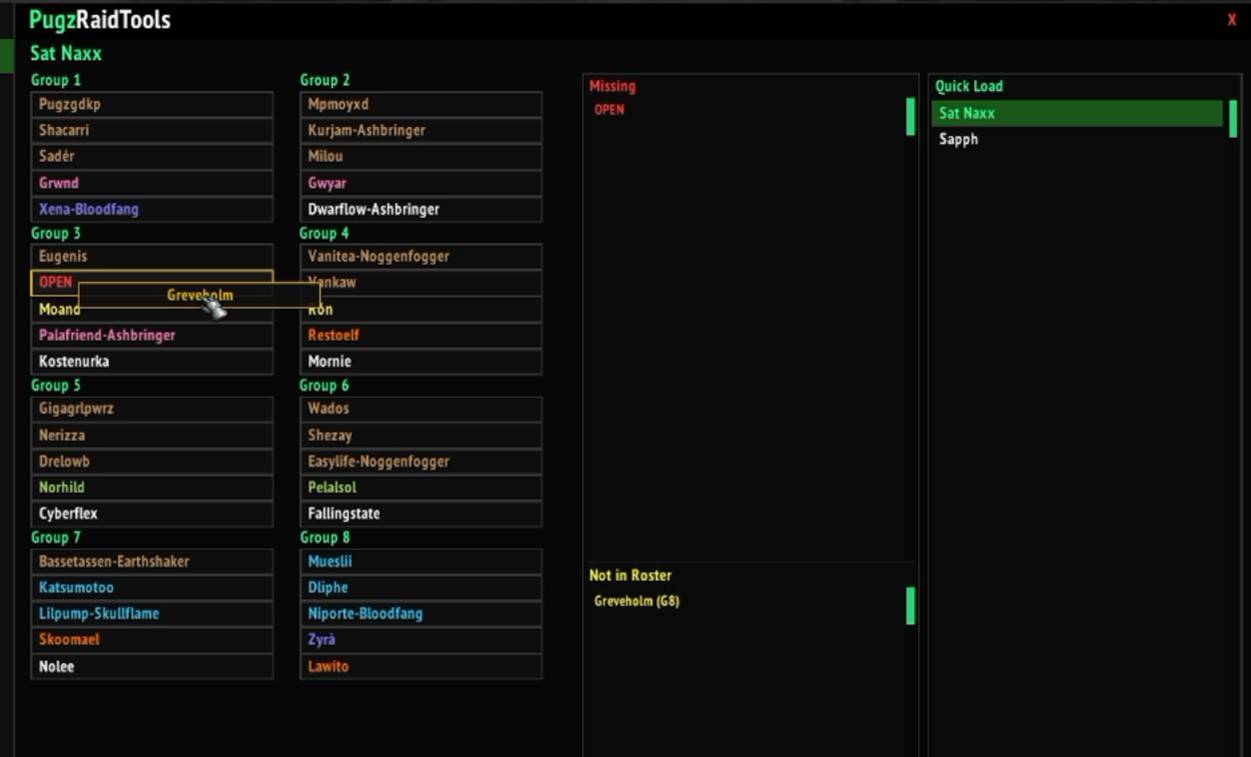
Raid Groups Moving.jpg
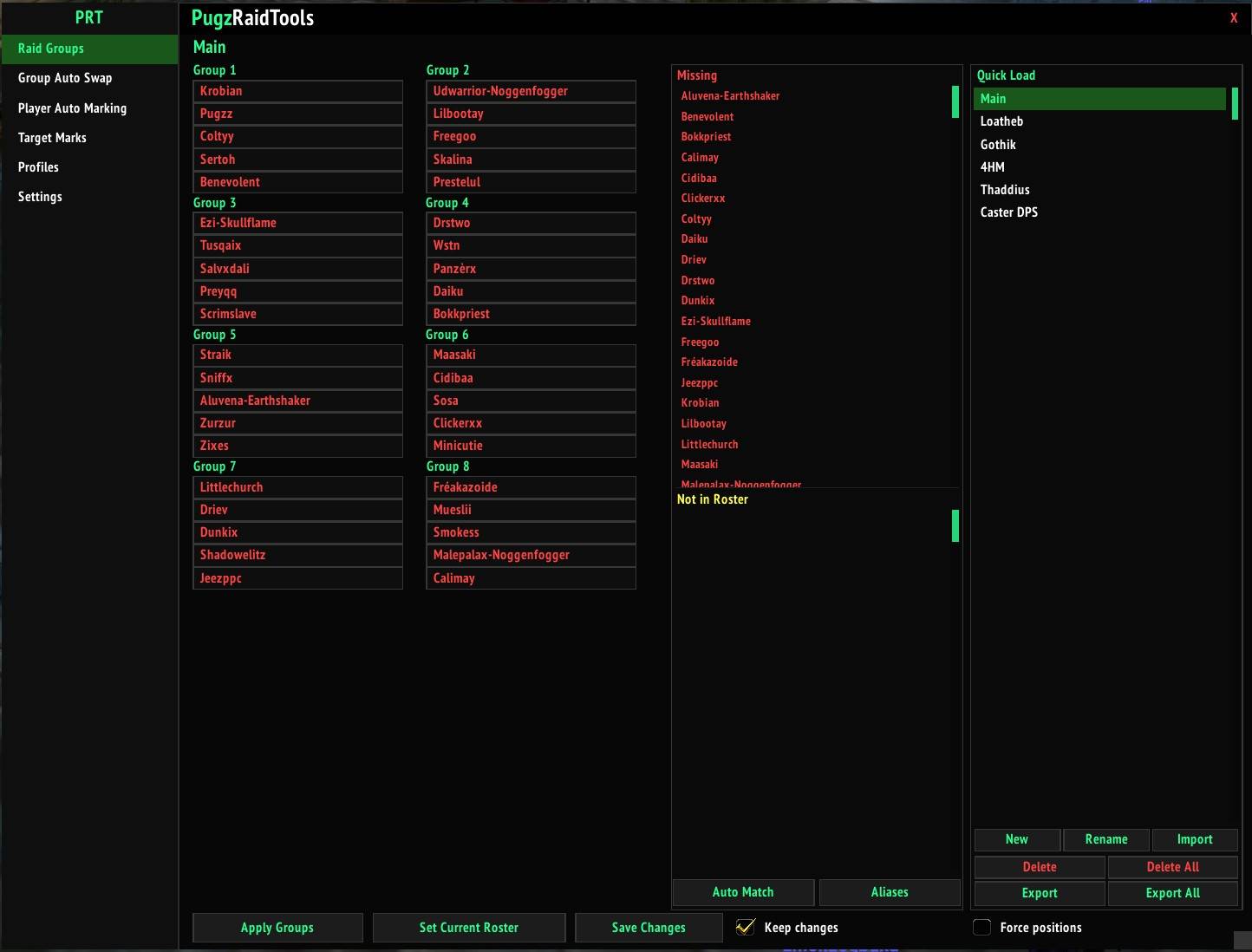
Raid Groups.jpg
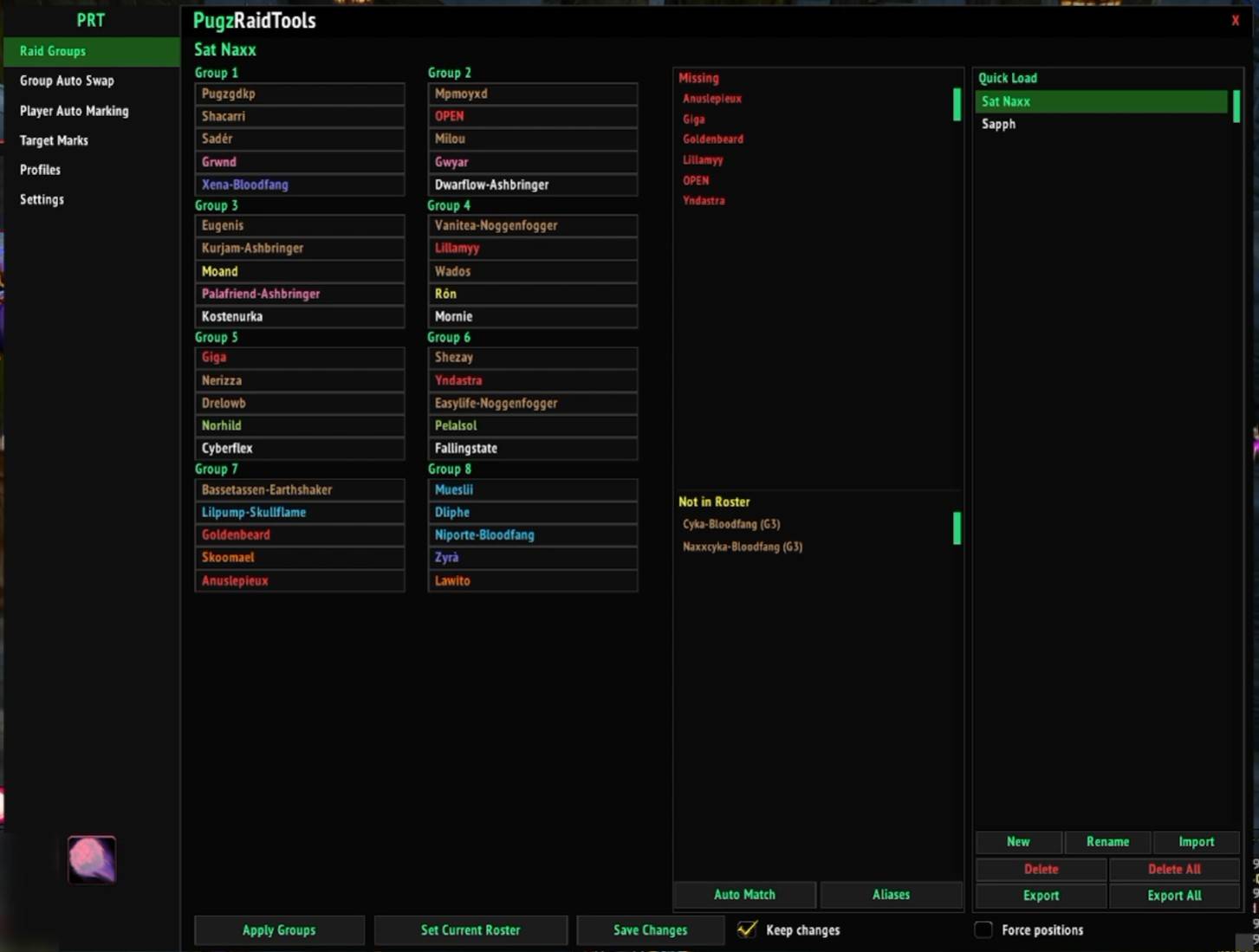
Raid Groups Filling.jpg
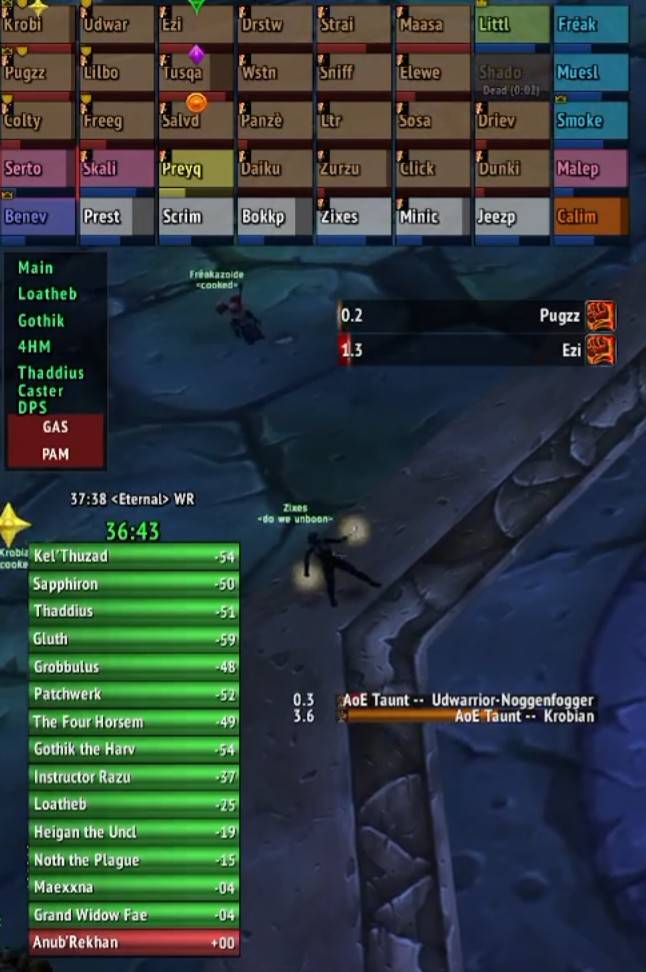
PRT Float.jpg
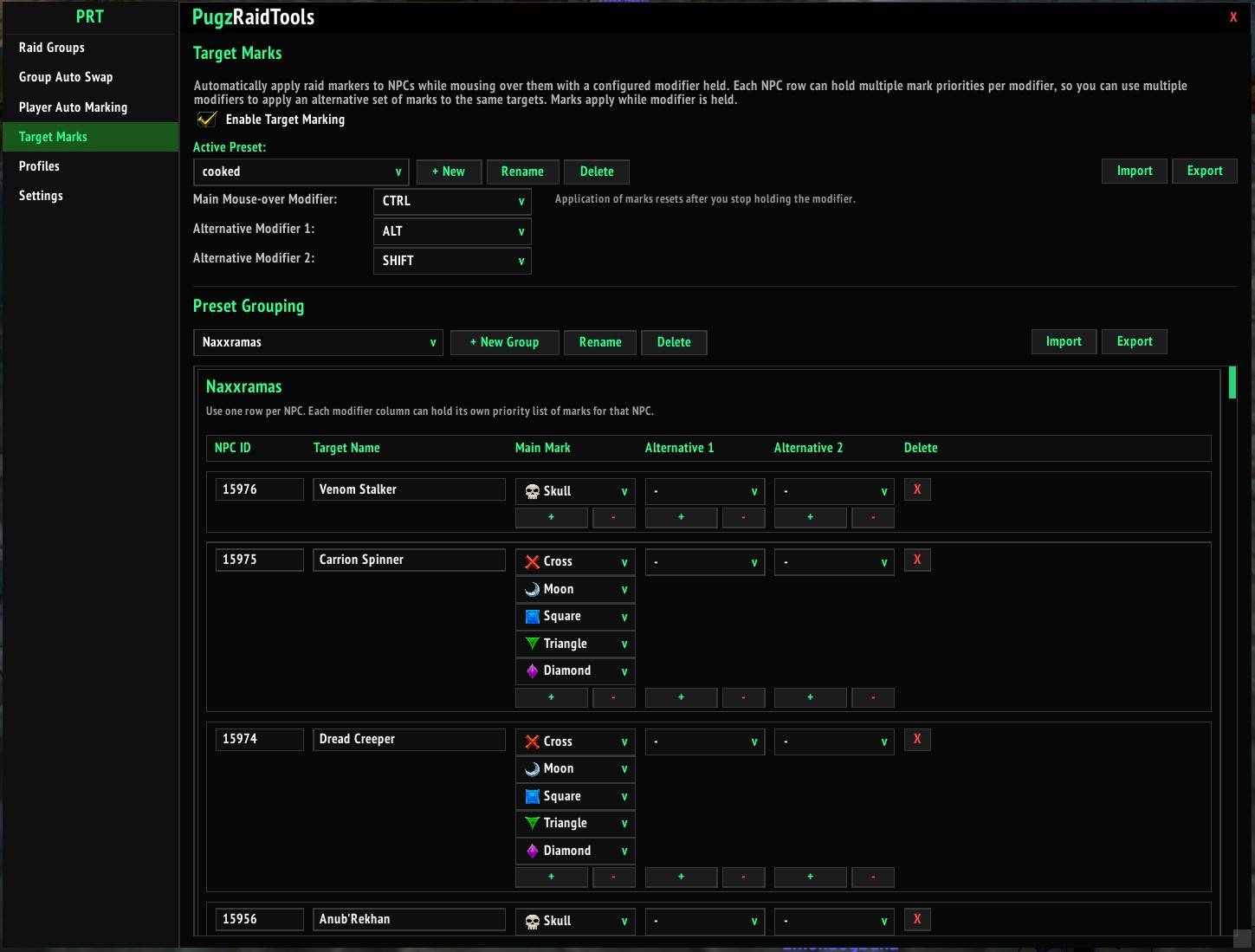
Target Marking.jpg
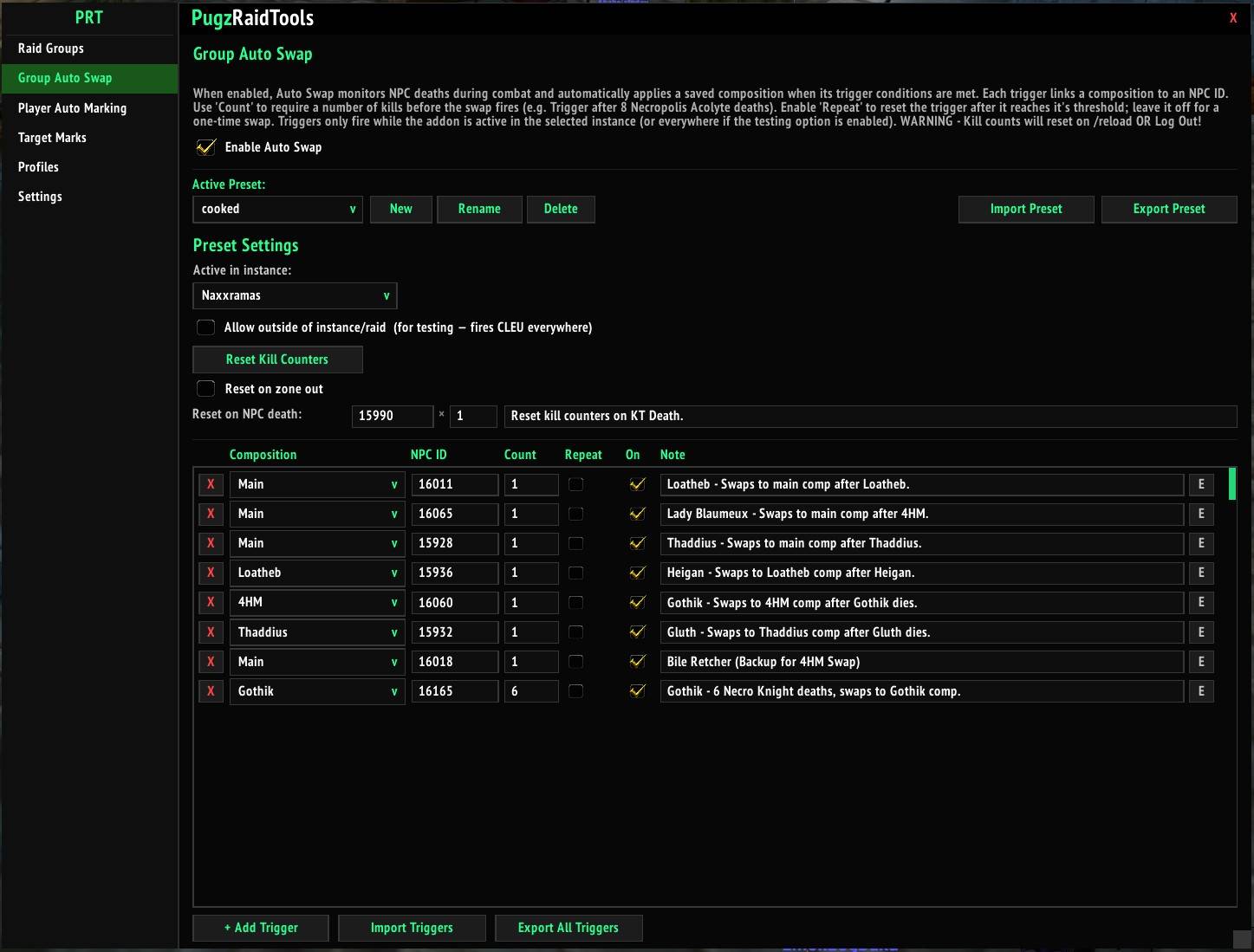
Group Auto Swap.jpg
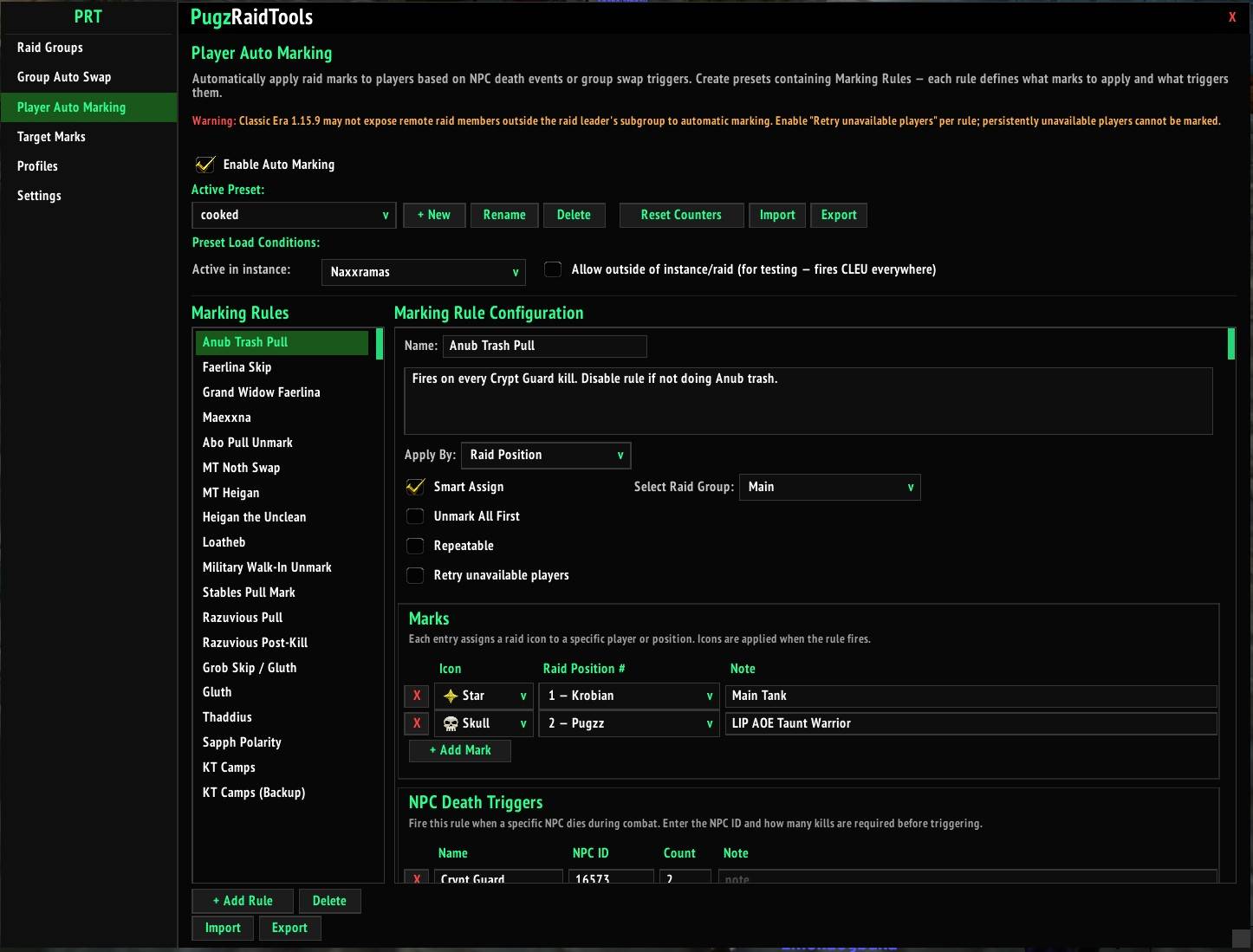
Player Auto Marking.jpg
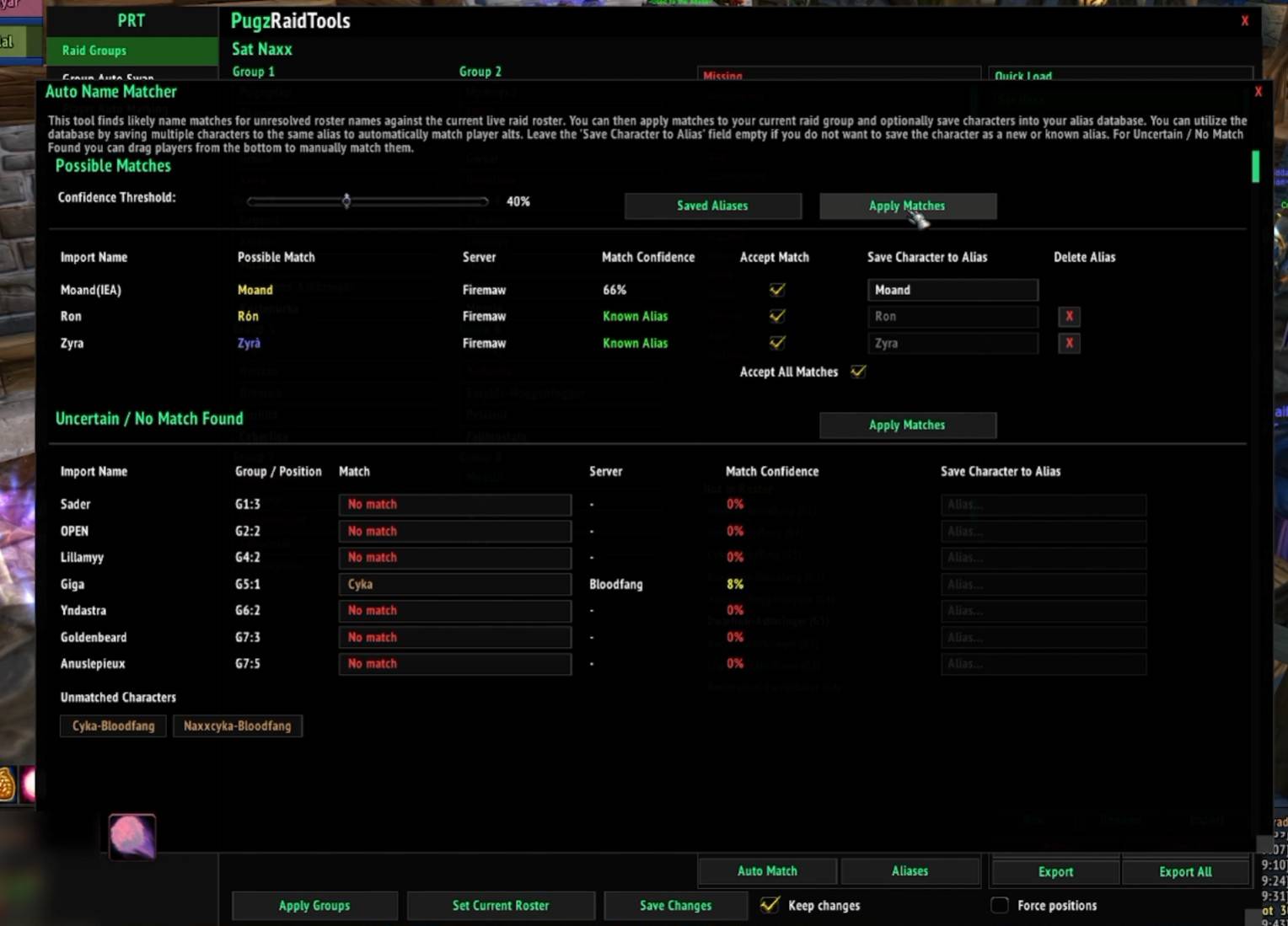
Auto Name Matcher.jpg
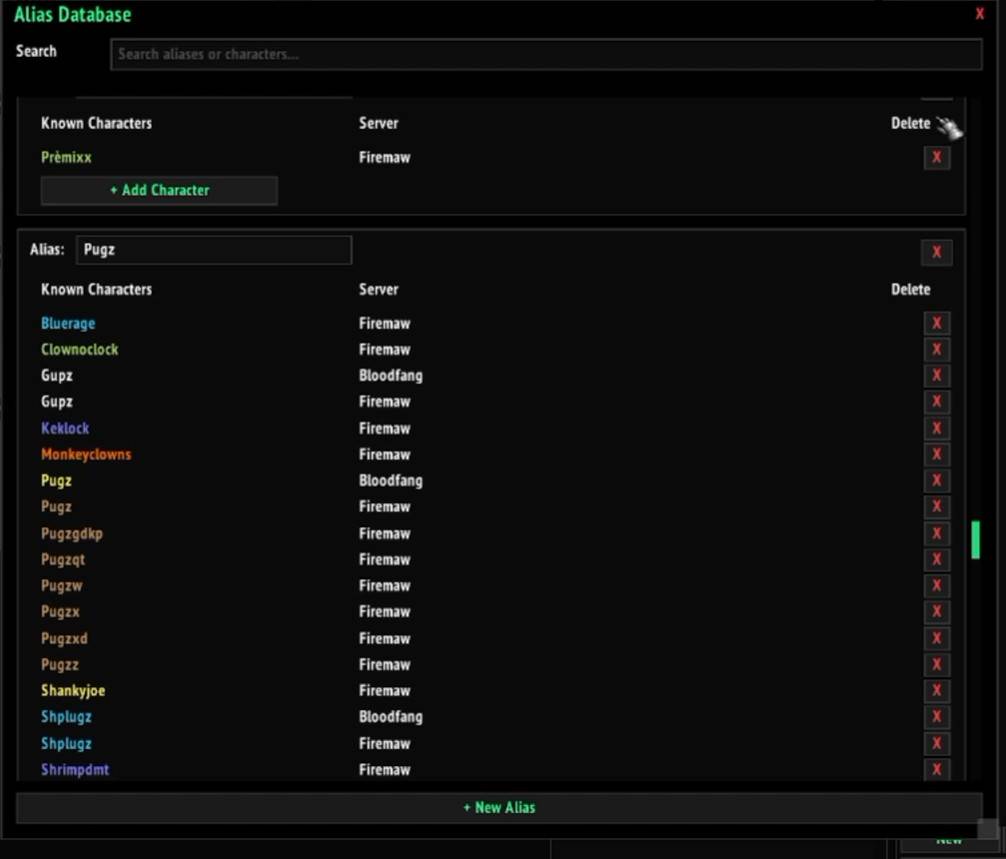
Alias Database.jpg
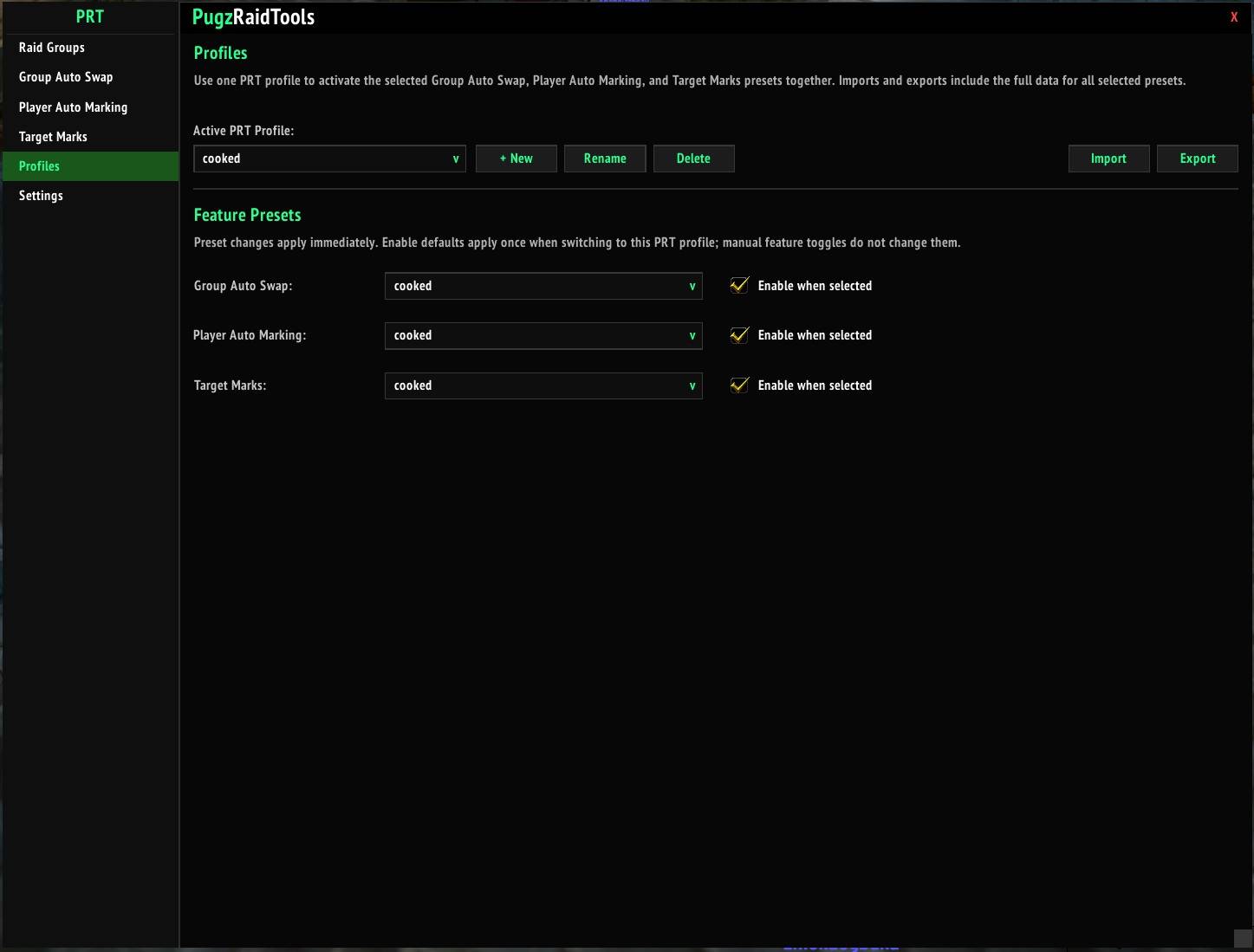
Profiles.jpg
Description
PugzRaidTools
PugzRaidTools (PRT) is a suite of automation tools for raiding. It gives raid leaders and assistants one place to build raid compositions, move players between groups, automate encounter-specific group swaps, configure player and enemy raid marks, and share complete setups with other users.
I originally built this addon as an automation tool for speedrunning in the guild cooked. It serves as a very powerful tool for both marking and for automating group composition swaps based on customizable triggers. It allows for simplicity across raid resets by allowing Group Auto Swaps and Player Auto Marks to dynamically update by reusing the same Raid Group Composition names. It also includes probably the fastest and most lightweight Target Marking tool I know of in the game.
Open the addon by left clicking the minimap or typing:
/prtQuick Start
- Install PugzRaidTools and enter
/prtto open the configuration window. - Create or import a composition under Raid Groups.
- Enable the floating Raid Group list for quick access.
- Left-click a composition for a fast group-membership sort.
- Shift + left-click for an exact group-and-position sort.
Group rearrangement and player marking require raid leader or raid assistant permissions.
Raid Groups
Build and save complete 40-player raid compositions in an eight-group roster editor.
- Create, rename, delete, reorder, import, and export raid compositions.
- Apply a saved composition to the current raid.
- Instant sort groups.
- Optionally force players into exact positions within each group with a slower precise sort.
- Quickly identify missing players and players who are not part of the selected roster.
- Import multiple named compositions from a single text block.
- Export one roster as plain names or export every saved roster with composition headers.
- Automatically refresh roster information as players join or leave the raid.
Floating Raid Group List
The optional floating list keeps saved compositions accessible without opening the full configuration window.
- Left-click a composition for a fast group swap.
- Shift + left-click to force exact raid positions. (Warning - Can cause lag for yourself and other players.)
- Hover over a composition to compare it with the current raid.
- Toggle Group Auto Swap and Player Auto Marking directly from the floating window.
- Move, scale, lock, show, or hide the list.
Auto Name Matcher and Alias Database
Imported rosters do not always use the same character names that players bring to the raid. The Auto Name Matcher helps reconcile those differences.
- Compare unresolved imported names against the current live raid.
- Detect exact character matches, known aliases, and likely name variations.
- Adjust the confidence threshold for suggested matches.
- Accept matches individually or apply all accepted matches together.
- Drag unmatched live characters onto unresolved roster positions for manual matching.
- Save multiple characters under one player alias.
- Store character name, realm, and class information separately.
- Search and manage saved aliases from the Alias Database window.
For example, an alias named Pugz can contain characters such as Pugz, Pugzqt, and Pugzz, allowing any known character to satisfy a roster position assigned to that player.
Group Auto Swap
Automatically load a saved raid composition when configured NPC death conditions are met.
- Create multiple named Auto Swap presets.
- Trigger a composition after a specific NPC dies.
- Require multiple kills before a trigger fires.
- Configure repeating or one-time triggers.
- Restrict each preset to a particular raid instance.
- Allow activation anywhere for testing.
- Reset kill counters manually, after leaving a configured zone, or after a configured NPC death count.
- Import and export full presets or trigger collections.
Player Auto Marking
Automatically apply raid icons to players when configured encounter events occur.
- Organize marking rules into named presets.
- Trigger rules from NPC deaths or Group Auto Swap events.
- Apply rules when any trigger, all triggers, or custom trigger conditions are satisfied.
- Assign marks by player name or raid position.
- Use Smart Assign to dynamically resolve a raid position through a saved Raid Group composition.
- Configure repeatable rules and reusable mark sets.
- Restrict presets to selected raid instances or enable them anywhere for testing.
- Import and export complete presets or individual marking rules.
Target Marks
Apply raid icons to NPCs by holding a configured modifier and moving the mouse over a target.
- Configure a main modifier and two alternative modifiers.
- Give the same NPC different mark priorities for each modifier.
- Add several possible marks to one NPC without duplicating its NPC ID.
- Cycle through available marks across multiple mobs of the same type.
- Organize NPC rules into named groupings such as raids, dungeons, or encounter sections.
- Store all groupings inside shareable presets.
- Import and export complete presets or individual groupings.
Invite & Loot Tools
The Invite & Loot Tools tab brings the tools used to open, manage, and finish a raid into one place.
Auto Invite Keywords
Add any number of invite keywords. An exact, case-insensitive whisper of one of those keywords automatically sends the player a group invite. For example, if inv is configured, both inv and INV work, while a longer message does not.
Optional controls can:
- Restrict keyword invites to guild members.
- Automatically accept incoming group invites from character friends, Battle.net friends, and guild members.
- Block individual characters from keyword invites. Blocks are realm-aware, so characters with the same name on different realms are handled separately.
The blocked-player window in the tab lists every blocked character and allows individual entries to be removed. The same list can be managed with /prt ban, /prt unban, and /prt banlist.
Raid Invites
Enable Auto-convert to raid when party is full and auto-invite is requested when opening a raid through keyword whispers. PRT tracks the initial outgoing invites, holds requests that would exceed the five-player party limit, converts the full party to a raid, and then retries the queued players. This prevents simultaneous whispers and pending party invitations from dropping later invite requests.
This behavior can be toggled from the tab or with /prt invites on and /prt invites off, so it can remain disabled when you only want to form a party.
Raid Disband and Reinvites
/prt disband saves a realm-aware snapshot of everyone else in the current group before disbanding it. /prt reinv can be used later to invite the players from that snapshot. Reinvites respect party capacity and continue after converting a full party into a raid.
Auto Promote
Automatically promote selected raid members to assistant by entering character names separated by spaces or commas. You can also promote guild members at or above a selected guild-rank threshold. A player manually demoted during the current session is not immediately promoted again.
Loot Distribution Prompt
Configure a preferred loot method and quality threshold, including Common (White), then choose where the rule applies:
- Naxxramas
- Ahn'Qiraj
- Blackwing Lair
- Molten Core
- Zul'Gurub
- Ruins of Ahn'Qiraj
- Blasted Lands
- Azshara
When you enter a selected zone as group leader—or receive leadership while already there—PRT shows a one-time comparison of the configured and current loot settings. Choose Apply Configured to apply the preset or Keep Current Settings to leave the group unchanged. PRT does not continuously enforce the preset, so manual changes made afterward are preserved.
The prompt can be restricted to raid groups. When Master Loot is configured, automatic master-looter assignment is optional: enable it and enter a character to assign that player, or leave it disabled to preserve the current master looter. PRT will not silently replace an existing master looter.
Loot to Chat
Automatically link Epic-or-higher items from raid loot windows to the appropriate group chat once per loot source. Item level can be included after each link. A typical message looks like:
1: [Item Link] (76)Use /prt loot to link every item in the currently open loot window manually, regardless of quality.
Overall PRT Profiles
PRT Profiles combine the three automation features into one shareable setup.
Each overall profile selects:
- One Group Auto Swap preset.
- One Player Auto Marking preset.
- One Target Marks preset.
- Whether each feature should be enabled when that overall profile is selected.
Switching profiles loads the three assigned presets and applies their enabled defaults once. Features can still be toggled manually afterward without changing the saved profile defaults.
A single profile export contains the complete data for all three selected feature presets, making it easier to share or restore a full raid setup in one import.
Raid Status Notifications
When entering a raid instance, PRT displays the current status of Group Auto Swap and Player Auto Marking, including:
- Whether each feature is enabled.
- Which preset is selected.
- Whether the selected preset is active in the current zone.
Manual feature toggles also produce a focused on-screen status notification.
Additional Features
- Optional automatic combat logging inside raid instances.
- Minimap button for quick access.
- Class-coloured player and alias information.
- Customizable floating-list font, scale, color, outline, and background opacity.
- Configurable notification size, position, duration, and color, with optional sounds.
- Dependency-free installation.
Slash Commands
| Command | Description |
|---|---|
/prt |
Open or close the configuration window. |
/prt help |
Display the available commands. |
/prt list |
Toggle the floating Raid Group list. |
/prt lock |
Lock or unlock the floating list. |
/prt groups show |
Show the floating list. |
/prt groups hide |
Hide the floating list. |
/prt autoswap on |
Enable Group Auto Swap. |
/prt autoswap off |
Disable Group Auto Swap. |
/prt automark on |
Enable Player Auto Marking. |
/prt automark off |
Disable Player Auto Marking. |
/prt targetmarks on |
Enable Target Marks. |
/prt targetmarks off |
Disable Target Marks. |
/prt ban CharacterName[-Realm] |
Block a character from keyword-triggered invites. |
/prt unban CharacterName[-Realm] |
Remove a character from the invite block list. |
/prt banlist |
List characters blocked from keyword invites. |
/prt invites on |
Enable queued party-to-raid invites. |
/prt invites off |
Disable queued party-to-raid invites. |
/prt loot |
Link every item in the current loot window to group chat. |
/prt disband |
Save the current group roster and disband it. |
/prt reinv |
Invite characters from the last disband snapshot. |
/prt reset |
Reset Group Auto Swap kill counters. |
/prt markreset |
Reset Player Auto Marking counters. |
/prt resetframe |
Restore the configuration window to its default size. |
/prt who CharacterName |
Find the alias containing a stored character. |
/prt alias AliasName |
List the characters stored under an alias. |
Character and alias names containing spaces can optionally be wrapped in quotation marks.
Permissions and Compatibility
PugzRaidTools is designed for WoW Classic Era. Actions that rearrange raid groups or apply raid markers require the permissions normally required by the World of Warcraft client, such as raid leader or raid assistant.
The addon uses only the standard in-game API and does not require Ace3 or any other external addon library.
Support and Bug Reports
Report issues through GitHub Issues or the PugzRaidTools Discord.
When reporting an exact-position sorting problem, please include:
- The addon version and WoW Classic Era version.
- What composition was selected.
- What happened compared with what you expected.
- The output from
/prt sortlog.
The Pugz Raid Tools Team