


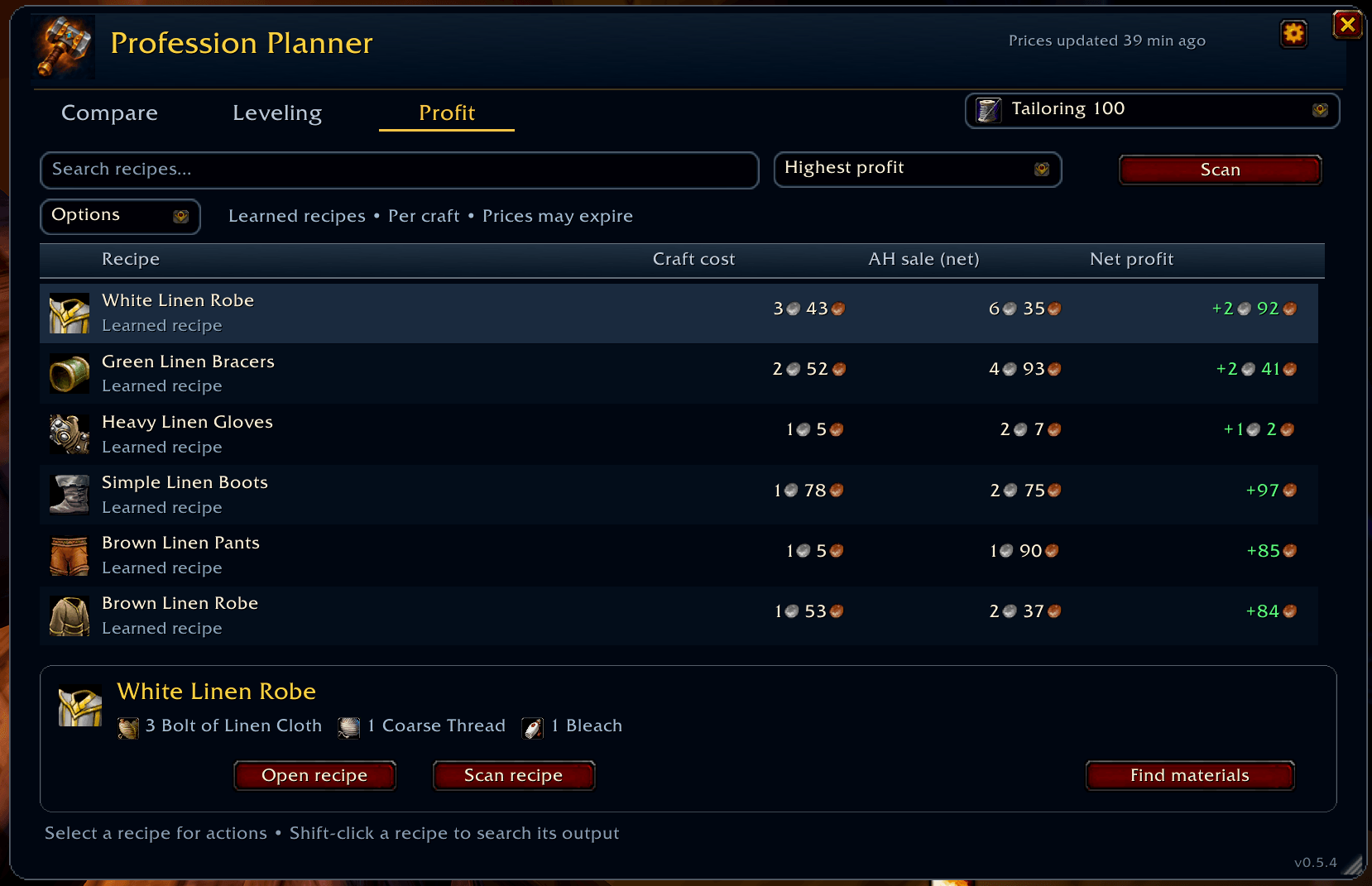
Search and sort learned recipes, compare crafting costs with auction sale estimates after the 5% cut, and review ingredients for a selected craft.
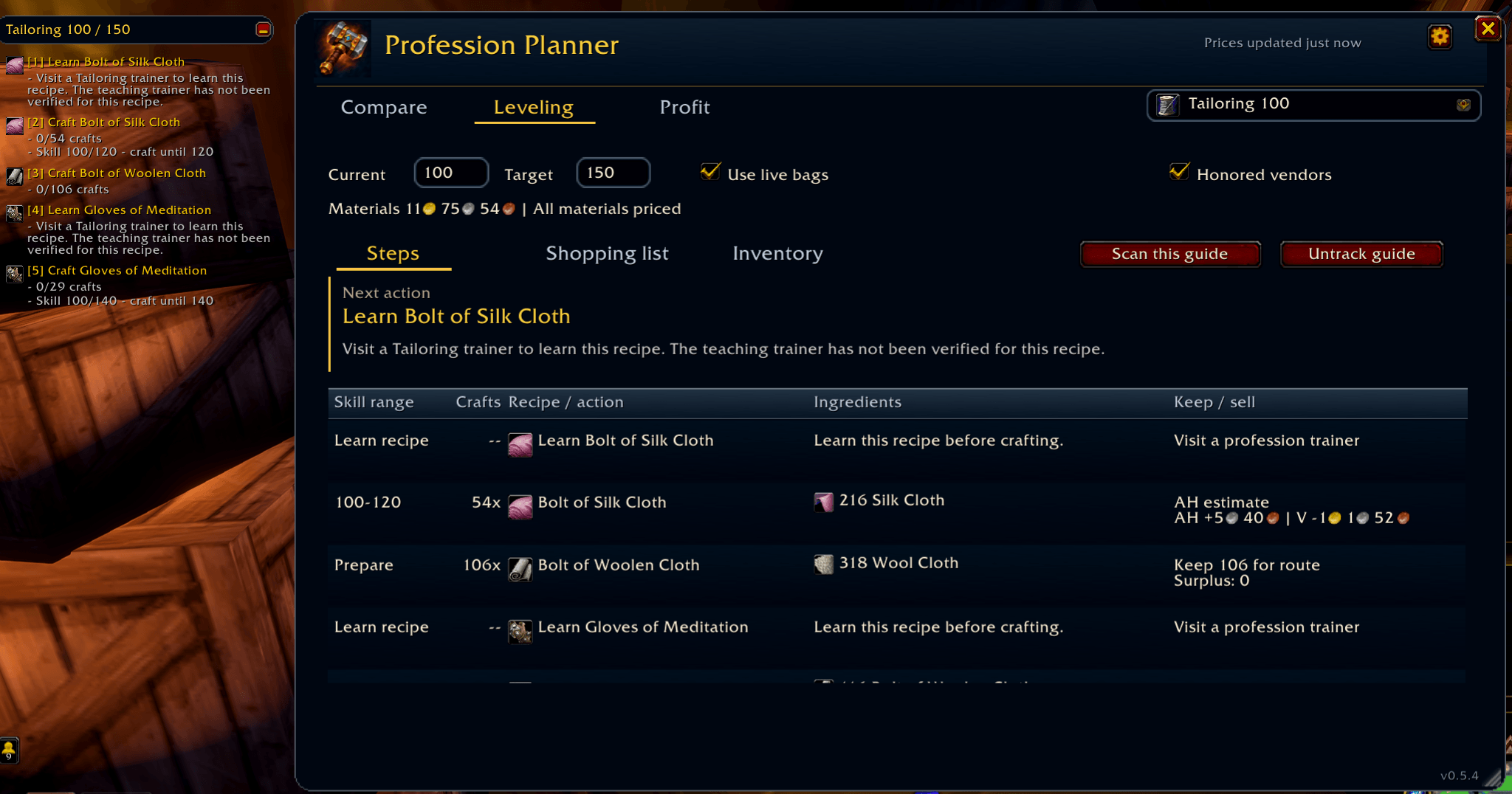
See crafting steps, ingredient requirements, training reminders, and materials to keep while following your route in the compact guide tracker.
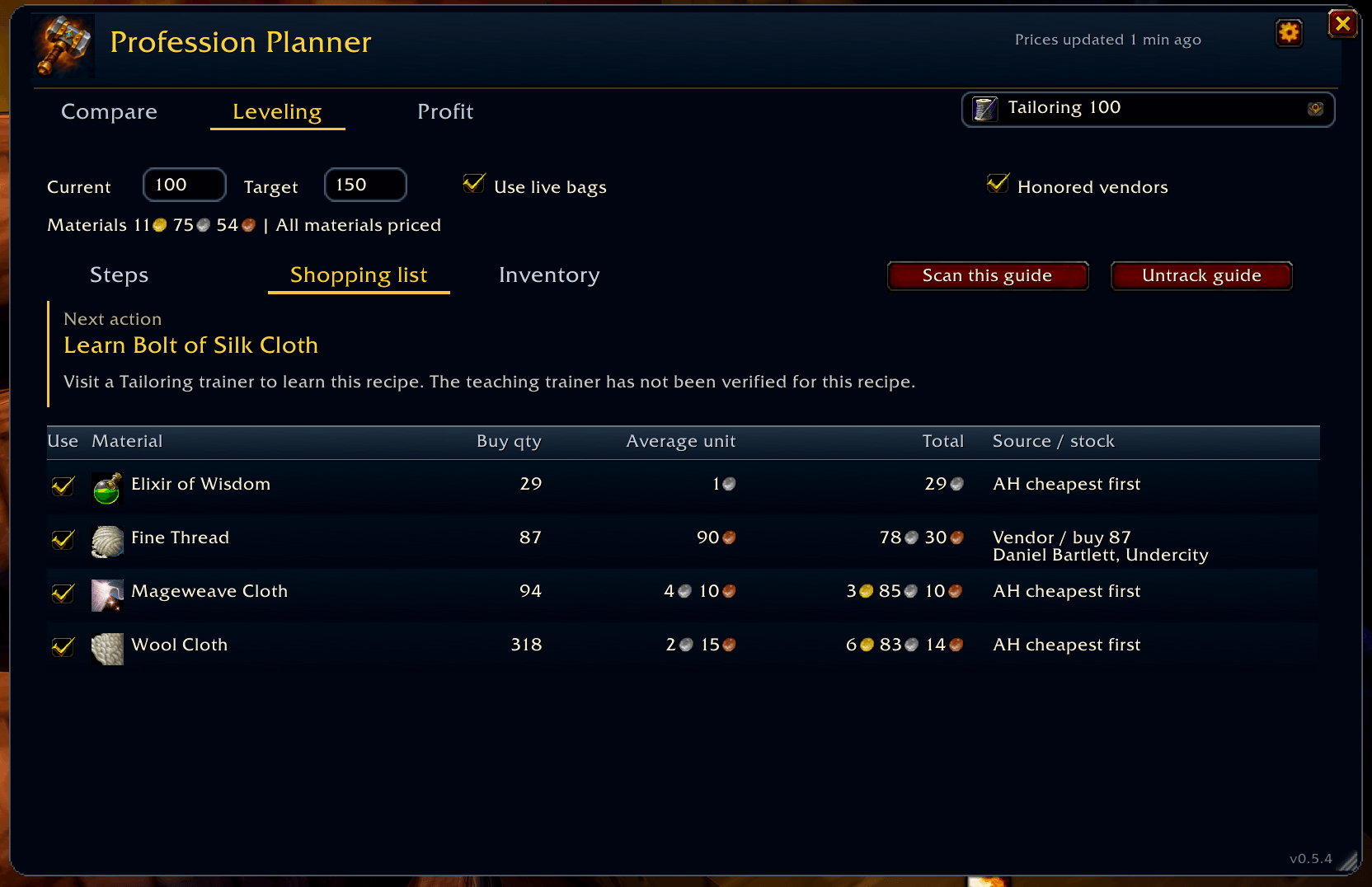
Review purchase quantities, estimated material costs, and supported vendor sources for your chosen skill range.
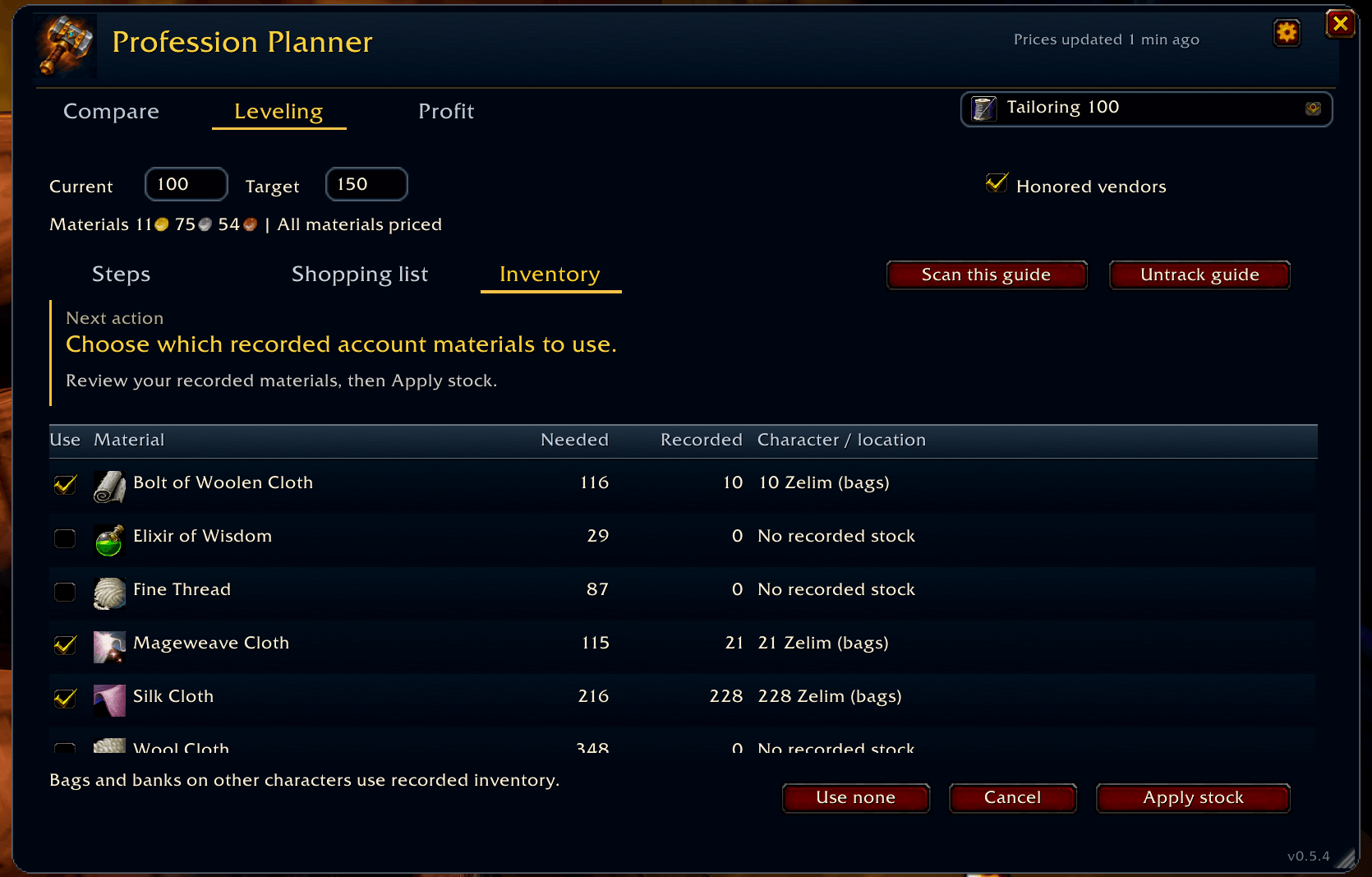
Choose recorded bag, bank, and alternate-character materials to apply to your route before buying additional supplies.
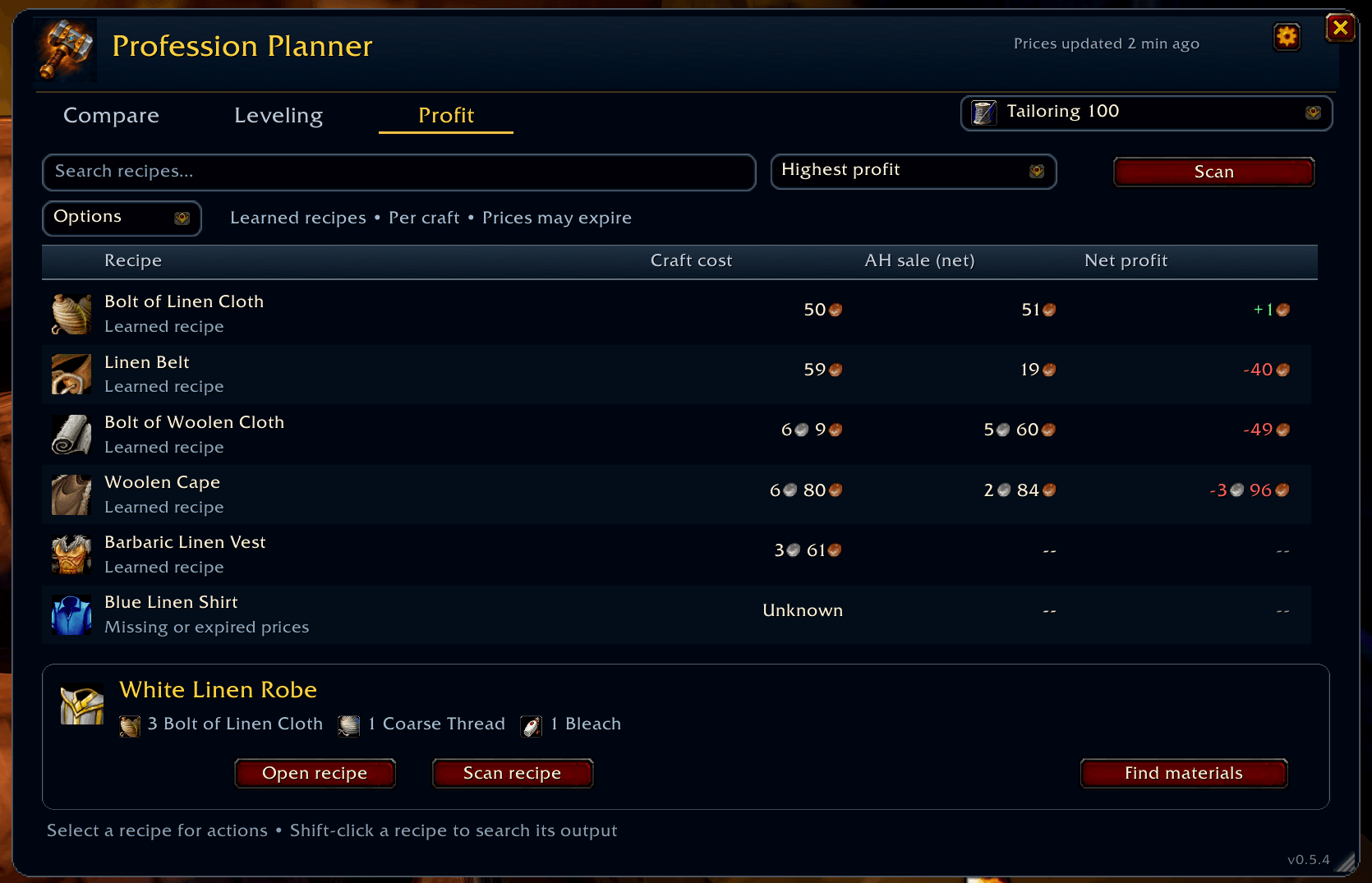
Review estimated gains and losses alongside recipes with missing or expired price data, then scan prices to update your estimates.
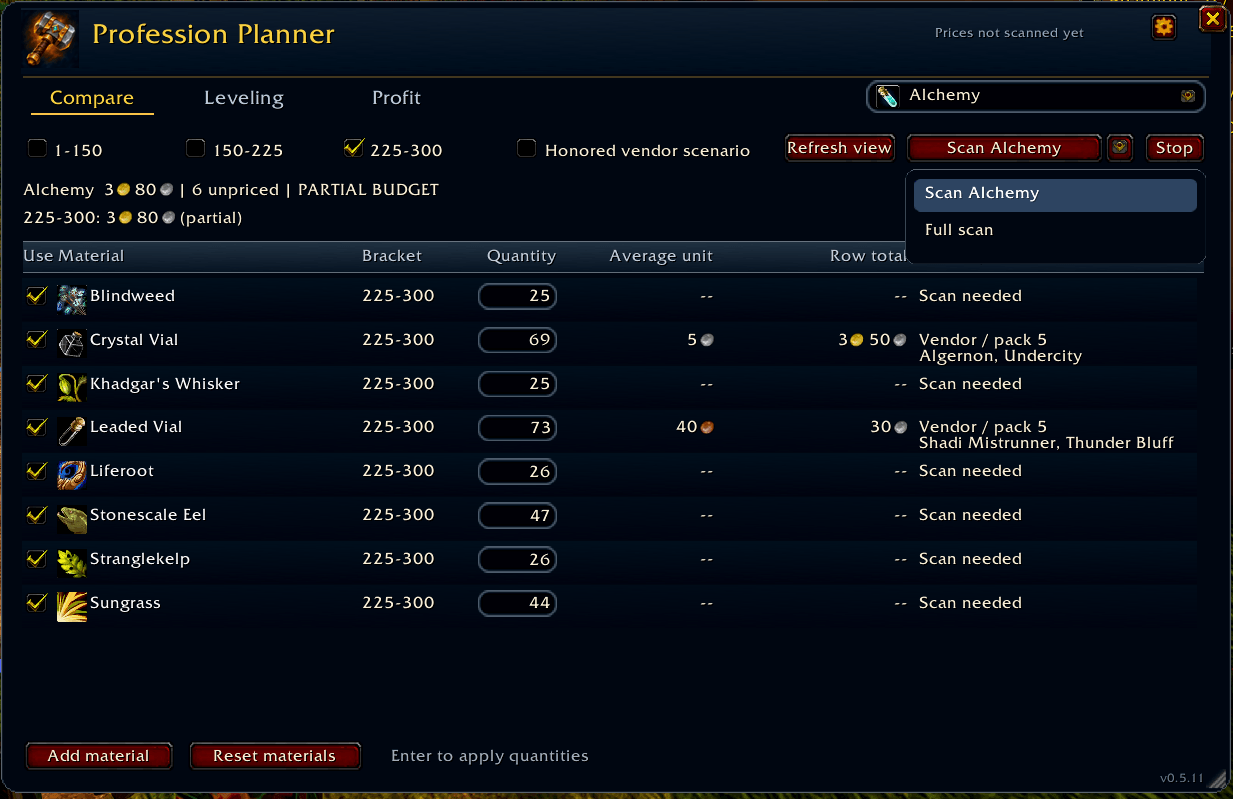
Review material costs for your selected profession and skill brackets. Scan only the included auction materials, or switch to Full scan using the dropdown. Adjust quantities, exclude materials, and compare regular and Honored vendor prices.
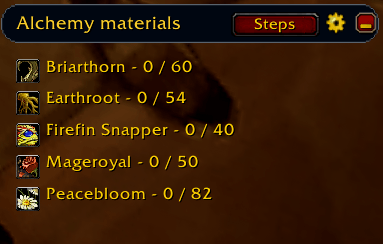
Track the materials needed for your profession guide with live bag counts and fixed collection goals. Choose which supplies to display, see completed materials marked off, and switch between materials and crafting steps from the tracker.
Description
Profession Planner
Plan your profession leveling, compare material budgets, track supplies while farming, and find profitable crafts without leaving the game. Built for WoW Forever.
Choose your profession, then switch between Compare, Leveling, and Profit in one resizable window.
Compare your leveling budget
- Compare estimated material costs across eight professions and different skill brackets.
- Calculate budgets using recorded auction listings and supported vendor prices.
- Edit material quantities and exclude supplies you plan to farm.
- Compare regular and Honored vendor supply prices.
- Scan your selected profession’s included auction materials for the checked brackets, or choose Full scan from the scan dropdown.
Follow your leveling guide
Set your current skill and target, then navigate between Steps, Shopping list, and Inventory.
- See what to craft, estimated craft counts, and required ingredients.
- Deduct materials already in your bags.
- Apply recorded bank and alternate-character stock.
- Identify crafted materials needed later in your route.
- Review training requirements and supported recipe sources.
- Click supported trainer and source links to display their location on the map.
- Find faction-appropriate vendors for mapped supplies, with needed materials highlighted in the merchant window.
Track your route in a compact, quest-style panel with progress counted per completed craft. Your current skill and route update as you level a learned profession.
Track materials while farming
Open Shopping list → Track materials to follow your supplies outside the planner.
- See live bag counts against fixed collection goals.
- Completed materials receive a checkmark and move below unfinished materials.
- Use the tracker’s gear button to choose which supplies to display. Vendor supplies start unchecked.
- Switch between Materials and Steps from the tracker header.
- Click the heading to reopen your guide, collapse the tracker to save space, or right-click the heading to untrack.
Material goals stay fixed while you gather. Using or moving materials out of your bags reduces the displayed count again.
Pick up where you left off
Planner settings, skill ranges, stock selections, tracked guides, material choices, and crafting progress save separately for each character.
Your mage’s Tailoring plan stays separate from your druid’s Alchemy plan. Tracked guides and material goals restore when you log back in.
Keep prices across rulesets
Auction scans save separately by ruleset, faction, and region. Returning to a market restores its saved prices without requiring another scan.
Older prices remain usable as clearly marked outdated reference estimates. Targeted scans update their selected items without making untouched prices appear fresh.
Characters using the same market share its saved prices.
Find profitable crafts
- Search learned recipes and sort by highest profit or recipe name.
- Compare crafting costs with estimated auction sale value after the 5% cut, or supported vendor sale values.
- Select a recipe to review its ingredients and adjust the planned craft count.
- Click a recipe to open it in the profession window.
- Use Open recipe to toggle the profession window open or closed.
- Scan a selected recipe or your profession’s learned recipes at the auction house.
- Optionally display profit and ingredient price information inside the native profession window.
Learned recipes are remembered between logins. Open each profession once to save its recipes for that character. Opening it again refreshes the record as you learn new recipes.
Shop directly from your plan
With the auction house open, Shift-click supported materials to search for them. Shift-click a recipe in Profit to search for its crafted output.
Shopping quantities can be prefilled where supported when the setting is enabled. You review the price and make purchases yourself.
In Profit, Find materials opens Auctionator Shopping with the crafted item and its direct ingredients, including vendor supplies. This search sends item names without purchase quantities.
Optional enchanting conveniences
Enable these independently under Settings → Enchanting:
- Skip enchant replacement confirmation: automatically confirms replacing an enchant on your own equipment. Trade-window confirmations remain unchanged.
- Disenchant auto loot: automatically collects materials after you manually disenchant an item, independently of your normal Auto Loot setting. You still choose each item and initiate each cast.
Both options save per character.
A clearer interface
Navigate through a consistent window with native game icons, readable tables, rounded controls, and classic WoW action buttons.
Dropdown choices highlight on hover, close when you click outside, and block interaction with content underneath. Settings opens its own dedicated panel.
Drag the bottom-right handle to resize the planner. Right-click the handle to restore its default size.
Profession Planner appears under Professions in the in-game AddOns list.
Supported professions
Alchemy, Blacksmithing, Engineering, Leatherworking, Tailoring, Enchanting, Cooking, and First Aid.
Getting started
- Install Auctionator, required for price scanning and the Find materials search.
- Open Profession Planner through its minimap icon or /profplan.
- Choose your profession. For Profit, open that profession once to save its learned recipes.
- At the auction house, run a targeted or full scan and wait for completion.
- Compare budgets, follow a leveling guide, track farming materials, or review profitable recipes.
About estimates
Craft counts are guide estimates; yellow and green recipes may require extra crafts. Recorded prices and listing quantities may no longer reflect current availability, especially when marked outdated. Missing prices or insufficient recorded stock can leave a partial budget.
Profit figures are estimates, not guaranteed sales. Auction deposits, trainer fees, and recipe purchases are additional costs.
Offline inventory uses the last recorded contents. Log into each character and visit their bank to refresh those records.
Recipe and NPC source coverage is still being expanded, and reference locations may differ on Forever.
Profession Planner Team
