
ProcDoc
- By
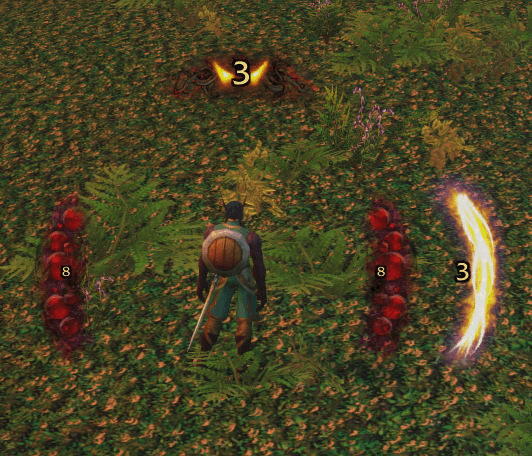
Procs.png
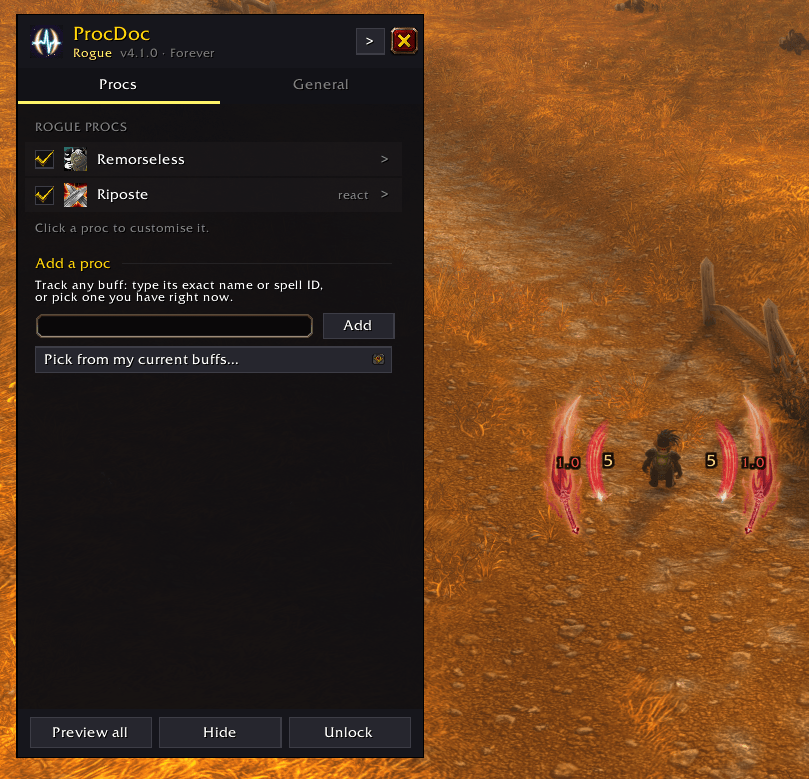
ProcDoc.png
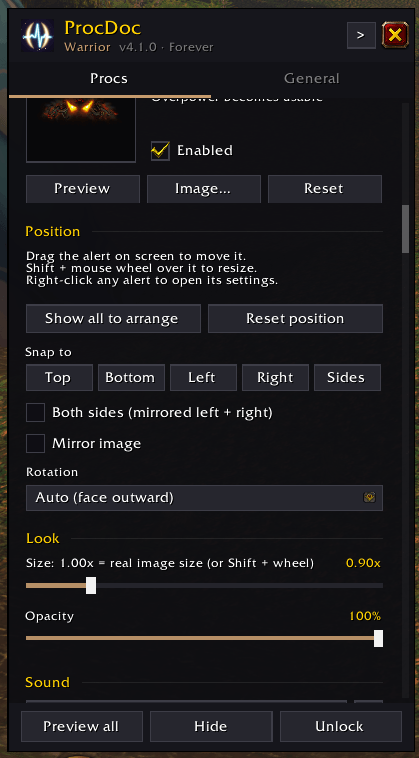
Options.png
Description
ProcDoc
Never miss a proc again. ProcDoc shows big, glowing, pulsing alerts the moment you get a proc worth reacting to (Clearcasting, Shadow Trance, Overpower, Riposte and more). A countdown shows how long you have to use it. It's built from the ground up for World of Warcraft: Forever.
It works out of the box. Install it and your procs light up. When you want to make it yours, everything can be arranged and styled right on screen with the mouse.
Key Features
- Visual alerts for procs: pulsing images around your character whenever a proc is active, with a sound and a countdown. Each alert pops in with a bright flash the moment the proc happens, and quickly shrinks away when the proc is used or runs out.
- Drag-and-drop layout: with the options open, drag any alert to where you want it. Shift + mouse wheel over an alert resizes it. Each alert can also be shown on both sides of the screen as a mirrored pair.
- Customisable countdowns: drag the number to any spot on its alert, and Shift + wheel over it to resize it. Choose the font, outline, colors, when it turns "running out", and whether to show tenths.
- Your own procs: track any buff by name or spell ID, or pick one you have right now (in combat, pick from the buffs you had earlier). You can also add an ability and set it to light up whenever it's ready to use, the same way Overpower and Riposte do (great for practicing a rotation). Anything the game flags with its own proc glow is also picked up automatically.
- Buff reminders: set any buff to alert when it's missing instead, like Slice and Dice, an armor or Intellect, so you know to put it back, in or out of combat.
- Reaction abilities without action bars: Overpower, Revenge, Riposte, Counterattack and Mongoose Bite light up when they become usable.
- Clears when used: alerts go away as soon as the proc is spent, even in combat, where Forever hides buff details from addons.
Installation
CurseForge app (easiest): search for ProcDoc and click Install. Updates arrive automatically.
Manually:
- Download the latest release zip from CurseForge.
- Unzip it so the addon sits at
World of Warcraft\_classic_beta_\Interface\AddOns\ProcDoc\. - Restart the game (or
/reloadif it's already running). - Make sure ProcDoc is enabled in the AddOns list at character select.
How to Use
- Log in with any class.
- Get a proc. The alert pulses on screen with a countdown and a sound.
- Customise (optional). Click the ProcDoc minimap button, type
/procdoc(or/pd), or open ProcDoc from the game's AddOns settings or the addon compartment menu.
Minimap button
- Left-click: open or close the options.
- Right-click: show all alerts to arrange them, and right-click again when you're done.
- Drag: slide it around the minimap edge. It remembers where you put it.
- Hide or show it: use Show minimap button in the General tab, or
/procdoc minimap.
Arranging alerts
- While the options window is open, alerts on screen can be moved directly:
- Drag an alert to move it.
- Shift + mouse wheel over an alert to resize it.
- Drag the countdown number to move it around on its alert.
- Shift + mouse wheel over the number to change its size.
- Right-click an alert to open its settings.
- Show all to arrange (or the Unlock button, or
/procdoc unlock) shows every enabled alert at once, with a faint centre guide, so you can lay them out together. - Previews stay on screen until you click Hide or close the window, and they run a sample countdown so you can style the timer.
The options window
A slim panel docked near the side of the screen, so your alerts stay visible while you edit. Drag its title bar to put it anywhere: it remembers where you leave it, even after a reload. The header's dock button snaps it back to an edge, and Window scale (General tab) shrinks it for small screens.
- Procs tab: every proc for your class with an on/off checkbox. Click one to open its page (< / > steps through them). At the bottom, Add a proc tracks any buff by name, spell ID, or from your current buffs.
- Each proc's page:
- Preview, Image… (any of the 76 images in
img\, the spell icon, Blizzard's art, or your own file) and Reset. - Position: Snap to Top, Bottom, Left, Right or Sides (a mirrored left + right pair), then drag to fine-tune. Also Show all to arrange, Reset position, Both sides, Mirror image, and Rotation. Auto rotation turns the art to face outward (a snap decides which way); you can also pick 0 / 90 / 180 / 270 degrees.
- Look: size (1.00x = the image's real pixel size, whatever your resolution) and opacity.
- Sound: this proc's sound, or the default.
- Countdown: show it or not, text size, color, on one side only (for pairs), and Reset countdown.
- Stacks (buff procs): a row of dots shows how many stacks you have. Filled dots are stacks you have and dim ones are the rest; the newest dot pops when you gain a stack. Choose Show the alert at N stacks, the Number of dots (auto uses the most stacks seen), the dot color, and dots on one side only. Drag the dots on screen to move them, or Shift + wheel over them to resize. Test stacks plays a pretend stacking buff through the alert so you can check it all without a real one.
- Reaction window length for reaction abilities.
- Remove from list for your own and auto-detected procs.
- Preview, Image… (any of the 76 images in
- General tab:
- The pulse animation, the pop-in (on/off and strength), the shrink-away when a proc ends (on/off), a Replay animation button, and the scale of every alert.
- Countdown style: font, outline, size, opacity, color, "running out" color and threshold, and tenths.
- Default sound and sound channel, auto-detect, hiding Blizzard's own proc overlay, the window scale, and the minimap button.
Slash commands
| Command | What it does |
|---|---|
/procdoc |
Open / close the options |
/procdoc unlock / lock |
Show all alerts to arrange / stop |
/procdoc test / hide |
Preview every enabled alert for 30s / hide previews |
/procdoc stacktest [name] |
Play a pretend stacking buff (1 to 5 stacks, down to 3) through a proc's alert to check its stack dots |
/procdoc minimap |
Show / hide the minimap button |
/procdoc buffs |
List your current buffs with spell IDs |
/procdoc trace |
Record what ProcDoc sees (to diagnose a missed proc); /reload saves the log. /procdoc trace show prints the latest lines |
/procdoc debug |
Print Blizzard proc-overlay events, and the last skipped error |
New ProcDoc art
Original images made for ProcDoc in the same glowing style, ready in the image picker:
| Image | Shape | Good for |
|---|---|---|
| Frost Shards | side | Mage (frost) |
| Arcane Runes | top | Mage (arcane) |
| Fel Flame | side | Warlock |
| Demon Fire Arc | top | Warlock (Decimation, Soul Fire) |
| Shadow Wisps | side | Warlock, shadow Priest, Rogue |
| Crimson Claws | side | Rogue (Cutthroat), Hunter, feral Druid |
| Venom Drip | side | Rogue (poisons), Hunter |
| Storm Arc | top | Shaman |
| Storm Vortex Arc | top | Shaman |
| Starfall Crescent | side | Druid (Eclipse) |
| Divine Rays | top | Paladin, Priest (great for custom procs) |
| Holy Flame Arc | top | Priest (Searing Light) |
| Radiant Feathers | top | Paladin (Infusion of Light) |
| Arrow Volley Arc | top | Hunter (Rapid Killing) |
| Ember Crown | top | Warrior |
Using your own images
Drop a .tga (power-of-two size, e.g. 128x256 or 256x128) into ProcDoc\img\. Then open a proc's image picker and type the file name (e.g. MyProc.tga) in the custom box. Full texture paths and file IDs work too.
Supported Procs
ProcDoc only alerts on reaction procs, meaning something just happened that you should act on. It doesn't alert on buffs you maintain or on abilities that are simply off cooldown (if you want a nudge when a maintained buff drops, add it yourself and set it to remind you when it's missing). These are the talent and ability procs built in for Forever:
| Class | Built-in procs |
|---|---|
| Warlock | Shadow Trance (Nightfall), Decimation |
| Mage | Clearcasting, Missile Barrage, Fingers of Frost (left side at 1 stack, both sides at 2), Heating Up (with stack dots), Wake of Fire (lights up on your killing blow) |
| Druid | Clearcasting, Nature's Grace, Eclipse (with charge dots) |
| Shaman | Clearcasting (Elemental Focus), Flurry, Maelstrom Weapon (the lightning builds with your stacks: stage 1 to 4, then wings at 5) |
| Hunter | Quick Shots (Deadly Aspects), Rapid Killing, Counterattack, Mongoose Bite (10 sec window, for Expose Prey) |
| Warrior | Enrage, Overpower (in any stance), Revenge |
| Rogue | Remorseless Attacks, Cutthroat, Riposte |
| Priest | Searing Light (free Holy Nova) |
| Paladin | Infusion of Light (faster Holy Light) |
Anything Forever adds is caught by auto-detect if the game shows its own proc glow for it. Anything else can be added with Add a proc.
About combat: Forever hides your buffs from addons while you're in combat. ProcDoc still catches the procs it can see coming: Remorseless Attacks lights up on your killing blow (an enemy dying at the same moment the buff lands on you, so a party member's kill doesn't set it off) and Wake of Fire the same way, and the reaction abilities when you dodge, parry or block. Other buff procs that start mid-fight appear as soon as combat ends, and any proc that was already up before the fight stays up until it's used or runs out.
For the most accurate alerts, ProcDoc uses Blizzard's Cooldown Manager. It can see your buffs in combat, so ProcDoc follows it: any proc in its Tracked Buffs or Tracked Bars (Shadow Trance, Clearcasting, Remorseless, Fingers of Frost and more) lights up and clears mid-fight exactly. ProcDoc sets it up for you: it switches it on (once per character), adds your procs to Tracked Buffs if Blizzard left them out, and makes sure those rows aren't set to Hidden in Edit Mode (a hidden row stops watching your buffs). It keeps the Cooldown Manager's icons invisible instead (they show while Edit Mode is open), so you only see ProcDoc's alerts. The setup is saved when you log out or /reload, so on a new character, procs light up mid-fight from your first /reload on. Both are switches in /procdoc > General (Set it up for me and Hide its icons). /procdoc cdm shows what it's tracking.
When the Cooldown Manager is watching a proc, that's all ProcDoc goes by in combat; its other tricks (like spotting Remorseless from your killing blow) are only a backup for procs it can't see. Reaction abilities like Overpower and Riposte use the game's own "usable" state, the same thing that lights up their Cooldown Manager icon.
Every Cooldown Manager spell is in your list. The Procs tab has a section with every other spell from your class's Cooldown Manager lists, switched off. Tick any of them to get an alert: buffs light up while they're active, abilities light up when they're ready to use. No need to add them by hand (a ticked buff is added to Tracked Buffs at your next /reload too).
License
Feel free to use, modify, or share ProcDoc. A mention or credit is welcome but not required. Enjoy your new proccing visuals!
ProcDoc Team
