PaladinSealHUD
- By
promo.png
overview2.png
holy-shield.png
settings.png
holy-shield-settings.png
cdm-active.jpg
cdm-uw.jpg
tracked-buffs-always-visible-settings.jpg
Description
PaladinSealHUD
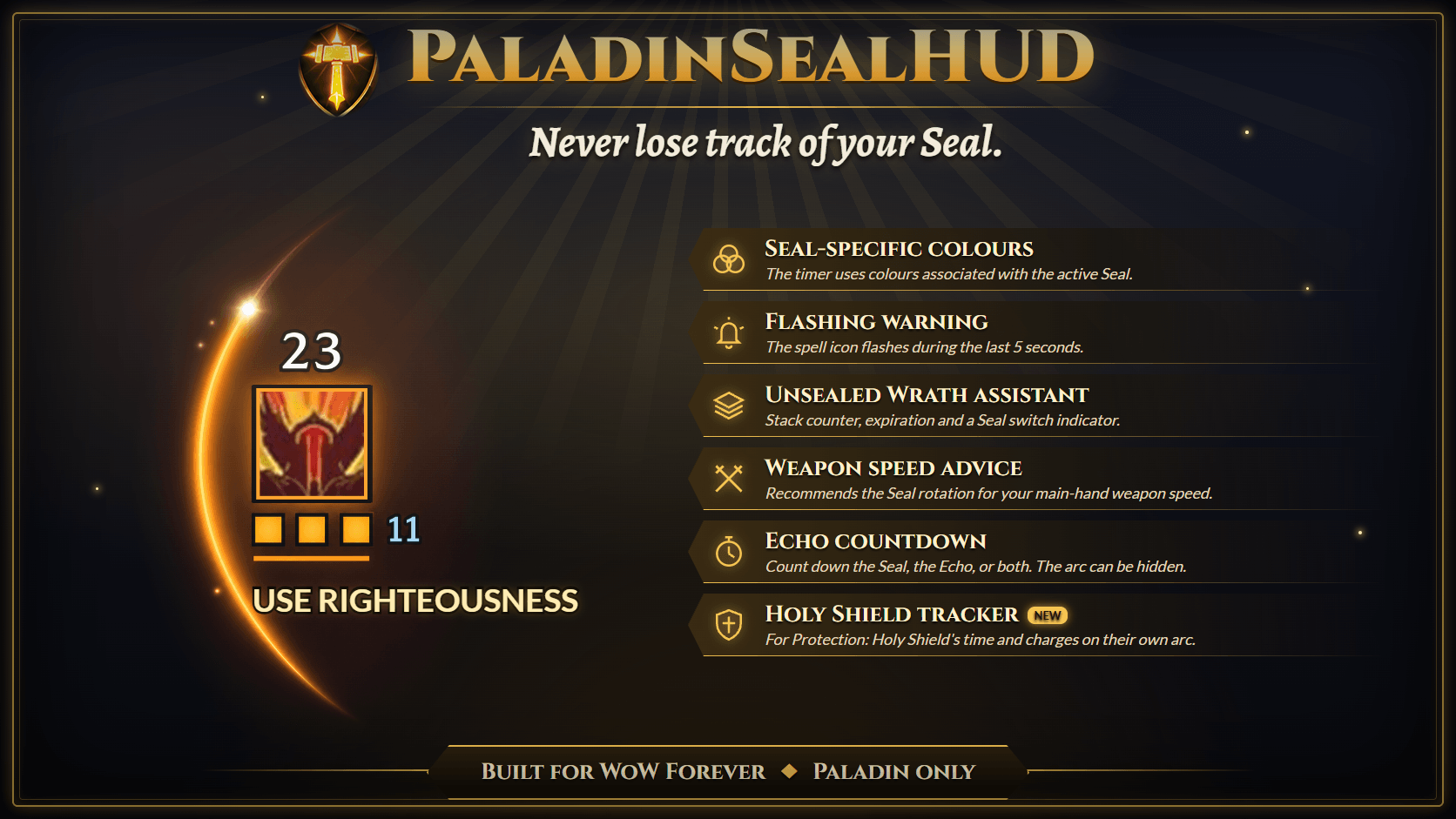
Never lose track of your Seal again. PaladinSealHUD puts a glowing, curved timer right beside your character that shows which Seal is active and exactly how long it has left, so your eyes stay on the fight and not on your buff bar.
Built for the WoW Forever client (1.60.1). Paladin only. The addon does nothing on other classes. Works in every game language (tested in English and Spanish): Seals, Holy Shield and Unsealed Wrath are read from your own client.
Why PaladinSealHUD?
- Made for one job. It is not a big buff-tracking suite to set up. Install it, log in on your Paladin, and the timer works.
- Keeps working in combat. In combat the client hides aura timers from most addons. PaladinSealHUD then hands the countdown to the game's own duration timer, so the arc keeps counting down correctly even when the exact numbers are hidden.
- Easy to read at a glance. The curved arc drains as your Seal runs out, and each Seal has its own colour. You can tell which Seal is up without reading anything.
- Warns you before it drops. In the last 5 seconds the Seal icon flashes, so you can recast before the Seal falls off.
- Unsealed Wrath Assistant. Shows your stored Seal stacks and tells you which Seal to use next, in plain words:
USE RIGHTEOUSNESS/USE COMMAND/USE FURY. - Right rotation for your weapon. Recommends the Seal pair for your main-hand weapon speed, automatically or from a bracket you pick.
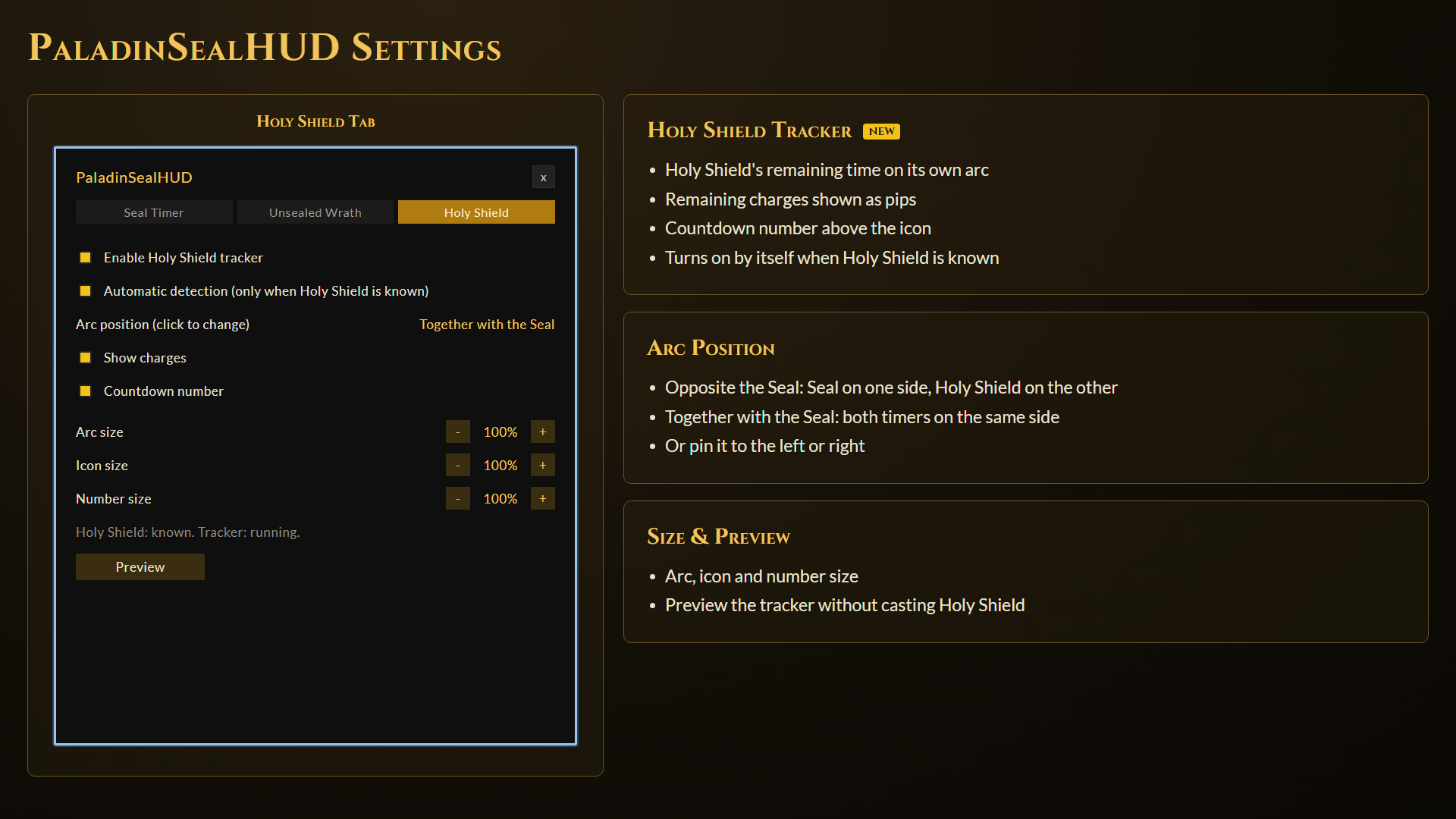
- Holy Shield tracker for Protection. Holy Shield's time and charges on an arc of their own, next to your Seal timer.
- Lightweight and self-contained. No libraries and no dependencies. It is built from plain frames, and nothing is cast for you.
Not working in combat? Check this first
PaladinSealHUD warns you in chat after login or /reload if something below is missing.
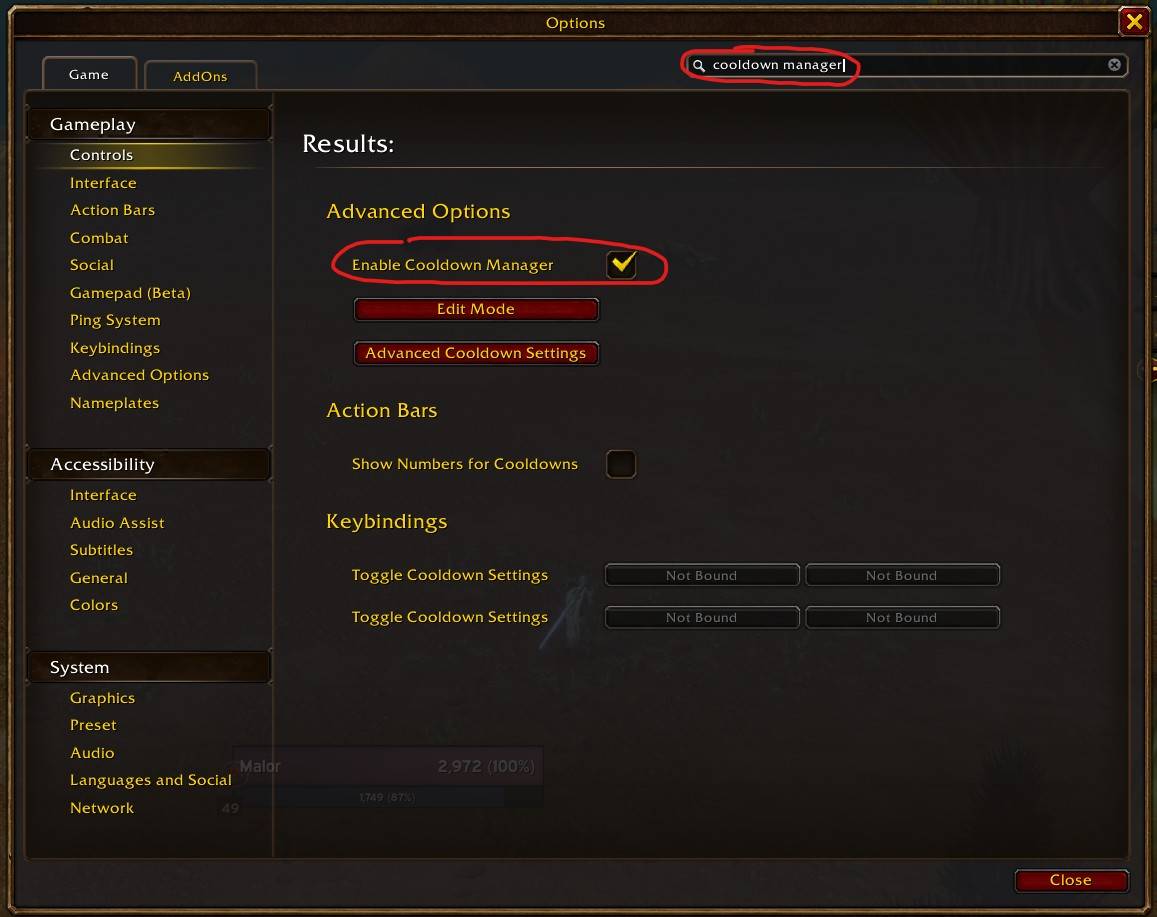
- Cooldown Manager on: enable it in the game options.
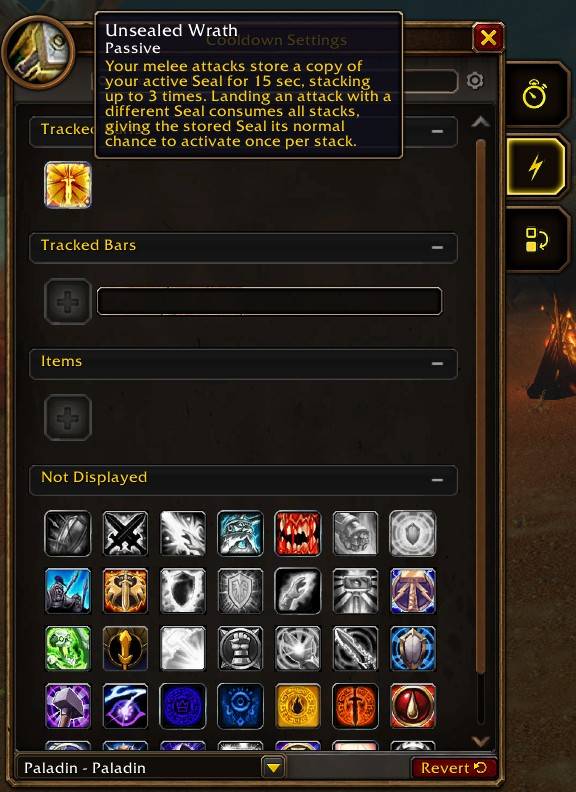
- Tracked Buffs: add Unsealed Wrath and Holy Shield (Protection) to the Cooldown Manager's Tracked Buffs (the icon bar, not the bar view - See images under "Gallery" for guidance).
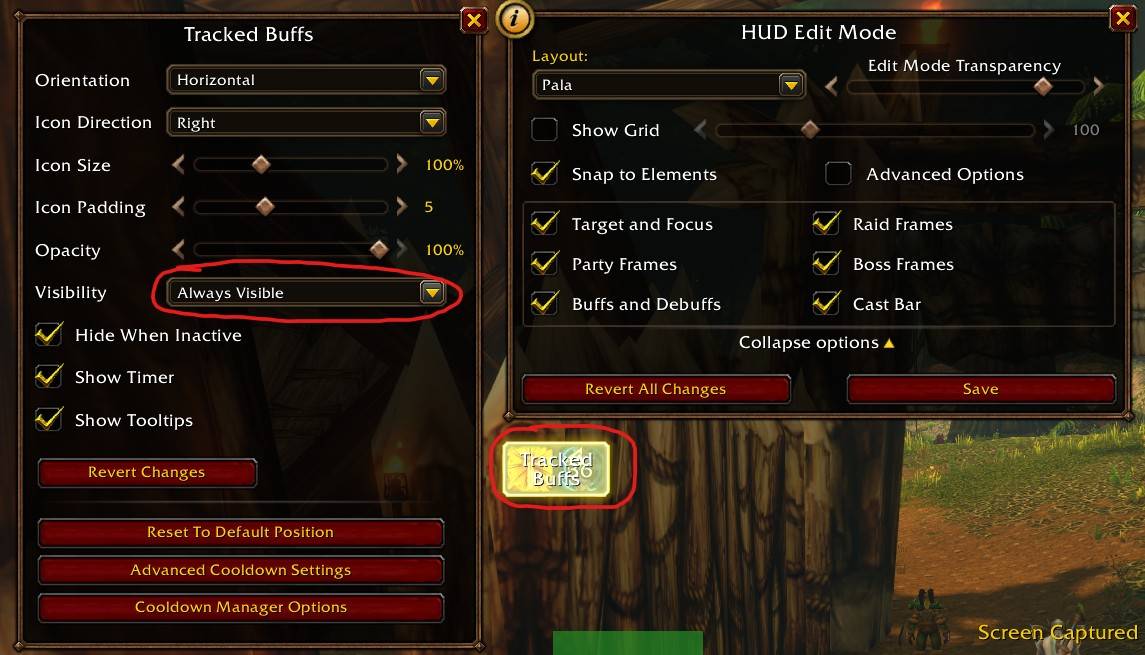
- Tracked Buffs visible: in Edit Mode, make sure the Tracked Buffs bar is not set to hidden. PaladinSealHUD hides the icons for you, but if the bar is hidden in Edit Mode the in-combat tracking won't work.
- Holy Shield: cast it once out of combat so the addon learns its duration.
- Unsealed Wrath showing without the talent? In the Unsealed Wrath tab, leave Automatic Talent Detection on and the manual override off.
- Preview still on? Type
/psh test,/psh uw testor/psh hs testagain to stop it. - Other addons: UI addons that skin or move the Cooldown Manager or change fonts can break in-combat tracking. Test once with only PaladinSealHUD enabled, then turn your other addons back on one at a time.
- After changes: type
/reload. - Still not working? Leave a comment or send me a private message here on CurseForge, and I'll help you get it working.
Setup: in-combat tracking
In combat the game hides the Unsealed Wrath and Holy Shield buffs from addons. PaladinSealHUD then reads them from the game's own Cooldown Manager icons, so those must be set up once:
- Enable the Cooldown Manager in the game options.
- Add Unsealed Wrath and/or Holy Shield to Tracked Buffs (the icon bar, NOT the bar view).
- In Edit Mode, make sure the Tracked Buffs bar is not set to hidden.
- Type
/reload. - Holy Shield: cast it once out of combat so the addon learns its full duration.
You won't see the icons twice: PaladinSealHUD hides them while it runs. If a step is missing, PaladinSealHUD tells you in chat which one.
Without this, the stacks, calls, Echo time and Holy Shield timer only work out of combat. In combat they stay hidden instead of showing a wrong value.
Features
The Seal timer
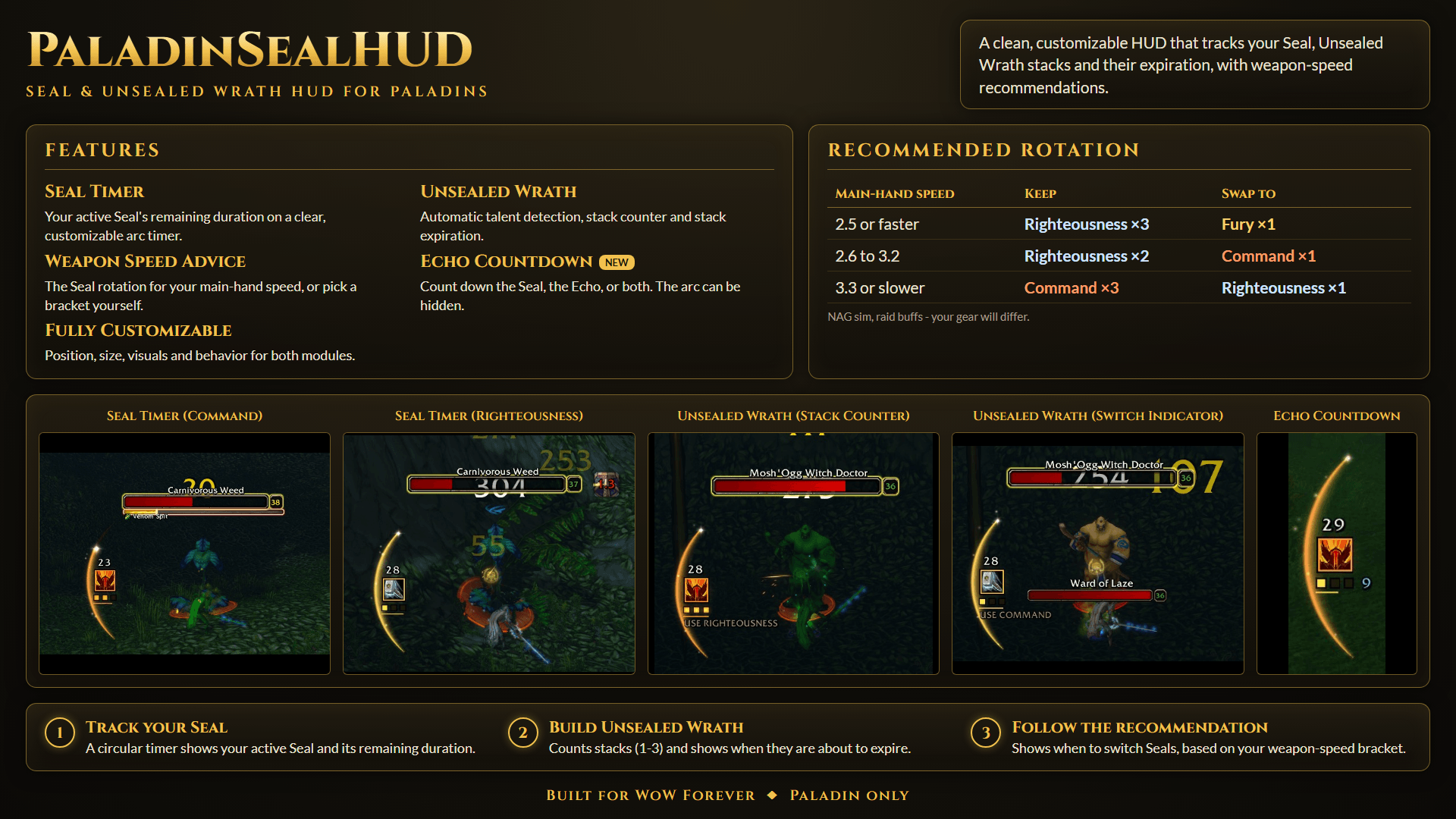
- A curved arc next to your character shows the time left on your active Seal.
- The Seal's icon sits on the arc, with an optional countdown number above it.
- Countdown number shows: pick what the number counts down:
- Seal: the Seal's remaining time.
- Echo: the Unsealed Wrath Echo's remaining time.
- Echo, else Seal: the Echo while it is up, otherwise the Seal.
- Both: the Seal above the icon and the Echo in blue next to the stack squares.
- Show the arc: turn the arc off and keep just the icon, number and stack squares. The arc always follows the Seal.
- Each Seal gets its own colour: Righteousness, Command, the Crusader, Light, Wisdom, Justice, Fury and Martyrdom.
- Seals are matched by name from your own client, so every rank and every language works. (Only tested for English and Spanish)
- Put the arc on the left, the right or both sides of your character.
- Choose to show it only in combat, or all the time.
- Low-time flash: the icon pulses in the last 5 seconds (on by default, and you can turn it off).
- Change the size of the timer, the icon and the number separately (50% to 250%).
- Unlock the timer to drag it anywhere, and use the mouse wheel to resize it. With "Both sides" on, drag either arc; they stay mirrored.
Unsealed Wrath Assistant
With the Unsealed Wrath talent, your melee hits store copies of your active Seal (up to 3, for 15 seconds). When you hit with a different Seal, the stored copies are released. The assistant tracks all of this for you:
- Stack counter: three squares under the Seal icon, one filled per stored copy. The count comes from the game itself: from the Echo buff out of combat, and from the Cooldown Manager icon in combat. Missed, dodged and parried swings never throw it off.
- Switch Seal indicator: clear instructions on what to do next. For example, with a slow weapon:
- Build stacks with Seal of Command.
- When you reach the stack count, the HUD shows
USE RIGHTEOUSNESS. - As soon as one hit lands with Righteousness and releases the stacks, it shows
USE COMMAND.
- Mistakes handled: stacked the wrong Seal? It tells you which Seal to go back to, without a wrong swap call afterwards.
- No guessing: if the stack count can't be read, the squares and calls are hidden rather than guessed.
- Setup warnings: tells you in chat if the Cooldown Manager is off, the Tracked Buffs bar is hidden, or Unsealed Wrath is not tracked.
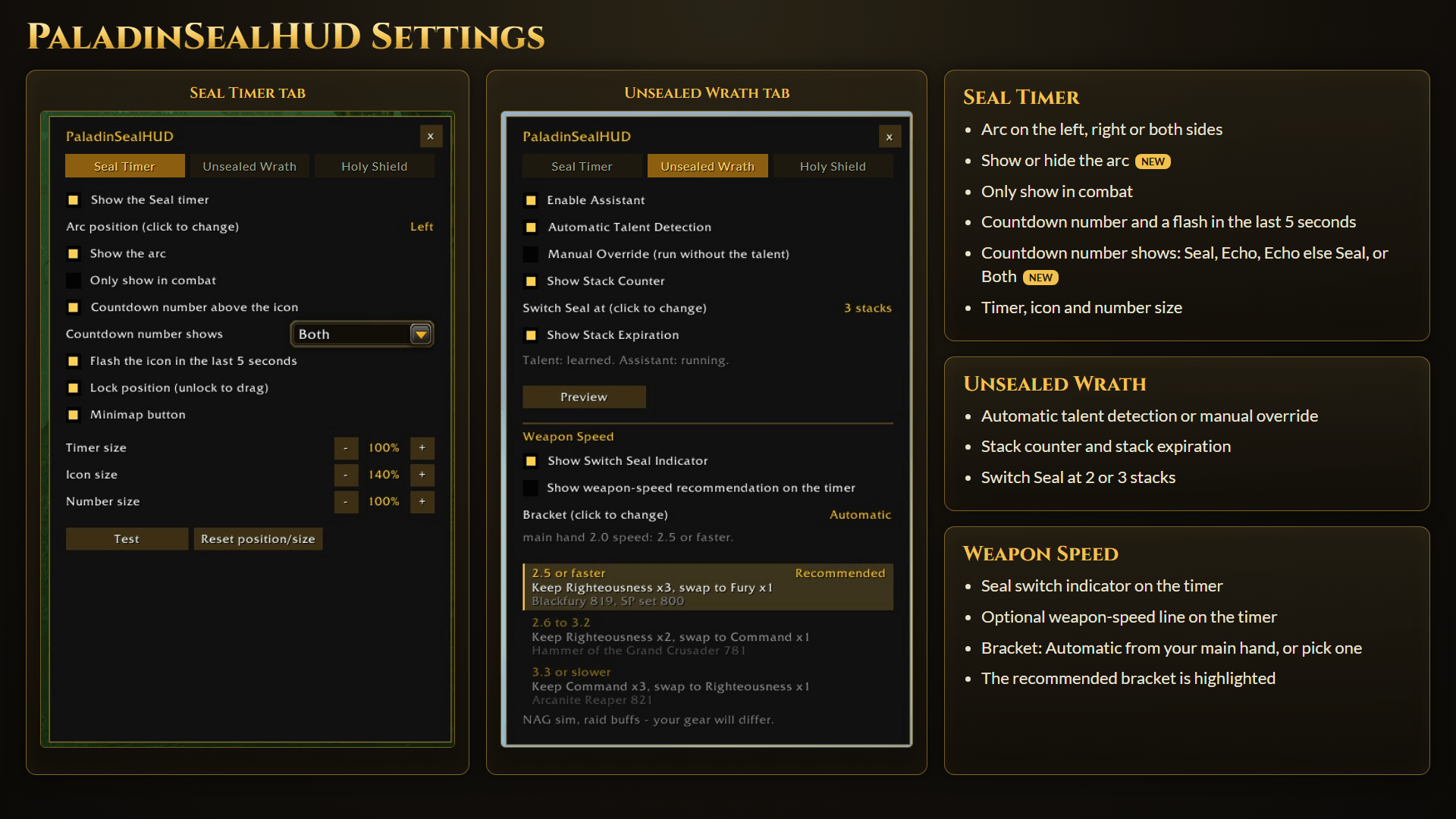
- Switch at 2 or 3 stacks: you choose. The default is 3. When the weapon-speed recommendation is on, your bracket sets the count instead.
- Stack expiration: shows how long your stored copies have left before they are lost (out of combat).
- Automatic talent detection: the assistant only runs once you have the talent. A manual override is available if you want it on anyway.
- The assistant only shows information. It never casts or swaps Seals for you.
Weapon speed recommendation
The best Seal pair for Unsealed Wrath depends on how fast your main-hand weapon is. The assistant reads your weapon speed and follows the matching rotation:
| Main-hand speed | Keep | Swap to | Example weapon |
|---|---|---|---|
| 2.5 or faster | Righteousness x3 | Fury x1 | Blackfury |
| 2.6 to 3.2 | Righteousness x2 | Command x1 | Hammer of the Grand Crusader |
| 3.3 or slower | Command x3 | Righteousness x1 | Arcanite Reaper |
- Automatic: uses your main-hand weapon's own speed (as its tooltip shows it), checked when you log in and whenever your gear changes. Haste and speed effects don't move you into another bracket.
- Pick a bracket yourself in the settings if you prefer.
- An optional line under the Switch Seal indicator shows the recommended pair, for example
3.6: Command x3 > Righteousness x1. - The settings window lists all three brackets and highlights the one in use.
- The brackets come from a NAG sim with raid buffs. Your gear will differ, so treat them as guidance, not rules.
Holy Shield tracker (Protection)
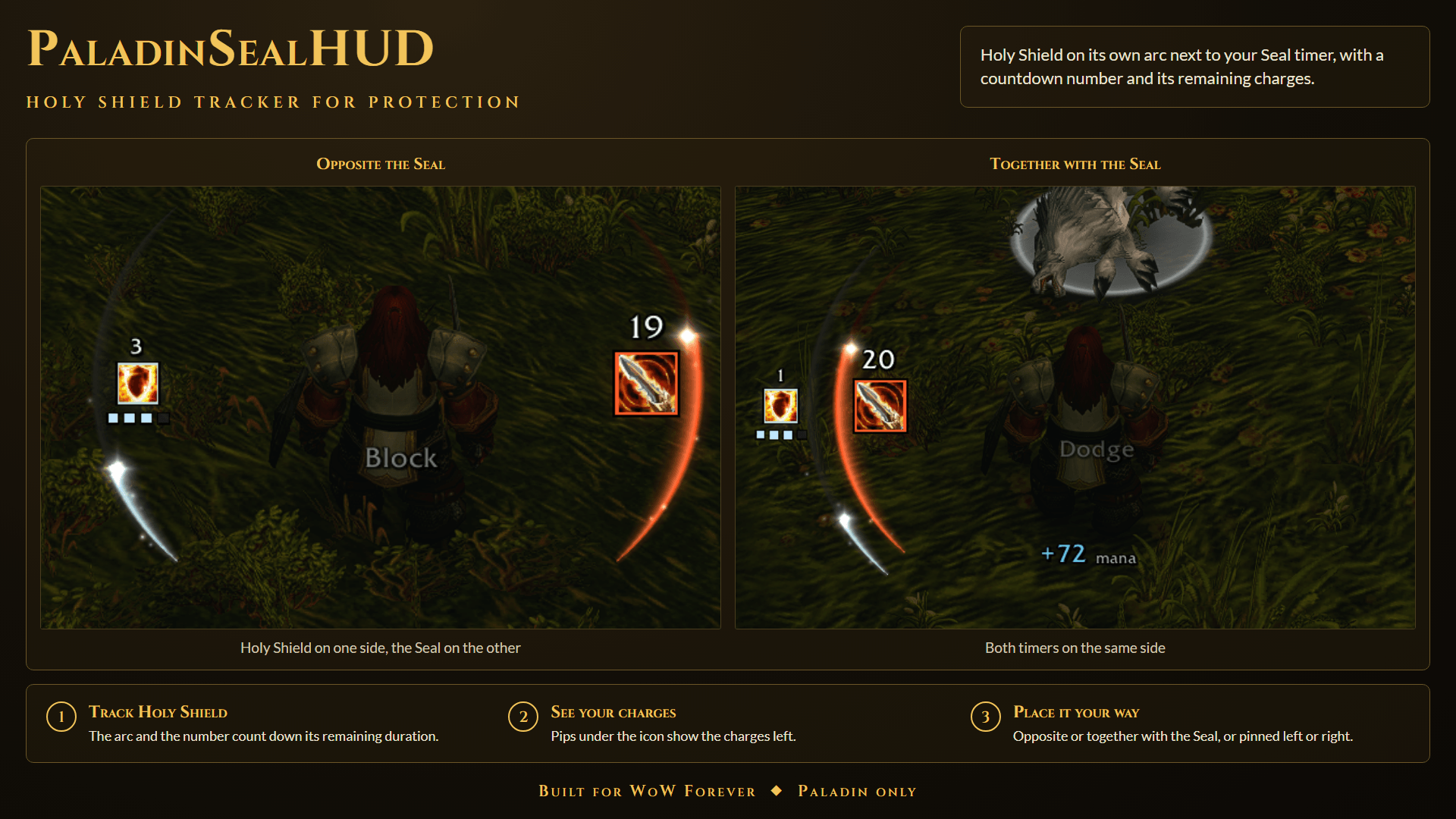
- Holy Shield's remaining time on its own arc, with a countdown number above the icon.
- Charges: pips under the icon show the charges left.
- Turns on by itself when Holy Shield is known. Turn automatic detection off to run it anyway.
- Arc position: Opposite the Seal (Seal on one side, Holy Shield on the other), Together with the Seal (both on the same side), or pinned Left or Right.
- Change the arc, icon and number size separately, and use Preview to see it without casting Holy Shield.
- In combat: add Holy Shield to the Cooldown Manager's Tracked Buffs, the same way as Unsealed Wrath (see Setup). PaladinSealHUD warns you in chat if it is missing.
- Cast Holy Shield once out of combat so the addon learns its full duration. After that, the arc counts down in combat too.
Minimap button
- Left-click: open settings
- Right-click: show or hide the timer
- Drag: move the button around the minimap
Settings window
Everything can be changed in a simple settings window with a Seal Timer tab, an Unsealed Wrath tab (including the weapon speed options) and a Holy Shield tab. Open it from the minimap button or with /psh. It has Test and Preview buttons, so you can see the timer and the assistant without being in combat.
Slash commands
Use /psh or /paladinsealhud.
| Command | What it does |
|---|---|
/psh |
Open the settings window |
/psh on / /psh off |
Show or hide the timer |
/psh unlock / /psh lock |
Unlock to drag (mouse wheel scales), then lock it in place |
/psh scale 1.2 |
Set the size (0.5 to 2.5) |
/psh reset |
Reset position and sizes |
/psh text |
Turn the countdown number on or off |
/psh test |
Run a simulated timer through the Seals |
/psh status |
Show what is being tracked and where the time comes from |
/psh uw |
Unsealed Wrath status, setup check and weapon speed |
/psh uw test |
Preview the Unsealed Wrath indicators |
/psh uw log |
Print each counted swing in chat (for troubleshooting) |
/psh uw gate |
Show the status of the in-combat stack reader |
/psh hs |
Holy Shield tracker status and setup check |
/psh hs test |
Preview the Holy Shield tracker |
Getting started
- Install the addon and log in on your Paladin.
- Cast any Seal. The timer appears next to your character.
- Using Unsealed Wrath? Add it to the Cooldown Manager's Tracked Buffs (see Setup).
- Type
/pshor click the minimap button to change the look. - Want to place it somewhere else? Run
/psh unlock, drag it, then/psh lock.
Feedback
Found a bug or have an idea? Leave a comment, or send me a private message on CurseForge if you want help. Feedback helps keep the addon up to date. When reporting a problem, include the output of /psh status (and /psh uw and /psh uw gate for Unsealed Wrath or weapon speed issues, or /psh hs for Holy Shield).
PaladinSealHUD Team