PadPilot VoiceWheel
- By
Sample one.png
Sample two.png
sampl3.png
Sample 4.png
Description
PadPilot VoiceWheel
Voice-to-Text Friendly Chat Wheel
PadPilot VoiceWheel is a controller-friendly chat addon designed for World of Warcraft: Forever.
Built for players who enjoy playing World of Warcraft with a controller, VoiceWheel makes switching chat channels, using common commands, and correcting voice-to-text messages easier without constantly reaching for a keyboard.
Whether you're chatting with your guild, coordinating with your party, or using speech-to-text to communicate, PadPilot VoiceWheel helps make the experience more comfortable for controller users.
VoiceWheel works as a standalone addon. You do not need to install the main PadPilot addon to use it.
Features
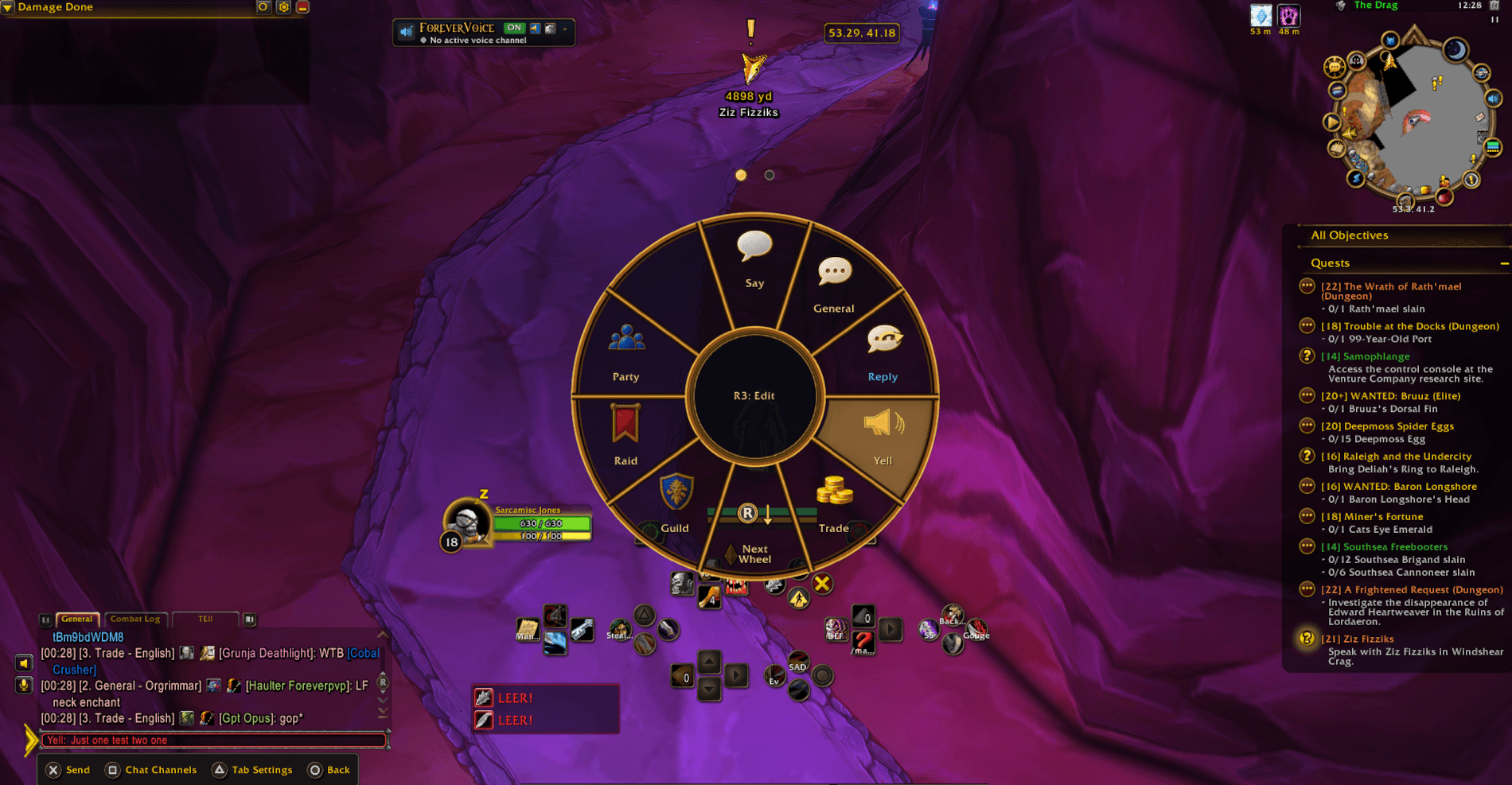
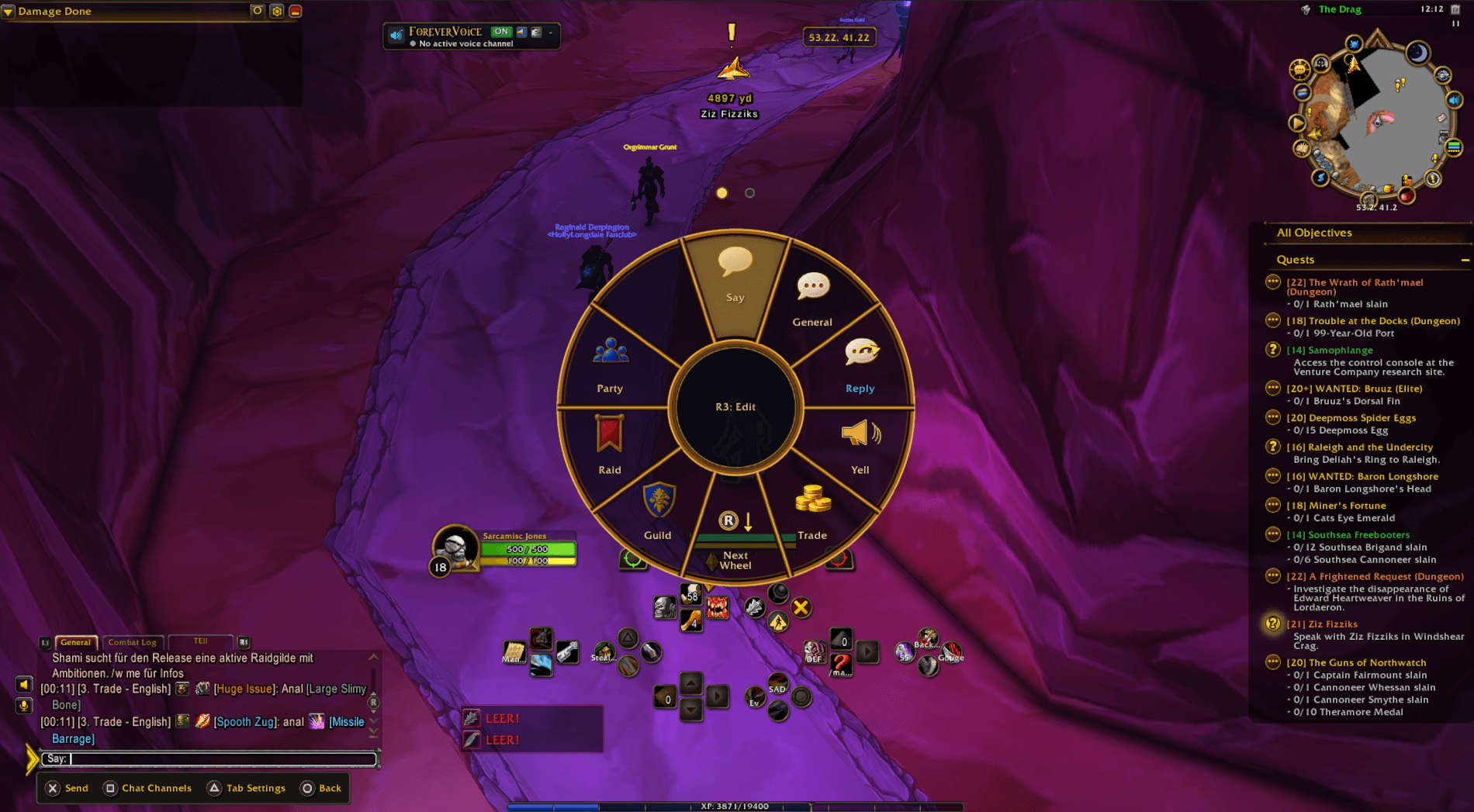
Controller-Friendly Chat Wheel
VoiceWheel automatically appears when Blizzard's native chat input is focused.
-
Move the right analog stick toward the desired option.
-
Release the stick to select it.
-
Continue typing or dictating into Blizzard's normal chat box.
-
The wheel automatically disappears when chat loses focus.
Supported Chat Channels:
-
Say
-
Yell
-
Party
-
Raid
-
Guild
-
General
-
Trade
-
Reply to the most recent whisper
Quick Commands
Switch to the Commands wheel using the bottom navigation slice.
Available commands:
-
Follow — Follow your targeted player.
-
Reload — Reload the game interface.
-
Reload UI — Reload the user interface.
Voice-to-Text Editing
Ever dictate a message and have speech recognition get a word completely wrong?
VoiceWheel includes an editing mode to help correct messages without reaching for your keyboard.
Editing Controls:
-
Click the right analog stick (R3) once to enter Edit Mode.
-
Move the right stick UP and release to delete the last word.
-
Move the right stick DOWN and release to clear the entire unsent message.
-
Click R3 again to return to normal wheel navigation.
Your native chat box stays active so you can continue dictating or typing.
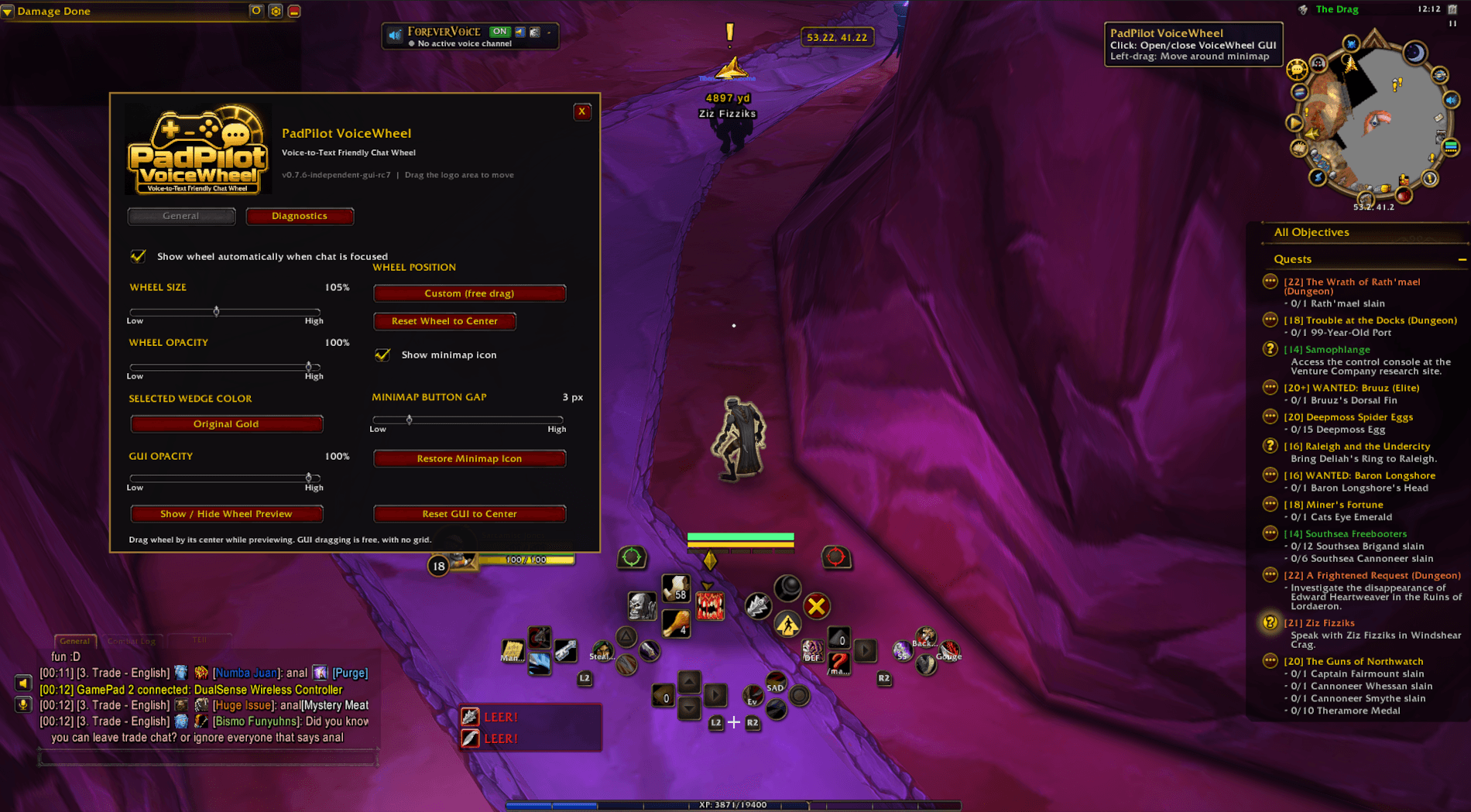
Customizable Interface
Personalize how VoiceWheel looks and where it appears.
-
Freely movable chat wheel
-
Adjustable wheel size
-
Adjustable wheel transparency
-
Multiple selection highlight colors
-
Independent, freely movable settings window
-
Adjustable settings-window opacity
-
Movable minimap button to open settings
-
Saved interface preferences
-
PadPilot gold-and-black visual design
Note: Controller bindings are fixed. You can customize the interface's appearance and position, but the addon does not provide controller button remapping.
Voice-to-Text Companion Application — Handy
PadPilot VoiceWheel is designed to work alongside Handy, a free, open-source speech-to-text application.
Handy listens to your voice and converts speech into text, allowing you to communicate in World of Warcraft without typing every message.
Download Handy:
Setting Up Handy
-
Download and install Handy on your computer.
-
Launch Handy and complete its initial setup.
-
Select your microphone.
-
Choose and download a supported speech-recognition model.
-
Open Handy's settings and configure its recording shortcut to Ctrl + Space.
-
Choose the recording mode you prefer, such as push-to-talk.
-
Test the shortcut in a normal text field before using it in World of Warcraft.
Once Handy works correctly, you can configure Steam Input to activate it using your controller.
Important: VoiceWheel does not contain speech-recognition software. Handy handles voice transcription, while VoiceWheel handles in-game chat selection and editing.
Handy is optional. Normal keyboard chat works without it.
Steam Controller Setup for Handy
To activate Handy using a controller, you can use Steam Input to assign the Handy shortcut to a controller button.
Step 1 — Add World of Warcraft to Steam
-
Open Steam.
-
Select Games → Add a Non-Steam Game to My Library.
-
Browse to your World of Warcraft launcher or game executable.
-
Add it to your Steam library.
-
Make sure the Steam Overlay and Steam Input are enabled for the game.
-
Launch World of Warcraft through Steam.
-
Verify that Steam's overlay can open while WoW is running.
Launching WoW through Steam allows you to configure and use your Steam Input controller layout.
Step 2 — Configure the Controller Shortcut
-
Open the controller layout editor for World of Warcraft in Steam.
-
Find your controller's Share/Create button.
-
Edit that button's assignment.
-
Add a keyboard command for Ctrl.
-
Add a second command or sub-command for Space.
-
Configure the two commands so they activate together as Ctrl + Space.
-
Under the command activation settings, configure Long Press.
-
Save your controller layout.
With this setup, holding the Share/Create button can trigger Handy's recording shortcut without requiring a separate keyboard.
The exact Steam Input menus and command options may vary depending on your controller and Steam version. Make sure the shortcut behavior matches the recording mode selected in Handy.
Step 3 — Using Voice Dictation in WoW
-
Open Blizzard's native chat box.
-
VoiceWheel will automatically appear if automatic display is enabled.
-
Move the right stick to choose your chat channel and release it.
-
Hold your configured Share/Create button to activate Handy.
-
Speak your message.
-
Finish recording according to your chosen Handy recording mode.
-
Check the transcribed text.
-
If needed, click R3 to use VoiceWheel's Delete Word or Clear Draft actions.
-
Send your message using Blizzard's normal chat Send control.
You can now switch chat channels and correct dictated messages using your controller.
Video Tutorial — Special Thanks to Kinzo!
Need help getting Handy and Steam working together?
Kinzo has created a helpful YouTube tutorial demonstrating how to set up Handy and Steam for controller-based voice dictation.
We recommend watching his tutorial if you're new to using speech-to-text with a controller.
Watch Kinzo's Tutorial
YouTube:
https://www.youtube.com/watch?v=8Iag9ND7biE
A Special Thank You to Kinzo
A huge thank-you and shout-out to Kinzo for putting together this useful tutorial and sharing his knowledge with the gaming community!
His video helps make voice-to-text gaming more accessible and easier to set up.
All credit for the video belongs to Kinzo. It is an independently created community tutorial and is not an official PadPilot VoiceWheel production.
If the video helps you, consider supporting Kinzo by giving it a like and subscribing to his YouTube channel.
Installation
-
Download PadPilot VoiceWheel from CurseForge.
-
Install it using the CurseForge application or manually extract the addon into your World of Warcraft
Interface/AddOnsdirectory. -
Enable PadPilot VoiceWheel from the game's AddOns list.
-
Make sure WoW Forever's native gamepad interface is enabled.
-
Log in and open your normal chat box.
-
Start using VoiceWheel with your right analog stick.
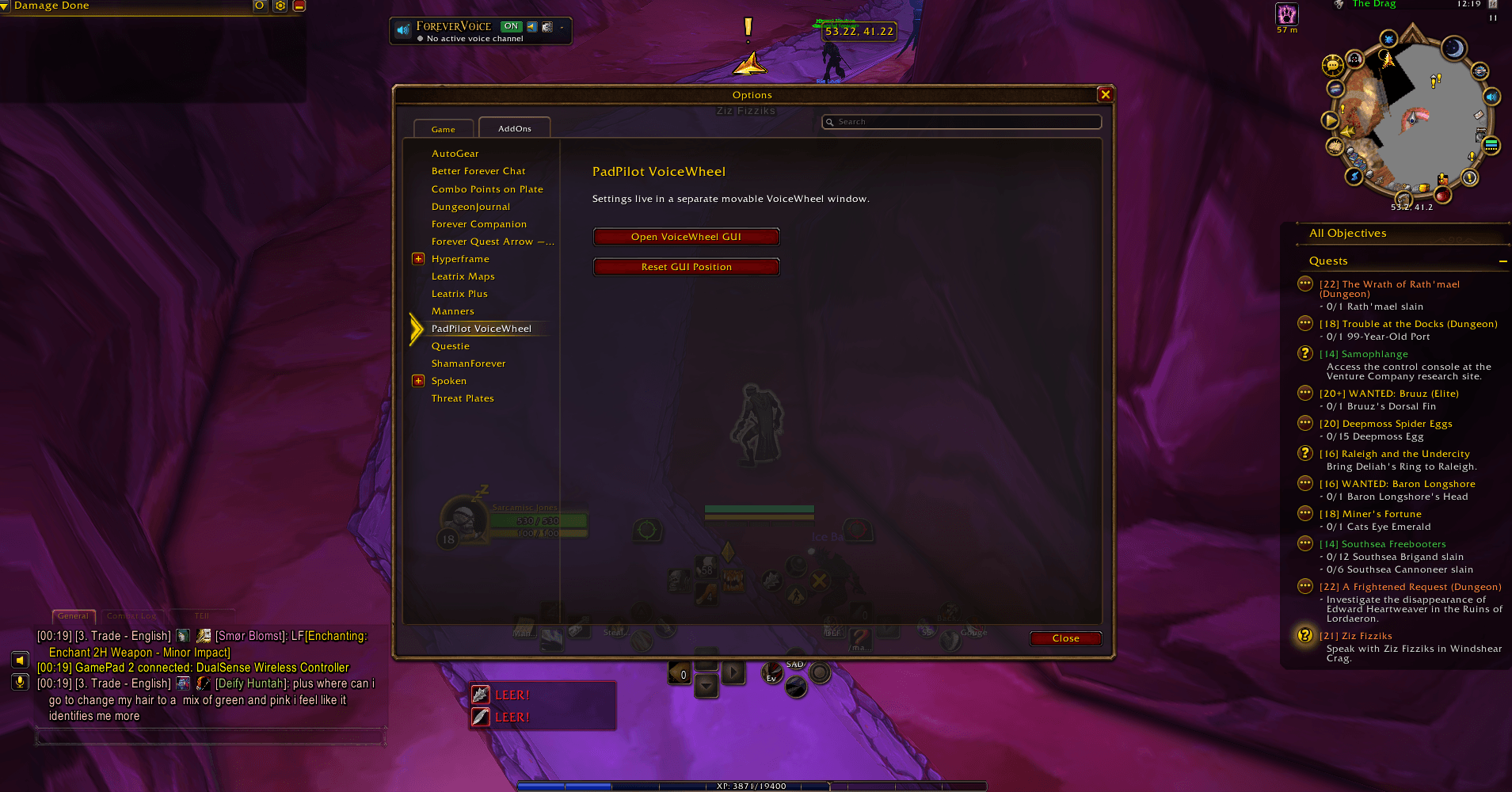
Opening VoiceWheel Settings
Click the PadPilot VoiceWheel minimap icon to open the independent settings window.
From there, you can adjust the wheel's appearance, size, positioning, transparency, and other interface preferences.
The settings window can be moved freely around your screen.
Compatibility
-
Designed for WoW Forever 1.60.1 (Interface 16001).
-
Uses WoW Forever's native gamepad chat interface.
-
Supports ordinary keyboard chat.
-
Compatible with external voice-to-text workflows using Handy.
-
Steam Input is optional and used for controller-triggered voice dictation.
-
Functions independently of the main PadPilot addon.
About PadPilot
PadPilot VoiceWheel is part of the PadPilot addon family, focused on improving the World of Warcraft experience for players who prefer controllers.
Our goal is to make controller gameplay easier, more comfortable, and more accessible while preserving Blizzard's native controller functionality.
PadPilot VoiceWheel — Controller Gaming. Easier Communication.
Feedback and Support
Found a bug or have an idea for improving VoiceWheel?
Please leave a comment on this CurseForge project page.
Feedback from controller players helps improve the addon and guide future updates.
Thank you for trying PadPilot VoiceWheel!
PadPilot VoiceWheel Team