


OverpowerAlert
- By
Screenshot 2026-09-28 175344.png
Screenshot 2026-09-28 175205.png
Description
Overpower Alert
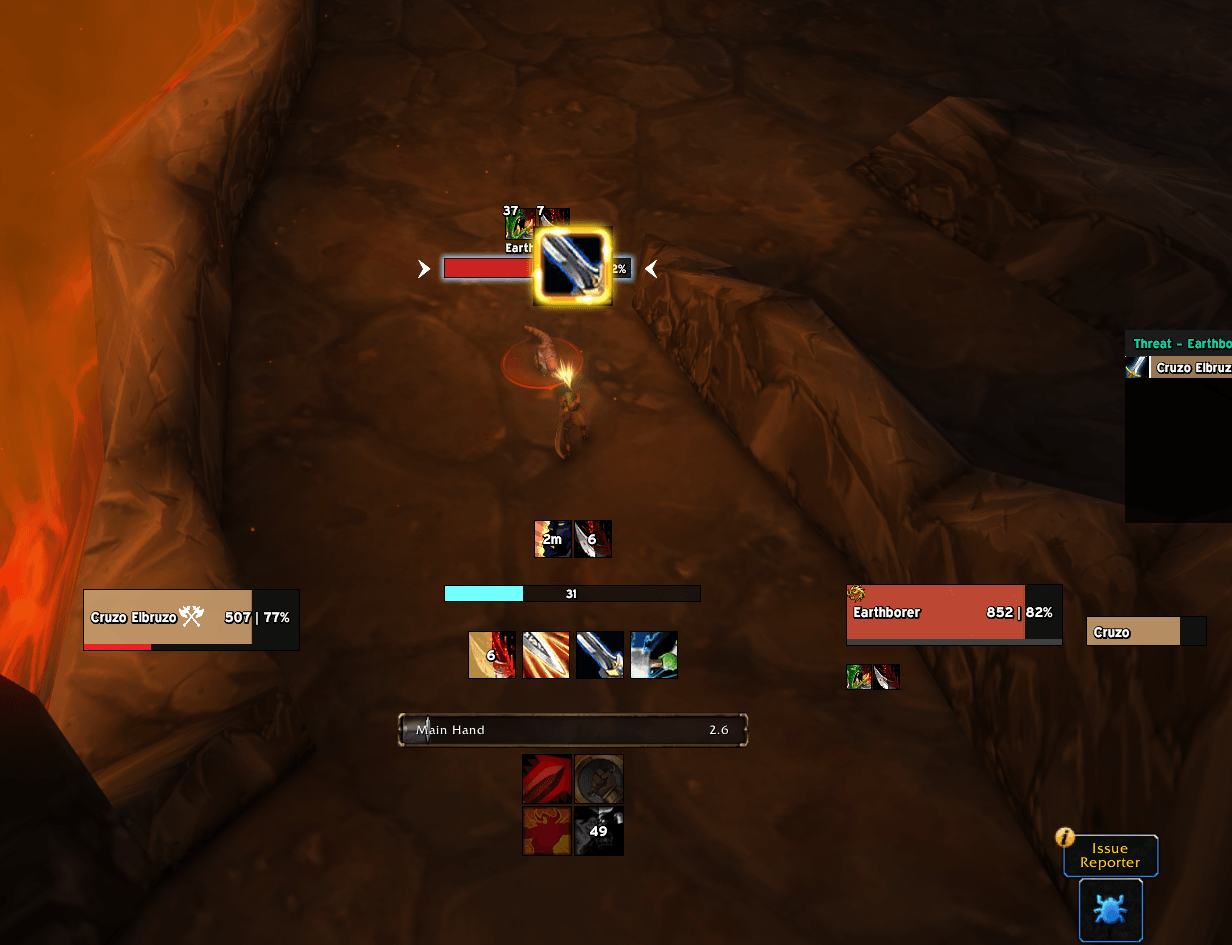
An addon for Warriors that plays a sound, and optionally flashes OVERPOWER! on screen, the moment Overpower becomes usable after your target dodges.
Also alerts for Revenge now!
Install
- Curseforge - Search and install on curseforge app
- Manually: download
OverpowerAlert-<version>-forever.zipfrom the latest release and extract it intoWorld of Warcraft\_classic_beta_\Interface\AddOns\. You should end up with anAddOns\OverpowerAlert\OverpowerAlert.tocfile.
Usage
The addon works on its own once installed. When your target dodges, Overpower becomes usable for a few seconds, and the alert fires once each time that happens.
- Overpower can only be used in Battle Stance, but there's a toggle to alert in any stance if you want it. Same for D Stance and Revenge.
Options
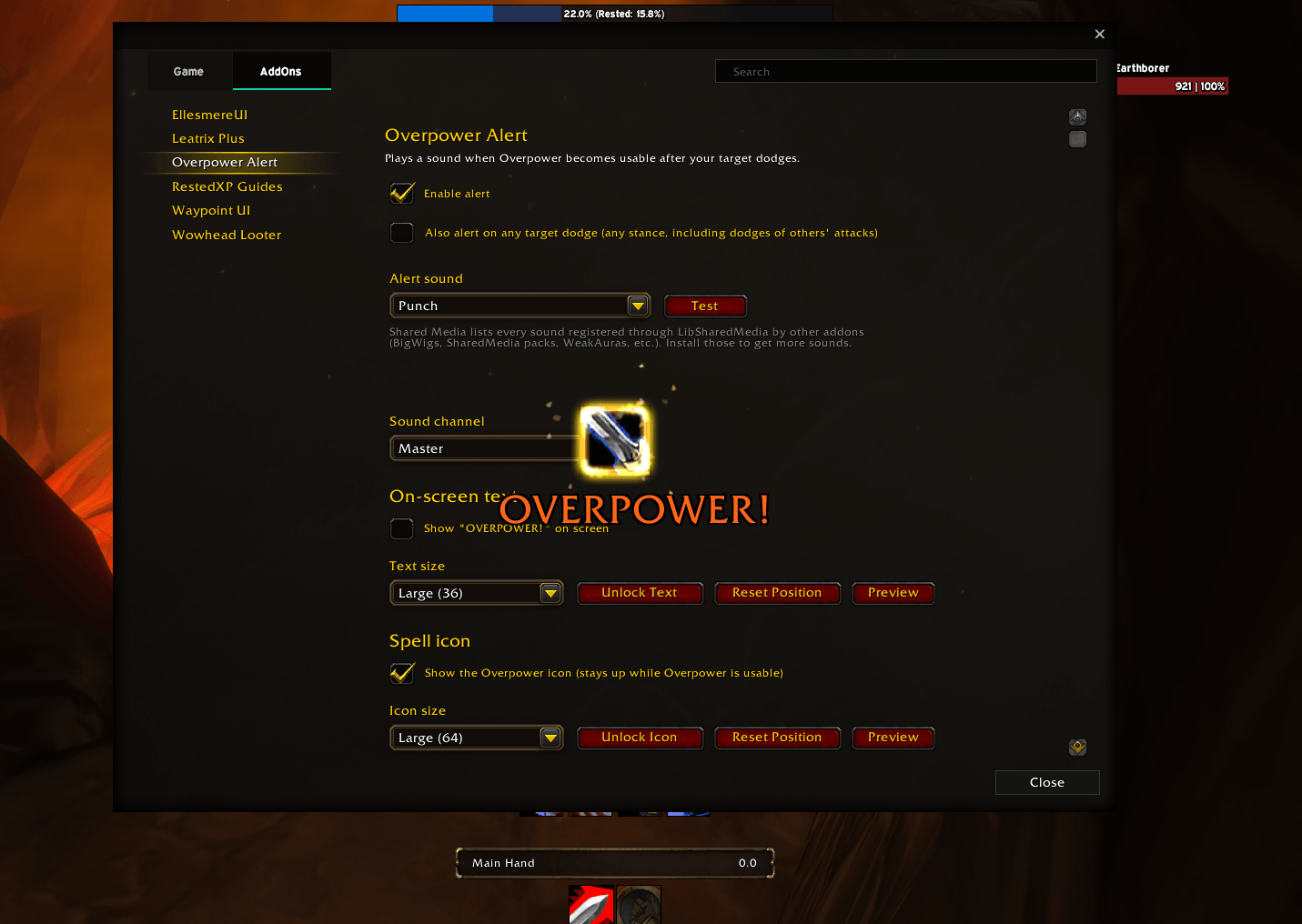
Open the options with /opa, or from Game Menu → Options → AddOns → Overpower Alert.
Alert sound: pick from three groups:
- Game Sounds: about 40 built-in sounds. (Some of the built-in game sounds do not play correctly but there's nothing I can do for that at the moment unless Blizzard fixes it)
- Shared Media: every sound other addons share through LibSharedMedia, such as BigWigs, WeakAuras or SharedMedia sound packs. It's empty until you install one of those.
- Custom: a sound file path or FileDataID of your choice.
Choosing a sound plays it, so you can try several in a row.
- Sound channel: Master, Sound Effects, Dialog, Ambience or Music.
- On-screen text: show or hide it, and set the size.
- Moving the text: click Unlock Text, drag the highlighted box where you want it, then right-click it to lock. Reset Position puts it back in the default spot.
On-screen text: show or hide "OVERPOWER!", and set its size.
Spell icon (off by default): pops up the Overpower icon and keeps it up while Overpower is usable. Set its size and pick a glow: Proc Glow, Action Button Glow, Pixel Glow, Autocast Shine or None.
Moving the text or icon: click Unlock Text or Unlock Icon, drag the highlighted box where you want it, then right-click it to lock. Reset Position puts it back in the default spot, and Preview shows it as it will appear.
Slash commands
| Command | What it does |
|---|---|
/opa |
Open the options |
/opa test |
Play the current alert sound |
/opa toggle |
Turn the alert on or off |
/opa unlock / /opa lock |
Unlock the text to move it, or lock it again |
OverpowerAlert Team
