Nullgate's Quest Tracker - Forever
- By
A modular, high-performance, standalone quest tracking interface crafted specifically for World of Warcraft Forever
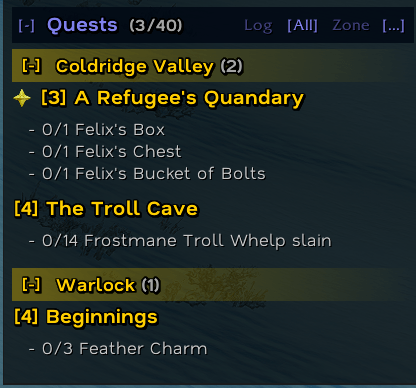
Screenshot 2026-09-25 083211.png
Description
ANNOUNCEMENT: Bleakfiber's Quest Tracker is now Nullgate Quest Tracker (1.3.0)
Same addon and same CurseForge page, now from Nullgate Studios. Your settings, key bindings and macros carry over automatically. Your AddOns folder will now have two folders: NullgateQuestTracker-Forever and BleakfibersQuestTracker-Forever. Keep both for now. The old one only carries your settings over, and a later update will say when it can be deleted. Open the settings with /nqt (/bfq still works).
Nullgate Quest Tracker - Forever
Nullgate Quest Tracker is a lightweight, modular quest tracker made for World of Warcraft: Forever.
It replaces the default quest watch frame with a clean, customizable tracker. It adds quest item buttons that work in combat, smart zone grouping, a Wayfinder navigation arrow with /way support, XP and location bars, and optional quest automation. Everything you don't need can be switched off.
It needs no other addons to run. Everything it uses is included.
Key Highlights
- Works in Combat: Objectives, completions and new quests update instantly while you fight. Quest item buttons and their keybind keep working in combat too.
- 11 Languages: English, Deutsch, Français, Español (España), Español (Latinoamérica), Italiano, Português (Brasil), Русский, 한국어, 简体中文 and 繁體中文. The language follows your game client, or you can pick one in the settings.
- One Settings Window: The same settings open from
/nqt, from Esc > Options > AddOns, and inside Nullgate Addon Config. - Quest Item Buttons: Usable quest items (flares, totems, seeds, containment devices) appear next to their quest with cooldowns and stack counts. Bind a key to use the top quest's item.
- Wayfinder Navigation: A floating 3D or 2D arrow points to your active objective or a custom
/waywaypoint. It shows the distance, an arrival estimate and pins on the world map. - XP & Location DataBars: An experience bar that previews the XP waiting in your completed quests, a location bar with coordinates, and a countdown bar for timed quests.
- Quest Automation: Optional auto-accept, auto turn-in (it stops when you need to pick a reward), auto-share with your party, fast auto loot, junk selling and auto repair. Hold Shift to skip any of it.
- New-in-Forever Markers: Quests that were not in original Classic get a small infinity marker and a "New in WoW Forever" tooltip line. The list comes straight from the game clients' own quest data, with no other addon needed.
- Quiet by Default: The tracker never writes to your chat unless you turn on Debug & Chat Output. Short confirmations appear briefly at the top of the screen instead.
- Profiles: Create, copy, reset and switch between setting profiles.
Complete Feature Breakdown
1. Header Bar
The header shows how full your quest log is, along with quick buttons:
[Log]: Opens or closes the Blizzard Quest Log.[Zone]: Shows only quests for your current zone.[All]: Shows every quest in your log.[...]: Opens the quick menu with filters, sorting, Wayfinder options and expand/collapse shortcuts.[-]/[+]: Collapses or expands the tracker.
Every header button can be hidden in the settings.
2. Mouse Controls
- Left-Click a quest: Collapses or expands it in place. You can change this so it sets the quest as your active quest instead.
- Double-Click a quest: Makes it your active quest, so the Wayfinder arrows point to it.
- Quest action buttons (optional): Set Active, Show on Map, Share and Open Quest buttons at the end of each quest title, shown on hover or always. Left-click Open Quest for the world map, right-click for a classic quest log.
- Ctrl + Left-Click: Opens the quest on the world map, in a classic quest log addon (such as Kerzo's Classic Quest Log), or both. You choose in the settings.
- Shift + Left-Click: Links the quest in chat.
- Right-Click: Opens the quest menu (set active, show in log, share with party, set Wayfinder arrow, track/untrack, abandon).
- Shift + Right-Click: Copies the quest's Wowhead link.
- Alt + Right-Click: Opens the settings.
- Left-Click a zone header: Collapses or expands that zone.
- Hover a quest: Shows rewards, XP percentage, the most valuable reward to sell, usable gear upgrades, and which party members have the quest.
3. Quest Item Buttons
- Buttons sit next to their quest, either inside the tracker on the right or outside it on the left.
- They keep working in combat. If the list changes mid-fight, they move into place when combat ends.
- Shift + Right-Drag: Moves the button anywhere on screen.
- Alt + Right-Click: Docks it back to the tracker.
- Set a Quest Item Key in the settings or in Blizzard's Key Bindings to use the item of your top quest.
- Test button: turn on Show Test Quest Item Button (or type
/nqt testitem) to check the button's position, size and your key binding without needing a quest item.
4. Wayfinder Navigation
- Floating arrow: Choose from several 2D and 3D styles. It changes color as you turn toward or away from your destination, and shows the distance, destination name and ETA.
- Inline arrow: A small arrow next to your active quest in the tracker.
- Custom waypoints: Use
/way, or Alt + Left-Click on the world map. - Paste window: Paste a whole list of coordinates from a guide at once with
/way paste. - World map: Waypoint pins plus live player and cursor coordinates.
- Plays nicely with TomTom: If another addon already owns
/way, use/nqtwayinstead.
5. DataBars
- Experience Bar: Current XP, rested XP and a "ghost" bar for XP from completed quests. It also gives a Ding Ready! alert when turning them in would level you up. At max level it can show your watched reputation instead.
- Location Bar: Zone, subzone and coordinates, colored by PvP territory if you like.
- Quest Timer Bar: A countdown for timed quests that appears only when one is active.
- Each bar can dock to the tracker or minimap, or float freely. Each one can share the tracker's look or have its own.
6. Automation, Social & Audio
- Auto-Accept: Separate options for NPC quests and quests shared by your party.
- Auto Turn-In: Hands in quests with no reward choice or a single one. If you must choose a reward, it waits for you.
- Auto-Share: Shares newly accepted quests with your group.
- Fast Auto Loot: Speeds up looting whenever the game's own auto loot is active.
- Merchant Helpers: Sells grey junk and repairs gear, using guild funds if you like.
- Party Announcements: Optional messages when you finish quests or objectives.
- Sound Alerts: Separate sounds for quest completion and objective progress, with volume, channel and preview. You can also add your own
.oggor.mp3files.
7. Appearance
- Three one-click themes: Modern Dark Glass, Classic WoW Plus and Ultra Minimalist.
- Full color, font, outline and size control for the backdrop, borders, headers, quest titles, objectives, the Wayfinder arrow and the DataBars. Every color takes a hex code.
- Optional class-colored border, color by quest difficulty, and a tint behind quests ready to turn in.
- Drag handles to resize the tracker width and maximum height on screen.
- Fonts from LibSharedMedia-3.0 are supported.
Slash Commands
| Command | Description |
|---|---|
/nqt |
Opens the settings. |
/nqt onboard |
Opens the setup walkthrough. |
/nqt lock / /nqt unlock |
Locks or unlocks the tracker position. |
/nqt toggle |
Collapses or expands the tracker. |
/nqt hide / /nqt show / /nqthide |
Hides or shows the tracker. |
/nqt reset |
Resets the tracker position. |
/nqt profile [name] |
Shows or switches the active profile. |
/nqt lang [code] |
Shows or sets the language (for example deDE, or auto). |
/nqt testitem |
Shows or hides a test quest item button. |
/nqt questid [id] |
Shows a quest's ID and whether it is new in WoW Forever. |
/nqt debug |
Turns Debug & Chat Output on or off. |
/way <x> <y> [title] |
Sets a waypoint in your current zone. |
/way <zone> <x> <y> [title] |
Sets a waypoint in another zone. |
/way paste |
Opens the waypoint paste window. |
/way list |
Lists your active waypoints. |
/way reset |
Clears all custom waypoints. |
/way test |
Shows the arrow so you can move it. |
/cway |
Points the arrow at the closest waypoint. |
If another addon such as TomTom already uses /way or /cway, use /nqtway and /nqtcway instead.
A Note on Translations
The translations were made with machine assistance, so some wording may not be quite right. If you'd like to help improve the localization for your language, please send me a message here on CurseForge. Thank you!
Nullgate's Quest Tracker - Forever Team