


MySounds
- By
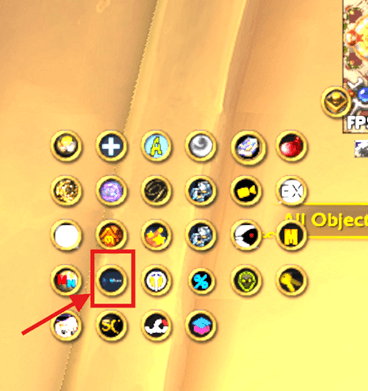
botonMinimapa.png

comando.png
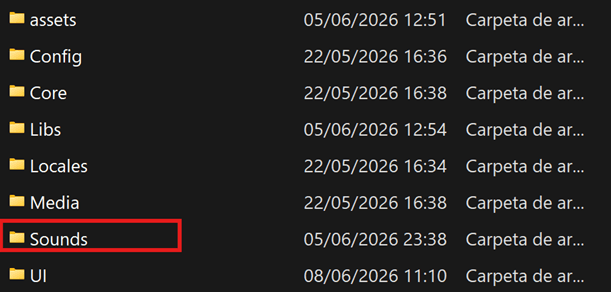
carpetaSounds.png

CarpetaCategorias.png
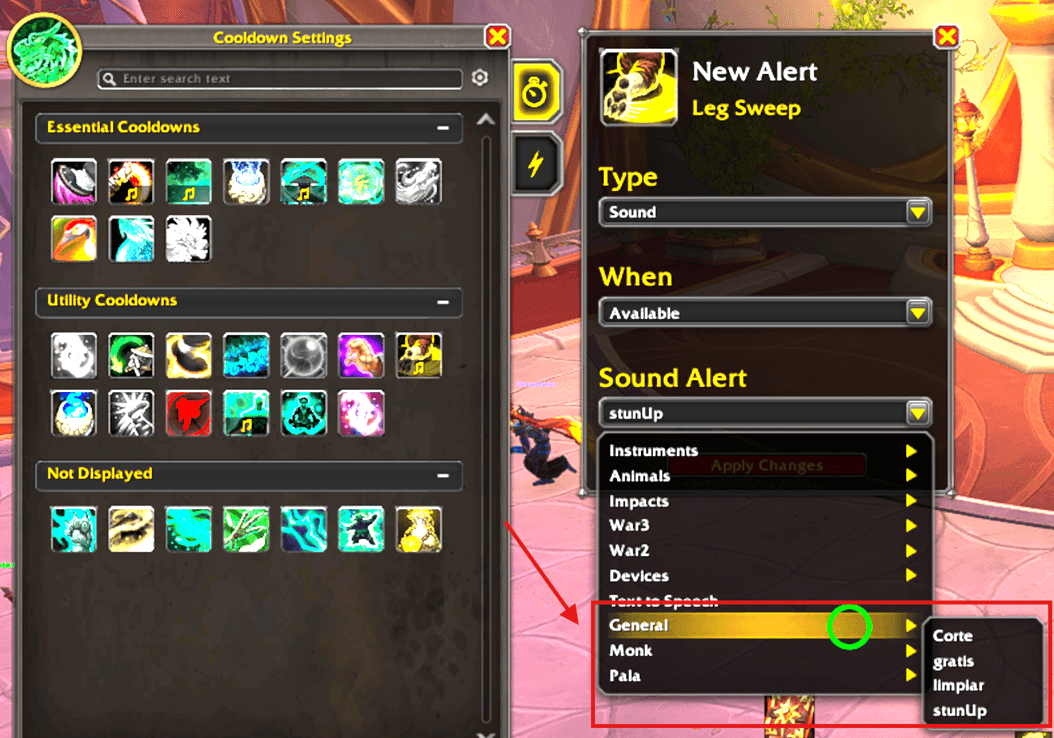
wa.png
Description
MySounds
Assign your own custom audio files to Cooldown Viewer alerts in World of Warcraft.
Custom sounds are registered into LibSharedMedia-3.0, making them globally available across all LSM-compatible addons (DBM, BigWigs, ExBoss, and more)
Author: Valwraek
Contact: valwraek.mail@gmail.com
Support: https://www.patreon.com/Valwraek
Requirements
- World of Warcraft Retail (patch 11.x or later)
Installation
- Download MySounds and extract the folder.
- Place the
MySoundsfolder inside:
World of Warcraft\_retail_\Interface\AddOns\- Launch WoW and enable MySounds in the AddOns list.
Adding Your Sound Files
MySounds reads .ogg files (Vorbis format — not Opus) that you place inside the addon folder.
Folder structure
Sounds must be organized by category inside the Sounds/ folder:
MySounds/
  Sounds/
    General/
      ready.ogg
      aoe.ogg
    Monk/
      mist.ogg
      kick.ogg
Important: After adding new
.oggfiles to the folder you must fully restart WoW (not just /reload) for the game engine to recognize the new files.
Supported format
| Property | Value |
|---|---|
| Container | .ogg |
| Codec | Vorbis (not Opus) |
| Channels | Mono or Stereo |
| Sample rate | 44100 Hz recommended |
How to Use
1. Open the MySounds panel
Type /mysounds in chat, or click the MySounds icon on the minimap.
2. Create a category
In the left sidebar, type a category name and press Enter.
The category name must match the subfolder you created inside Sounds/.
Example: category General → folder Sounds/General/
3. Add a sound
At the bottom of the panel:
- Name — the label shown in the Cooldown Viewer dropdown (e.g.
Ready) - File — the filename relative to the category folder (e.g.
ready.ogg)
Click Add. The row will show Found (green) if WoW can read the file, or Not found (red) if the file is missing or WoW needs a full restart.
4. Assign the sound to a Cooldown Viewer alert
- Open the Cooldown Viewer settings.
- Edit an alert and open the Sound dropdown.
- Your custom sounds appear grouped by category at the bottom of the list.
- Select one — the panel will ask you to save. Click Save and WoW will reload the UI.
5. Select the audio channel (optional)
Use the channel selector in the top-right of the MySounds panel to choose
which WoW audio channel plays your sounds:
Master, SFX, Music, Ambience, or Dialog.
Slash Commands
| Command | Description |
|---|---|
/mysounds |
Open / close the MySounds panel |
/mysounds list |
Print all configured sounds to chat |
/mysounds preview Category: Name |
Play a sound immediately |
Advanced: Static Config File
Power users can also define sounds by editing Config/MySounds_Config.lua directly.
Sounds defined there are merged with sounds created via the panel.
The panel always takes priority if the same name exists in both places.
See the comments inside that file for the exact format.
Troubleshooting
Sound shows "Not found" even though the file exists
→ Fully restart WoW (close the client completely, reopen it). A /reload is not enough
for new files.
Sounds do not appear in the Cooldown Viewer dropdown
→ Make sure Blizzard Cooldown Viewer is enabled in the AddOns list, then /reload.
The MySounds panel does not open → Blizzard Cooldown Viewer may not be enabled. MySounds requires it to function.
License
Copyright (c) 2026 Valwraek. All Rights Reserved.
See the LICENSE file for full terms.
The MySounds Team
