![[Abandoned] MyChatAlert logo](https://media.forgecdn.net/avatars/thumbnails/225/752/64/64/637041558078340399.png)
[Abandoned] MyChatAlert
- By
Alerts the player when designated keywords are found in specified chat channels.
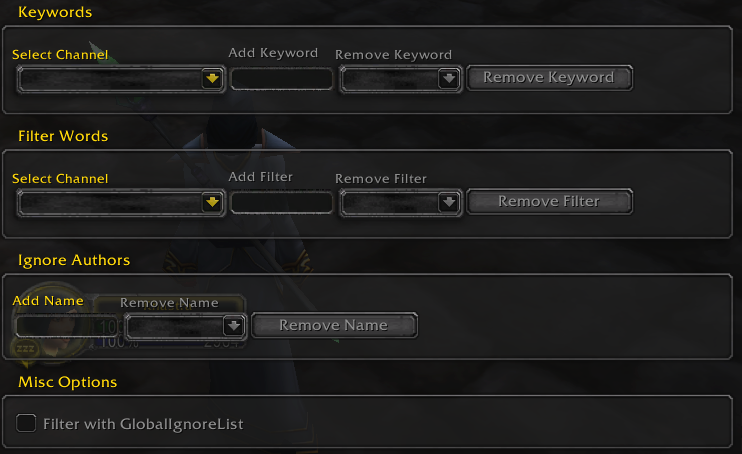
From 2.4.4
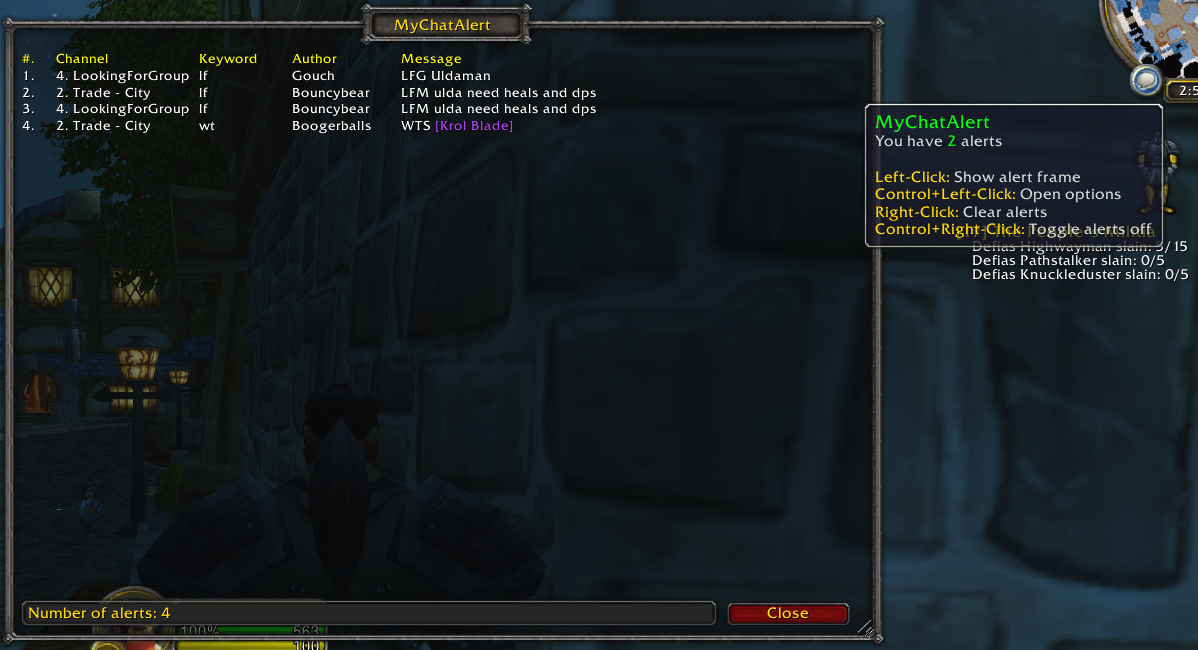
From 2.4.0 (unchanged in 2.4.4)
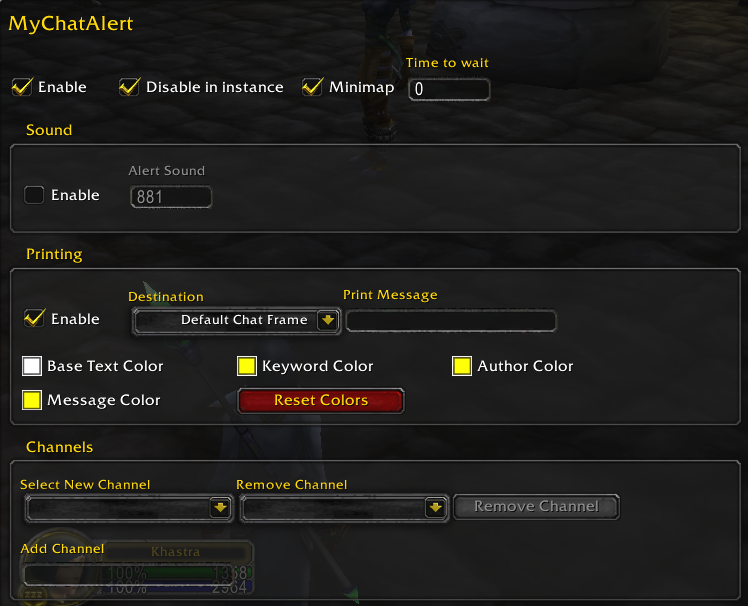
From 2.4.4

From 2.4.4
Description
MyChatAlert
Alerts the player when designated keywords are found in specified chat channels
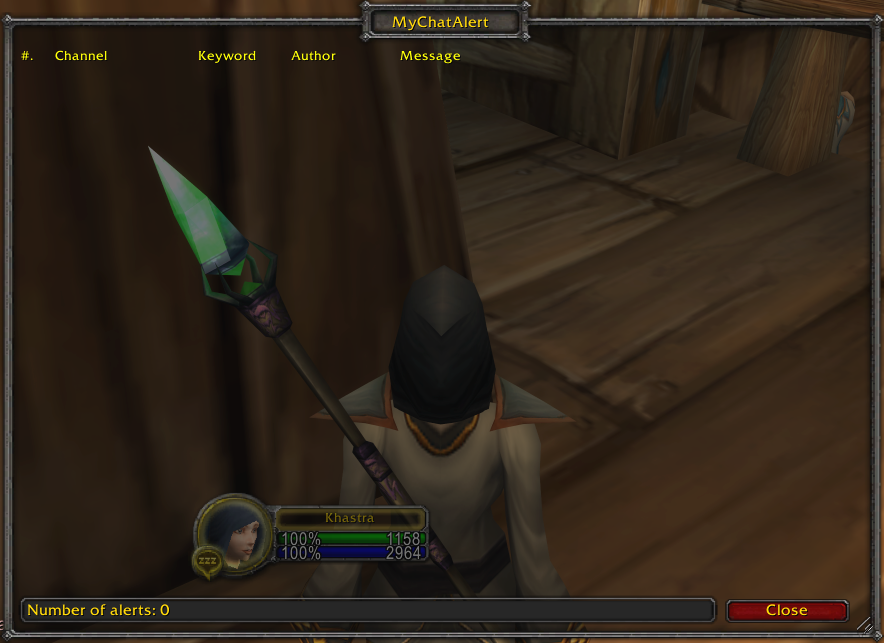

Using the Addon
Download it and install as a typical wow addon. Customization can be found in the interface/addons panel. Clicking on an author's name in the alert frame or printed alerts will open a whisper to that player.
Chat Commands
/mcaopens the addon options panel/mca alertsopens the alert frame/mca ignore {player}adds the player to the addon's ignore list
Minimap Functionality
Left ClickToggles the alert frame to show/hideControl + Left ClickOpens the interface options panel for the addonRight ClickClears stored alerts in the alert frameControl Right ClickToggles theEnablesetting, controls whether alerts are enabled or disabled
Creating a Basic Alert
Open the addon's options
In the
Channelssection, select achannelfrom the dropdown, or manually type in the nameIn the
Keywordssection, select thechannelyou want to add an alert toType in the
keywordthat you want to be alerted forYou now have a functioning alert! Further configuration can be done, the settings section below will explain each setting
Settings Walkthrough
General Section
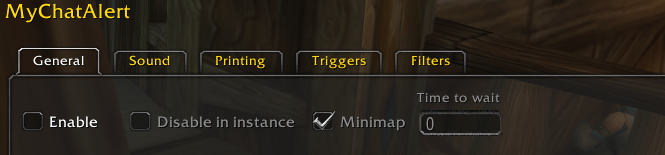
Enable- Toggles alerts on or offDisable in instance- If checked, suppress alerts while inside of an instanceMinimap- Toggle the minimap button on or offTime to wait- Controls how long to prevent duplicate messages from repeat authors from triggering a second alert (in seconds,0to disable the feature)
Sound Section
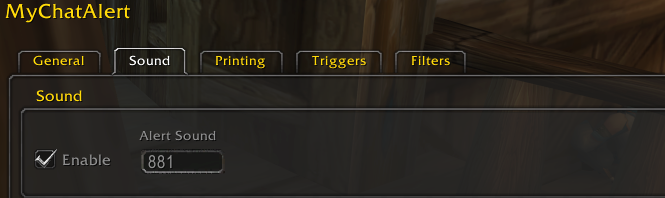
Enable- Whether to play a sound when alert is triggeredAlert Sound- The soundID (number) to play, this can be browsed on Wowhead- There is a GitHub issue regarding a quick-add list of sounds, similar to the channels, and I'm trying to build a list of some good sounds to use; if you have some favorite alerts sounds please comment them!
Printing Section
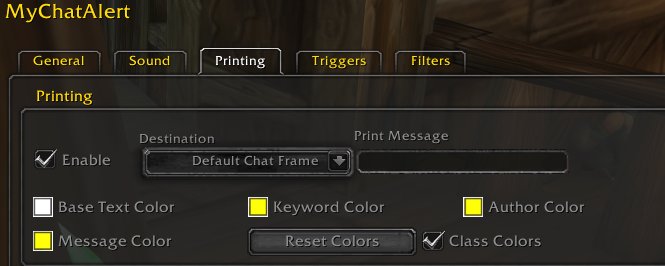
Enable- Whether to print alerts to the screenDestination- Where should the printed alerts be displayedPrint Message- If you want to override the default printed message, what you enter here is used as the format${keyword},${author},${message}will be replaced with the respective fields when an alert is triggered- E.g.
[${author}]: ${message}will output an alert of the format:[Name]: Something said to trigger an alert
Base Text Color- The base color of the alert text (anything that isn't a replacement)Keyword Color- The color to use for the keyword, colors both${keyword}replacements and the keyword within $ replacementsAuthor Color- The color to use for the authorMessage Color- The color to use for the message that triggered the alert
Trigger Section
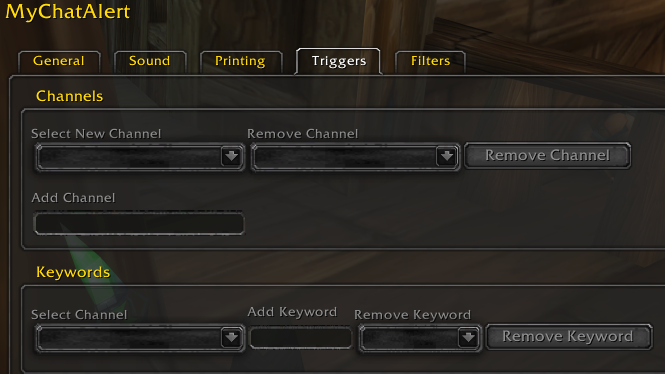
Channels
Select New Channel- Quick-add list of channels you can add to be watchedRemove Channel- Selectable list of added channels, pick one to be removedRemove Channel (Button)- Press the button after selecting a channel to remove it (along with associated keywords and filter words)Add Channel- You can manually type in a channel name if you want to add something not in the quick-add list
Keywords
Select Channel- Selectable list of added channels, pick one to add keywords tooMyChatAlert Globalsis for keywords to watch for in every added channel
Add Keyword- Type in the keyword you want to be alerted for- Simple keyword:
dm- Alerts ifdmis found in a message - Advanced keyword:
dm+west-east- Alerts ifdmis found in a message that also containswestand does not containeast
- Simple keyword:
Remove Keyword- Selectable list of added keywords, pick one to be removedRemove Keyword (Button)- Press the button after selecting a keyword to remove it
Filter Section
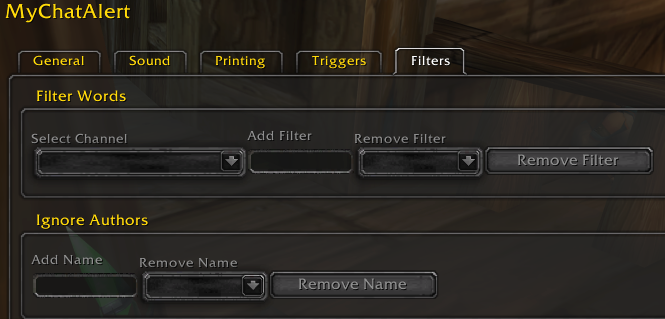
Filter Words
Select Channel- Selectable list of added channels, pick one to add filter words toMyChatAlert Globalsis for words to filter from every added channel
Add Filter- Type in a word if you don't want to receive alerts for messages containing the word- E.g.
guild- Don't alert for messages that containguild, even if the message contains a keyword
- E.g.
Remove Filter- Selectable list of added filter words, pick one to be removedRemove Filter (Button)- Press the button after selecting a filter word to remove it
Ignore Authors
Add Name- Type in the name of a player you don't want to receive alerts from- E.g.
GuildRecruiter: Don't alert for messages sent byGuildRecruiter, even if the message contains a keyword
- E.g.
Remove Name- Selectable list of added names, pick one to be removedRemove Name (Button)- Press the button after selecting a name to remove it
Missing Localization
If you want to help translate the addon to your locale, you can view what phrases are missing on Curseforge
[Abandoned] MyChatAlert Team

![[Abandoned] PartyMarker project image](https://media.forgecdn.net/avatars/thumbnails/225/745/256/256/637041541360754846.png)