MrTadpoleEggQOL
MrTadpoleEggQOL brings party tools, configurable notices, combat reminders and optional WoW settings into one place. Greet your group, notice whispers and character-name mentions, hear when selected cooldowns return, and review a graphics preset without losing track of your original values.
Each utility can be enabled separately. The addon runs on its own: MedusaTools, OneFUtilities, NaowhQOL and external libraries are not required.
Version covered: 2.1.8 · Target: WoW Retail 12.1.5 · Interface: 120105. This package does not target Classic.
Open settings: click the tadpole-egg minimap icon, type /tqol, or use Settings → AddOns → MrTadpoleEggQOL → Open settings.
About the images: the cover is AI-generated branding artwork. Feature images are explanatory diagrams based on the 2.1.8 source, not in-game screenshots. They illustrate functions, rather than reproduce the exact game appearance.
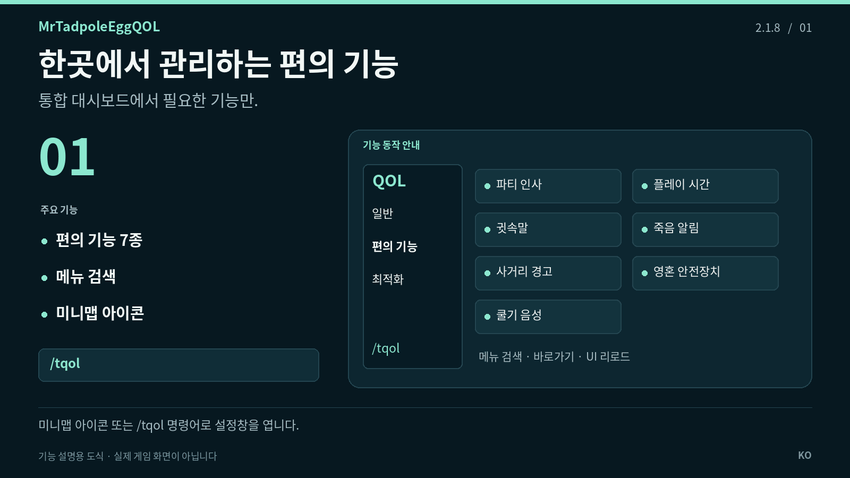
01 One home for your QOL
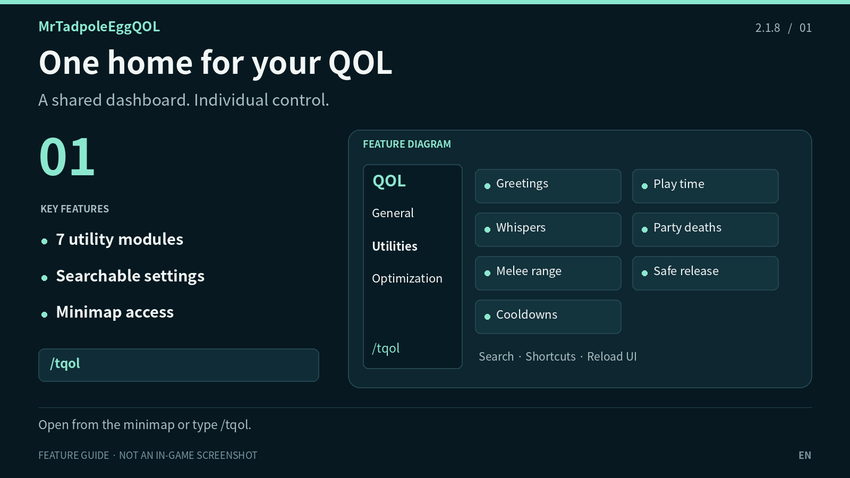
Bring everyday utilities and WoW settings into one searchable window. Enable the features you want and keep their controls together.
- Browse the General, Utilities and Optimization sections from a left-aligned, collapsible sidebar.
- Use the dashboard shortcuts, menu search and Reload UI button to reach settings quickly.
- Open or close the window from the custom tadpole-egg minimap icon. Drag the icon around the minimap and keep its saved position.
- The interface follows WoW's text language: Korean on koKR, English for addon text on other clients. Available native setting names follow the game's localization.
Open: /tqol
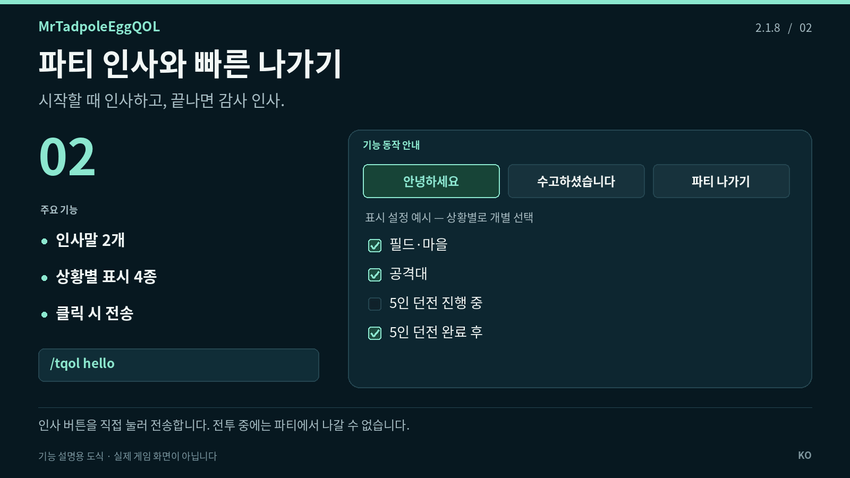
02 Party greetings & quick leave
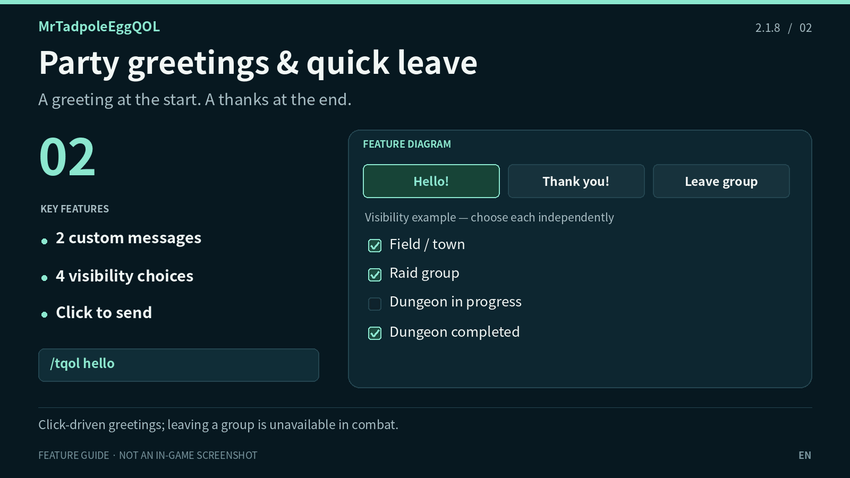
Keep two custom greeting buttons and a Leave Group button together on your screen. Messages are sent when you click, with the appropriate group chat channel selected automatically.
- Write two greetings, such as a welcome and a thank-you. The addon chooses party, raid or instance chat for you.
- Choose visibility independently for field/town, raid groups, 5-player dungeons in progress and completed 5-player dungeons.
- Use the separate Hide in Combat option, position lock, button dimensions, spacing, border, opacity and individual background/text colors.
- Leave your party or raid immediately with a direct button click, without an extra confirmation dialog. Leaving is unavailable in combat.
Open: /tqol hello
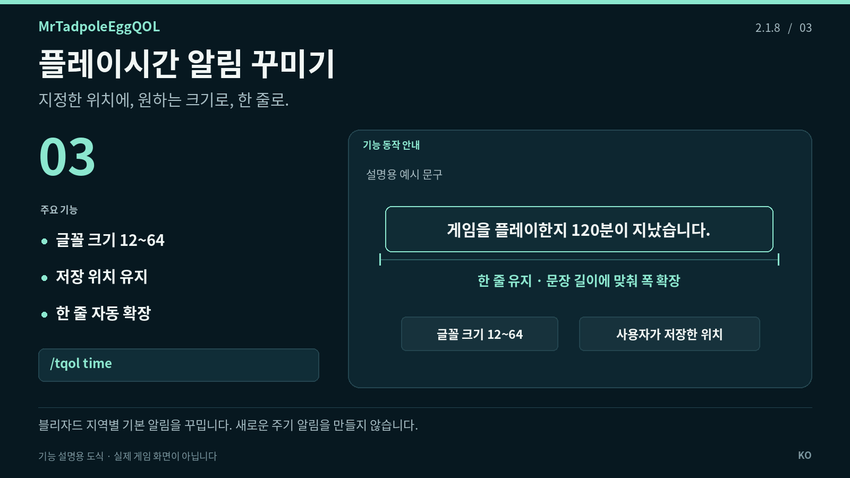
03 Play-time alert styling
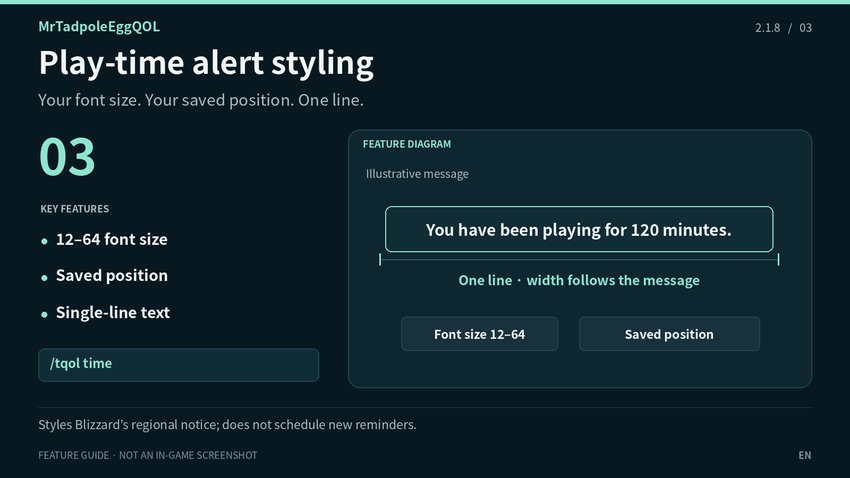
Restyle Blizzard's native play-time notice so it appears at your chosen location with readable text. The message stays on one line and expands horizontally with its content.
- Choose a font size from 12 to 64 and keep that size as the notice grows in width.
- Unlock the position, drag the highlighted preview, then lock it again. The saved anchor is reapplied when the native UI rearranges alerts.
- Preview the notice and reset its position without waiting for the game's next notice.
- Turning the module off restores the native alert's appearance and placement.
Open: /tqol time
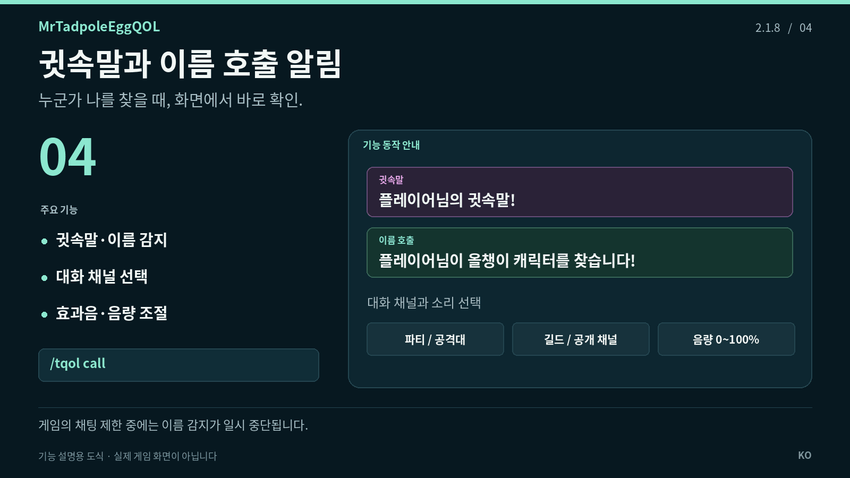
04 Whispers & name mentions
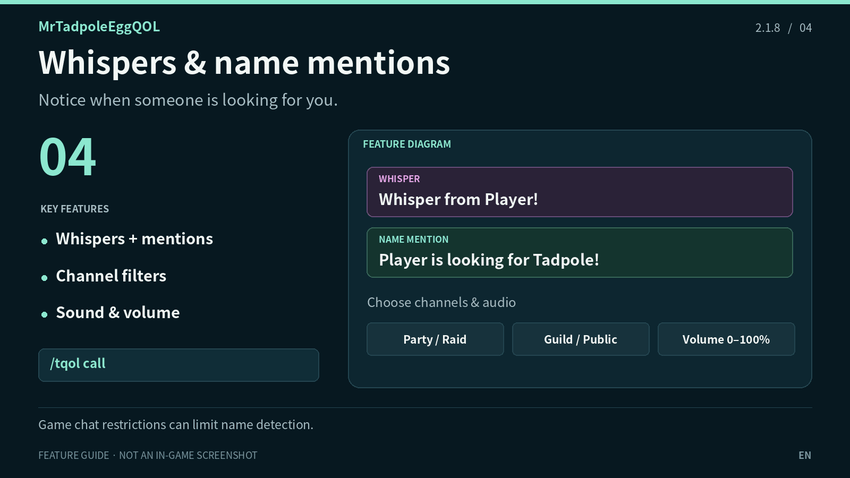
Show a visible alert when a whisper arrives or someone mentions one of your registered character names in supported chat channels.
- Enable whisper alerts and name-mention alerts separately. Optionally notify only on the first whisper from each sender during the session.
- Choose name detection in party/instance, raid, guild/officer, say, yell and public channels.
- Watch the current character or all registered names. Add and remove names, or clear the list back to the current character.
- Choose from six built-in sound options, route playback through Master, Sound Effects or Dialog, set alert volume from 0–100%, and test the result. Font size is adjustable.
Open: /tqol call
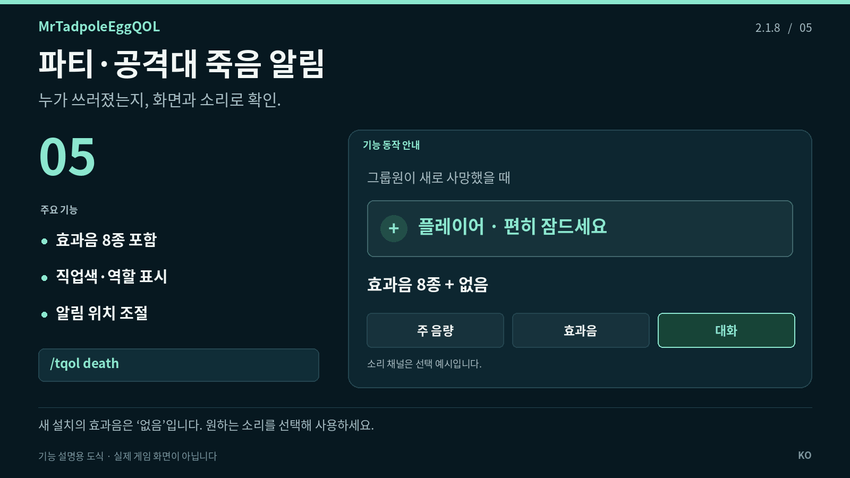
05 Party & raid death alerts
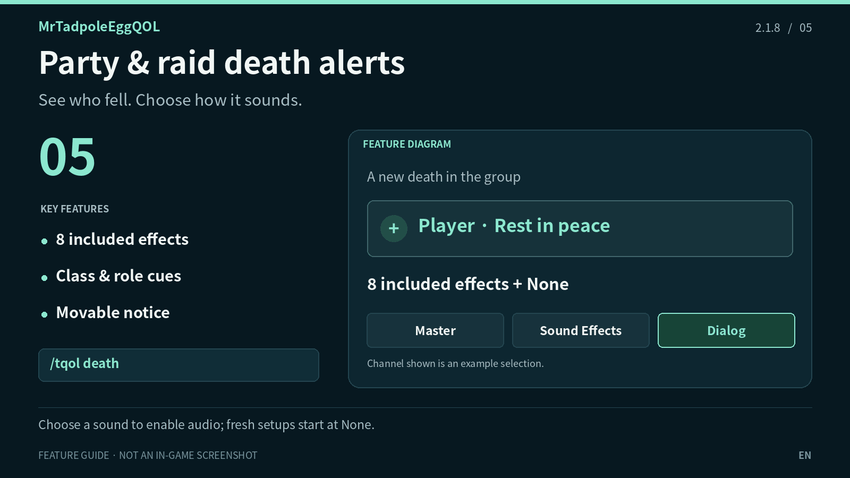
Display new deaths in your group with a class-colored name and a role icon when that information is available.
- Choose whether to include your own death and raid members.
- Pick one of eight included effects: four male voices, one female voice, a bell, pixel and spring sounds. A None option is also available.
- Play through Master, Sound Effects or Dialog and preview the selected effect.
- Customize the message after the name, font size, color, display duration and position. Deaths already present when joining or logging in are not repeated.
Open: /tqol death
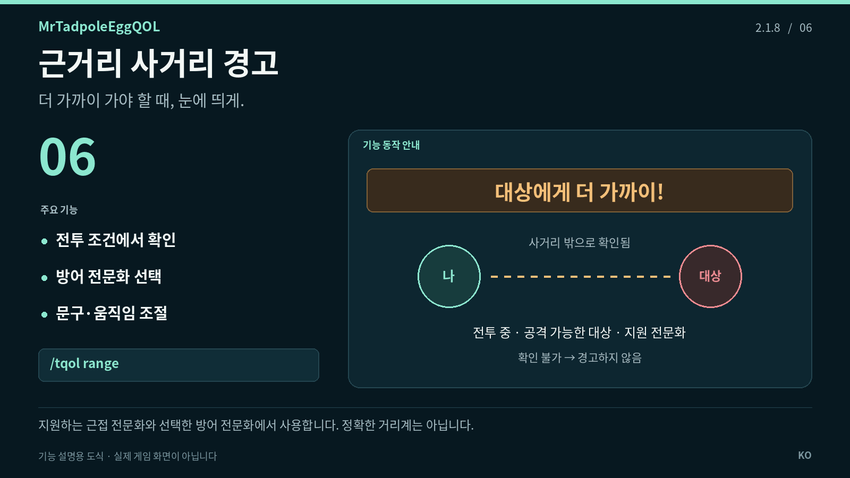
06 Melee range warning
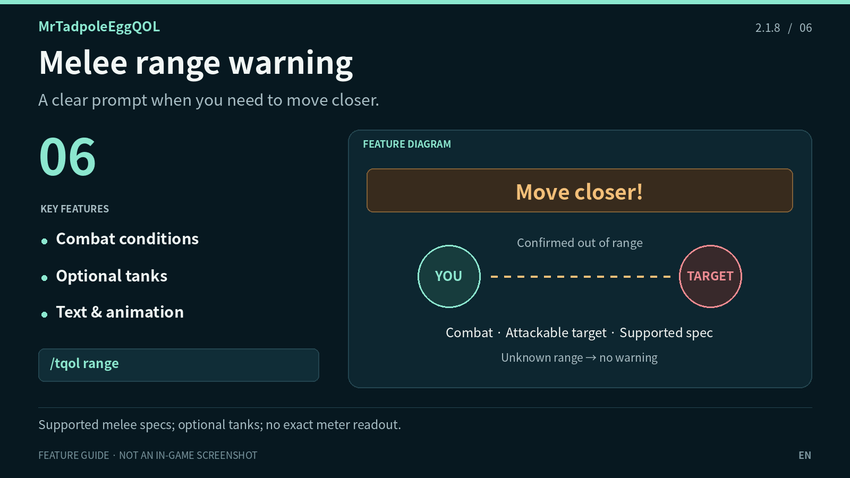
For supported melee specializations, show a warning when your current attackable target is confirmed to be outside the available melee-range check.
- Watch only while in combat with a living, attackable target and a supported specialization.
- Optionally include supported tank specializations.
- Customize the warning text, color, font size and screen position; choose whether the warning animates.
- Use the built-in test and position controls to place the warning where you will notice it.
Open: /tqol range
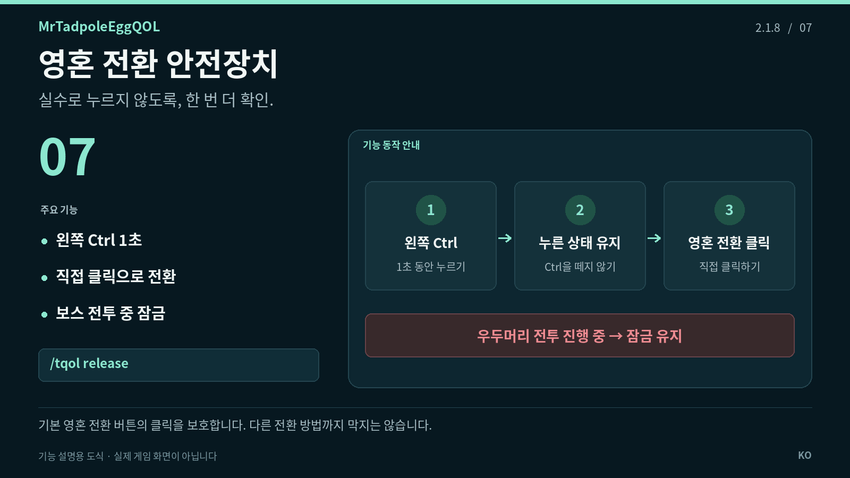
07 Safe spirit release
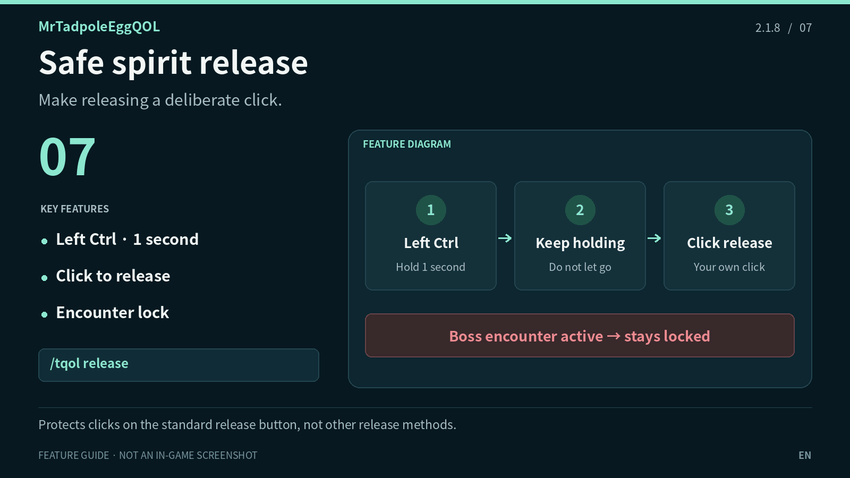
Help prevent accidental clicks on the standard Release Spirit button with an additional hold-to-unlock step.
- Hold Left Ctrl for one second, keep holding it, then click the game's normal release button.
- Releasing Ctrl locks the button again. The protection remains locked during an active boss encounter.
- Optionally use the protection only while in a raid group.
- Soulstone, resurrection and death recap buttons remain available. Your spirit is never released automatically.
Open: /tqol release
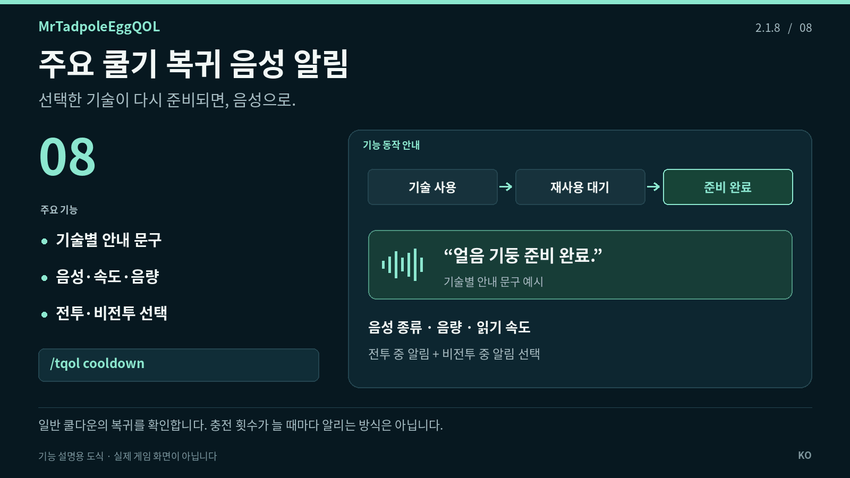
08 Cooldown voice alerts
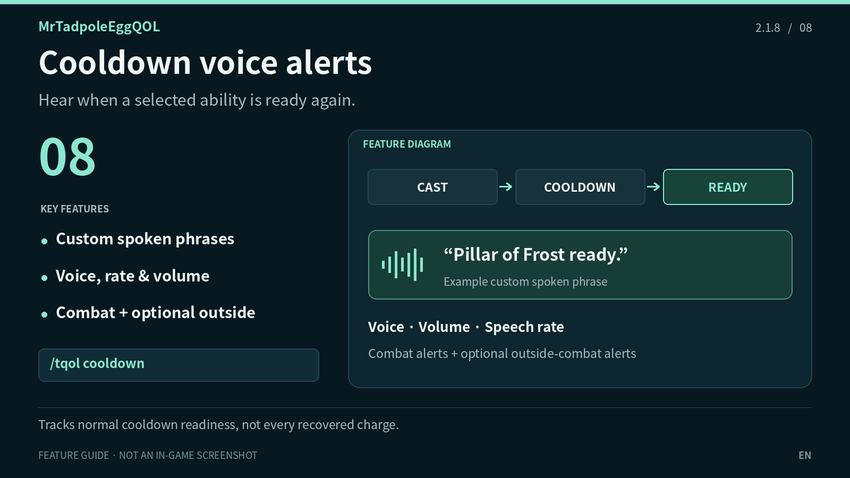
Use WoW's text-to-speech voices to announce the return of selected abilities after their use has been observed.
- Enable the module, select learned abilities, or add an ability by its name or spell ID.
- Customize the phrase spoken for each tracked ability.
- Choose a voice, volume and speech rate. Test Voice checks playback; Check Status reports tracking and speech-request diagnostics.
- Combat announcements are allowed while the module is enabled. Turn on Also Announce Outside Combat if you want both.
Open: /tqol cooldown
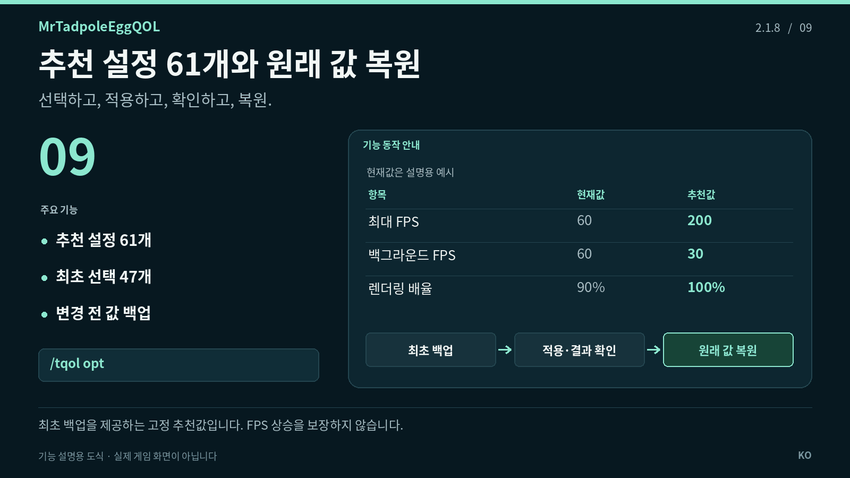
09 61 settings, with a way back
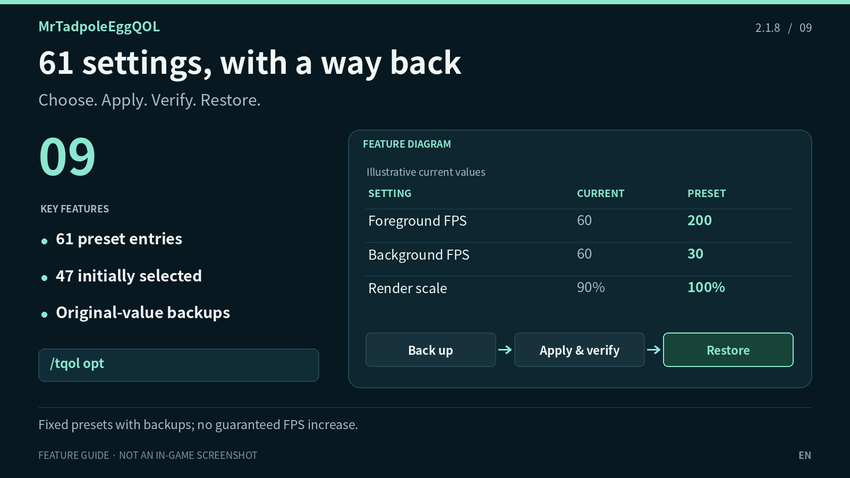
Review a built-in preset covering graphics, raid graphics, FPS limits, visual effects and other WoW settings. Apply individual entries or a selection while preserving their original values.
- 61 preset entries are included. The initial selection covers 47 graphics/FPS-related settings; choosing all 61 still requires clicking Apply.
- Compare readable current and recommended values, inspect detailed tooltips and review the application result.
- Original values are backed up before the first change. Use Restore Selected or Restore All; failed or unconfirmed restores keep their backup records.
- Unsupported or locked settings are skipped. Copy Report collects the recent operation and current/backup values for troubleshooting.
Open: /tqol opt
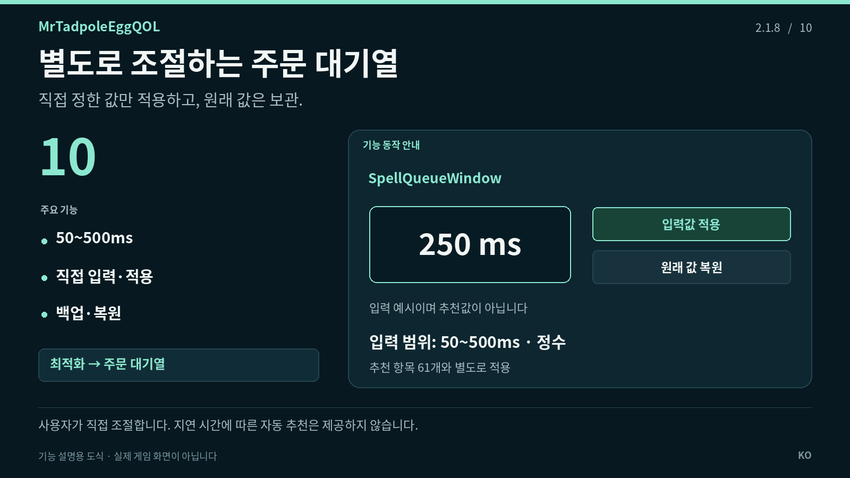
10 A separate spell queue control
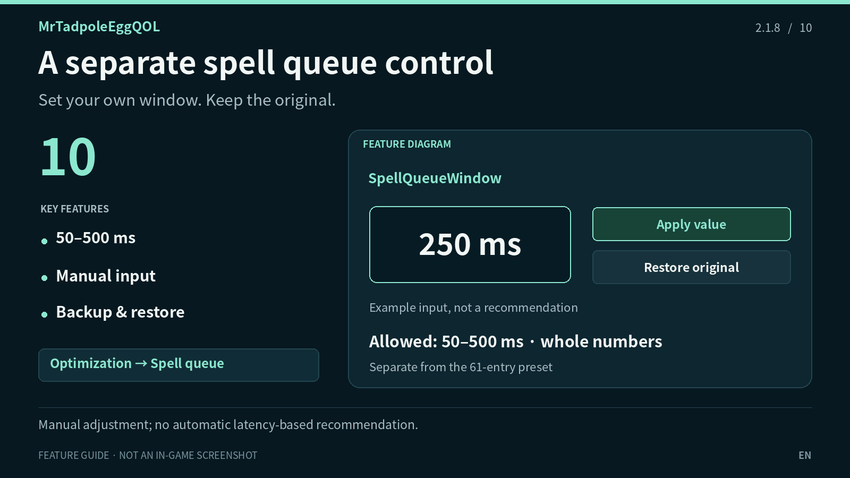
Adjust the SpellQueueWindow setting separately from the 61-entry preset, with an explicit Apply action and its own original-value backup.
- Enter an integer from 50 to 500 milliseconds.
- Apply only the value you have chosen; no queue value is silently added to the main preset.
- Restore the original value from this page, or include it in Restore All.
- Use the Optimization sidebar to open Spell Queue and inspect the current value and status.
Fresh-install defaults
| Party greetings, play-time styling, whispers/name mentions | On |
|---|---|
| Party death alerts | On; sound set to None |
| Melee range, safe release, cooldown voice | Off; enable as needed |
| Optimization preset | Not applied automatically |
Existing saved settings are preserved when updating.
Commands
/tqol |
Open / close settings |
|---|---|
/올챙이 |
Same main command |
/tqol home |
Dashboard |
/tqol hello |
Party greetings |
/tqol time |
Play-time alert |
/tqol call |
Whispers / name mentions |
/tqol death |
Party death alerts |
/tqol range |
Melee range warning |
/tqol release |
Safe spirit release |
/tqol cooldown |
Cooldown voice alerts |
/tqol opt |
Optimization; Spell Queue is in the sidebar |
/tqol minimap |
Show / hide the minimap icon |
Getting started
1. Exit WoW and place the MrTadpoleEggQOL folder inside _retail_/Interface/AddOns/. The .toc file should sit directly inside that addon folder.
2. Start the game, enable the addon and open /tqol.
3. Enable the utilities you want. For cooldown speech, enable the module and check an ability; the voice test alone does not enable tracking.
4. Review the optimization selection before applying it. Selecting entries or simply logging in does not change optimization values.
5. Keep existing SavedVariables when updating to preserve your preferences and original-value backups.
Performance approach
The addon uses events and limited timers for the work that needs them. Melee range checks run every 0.2 seconds only under their combat conditions. The release guard checks while the death dialog is visible. Cooldown readiness uses a single 0.5-second timer while enabled with selected abilities, and ready entries skip periodic cooldown API reads.
The minimap position updates only during a drag. Feature events and timers are stopped when no longer needed. These are design characteristics, not a measured CPU or FPS guarantee; no live-client benchmark is claimed.
Compatibility and previous addons
If MedusaTools or the original HelloParty, MedusaTimeAlert or WhisperCallme addon is active, the corresponding integrated module waits to avoid duplication. Disable the original and reload to use the integrated version.
At first initialization only, available loaded settings from those three original modules can be copied into the integrated settings. Existing MrTadpoleEggQOL module settings are not overwritten. OneFUtilities settings are not imported automatically.
If you keep OneFUtilities for its other features, disable the overlapping death, range, release and cooldown features there to avoid duplicate handling.
Troubleshooting
No cooldown voice? Check that the module and the ability are enabled, volume is above zero, and Test Voice can be heard. Check Status helps distinguish tracking from speech requests. If testing outside combat, enable Also Announce Outside Combat. Available voices depend on the game/client setup.
No real play-time notice? This module styles Blizzard’s regional notice. It does not provide a replacement schedule on clients where that notice is absent.
No death sound? Select an effect instead of None, preview it, and check the selected Master, Sound Effects or Dialog channel in the game’s sound settings.
Want to remove the optimization changes? Run Restore All and review the result before disabling/removing the addon. Deleting the addon alone does not undo game settings. Preserve SavedVariables until restoration is complete.
For bug reports, include the addon version, game version, steps to reproduce and complete Lua error text. For optimization issues, include Copy Report. For cooldown issues, include the ability name or ID and Check Status output. Remove personal information from reports before posting.
Credits
Author: 올챙이알아저씨 (MrTadpoleEgg).
Feature references: MedusaTools 1.0.1 / HelloParty / MedusaTimeAlert / WhisperCallme; original credited authors: 올챙이알, Peniar and 일층.
Selected feature logic/data, eight death sound files and three role icons: OneFUtilities 1.92.013 by 일층.
The 61 preset values are based on the supplied NaowhQOL 20260721.01 optimization table. This is not an official NaowhQOL release or an endorsement by that project.
Third-party content retains its original attribution. The addon UI uses Blizzard’s game-provided interface facilities.