


MiniHugeHUD
- By

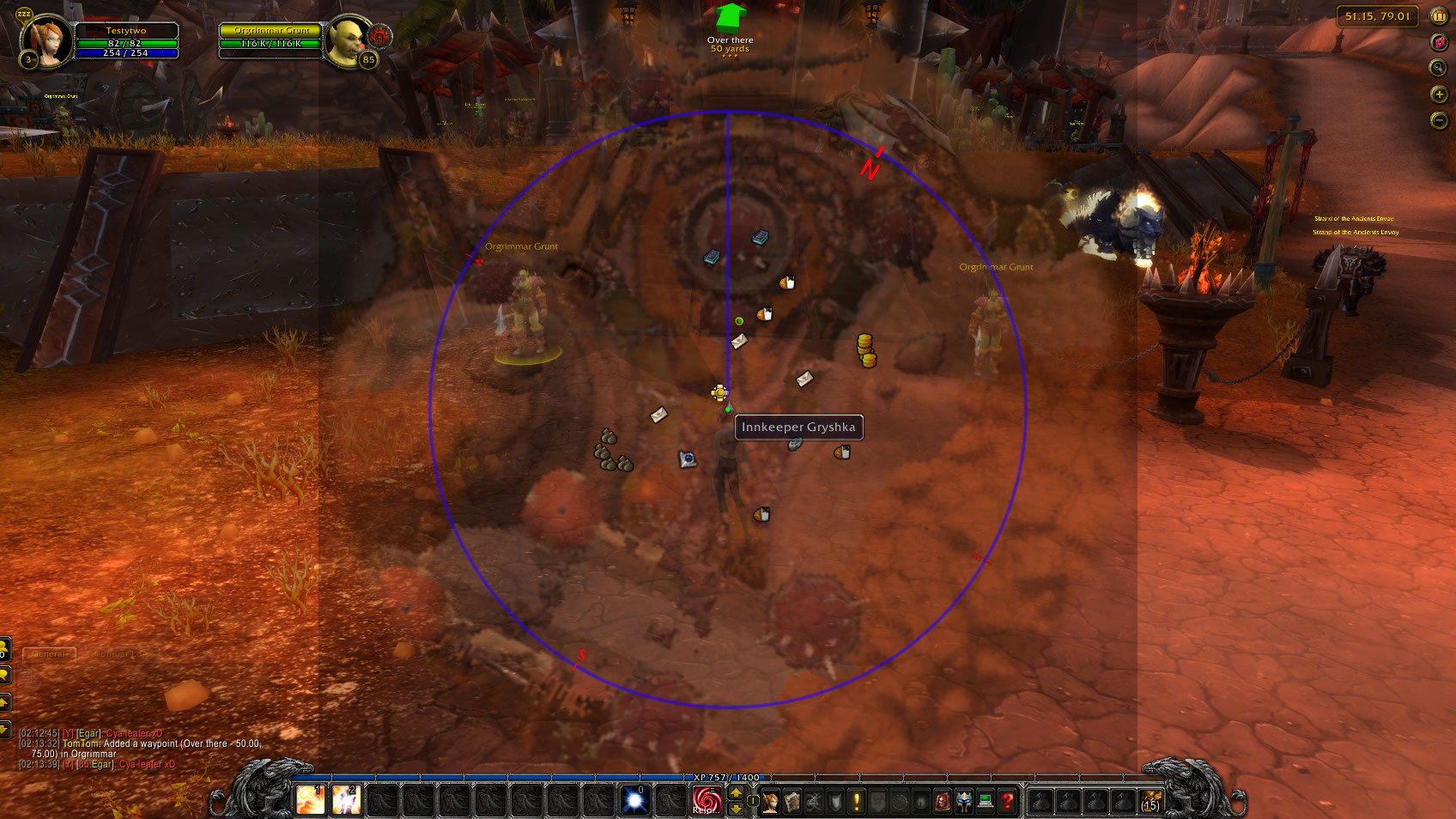
In this screenshot I have held the Mouse Interaction button down so I can mouse over items on the minimap to see there popups or click on them etc... and have already selected (in the options screen) to show the minimap slightly transparent while thi...
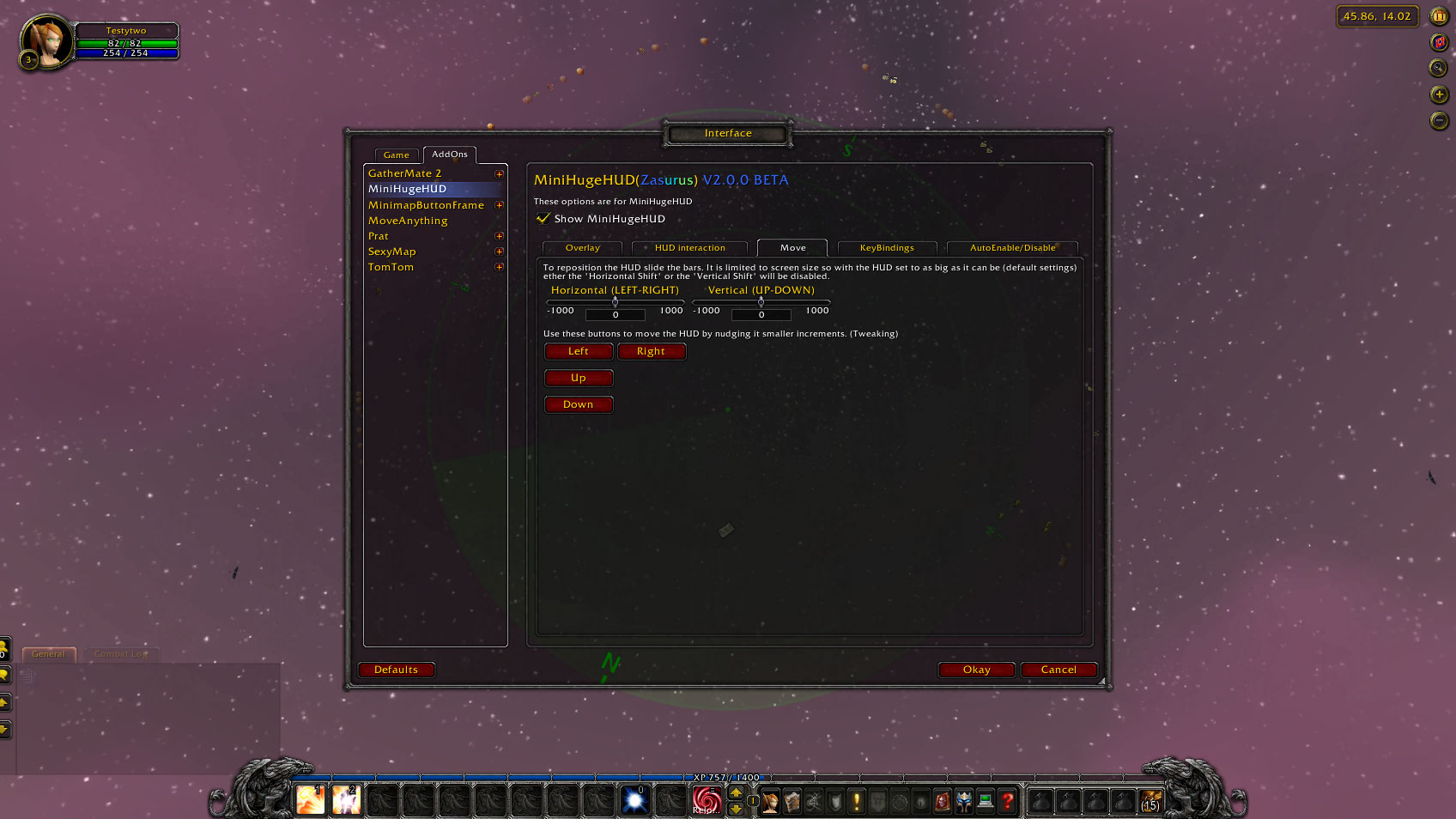
This shows you the options screen for MiniHugeHUD. Specifically the Move screen. I created these options as I was running WoW across multiple monitors and wanted to be able to move the HUD onto one of the screens. You could also use them to move the ...
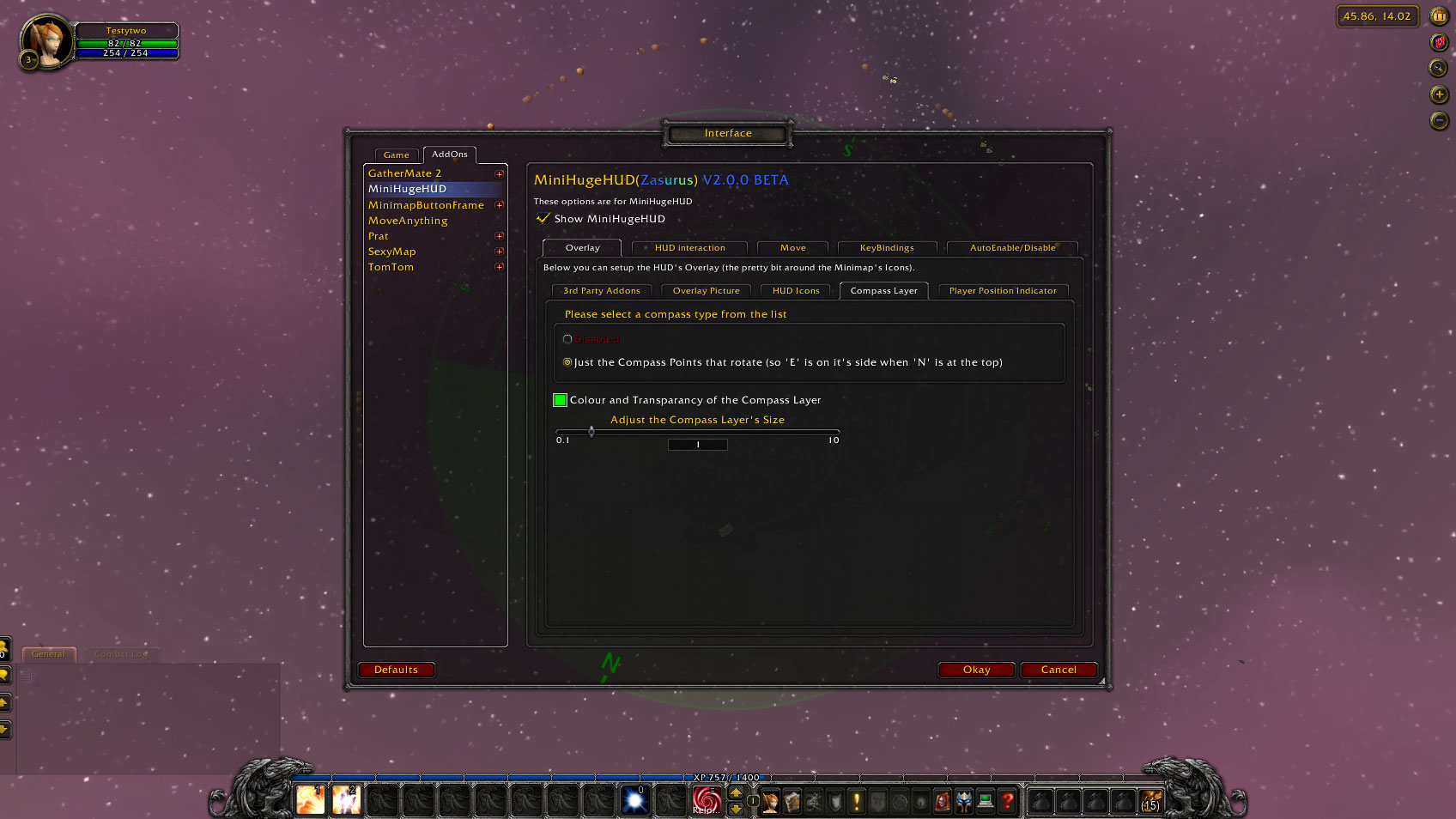
This shows you the options screen for MiniHugeHUD. Specifically the Overlay - Compass Layer screen which lets you choice if you want the Compass points to be shown. These are the N, E, S & W letters that appear around the HUD and tell you which w...
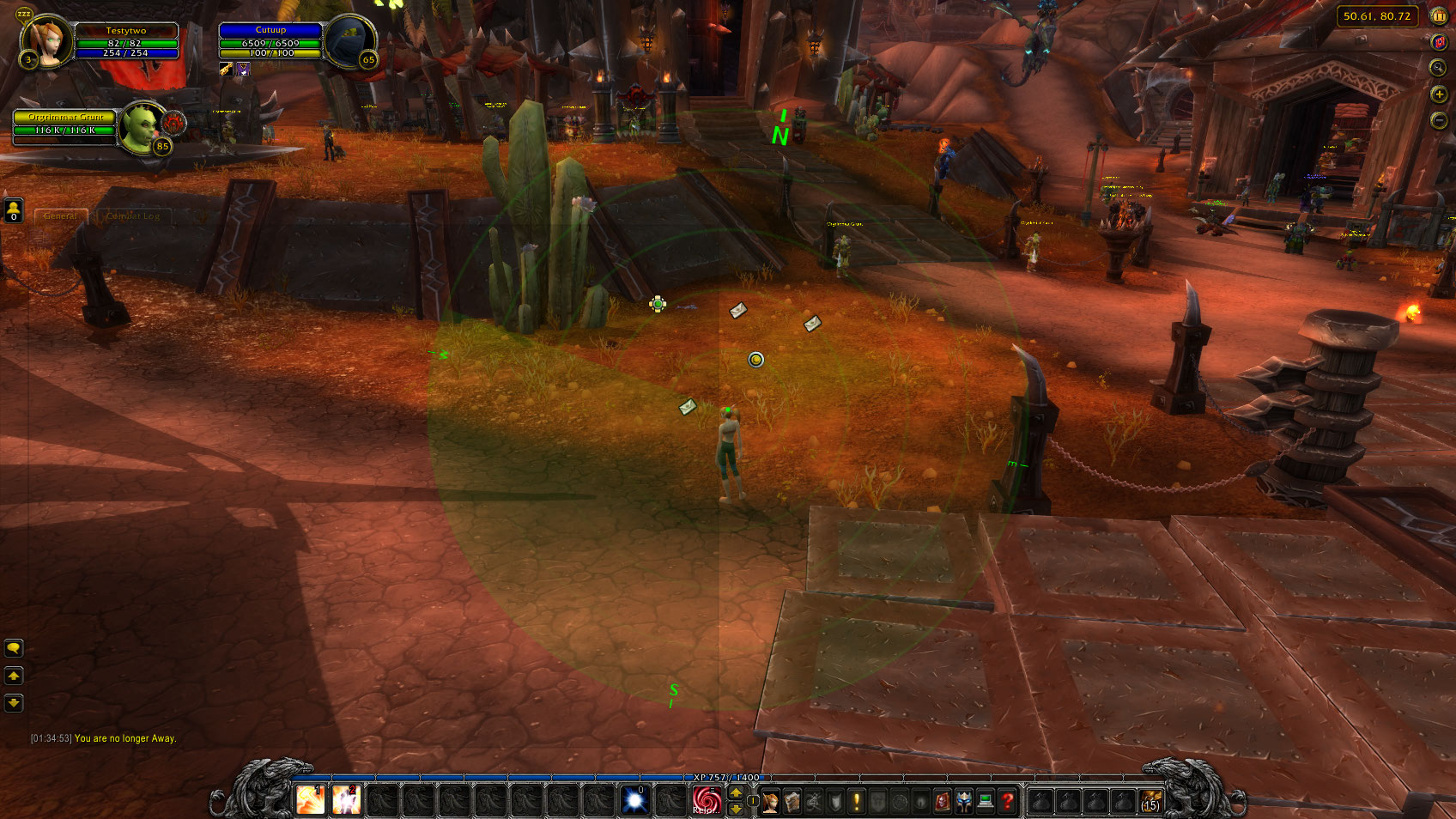
This is a screenshot of the MiniHugeHUD with the Radar (animated) overlay on. I have got someone targeted (the dot above me to my left slightly) and someone set as focus (the yellow dot above me to the left). Also the Compass points are on. The whole...
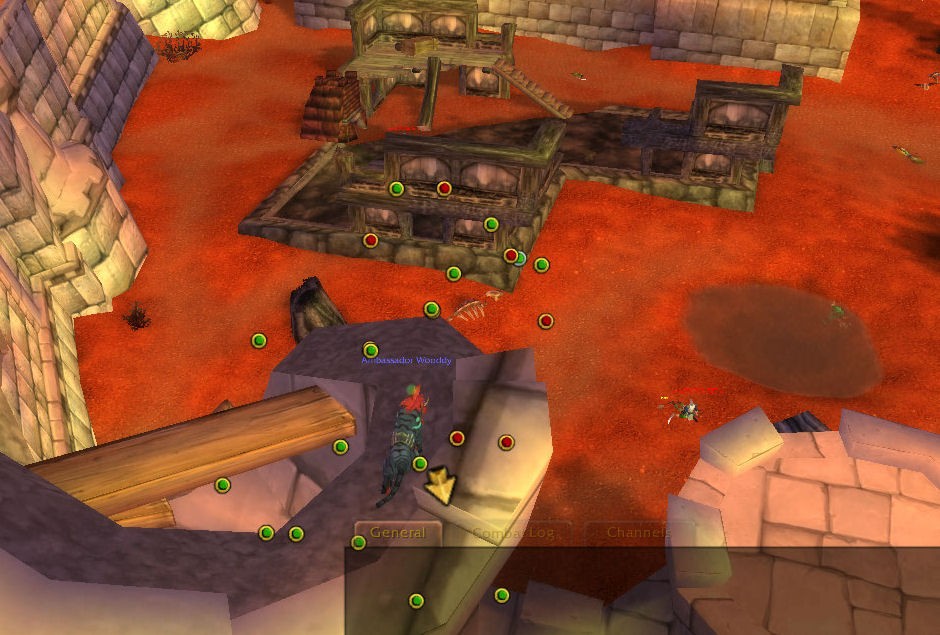
This is an example of what the HUD looks like with loads of Humanoids around. As you can see it clearly tells you where the enemys are and as you turn around the HUD rotates to always have the people that are phyisicaly in front of you apear at the t...
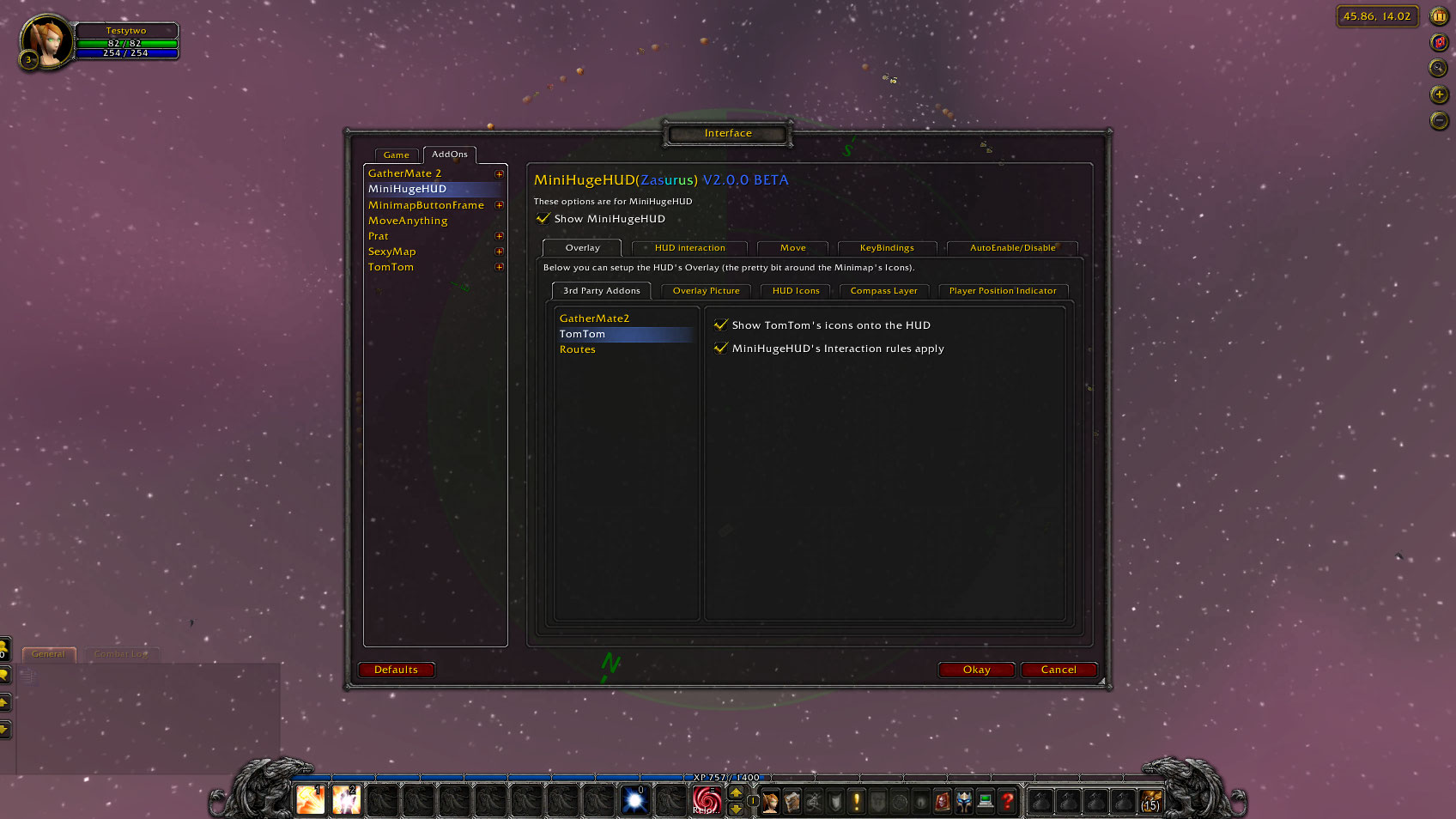
This shows you the options screen for MiniHugeHUD. Specifically the 3rd Party Addons screens. There are one of these for each addon that MiniHugeHUD supports so as I find more to add (or you guys as for them!) there options will apear here. The three...
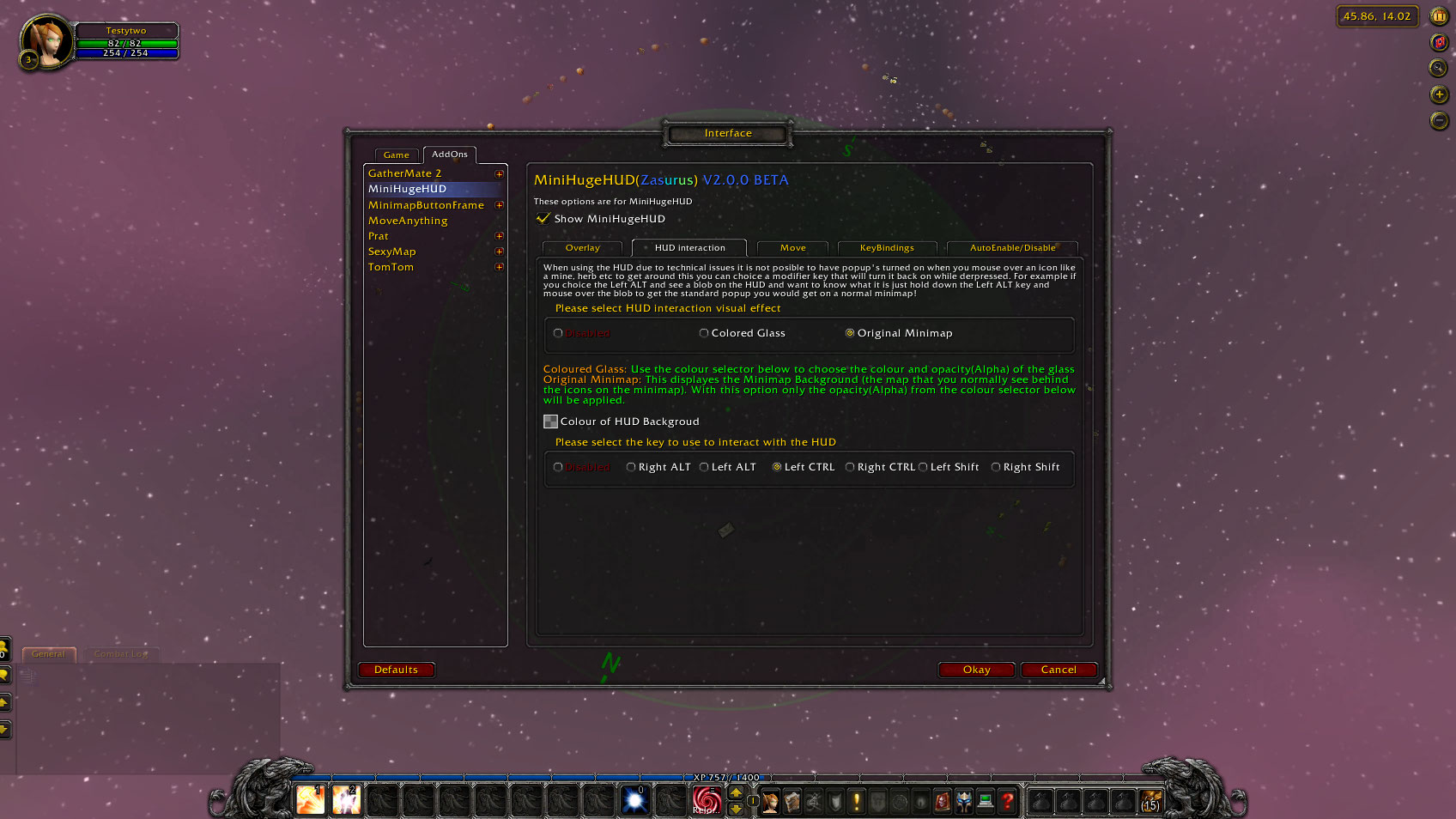
This shows you the options screen for MiniHugeHUD. Specifically the HUD Interaction screen. This screen lets you specify which of the Mod keys (these are keys like CTRL, SHIFT and ALT that WoW treats in a special way. When the selected key is held do...
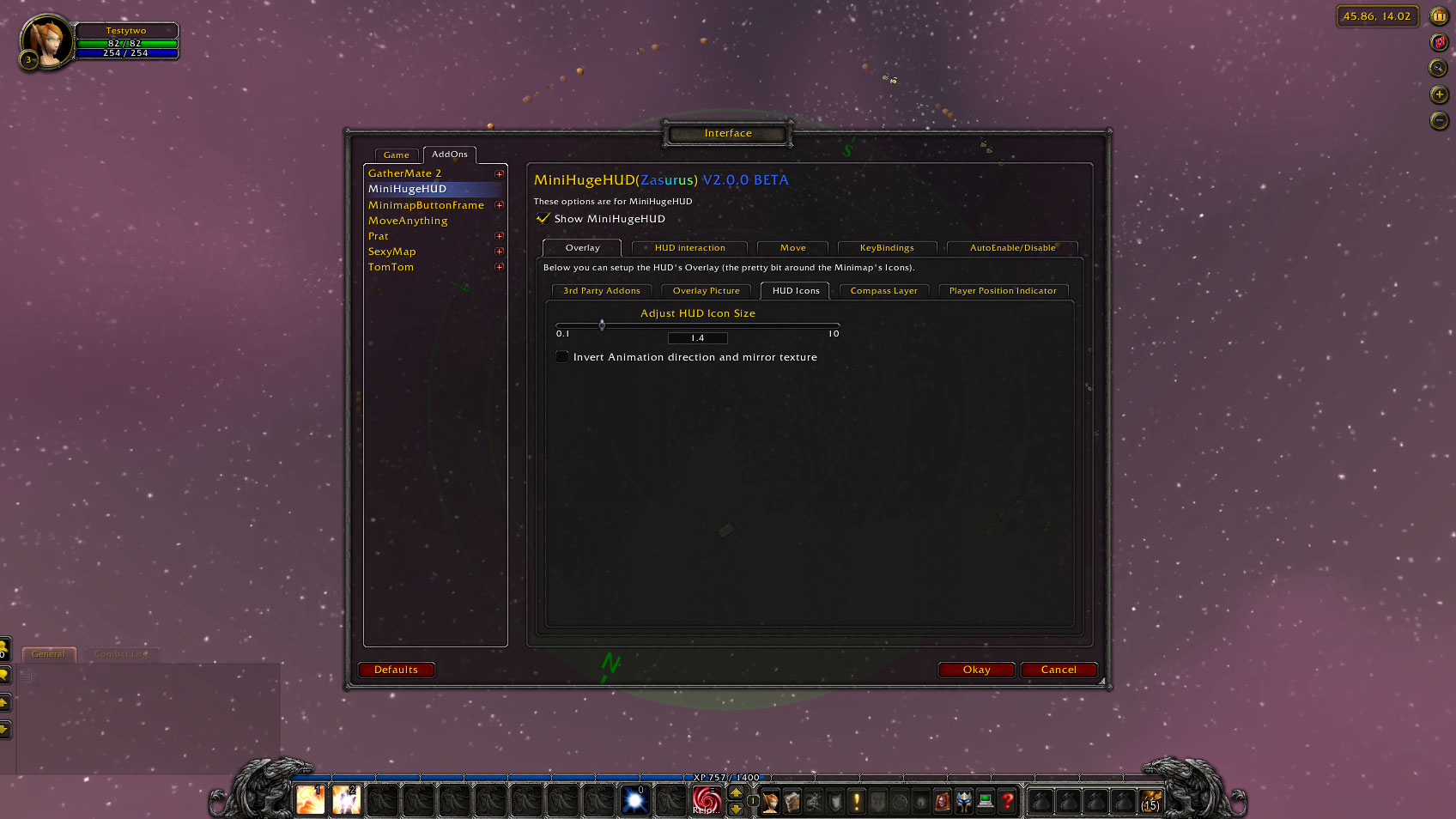
This shows you the options screen for MiniHugeHUD. Specifically the HUD Icons screen. This is a basic options screen that lets you choice the size of the Main HUD Icons (not addon specific icons yet as I need to add this feature for each addon as I g...
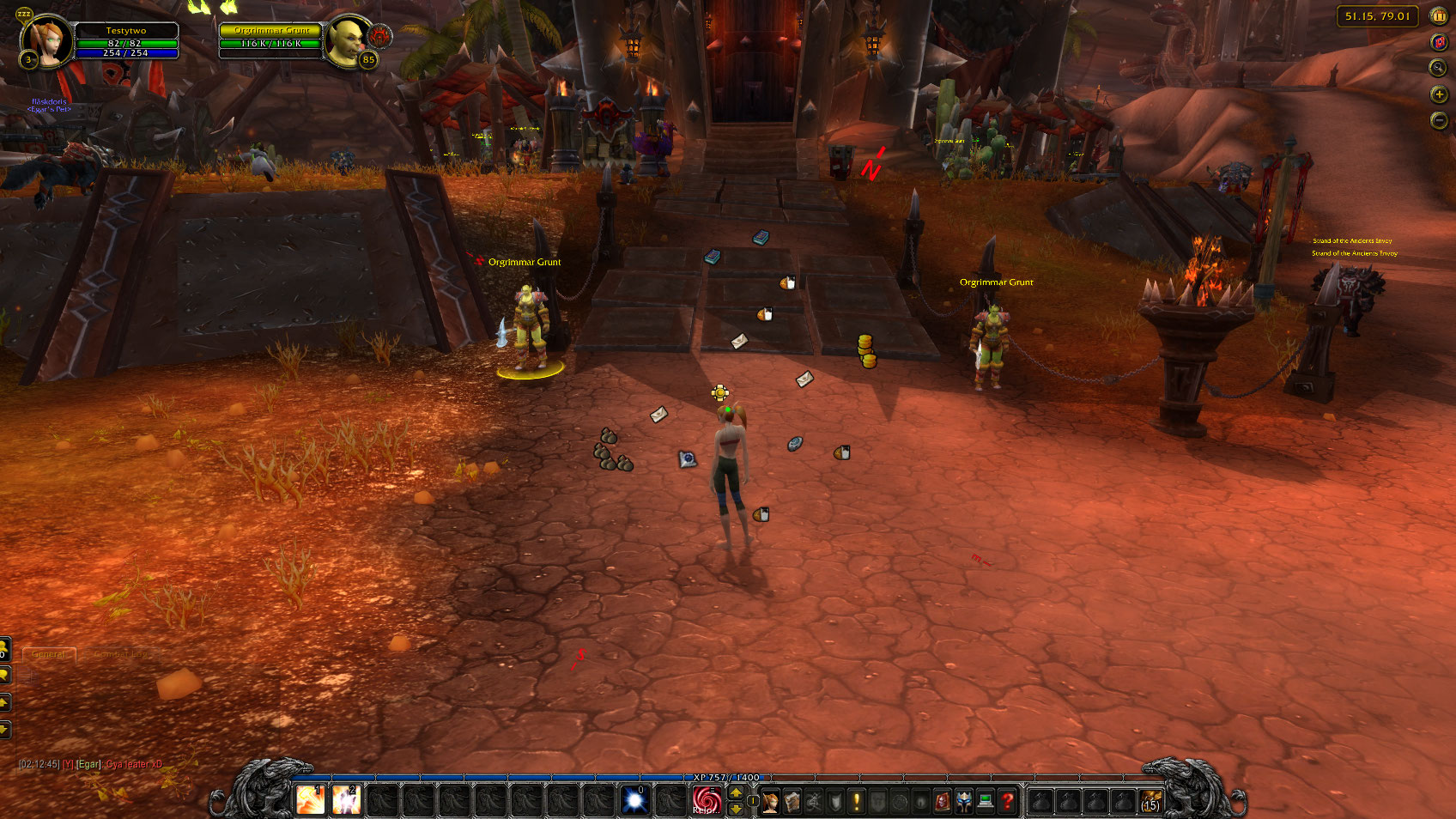
This is in Org I have a guard targeted which you can see her on the HUD as a yellow blob JUST above my head and the green dot on my head represents where I am on the HUD.
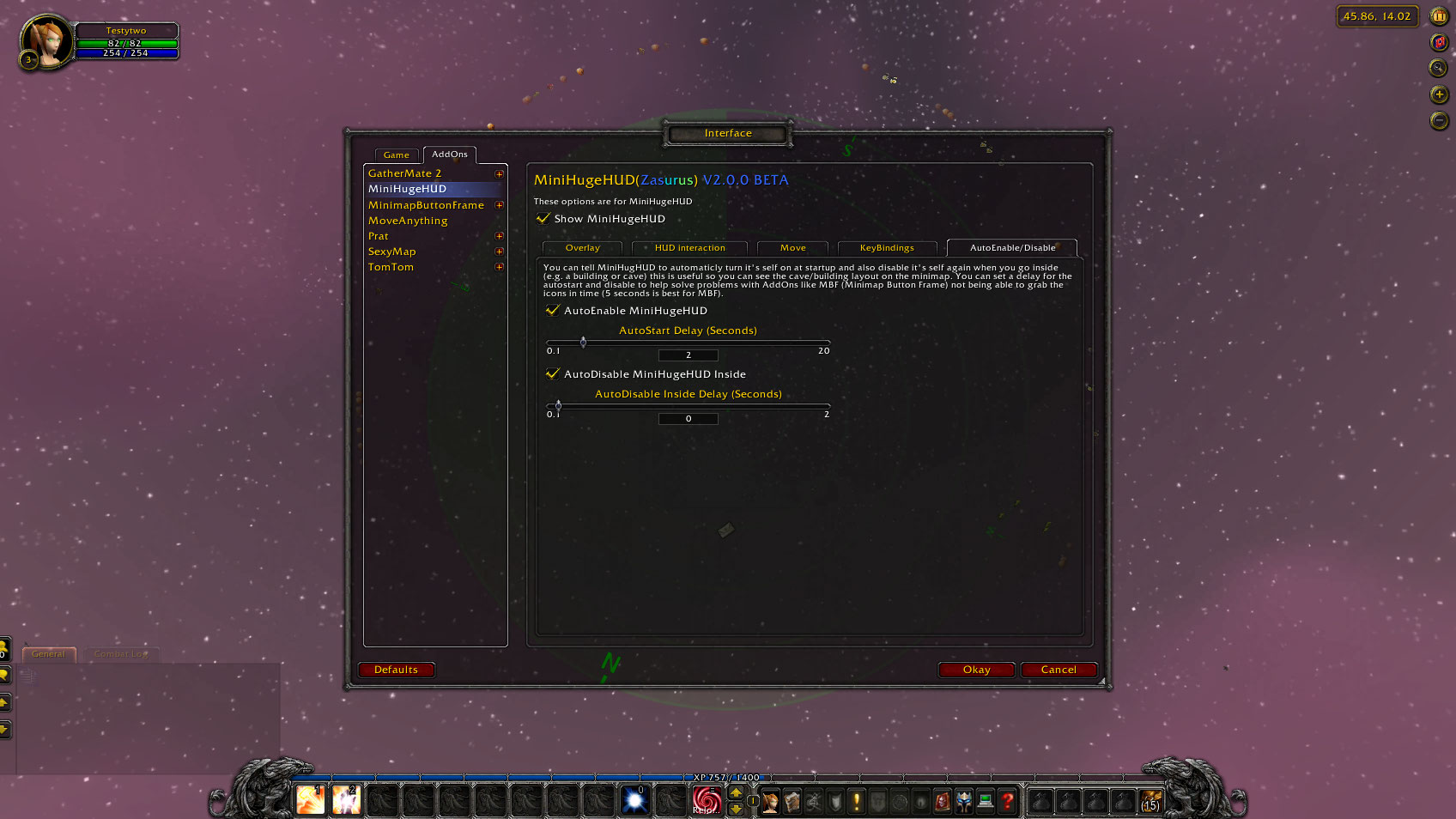
This shows you the options screen for MiniHugeHUD. Specifically the Auto Enable/Disable screen and as you can see it lets you set if the HUD is auto enabled on start-up (and how long to wait for other addons etc) as well as if you want it to disable ...
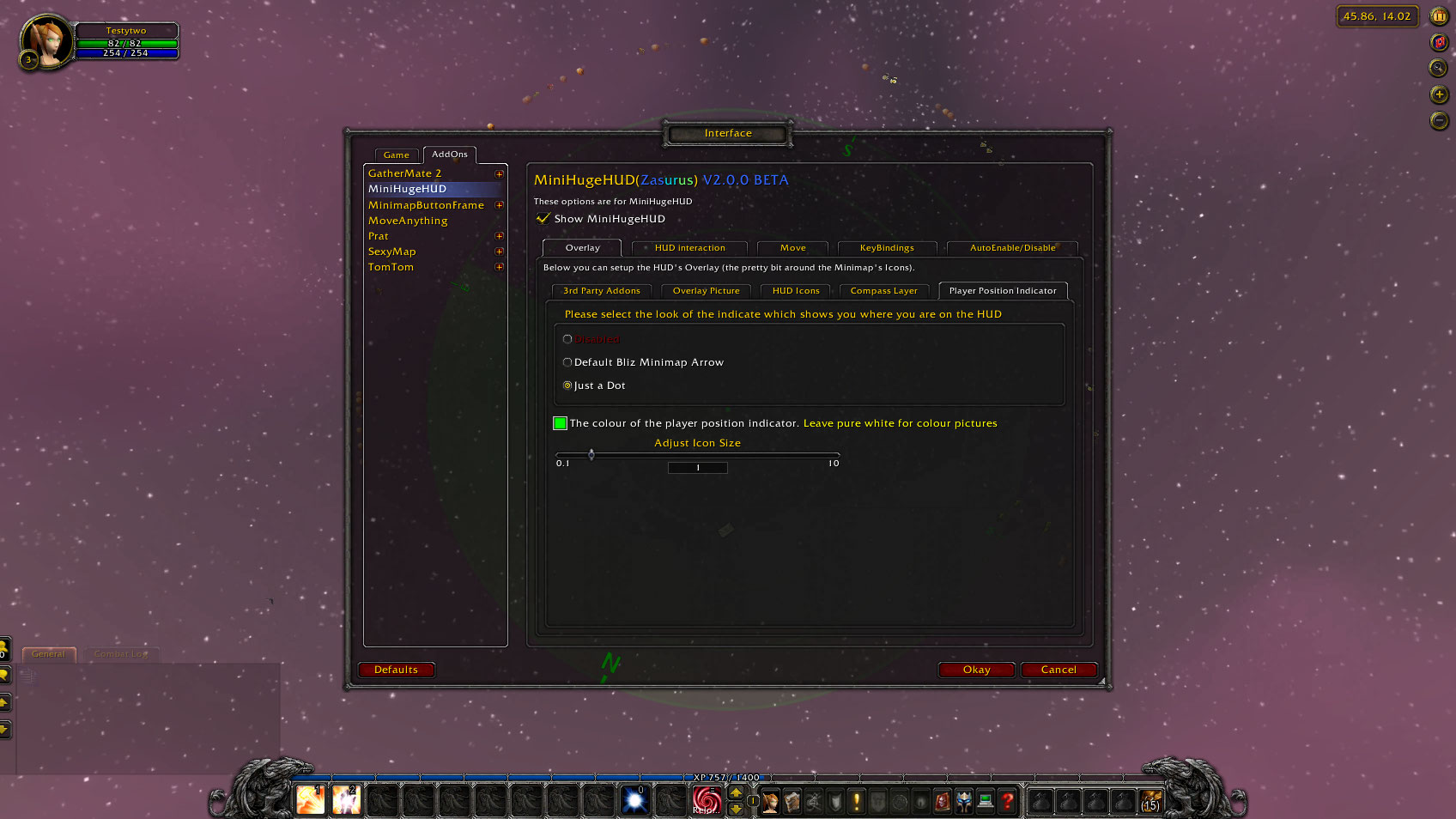
This shows you the options screen for MiniHugeHUD. Specifically the Overlay - Player Position Indicator screen which lets you choice how the player's location is displayed on the HUD. More options for this will apear as I have time and think them up!...
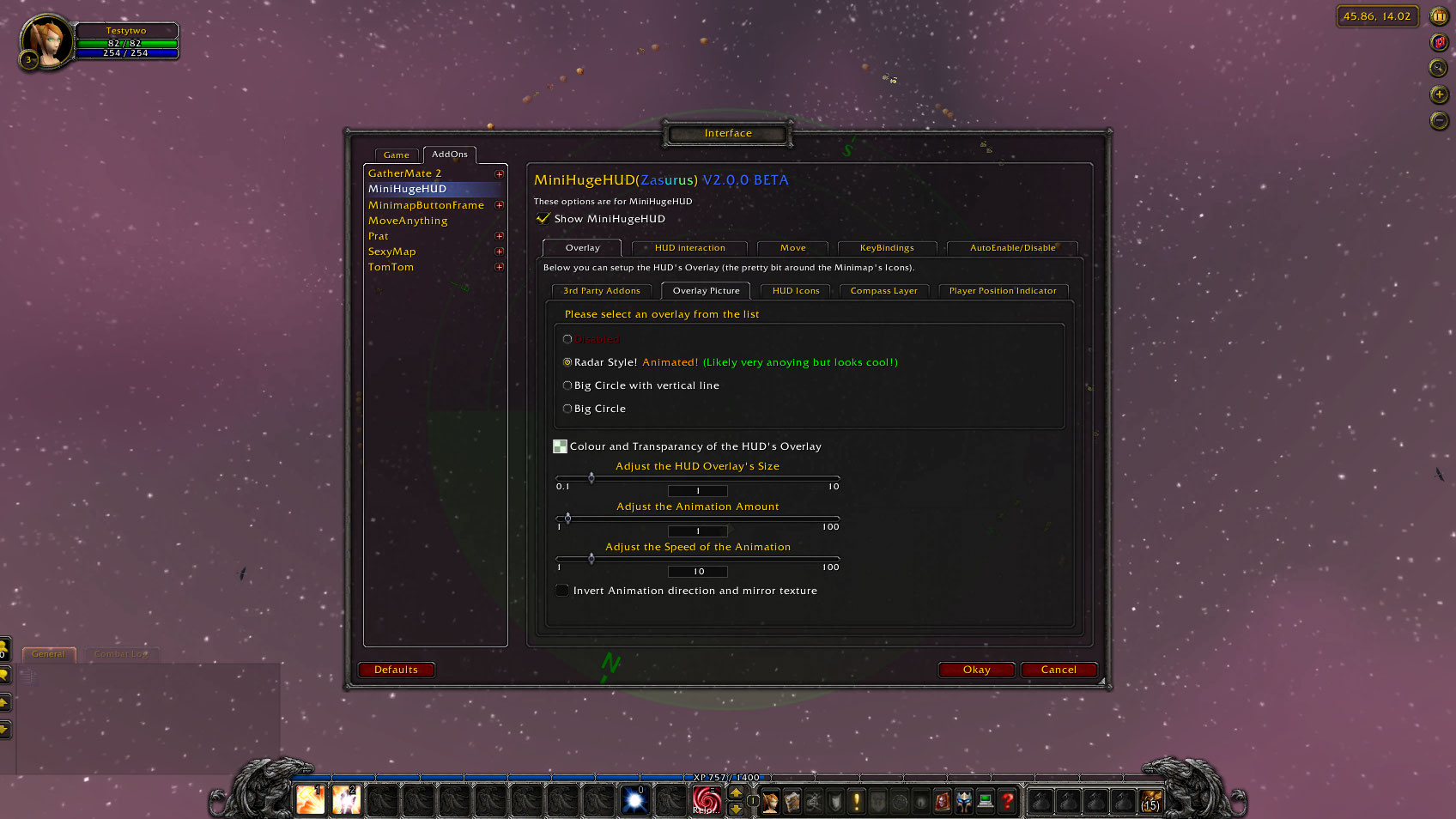
This shows you the options screen for MiniHugeHUD. Specifically the Overlay Pictures screen. It controls the Main Overlay. It is fairly plain and I personally don't use any of them BUT I did spend some time adding an animated Radar overlay. Nothing b...
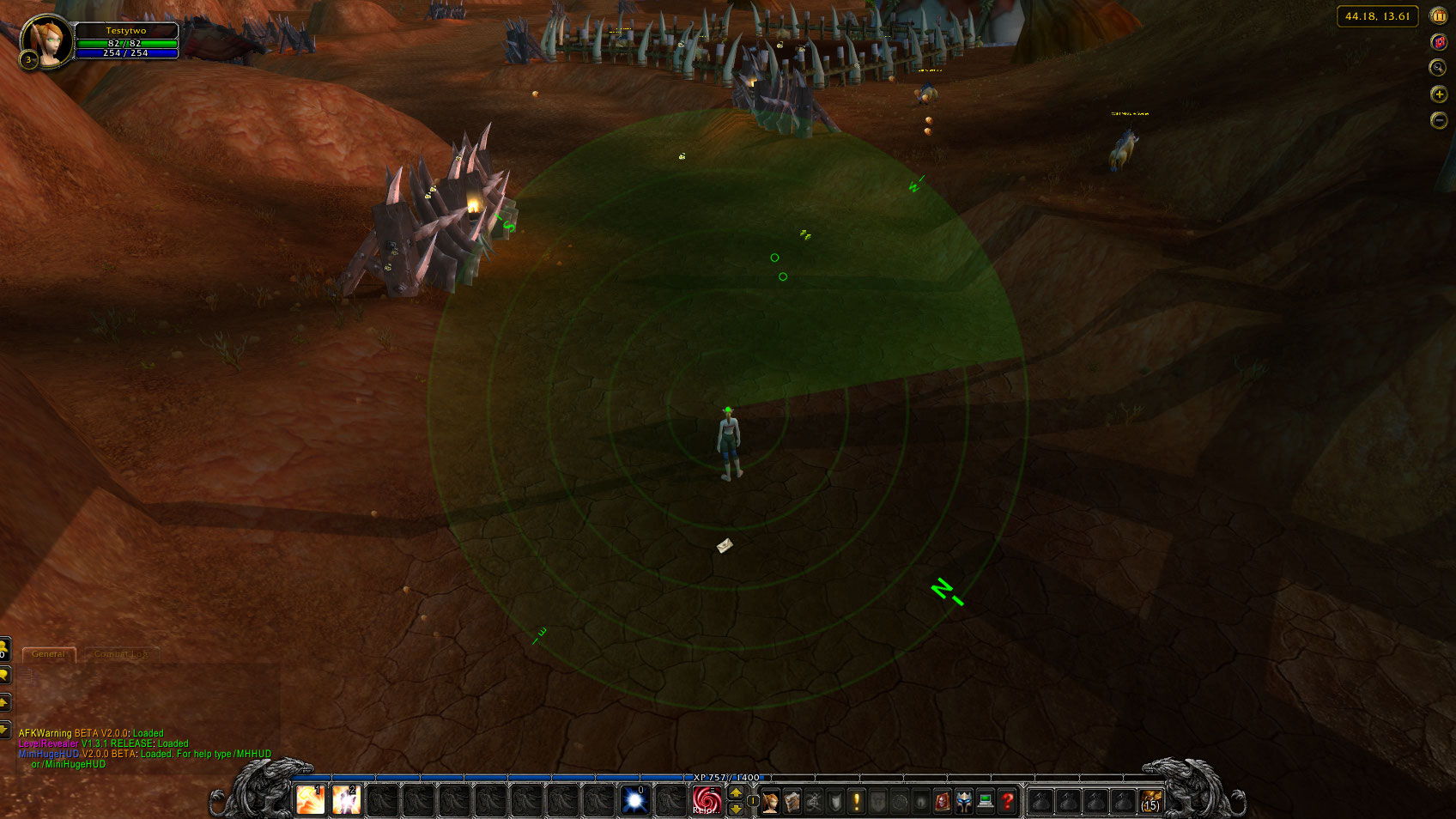
This is a screenshot of the MiniHugeHUD with the Radar (animated) overlay on. Also the Compass points are on. The whole HUD is set to different shades of green although this can all be changed! Including the transparancy.
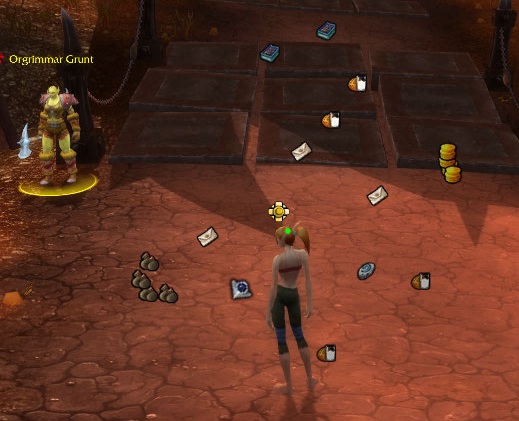
This is just a close up of the center of the HUD :)
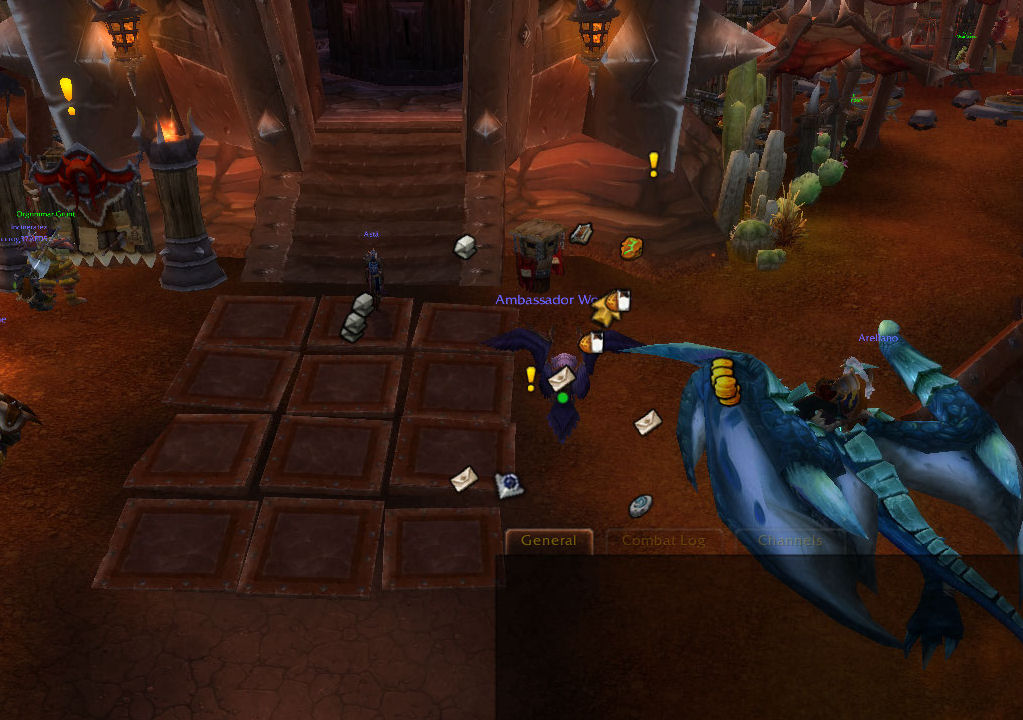
This screenshot shows what the new tracking system in Cata looks like. Same function as normal but you can see all the mailboxes, merchants, questgivers etc... Each and every one of these can be turned on or off seperatly!
Download it and give...
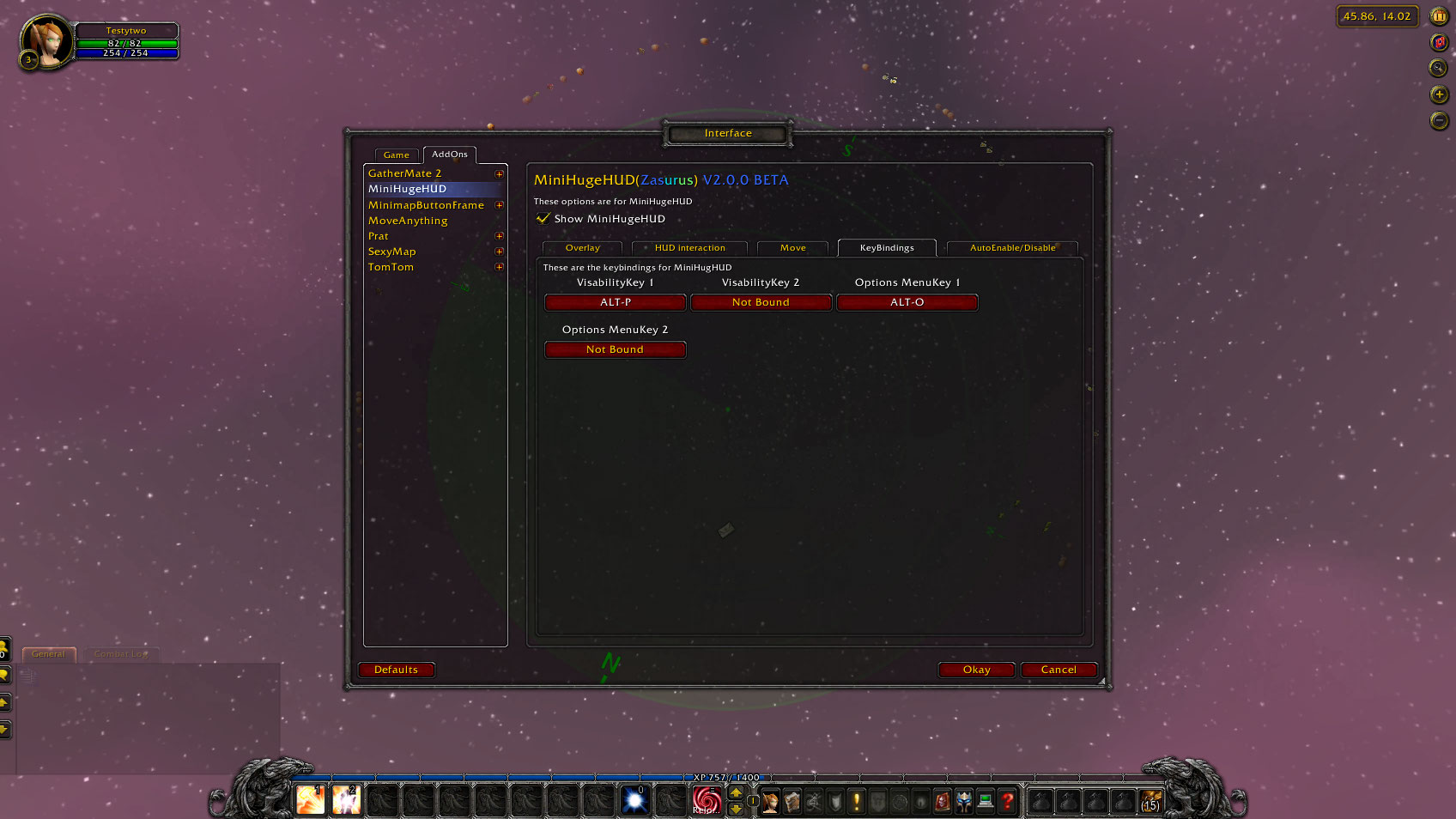
This shows you the options screen for MiniHugeHUD. Specifically the KeyBindings screen which lets you bind keys to specific function like enabling/disabling the HUD or opening these options screens. More will be added as and when they are asked for. ...