MDT QoL
- By
MDT QoL
Read enemy abilities faster, find spells, and keep your route map close while you play. MDT QoL adds a few practical controls to Mythic Dungeon Tools (MDT) without changing MDT's files.
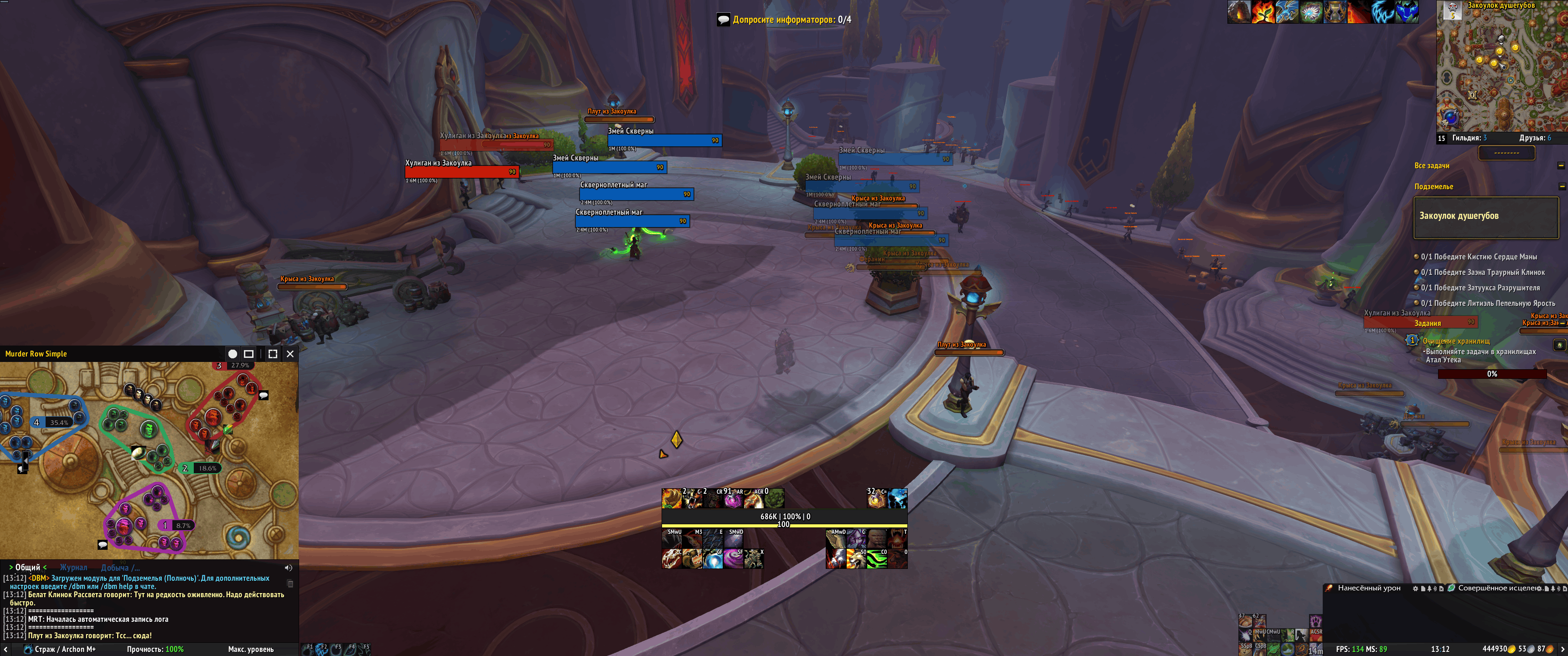
Controls at a glance
Enemy Info
- Ctrl + Right Click an enemy icon on the map — open MDT's pinned Enemy Info card with ability descriptions already visible.
- Right Click an enemy icon → Open Enemy Info — open the original MDT card without expanded descriptions.
- Ctrl + Right Click inside a pinned Enemy Info card — close it.
Map and search
- Click the small window button in MDT's title bar — switch between the full layout and compact map mode.
/mdtqol compactdoes the same. - Click the circle beside it in compact mode — a filled circle keeps the map open when you press Escape. Click again to restore Escape-to-close. The X always closes the map.
- Drag the compact title bar or bottom-right corner — move or resize the map. Pan and zoom still work as usual.
- Search by spell name or spell ID at the top of the full MDT window — select a result to open that enemy's original MDT card. Search is hidden in compact mode.
Read abilities without opening every tooltip
With Ctrl + Right Click, MDT QoL expands spell descriptions inside MDT's own pinned Enemy Info card. A short list stays in one column. Longer lists use two columns when space allows, or scroll inside the card when needed.
MDT 6.3 already groups repeated spells in its native list. MDT QoL uses that list and shows its descriptions in place; it does not open a separate full-screen reader.
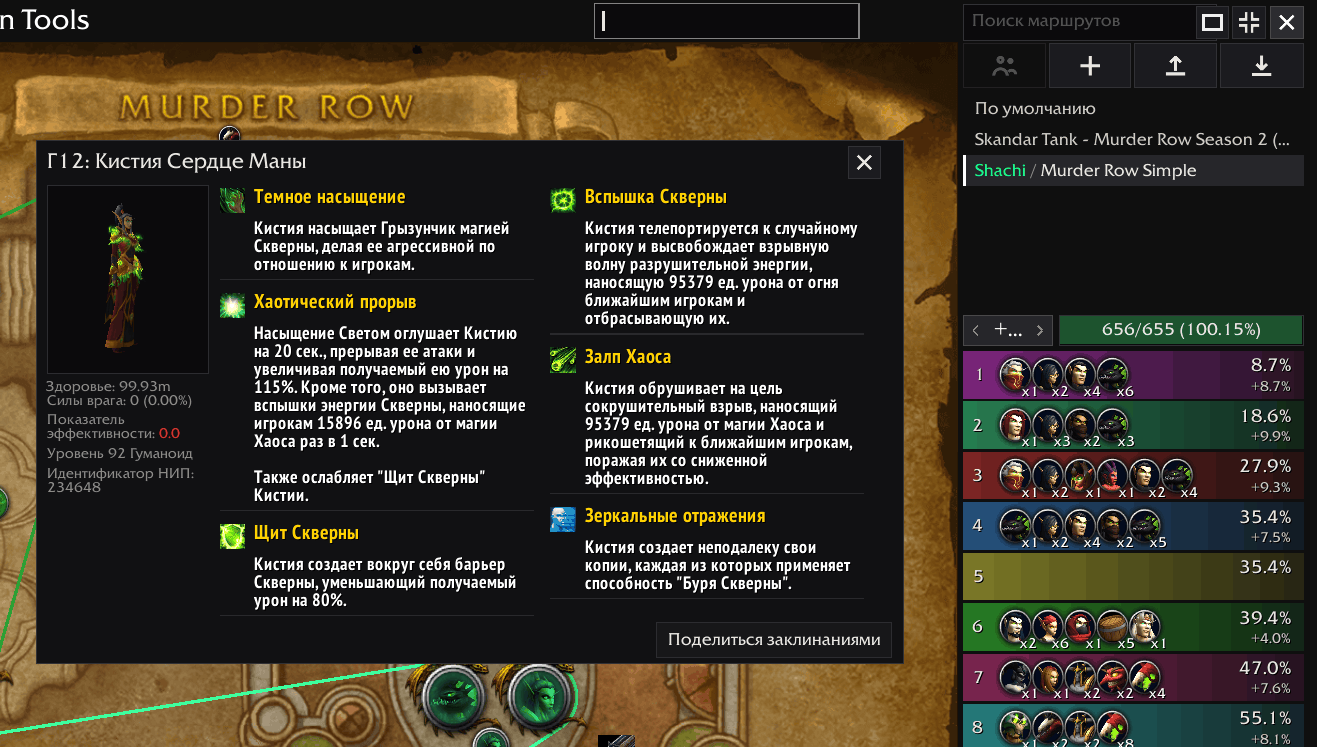
To use the original MDT view, Right Click the enemy and choose Open Enemy Info. Hover previews and search results also use MDT's original presentation. There is no view setting to manage: the way you open the enemy determines which card you see.
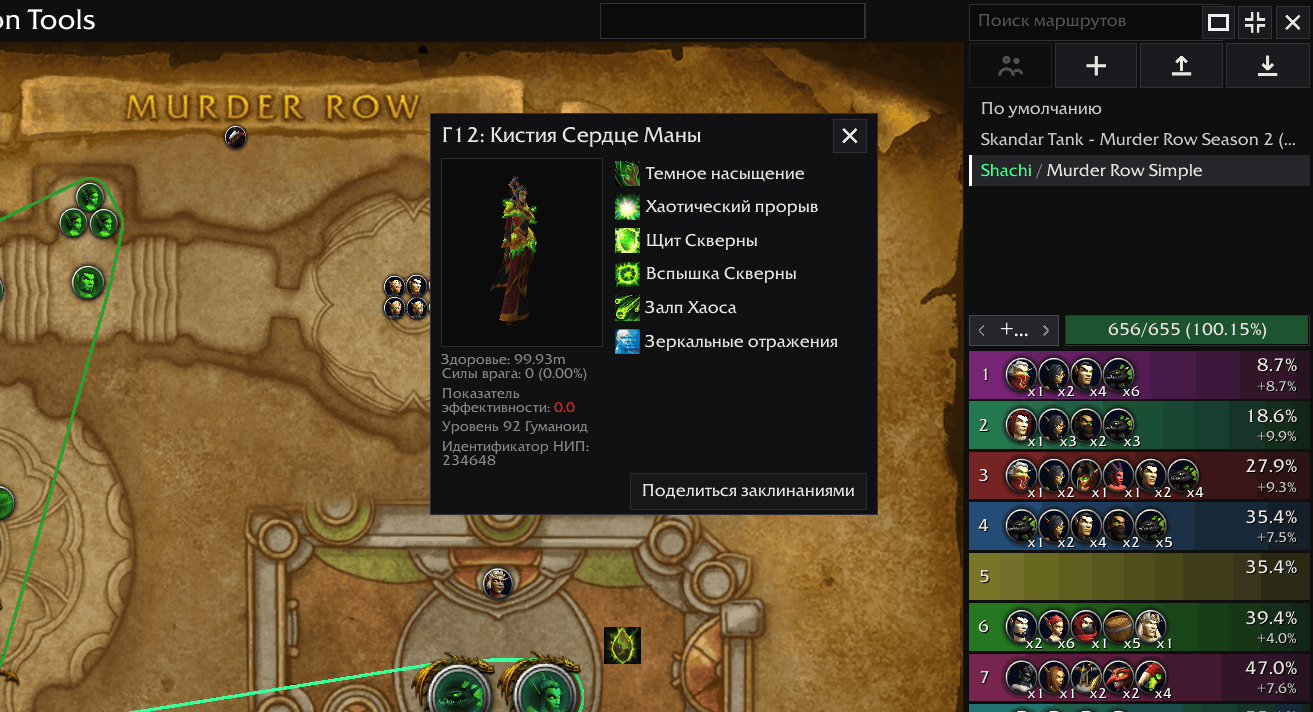
Keep the map beside your game
Compact mode hides MDT's sidebar, dungeon tabs, search field, and drawing tools while keeping the route map interactive. Move it by its title bar, resize it from the bottom-right corner, and place it flush against a screen edge. Its size and position are saved separately from the full window.
If you use Escape to clear your target, click the circle in the compact title bar to keep the map open. The circle fills when this option is on. It is off by default, affects compact mode only, and does not disable the X button.
Find the spell you need
Search the current dungeon by spell name or spell ID in the full MDT window. The results show which enemy has the spell; click one to open its original Enemy Info card. Spell names follow your game language. Enemy names in results come from MDT's data and may appear in English.
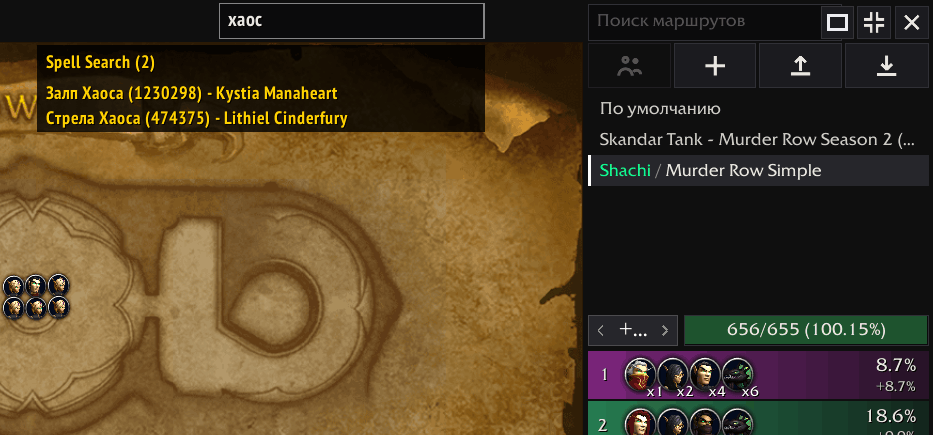
Requires World of Warcraft Retail and Mythic Dungeon Tools. Version 1.0.3 is made for MDT 6.3. MDT itself now shows planned cumulative enemy forces percentages on the map, so MDT QoL does not draw duplicate labels. For troubleshooting, /mdtqol status shows version and connection details, /mdtqol refresh clears the search cache, and /mdtqol debug toggles diagnostic messages.
MDT QoL Team