


Mark Your Target
- By
choose-target.png
macro-window.png
search-all-zones.png
Description
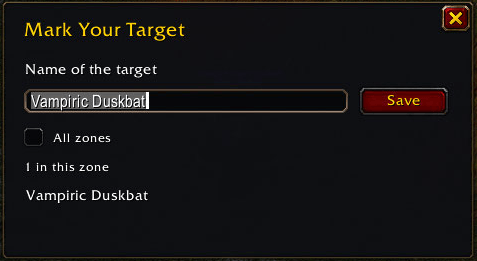
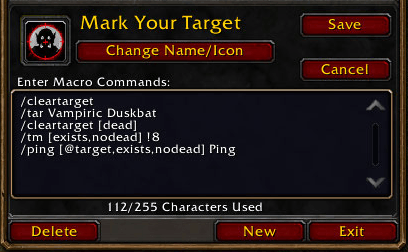
If you keep editing the NPC name in the same /tar macro, this addon saves you a few clicks. Type /myt, pick a mob, and hit Save. WoW opens the Macros window with Mark Your Target selected. Drag it to your bar once and keep using that button as you change the name.
Already know the name? Type /myt Ghostmaw out of combat to update the macro from chat.
Quick Target in v1.4.0
Type /mytgt Ghostmaw out of combat, then click Quick Target to target, skull-mark, and ping. You can also bind it under Key Bindings → AddOns → Mark Your Target. Quick Target uses no saved macro slot.
Select an NPC or player and use /mytgt [@target] for Quick Target, or /myt [@target] to save their name to your regular macro. Both commands handle Forever player surnames.
If pings are off, the picker and chat show where to turn on Options → Ping System → Enable Pings.
Finding an NPC
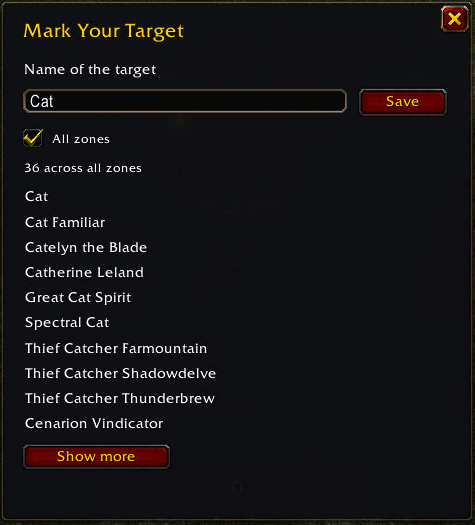
Try ghost in Riverglades to find Ghostmaw. Exact matches come first, followed by other matches in your zone. Tick All zones to search without ranking nearby mobs first, or click Show more to browse past the first ten. The offline list contains 10,312 English NPC names. You can still type a name yourself.
Save the macro out of combat. When you press it, it looks for the mob and tries to put a skull and a ping on a living match.
For WoW: Forever 1.60.1. The crosshair button has WoW’s circular gold border and follows the Classic minimap as it resizes. MinimapButtonButton can also collect it. Restart WoW after upgrading to v1.4.0 so the client loads the new icon and keybinding files.
Report a bug on GitHub · NPC data sources
Project icon adapted from Crosshair by Delapouite (CC BY 3.0, recolored).
Mark Your Target Team
