Mac-ever
- By
Graphics tuning for WoW: Forever on Apple Silicon Macs: Mac fixes, a System Check that measures your Mac, and presets.
Mac-ever makes World of Warcraft: Forever look and run its best on your Mac.
Forever's graphics menu wasn't built with Apple Silicon in mind. Some settings have caused black or green shadows, stutter or hangs on Macs, and the menu hides dozens of settings that matter on a Retina screen. Mac-ever applies the Mac fixes your game build still needs, then measures your own Mac to find the best-looking settings for the frame rate you want.
As Blizzard fixes each Mac problem, Mac-ever stops working around it, so it never holds back a setting that's fine now. Every frame rate Mac-ever shows was measured on your Mac, or worked out from those measurements. Every change gives you 15 seconds to keep it or switch back.
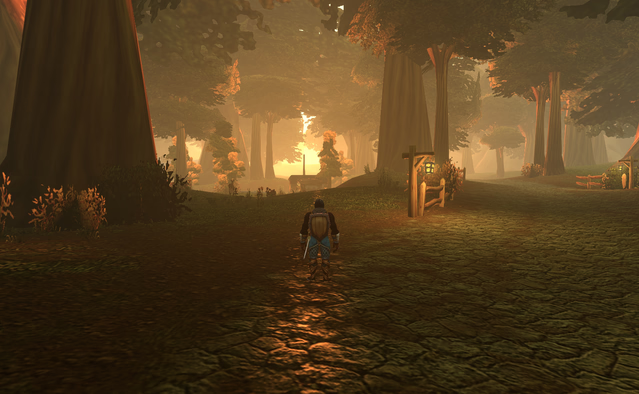
BEFORE - Blizzard default graphics settings
2021 14" MBP M1 Pro 16GB
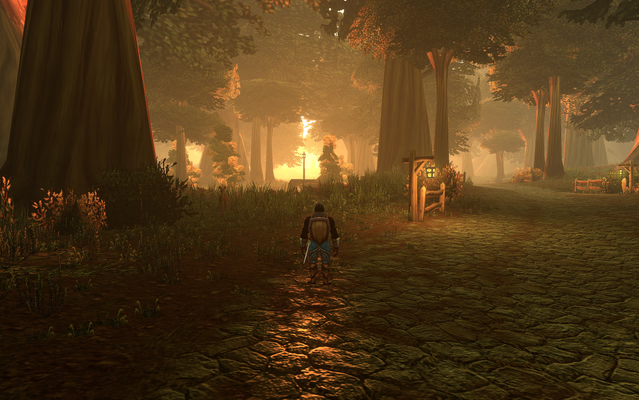
AFTER
2021 14" MBP M1 Pro 16GB
Features
- Setup. The first time you open Mac-ever, three short steps: which Mac you have and its memory, then what matters most to you. Setup changes nothing itself; at the end it runs the System Check. Change it any time with /macever setup.
- Mac Fixes for your game build. Each fix applies only while its problem is open on your build. Once Blizzard fixes a problem, Mac-ever measures that setting like any other. On the current build this turns the Compatibility settings and Triple Buffering back on, the game's defaults. Every fix has its own switch under Known Issues.
- Reduce Green Tint. While the green tint bug is open, this switch holds Shadow Quality at Low and Secondary Lighting at Fair, which makes the tint show much less. Off by default.
- System Check. Pick a goal from 30 to 165 fps. Mac-ever measures what each setting costs on your Mac, keeps graphics as high as possible and lowers only what it must. Turn on Uncapped to make your goal a minimum instead of a cap. If the goal is out of reach, you can let it lower resolution to get there.
- Presets. Ultra Uncapped, Battery Saver (30 fps), Quiet & Cool (45 fps), Smooth (60 fps) and ProMotion (120 fps), tailored to your Mac by the System Check.
- By Location. Different settings for the open world, dungeons, raids and battlegrounds, switched when the loading screen ends. Off by default.
- Picture looks. Standard, Cinematic, Vivid, Daylight, Evening and Shadow Detail. They change only brightness, contrast and gamma.
- Every setting. The game's own Graphics page, plus about 70 hidden settings the menu doesn't show, each with a plain-English description.
- Safe to try. Every change gives you 15 seconds to keep it or switch back. Mac-ever never restarts the renderer: settings that need a restart take effect the next time you start the game. Restore Originals undoes Mac-ever's own changes and leaves other addons' alone.
Getting started
- Install Mac-ever with the CurseForge or Wago app, or copy the Mac-ever folder into Forever's Interface/AddOns folder.
- In game, type /macever or click the minimap button.
- Answer the three setup steps: your Mac, its memory, and what matters most to you.
- Stand still somewhere busy, out of combat, and click Run System Check. It takes about 2 minutes.
- Click Apply Recommended, then Keep Settings if you like the result.
If the game ever crashes after a change, restart it and type /macever defaults to reset the graphics settings.FAQ
Does it work on Windows or Intel Macs? Mac-ever is built and tested for Apple Silicon Macs (M1 and later). It loads on any Forever client, but the fixes and advice are for Apple Silicon, and on an Intel Mac or a PC it says it's untested there.
Will it crash my game? Results vary between Macs, places in the world and game updates. The Mac Fixes and presets are the safe path, and Mac-ever never restarts the renderer while you play. Some hidden settings can cause visual problems, stutter or crashes, and Mac-ever warns you before you change them.
How do I undo everything? Click Restore Originals in the Mac-ever window. It undoes Mac-ever's own changes; a setting you or another addon changed since is left as it is. If the game won't start properly, type /macever defaults once you're in.
Blizzard is fixing the Mac bugs. Do I still need Mac-ever? Each Mac fix switches itself off on the game build where Blizzard fixed its problem, so Mac-ever only works around what's still broken. The System Check, presets and hidden settings work the same either way.
Why didn't the System Check reach my goal? Some goals are beyond what a Mac can do in a busy place. The check tells you the best it measured, and what you can try next. Turning on "Let Mac-ever lower resolution to reach your goal" lets it trade sharpness for frame rate.
Will my resolution change? Not unless you turn on that switch. Even then, Mac-ever lowers render scale, which keeps text and the interface sharp, rather than the window's resolution.
Is Mac-ever made by Blizzard? No. It's a free, fan-made addon, not made or supported by Blizzard.
Mac-ever Team