Lucky Portraits
- By
Replace your player portrait with custom images that react to shapeshifts, stances, combat, and disguises, featuring a live preview panel, per-image zoom/pan, character profiles, and an update-safe media folder for Retail, WoW Forever, and Classic.
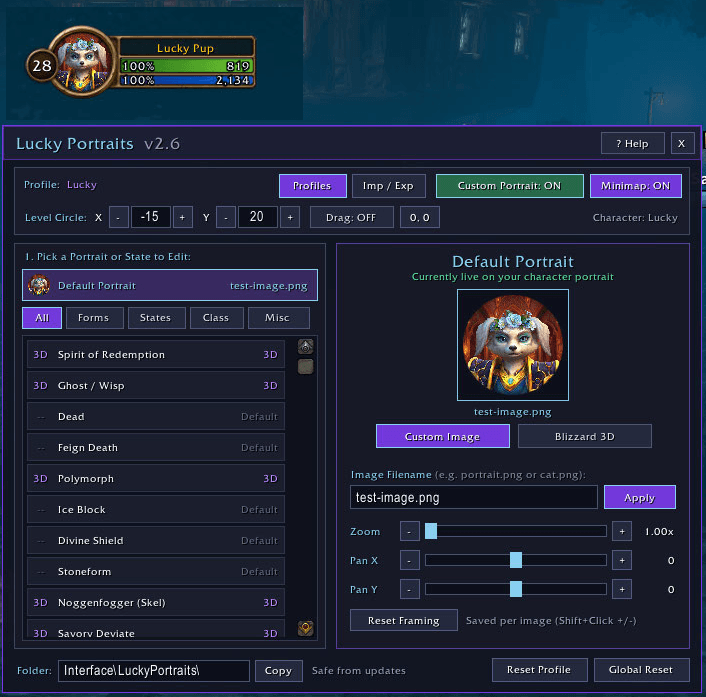
Screenshot.png
Description
Lucky Portraits
Lucky Portraits replaces Blizzard's default player unit frame portrait with your own custom artwork, automatically swapping images when you shapeshift, change stances, enter combat, rest in an inn, die, or get polymorphed.
Built to be lightweight, self-contained, and zero-dependency, Lucky Portraits supports Retail (Midnight), WoW Forever, and Classic out of the box with a dedicated split-pane setup window and live circular preview.
Features
- Live Split-Pane Preview Panel (
/lp): Pick your Default Portrait or any reactive state on the left, then switch between Custom Image, Blizzard 3D, or Use Default on the right with a large live circular preview. - Per-Image Zoom & Position Framing: Every custom image saves its own independent Zoom (1.00x–2.50x) and Pan X / Pan Y position, no external re-cropping required, and you can frame any form without shifting into it first.
- Reactive Class Forms, Stances & States:
- Druid Forms: Bear, Cat, Travel (Stag / Mount), Aquatic, Moonkin, Tree of Life / Treant, and Flight Form.
- Class Forms & Stances: Shaman Ghost Wolf, Priest Shadowform & Spirit of Redemption, Warrior Stances (Battle, Defensive, Berserker), Stealth / Prowl / Shadowmeld, Paladin Auras, Hunter Aspects & Feign Death, Ice Block, Divine Shield, and Dwarf Stoneform.
- Universal States: Ghost / Wisp, Dead, In Combat, Resting (Inn/City), Mounted, Flight Path (Taxi), Swimming, and AFK.
- Crowd Control & Disguises: Polymorph, Noggenfogger Elixir (Skeleton), Savory Deviate Delight, Furbolg Form, Orb of Deception, and costumes.
- Update-Safe Image Folder: Loads custom images from
Interface\LuckyPortraits\(outsideInterface\AddOns\) with subfolder support and a click-to-copy folder path box in the UI footer, so CurseForge updates will never wipe your artwork. - Draggable Level Circle: Unlock a glowing drag handle directly over your portrait's level circle (
/lp drag) to move it anywhere around the frame, or fine-tune X/Y coordinates in the UI. Combat-safe anchoring defers updates cleanly until combat ends. - Account-Wide Character Profiles & Import/Export: Each character automatically gets its own profile. Create, clone, copy, rename, or delete profiles, and share portable
LP1;strings (including all per-image framing). - Draggable Minimap Icon & In-Game Guide: Left-click to open Setup, right-click to toggle custom portraits ON/OFF, or hide the icon anytime. Includes a full scrollable in-game ? Help guide.
- Clean First Install: Starts cleanly on Blizzard's 3D portrait and
0, 0level offset with zero green circles until you assign your own artwork.
Directory Reference (All WoW Flavors)
Place your custom images in the LuckyPortraits folder directly inside your client's Interface directory, right next to AddOns, not inside it:
| WoW Version | Addon Install Folder | Update-Safe Custom Images Folder |
|---|---|---|
| Retail (Midnight) | World of Warcraft/_retail_/Interface/AddOns/LuckyPortraits/ |
World of Warcraft/_retail_/Interface/LuckyPortraits/ |
| WoW Forever | World of Warcraft/_forever_/Interface/AddOns/LuckyPortraits/ |
World of Warcraft/_forever_/Interface/LuckyPortraits/ |
| MoP Classic | World of Warcraft/_classic_/Interface/AddOns/LuckyPortraits/ |
World of Warcraft/_classic_/Interface/LuckyPortraits/ |
| TBC Anniversary | World of Warcraft/_anniversary_/Interface/AddOns/LuckyPortraits/ |
World of Warcraft/_anniversary_/Interface/LuckyPortraits/ |
| Classic Era | World of Warcraft/_classic_era_/Interface/AddOns/LuckyPortraits/ |
World of Warcraft/_classic_era_/Interface/LuckyPortraits/ |
Setup Guide
1. Create Your Update-Safe Images Folder
Use the CurseForge App shortcut to jump straight there:
- Open the CurseForge App, select your WoW flavor, and right-click Lucky Portraits.
- Click Open Folder (this opens
Interface\AddOns\LuckyPortraits). - Click Interface in your file manager's address bar to go up two levels, then create a new folder named
LuckyPortraitsright besideAddOns.
2. Prepare Your Images
WoW's texture engine requires specific dimensions for custom art:
- Square power-of-two dimensions: Resize images to
256x256or512x512pixels (non-power-of-two sizes like300x300render as a solid green circle). - Supported formats:
.png,.tga,.jpg, or.blp. Subfolders work too (for example,druid\cat.png). - Center your subject: Keep faces or focal points near the center so the circular portrait mask does not clip them.
- Restart WoW after adding new files:
/reloadupdates settings, but you must fully close and relaunch WoW whenever you drop brand-new image files into your folder.
3. Assign & Frame Your Portraits In-Game
- Type
/lp(or left-click the minimap icon) to open the setup window. - Click Default Portrait (or any form/state) in the list on the left.
- Click Custom Image on the right, type your filename (e.g.,
portrait.pngorcat.png), and click Apply. - Adjust the Zoom, Pan X, and Pan Y sliders until the preview looks right. Changes save automatically per character.
Slash Commands
| Command | Action |
|---|---|
/lp or /luckyportraits |
Open or close the Setup window |
/lp toggle (or on / off) |
Enable or disable custom portraits |
/lp minimap |
Show or hide the draggable minimap button |
/lp drag |
Unlock or lock dragging the level circle |
/lp X Y |
Set level circle offset manually (e.g., /lp -20 20) |
/lp profiles |
Open the Profile Manager |
/lp profile Name |
Switch active character to a saved profile |
/lp export / /lp import |
Open the Import / Export window |
/lp status |
Print active profile, detected states, and winning portrait |
/lp reset |
Recenter the Setup window |
/lp guide / /lphelp |
Open the in-game Help window or print chat quick-start |
/lp globalreset confirm |
Wipe all saved profiles and restore factory defaults |
Troubleshooting
- Seeing a solid green circle? Check four things: (1) the file is inside your client's
Interface\LuckyPortraits\folder (notInterface\AddOns\LuckyPortraits\), (2) it is in the right flavor folder (_retail_,_forever_,_classic_,_anniversary_, or_classic_era_), (3) the filename and extension match exactly, and (4) the image is an exact power of two (256x256or512x512) and WoW was fully restarted after adding it. - Portrait didn't swap during a form or buff? Verify Custom Portrait: ON is active, then type
/lp statusin chat to see which higher-priority state is winning. - Unit Frame Compatibility: Targets Blizzard's default
PlayerFrame. Custom unit frame replacements that hide Blizzard's player frame are not currently hooked.
Lucky Portraits Team