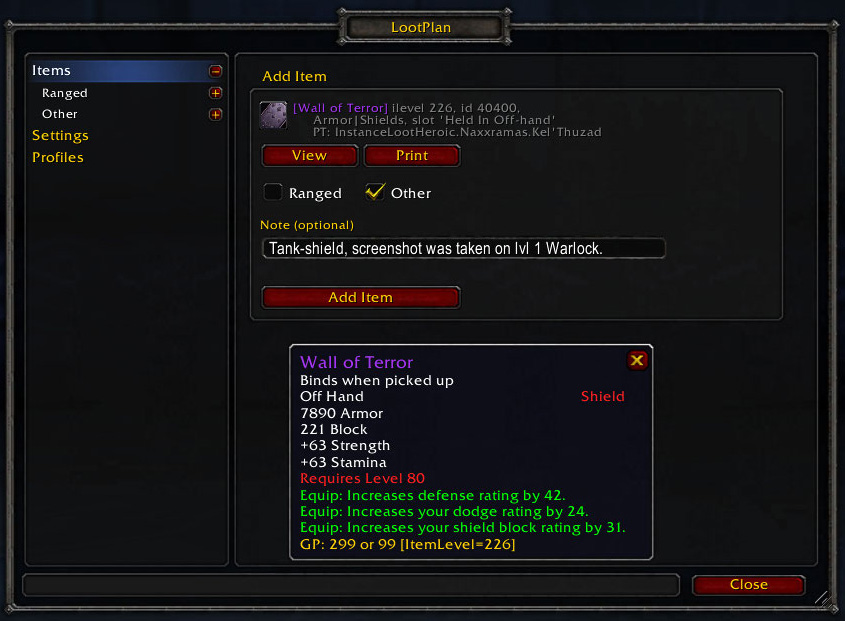
Adding an item to the list
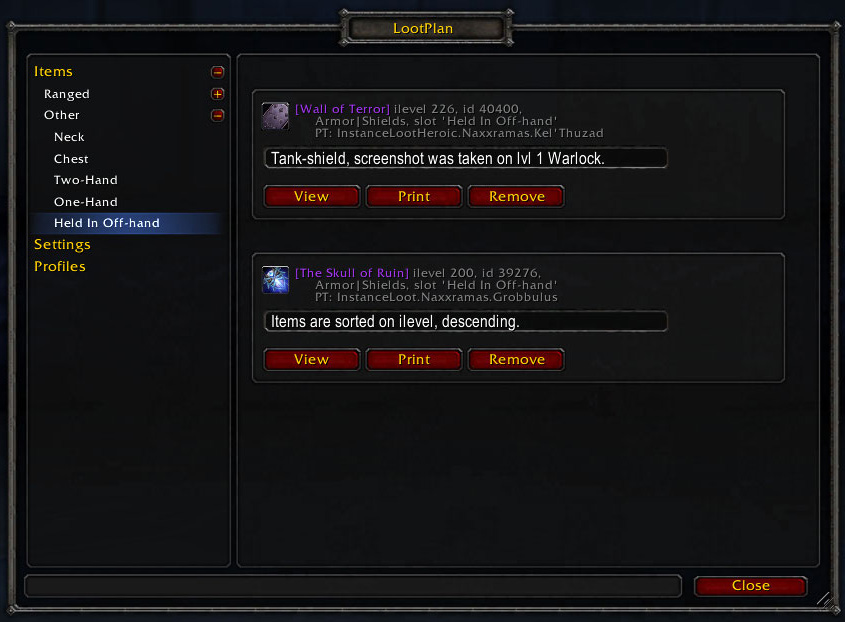
Browsing the LootPlan list.
Description
There are quite a few players that keep a list of items/drops/loot that they still need/want to have. Even more players _should_ make a list like that, so they know where possible upgrades drop. It also speeds up the looting process. (Less issues with "wait a sec! I don't know if this is better than what I have!")
I had a list like that for my Warrior and Priest in TBC and I have a list for my Death Knight for WotLK. I used Microsoft Excel to keep this list. Now, in WotLK, my Priest is raid-ready and I knew I'd have to eventually make a lootlist for my Priest.
However, I was tired of using Excel, or anything else 'out-game'. Frequent alt+tabbing, takes a lot of time to build a lootlist (especially if you want to have the stats of all the items).
So, I built an addon. LootPlan.
What is LootPlan?
LootPlan is an addon for World of Warcraft. It helps you in keeping track of drops you need/want in the future.
How do I use it?
Installing and configuring
1. Download the zip-file on Curse, unzip to your WoW\Interface\Addons folder. Or use the Curse-client to download the addon.
2. (Re)start the game.
3. If you have a LDB (LibDataBroker) addon, a new Broker called Lootplan allows you to access the LootPlan GUI. If not, type "/lootplan gui" or "/lp gui".
4. Go to the Settings part and bind a key to "Select Item".
5. (If you check "Add item-notes to tooltip", notes you add to items will appear in the tooltip of that item.)
Adding an item to the list (see attached picture 1):
1. Go to the 'root' of the addon GUI, it should show the "Add Item"-menu in the main area of the GUI.
2. Hover over (or click) an EQUIPPABLE (or Tier-token) item (for example in AtlasLoot), so that its tooltip shows.
3. Press the "Select Item" key, which you configured in step 4.
4. In the LootPlan "Add Item"-menu, it should now have put a link to that item there.
5. Select a category to add the itemlink to (defaults to 'Other', available categories depend on your class)
6. Optionally, type a note to add to this item.
7. Click "Add Item". The item will now be placed in the previously selected category, automatically in a sub-category dependent on equip-location of that item.
Alternative: Adding an item directly to category other (NEW in v0.3):
1. Hover over (or click) an EQUIPPABLE (or Tier-token) item (for example in AtlasLoot), so that its tooltip shows.
2. Press the "Quick Add" key, which you can configure on the settings screen.
3. The item is now placed in the 'Other' category. There should be a confirmation-message in the default chat-window.
Browsing items (see attached picture 2):
1. From the 'root' of the addon GUI, click a category-node (for example "Ranged" or "Other"). As mentioned before, which categories are shown depends on your class.
2. The main area of the GUI now shows a summary of items in this category.
3. Click a sub-node of this category, for example "Chest" or "One-hand Weapon". Only sub-categories that contain items will be shown.
4. You'll see the list of items you've added to this category/sub-category.
OK, I have added like 20 items to the system. When such an item would drop from a boss, I would still need to check if that item is on my list. I don't know all the items on my list by heart!
Well, I've thought about that. If you view the tooltip of an item that is already in your LootPlan, you will see "!!! LootPlan: <category item is in> !!!" with all kinds of funky colors.
Note on LibPeriodicTable
If you have an addon installed/enabled that uses LibPeriodicTable (for example, ClassLoot), LootPlan will make use of data from LibPeriodicTable. (LibPeriodicTable is a 'huge' storage library that knows which boss drops what item, etc.). When you see "PT: <some kind of info>" you'll know it got extracted from LibPeriodicTable.
If you don't have LibPeriodicTable, or LPT does not know where an item drops, it's a very good idea to add that information to the note of the item.
When I hover over an item, the tooltip shows up, I press the "Select Item"-key, but the item is not placed in the "Add Item" section. Why?
This could have various causes. Keep in mind you can only add equippable items to LootPlan. For example, [Emblem of Heroism] will not show up in the "Add Item" section.
Another issue could be caused by using another loot-browser than AtlasLoot. Like AtlasLoot, they could implement a custom tooltip that LootPlan does not know about. You can let me know about this other loot-browser and I might add compatibility for it to LootPlan. A possible workaround is to click the itemLink, which opens the 'ItemRefTooltip', which LootPlan knows about.
LootPlan Team