Lootable
- By
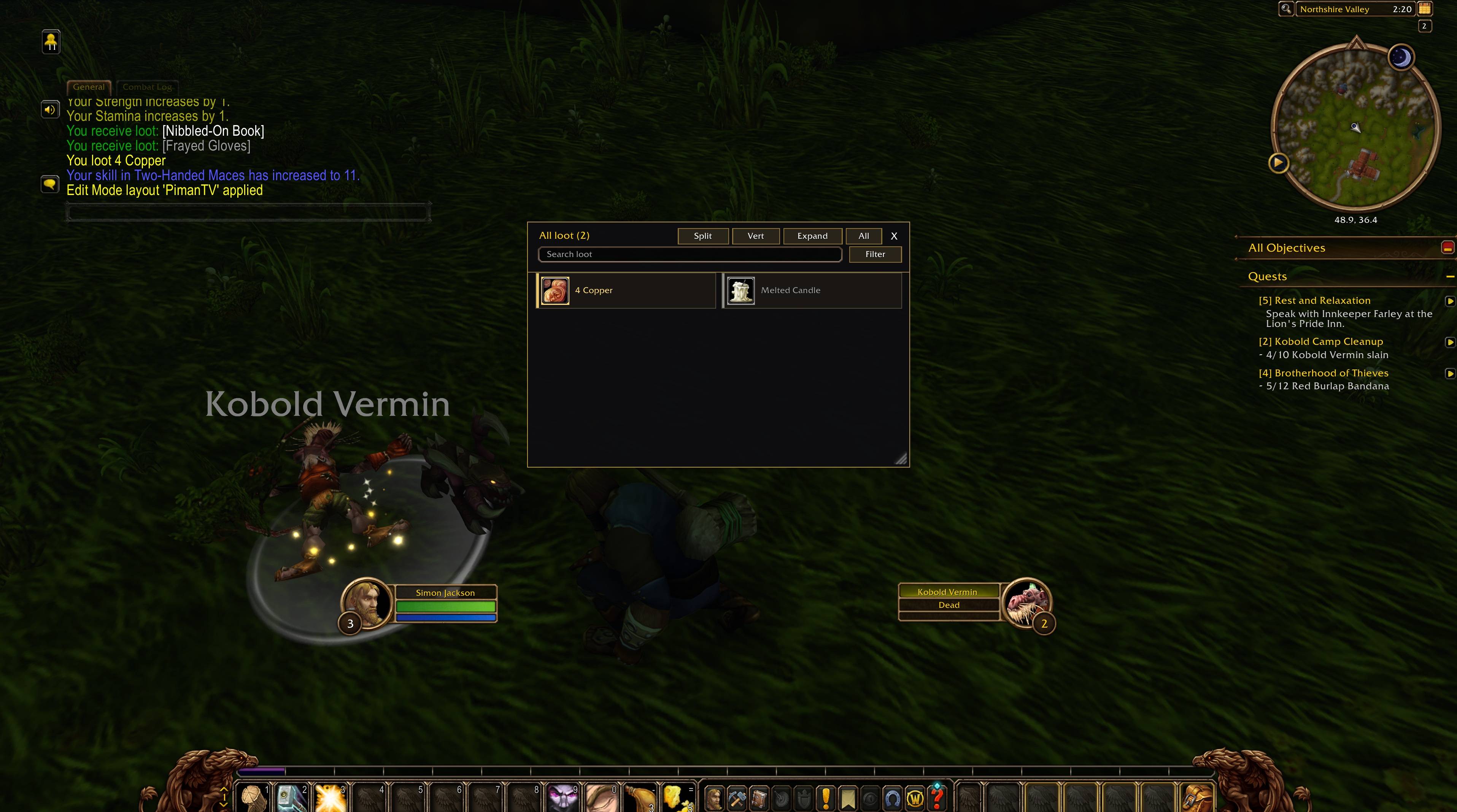
Replace the default loot window with one you can resize and expand. Show drops in a list or a table, split them by category or creature, search and filter, and drag an item out of the window to destroy it. Works on retail, Classic, and WoW Forever.

Lootable_ Chest of Azeroth.jpg
Lootable_1.jpg
Lootable_2.jpg
Lootable_Promo.jpg
Description
Good for Raids, Dungeons and Mob-Farming
Replace the default loot window with one you can resize, restack, and split. LootTable keeps the normal loot session and gives you a window that can grow with the drop, show items in a list or a table, and separate them into the piles you actually want.
Resize and layout
Drag the gold corner to resize, or the right edge to change the width. Expand grows the window until the current items fit, and Restore puts it back. Vert stacks items in a list and adds columns as the window gets wider. Horiz lays them out left to right and wraps onto more rows when the window is tall enough. Both directions scroll, and the mouse wheel follows the overflow. Shift-click an item to link it. Each window keeps its own size and position.
Categories
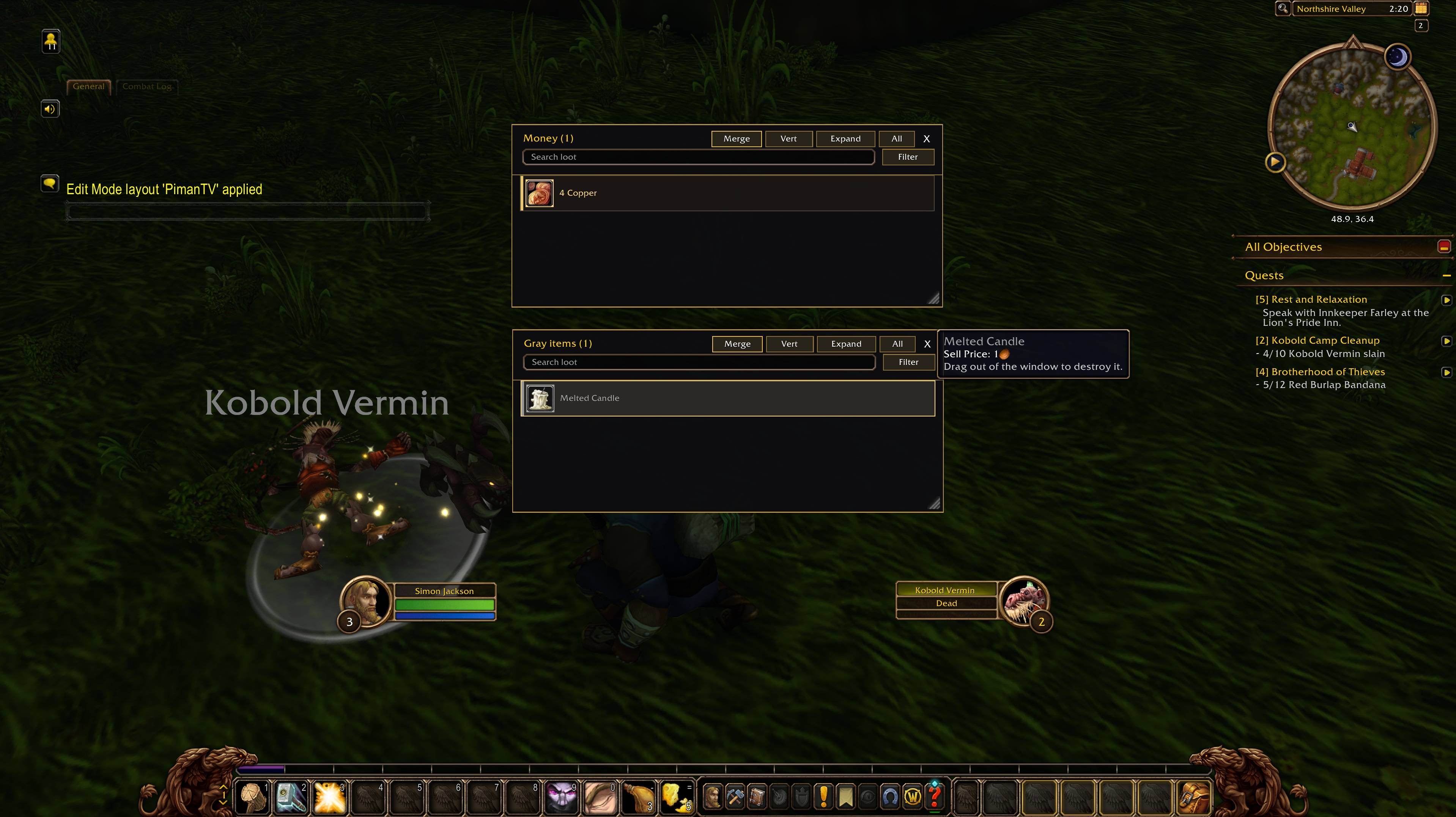
Split divides a drop into category windows, including loot from a single creature. The first time you use it, LootTable adds Gray items, Quest, Money, Gear, and All loot for everything else. Poor gear stays with the gray items. Merge shows that loot in one window again, and the categories stay saved.
/lt windows, or Edit loot windows in the options, is where you change them. You can have up to eight windows. Check any mix of coins, currency, quest items, armor, weapons, consumables, trade goods, recipes, gems, bags, other items, and item quality. A window matches if any checked tag matches. Windows higher in the list are offered the item first. Show leftover loot makes a window the bucket for anything an earlier window did not take. Empty windows stay hidden. Turn off “send each item to the first matching window” if you want the same item to appear in every window that matches.
Several creatures
When mass loot contains more than one creature, each creature can get its own window, titled with its name. Two creatures with the same name stay separate, with the second titled like “Boar 2.” Your category filters still apply inside each creature, so a mob that dropped both gear and other items can open “Boar - Gear” and “Boar - All loot.” Closing one window leaves the others open. Closing the last one ends looting. This creature split can be turned off in the options.
Search and filter
Every window has a search box and a Filter button. Search matches the item name and words such as sword, quest, or green. Filter keeps only the kinds and qualities you check. The title shows how many items remain, such as Boar (2/6). All loots only the items still shown. A newly opened loot window starts with the search and filter cleared.
Destroy an item
Drag an item out of the window and release it to open the game’s destroy confirmation. Confirming destroys that stack. Cancelling puts it in your bags, because the game has to take it off the corpse before it can offer that prompt. If the item would merge into a stack you already have, it is left in your bags so the whole stack is not destroyed. Coins, currency, quest items, and locked items stay in the loot window. Leave combat before doing this.
Other controls
The options cover scale, locking the window, opening it under the cursor, item names on the horizontal layout, and the Loot All button. /lt test opens a preview with sample creatures and items. /lt also covers options, windows, vertical, horizontal, expand, and reset. Key bindings are available for Expand and for switching between the list and the table.
LootTable is built for retail, Classic, Classic Era, Anniversary, and WoW Forever. Enable it, then /reload.
Lootable Team