


Littletrinket
Screenshot 2026-10-10 065827.png
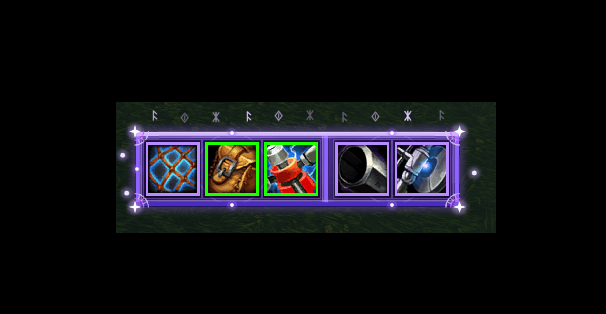
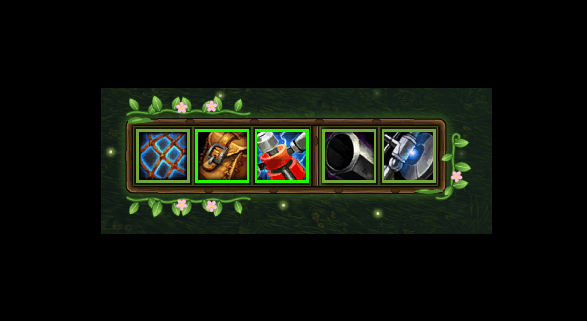
Screenshot 2026-10-16 142242.png
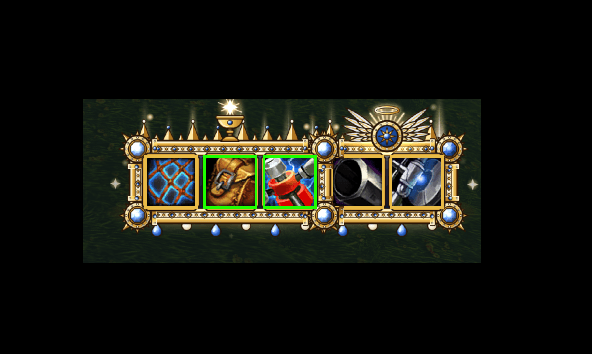
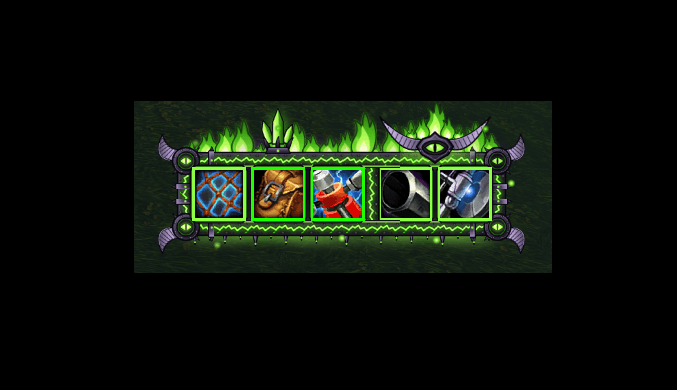
Description
Littletrinket puts your two trinket slots on a small bar and lets you swap trinkets with one click.
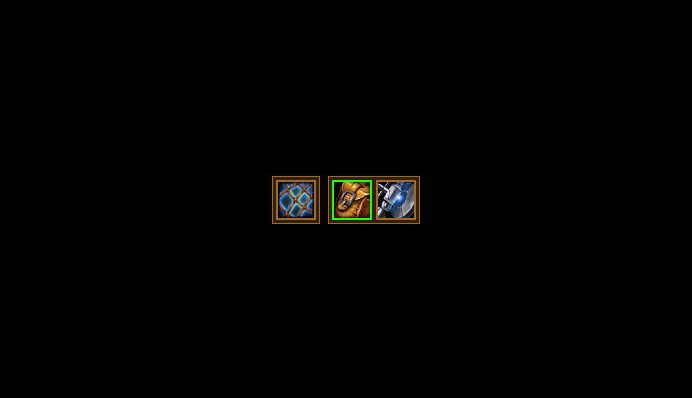
The bar shows the trinkets you are wearing together with their cooldowns. Move the mouse over it and a menu opens with every trinket from your bags, including their cooldowns:
• Left click a trinket in the menu: equip it in the first slot
• Right click a trinket in the menu: equip it in the second slot
• Ctrl + left click or Ctrl + right click a trinket in the menu: fix it to the first or second slot. A small number shows the slot, and from then on any click on that trinket equips it there
• Prefer buttons? Switch on "Show buttons 1 / 2 on the menu icons" in the settings: small buttons 1 and 2 then appear on the trinket you point at. They are off by default, so you cannot click them by accident while playing
• Left click a trinket on the bar: use it
• Alt + click a trinket in the menu (or Alt + right click a slot on the bar): write a macro for it
• Swap places: one key (or /lt swap, or a button in the settings) swaps your two worn trinkets
• In combat: a click in the menu is remembered, and the trinket is equipped as soon as combat ends
FEATURES
• Hover menu with all trinkets from your bags, laid out horizontally or vertically with 1 to 12 icons per row. It is joined to the bar (it looks like one piece with the bar: one shared border, no gap and no ornaments in between, it moves with the bar and opens to the right, left, up or down, or picks a side automatically) or free (placed anywhere on the screen, staying there when you move the bar). One button in the settings switches between the two.
• A fixed slot for each trinket you like (Ctrl + click, or the optional small buttons), and a key that swaps the places of the two worn trinkets.
• Your own macro for any trinket, written in a macro window that works like the one of the game: for example to use a trinket on yourself, or at the place under the mouse. It runs instead of the normal use when you click that trinket on the bar or press its key, in whichever slot it is worn.
• For rogues, druids and night elves: a stealth bar. While you are in stealth, the bar you choose (2 to 6) lies over your action bar and your action keys use it. When stealth ends, also through damage or in combat, your normal bar is back at once.
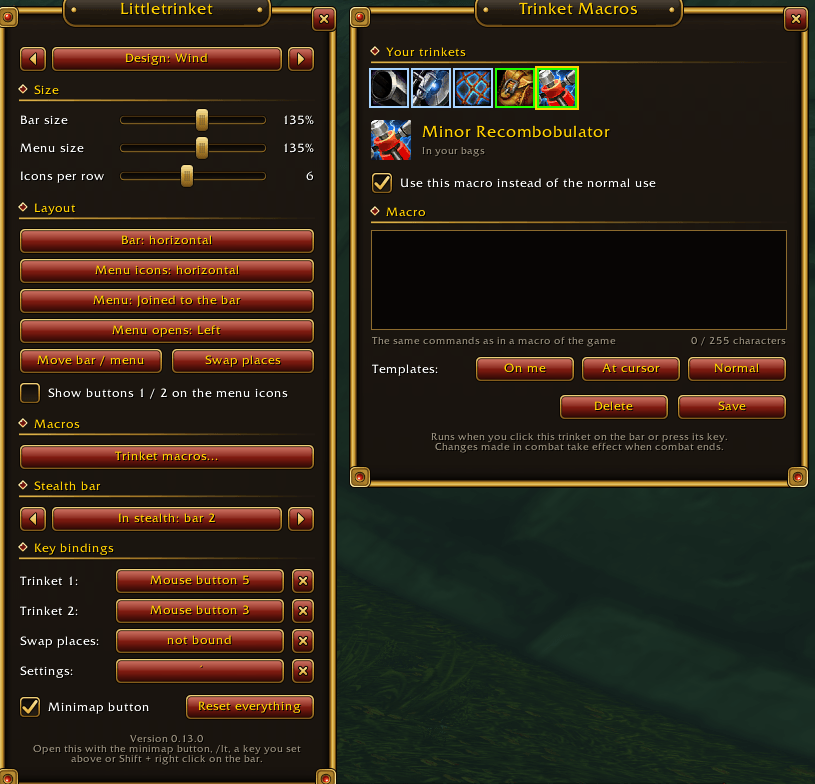
• Bar and menu can be moved, and each has its own size (50% to 200%): the menu size is how big the icons in the menu are, whatever the bar size is. The bar can be horizontal or vertical.
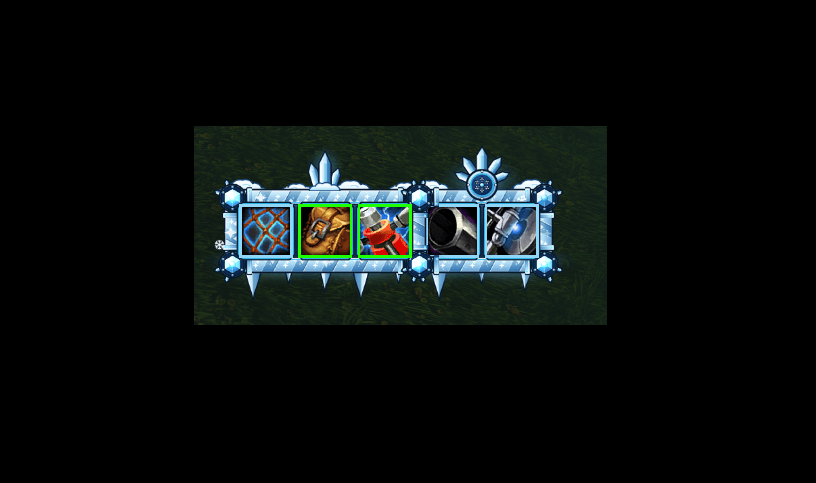
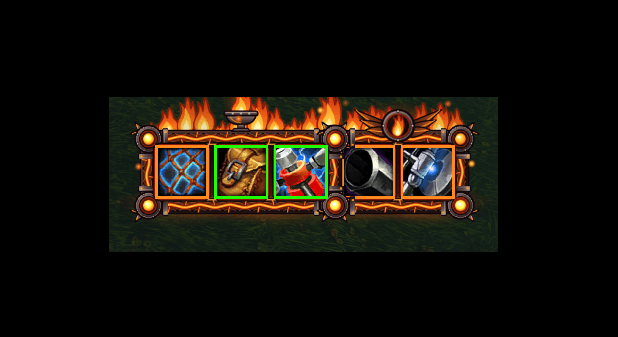
• Ten designs: Rustic (the default), Frost, Fire, Arcane, Nature, Holy, Fel, Steel, Wind and Assassin. Everyone starts with Rustic; choose another one in the settings window with one click or with the arrow buttons.
• Free key bindings: use each trinket with any key, a combination like Shift+T, or a mouse button. Set them in the settings window or in the game's Key Bindings window (section "Littletrinket").
• A minimap button opens and closes the settings window with a click. Drag it to move it around the minimap, or hide it.
• One settings window for everything, drawn in the style of the game, with its own key to open and close it.
SETTINGS
Click the minimap button, type /lt (or /littletrinket), press the key you set for the settings window, or Shift + right click a trinket on the bar. "/lt help" lists all chat commands.
To move the bar or the menu, click "Move bar / menu" in the settings and drag, or hold Shift and drag.
The button "Menu: Joined to the bar" / "Menu: Free" in the Layout section (or "/lt menu joined" and "/lt menu free") decides whether the menu is joined to the bar and moves with it, or has a place of its own.
Fixed slots: Ctrl + click a trinket in the menu, or tick "Show buttons 1 / 2 on the menu icons" in the settings and click the small button 1 or 2 on a trinket (untick it afterwards and the buttons are gone again; "/lt slotbuttons on" and "/lt slotbuttons off" do the same). Ctrl + right click on a slot of the bar fixes the trinket worn there. "/lt fixed" lists the fixed slots, "/lt fixed clear" removes them all.
Macros: click "Trinket macros..." in the settings (section Macros), type /lt macros, Alt + click a trinket in the menu or Alt + right click a slot on the bar. Choose a trinket, type the commands (or use the buttons On me, At cursor and Normal) and save. A small "M" on the bar shows which slot runs your macro.
Stealth bar (rogues, druids and night elves): section Stealth bar in the settings, or "/lt stealth 2" (bars 2 to 6) and "/lt stealth off". Put your stealth abilities on that bar and leave /changeactionbar out of your macros.
Minimap button: "/lt minimap" or the "Minimap button" check box in the settings hides and shows it.
GOOD TO KNOW
• Gear is not changed during combat. If you click a trinket in the menu while in combat, it is marked and equipped automatically as soon as combat ends. Click it again, or right click the slot on the bar, to cancel. Swapping the places of your two trinkets works the same way: pressed in combat, it happens when combat ends. Using the trinkets on the bar, by click or by key, works in combat.
• The little animations of the designs (flames, snow, sparks) rest during combat.
• A macro runs only when you click the trinket on the bar or press its key, like any macro of the game. The game lets addons change a button only outside of combat, so a macro saved in combat is put on the bar when combat ends.
• The stealth bar is switched by the game itself with its secure stealth condition, so it works in combat too. The game lets addons set it up only outside of combat: a change made in combat is set up when combat ends.
Made for WoW Forever.
Littletrinket Team
