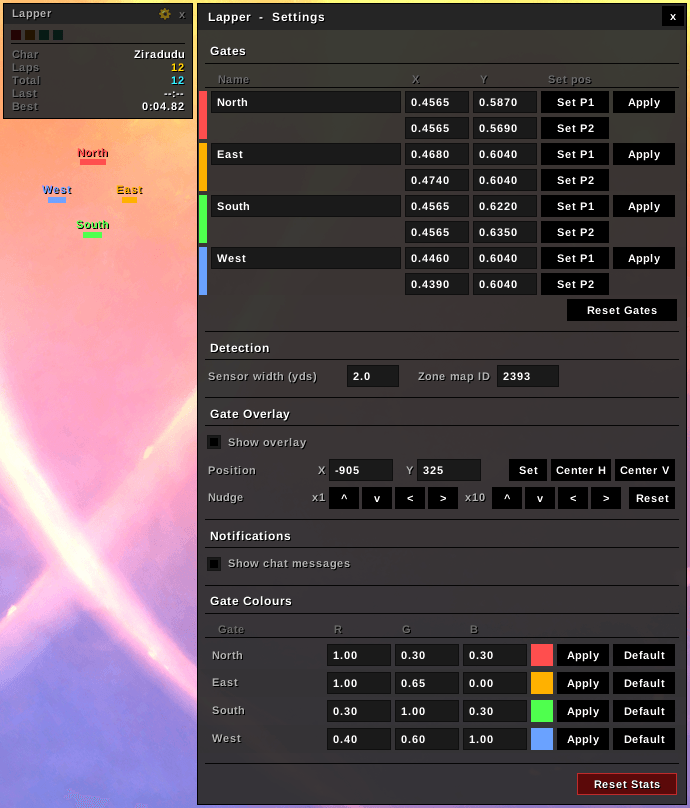
GUI, Settings and Gate Overlay. v2.0 ui
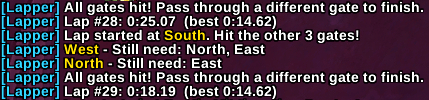
Chat output.
Default Lap.png
Description
Lapper
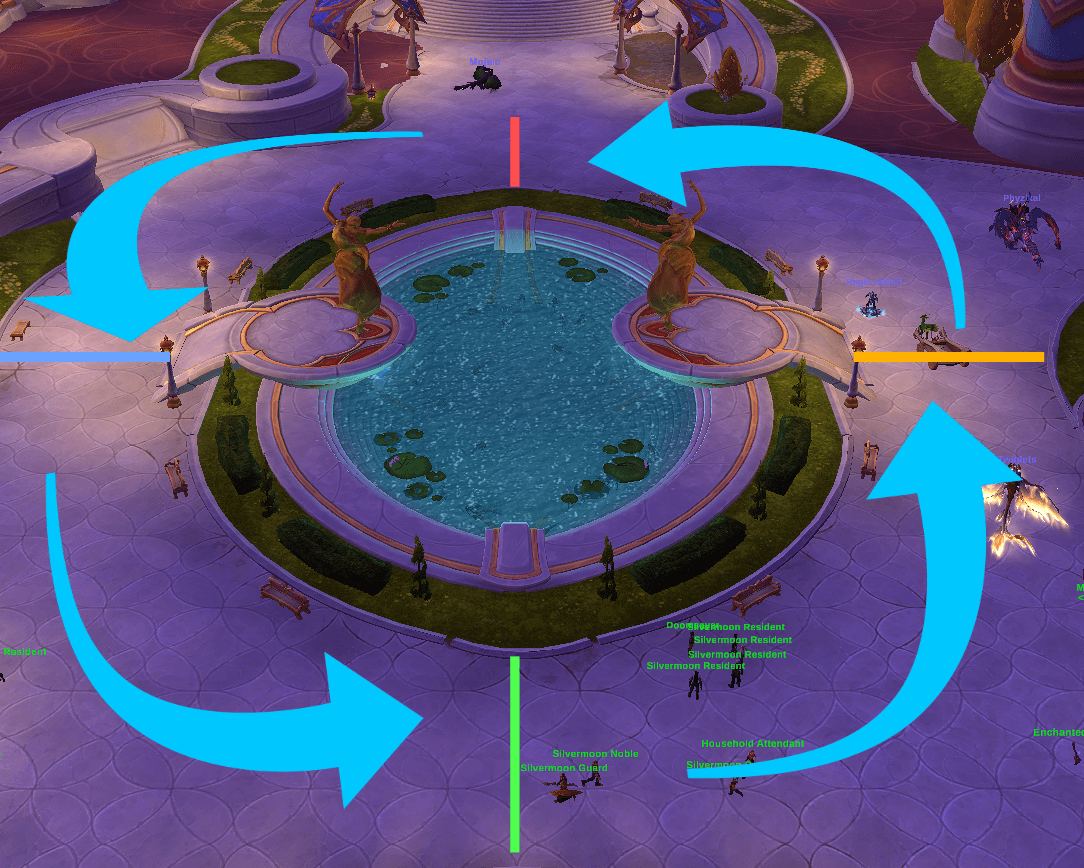
A lightweight lap timer for your WoW hamster wheel. How many times have you circled that pond this expansion? Now you'll know.
What it does
Lapper tracks laps by detecting when your character passes through four configurable gate checkpoints. Hit all four in any order, then pass through a fifth gate crossing to lock in your time. Your best lap and total laps are saved per character and tracked account-wide across all your alts.
The default route is a lap around the small pond in northern Silvermoon City — just load in and start running.
How a lap works
- Cross any gate — lap timer starts
- Cross the remaining 3 gates in any order — all four registered
- Cross any gate (except the last one hit) — lap time is recorded and a new lap begins immediately from that gate
Hitting a gate you've already crossed this lap is silently ignored — no penalty, no reset.
HUD
A small draggable panel appears automatically when you enter the tracked zone.
| Field | Shows |
|---|---|
| Char | Your character name |
| Laps | This character's lap count |
| Total | Account-wide lap total |
| Last | Most recent lap time |
| Best | Personal best time |
Four coloured pips track which gates you've hit this lap. The gear icon opens Settings. The x button closes the HUD (/lap show will reopen it).
Gate Overlay
Coloured bars mark the gate checkpoints directly on your screen. They pulse when active and fade as you hit each gate during a lap, giving you a clear at-a-glance view of your progress.
Drag any bar to reposition all four together. The overlay defaults to screen-centre on first use.
Settings Panel
Open with: /lap settings or the gear icon on the HUD.
Gates
Edit the name and map coordinates (x1/y1 to x2/y2) for each of the 4 gates. Each row has its own Apply button.
Detection
Set the sensor width in yards (how close you need to get to a gate line to trigger it — default: 5) and the Zone Map ID for the zone you want to track.
Gate Overlay
- Show/hide the on-screen gate bars
- Centre them horizontally or vertically
- Nudge position by 1px or 10px
- Reset to default centred position
Gate Colours
Customise the colour of each gate's overlay bar and HUD pip.
- Enter R / G / B values (0.0–1.0)
- Preview appears in the live colour swatch
- Click Apply to save
Each row also includes a Default button to restore the original colour.
Notifications
Toggle whether lap completion and gate progress messages are printed to chat.
Footer
- Reset Gates — restores all gate coordinates to the Silvermoon pond defaults
- Reset Stats — wipes all lap counts and best times for all characters (requires confirmation)
Commands
| Command | Action |
|---|---|
/lap |
Show HUD |
/lap hide |
Hide HUD |
/lap settings |
Open settings panel |
/lap stats |
Print full stats to chat |
/lap reset |
Reset current session (saved counts kept) |
/lap mycount |
Announce your lap count in /say |
/lap acctcount |
Announce account total in /say |
/lap debug |
Print current map position and gate state |
/lap help |
List all commands |
| ¨C16C | Alias for ¨C17C |
Configuration tips
- Use
/lap debugwhile standing in your zone to read your current Map ID. Paste it into the Zone Map ID field in Settings to track any zone. - Gate coordinates are map fractions (0.0–1.0). Use the debug command to read your exact position, then set
x1/y1andx2/y2to define each gate line segment. - The sensor width controls how close you need to get to a gate to trigger it. Increase it if gates aren't registering reliably on fast laps.
- Gate colours are saved account-wide and apply to both the overlay bars and the HUD pips.
Notes
- Supports ElvUI — panel colours, borders, and text shading are automatically derived from your ElvUI theme if it is loaded.
- Lap data survives reloads and relogs. A lap in progress, including which gates you have already hit, is fully restored on login.
- Gate overlay position and HUD position are saved per character.
- Zero CPU overhead outside the tracked zone — the detection ticker is completely disabled until you zone in.
- Coded using Claude.
The Lapper - Lap counter Team