Kayli's Tracked Bars (KTB)
- By
A personal take on Blizzard's tracked buff bars. Stack them up or down, skin every pixel, anchor them to any frame, and control fonts, borders, icons, and colors
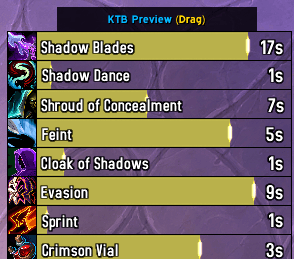
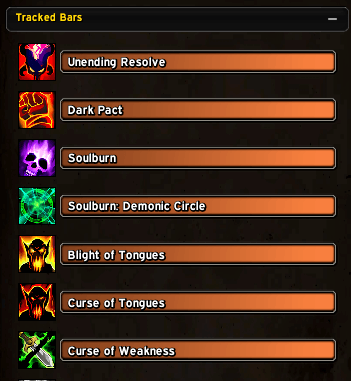
Preview Frame of selected Spells in the Cooldown Manager
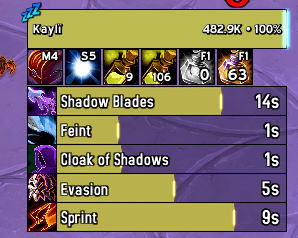
Skinned Active Buff Bars
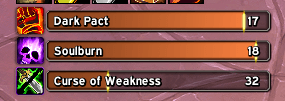
Default Blizzard Buff Bars Collapsed
Description
Kayli's Tracked Bars (KTB)
Kayli's Tracked Bars is a feature-rich, "plug-and-play" utility for World of Warcraft: Midnight. It takes Blizzard's default Cooldown Viewers (Tracked Buff Bars) and gives you complete control — from stacking direction and custom anchoring, to full bar skinning, icon styling, font control, and live preview.
Features
🗂️ Layout & Direction
- Dynamic Stacking: Automatically groups your active tracked buffs into a tightly packed, collapsing list growing either Up or Down.
- No Gaps: When a buff expires, the remaining bars slide into place instantly — no awkward empty spaces.
- Custom Bar Spacing: Fine-tune the pixel gap between each bar with a dedicated slider.
📌 Custom Anchoring
- Anchor to Any Frame: Snap your tracked bars to any named UI frame on screen — unit frames, action bars, nameplates, anything.
- Built-in Frame Picker: An interactive green overlay tool lets you click directly on any UI element to select it as your anchor, complete with scroll-wheel layer cycling to pick frames hidden underneath others.
- Match Frame Width: Optionally stretch your bars to exactly match the width of your anchor frame, with a configurable pixel offset.
- Full Anchor Control: Choose the anchor point, relative point, and X/Y offsets independently.
🎨 Bar Skinning
- Custom Textures: Choose any LibSharedMedia-registered status bar texture, or use Blizzard's built-in ones.
- Custom Colours: Override the bar fill colour, background colour, or let it use your class colour automatically.
- Bar Size Control: Set a fixed height and/or width for every bar, or leave at 0 to use native sizing.
- Borders: Add a fully configurable border overlay to your bars — choose the texture, size, and colour.
- Spark/Pip Scale: Scale the Blizzard progress spark independently of the bar.
- Spark/Pip Hide/Show: Hide or show the Blizzard progress spark.
- Live Preview Panel: A draggable preview window shows your actual tracked spells with animated fake timers so you can see skinning changes in real time without being in combat.
🔷 Icon Styling
- Show/Hide Icon: Toggle the buff icon on or off.
- Square Crop: Remove Blizzard's rounded mask for a clean sharp-edged icon.
- Custom Icon Size: Set a fixed width and height, or keep it native.
- Icon Offset & Gap: Precisely position the icon relative to the bar.
- Icon Border: Full border control — texture, size, and colour — independent of the bar border.
🔤 Text / Font Control
- Spell Name Font: Override the font, size, and outline style of the spell name label.
- Timer Font: Override the font, size, and outline style of the countdown timer.
- Text Colours: Set custom RGBA colours for both name and timer text.
- Text Shadow: Toggle the drop shadow on each font string independently.
- Text Offset: Nudge the name and timer text by X/Y pixels.
- Time Suffix: Optionally append
sormto the timer (e.g.12s,2m). - Slug Outline: Blizzard Slug outline is enabled by default for higher quality outlines when Outline is selected (can be disabled)
🖥️ Edit Mode Integration
- Seamlessly hooks into Blizzard's native Edit Mode — an "KTB Options" button appears in the settings popup whenever you select a Tracked Bars frame.
🛡️ Quality of Life
- Conflict Detection: If another addon fights KTB for bar position control, a popup warns you and offers to disable the conflicting addon automatically.
- Per-tab Reset: Each settings tab has its own "Reset to Defaults" button.
- Full Reset: A global "Reset All to Defaults" button resets every setting at once.
- ElvUI Skinning: The options window is automatically skinned to match ElvUI if it is installed.
- EllesmereUI Skinning: The options window is automatically skinned to match EllesmereUI if it is installed.
⌨️ Slash Commands
| Command | Action |
|---|---|
/ktb or /stbd |
Toggle the options window |
/ktb sf |
Open the Frame Picker immediately (close Edit Mode first) |
/ktb skin |
Open directly on the Skinning tab |
/ktb text |
Open directly on the Text tab |
🔧 How to Use
Change the Growth Direction
- Open your Game Menu (Esc) → Edit Mode.
- Click on any Tracked Bars frame.
- Click the "KTB Options" button in the popup.
- Use the Direction dropdown to pick Up or Down.
Anchor to a Custom Frame
- Type
/ktbto open the options window. - Go to the Global Settings tab.
- Enable Custom Anchoring and type in the name of the frame you want the Bars anchored to.
- Or Click "Select Frame" — (Does not work in Edit Mode), then use the green picker to click any UI frame.
- Adjust the anchor point, offsets, and optionally enable Match Frame Width.
⚠️ Notes
- The Frame Picker cannot be used while Edit Mode is open (Blizzard's secure execution prevents it). Type
/ktb sfafter closing Edit Mode to jump straight into picking. - Custom Skinning requires a UI reload to enable or disable cleanly, as Blizzard's frame pool caches frame states.
Please report bugs in the comments
Author: Kaylï — EU Draenor
Kayli's Tracked Bars (KTB) Team