Interface AutoFade
- By
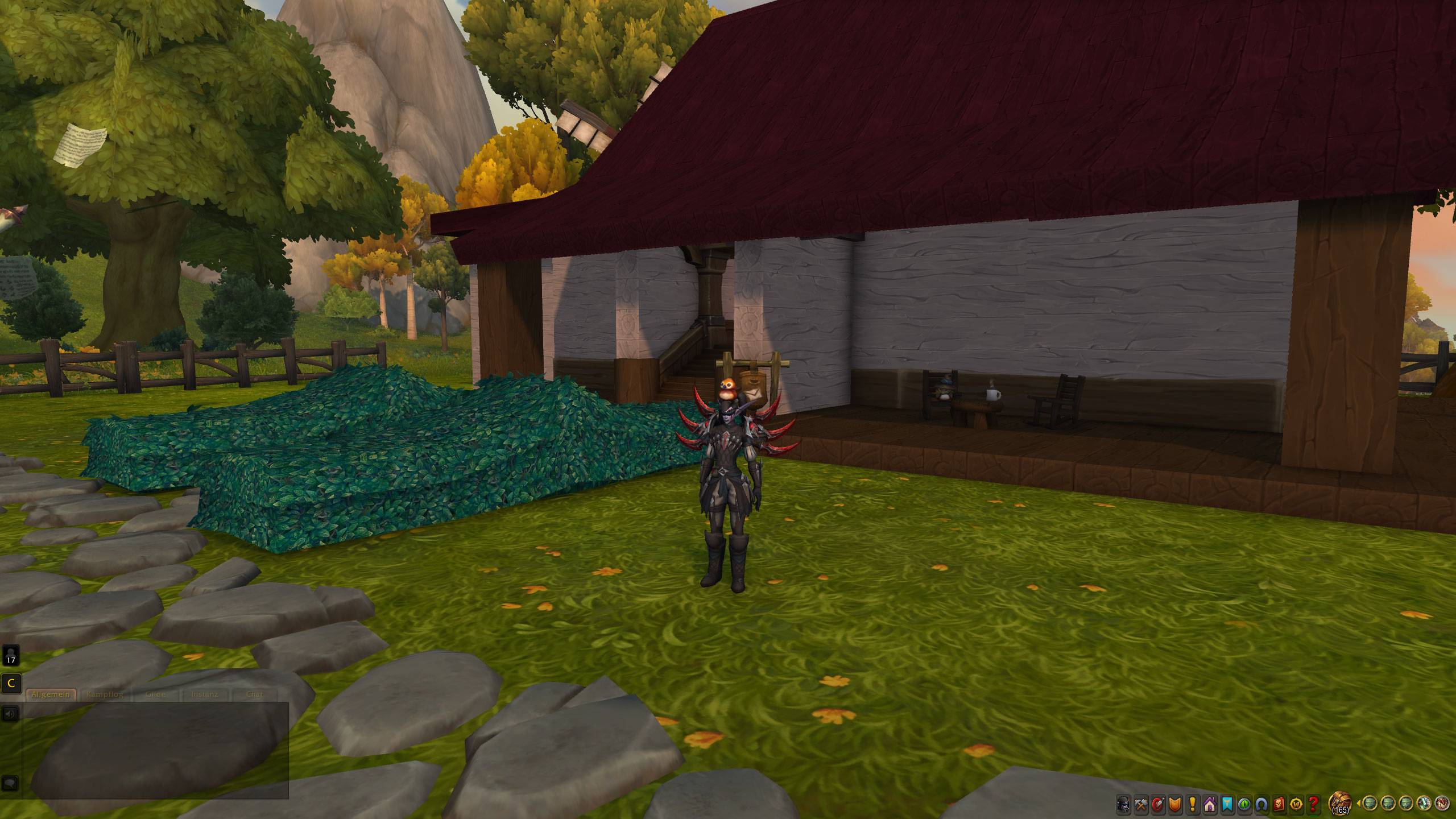
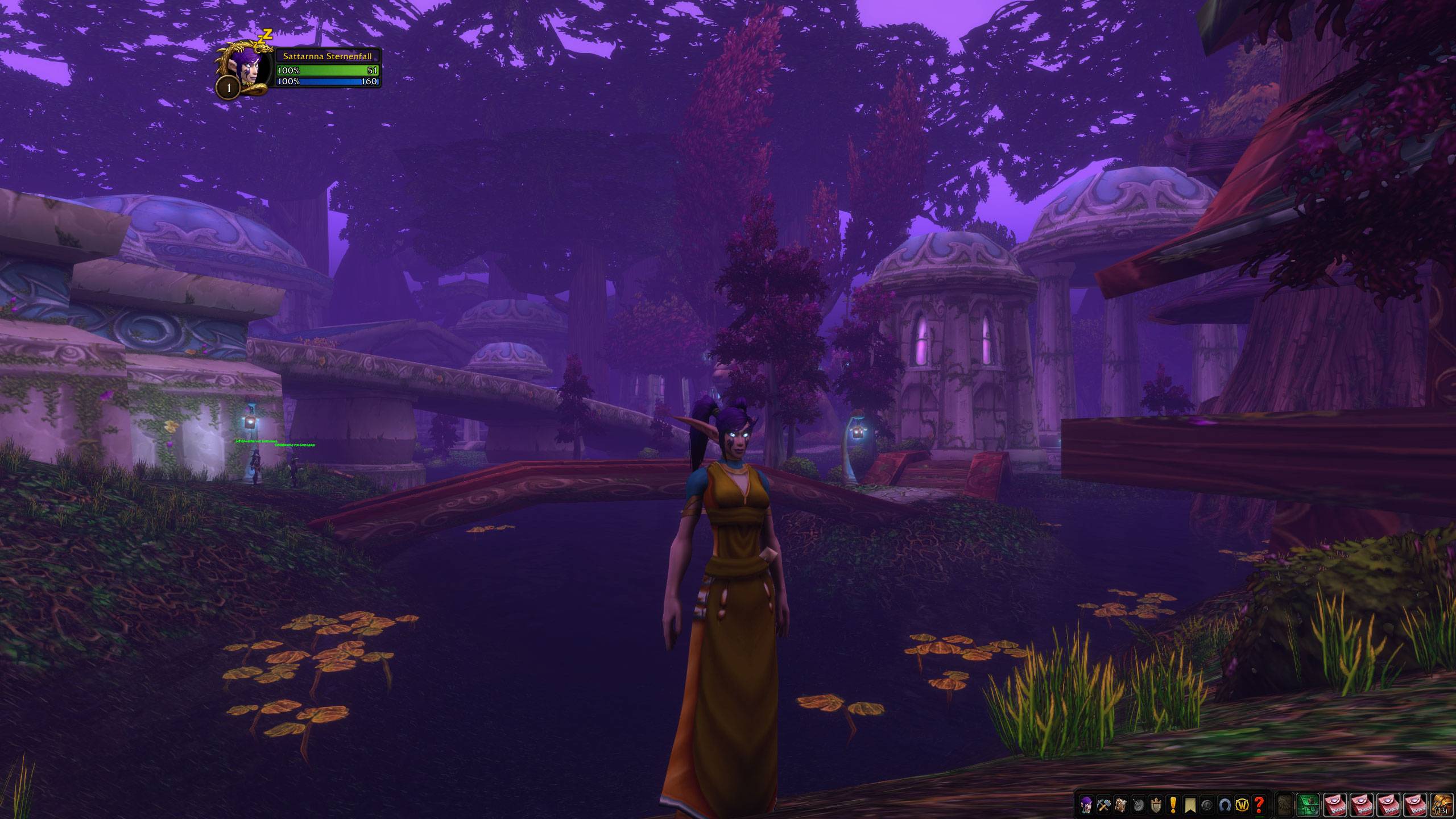
Declutters your screen in rest areas, the open world and housing: the interface fades out when you stand still and returns the moment you move.
WoWScrnShot_111926_170026.jpg
WoWScrnShot_111926_205604.jpg
Description
Interface AutoFade
Declutters your screen in rest areas, the open world and housing: the interface fades out when you stand still and returns the moment you move.
One addon for WoW Retail and WoW Forever. It detects your client by itself.
How it works
You stand still, and the screen is clear. You start to move, and your interface fades back in. You enter combat, and everything is fully visible.
Every place has its own mode with its own settings. All modes are off until you switch them on.
| Mode | Where it applies | Client |
|---|---|---|
| Chill Mode in Rest Areas | Rest areas such as cities and inns, outside of instances | Retail and Forever |
| Open World | Outside of rest areas and outside of instances | Retail and Forever |
| Housing | Housing neighborhoods and inside houses | Retail only |
In dungeons, raids, battlegrounds and other instances the Chill and Open World modes do not apply, so the interface stays as it is.
Settings of every mode
- Show on Mouse Hover: Shows a faded element while the mouse is over it.
- Transparency: How visible the elements are while you move, from 0 to 100 percent.
- Move Duration until Fade In: How long you move before the interface fades in, from instantly to 10 seconds.
- Fade Out After: How long you stand still before it fades out, from 5 to 180 seconds in steps of 5.
- Chat Visible For: How long the chat stays visible after a new message, after you close the chat input and after the mouse left the chat, from 5 to 180 seconds in steps of 5.
- Always visible at 100%: Elements that never fade in this mode. You can keep any of these visible: Chat, Minimap, Quest / Objectives, Micro Menu, Bags, Action Bars, Unit Frames, Buffs / Debuffs, Reputation Bar and Damage Meter. In the Housing mode of Retail there is also the Housing Build Menu.
What fades
Action bars (also the stance bar and the pet bar), micro menu, bags, minimap (also markers such as the player arrow, and the expansion button), buffs and debuffs, player, target, focus and party frames, quest tracker, reputation and experience bar, damage meter, Quick Join button, chat, and in Retail the housing build menu at the top of the screen.
Chat
- All chat tabs fade, also whisper tabs and the tab of a Battle.net conversation.
- A tab that you drag out of the chat window fades together with its window.
- A new message shows the chat for the time you set. This covers Say, Yell, Emote, whispers, Battle.net whispers, Party, Raid, Guild, Officer, channels and instance chat.
- While the chat input is open, the chat stays visible. Pressing Enter is enough. After you close the input, the chat stays visible for the time you set.
Show on Mouse Hover
Switch it on for a mode, and any faded element shows while the mouse is over it. The rest stays faded. This helps when you look for a spell on your action bars, check the quest tracker or read the chat. The chat stays visible for the time you set after the mouse left it. The option is off by default.
Settings window
Open it with /autofade or with a click on the minimap button. You can drag the minimap button along the minimap border. It sits on the minimap and fades with it, so point the mouse at the minimap to show it. The window is available in English and German.
Interface AutoFade
Blendet dein Interface in Ruhezonen, in der offenen Welt und im Housing aus, wenn du stillstehst, und bringt es zurück, sobald du dich bewegst.
Ein Addon für WoW Retail und WoW Forever. Es erkennt deinen Client selbst.
So funktioniert es
Du stehst still, und der Bildschirm ist frei. Du läufst los, und dein Interface blendet wieder ein. Du gehst in den Kampf, und alles ist voll sichtbar.
Jeder Ort hat einen eigenen Modus mit eigenen Einstellungen. Alle Modi sind aus, bis du sie einschaltest.
| Modus | Gilt | Client |
|---|---|---|
| Chillmodus in Ruhezonen | In Ruhezonen wie Städten und Gasthäusern, außerhalb von Instanzen | Retail und Forever |
| Offene Welt | Außerhalb von Ruhezonen und außerhalb von Instanzen | Retail und Forever |
| Housing | In Housing-Nachbarschaften und in Häusern | Nur Retail |
In Dungeons, Raids, Schlachtfeldern und anderen Instanzen gelten Chillmodus und Offene Welt nicht, das Interface bleibt dort, wie es ist.
Einstellungen jedes Modus
- Beim Hovern einblenden: Blendet ein ausgeblendetes Element ein, solange die Maus darüber ist.
- Transparenz: Wie sichtbar die Elemente beim Laufen sind, von 0 bis 100 Prozent.
- Bewegdauer bis Einblenden: Wie lange du läufst, bevor das Interface einblendet, von sofort bis 10 Sekunden.
- Ausblenden nach: Wie lange du stillstehst, bevor es ausblendet, von 5 bis 180 Sekunden in Schritten von 5.
- Chat eingeblendet für: Wie lange der Chat nach einer neuen Nachricht, nach dem Schließen der Chat-Eingabe und nachdem die Maus den Chat verlassen hat sichtbar bleibt, von 5 bis 180 Sekunden in Schritten von 5.
- Immer bei 100% sichtbar: Elemente, die in diesem Modus nie ausblenden. Du kannst jedes davon sichtbar lassen: Chat, Minimap, Quest / Ziele, Mikromenü, Taschen, Aktionsleisten, HP-Anzeigen, Buffs / Debuffs, Rufbar und Schadensanzeige. Im Housing-Modus von Retail kommt das Housing-Baumenü dazu.
Was ausgeblendet wird
Aktionsleisten (auch die Haltungsleiste und die Begleiterleiste), Mikromenü, Taschen, Minimap (auch Markierungen wie der Spielerpfeil, und der Erweiterungs-Button), Buffs und Debuffs, Spieler-, Ziel-, Fokus- und Gruppenfenster, Questverfolgung, Ruf- und Erfahrungsleiste, Schadensanzeige, Schnellbeitritt-Button, Chat und in Retail das Housing-Baumenü oben am Bildschirm.
Chat
- Alle Chat-Tabs blenden aus, auch Flüster-Tabs und der Tab einer Battle.net-Unterhaltung.
- Ein Tab, den du aus dem Chatfenster herausziehst, blendet zusammen mit seinem Fenster aus.
- Eine neue Nachricht blendet den Chat für die eingestellte Zeit ein. Das gilt für Sagen, Schreien, Emotes, Flüstern, Battle.net-Flüstern, Gruppe, Schlachtzug, Gilde, Offiziere, Kanäle und Instanzchat.
- Solange die Chat-Eingabe offen ist, bleibt der Chat sichtbar. Enter drücken reicht. Nach dem Schließen der Eingabe bleibt der Chat für die eingestellte Zeit sichtbar.
Beim Hovern einblenden
Schalte die Option für einen Modus ein, und jedes ausgeblendete Element erscheint, solange die Maus darüber ist. Der Rest bleibt ausgeblendet. Das hilft, wenn du einen Zauber auf den Aktionsleisten suchst, die Questverfolgung prüfst oder den Chat liest. Nachdem die Maus den Chat verlassen hat, bleibt er für die eingestellte Zeit sichtbar. Die Option ist standardmäßig aus.
Einstellungsfenster
Du öffnest es mit /autofade oder mit einem Klick auf den Minimap-Button. Den Minimap-Button kannst du am Rand der Minimap verschieben. Er sitzt auf der Minimap und blendet mit ihr aus, fahr also mit der Maus über die Minimap, um ihn einzublenden. Das Fenster gibt es auf Deutsch und Englisch.
Interface AutoFade Team