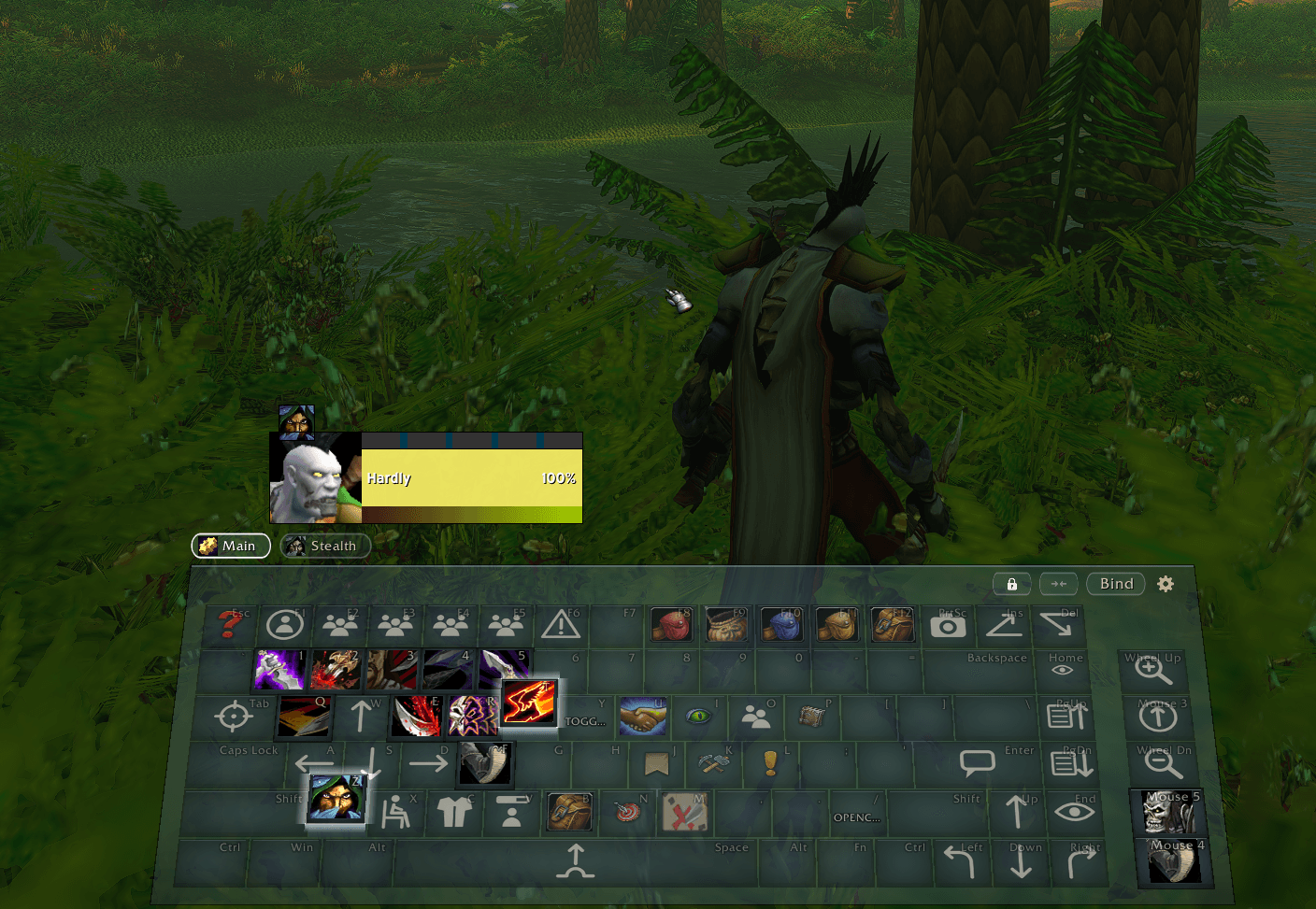
75% on a Generic Keyboard
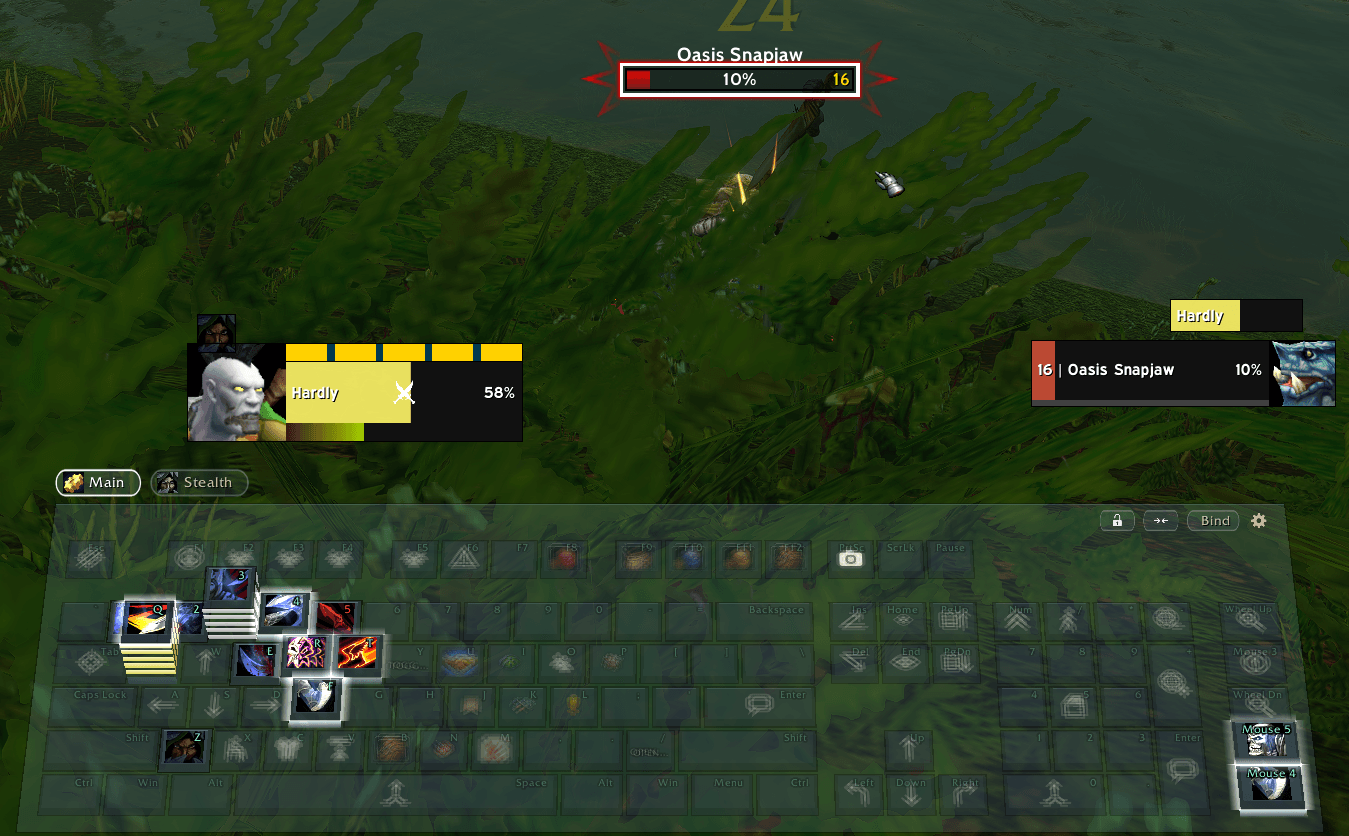
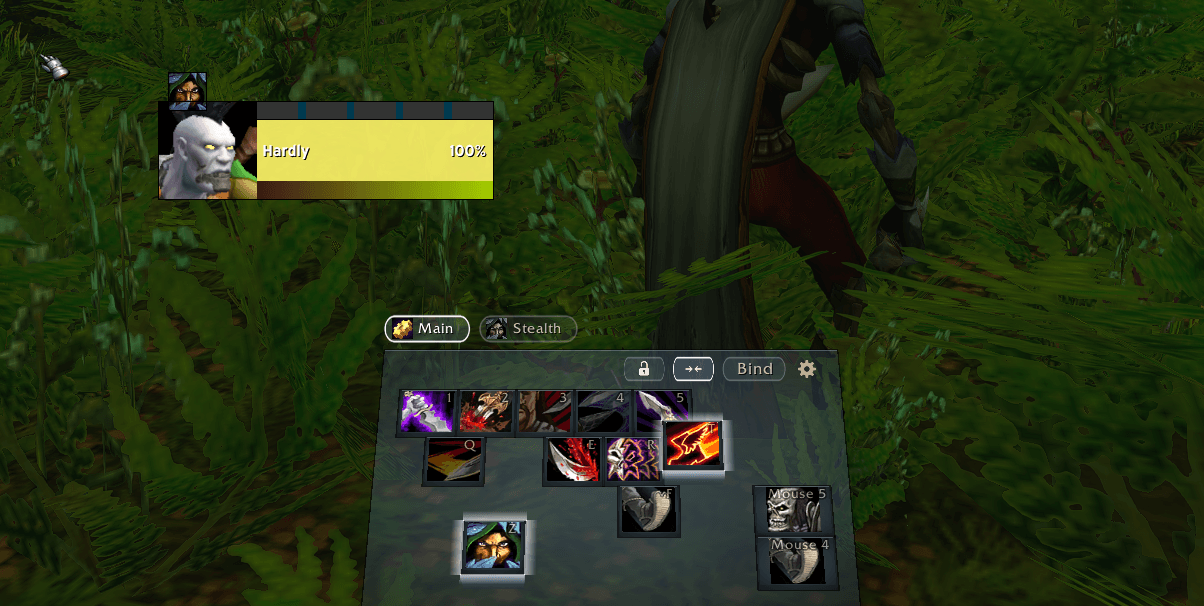
Compact layout
Description
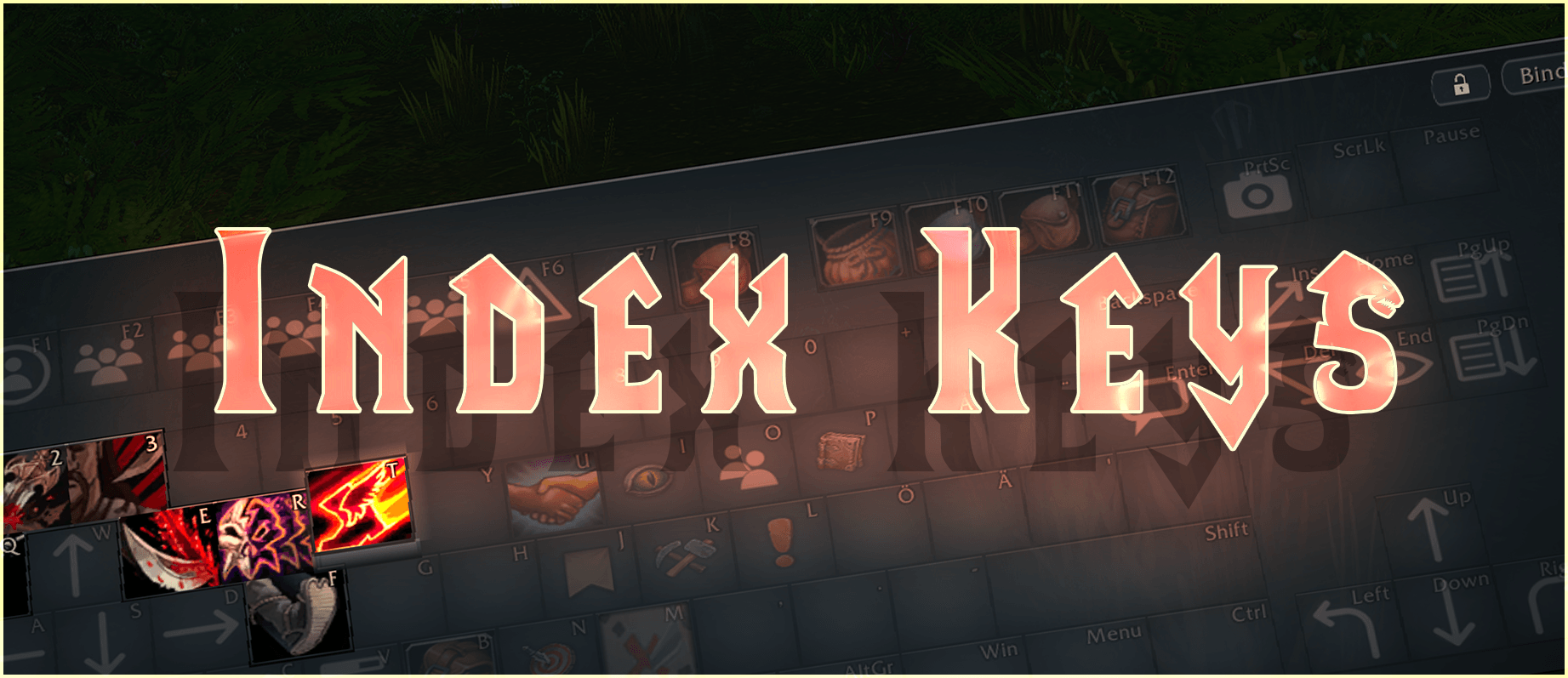
I always arrange my action bar to how the keys are on the keyboard, and so I made Index Keys that puts your keyboard on screen. Every key shows the spell, item or command you have bound to it, so you can see all your skill the way you would use them IRL. The keys have the same features as the action bars, with cooldowns, procs and range on the keys themselves.
This add-on is made for WoW Forever.
Your keyboard, key for key
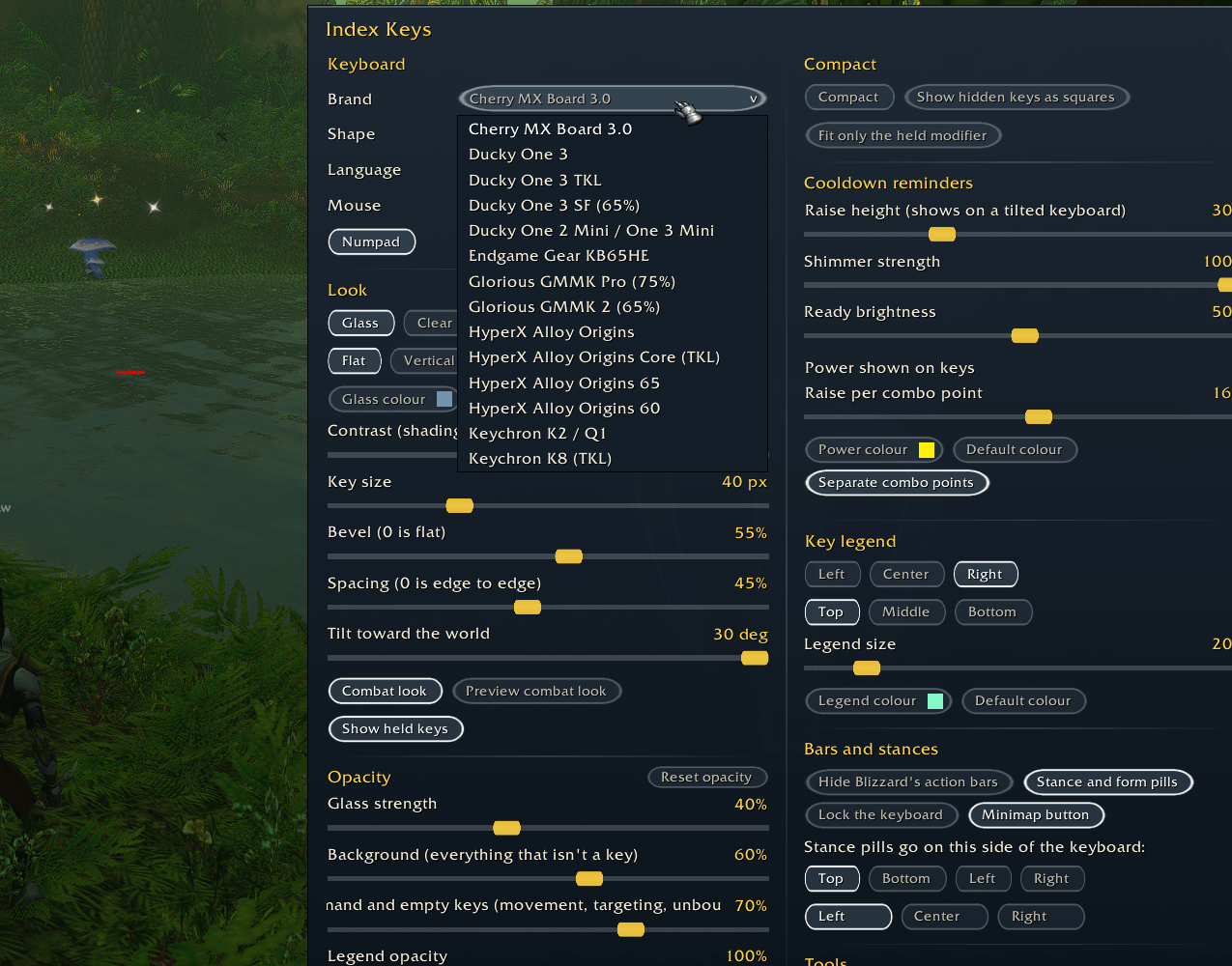
Index Keys draws your keyboard with every key at its correct size. You can pick the shape (full size, tenkeyless, 75%, 65% or 60%), the language of your keyboard and, if you have one, the brand of your keyboard. A little mouse block shows your wheel and mouse buttons, with layouts for MMO mice (mouses?, meese?) with 12 or 20 side buttons.
When you hold Shift, Ctrl or Alt, the keyboard shifts and shows what each key does with that modifier. When you press a key, the key on screen gets visibly pressed.
Action bars on your keys
You can click a key on screen to use it, the same as pressing it. Each key shows the global cooldown, cooldown timers, charges, loss of control, range, mana, proc glows, the auto attack flash, equipped items, stack counts and macro names. If you want, Index Keys can hide Blizzard's action bars.
Separate from Blizzard's action bars
Index Keys has its own key binds, separate from Blizzard's action bars. When you put a spell, item or macro on a key, Index Keys is the only place it is bound and doesn't take up a slot on your action bar. You can still use Blizzard's bars next to Index Keys if you like (but don't cross keybinds)
A key that's bound to a button on a Blizzard action bar is tied to that bar and cant have a unique binding in Index Keys. The key does whatever is on that button, and when the blizzard bar changes (Shift and the mouse wheel does that by default) or something on the button changes, the key changes with it, in Index Keys as well.
That's why I recommend unbinding all your action bar keys, and added button for it: Unbind action bar keys in the options. Every key on your keyboard first keeps what it does now, stance keys included, but it clears all the keybinds to the Blizzard action bars. You have to click it twice within 5 secs to confirm. This way Index Keys can be separate from the Blizzard bars.
Combat
You can mark keys as Combat active. When combat starts, those keys stay sharp and every other key keeps its keycap while its icon sinks into the glass and blurs. You still see your whole keyboard, and the keys you need stand out. You can preview the combat look out of combat, or turn the combat look off completely.
Cooldown reminders
You can give any key a cooldown reminder. When the key's spell or skill is ready to use, the key rises out of the board like a mole in whack-a-mole, its outline shimmers and its icon gets brighter. Ready means off cooldown or usable right now. It can mean walking into range of a mob or getting enough combo points. For example, a rogue's Eviscerate key rises once you have the combo points, the energy and a target in reach, and the Ambush key only rises while you're in stealth. The reminder can run all the time, or only while you're in combat. On a flat keyboard that isn't tilted the key shimmers and brightens, and on a tilted keyboard you also see the key rise. You set how high the key rises, how strong the shimmer is and how much brighter the icon gets.
Stances and forms
If your class has stances or forms, a pill for each one is beside the keyboard, on the side you choose. Any key can do something different in each stance or form. A rogue's Q can open with Cheap Shot in Stealth and use Sinister Strike when not stealthed, and a druid's keys can change with Cat Form and Bear Form. Out of combat you click a stance pill to see and set that stance's keys, and when combat starts the keyboard goes back to the stance you're in. So its not just the stealth bar you get normally.
Setting your keys
You turn on the Bind pill in the keyboard's top right corner and click any key to open the picker. If you hold Shift, Ctrl or Alt as you click, you set what the key does with that modifier. The picker has tabs for your spells, professions, items, macros, mounts, game commands and the buttons of your other add-ons. You can also drag a spell from your spellbook or an item from your bags onto a key.
The spells, items and macros you put on your keys need Index Keys running. Game commands you set, like the map or the spellbook, go into the game's own key bindings, so those keep working if you ever turn the add-on off.
Each talent group keeps its own keys, and you can share chosen keys with all your characters. Export and import save your whole setup as text.
Make it look the way you want
You can choose tinted or clear glass, the glass colour, the shading, the bevel, the space between keys and the key size. You can tilt the keyboard back toward the game world by up to 30 degrees for a 3D look. You decide where the key's letter sits on each key, how big the letter is and how see-through the letter is. You can also make the whole keyboard fainter out of combat, and the keyboard comes back to normal when combat starts.
Commands
/ikopens the options. The cog in the keyboard's top right corner and the Index Keys button on the minimap do the same./ik locklocks the keyboard in place. The lock pill in the keyboard's top right corner does the same./ik learnteaches a drawn key the key name your keyboard sends. You use it for other keyboard languages, G-keys and mouse buttons./ik testprints the name and binding of every key you press./ik exportand/ik importsave and load your setup as text.
Good to know
- You can set keys out of combat only because the game doesn't let add-ons change key bindings during combat.
- Movement keys, jump and targeting keys work when you press them on your keyboard. Clicking those keys on screen does nothing, because the game can only use them from a key press.
Index Keys Team